

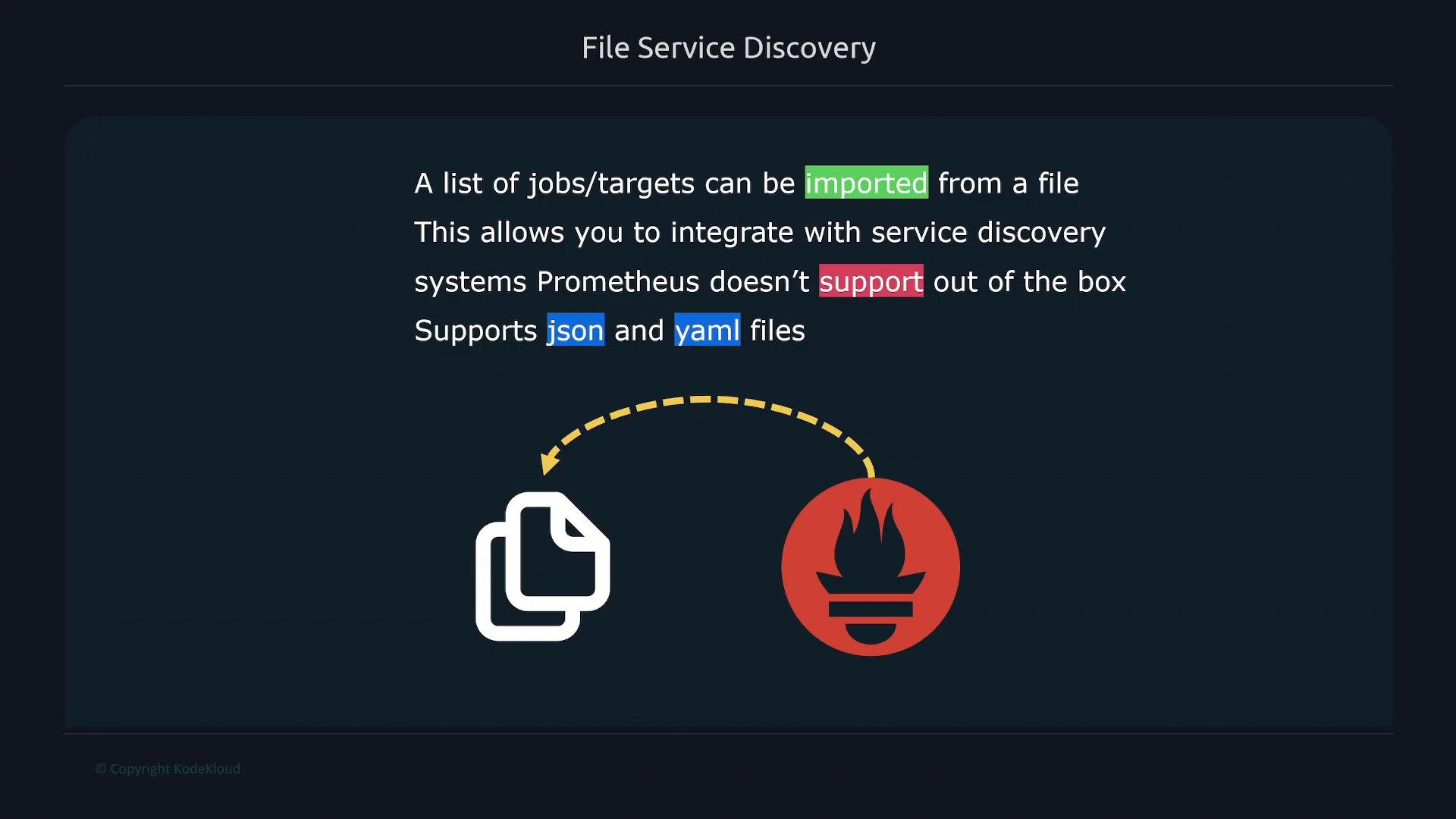
How to configure file SD
Add afile_sd_configs entry under a job in your main prometheus.yml. Under files: list one or more filenames — you can use glob patterns (for example, *.json or file-*.y*ml) to import multiple files.
Example prometheus.yml snippet:
File format and example
Each element in the file represents a group of targets and the labels to attach to them. Targets are host:port strings and labels are key/value pairs you normally use to identify and filter targets (for examplejob, team, env).
Example JSON file: file-sd.json
Fields reference
Example: how these show up in Prometheus
After Prometheus loads the file, the targets appear in Status → Targets (or the service discovery UI). The status column reports the current scrape state (UP, DOWN, UNKNOWN). If a target is unreachable or hasn’t been scraped yet, you may seeUNKNOWN or DOWN; once reachable and successfully scraped it will show UP.
Example status output:
Best practices and tips
- Use a consistent
joblabel to identify groups of similar targets. - Generate files from your automation/orchestration tools (CI, Ansible, Terraform, Kubernetes jobs, etc.) and write them atomically (write to a temp file and move) to avoid partial reads.
- Use glob patterns to split targets across multiple files (e.g., one file per environment or per service).
- Ensure the Prometheus process user can read the files and that they contain valid JSON or YAML.
- Prefer labels for metadata (team, environment, role) rather than embedding meaning in hostnames.
File SD is a simple, flexible way to bring in targets that originate from systems Prometheus doesn’t natively discover. You can generate these JSON/YAML files from automation tooling or orchestration systems and let Prometheus consume them without custom SD integrations.
Links and references
- Prometheus file SD documentation: https://prometheus.io/docs/prometheus/latest/configuration/configuration/#file_sd_config
- Prometheus configuration documentation: https://prometheus.io/docs/prometheus/latest/configuration/