

Why Cache Dependencies? Workflow Performance without Caching
Without caching, each job installs dependencies from scratch, adding significant overhead. For example, our previous workflow (~59 s total):
- Setup Node.js: ~20 s
- npm install: ~15 s
How Caching Works in GitHub Actions
GitHub Actions provides the actions/cache action to store and restore files between workflow runs.- key: Unique cache identifier (often includes OS & file hash).
- path: Directories or files to cache.
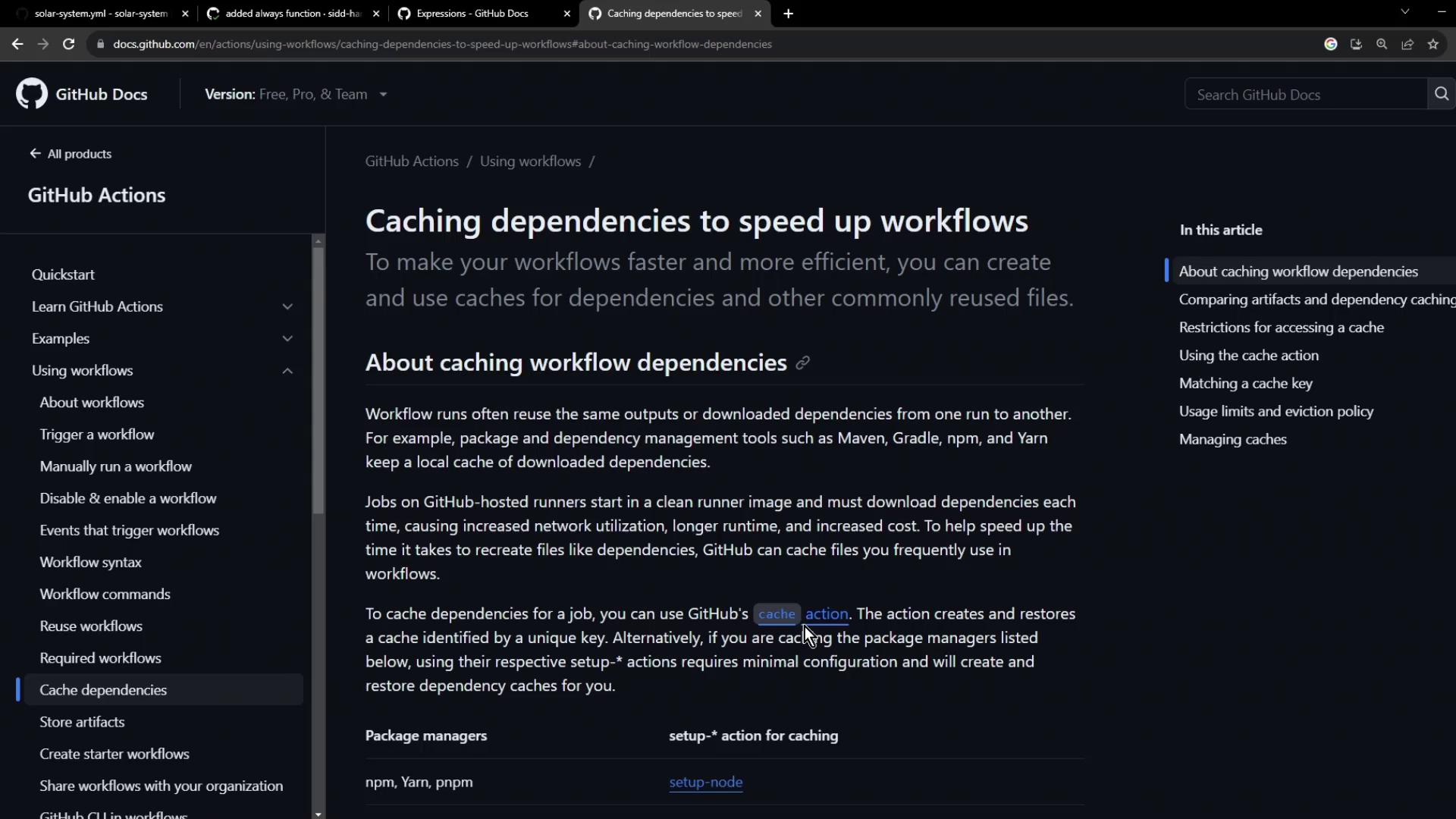
Use a strong cache key (e.g.,
${{ runner.os }}-deps-${{ hashFiles('package-lock.json') }}) to invalidate the cache automatically when dependencies change.Prerequisites and Inputs
Ensure you have:- A lockfile (
package-lock.jsonoryarn.lock) at the repo root. actions/cache@v3available in your workflow.
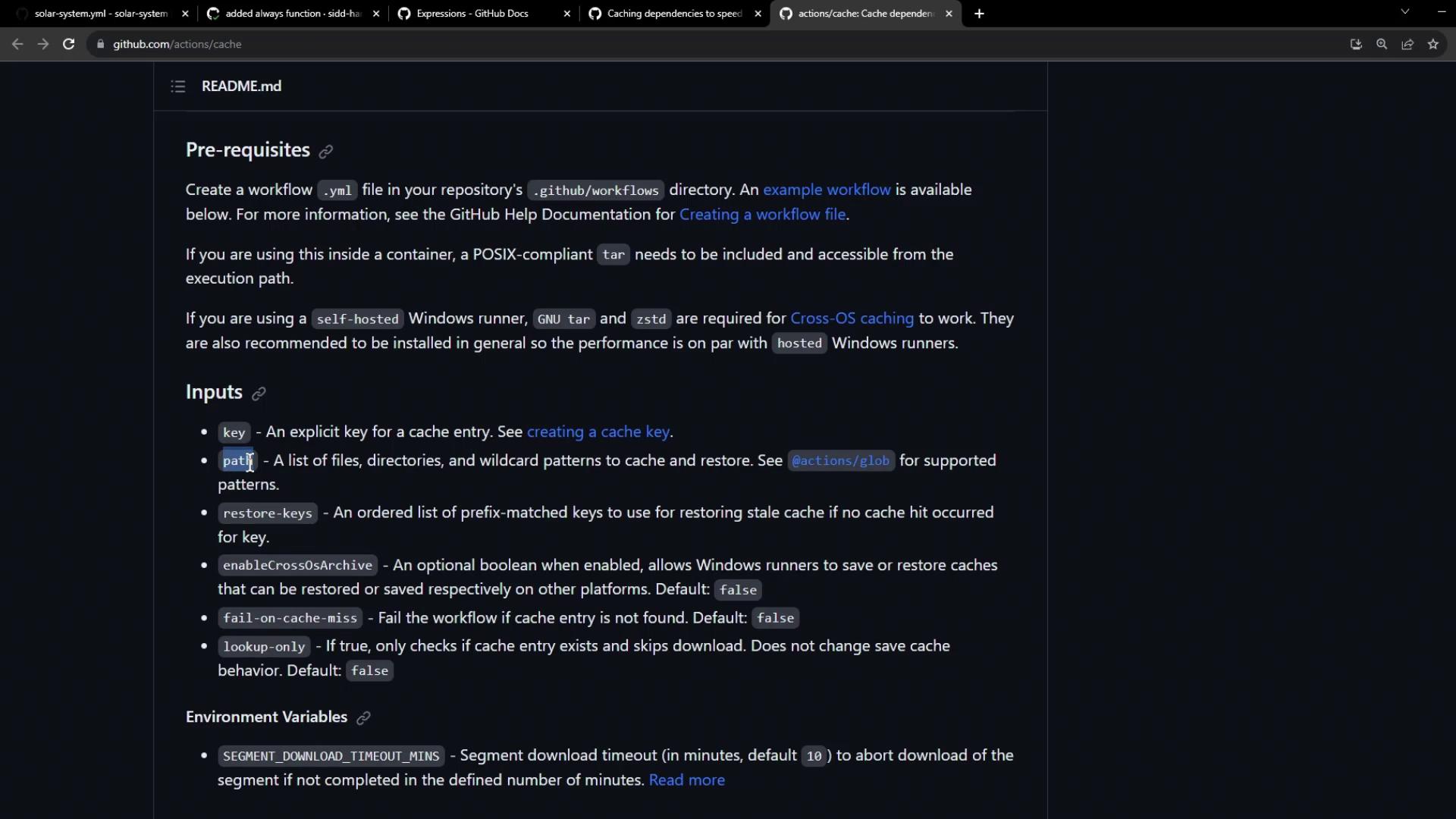
Implementing Caching in Your Workflow
Add cache steps beforenpm install in both unit-testing and code-coverage jobs. We use ${{ runner.os }}-node-modules-${{ hashFiles('package-lock.json') }} as the key.
Unit Testing Job with Cache
- path:
node_modulesdirectory. - key: Includes OS and lockfile hash for automatic invalidation.
Code Coverage Job with Cache
Verifying Cache Effectiveness
On the first run, cache miss: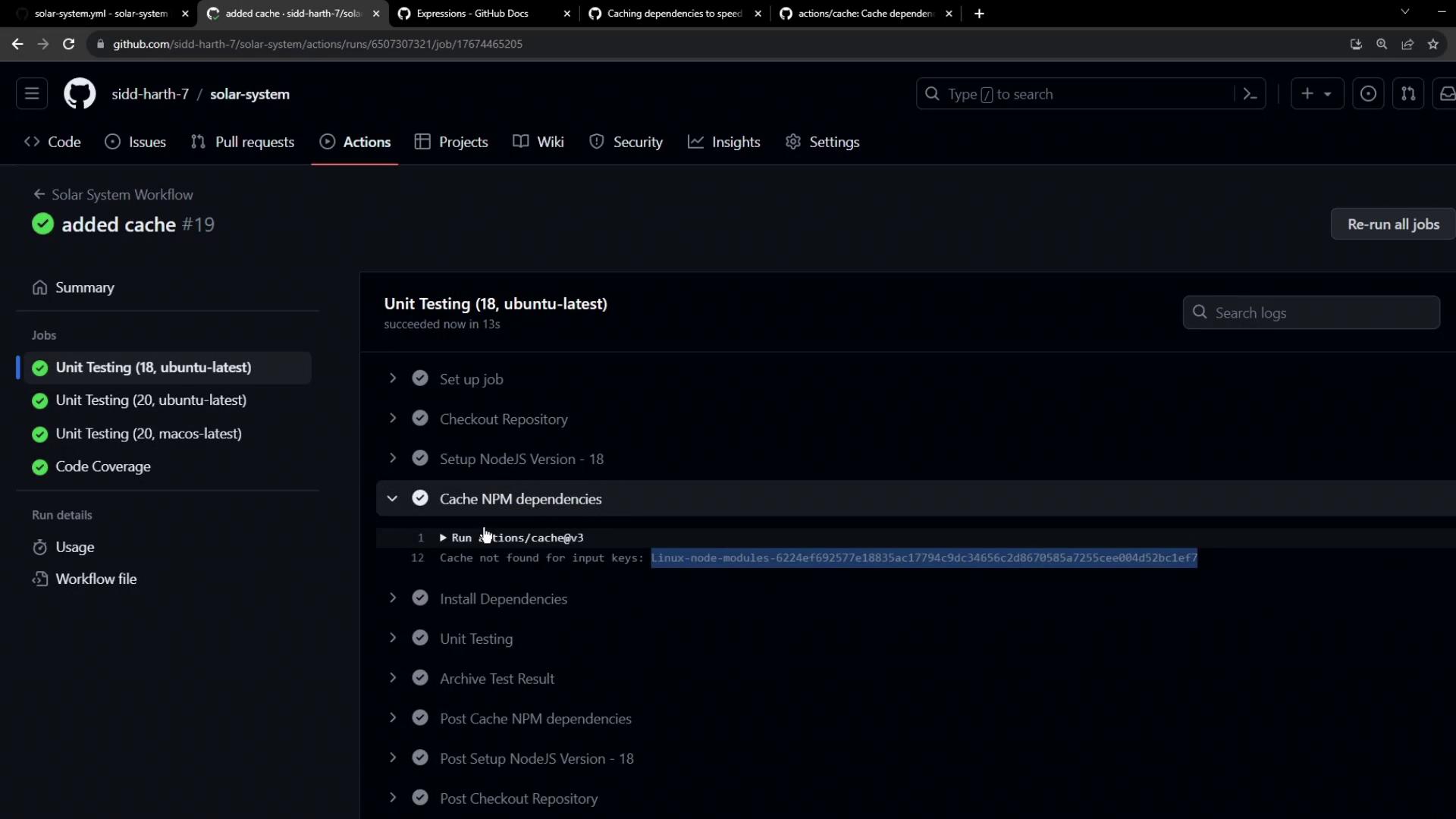
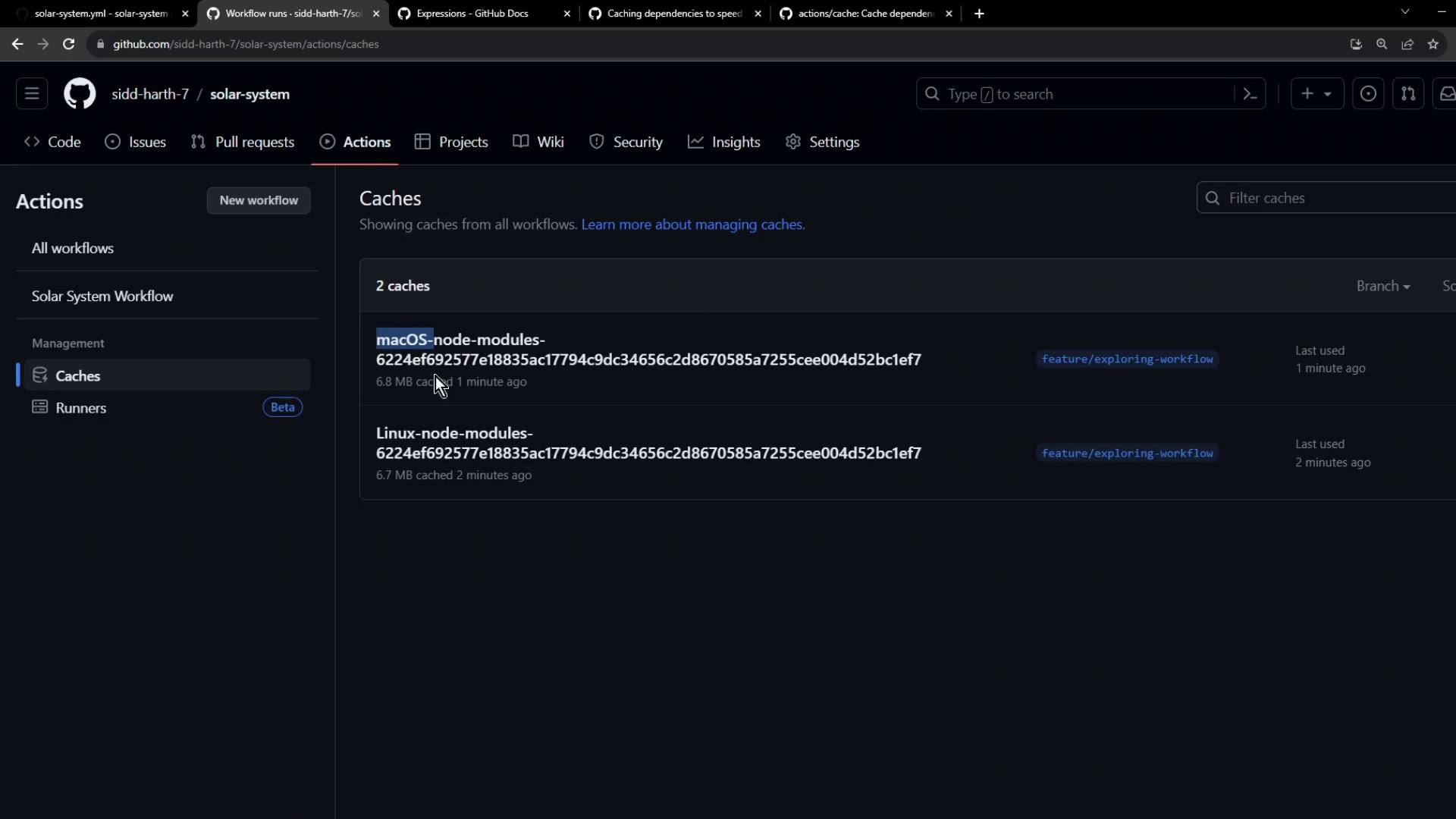
npm install to ~1 s:
Next Steps: Invalidate Cache on Dependency Changes
To test cache invalidation, update yourpackage.json dependencies and re-run the workflow. The hash changes, creating a fresh cache.
Avoid overly broad cache paths to prevent storing unwanted files. Restrict the
path to necessary directories only.