

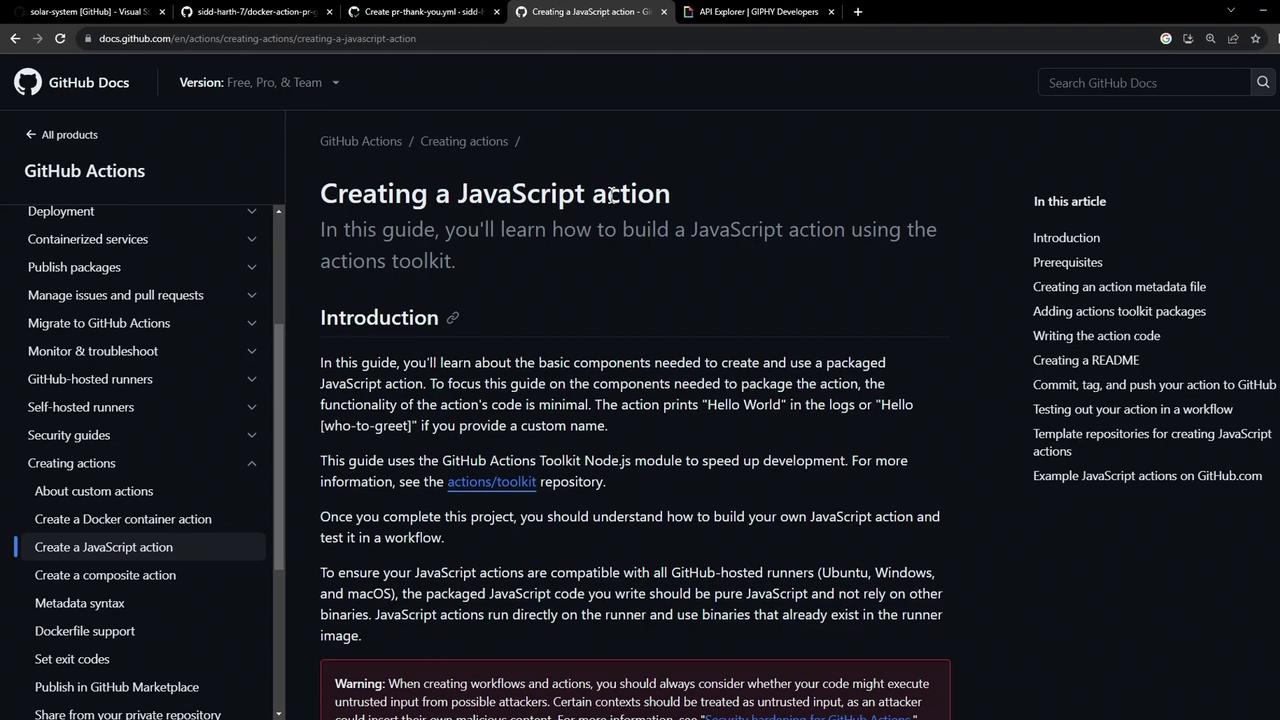
Prerequisites
Before you begin, verify that you have the following: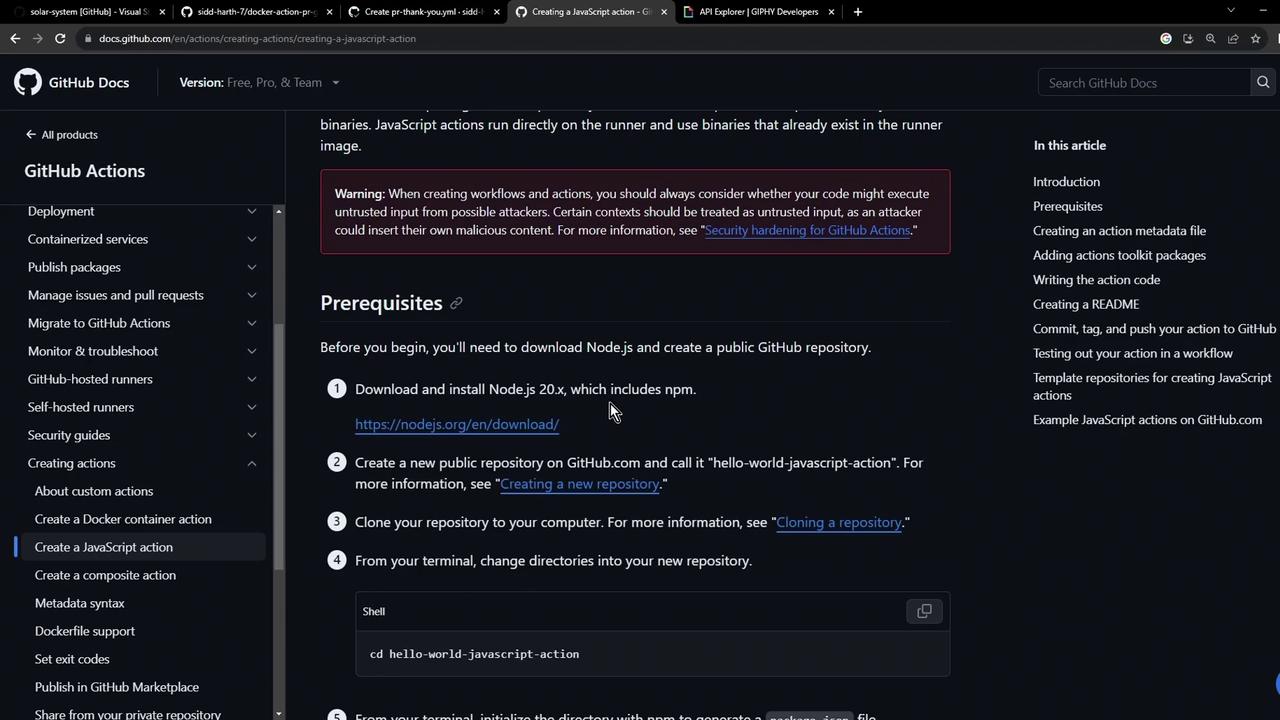
1. Project Setup
Create a fresh directory and initialize npm. This scaffolds your package and creates essential files:2. Define Action Metadata
Theaction.yml file tells GitHub how to run your action. Specify inputs and the entrypoint:
The
Be sure to store your
github-token input is usually provided via ${{ secrets.GITHUB_TOKEN }}.Be sure to store your
giphy-api-key in GitHub Secrets to keep it secure.3. Install Dependencies
Install the GitHub Actions Toolkit and Giphy client:
Check your
package.json to confirm these are listed under dependencies.
4. Write the Action Code
Inindex.js, import the necessary modules, fetch a random “thank you” GIF, and post it as a comment on the pull request:
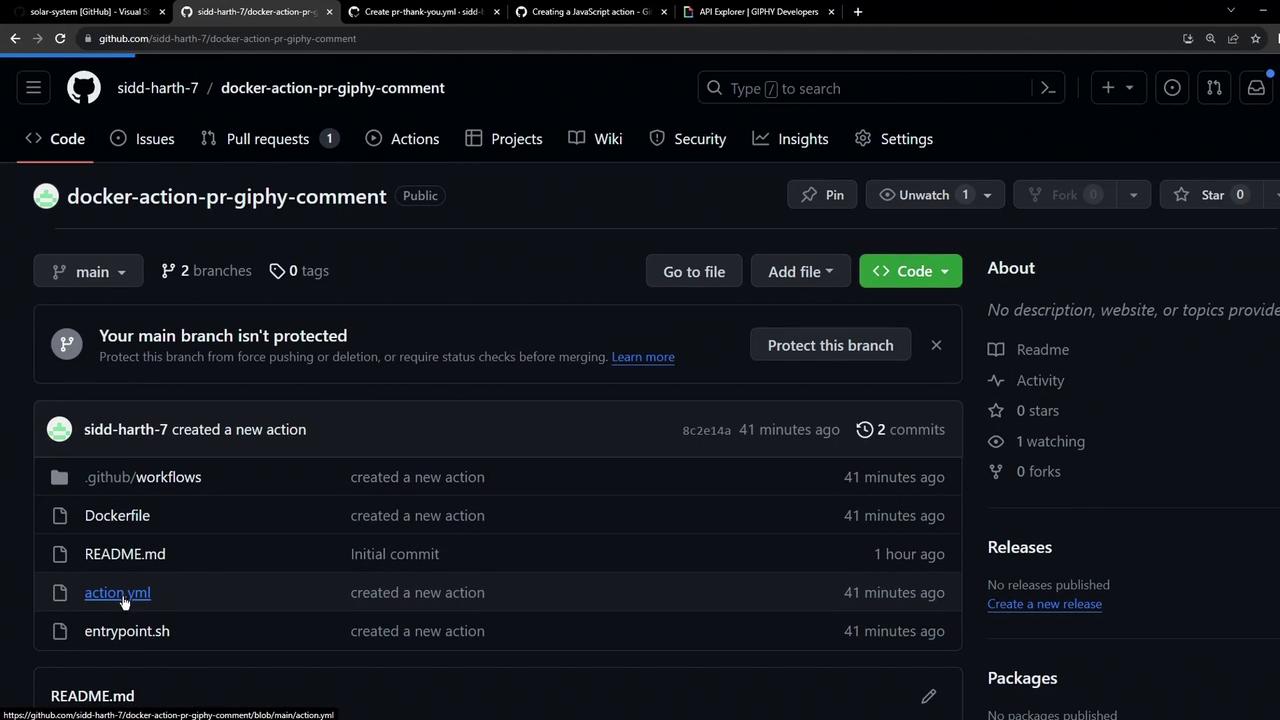
5. Bundle with ncc
To avoid committingnode_modules, bundle your code and dependencies into a single file using Vercel ncc:
ncc produces dist/index.js with your action logic and all dependencies. This simplifies deployment.6. Ignore Unnecessary Files
Add a.gitignore to keep your repository clean:
7. Publish to GitHub
Initialize and push your project: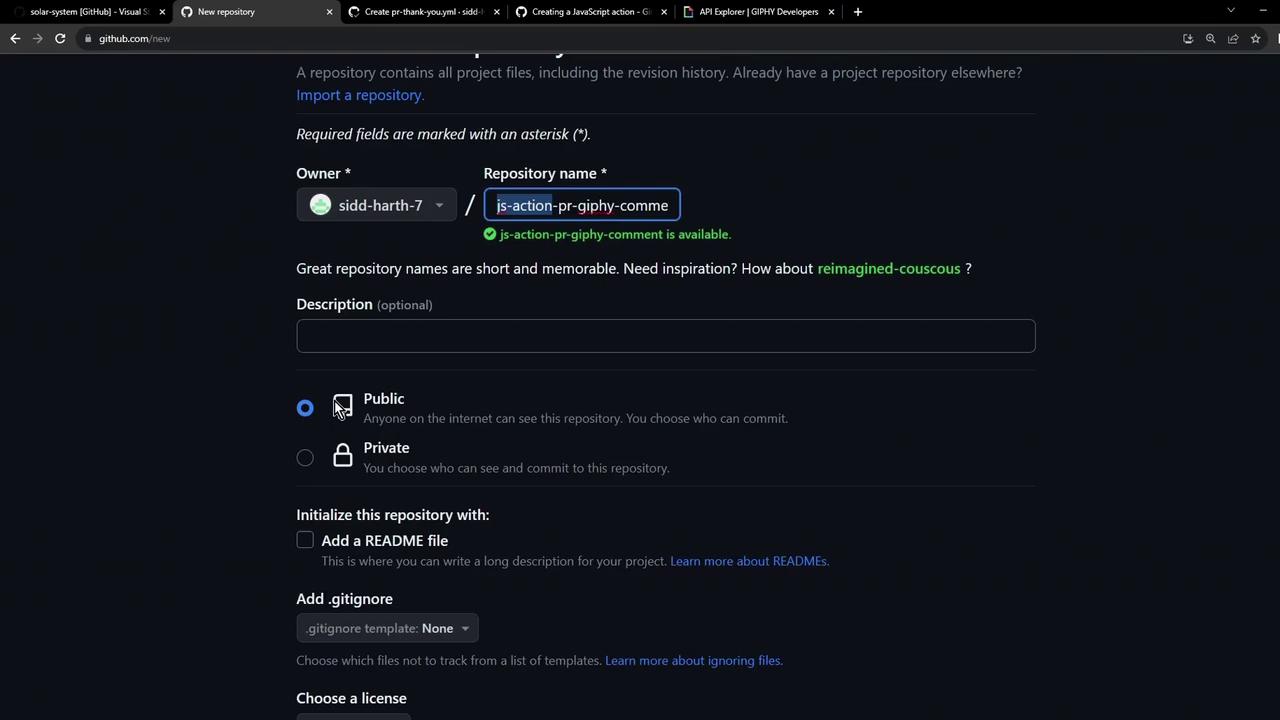
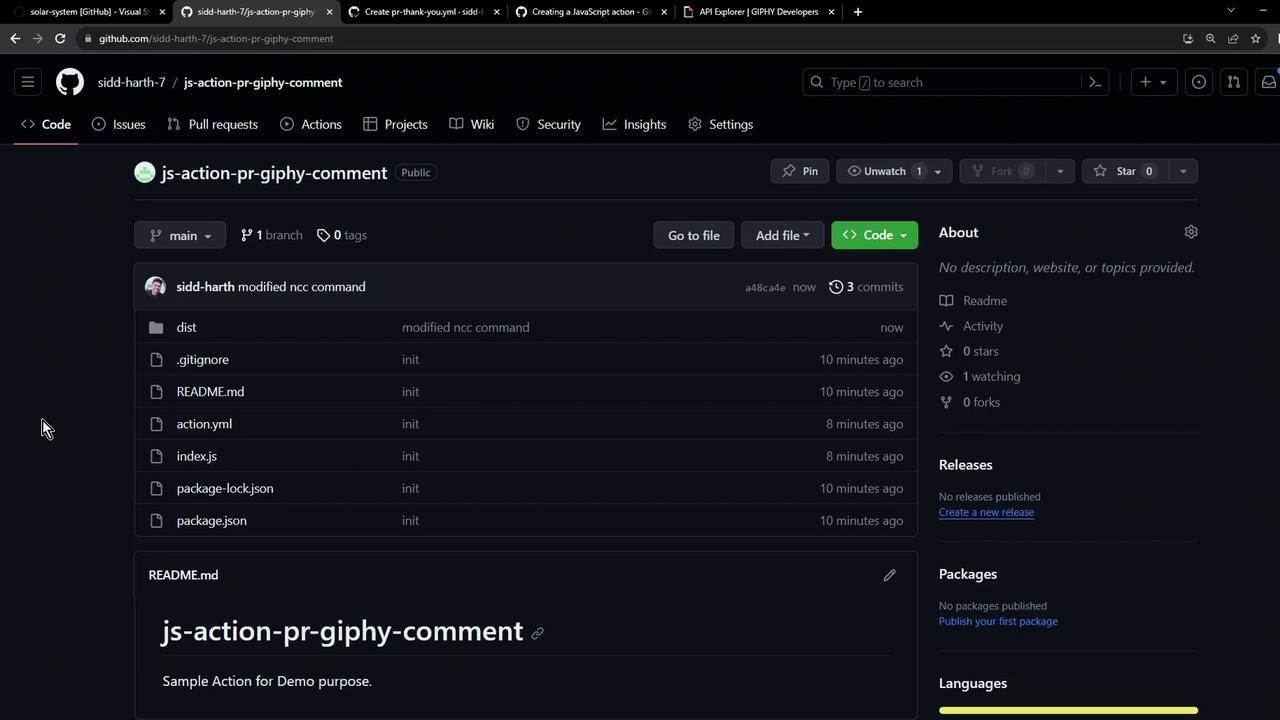
You’ve now successfully created, bundled, and published a JavaScript GitHub Action. Next, tag a release and submit it to the GitHub Marketplace so others can use it!
Links and References
- GitHub Actions Toolkit
- Vercel ncc – Next.js Compiler
- GitHub Marketplace
- GitHub Actions Documentation
- Giphy Developers