

Table of Contents
- Why Use Secrets and Variables?
- Scopes of Secrets and Variables
- Adding a Repository-Level Secret
- Adding a Repository-Level Variable
- Referencing Secrets and Variables
- Inspecting Workflow Logs
- Further Reading
Why Use Secrets and Variables?
Embedding credentials in workflow YAML blocks risks accidental leaks via PRs, clones, or shared logs. GitHub Actions provides a secure mechanism to inject encrypted values at runtime:- Secrets for sensitive data (passwords, tokens).
- Variables for non-sensitive settings (usernames, tags).
Scopes of Secrets and Variables
You can define secrets and variables at three different levels:Adding a Repository-Level Secret
- Navigate to Settings > Secrets and variables > Actions.
- Click New repository secret, set the Name (e.g.,
DOCKER_PASSWORD), and paste your secret. - Click Add secret to save.
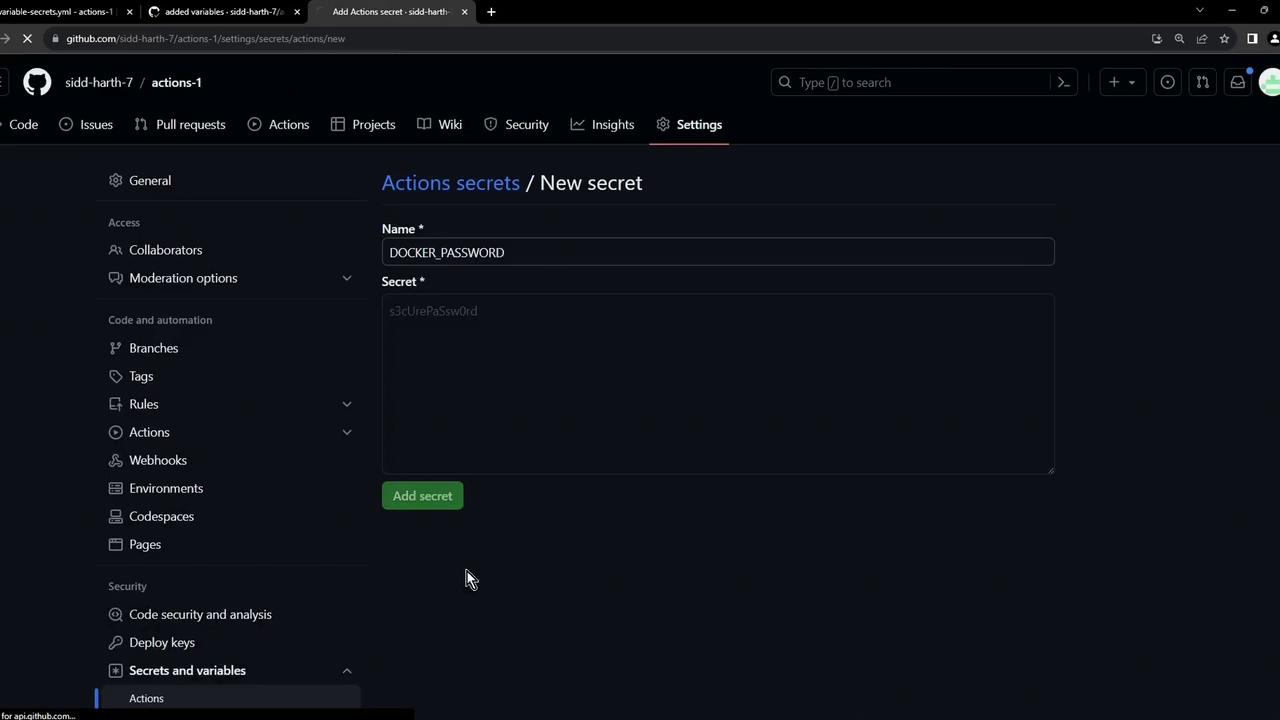
Repository secrets are encrypted and cannot be viewed once saved. If you lose the value, you must recreate the secret.
Adding a Repository-Level Variable
- Still under Settings > Secrets and variables > Actions, select New repository variable.
- Enter Name (e.g.,
DOCKER_USERNAME) and Value. - Click Add variable to confirm.
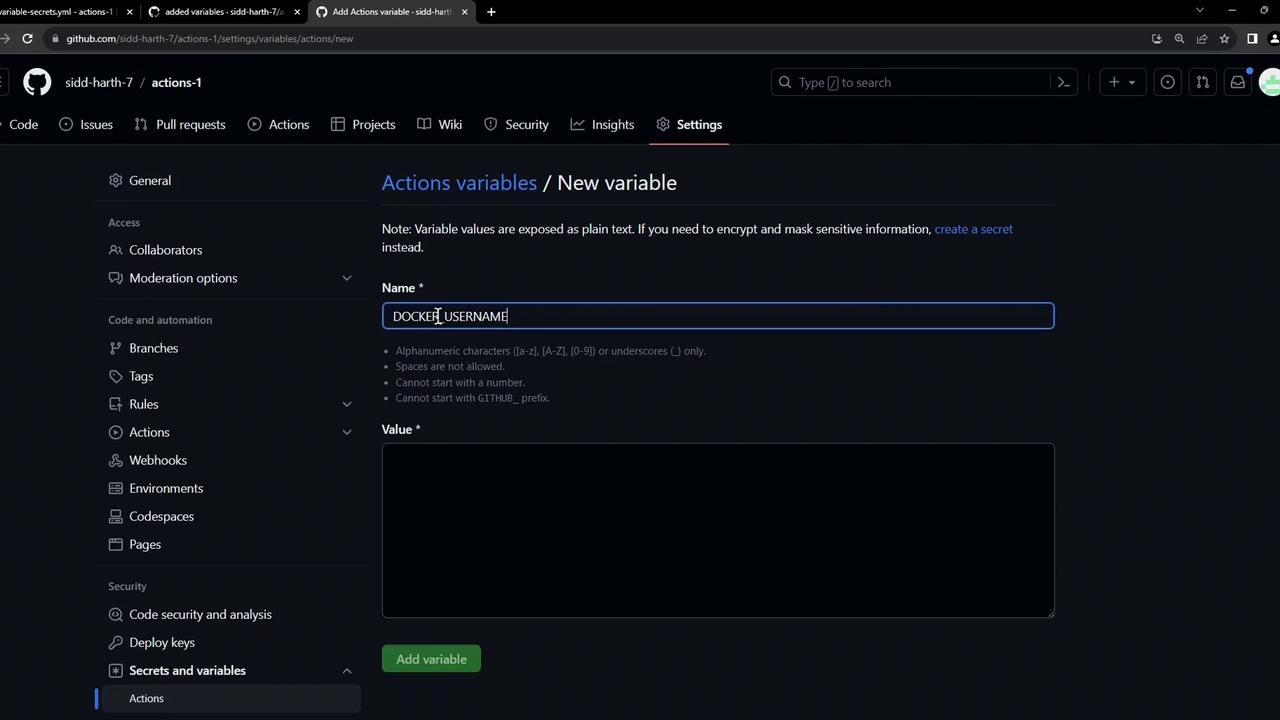
Repository variables are visible in Settings but cannot expose sensitive information.
Use variables for configuration values that are not confidential.
Use variables for configuration values that are not confidential.
Referencing Secrets and Variables
Below is an insecure example with a plain-text password:Secure Workflow with Repository-Level Secrets and Variables
Your editor might flag unresolved
${{ vars.* }} or ${{ secrets.* }} references. These work at runtime and can be safely ignored.Inspecting Workflow Logs
After committing and pushing your workflow, visit the Actions tab to observe the run: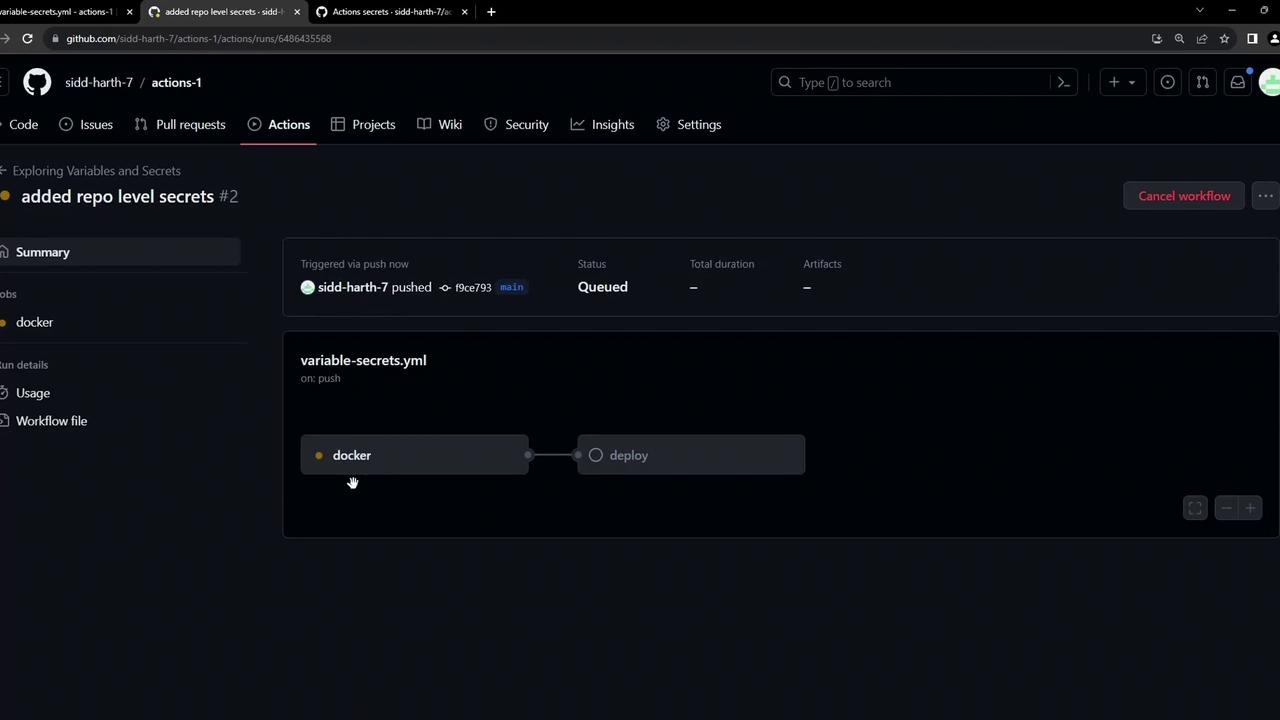
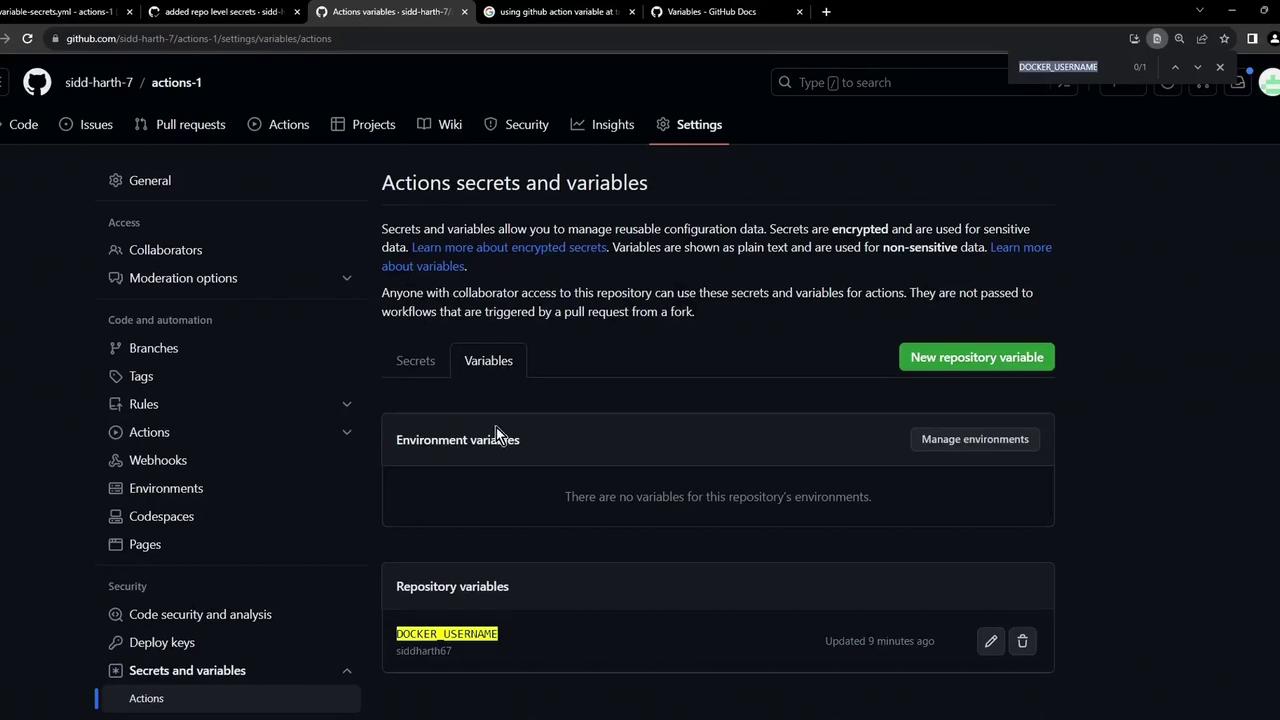
***) and variables load correctly at runtime.