In this lesson we’ll demonstrate SageMaker Canvas Data Wrangler, a low-code visual tool for engineering and preparing datasets for machine learning (and for exporting them for training) — all without writing Python. This guide walks through:
  • Launching SageMaker Canvas and opening Data Wrangler
  • Generating a Data Quality and Insights (DQI) report to guide preprocessing
  • Applying common transforms (drop columns, impute missing values, scale numeric features, encode categorical variables)
  • Exporting the cleaned dataset (for example, to Amazon S3)
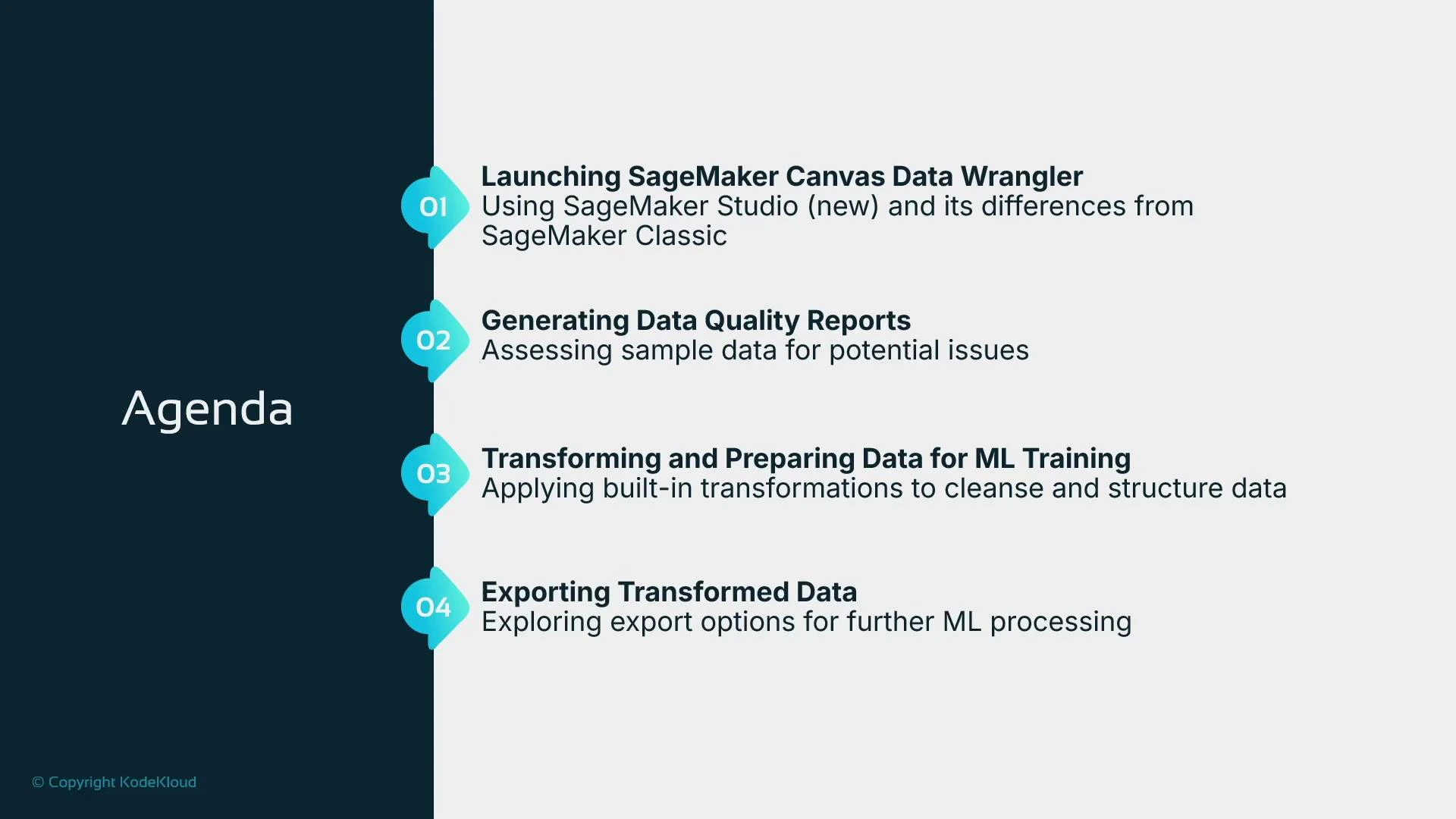
A presentation slide titled "Agenda" with four numbered items listed down the right side. The items cover: Launching SageMaker Canvas Data Wrangler; Generating Data Quality Reports; Transforming and Preparing Data for ML Training; and Exporting Transformed Data.
Overview of practical steps:
  1. Open Data Wrangler through SageMaker Canvas.
  2. Add a data source (we use a London housing prices CSV).
  3. Generate a DQI report to identify issues and recommended transforms.
  4. Build a data flow to drop irrelevant or leaking columns, impute missing values, scale numeric features, and encode categorical features.
  5. Export the processed dataset (S3 or Canvas model builder).
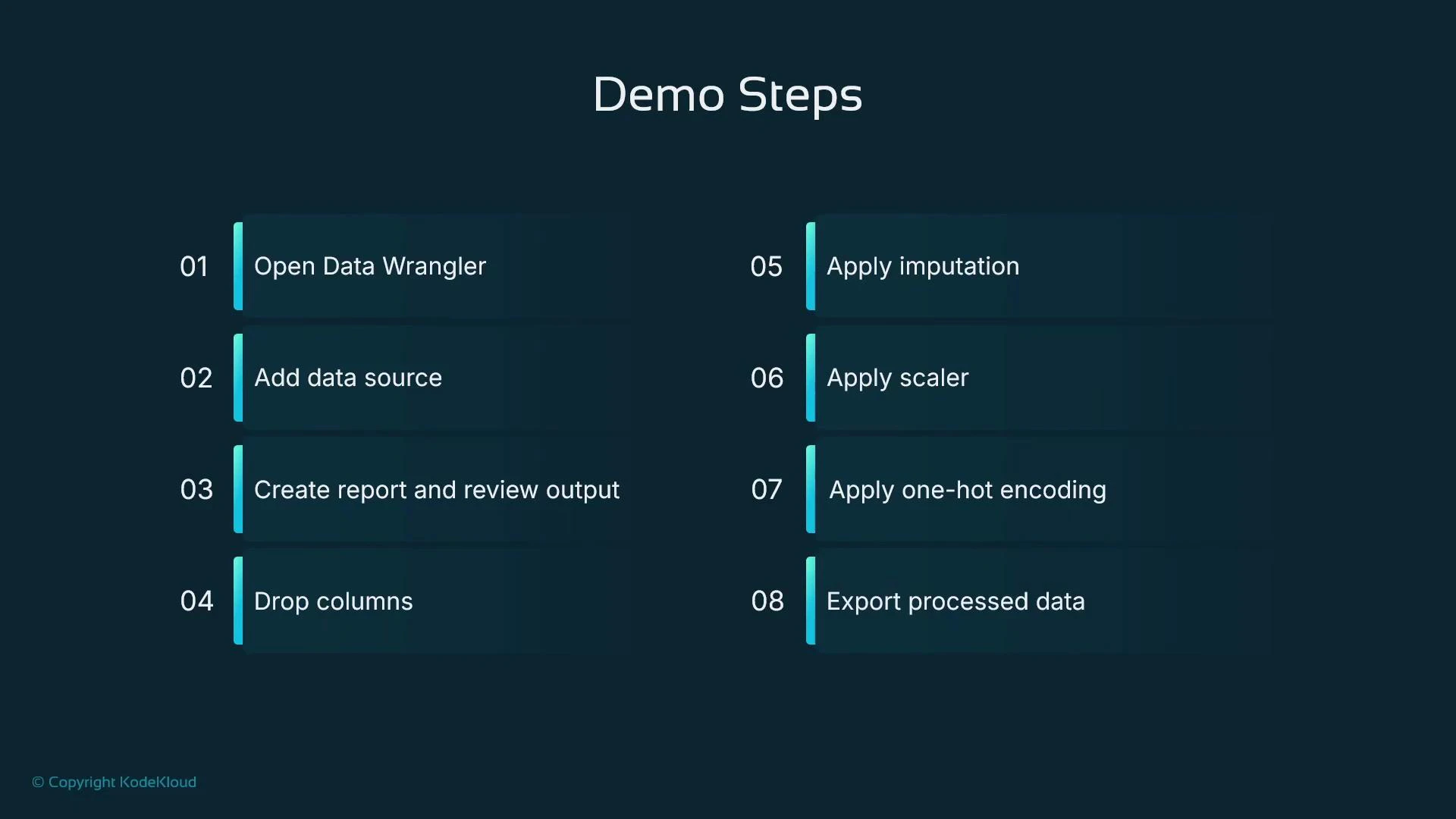
A presentation slide titled "Demo Steps" listing eight numbered data-preprocessing steps, including opening a Data Wrangler, adding a data source, creating a report, dropping columns, applying imputation and scaling, one-hot encoding, and exporting processed data.
Getting started We begin in Amazon SageMaker Studio. If you prefer JupyterLab or other Studio applications, those are launched from the Applications pane. Data Wrangler is accessed from the SageMaker Canvas application. Canvas runs as a managed instance. If the Canvas instance is stopped, start it — this can take a minute or two. Be mindful of lifecycle and billing.
SageMaker Canvas is billed while the managed instance is running (per minute). The instance cost is roughly $2 per hour (approximate). Stop the Canvas instance when not in use to avoid unintended charges.
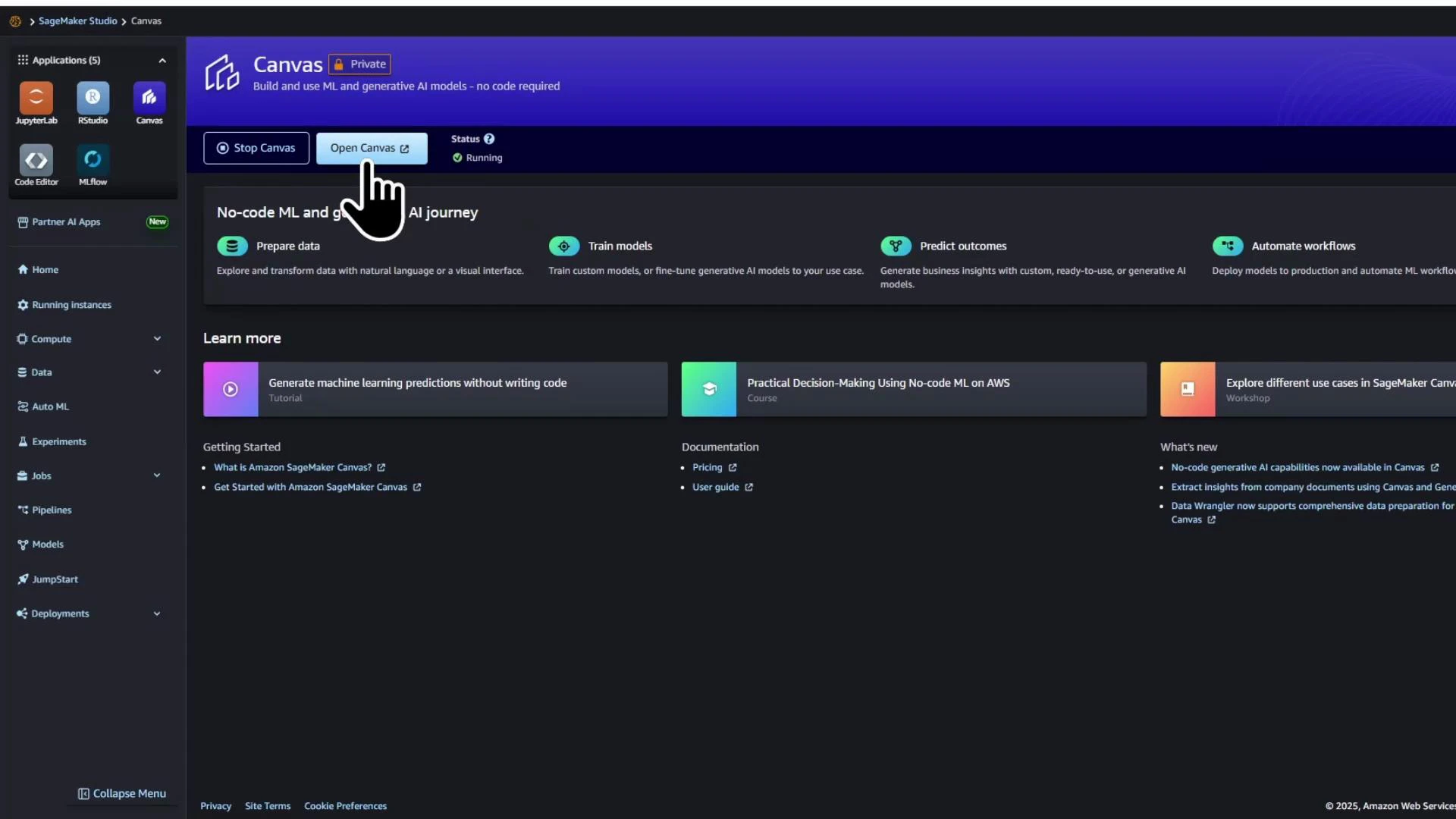
When Canvas is running, click Open Canvas.
The image shows the Amazon SageMaker Studio Canvas dark-themed web dashboard with a highlighted "Open Canvas" button and a hand cursor. The main area outlines no-code ML features (prepare data, train models, predict outcomes) and learning resources, with a left sidebar of related apps and navigation.
Inside Canvas, Data Wrangler appears in the left-hand navigation. Data Wrangler lets you visually author a sequence of transformations (a data flow) to convert raw source data into ML-ready features (drop columns, impute, scale, encode).
A screenshot of the Amazon SageMaker Canvas web interface with a large banner promoting "Amazon Q" and a "Get started" area. Below the banner are quick-action tiles like "Create a model" and "Explore Generative AI," with navigation icons down the left side.
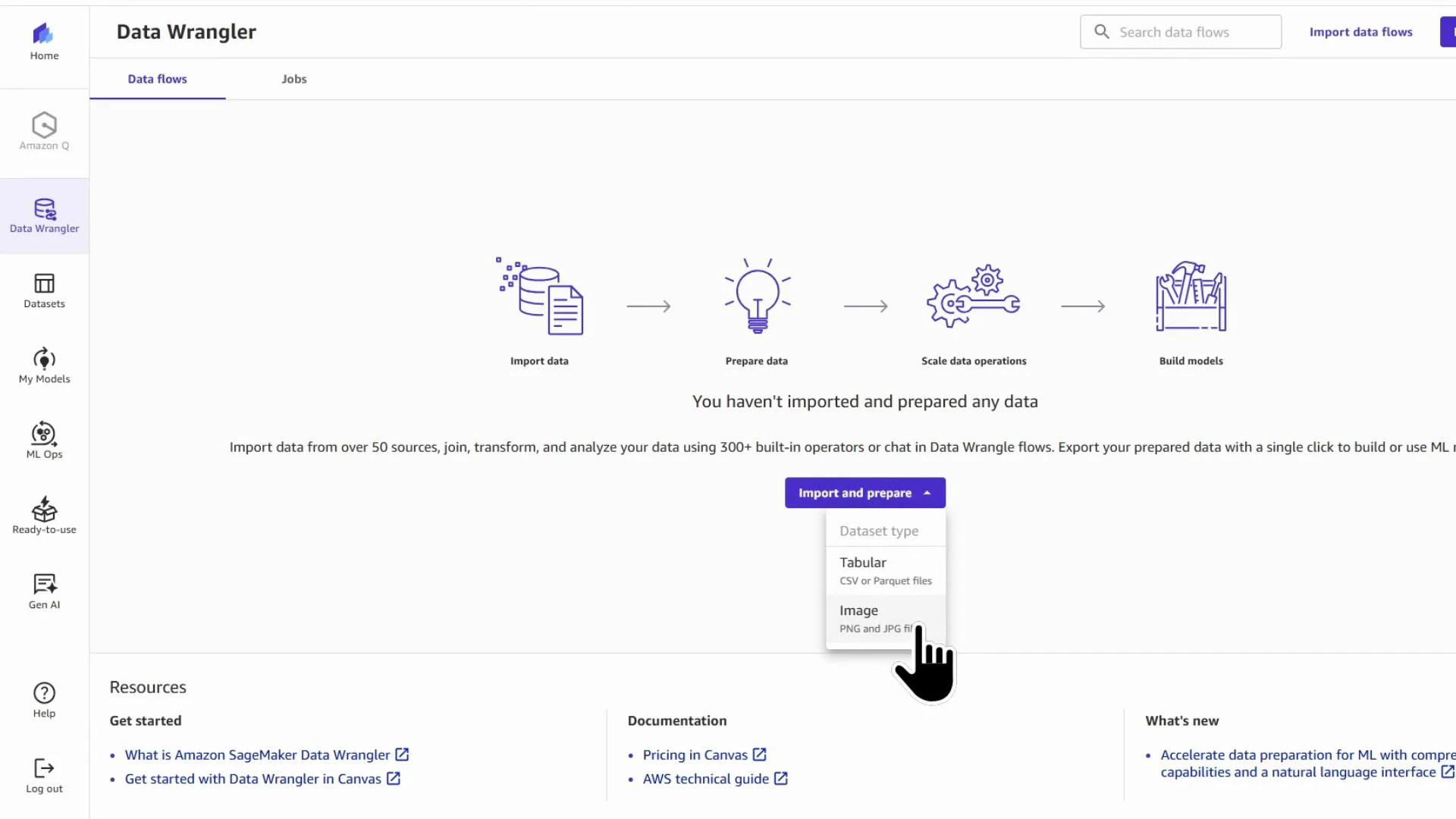
Importing data Click Import and prepare to start a new Data Wrangler flow. Data Wrangler supports tabular and image data; for this demo we import a CSV (tabular).
A screenshot of the Amazon SageMaker Data Wrangler interface showing a workflow (Import data → Prepare data → Scale data operations → Build models). A dropdown labeled "Import and prepare" is open with dataset options like Tabular and Image, and a hand cursor pointing at the Image option.
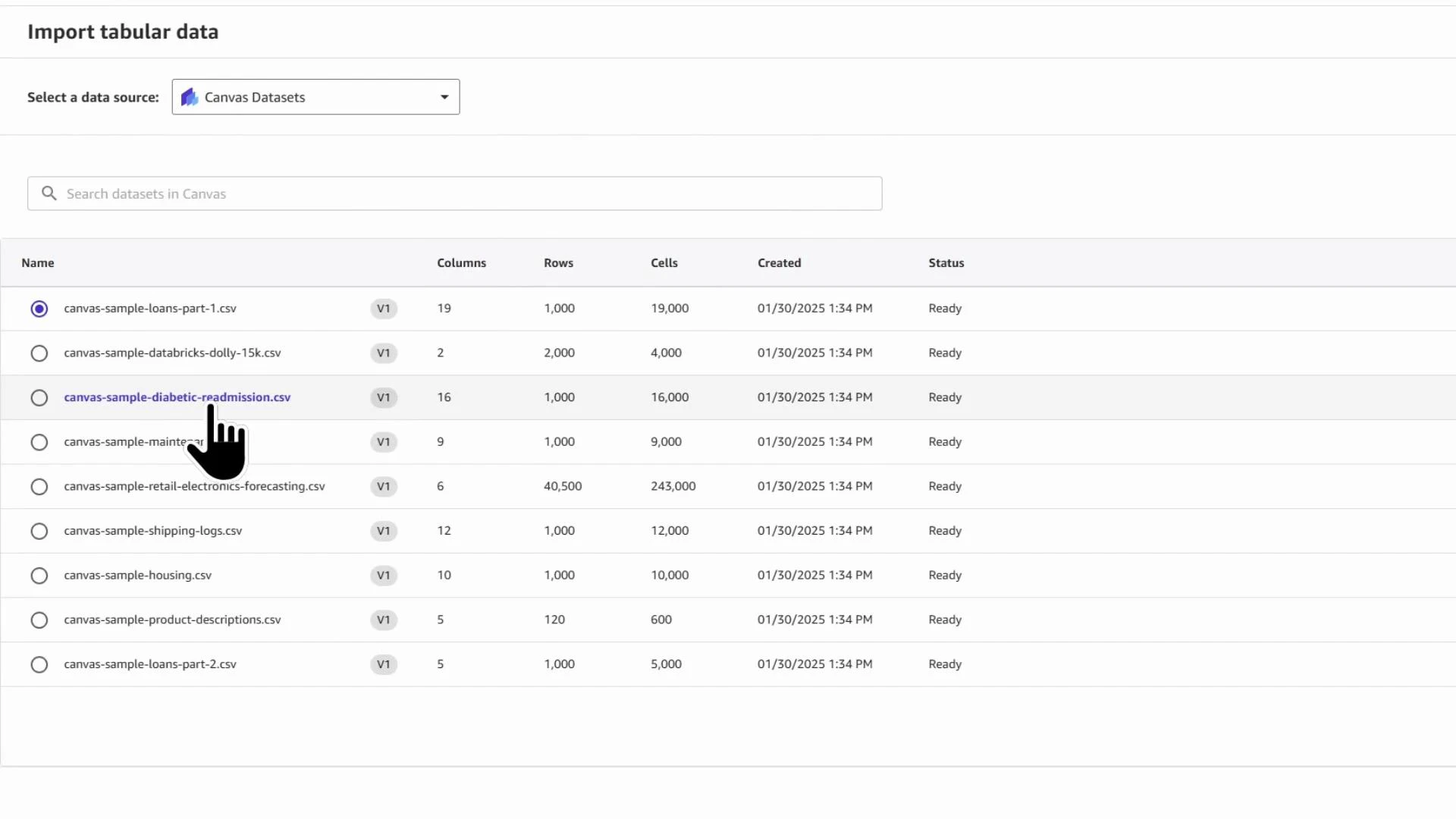
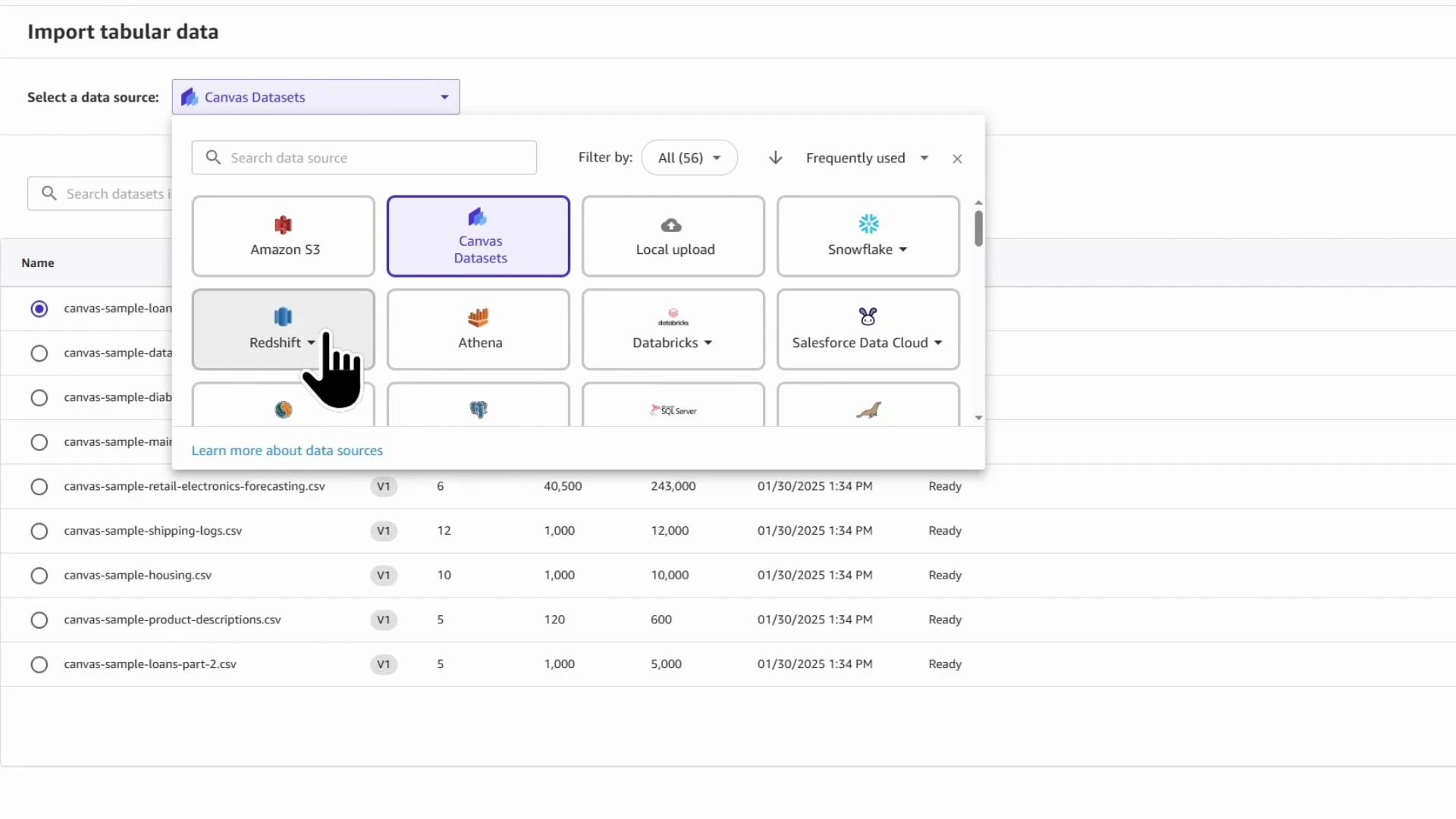
Canvas connects to many sources (S3, Redshift, Athena, Snowflake, Databricks, Salesforce, etc.). Some connectors require configuration before use. For this walkthrough we select Amazon S3.
A screenshot of an "Import tabular data" interface showing a list of sample CSV datasets (name, columns, rows, cells, created, status). A hand-shaped cursor is clicking the "canvas-sample-diabetic-readmission.csv" entry.
Choose the S3 bucket that holds your CSV and open the target file. Canvas shows a preview (first ~100 rows) so you can inspect columns before importing.
A data-import interface showing a pop-up to select a data source (Canvas Datasets, Amazon S3, Redshift, Snowflake, etc.) with a list of sample CSV datasets visible behind it. A hand-shaped cursor is pointing at the Redshift option.
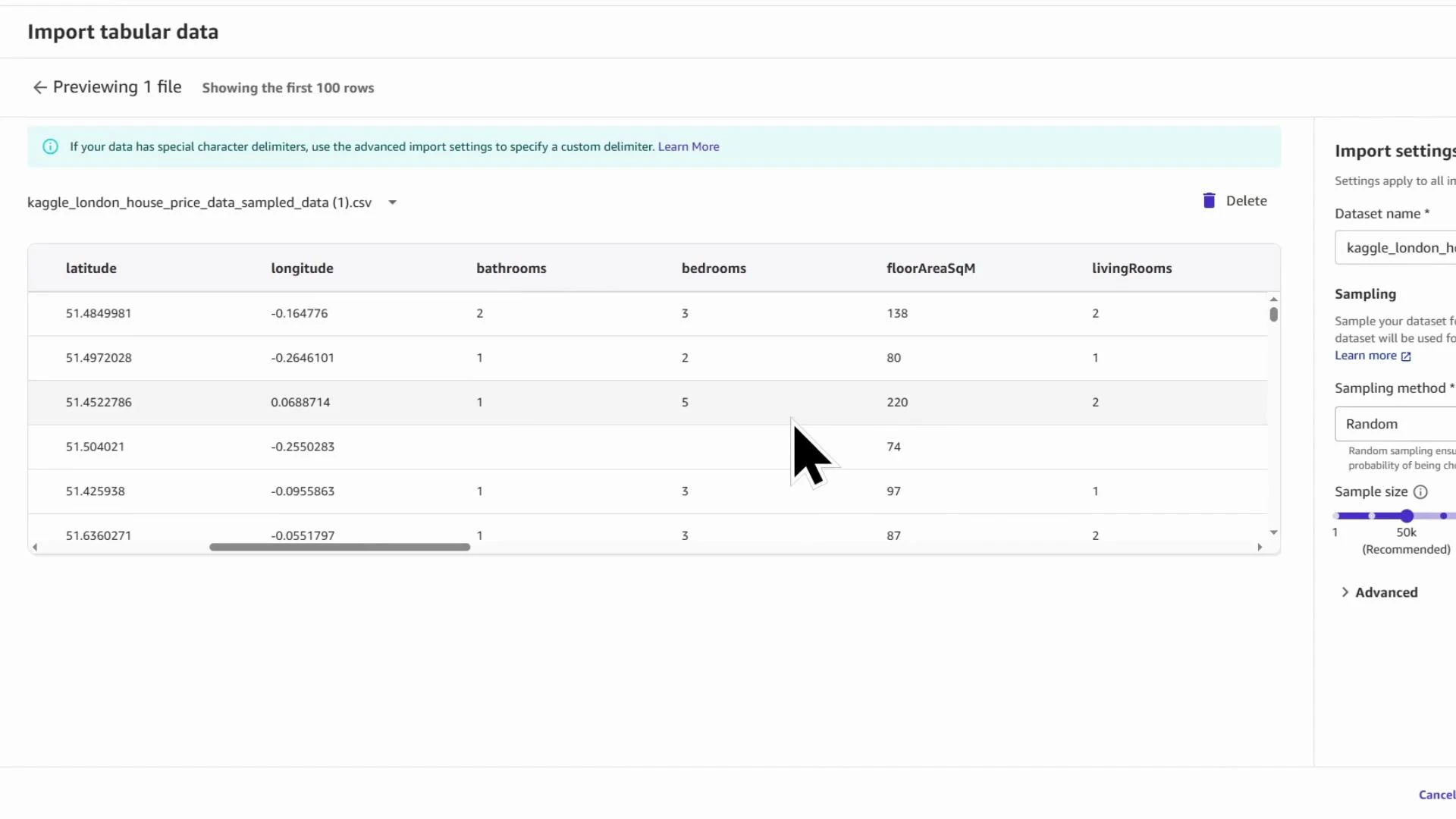
For this demonstration we use a Kaggle London housing price dataset. The preview includes fields such as full address, postcode, latitude, longitude, bedrooms, bathrooms, floor area (sq m), property type, energy rating, and sale/rental estimate columns.
A screenshot of a dataset import preview showing the first rows of a CSV (kaggle_london_house_price_data_sampled_data) with columns like latitude, longitude, bathrooms, bedrooms, floorAreaSqM and livingRooms. An import settings panel with sampling options is visible on the right and a cursor arrow hovers over the table.
Name the dataset, for example Kaggle_London_house_price_data_KodeKloud. For faster exploration you can import a random sample instead of the full file — this speeds DQI report generation and interactive debugging. In the demo we import a sample of 50,000 rows.
Importing a sampled subset is a practical way to iterate quickly. Use sampled data to test transforms and generate insights; then re-run transforms on the full dataset when you’re ready to export.
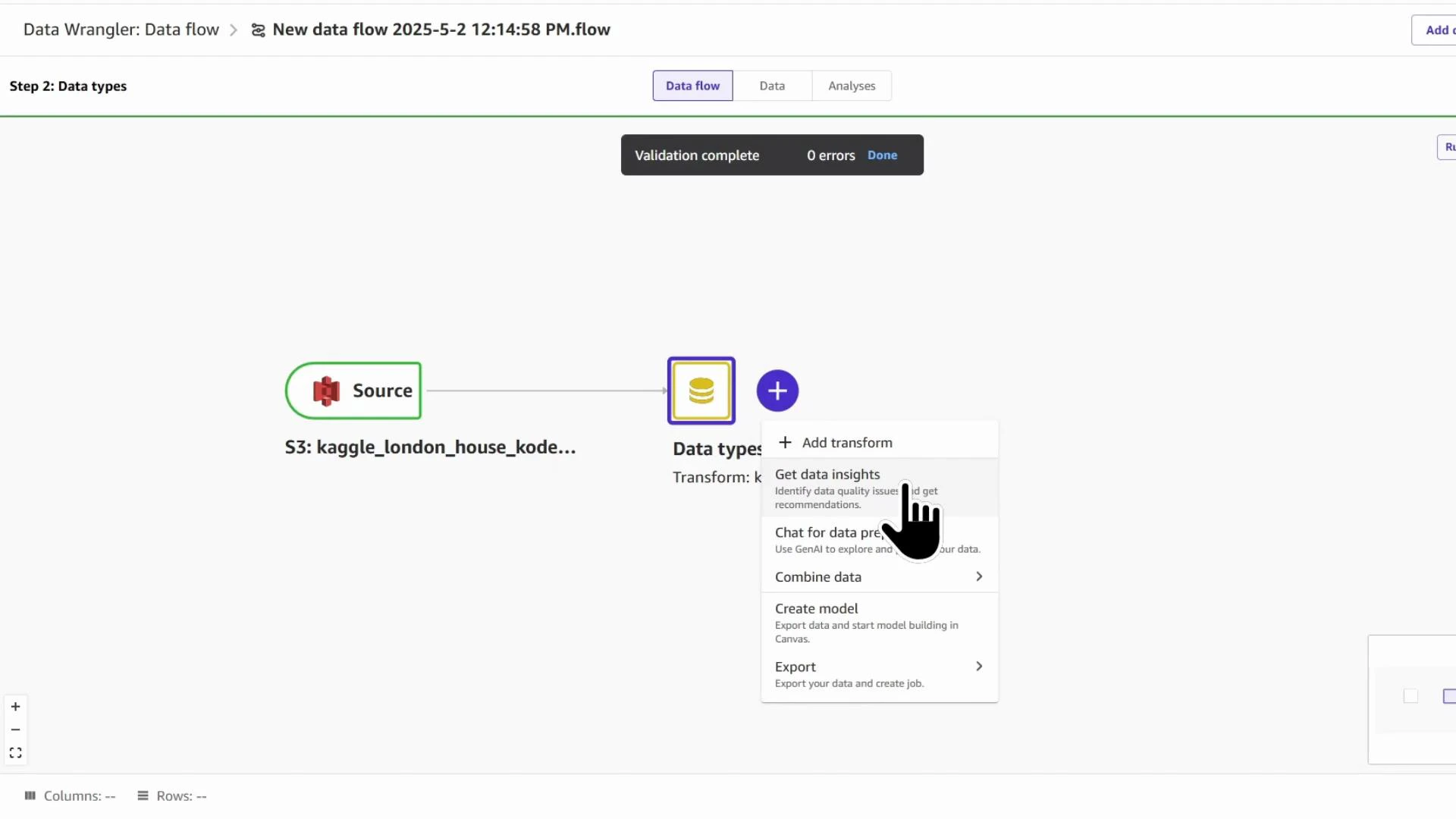
After importing, the Data Wrangler canvas displays the S3 source node and an inferred Data types node listing detected feature types. Build transforms by clicking the blue plus (+) after the Data types node. Generating a DQI report To determine required transforms, generate a Data Quality and Insights (DQI) report: Add → Get data insights. The DQI report analyzes dataset health, feature statistics, and potential model signals.
A screenshot of a Data Wrangler "Data flow" UI showing an S3 source (kaggle_london_house_...) connected to a "Data types" node. A context menu with options like "Add transform" and "Get data insights" is open, and a hand-cursor is selecting an item while a "Validation complete — 0 errors" message appears at the top.
Create the DQI report (for example DQI_report). Choose the target column (saleEstimate_currentPrice) and the problem type (Regression). You can run the report against the sampled dataset for speed or the full dataset for completeness.
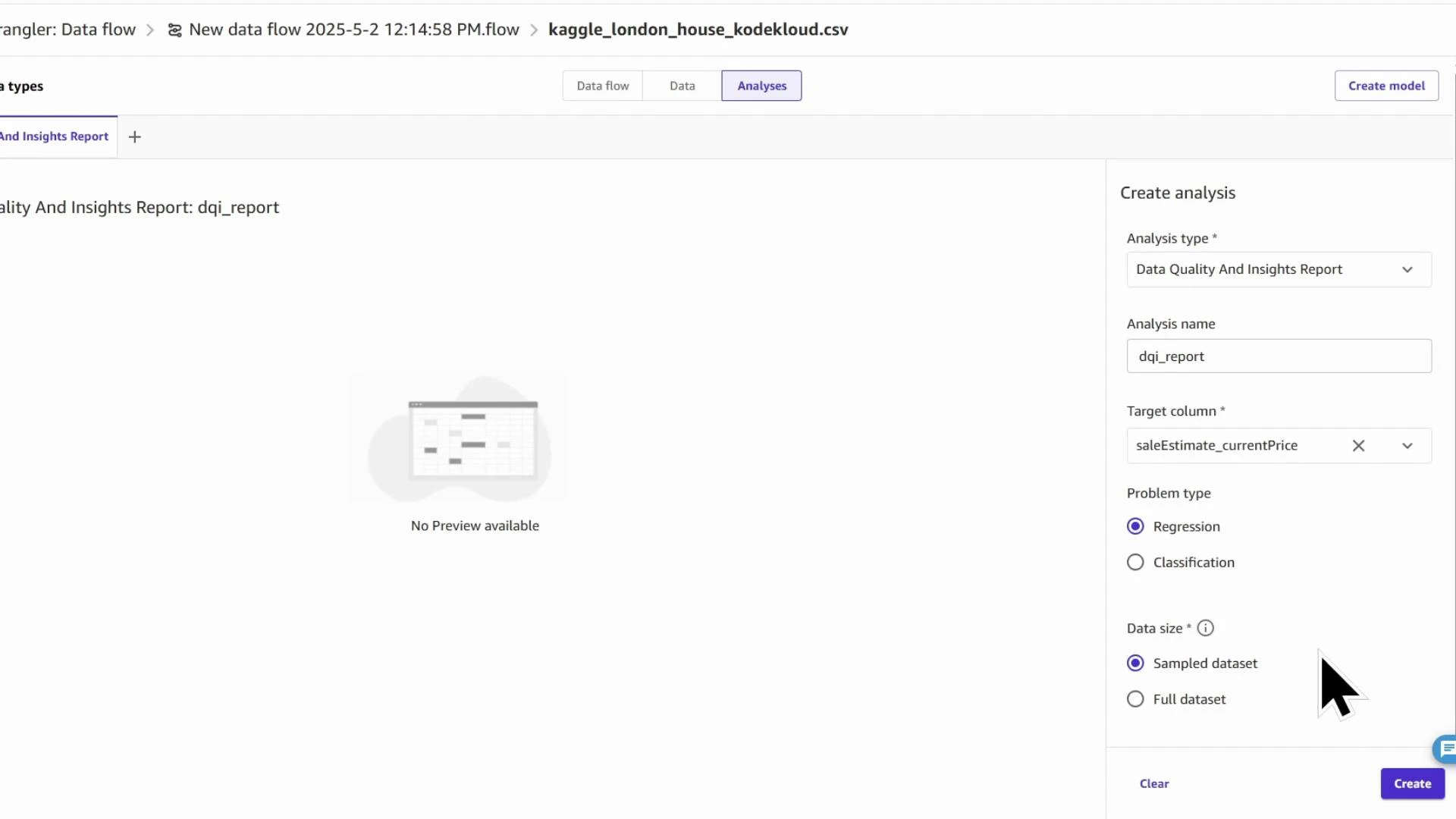
Screenshot of a web UI for creating a "Data Quality And Insights Report" (analysis name "dqi_report") with the target column set to saleEstimate_currentPrice, problem type "Regression", and data size "Sampled dataset". The main pane shows "No Preview available" and a "Create" button is visible on the right.
DQI report outputs While the report runs, Canvas computes summary statistics and metadata. Typical outputs include:
  • Dataset-level statistics (row count, missing %, duplicates)
  • Feature counts by type (numeric, categorical, datetime)
  • Per-feature statistics (mean, median, min/max, skew)
  • Missing value and outlier detection, anomaly scores
  • Feature predictive power and target leakage warnings
  • Quick-model estimates (validation scores such as MSE, RMSE for baselining)
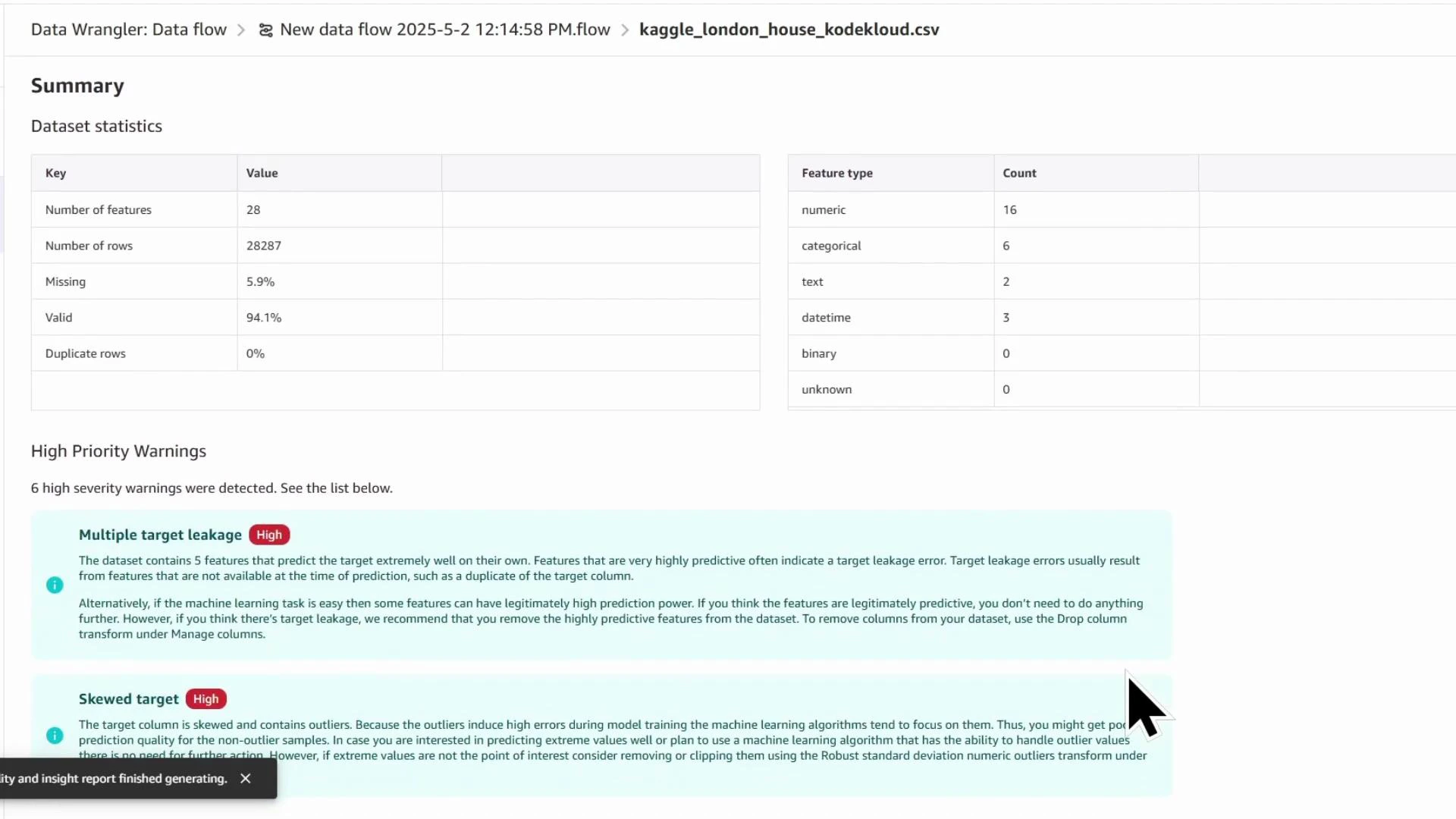
You get immediate summary stats and prioritized warnings to guide transformations.
Screenshot of a Data Wrangler summary for a file named kaggle_london_house_kodekloud.csv showing dataset statistics (28 features, 28,287 rows, 5.9% missing, 94.1% valid) and a feature-type count. Below the summary are high-priority warnings highlighting multiple target leakage and a skewed target.
Interpreting high-priority warnings In this dataset the DQI report flagged:
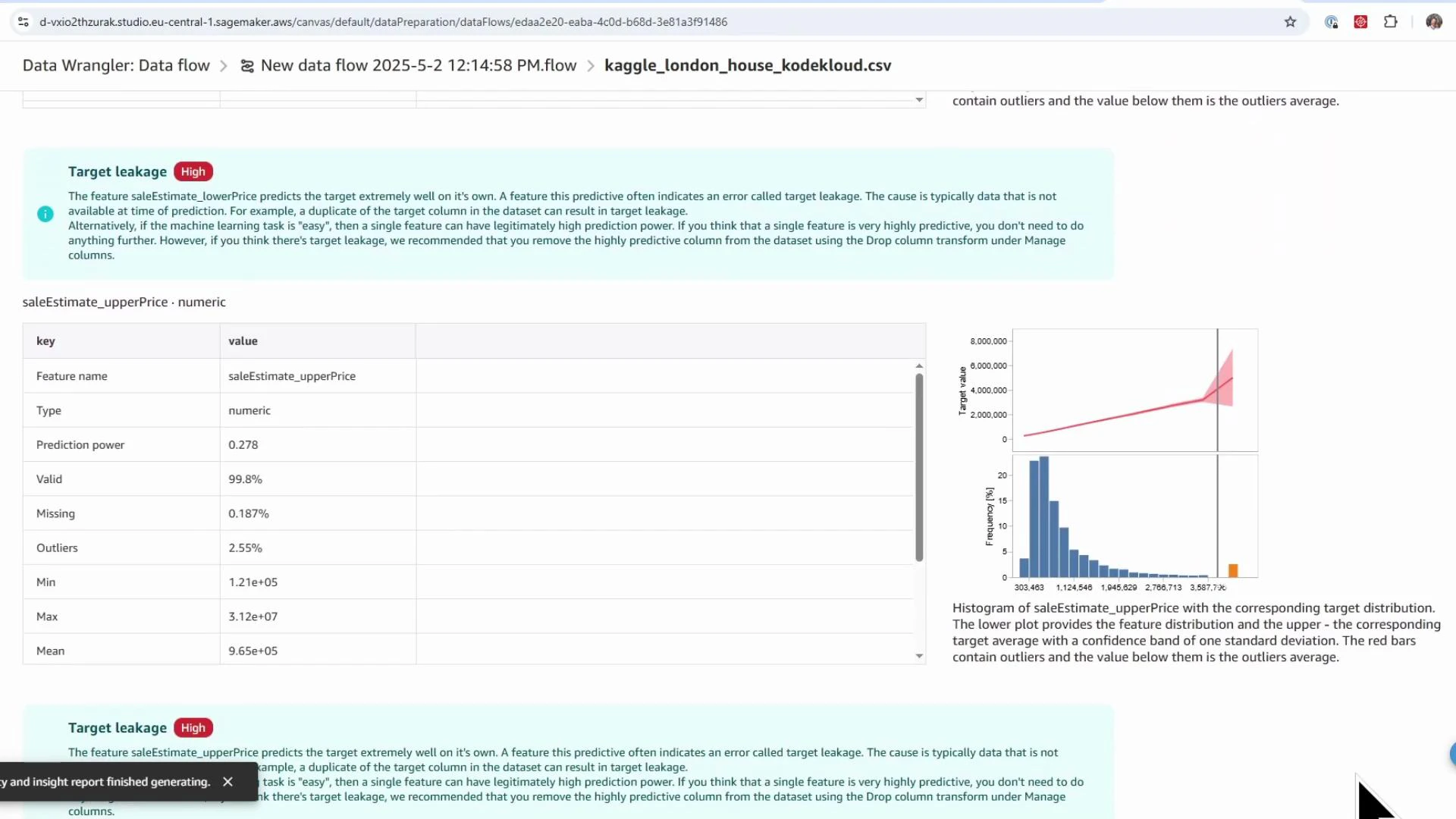
  • Potential target leakage: columns that directly or indirectly reveal the target (e.g., saleEstimate_lowerPrice and saleEstimate_upperPrice). These must be removed.
  • Skew and outliers in the target distribution — consider log transforms or robust metrics.
  • Missingness in features such as livingRooms (≈14% missing) indicating imputation is needed.
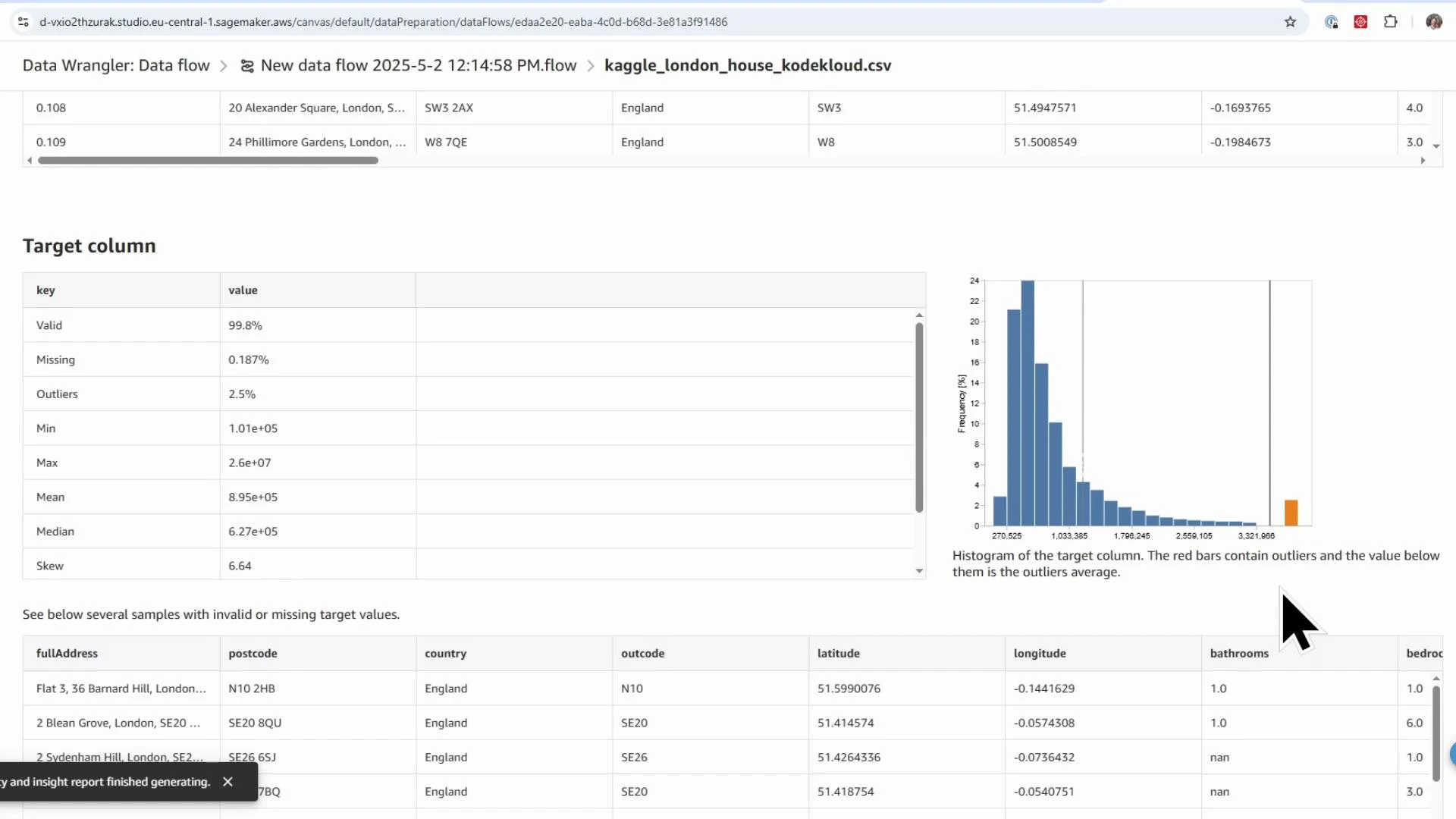
A screenshot of a Data Wrangler / data flow interface showing the file "kaggle_london_house_kodekloud.csv" with a target-column summary (valid %, missing %, outliers, min/max/mean/median/skew). To the right is a histogram marking outliers, and below are sample rows of London property records with addresses, postcodes, coordinates and property attributes.
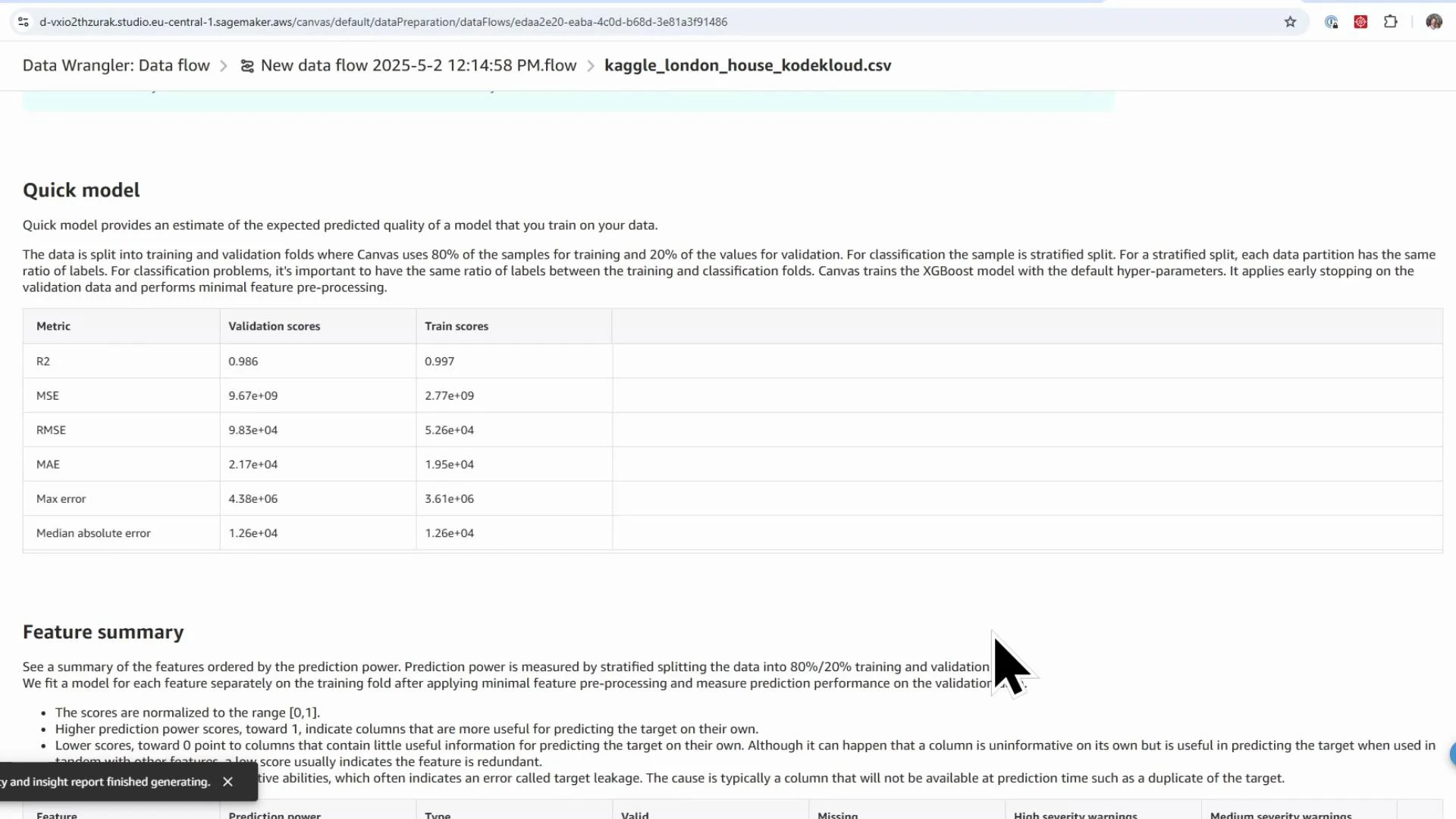
The DQI report also includes a quick-model evaluation (R², MSE, RMSE, MAE) to give a baseline for expected predictive performance.
A screenshot of a "Quick model" results page in a data-wrangling tool showing a table of validation and train scores (R2, MSE, RMSE, MAE, max error, median absolute error). Below the table is a "Feature summary" section with explanatory text about prediction power and feature ordering.
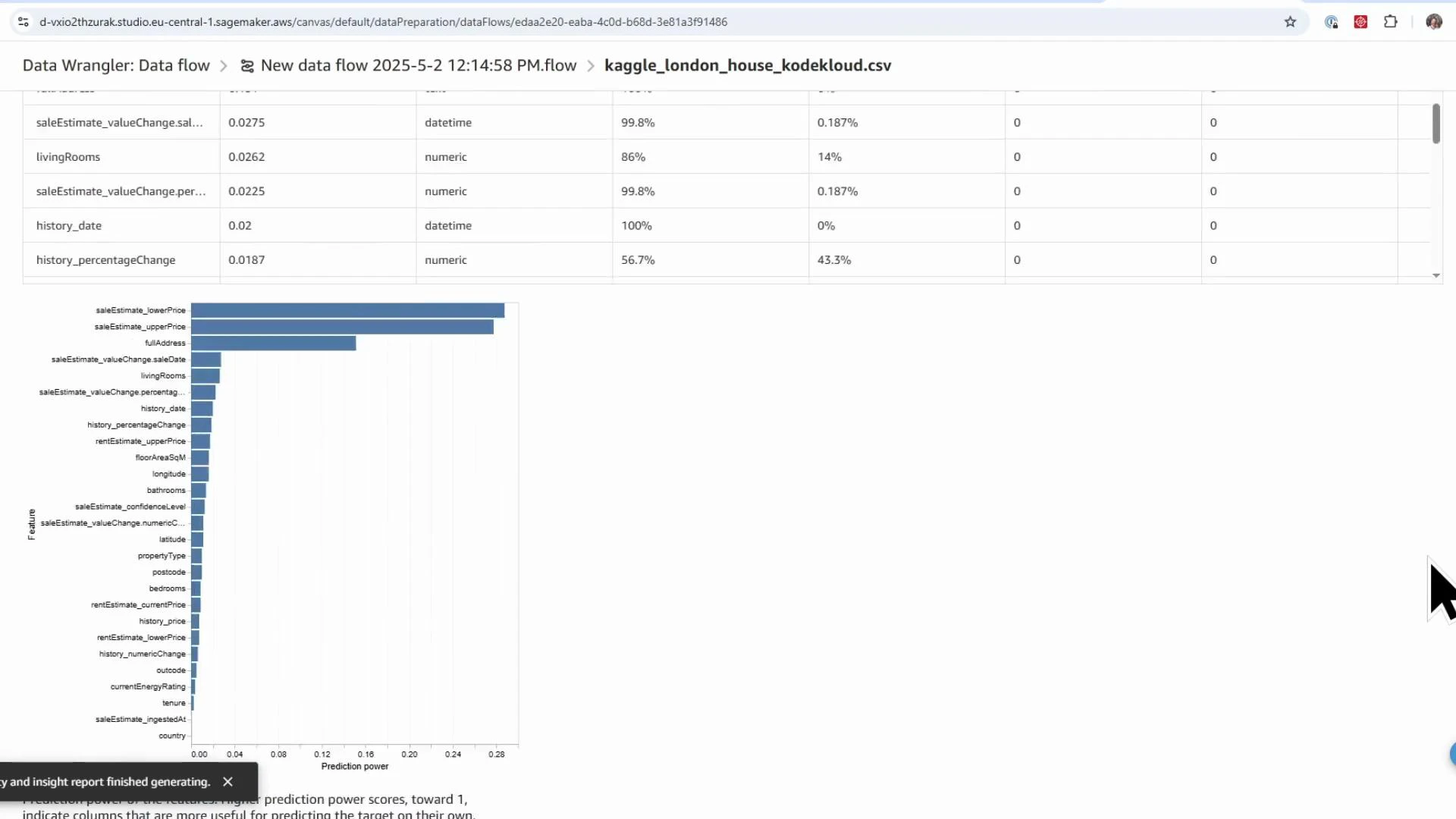
Review feature-level summaries to see prediction power and data quality. Remove features flagged for target leakage (e.g., saleEstimate_lowerPrice, saleEstimate_upperPrice) before training.
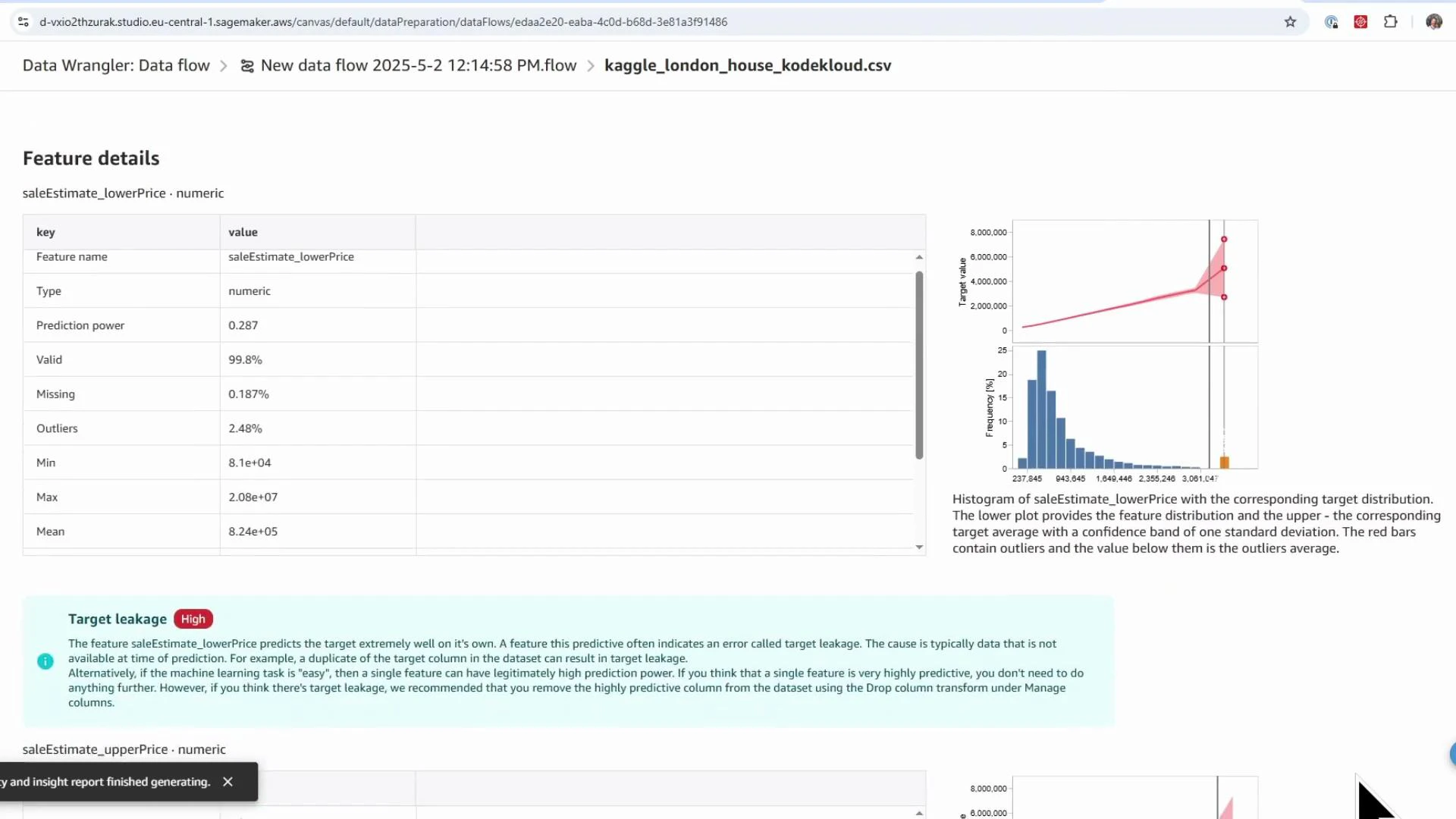
Screenshot of a Data Wrangler "Feature details" page for the numeric feature saleEstimate_lowerPrice, showing a stats table (min, max, mean, missing, outliers, prediction power) and a histogram with target distribution. A highlighted "Target leakage" warning is displayed beneath the table.
Screenshot of an AWS SageMaker Data Wrangler report highlighting a "Target leakage" warning for the feature saleEstimate_upperPrice. It shows a table of numeric statistics (min, max, mean, missing, outliers) alongside a histogram and target distribution plot.
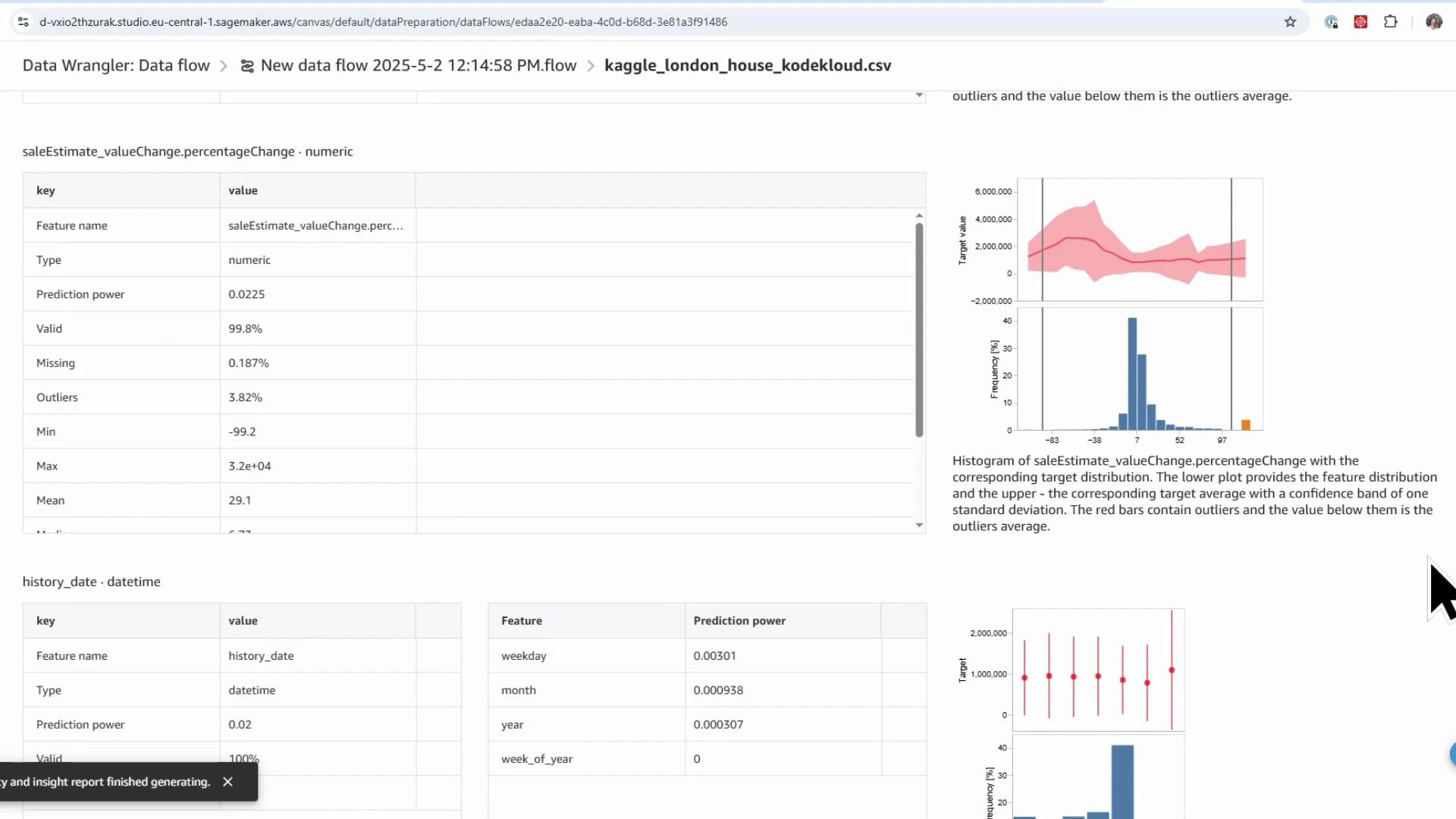
Text and datetime features get specialized summaries (word clouds, temporal patterns). Use these insights to choose the right transforms.
A screenshot of an AWS SageMaker Data Wrangler data-flow report for a CSV (kaggle_london_house_kodekloud.csv) showing feature summary tables and charts. It displays statistics and histograms for fields like saleEstimate_valueChange.percentageChange and history_date with prediction-power metrics.
Applying transforms — build the data flow After reviewing the DQI report, return to the Data Wrangler canvas and add transforms in sequence. Inspect the output at each step to validate results.
The image shows an AWS SageMaker Data Wrangler screen with a dataset summary table and a horizontal bar chart of feature prediction power. The chart lists features (e.g., saleEstimate_lowerPrice, saleEstimate_upperPrice, fullAddress) ranked by their prediction power.
Step 1 — Drop target-leakage and irrelevant columns
  • Click the blue plus (+) after the Data types node → Add transform.
  • Search for “drop” → choose “Manage columns: move, drop, duplicate or rename columns” → select Drop column.
  • Remove columns that leak the target (e.g., saleEstimate_lowerPrice, saleEstimate_upperPrice), rental-specific columns, historical-change fields, and confidence metrics.
  • Click Add to insert the Drop column transform into the flow.
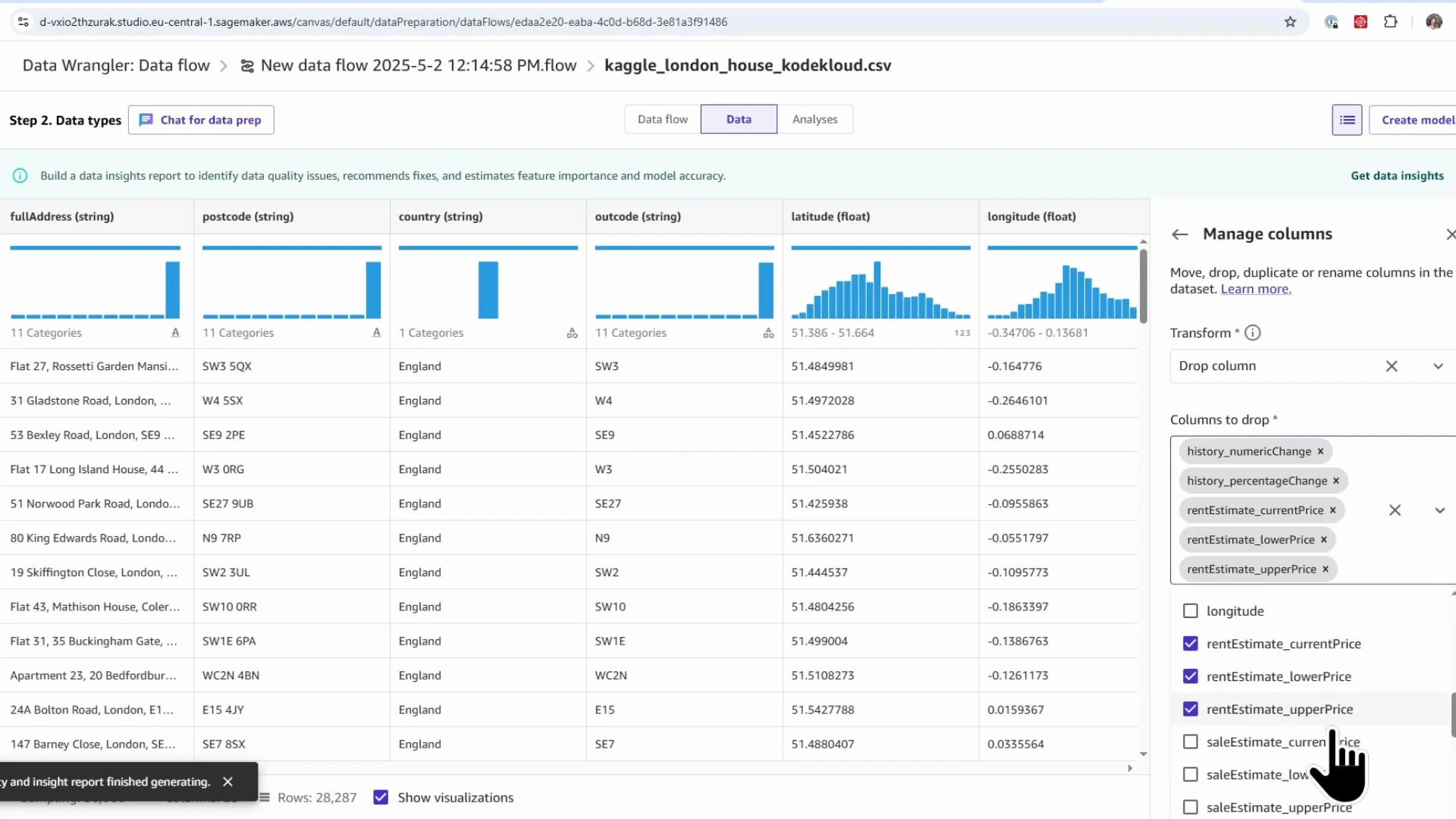
A screenshot of AWS SageMaker Data Wrangler showing a preview of a "kaggle_london_house_kodekloud.csv" dataset with columns like fullAddress, postcode, country, outcode, latitude and longitude. The right side shows a "Manage columns" panel where several columns are selected to be dropped or kept.
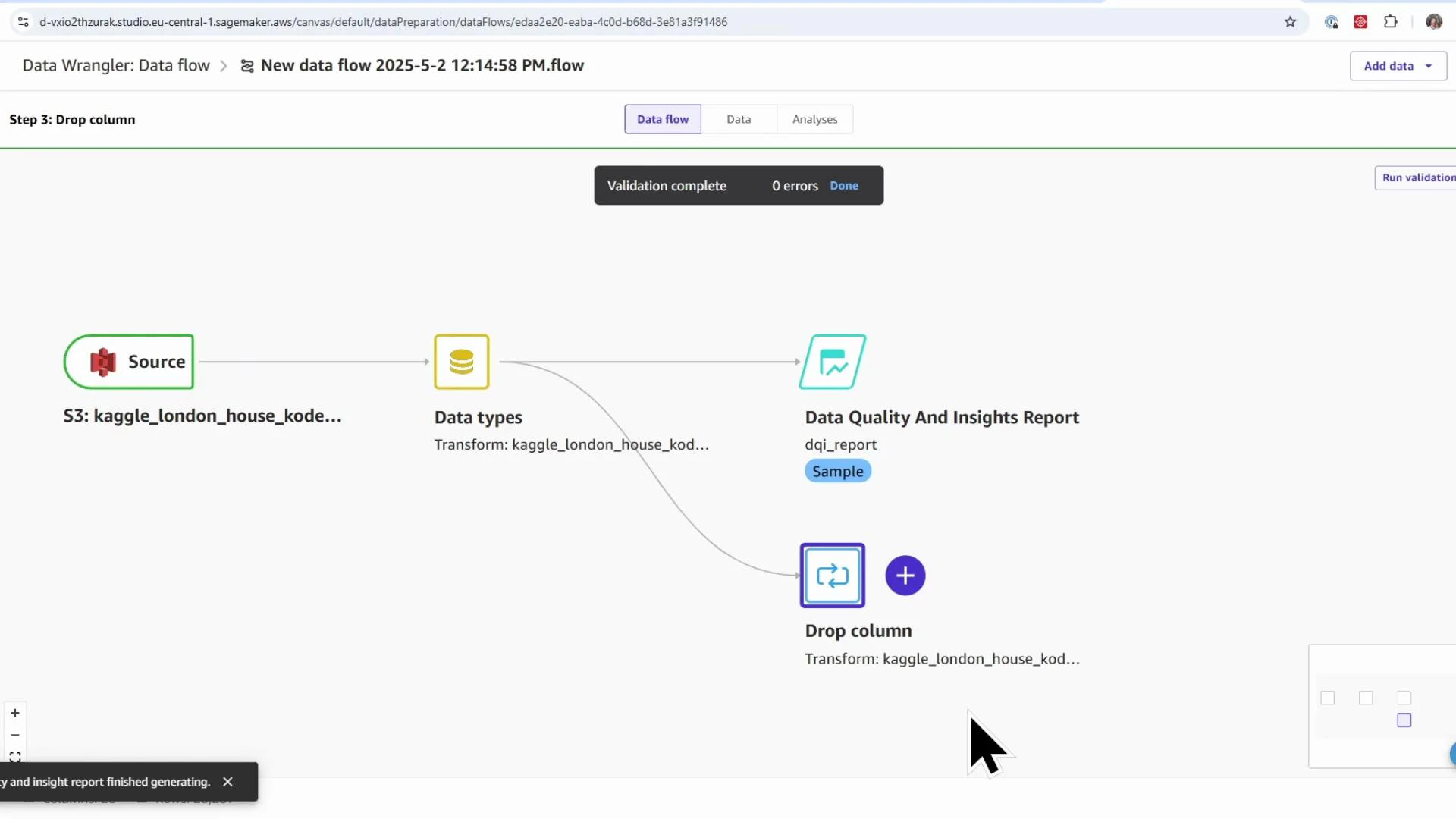
The Drop column step will appear downstream of the Data types node in the flow.
A screenshot of Amazon SageMaker Data Wrangler showing a data flow diagram with an S3 Source feeding a "Data types" step, which connects to a "Data Quality And Insights Report" and a "Drop column" transform. The interface shows validation complete with no errors.
Step 2 — Impute missing values
  • Add transform → search “impute” → choose Handle missing.
  • Select the column (e.g., livingRooms).
  • Pick an imputation strategy: mean, approximate median, mode, etc. Median-based strategies are robust to outliers; mean can be influenced by extreme values. For this demo, use approximate median.
  • Add the transform and validate the updated distribution.
Step 3 — Scale numeric features
  • Add transform → Process numeric.
  • Choose a scaler (StandardScaler, RobustScaler, MinMaxScaler, MaxAbs). These correspond to standard scikit-learn scalers.
  • Example: use MinMaxScaler for floorAreaSqM to bring values into a normalized range.
  • Commit the transform and verify the numeric ranges.
Step 4 — Encode categorical features
  • Add transform → search “encode” → choose Encode categorical.
  • Encoding options: ordinal, one-hot, similarity encoding.
    • Use ordinal encoding for ordered categories (e.g., energy rating A→B→C).
    • Use one-hot encoding for nominal categories (e.g., propertyType, tenure).
  • Select columns to encode and add the transformations.
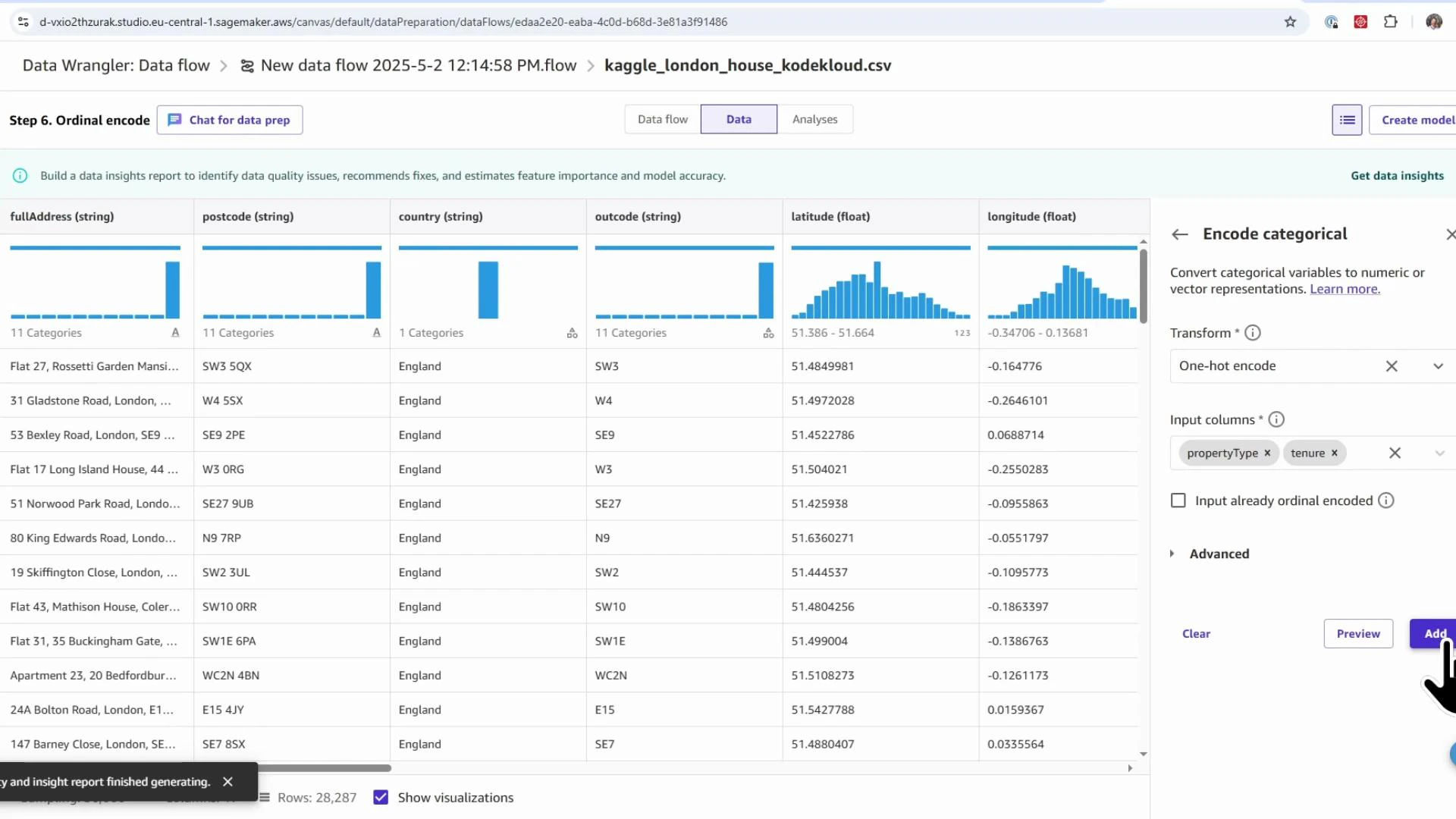
Screenshot of AWS SageMaker Data Wrangler displaying a tabular view of a London housing dataset (columns like fullAddress, postcode, country, latitude, longitude) with distribution histograms. On the right is an "Encode categorical" pane showing options to one-hot encode selected columns.
Transform summary
Transform TypePurposeWhen to use
Drop columnsRemove irrelevant or leaking featuresRemove target-leakage columns, identifiers, or high-cardinality nuisance fields
Handle missingImpute missing valuesUse median/mode/mean based on distribution and outliers
Process numeric (scaling)Normalize or scale numeric featuresUse when features have different ranges or to speed model convergence
Encode categoricalConvert categorical to numericOne-hot for nominal, ordinal for ordered categories
Validate outputs As you add transforms, inspect the preview at each node to ensure transformations behave as expected and to catch validation errors early. Once the data flow is complete and validated, export the processed dataset. Exporting processed data Data Wrangler supports exporting transformed datasets to destinations such as S3, or you can feed the transformed output directly into Canvas model-building. Choose Export → Amazon S3 (or Canvas model) and specify the target location. Summary This demo covered:
  • Launching SageMaker Canvas and opening Data Wrangler
  • Creating a Data Quality and Insights (DQI) report to surface data issues and feature importance
  • Applying common transforms: drop columns, impute missing values, scale numeric features, and encode categorical features
  • Validating each step and exporting the final ML-ready dataset
A screenshot of an AWS SageMaker Data Wrangler report highlighting a "Target leakage" warning for the feature saleEstimate_upperPrice. It shows a table of numeric statistics (min, max, mean, missing, outliers) alongside a histogram and target distribution plot.
Links and references If you want the recommended next steps: run the full-data export, verify transforms on the full dataset, and use the processed dataset to train models in Canvas or SageMaker training jobs.

Watch Video