In this lesson, we’ll learn how to keep track of multiple models and their versions using the Amazon SageMaker Model Registry. What we’ll cover:
  • The challenge of managing many model artifacts and versions.
  • How the SageMaker Model Registry registers, annotates, and controls model promotion.
  • How registry-driven approvals enable organized management, collaboration, rollback, and faster deployment of retrained models.
Let’s begin. A common scenario: a data scientist runs experiments and produces many candidate model artifacts in S3. Which artifact should go into production? You might choose a winner based on evaluation metrics or allow an AutoML workflow to pick one. For example, you might decide that model version 2.1 is the best candidate to deploy. Models typically degrade over time as data drifts. Monitoring may detect degradation and trigger retraining that produces a new artifact (for example, v3.1). That raises operational and governance questions:
  • Which version is currently approved for production?
  • Which new version should replace it?
  • Is an approval process required before deployment?
  • How do we automate the swap (deploy new model / retire old model) reliably?
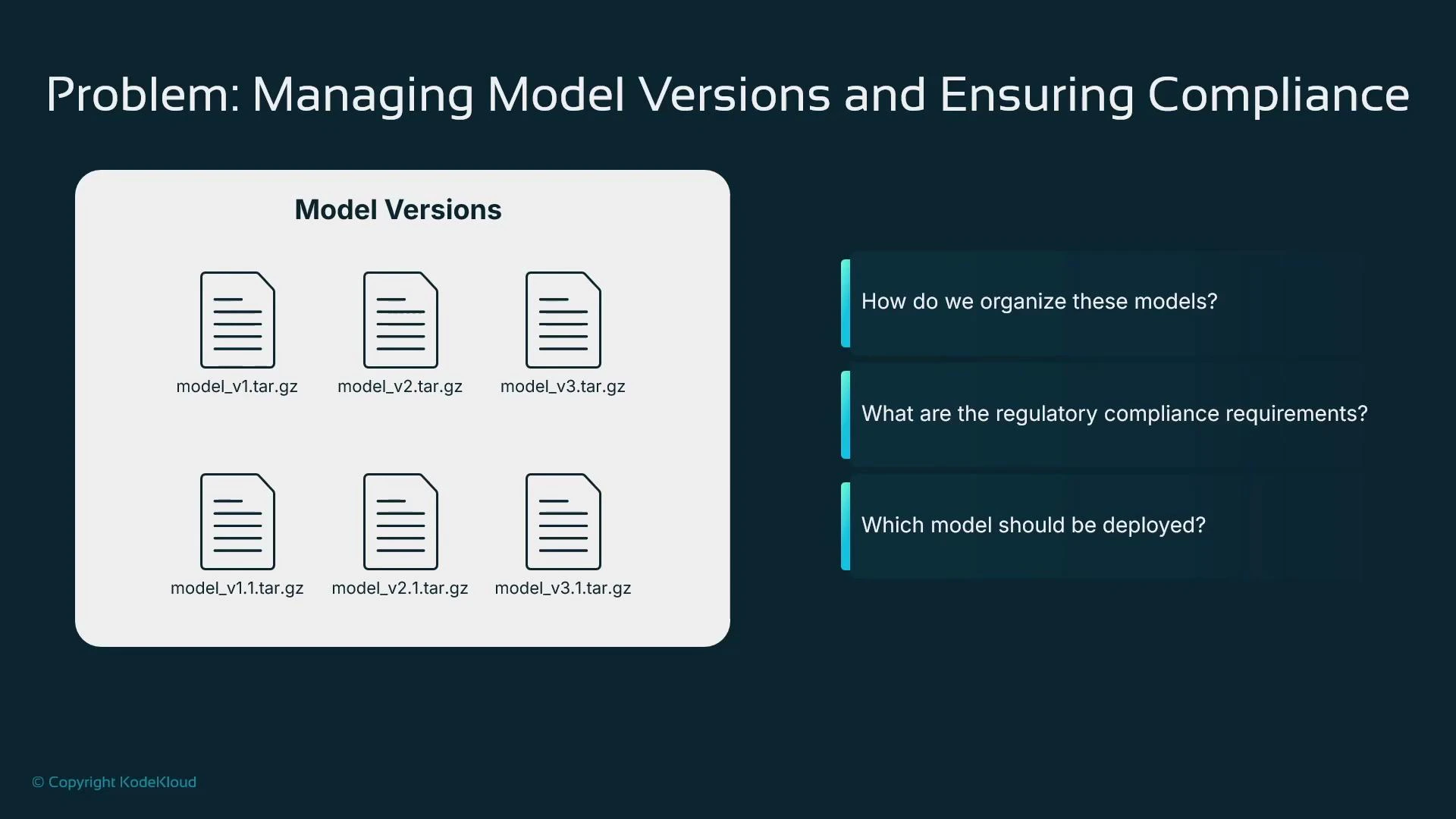
If your organization runs many projects and retrains frequently, artifacts accumulate quickly:
model_v1.tar.gz
model_v2.tar.gz
model_v3.tar.gz
model_v1.1.tar.gz
model_v2.1.tar.gz
model_v3.1.tar.gz
How do you organize these models, map them to projects, and determine the active production version? Ideally, you also want to view each candidate’s metrics and metadata to make informed selections.
A presentation slide titled "Problem: Managing Model Versions and Ensuring Compliance" showing six model archive icons (e.g., model_v1.tar.gz, model_v2.1.tar.gz) on the left. On the right are three questions: How do we organize these models? What are the regulatory compliance requirements? Which model should be deployed?
Solution overview: the SageMaker Model Registry The SageMaker Model Registry is designed to solve these problems by providing:
  • A single source of truth for model artifacts and versions.
  • The ability to annotate models with evaluation metrics, tags, and rich metadata.
  • Approval states that gate deployment to production and can trigger automation.
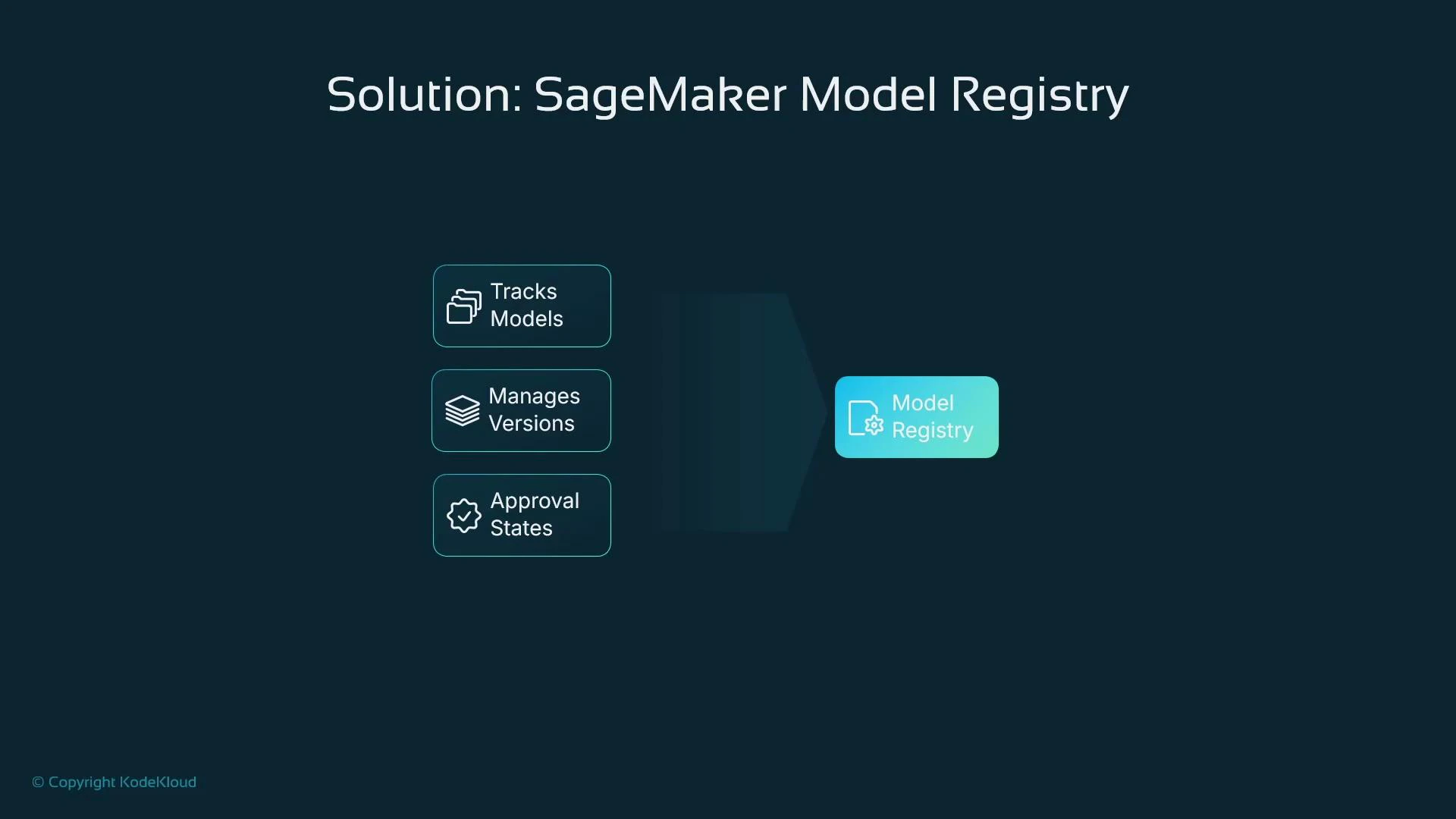
A registered model becomes a control point: approving a model package can start a deployment pipeline; rejecting a package can initiate rollback or withdrawal procedures.
A slide titled "Solution: SageMaker Model Registry" showing three feature boxes — "Tracks Models", "Manages Versions", and "Approval States" — flowing into a highlighted "Model Registry" tile. The design uses a dark background with teal/accented boxes.
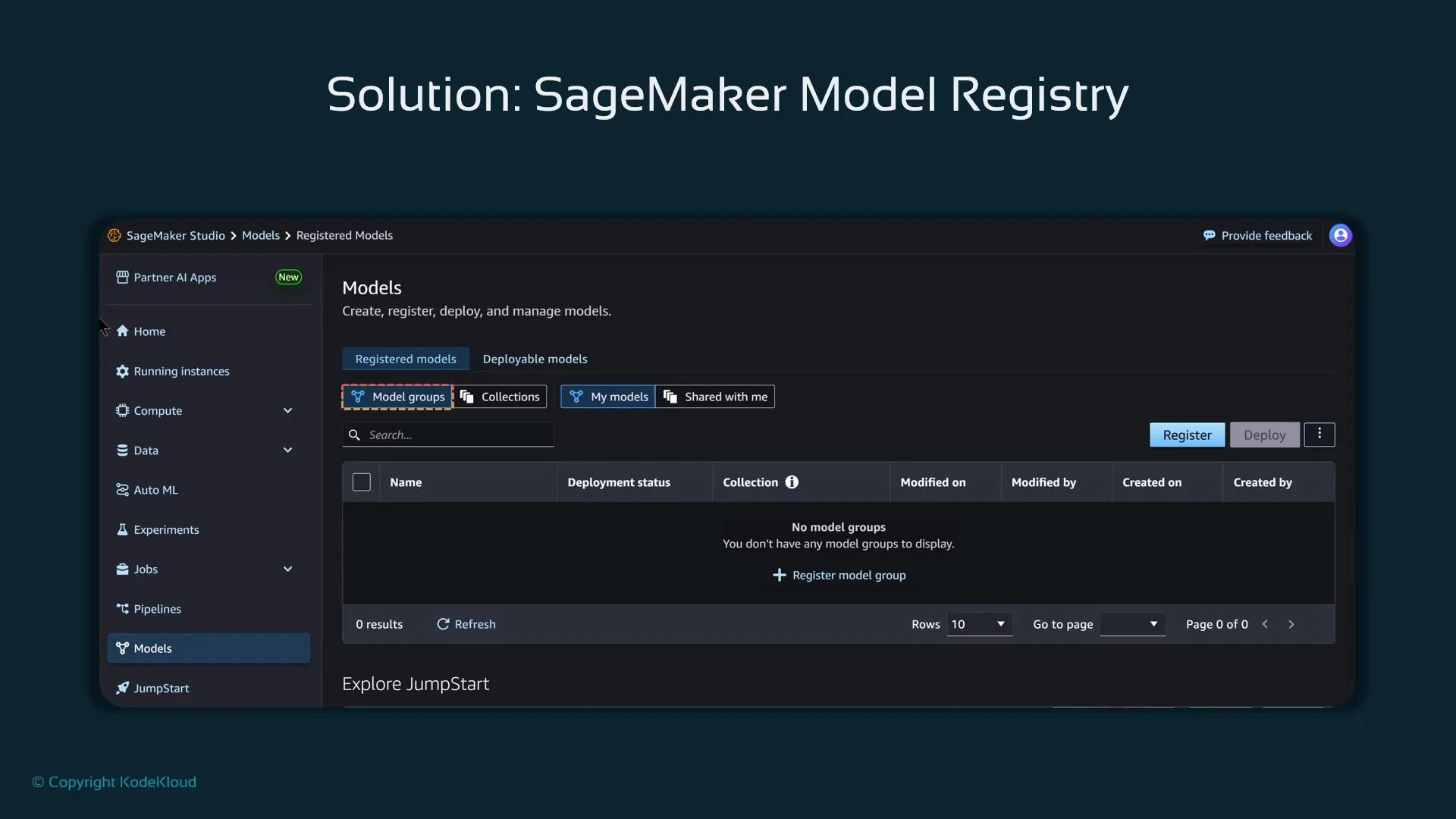
Model Registry and SageMaker Studio In SageMaker Studio, the Model Registry is exposed via the Studio UI, letting you inspect registered models, their metadata, and approval states. Note: models trained in SageMaker are not automatically registered — registration must be done explicitly through the console, the SDK, or programmatically from pipelines.
A screenshot titled "Solution: SageMaker Model Registry" showing the AWS SageMaker Studio Models page. The interface displays the Registered models tab (empty), with buttons to register or deploy models and a left-hand navigation menu.
You must create a Model Package Group (sometimes called a model group) and then register model packages (versions) under that group. Registration can be done via the SageMaker console, the SDK (boto3 / sagemaker Python SDK), or programmatically (for example, from CI/CD pipelines).
What is a Model Package Group? A Model Package Group is a logical collection that groups related model versions. How you structure groups depends on your organizational and team conventions. Common strategies include grouping by project, business problem, or model type. Model group structuring options:
Grouping strategyUse caseExample
Per projectKeep all versions for a single product or team in one placefraud-detection-project
Per business problemGroup models by the problem they solve across teamstime-series-forecasting
Per model typeOrganize models of similar architecture or tasknlp-classifiers
Choose a grouping strategy that maps to ownership, governance requirements, and traceability needs.
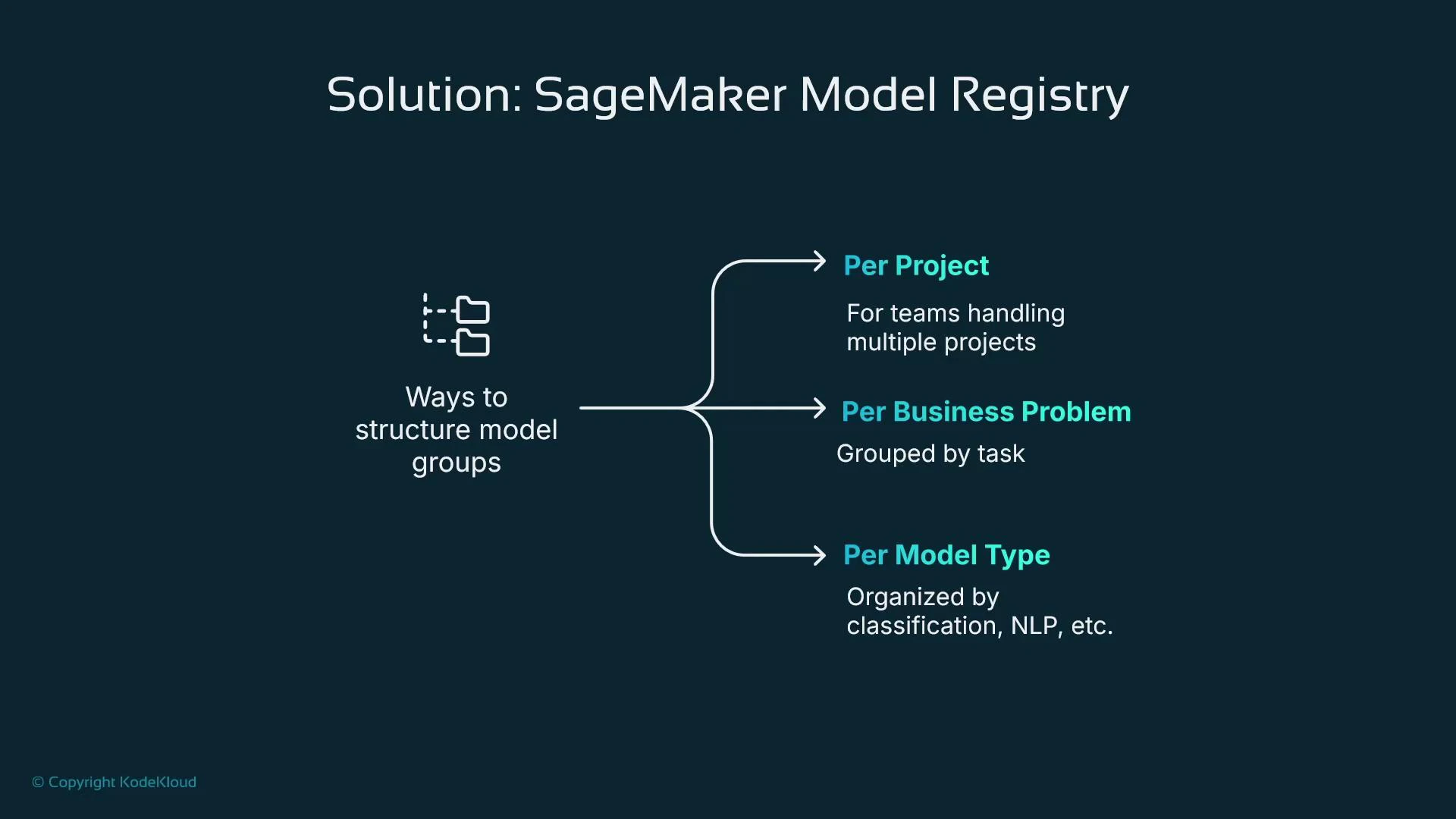
A slide titled "Solution: SageMaker Model Registry" showing three ways to structure model groups: Per Project, Per Business Problem, and Per Model Type, each with a short description. It visually branches from a central "Ways to structure model groups" node to the three options.
Conceptual relationship between components
  • Model artifact: the artifact stored in S3 (for example, model.tar.gz or model_v2.1.tar.gz).
  • Model Package Group: the logical container for related models.
  • Model Package (model version): registering an artifact in a package group creates a Model Package entry (a version) inside that group.
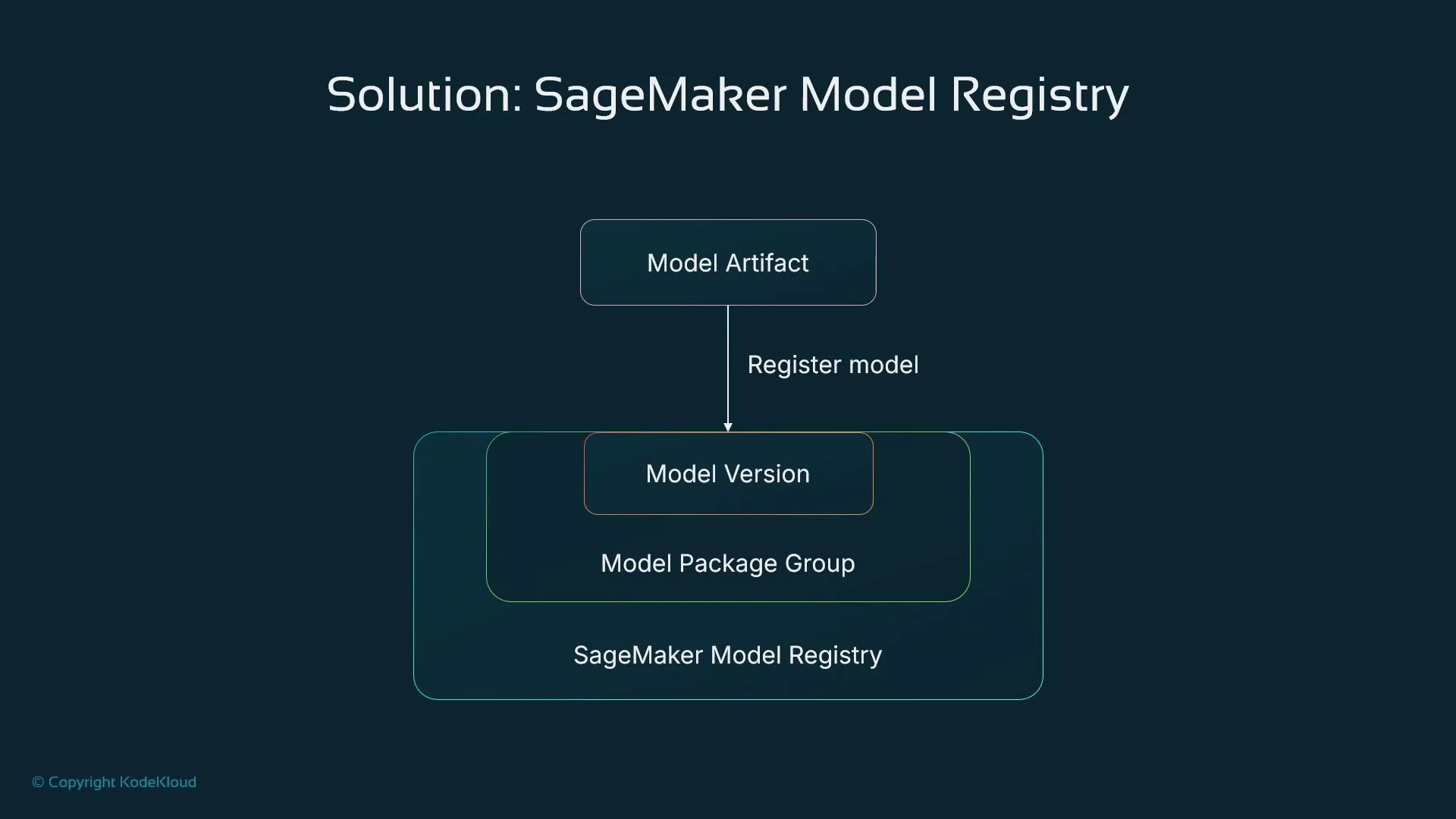
Each time you register a package in the same group, you create a new version entry under that group.
A diagram titled "Solution: SageMaker Model Registry." It shows a Model Artifact being registered to create a Model Version inside a Model Package Group within the SageMaker Model Registry.
Model lifecycle and approval states When a model package is registered you can annotate it with evaluation metrics, tags, and other metadata. SageMaker Model Registry tracks approval status for each package, commonly using:
Approval stateDescriptionTypical action
PendingManualApprovalAwaiting human review before productionTrigger manual review or a governance workflow
ApprovedCleared for production deploymentTrigger CI/CD or pipeline deployment
RejectedNot approved for productionBlock deployment; optionally trigger rollback or retrain
Approval states enforce governance and separation of duties: data scientists register and annotate models, and authorized governance or ops roles change approval to Approved to allow deployment. This prevents unvetted models from reaching production. The Model Registry addresses real-world ML lifecycle challenges:
  • Model versioning: maintain curated, versioned model packages in groups.
  • Deployment & rollback: approval states act as triggers for automated rollout or rollback via CI/CD and pipelines.
  • Collaboration & governance: approval workflows + IAM enforce separation of duties and auditability.
  • Consistency & provenance: centralized metadata stores training, evaluation, lineage, and version history.
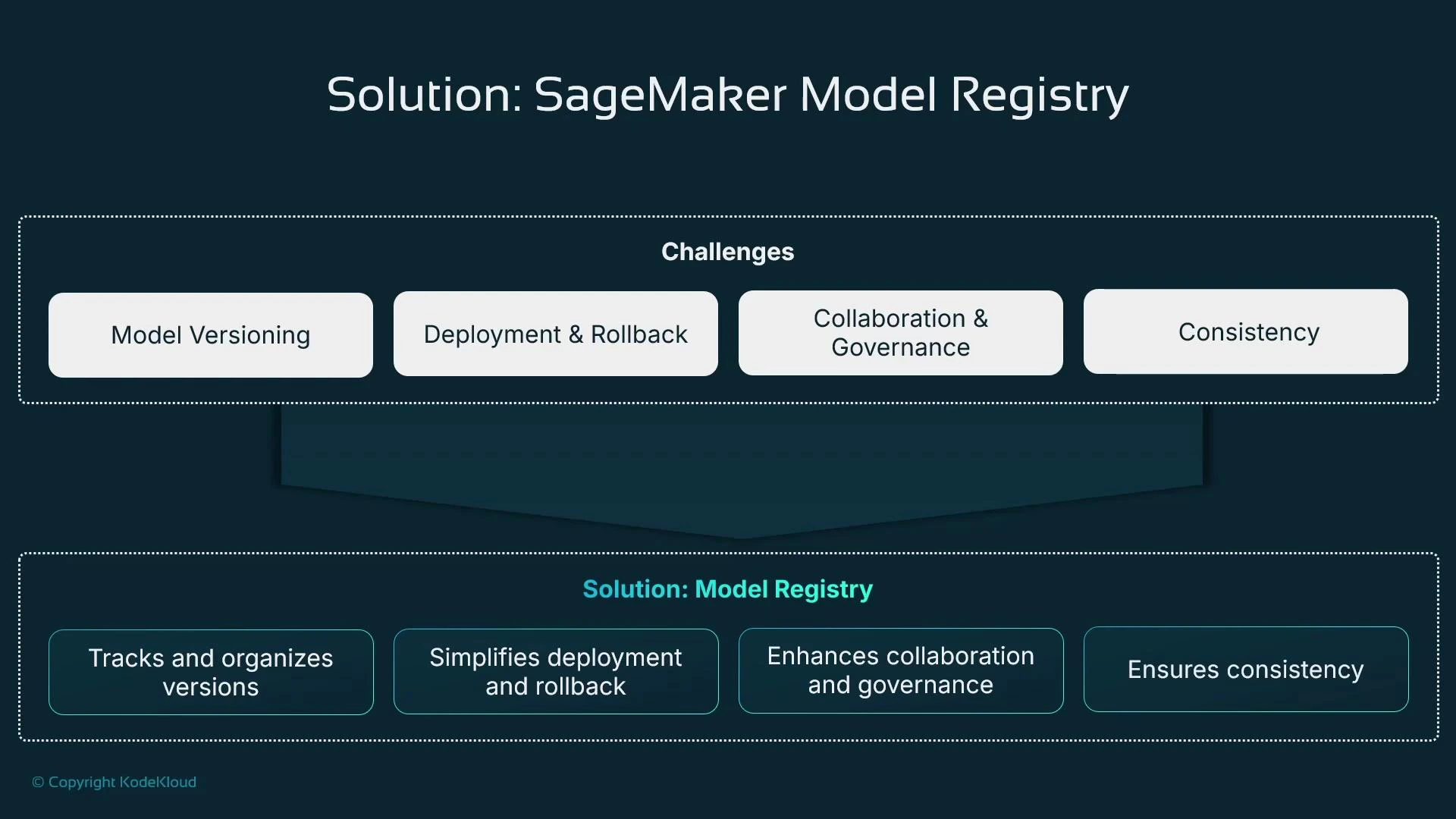
A presentation slide titled "Solution: SageMaker Model Registry" outlining challenges (Model Versioning, Deployment & Rollback, Collaboration & Governance, Consistency). It shows the model registry benefits: tracks and organizes versions, simplifies deployment and rollback, enhances collaboration/governance, and ensures consistency.
Practical notes and recommended next steps
  • Create a Model Package Group for each logical set of related models (per your chosen strategy).
  • Register model packages by providing the artifact S3 URI, inference container image, and metadata (metrics, tags, training/job lineage).
  • Include evaluation metrics and tags so stakeholders can select models easily in the registry UI.
  • Automate promotion and deployment using CI/CD pipelines and AWS EventBridge: when a model package’s approval state becomes Approved, trigger deployment pipelines; when Rejected, trigger withdrawal or rollback workflows.
  • Use IAM policies and fine-grained permissions to ensure only authorized roles can change approval states—this provides governance and traceability.
  • Integrate model monitoring and drift detection to close the loop: monitoring can trigger retraining, which registers a new package and starts the review pipeline.
With the SageMaker Model Registry you get an auditable, enforceable, and automatable system for managing model versions, approvals, and lifecycle transitions—rather than ad hoc S3 folders with unclear provenance. Links and references

Watch Video