In this lesson we show how to use automation in Amazon SageMaker to speed up model development and reduce the cost of iterative training experiments. We’ll explain the manual pain points, how SageMaker AutoML (Autopilot) addresses them, and how to run Autopilot programmatically with the SageMaker SDK. What we’ll cover:
  • Why manual model training can be costly and slow.
  • What SageMaker AutoML / Autopilot automates.
  • How to run Autopilot from the SageMaker SDK, inspect candidates, and deploy the best model.
  • Best practices and when to use Autopilot vs. custom training.
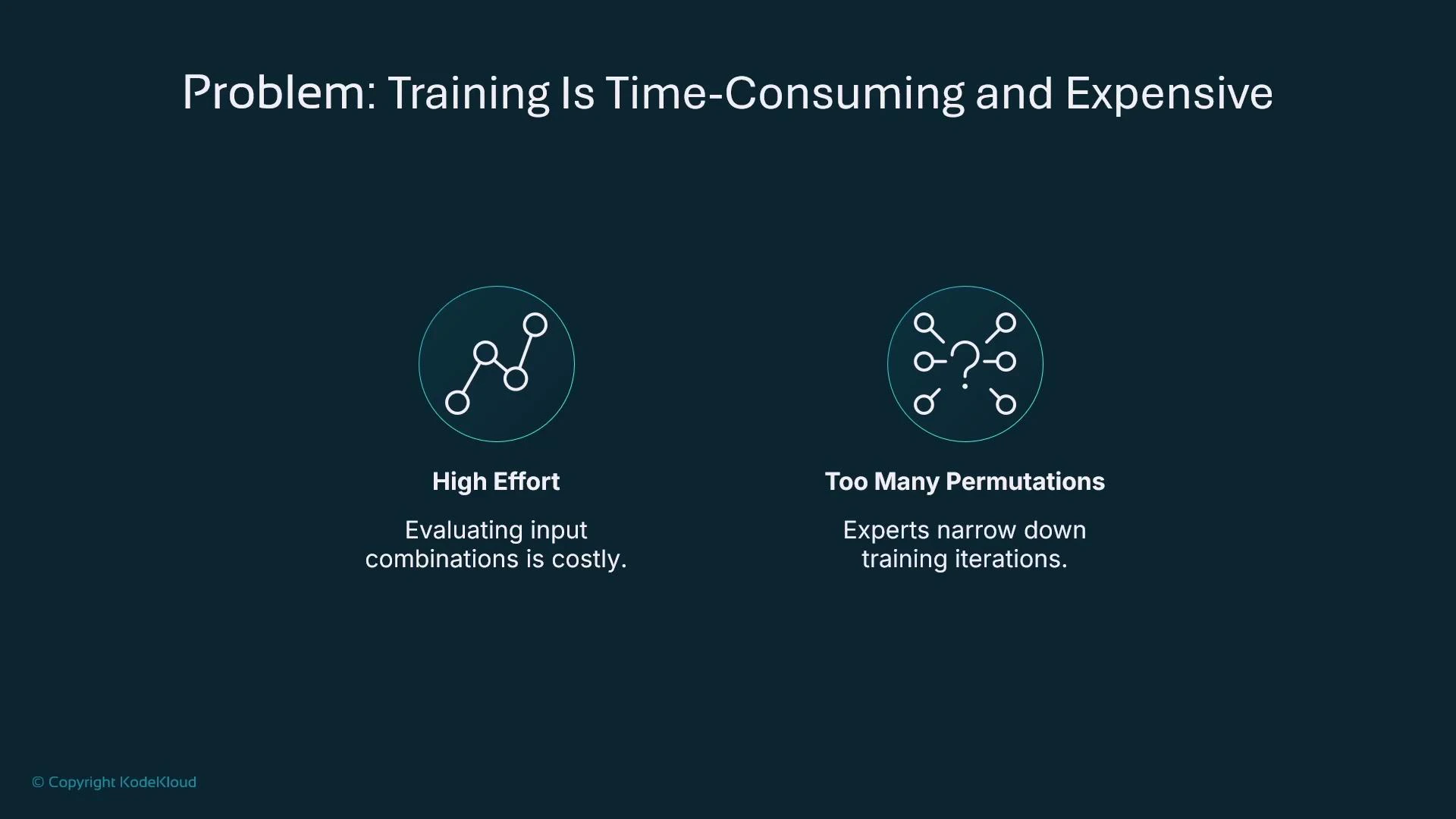
Why manual model training gets expensive
  • Managing dataset versions, feature processing, algorithm selection, and hyperparameter permutations creates a large combinatorial search space.
  • Running every permutation is time-consuming and costly even with experiment tracking.
  • Data scientists often reduce the search space using domain knowledge, but that still requires many training runs.
Example (illustrative) hyperparameter trials you might run manually:
# Example hyperparameter trials (illustrative)
# Trial 1
learning_rate = 0.01
mini_batch_size = 32
epochs = 10

# Trial 2
learning_rate = 0.01
mini_batch_size = 64
epochs = 10

# Trial 3
learning_rate = 0.1
mini_batch_size = 64
epochs = 20
A presentation slide titled "Problem: Training Is Time-Consuming and Expensive." It shows two icons with captions: "High Effort — Evaluating input combinations is costly" and "Too Many Permutations — Experts narrow down training iterations."
What AutoML / Autopilot solves
  • Automates preprocessing and feature engineering.
  • Selects algorithms suited to your tabular problem.
  • Trains multiple candidate models and tunes hyperparameters.
  • Produces a ranked leaderboard so you can pick the best candidate quickly.
  • Exposes model artifacts and notebooks for inspection and further customization.
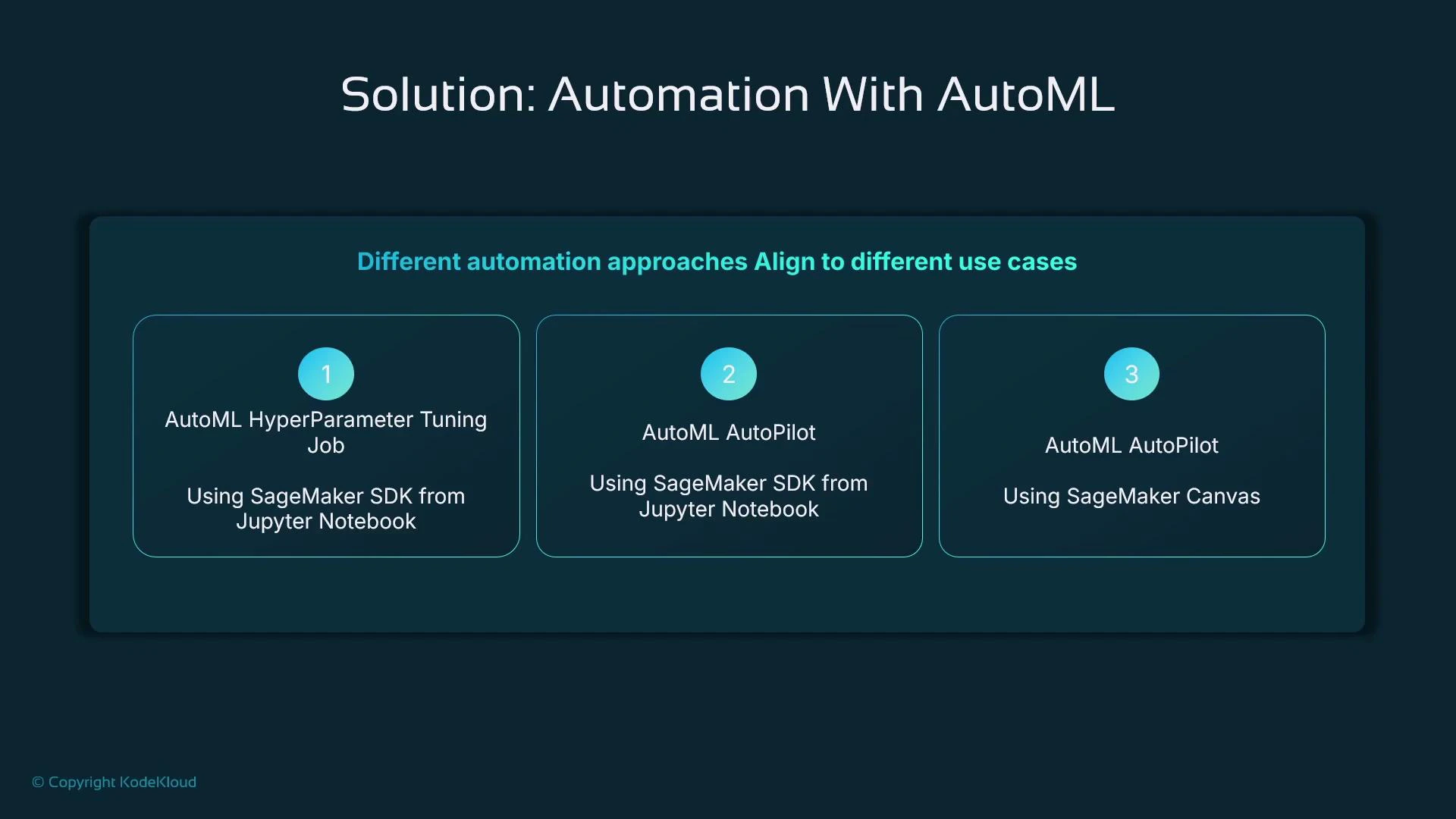
Slide titled "Solution: Automation With AutoML" showing three automation approaches for SageMaker AutoML. The three boxes list: 1) AutoML HyperParameter Tuning Job using SageMaker SDK from a Jupyter Notebook, 2) AutoML AutoPilot using SageMaker SDK from a Jupyter Notebook, and 3) AutoML AutoPilot using SageMaker Canvas.
Why use the SageMaker SDK with Autopilot
  • Programmatic control: integrate Autopilot into CI/CD pipelines and automated workflows.
  • Access to artifacts: notebooks, model artifacts, and details about candidate models.
  • Customization: you can set guardrails (max candidates, runtime) and then inspect and refine outputs manually.
  • Seamless deployment: take the best candidate and create a SageMaker Model/endpoint.
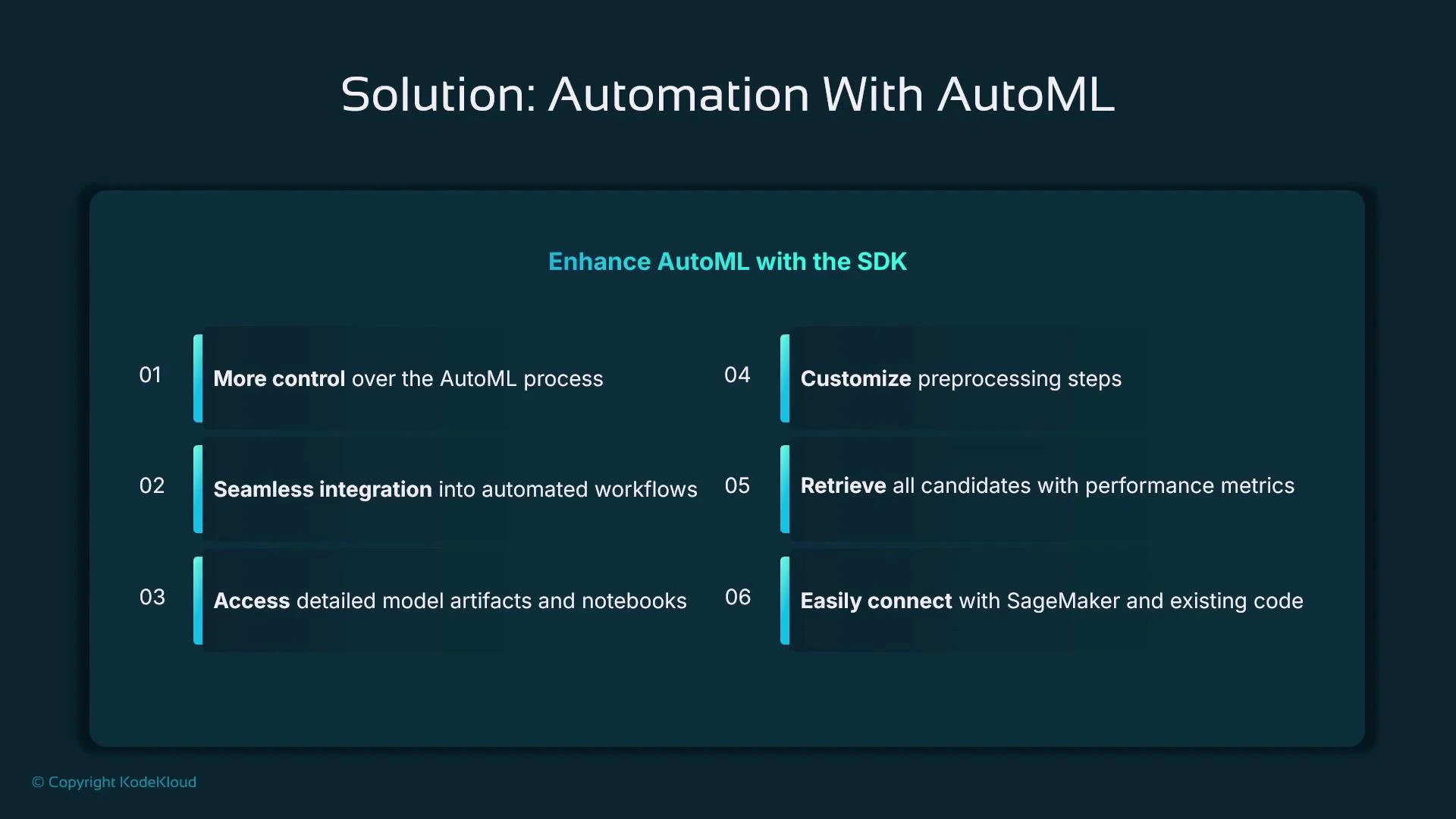
A dark-themed presentation slide titled "Solution: Automation With AutoML" that highlights "Enhance AutoML with the SDK." It lists six benefits — more control, seamless integration, access to model artifacts, customizable preprocessing, retrieval of candidates with metrics, and easy connection to SageMaker/existing code.
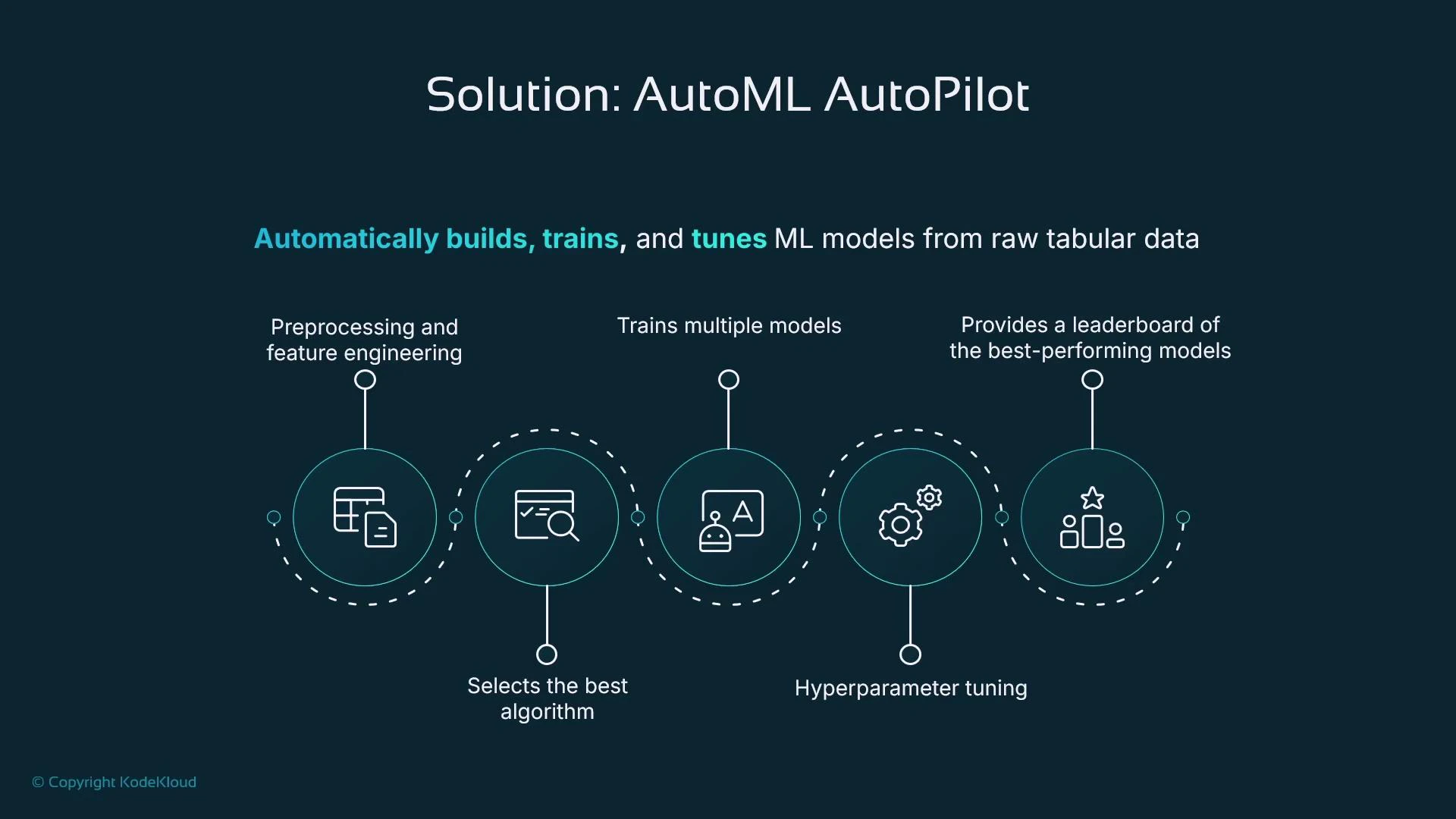
Autopilot pipeline (tabular data)
  • Preprocessing and feature engineering
  • Algorithm selection
  • Training multiple candidate models
  • Hyperparameter tuning
  • Leaderboard of top candidates
This automation is ideal for rapid prototyping and proving whether your data contains predictive signal before investing in heavy engineering.
An infographic titled "Solution: AutoML AutoPilot" that says it automatically builds, trains, and tunes ML models from raw tabular data. It shows five steps with icons: preprocessing/feature engineering, selecting the best algorithm, training multiple models, hyperparameter tuning, and providing a leaderboard of top models.
Terminology
  • AutoML (general): automation techniques applied to machine learning workflows.
  • Autopilot (specific): Amazon SageMaker’s AutoML implementation for tabular data.
  • In the SageMaker SDK you may see both “AutoML” and “Autopilot” references; the module is typically sagemaker.automl.
Autopilot is excellent for rapid prototyping and automating many training details, but if you require fine-grained control over feature engineering or model internals you should extract the candidate artifacts and continue development manually.
When to use Autopilot vs custom training
Use caseAutopilot (Autopilot / AutoML)Custom training
Rapid prototyping / proof of conceptIdeal — minimal code, fast resultsOverkill
Tabular datasets with clear target columnBest fitPossible but slower
Need full control over feature engineering or model internalsNot ideal — more limited customizationPreferred
Want quick candidate models and leaderboard to iterate fromYesManual selection required
Integration into automated pipelinesYes, via SageMaker SDKYes, but more manual orchestration
Quick reference: common Autopilot parameters
ParameterPurposeExample
target_attribute_nameLabel column name in your dataset”target_column”
problem_typeProblem type (BinaryClassification, Regression, MulticlassClassification)“BinaryClassification”
max_candidatesMax number of candidate models to explore10
max_runtime_per_training_jobTimeout per training job in seconds3600
output_pathS3 path for model artifacts and outputss3://your-bucket/output
Example: run an Autopilot job with the SageMaker SDK
  • Best practice: import the AutoML class explicitly from the submodule to make intent clear.
import sagemaker
from sagemaker.automl import AutoML

# Initialize the AutoML (Autopilot) job
auto_ml = AutoML(
    role=sagemaker.get_execution_role(),
    target_attribute_name="target_column",             # Label column in your CSV
    output_path="s3://your-bucket/output",             # Where model artifacts will be stored
    problem_type="BinaryClassification",               # e.g., "BinaryClassification", "Regression"
    max_candidates=10,                                 # Max number of candidate models to explore
    max_runtime_per_training_job=3600,                 # Timeout per training job (seconds)
    sagemaker_session=sagemaker.Session()
)

# Start the Autopilot job asynchronously (wait=False)
auto_ml.fit(
    inputs="s3://your-bucket/training-data.csv",
    job_name="my-first-automl-job",
    wait=False
)
Inspecting Autopilot progress and candidates
  • After starting the job, you can describe the Autopilot job, list candidates, and pick the best candidate programmatically.
# Introspection (method names may vary by SDK version)
# Describe the job status
desc = auto_ml.describe_auto_ml_job()
print("Status:", desc.get("AutoMLJobStatus"))

# List candidates (example)
candidates = auto_ml.list_candidates()
print("Candidates:", [c["CandidateName"] for c in candidates])

# Get the best candidate (highest-ranked by objective)
best = auto_ml.best_candidate()
print("Best candidate:", best["CandidateName"])
print("Objective metric:", best.get("FinalAutoMLJobObjectiveMetric"))
Deploying the best candidate
  • Extract the model artifact and container image from the best candidate and create a SageMaker Model, then deploy to an endpoint.
from sagemaker.model import Model

# Model artifact and inference container (from best candidate)
model_artifact = best["ModelArtifacts"]["S3ModelArtifacts"]
image_uri = best["InferenceContainers"][0]["Image"]

# Create a SageMaker Model object
model = Model(
    model_data=model_artifact,
    role="your-sagemaker-execution-role",
    image_uri=image_uri
)

# Deploy the model (creates a real-time endpoint)
predictor = model.deploy(initial_instance_count=1, instance_type="ml.m5.large")
Best practices and tips
  • Explicit imports: import exact classes/functions you use for clarity and to avoid accidental submodule side effects.
  • Use guardrails: set max_candidates and runtime limits to control cost.
  • Inspect artifacts and notebooks produced by Autopilot to learn what preprocessing and features were used.
  • Use Autopilot outputs as a starting point — you can register models in the SageMaker Model Registry and iterate further.
Small import example (clarity):
# Less explicit
import os
os.path.join("a", "b")

# More explicit
from os.path import join
join("a", "b")
Autopilot automates many steps but is not a silver bullet. It can reduce time-to-insight for tabular problems, but you should still validate candidate models, check fairness/robustness, and apply custom feature engineering for production-ready models.
What Autopilot gives you
  • An end-to-end automated pipeline from raw tabular data to trained and evaluated candidate models.
  • A leaderboard of ranked candidates and metrics.
  • Programmatic access to model artifacts so you can register, deploy, or refine models further.
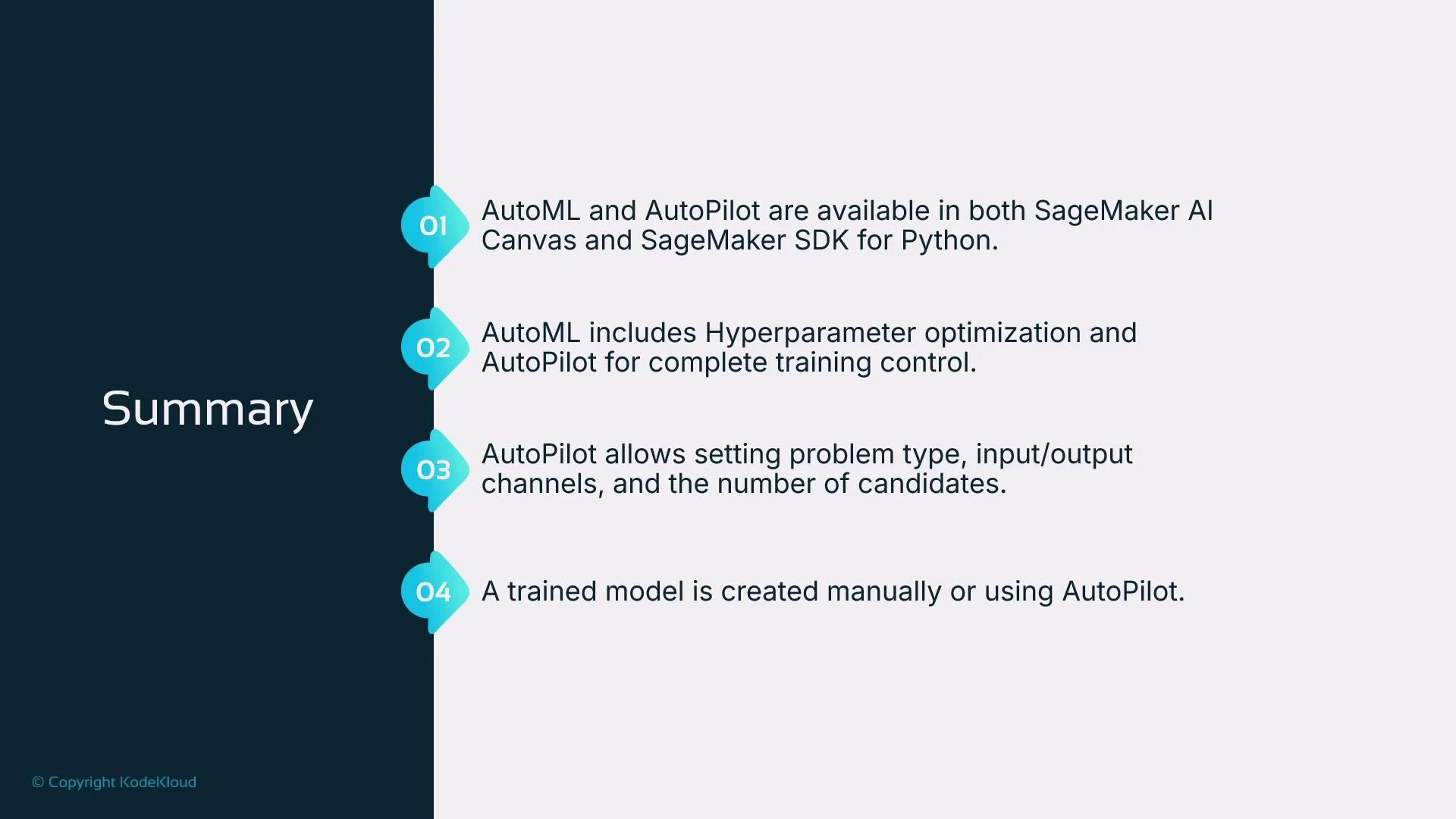
A presentation slide titled "Summary" that lists four numbered points about AutoML and AutoPilot in SageMaker. It notes availability in SageMaker AI Canvas and SDK, hyperparameter optimization and training control, settings for problem type and I/O channels, and that models can be created manually or with AutoPilot.
Summary
  • AutoML is the general concept of automating machine learning tasks; Autopilot is SageMaker’s AutoML for tabular data.
  • You can use Autopilot through SageMaker Canvas (low-code) or programmatically through the SageMaker SDK.
  • Autopilot handles preprocessing, feature engineering, algorithm selection, hyperparameter tuning, and candidate ranking.
  • Control inputs like problem type, input data location, output path, and constraints such as max candidates and runtime to manage cost and runtime.
  • Use Autopilot for speed and prototyping; refine the best candidate with custom data science work when you need production-grade control.
Links and references You may also want to explore the SageMaker model registry and why model metadata and lineage matter for production workflows.

Watch Video