In this lesson we’ll explore a low-code workflow for data engineering, data preparation, and automated model training using Amazon SageMaker Canvas. Canvas provides a visual interface for preparing tabular data, running AutoML, and hosting models — enabling rapid proof-of-concept (POC) experiments without writing Python or building custom training pipelines.
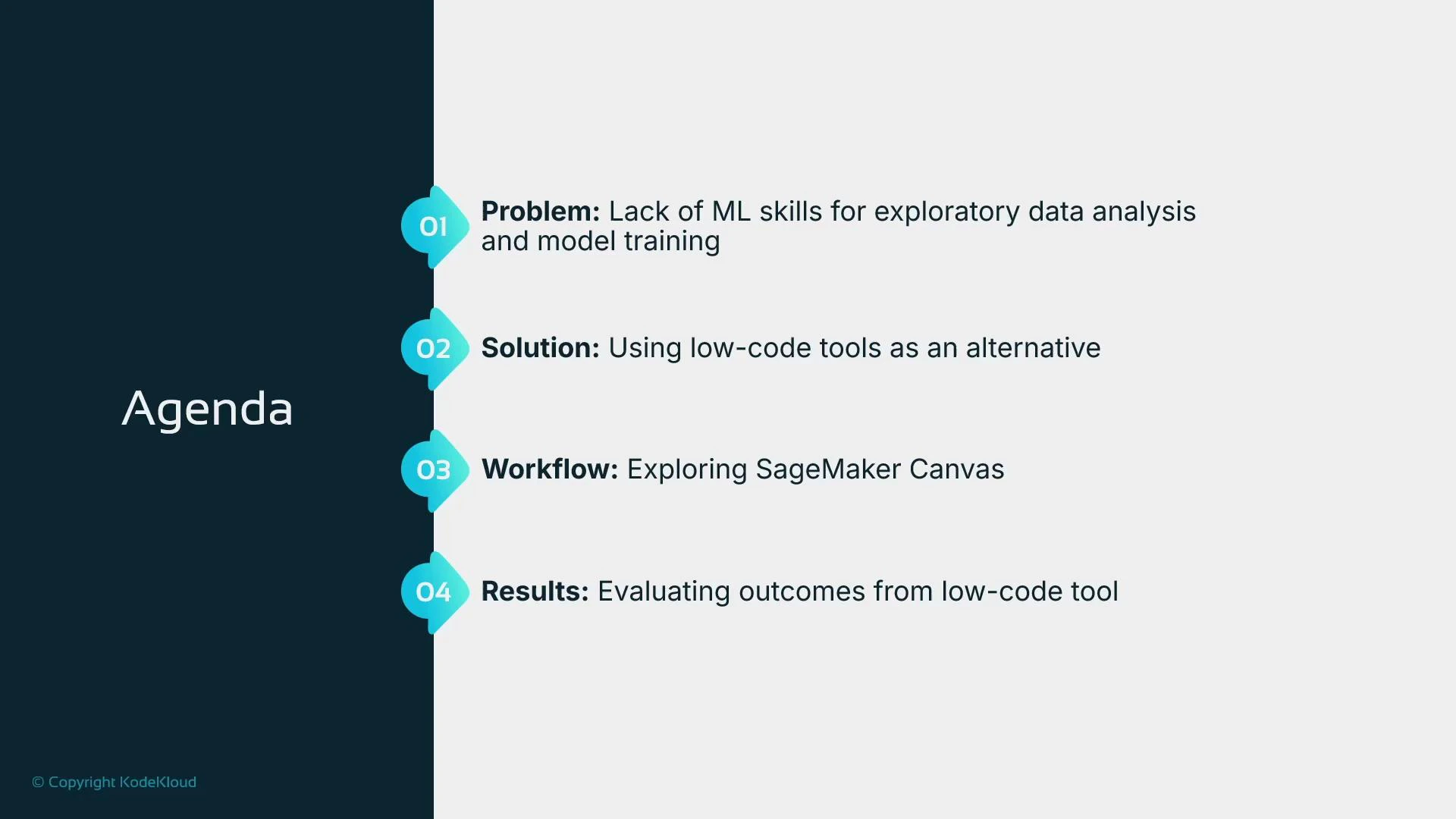
A presentation slide titled "Agenda" listing four numbered items: Problem (lack of ML skills for exploratory data analysis and model training), Solution (using low-code tools), Workflow (exploring SageMaker Canvas), and Results (evaluating outcomes). A dark left sidebar shows the "Agenda" title and a KodeKloud copyright.
Why use a low-code tool?
  • Building an ML model typically requires sourcing and cleaning data, choosing and tuning algorithms, and deploying an inference service. Those steps often demand ML engineers and data scientists.
  • If you need a quick answer about whether your dataset contains predictive signal, hiring specialists first can be costly and time-consuming.
  • Low-code tools like SageMaker Canvas let non-specialists run exploratory data analysis, prepare data, and train models to validate dataset value quickly — perfect for POCs and business case validation.
SageMaker Canvas is designed to accelerate proof-of-concept experiments: import tabular data, run AutoML, and host predictions without writing code. It’s ideal for validating whether your data has predictive value before investing in full-scale ML development.
If the Canvas POC shows promising results, you can decide whether to scale the effort into a programmatic SageMaker workflow, involve ML specialists, or move a Canvas model into production.
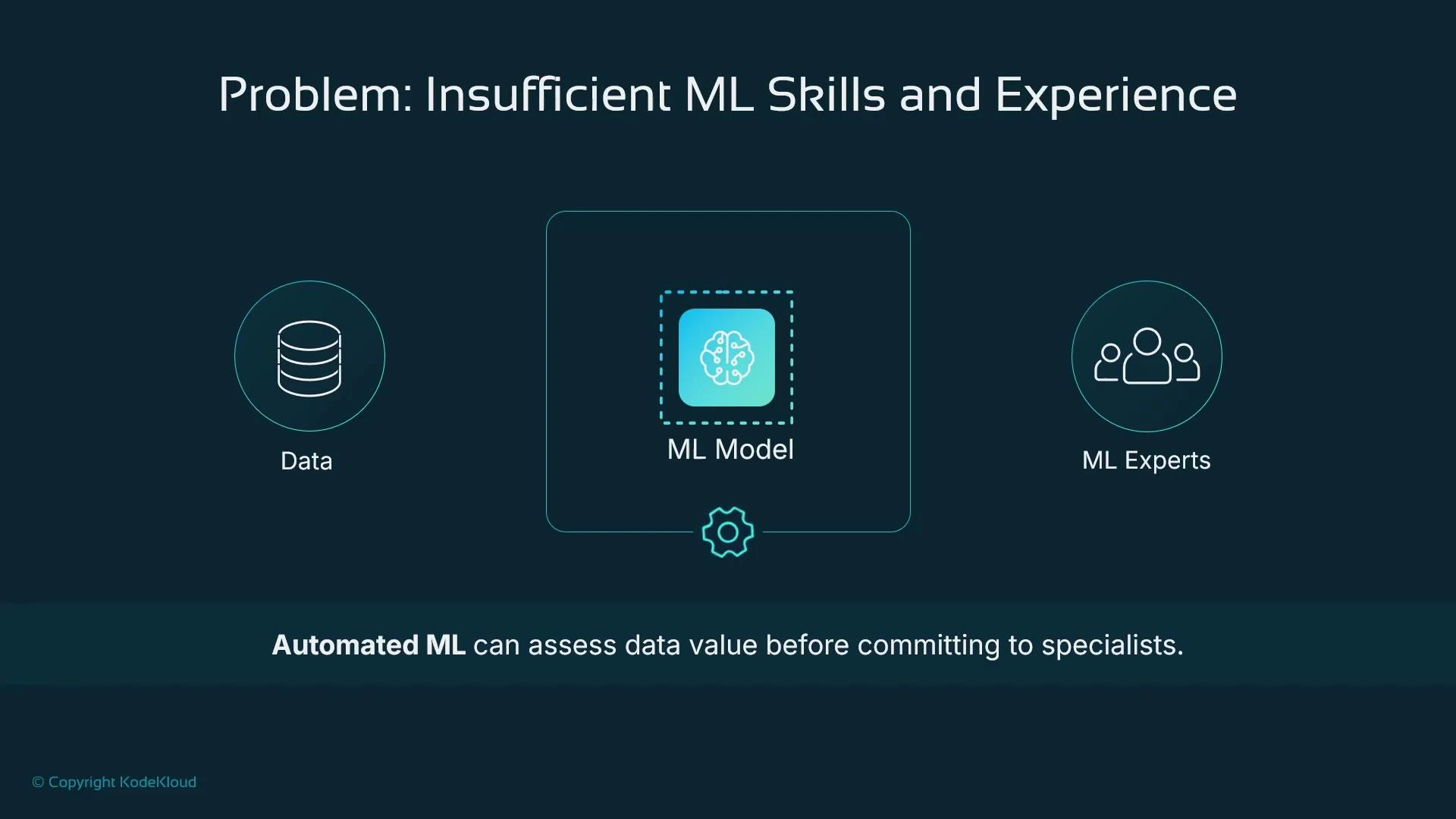
A slide titled "Problem: Insufficient ML Skills and Experience" showing icons for Data (left), an ML Model (center), and ML Experts (right). The footer states "Automated ML can assess data value before committing to specialists."
High-level Canvas workflow
  1. Import data into SageMaker Canvas (from local files or S3).
  2. Prepare and inspect data using integrated Data Wrangler.
  3. Train a model with Canvas AutoML.
  4. Host the trained model to get predictions.
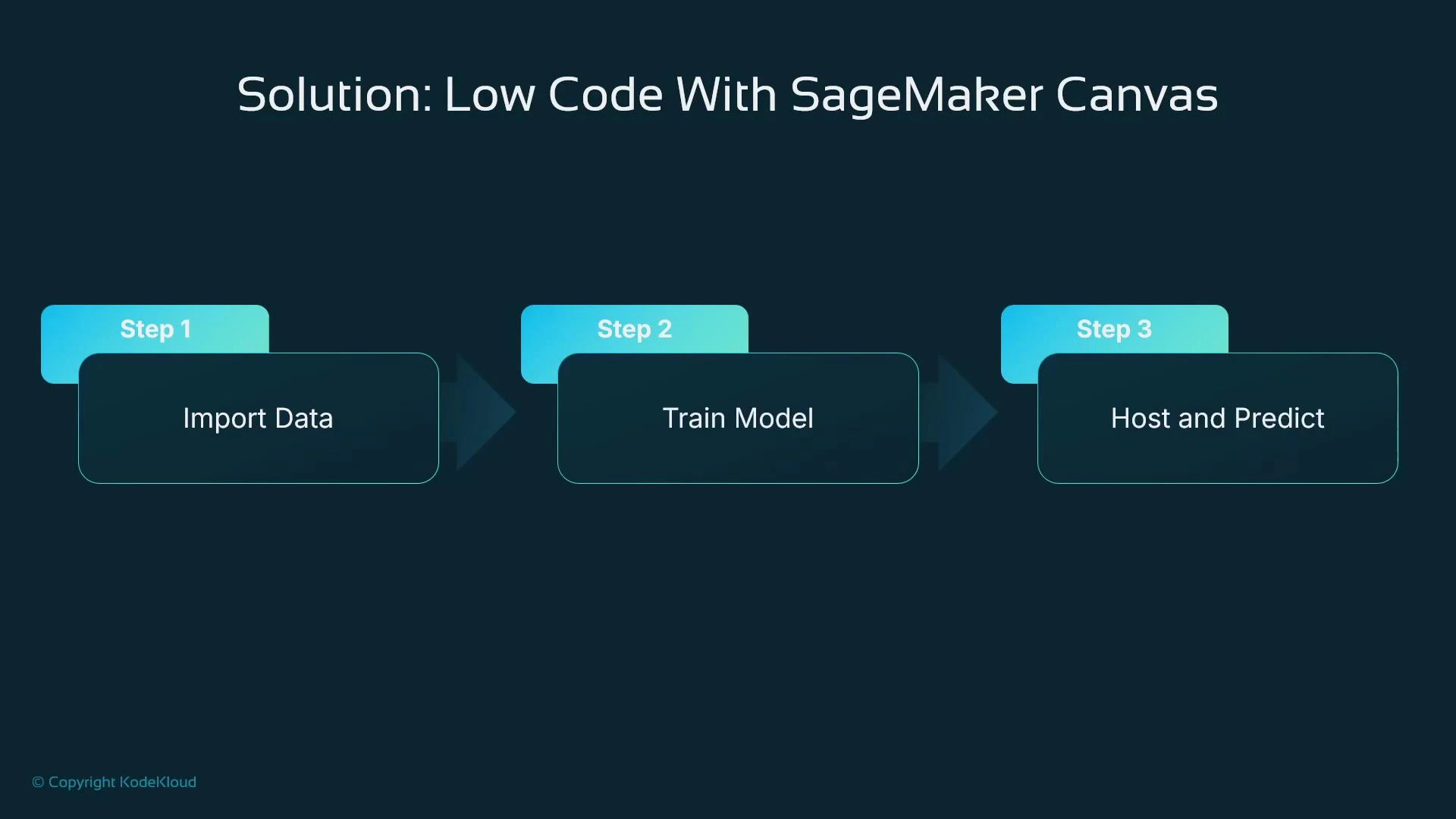
A presentation slide titled "Solution: Low Code With SageMaker Canvas" showing a three-step workflow: Step 1 — Import Data, Step 2 — Train Model, and Step 3 — Host and Predict.
When Canvas makes sense
  • Rapid proof-of-concept for tabular regression, classification, or forecasting tasks.
  • Teams with limited ML or Python experience that need to validate datasets quickly.
  • Fast iteration and demoing to stakeholders before committing to custom ML engineering work.
When Canvas is not ideal
  • Production-grade, fine-tuned, or highly specialized ML workloads (deep learning, advanced NLP, image recognition).
  • Complex preprocessing or custom feature engineering requiring arbitrary program logic.
  • Real-time, low-latency API serving or advanced deployment topologies that need fine-grained control.
Use the table below to compare typical tradeoffs:
ResourceBest Use CaseProsCons
SageMaker Canvas + Data WranglerRapid POCs for tabular dataLow-code, fast insights, integrated AutoML and hostingLimited algorithm choices, less hyperparameter control, constrained compute/configuration
Programmatic SageMaker (Jupyter/SageMaker SDK/Custom Jobs)Production / custom models / deep learningFull control, custom training, broad algorithm supportRequires coding, ML expertise, longer development time
Relevant links:
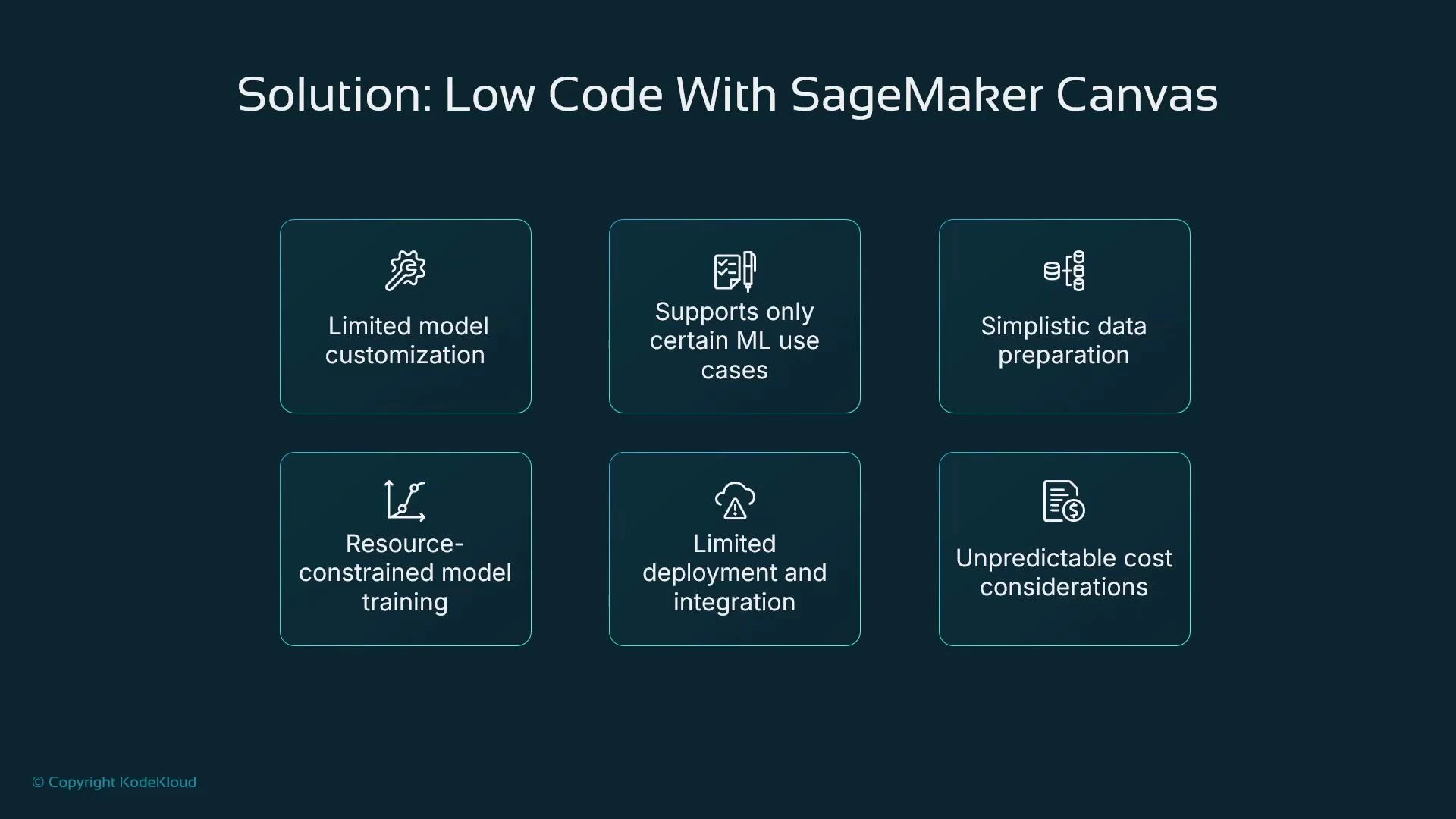
A presentation slide titled "Solution: Low Code With SageMaker Canvas." It displays six boxed limitations, including limited model customization, restricted ML use cases, simplistic data preparation, resource-constrained training, limited deployment/integration, and unpredictable cost considerations.
Key Canvas considerations
  • Canvas offers a separate browser-based UI (launched from SageMaker Studio’s Applications) tailored for non-programmatic workflows.
  • Canvas integrates Data Wrangler for low-code preprocessing and AutoML for model training.
  • Models trained in Canvas can be deployed as SageMaker endpoints, but deployment options are simpler than fully custom SageMaker setups.
  • Monitor costs: Canvas is billed for runtime, training, and hosting — stop runtimes when not in use.
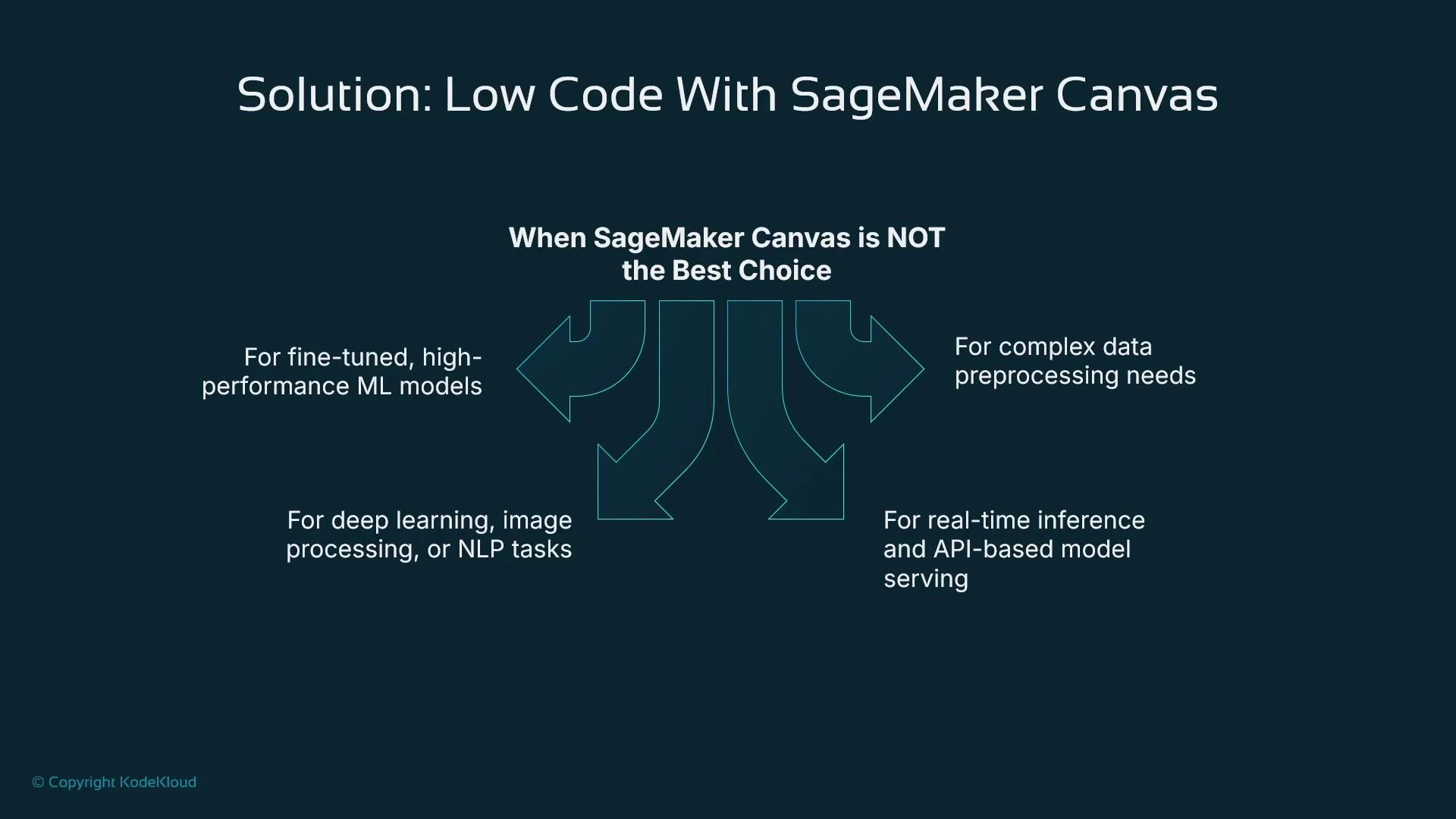
The slide titled "Solution: Low Code With SageMaker Canvas" shows a central heading "When SageMaker Canvas is NOT the Best Choice" with arrows pointing outward to four reasons: fine-tuned high-performance ML models; complex data preprocessing needs; deep learning/image processing/NLP tasks; and real-time inference/API-based model serving. The slide has a dark background and a small copyright notice for KodeKloud.
Where to find and run SageMaker Canvas
  • From the new SageMaker Studio UI, open the Applications panel and click Run Canvas.
  • Ensure your Studio user profile has the SageMaker Canvas application enabled.
  • Canvas launches in a separate browser tab and runs as a managed runtime (start/stop). Billing starts when the runtime is active.
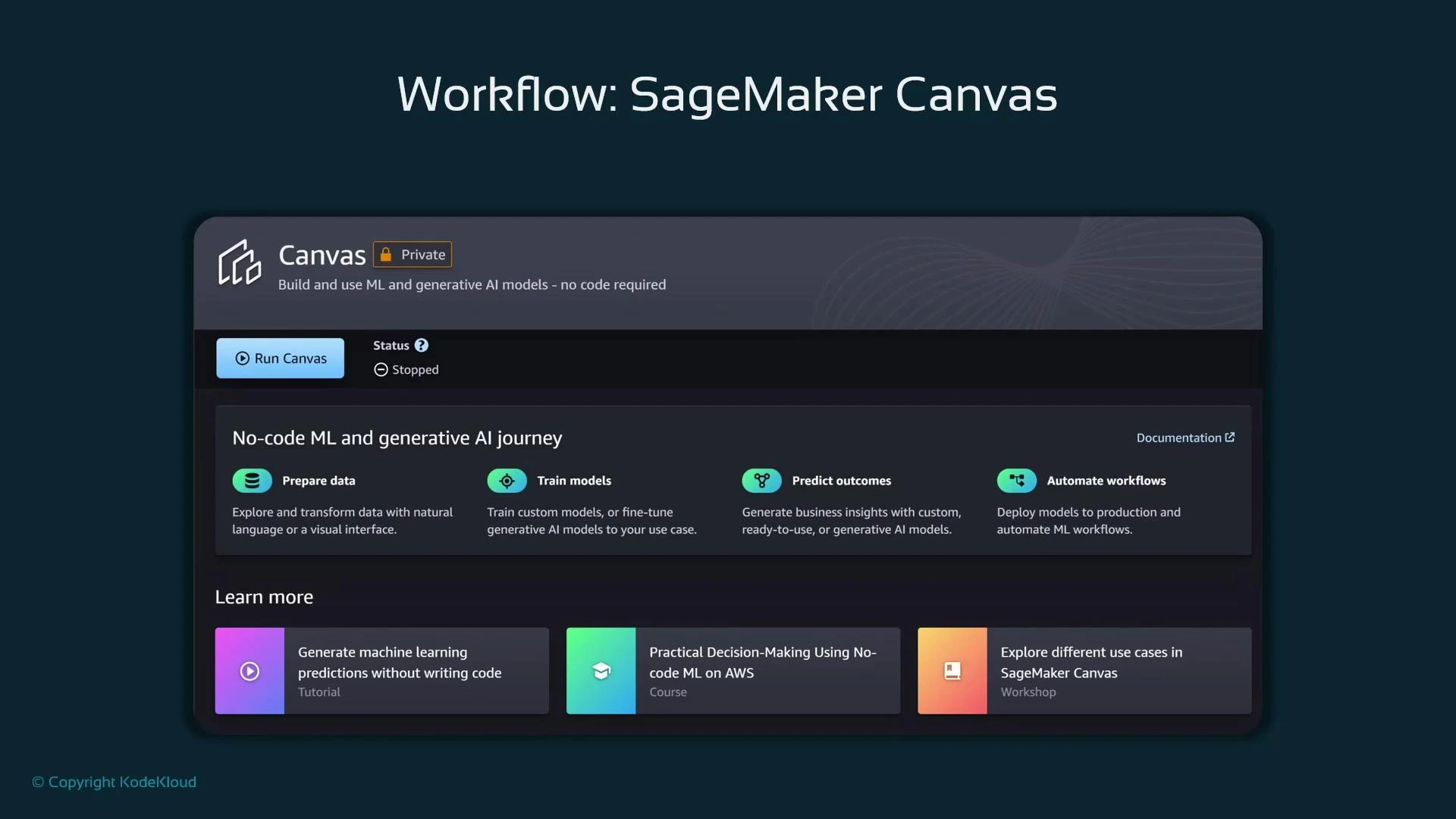
A screenshot of the SageMaker Canvas interface titled "Workflow: SageMaker Canvas," showing a "Run Canvas" button and a "No-code ML and generative AI journey" panel with steps like Prepare data, Train models, Predict outcomes, and Automate workflows. The lower section displays "Learn more" cards linking tutorials and courses.
SageMaker Canvas is billed while the runtime is active, and additional charges apply for data processing (training) and hosting (inference). Canvas can be billed per minute (often starting around $2/hour for the runtime in many regions) plus processing costs — so stop the runtime when you’re finished to avoid unexpected bills.
Billing details and best practices
  • The Canvas runtime starts charging when launched and continues until stopped; training and hosting add separate charges.
  • Monitor runtime time and training resource usage to avoid surprises.
  • For repeated experiments, consider batching work and stopping the runtime between sessions.
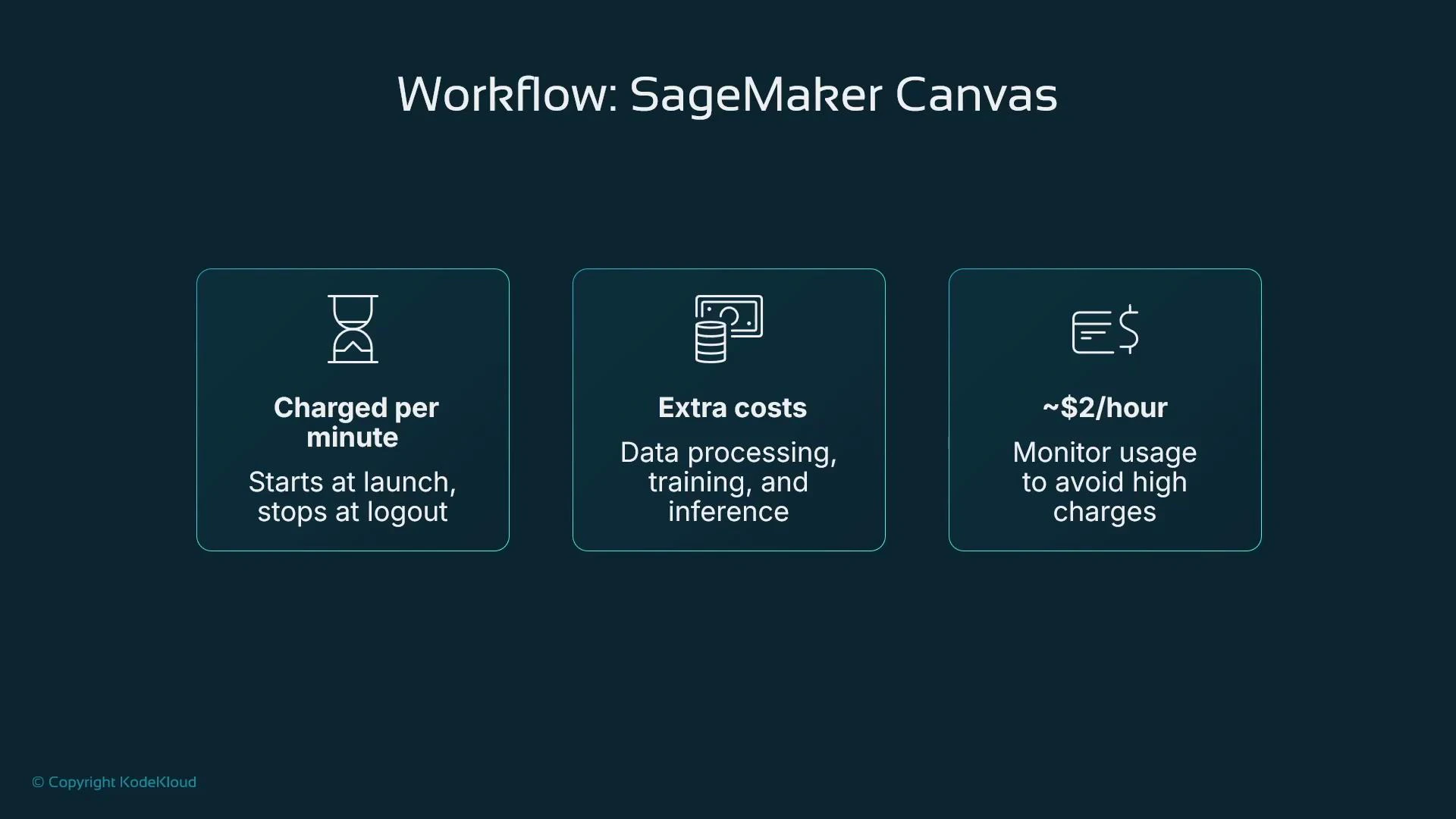
A slide titled "Workflow: SageMaker Canvas" with three info boxes about pricing. They note it's charged per minute (starts at launch, stops at logout), has extra costs for data processing/training/inference, and is roughly $2/hour so monitor usage to avoid high charges.
Working with datasets in Canvas
  • Open the left navigation and select “Datasets” to view sample datasets or import from S3.
  • Datasets show metadata (type: tabular), storage (S3), and dimensions (rows/columns).
  • Use the preview to inspect columns and sample rows before importing a dataset into a Canvas flow.
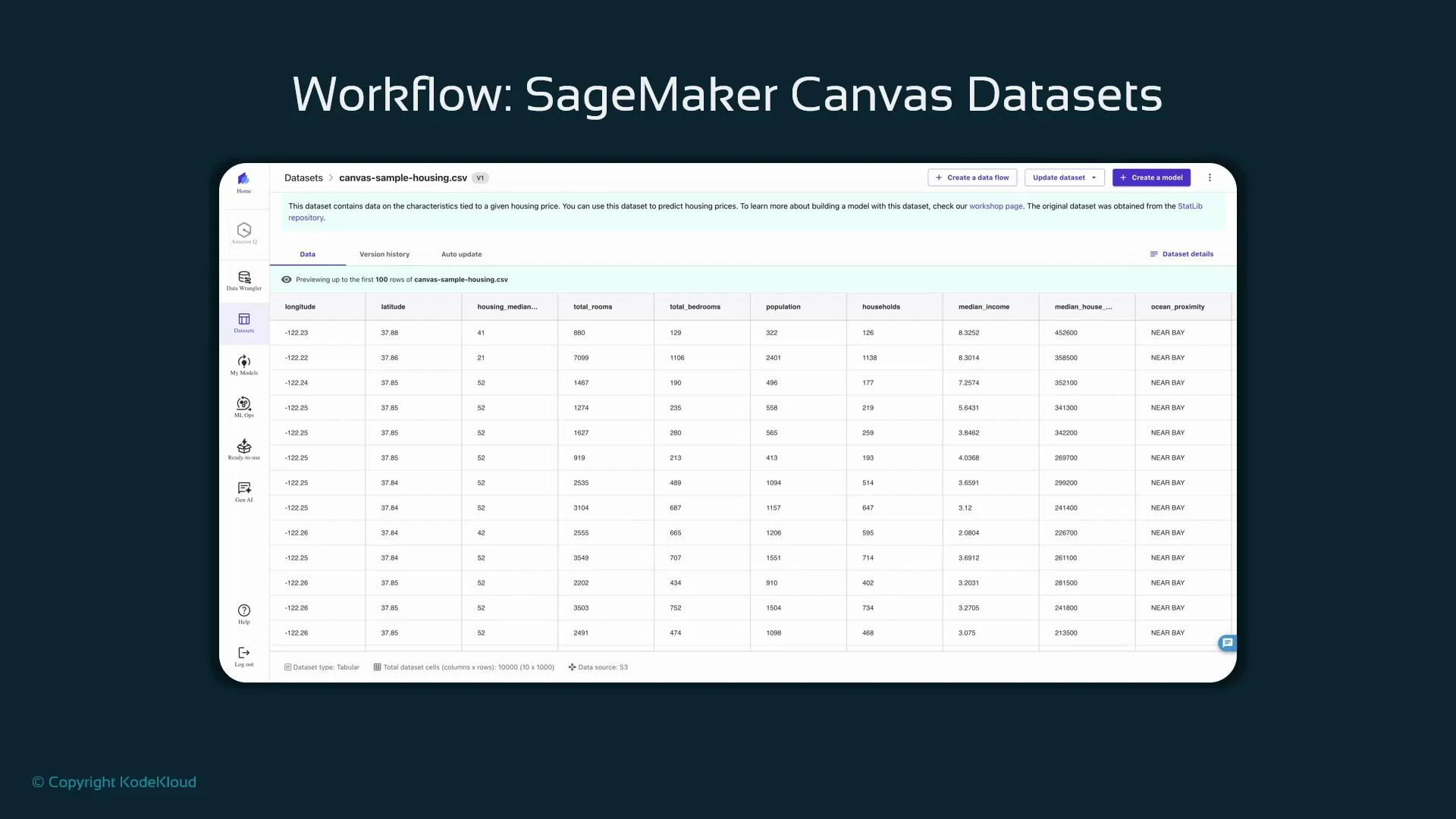
Example: the provided housing CSV includes features like latitude, longitude, total_rooms, median_income, and ocean_proximity — a typical tabular dataset for regression or classification tasks.
Screenshot of an Amazon SageMaker Canvas dataset page titled "Workflow: SageMaker Canvas Datasets," showing a tabular preview of a housing CSV. The table lists columns like longitude, latitude, total_rooms, median_income and ocean_proximity, with sidebar navigation and action buttons visible.
Data preparation with Data Wrangler
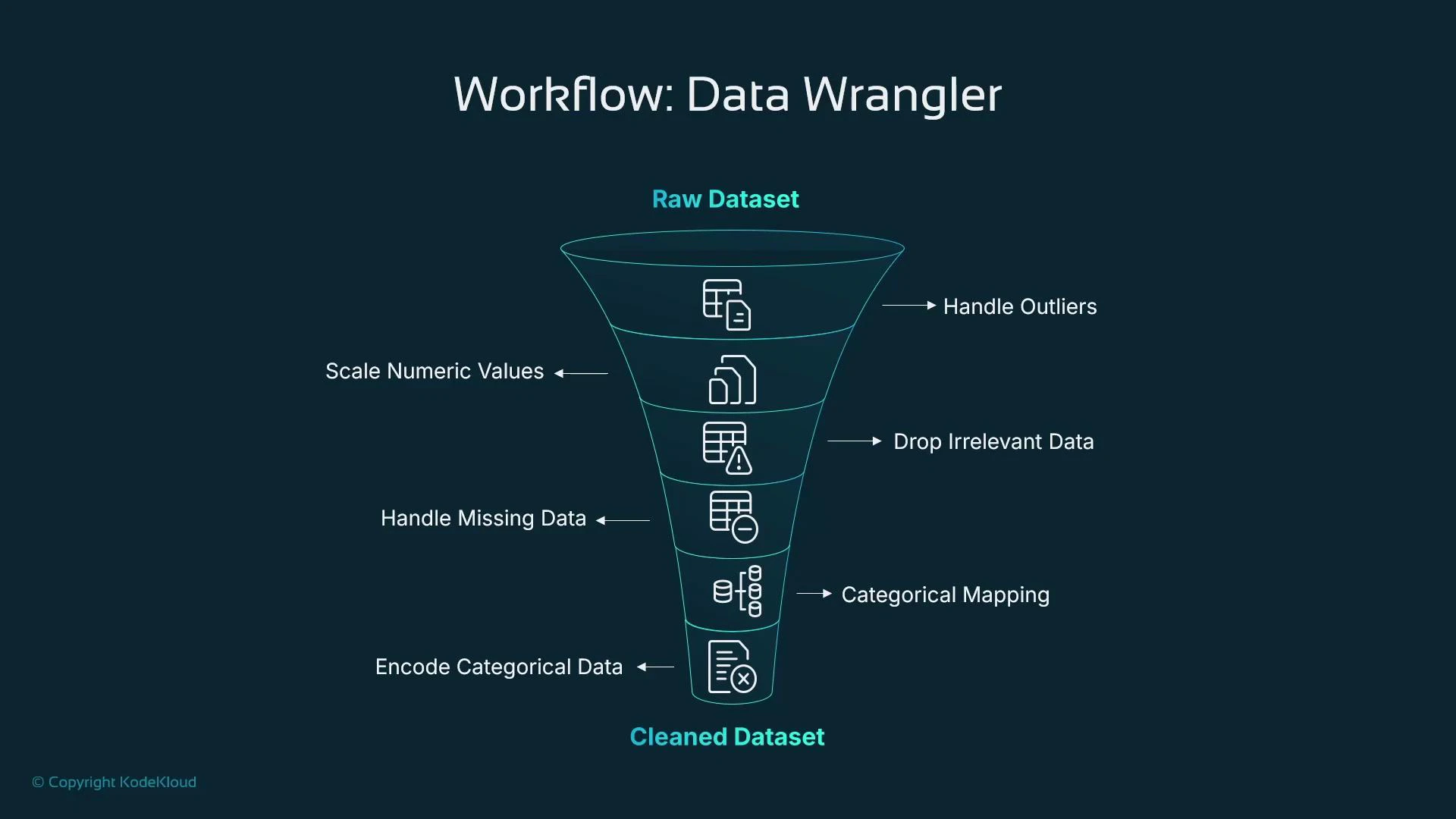
  • Canvas includes SageMaker Data Wrangler, a visual tool to build ordered transformations (a data flow) that replace many typical Pandas/Scikit-learn steps.
  • You create a sequence of components (transformations) where the output of one step feeds the next — no code required.
  • Typical transformations include:
    • Outlier handling (IQR trimming)
    • Scaling numeric features
    • Dropping irrelevant columns
    • Imputation for missing values (mean/mode, etc.)
    • Categorical mapping and normalization
    • Encoding (one-hot, ordinal)
A funnel diagram titled "Workflow: Data Wrangler" showing the flow from Raw Dataset at the top to Cleaned Dataset at the bottom. It lists preprocessing steps like handling outliers, scaling numeric values, dropping irrelevant data, handling missing data, categorical mapping, and encoding categorical data.
Data Wrangler vs. Programmatic notebooks: at-a-glance
ApproachBest ForFlexibilityRequires Coding
Jupyter Notebooks + Pandas/Scikit-learnCustom preprocessing, advanced feature engineering, researchVery highYes
Data Wrangler (Canvas)Rapid visual transformations and standard preprocessingModerate (prebuilt transforms)No
  • Notebooks let you implement any logic (custom transforms, advanced pipelines), while Data Wrangler accelerates common preprocessing without code.
  • Use Data Wrangler to prototype and then migrate complex or production workflows to programmatic pipelines when necessary.
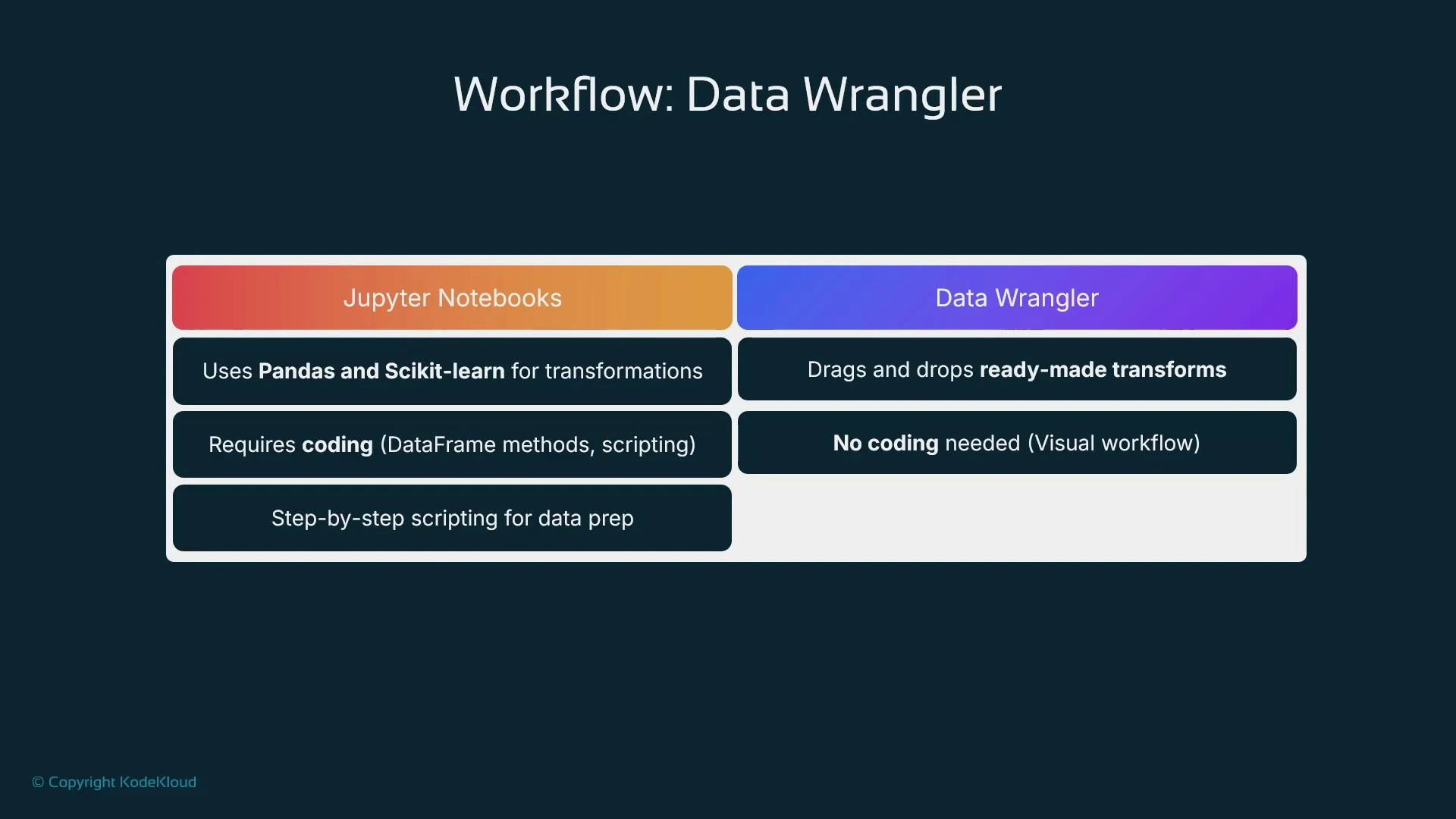
A slide titled "Workflow: Data Wrangler" comparing Jupyter Notebooks (uses Pandas and Scikit-learn, requires coding and step-by-step scripting) with Data Wrangler (drag-and-drop ready-made transforms and no coding needed).
Accessing and using Data Wrangler inside Canvas
  1. From Canvas left navigation, open Data Wrangler and create a new data flow.
  2. Select the dataset as the flow source. Data Wrangler infers data types for each column; confirm or adjust types as needed.
  3. Generate a Data Quality and Insights (DQI) report: click the plus icon next to data types and choose “Get data insights”.
  4. When prompted, select the target column (the feature you want to predict, e.g., house price).
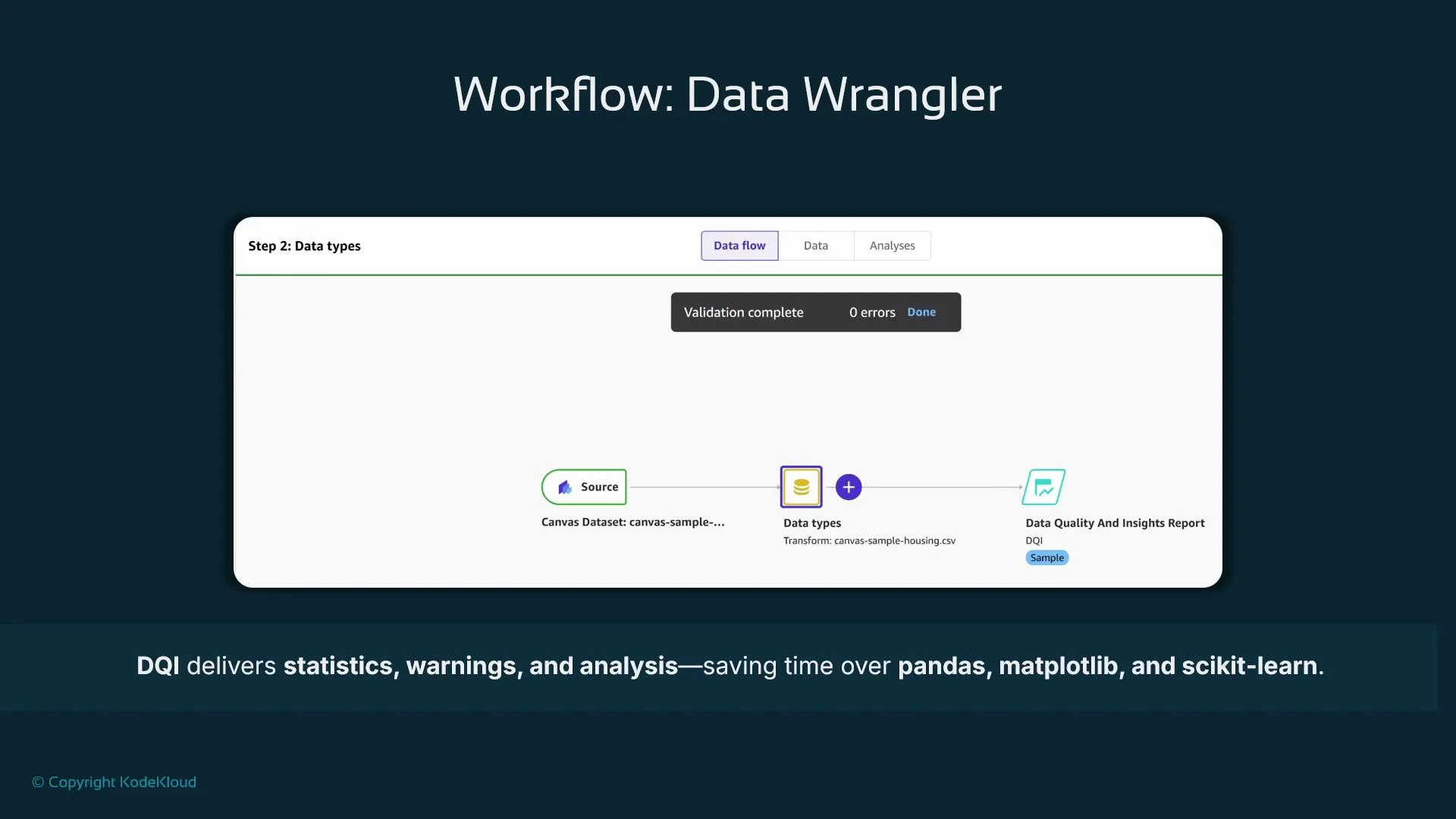
The DQI report automates many exploratory steps — distributions, missing-value analysis, correlations, outliers — and maps recommendations directly to Data Wrangler transformations.
A slide titled "Workflow: Data Wrangler" showing a data-flow diagram from a Source dataset through a "Data types" step to a "Data Quality And Insights Report" with a "Validation complete" message. The footer states that DQI delivers statistics, warnings, and analysis to save time over pandas, matplotlib, and scikit-learn.
Inside a DQI report
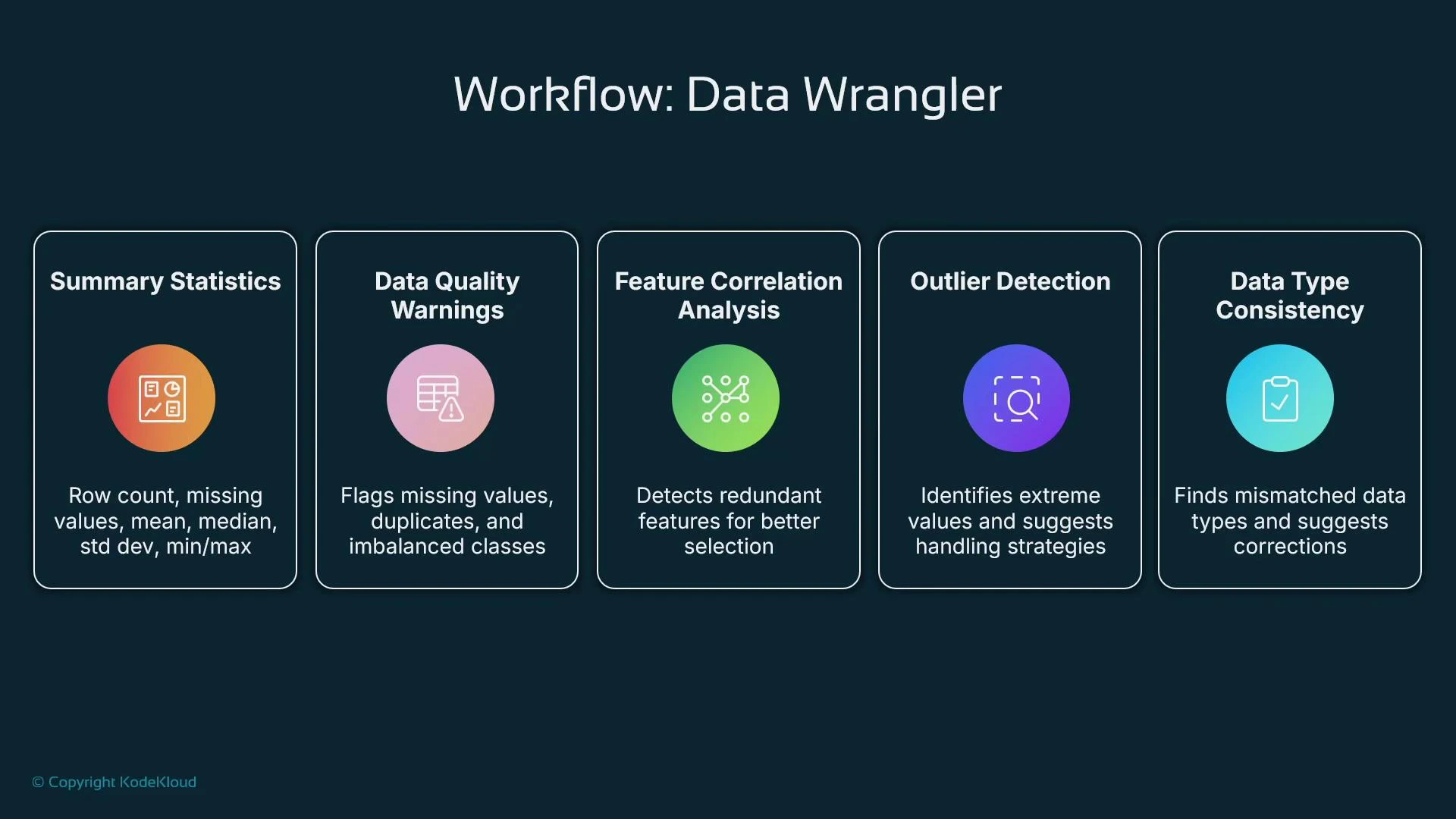
  • Summary statistics: number of features, rows, column data types, missing-value counts, and numeric summaries (min/max/mean/median).
  • Data quality warnings: duplicate rows, columns with many nulls, inconsistent typing.
  • Correlation analysis: highlights strongly correlated features and suggests dropping redundant columns.
  • Outlier detection: flags extreme values and recommends transformations.
  • Feature inspection charts: histograms, distributions for numeric features, and frequency charts for categorical variables.
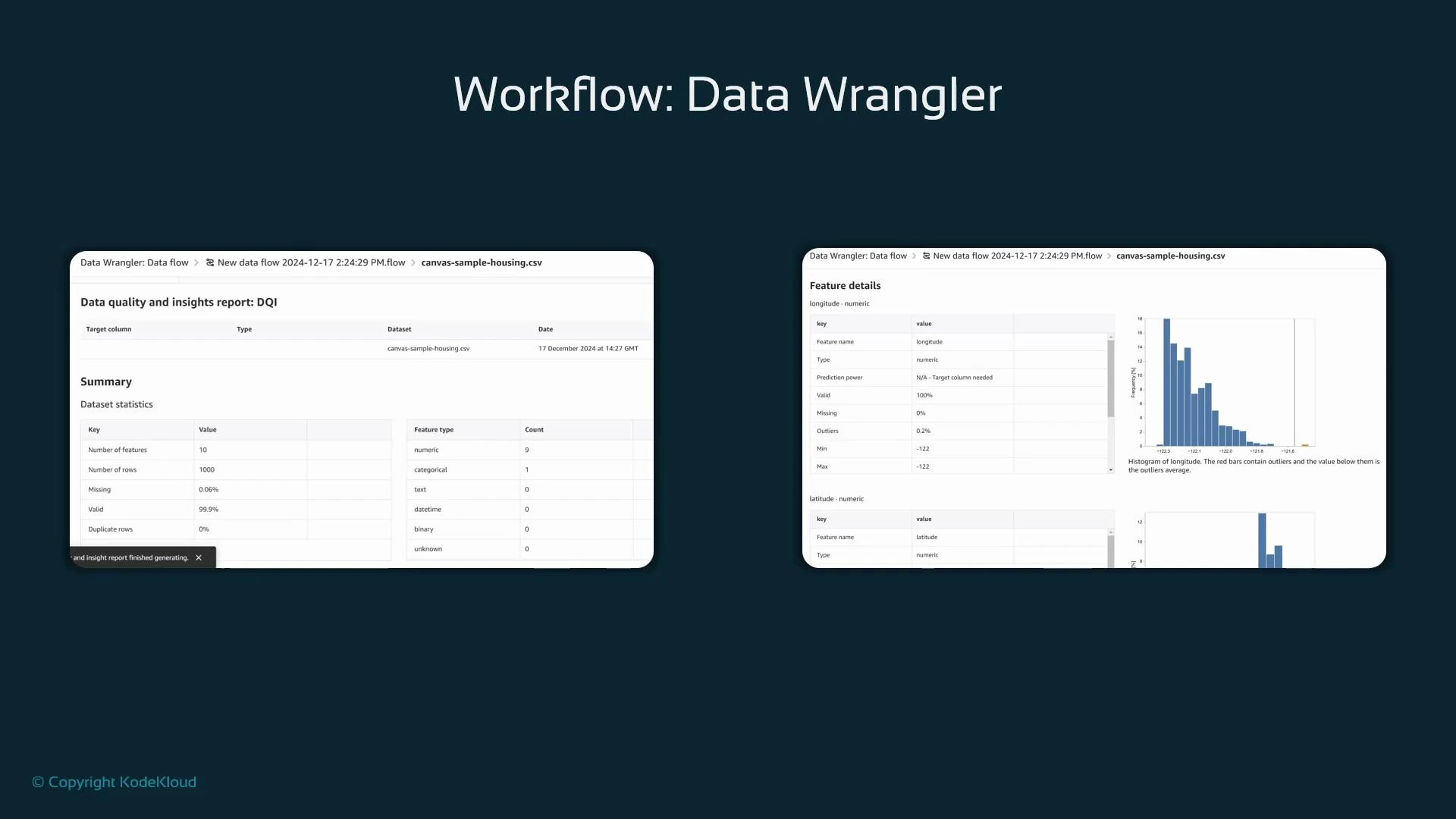
DQI recommendations are actionable: you can apply suggested transformations directly into the Data Wrangler flow with a few clicks.
A presentation slide titled "Workflow: Data Wrangler" showing two screenshots of a data quality and feature-inspection dashboard (summary statistics, feature details, and histograms) for a sample housing CSV. The images sit on a dark teal background with a small "© Copyright KodeKloud" notice.
What to expect after Data Wrangler and DQI
  • A cleaned, consistent dataset ready for AutoML training in Canvas.
  • Suggested imputations and transformations applied visually.
  • Identification of duplicate rows, class imbalance, and column-type inconsistencies.
  • Correlation and outlier insights to guide feature selection and transformation.
These steps let you reach a runnable dataset for Canvas AutoML without writing Python — ideal for fast POC iterations.
A dark-themed infographic titled "Workflow: Data Wrangler" showing five labeled panels: Summary Statistics, Data Quality Warnings, Feature Correlation Analysis, Outlier Detection, and Data Type Consistency, each with an icon and brief description.
Further reading and resources Use Canvas and Data Wrangler to accelerate POCs on tabular data. If your project requires deeper control, richer algorithm support, or production-grade deployment, plan to migrate to programmatic SageMaker workflows and involve ML engineering resources.

Watch Video