

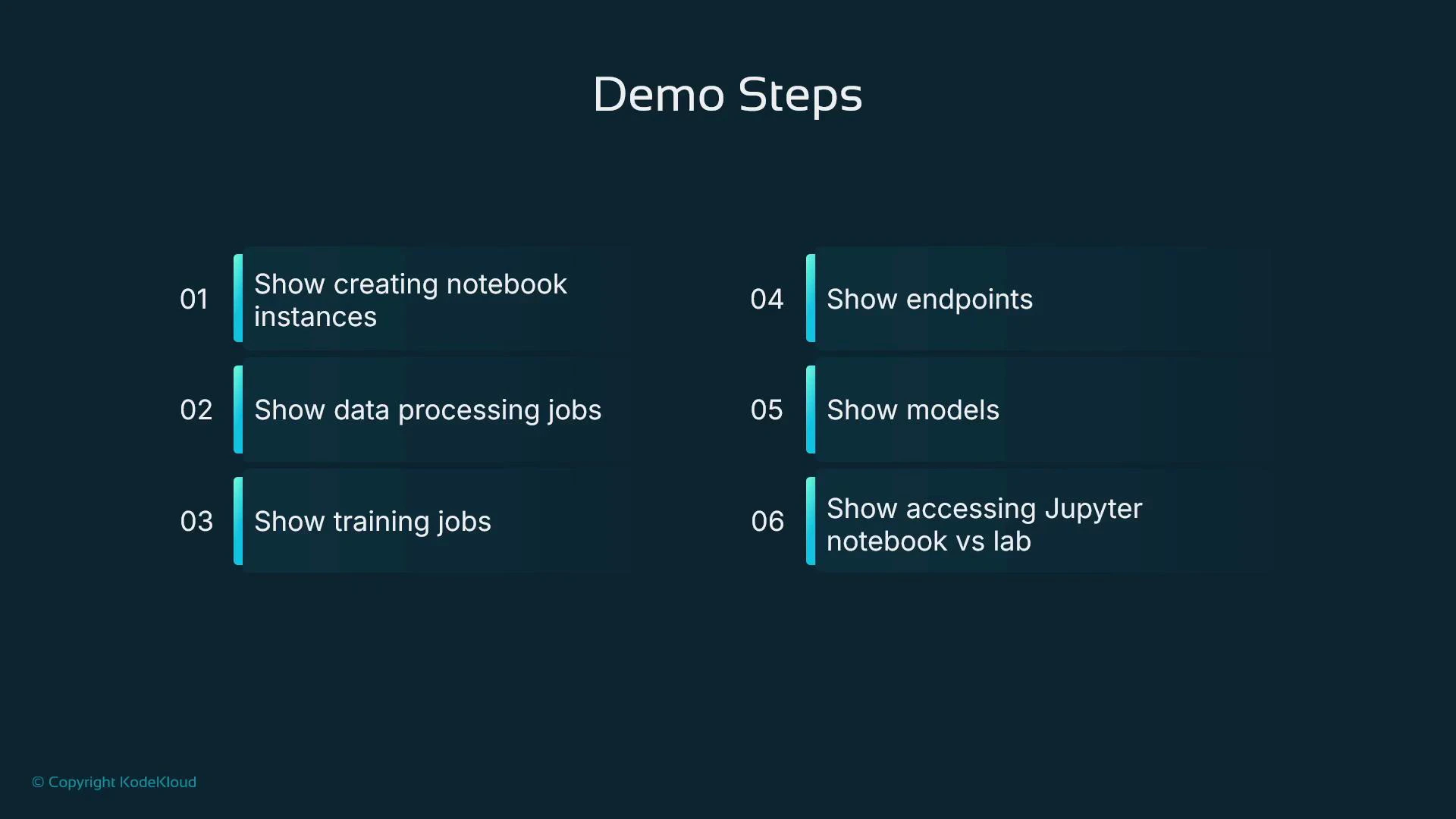
- How to create legacy Jupyter Notebook instances (managed notebook instances).
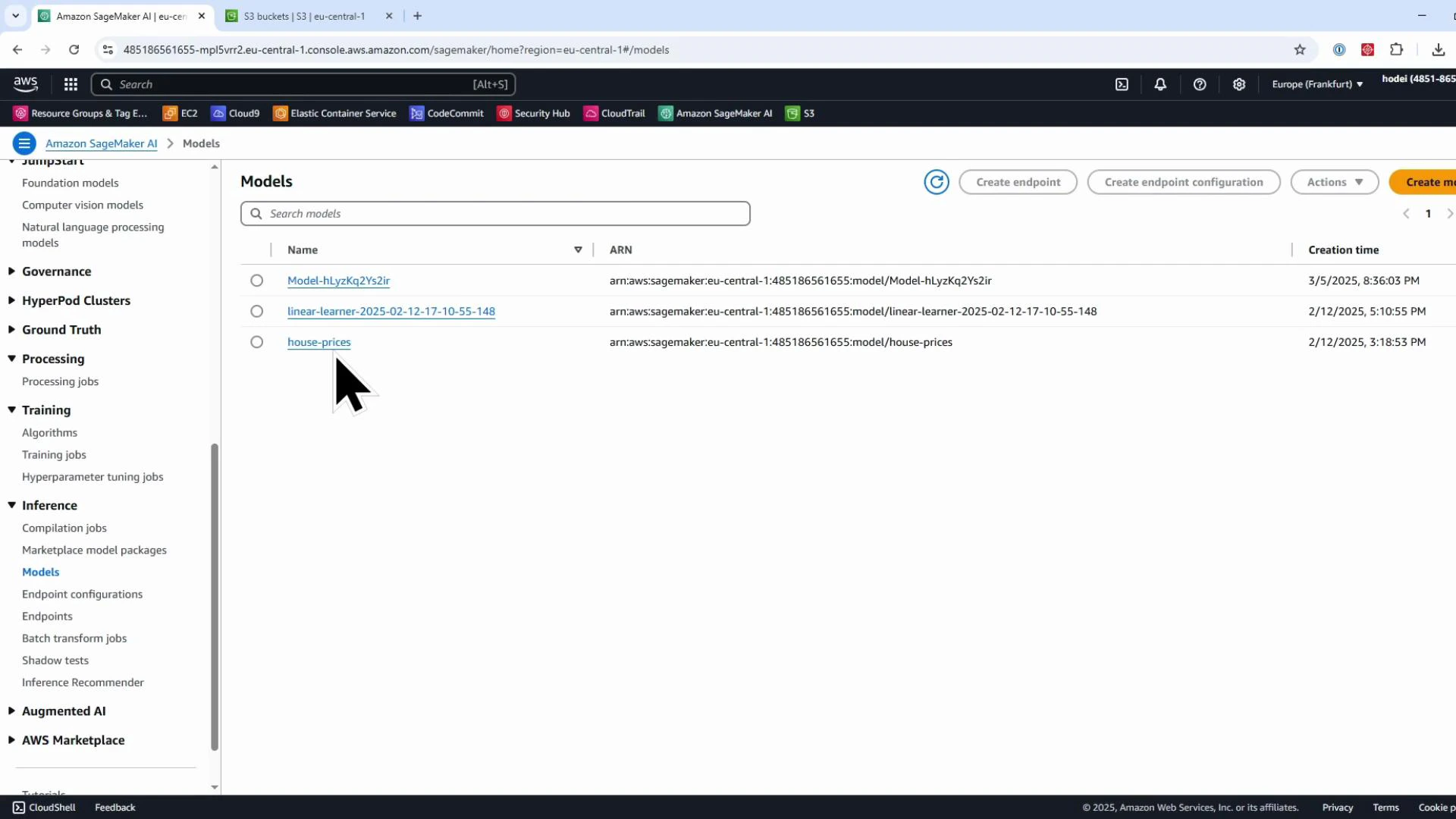
- Where to find Processing jobs, Training jobs, Models, and Endpoints in the console.
- How to open and use both Jupyter Notebook and JupyterLab on a notebook instance.
- A brief comparison between legacy notebook instances and SageMaker Studio.
Accessing the SageMaker console
Start at the AWS Management Console. If Amazon SageMaker is not visible in your recently visited services, type “SageMaker” into the search bar. Console labels may vary (for example: “Amazon SageMaker”, “SageMaker”, or “SageMaker AI”) depending on console updates. In this lesson we focus on the legacy SageMaker notebook instance experience (managed notebook instances), not SageMaker Studio.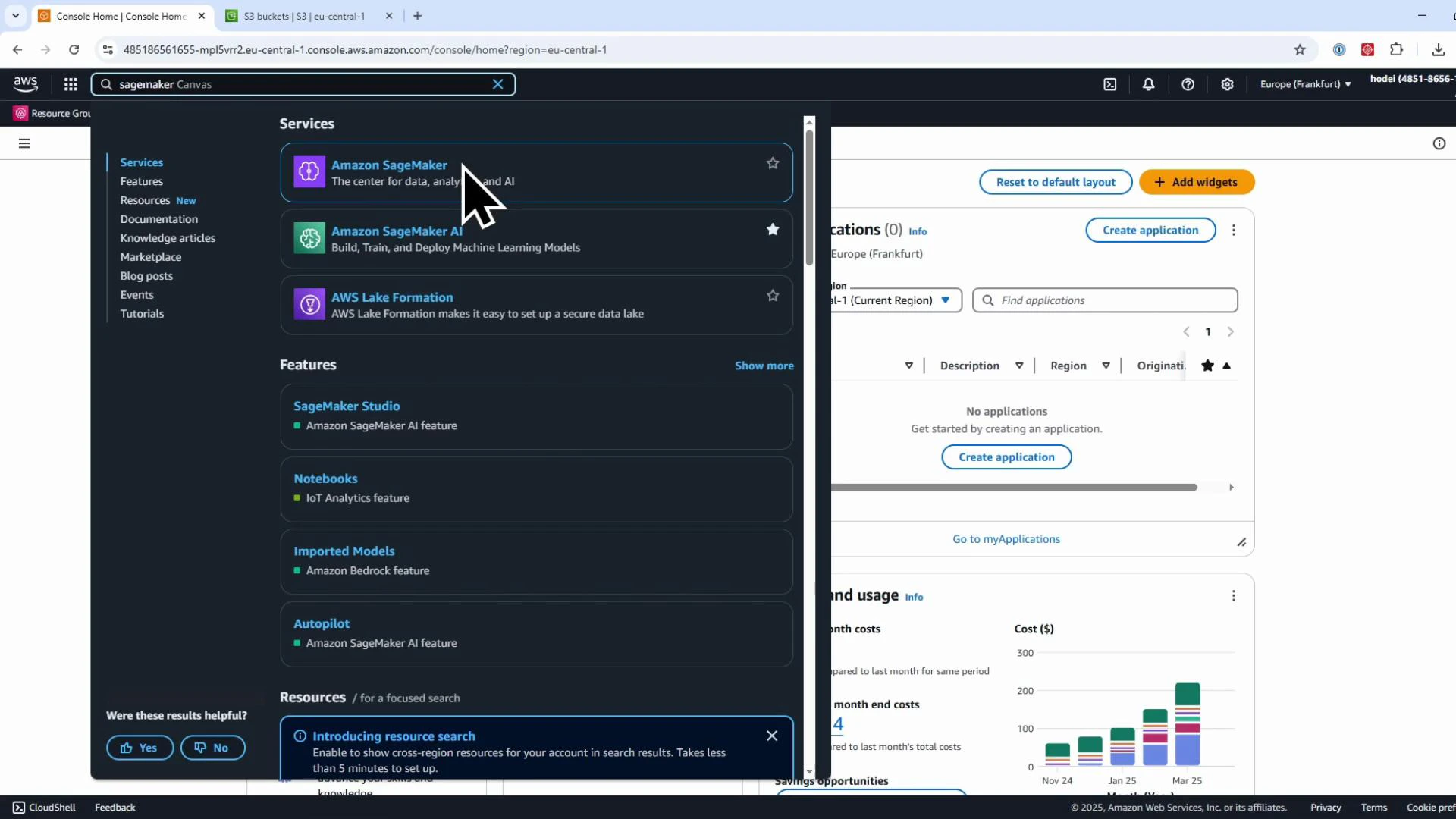
Tip: Console labels and navigation can change. Use the search bar to quickly locate SageMaker if it isn’t visible in your recently used services.
Console navigation — where core resources appear
Once inside the SageMaker console, the left navigation shows categories such as Applications & IDEs, Processing, Training, and Inference. New accounts will show empty lists until jobs and resources are created. Below are examples of the resource pages you’ll use most often. Processing jobs (data cleaning, feature engineering, batch transforms) appear under Processing. The console lists each job’s name, ARN, creation time, runtime duration, and status.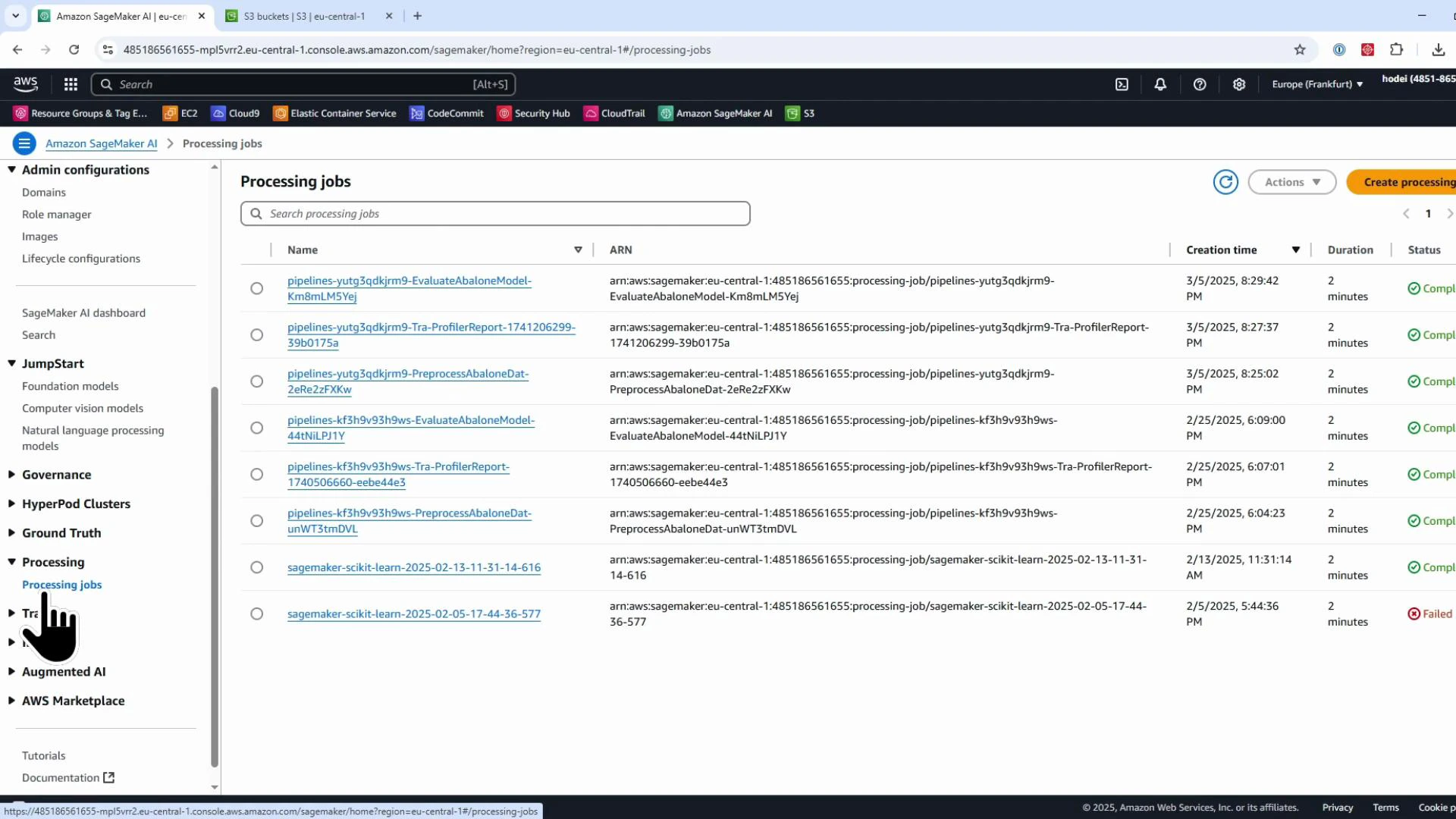
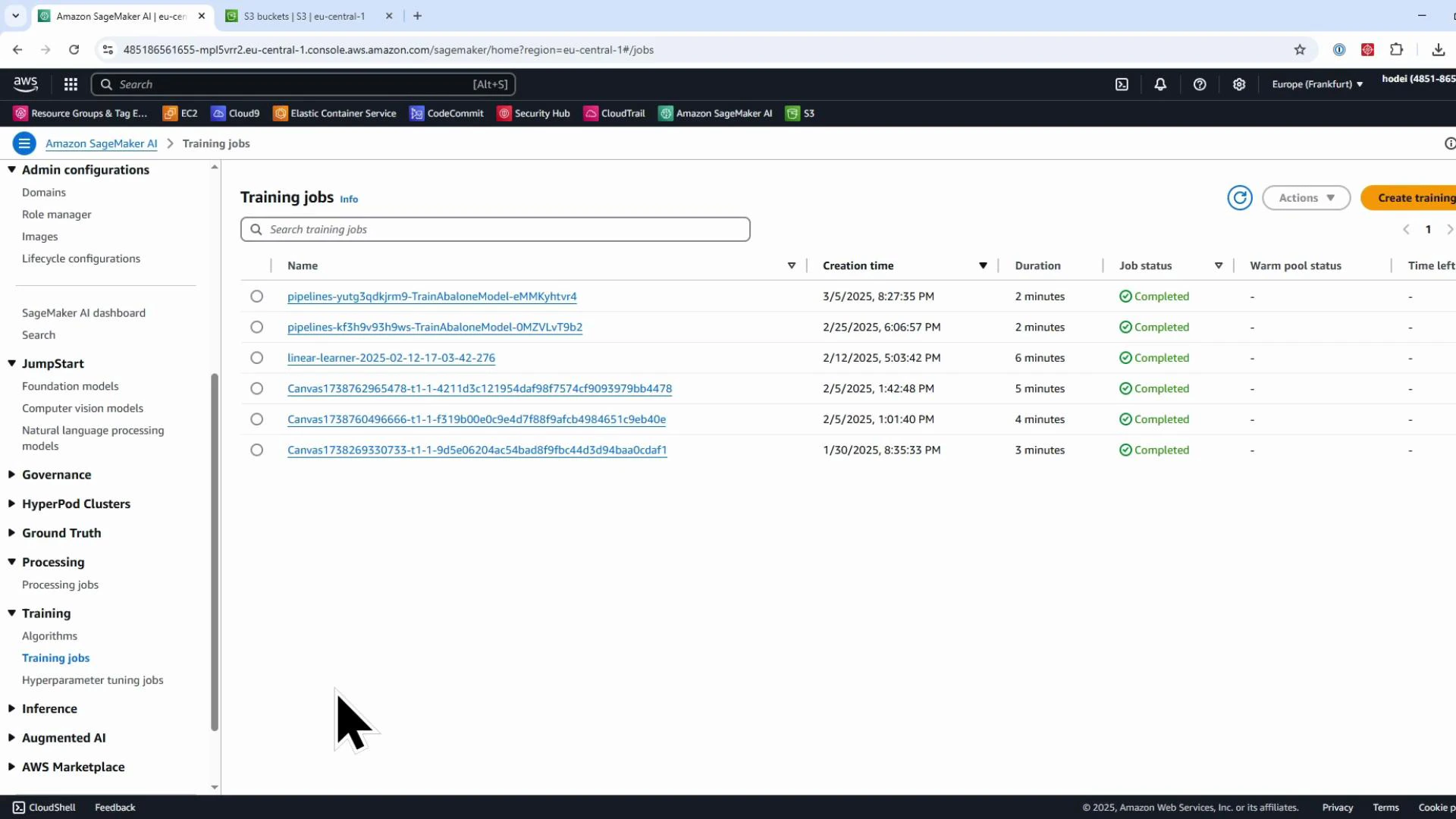
Quick reference: console sections
Notebooks — legacy managed notebook instances vs Studio
Under Applications & IDEs → Notebooks you’ll see the legacy “Notebook instances” panel and a banner encouraging JupyterLab in SageMaker Studio (the newer, preferred environment). This demo shows the legacy managed notebook instances (the older experience) and how to open Jupyter and JupyterLab on them. SageMaker Studio and Domains offer a more integrated, multi-user environment and are outside this lesson’s scope.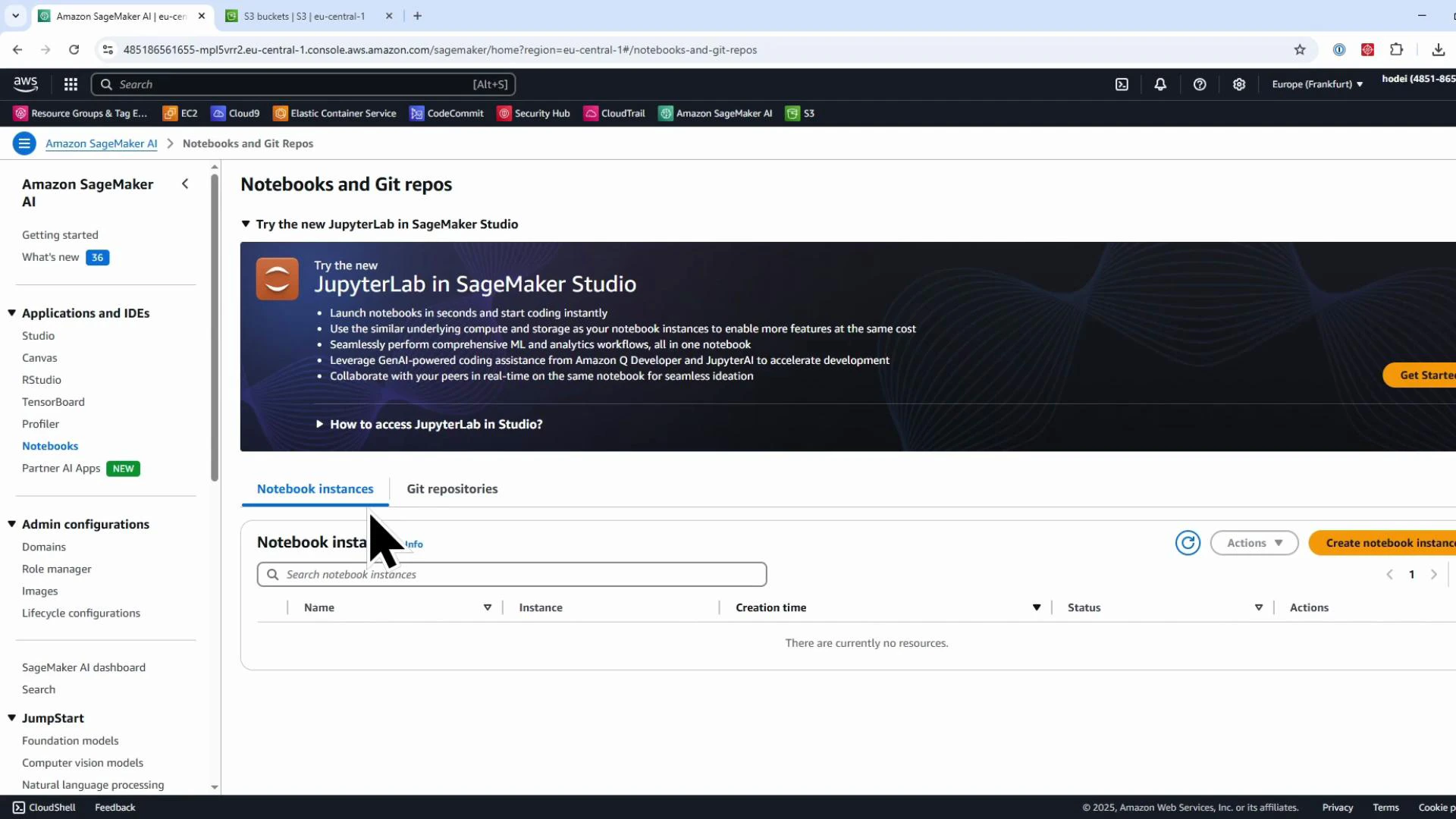
Create a legacy notebook instance (managed)
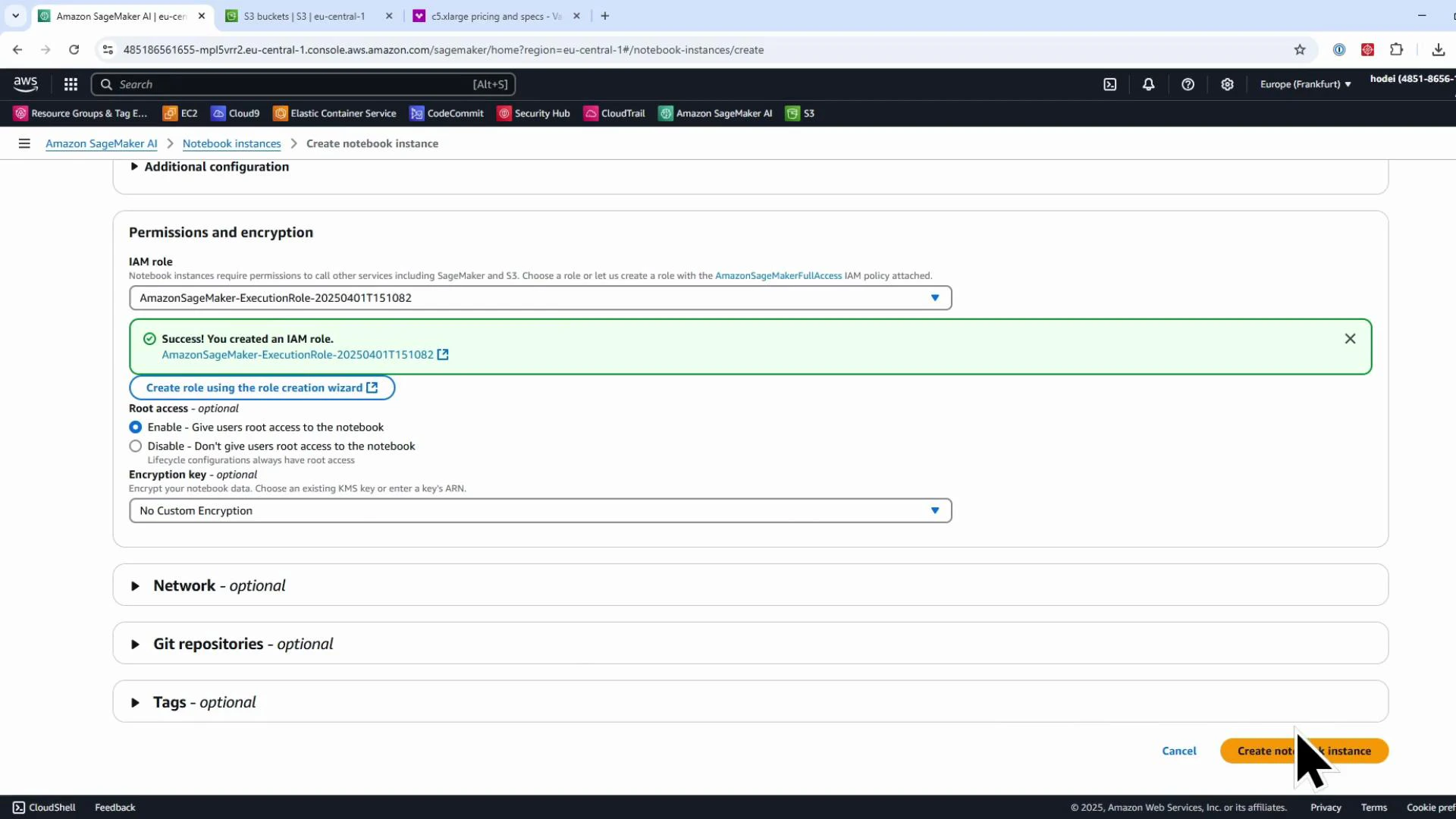
To create a legacy notebook instance, click “Create notebook instance” and provide a name. In the demo we use a recognizably named instance (for example: kodekloud-legacy-jupyter) to highlight that it’s a managed, legacy notebook. A notebook instance runs on an EC2-based managed virtual machine with a Jupyter server preinstalled — you don’t need to install Jupyter yourself. Choose an instance type from the dropdown. For example, ml.t3.medium is a burstable CPU instance (commonly 2 vCPUs and 4 GiB RAM). For more CPU and memory, choose a larger instance (for example, a compute-optimized C5 family instance).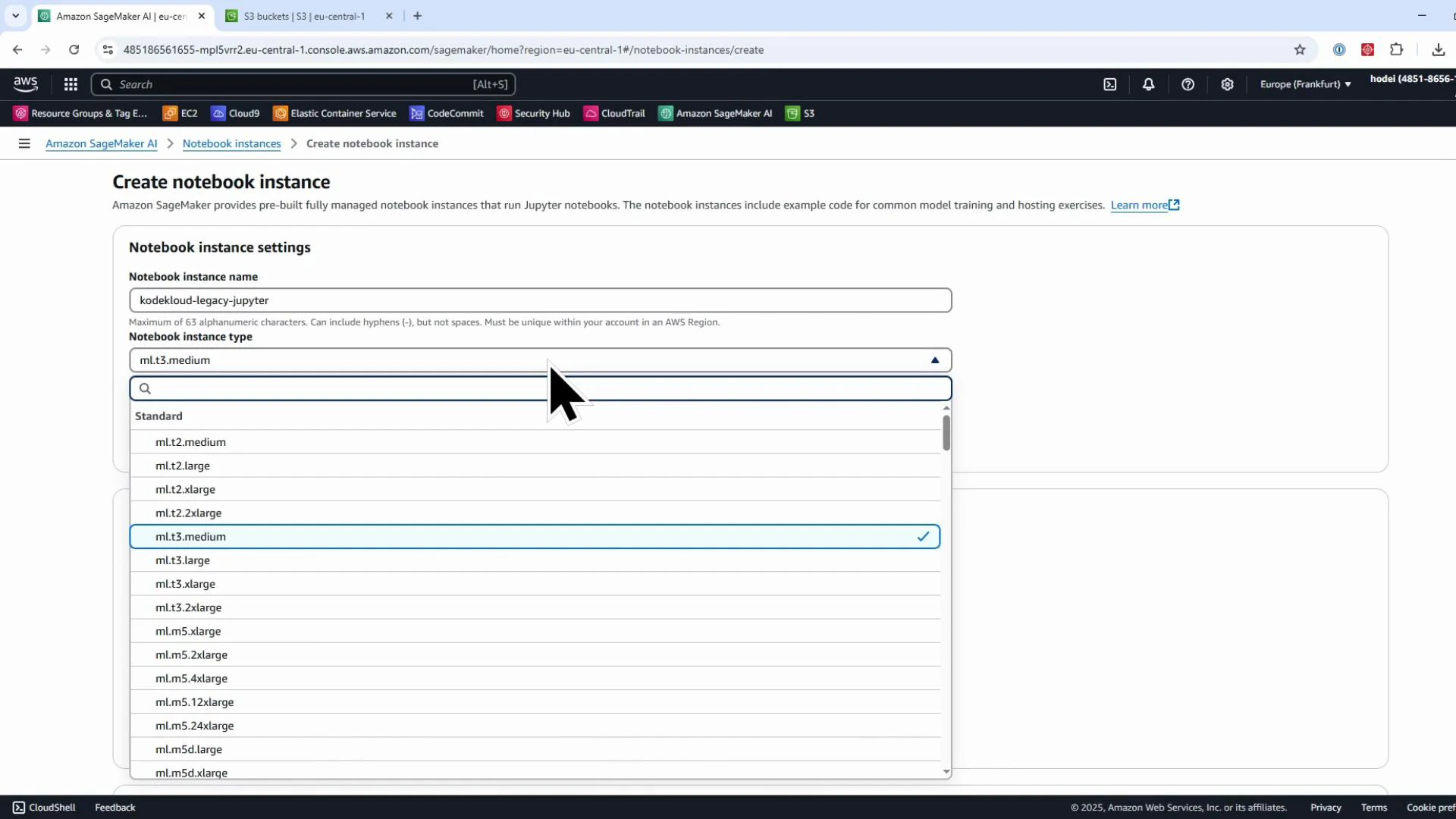
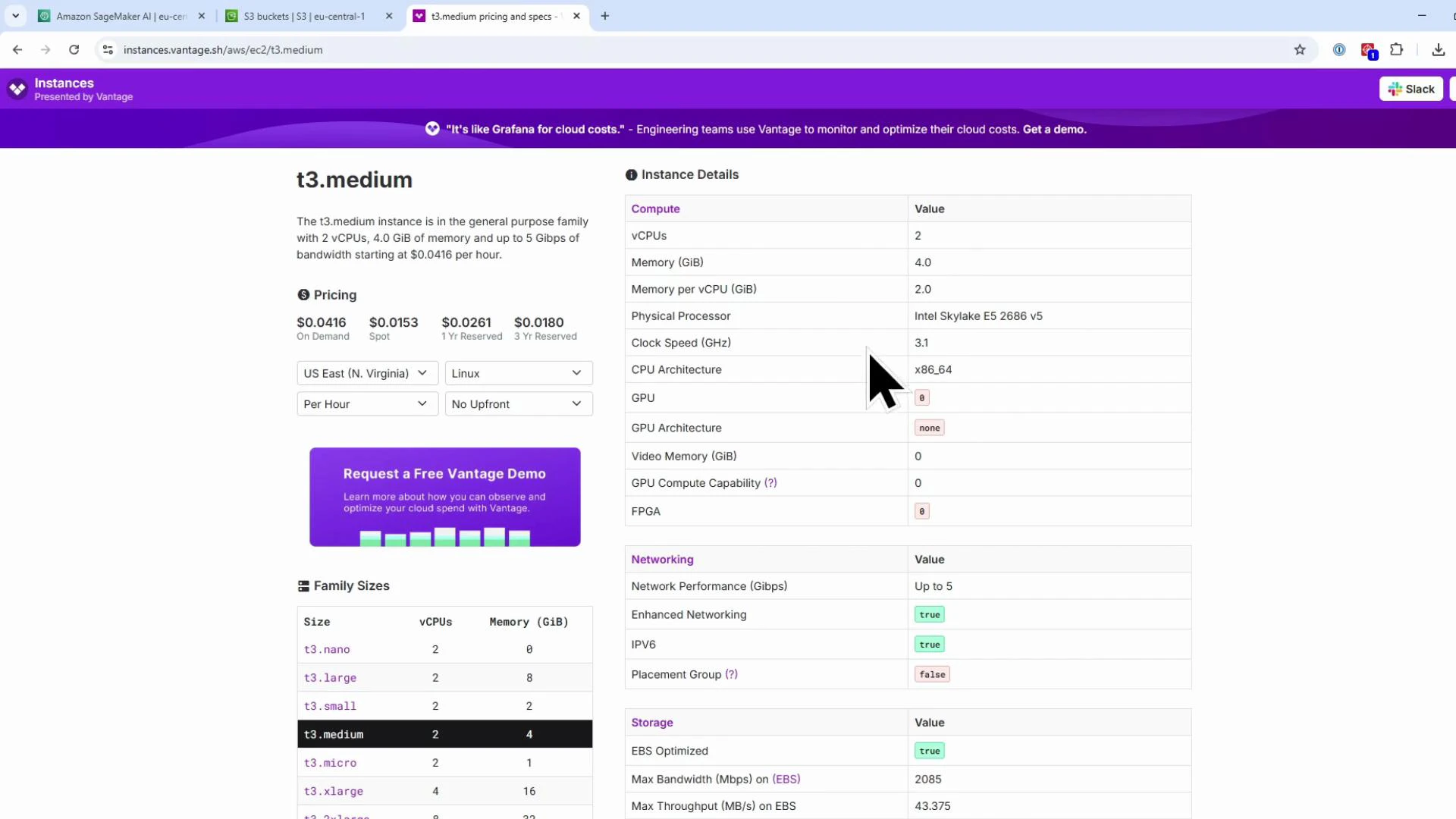
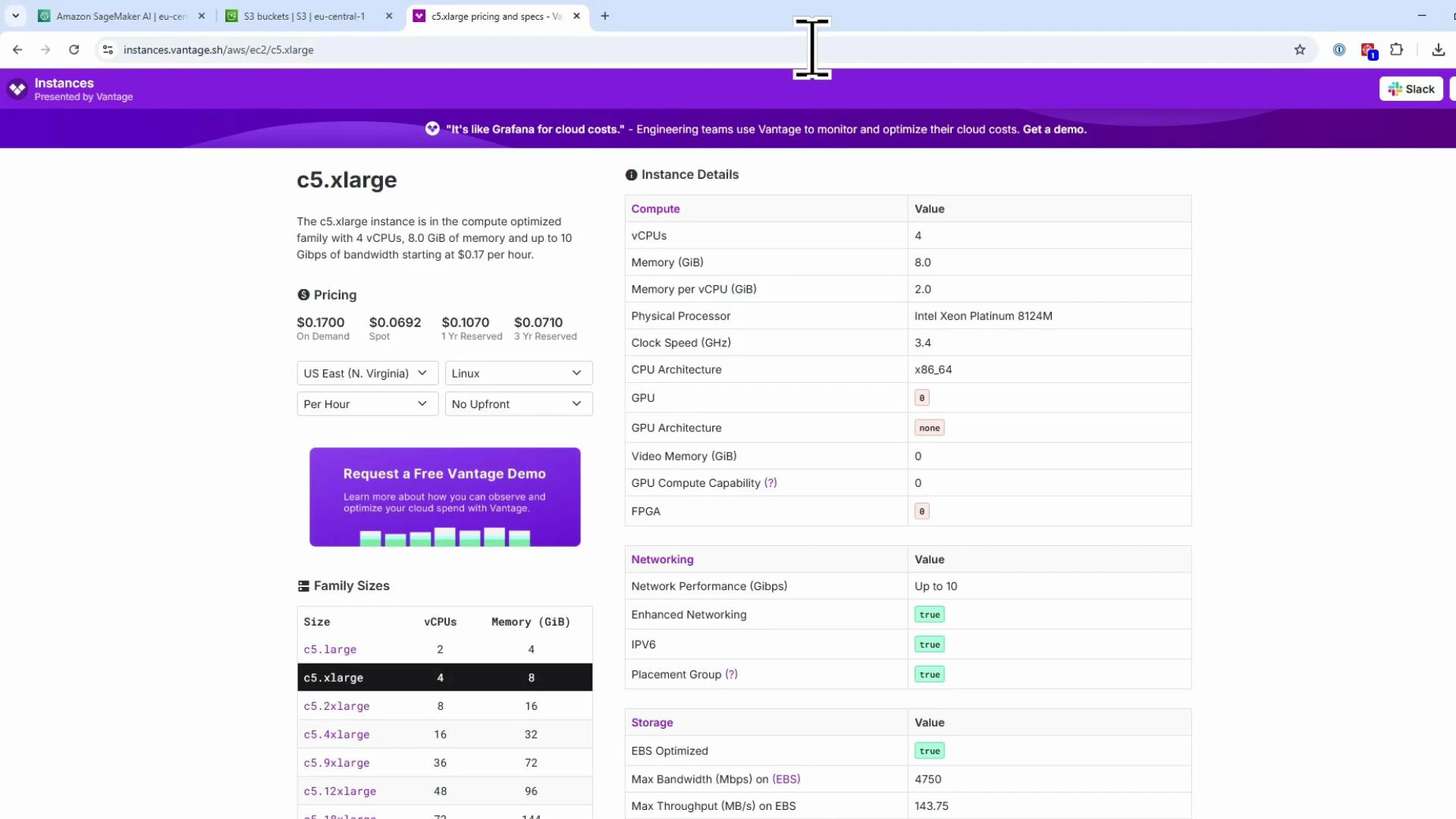
Instance-type selection (quick comparison)
IAM role and S3 access
Next pick the JupyterLab image/version and configure the IAM execution role for the notebook. The IAM role attached to the notebook instance defines what AWS resources (for example S3 buckets) the notebooks can access. For demos you might select “Any S3 bucket” to simplify access, but in production you should limit permissions to only the required resources and follow least-privilege principles.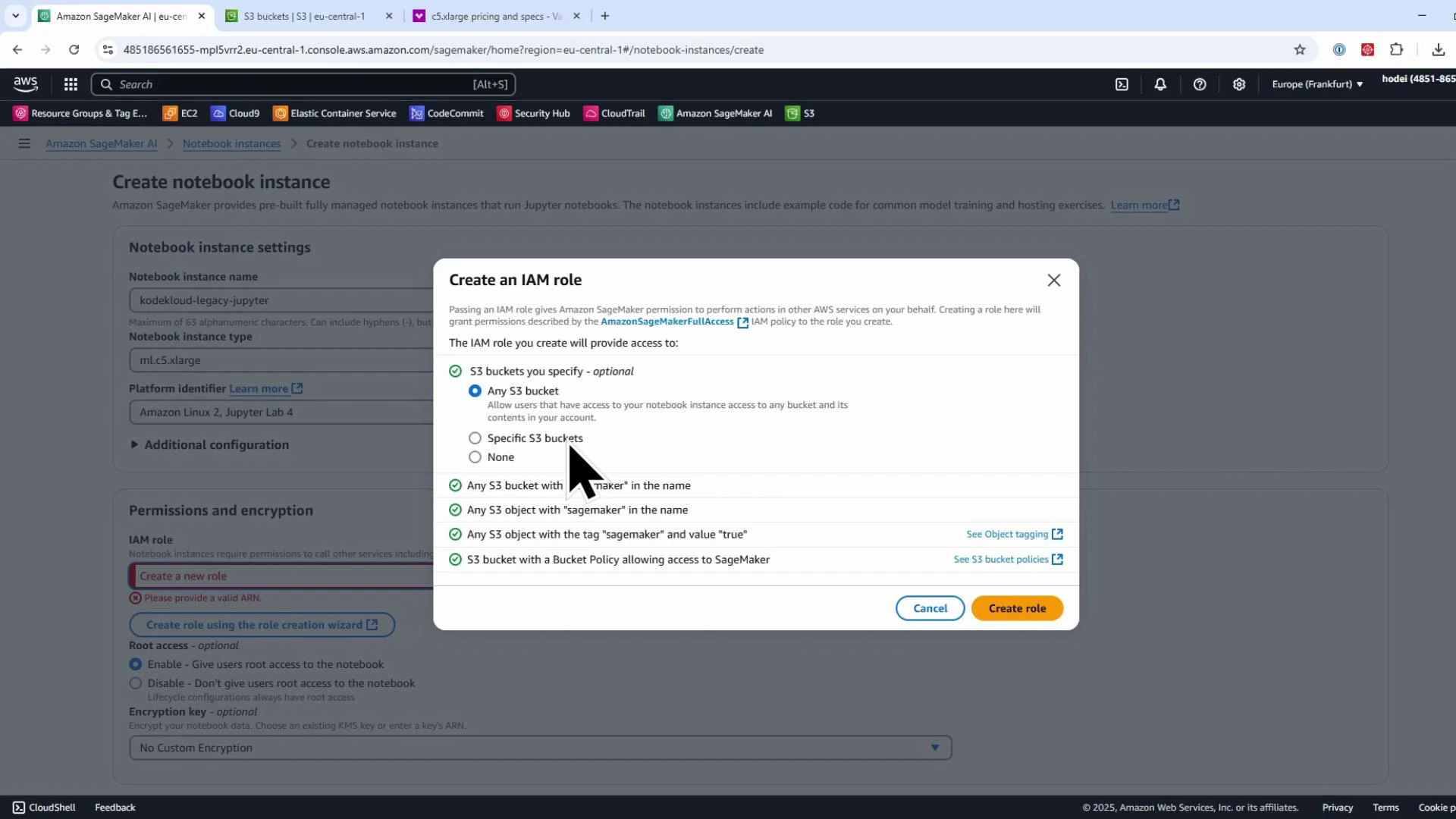
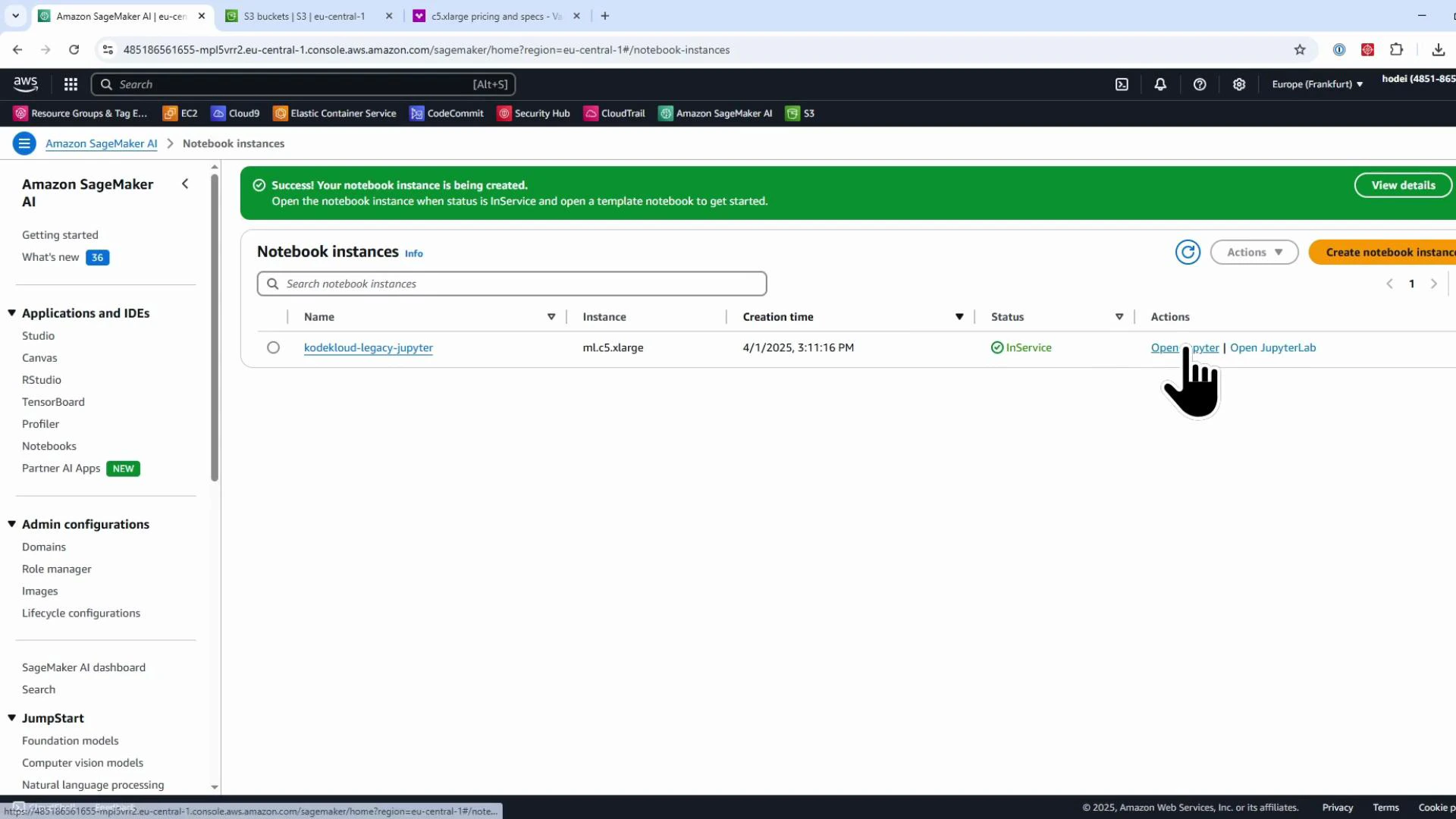
Using Jupyter Notebook and JupyterLab on managed instances
Opening “Jupyter” launches the classic Jupyter Notebook interface. You can create a new notebook and run simple Python cells: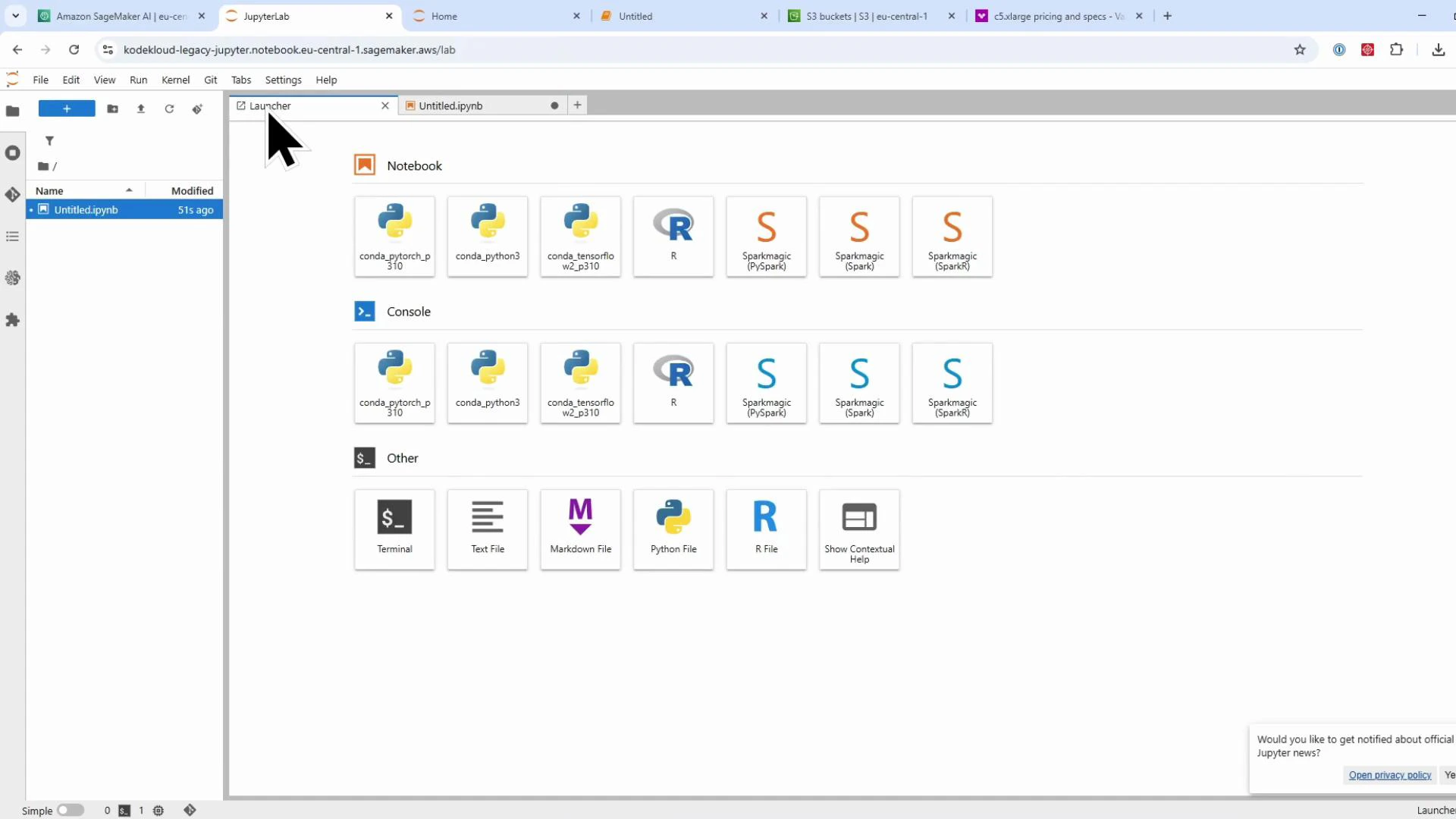
Typical SDK setup in a notebook
Notebooks that use the SageMaker Python SDK typically include setup code to get the execution role, region, and a SageMaker session. Example:- Retrieves the IAM execution role available in the notebook environment (if present).
- Determines the current AWS region from boto3.
- Creates a SageMaker session object used by higher-level SageMaker SDK APIs (Estimator, Model, Pipeline, etc.).
Remember: legacy notebook instances are charged while they are InService. Stop or delete instances when not in use to avoid unnecessary charges.
Summary — what you’ll remember from this lesson
- Where to find Processing jobs, Training jobs, Models, and Endpoints in the SageMaker console.
- How to create and open legacy managed Notebook instances.
- The difference between classic Jupyter Notebook and JupyterLab on managed instances.
- Model artifacts appear under Inference → Models and deployed endpoints appear under Endpoints.
- Recommendation: prefer SageMaker Studio for a more integrated JupyterLab experience in production workflows.
Links and references
- Amazon SageMaker documentation
- Amazon EC2 instance types
- SageMaker SDK (boto3/sagemaker) documentation
- AWS Pricing