

Studio applications at a glance
Applications in SageMaker Studio run inside managed EC2-backed spaces and pull container images that define the runtime (libraries, SDKs, and tools). Use the table below to understand each app and its common use case.
We’ll briefly examine these apps’ roles and then focus on spaces, storage, and how to manage lifecycle and collaboration.
When you open Studio you may also see a “SageMaker Studio Classic” link (the legacy interface). Classic is deprecated in favor of modern Studio — prefer the modern experience unless you have a specific legacy requirement.
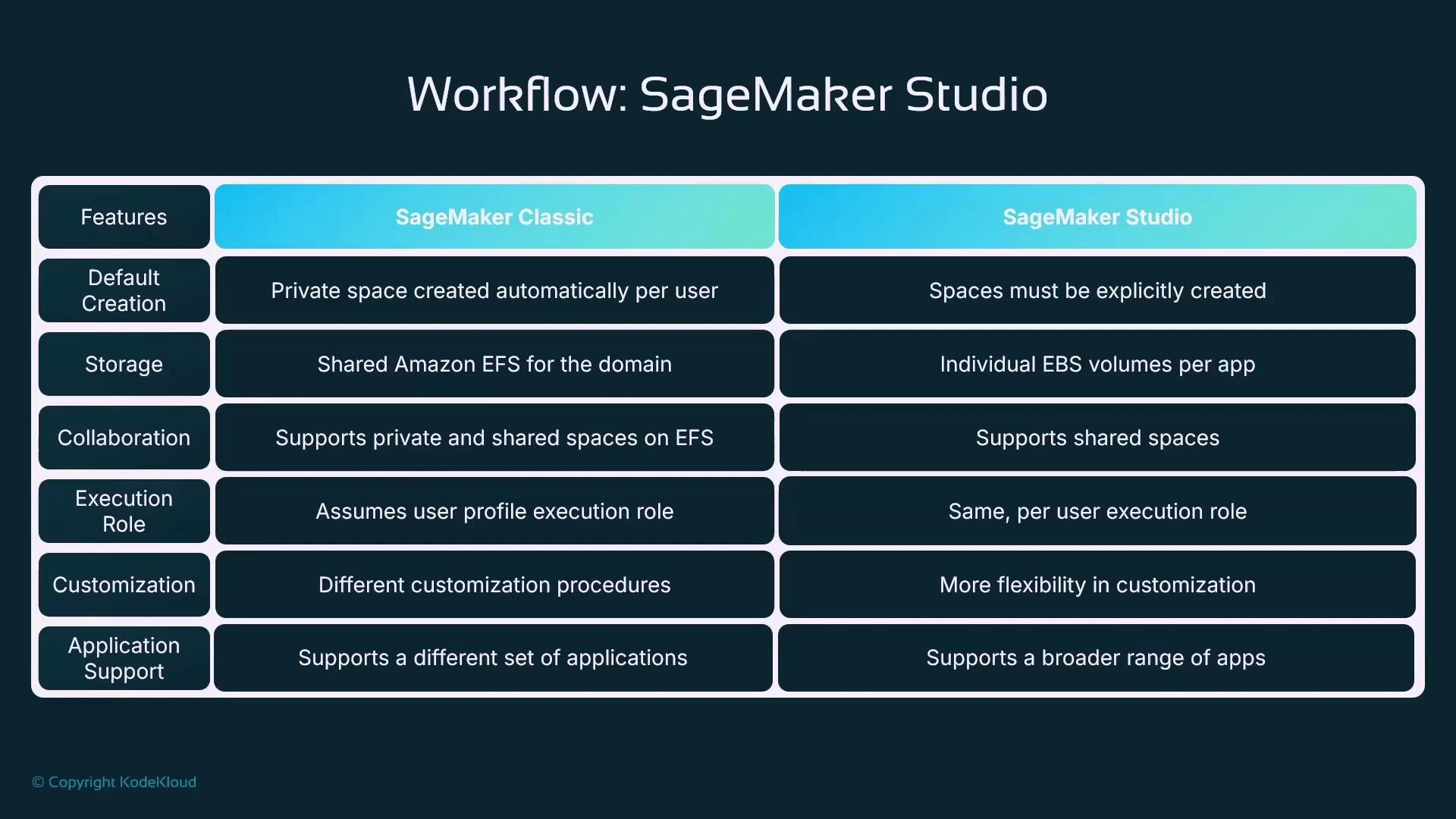
Storage, spaces, and sharing — core concepts
A space is the managed compute environment that hosts one of the Studio applications (JupyterLab, Code Editor, RStudio, etc.). Each space is backed by an EC2 instance that runs one or more containers (from Amazon ECR or SageMaker-provided images) and attaches storage (EBS for modern Studio). When creating a space you typically choose:- Instance size (for example, ml.t3.medium).
- Container image (SageMaker-provided image or your custom image).
Private vs shared spaces
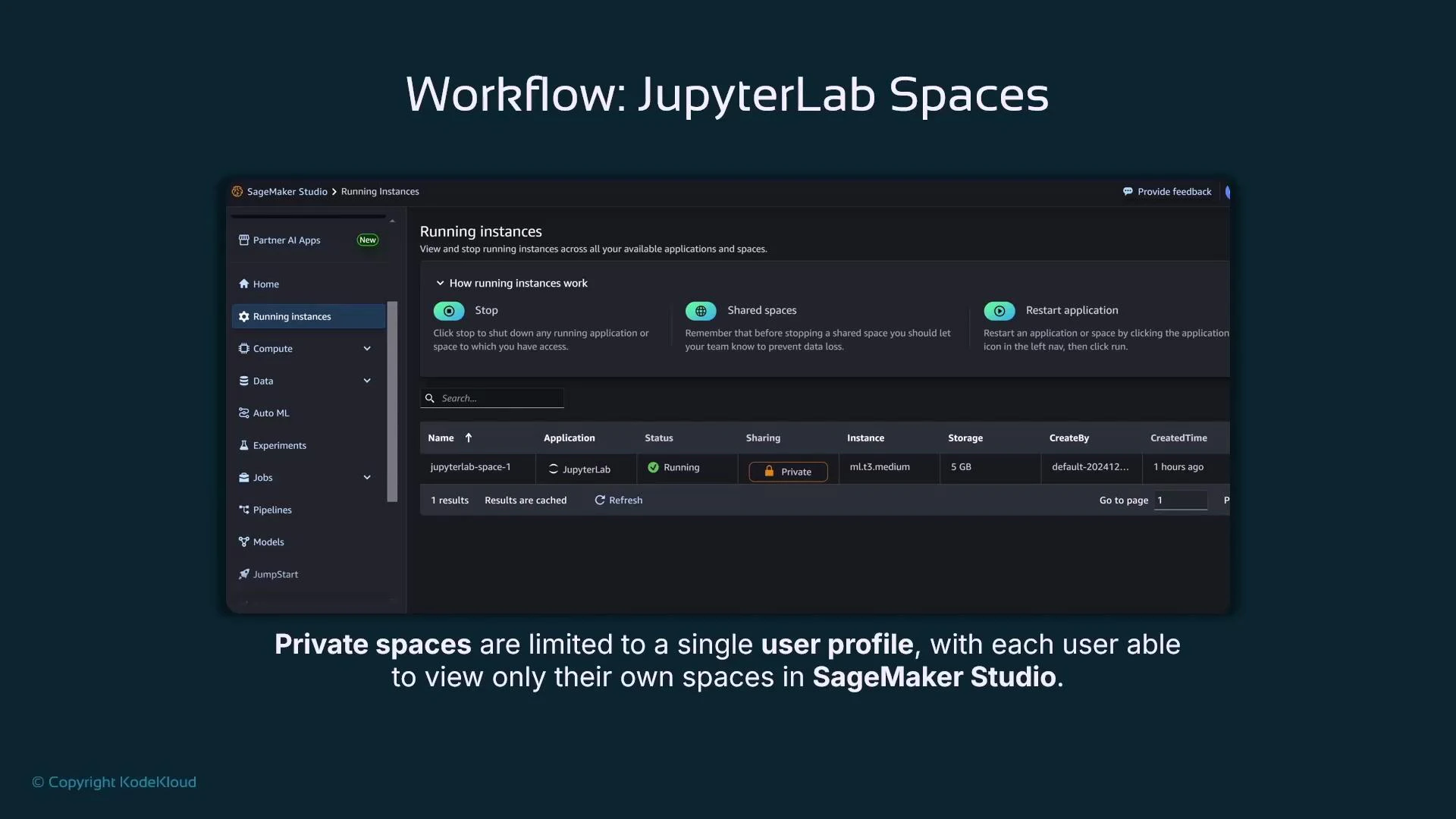
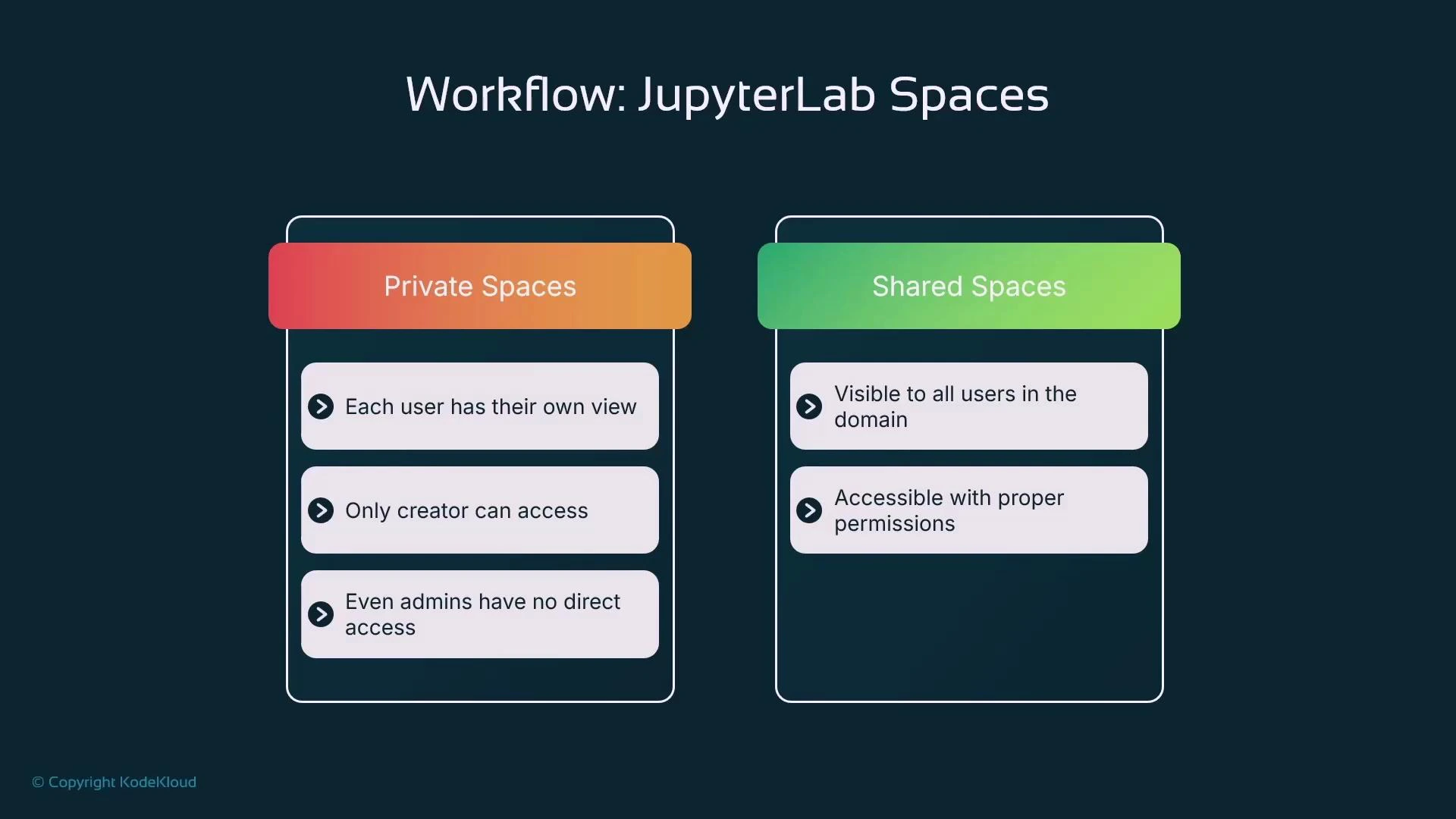
- Private space: a dedicated EC2 instance + EBS volume attached to a single user profile. Only that user sees the space and its running instance.
- Shared space: a single EC2 instance + EBS volume shared between multiple user profiles within the same domain; suitable for collaboration and real-time co-editing.
Important storage change (EFS → EBS)
Modern SageMaker Studio uses EBS volumes attached to the EC2 instance that runs each space. Historically, Studio Classic used Amazon EFS (a network file system) for shared storage. The move to EBS provides improved performance and predictable IOPS for per-space work. If domain-level EFS exists, you can mount it manually inside a space (NFS), but it is not used automatically for Studio spaces.Note: Older documentation (pre‑2025) may refer to EFS for shared Studio storage. Modern Studio spaces are EBS-backed by default—check the official AWS SageMaker docs for the current behavior: https://docs.aws.amazon.com/sagemaker/latest/dg/studio.html
Spaces, users, and visibility
Consider a domain with multiple user profiles and two spaces:- A private JupyterLab space for User A (visible only to User A).
- A shared JupyterLab space (visible to all users in the domain who have permission).
- Private space: only the creating user profile can see and open it.
- Shared space: visible to domain users, but actions still depend on IAM permissions and Studio settings.
- Private spaces: each has its own EBS volume attached to the instance.
- Shared spaces: one instance with a single attached EBS volume is shared among collaborators.
- Domain-level EFS (if present) is not automatically mounted; explicit NFS mounting is required.
How a space runs applications (containers and registries)
When you start a space, Studio provisions an EC2 instance of the chosen type and runs one or more containers. These containers are pulled from a container registry — either Amazon ECR in your account or SageMaker-hosted images. The container image provides the application (JupyterLab, RStudio, Code Editor) and libraries such as NumPy, Pandas, the SageMaker Python SDK, and boto3. A minimal example of Python imports that already work inside SageMaker’s default container image: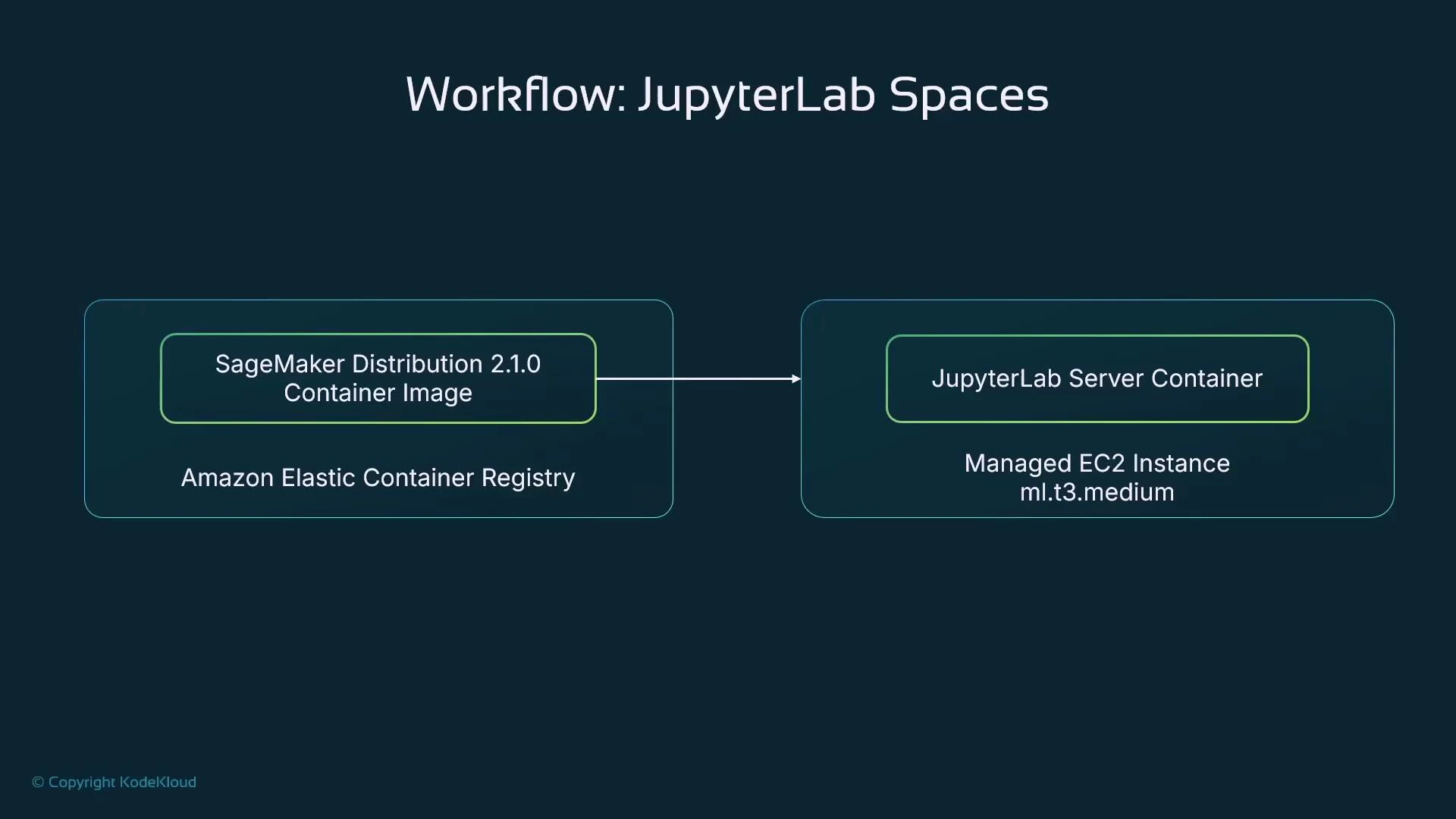
Starting, stopping, and billing behavior
Start and stop spaces from the Studio UI or the AWS Console. Key points:- Stopping a space terminates the EC2 instance — you stop paying for the instance hourly cost.
- Persistent data on the attached EBS volume remains (unless you explicitly delete it).
- External resources created from within the space (SageMaker endpoints, EMR clusters, S3 buckets, etc.) continue running and incurring charges until you explicitly delete them.
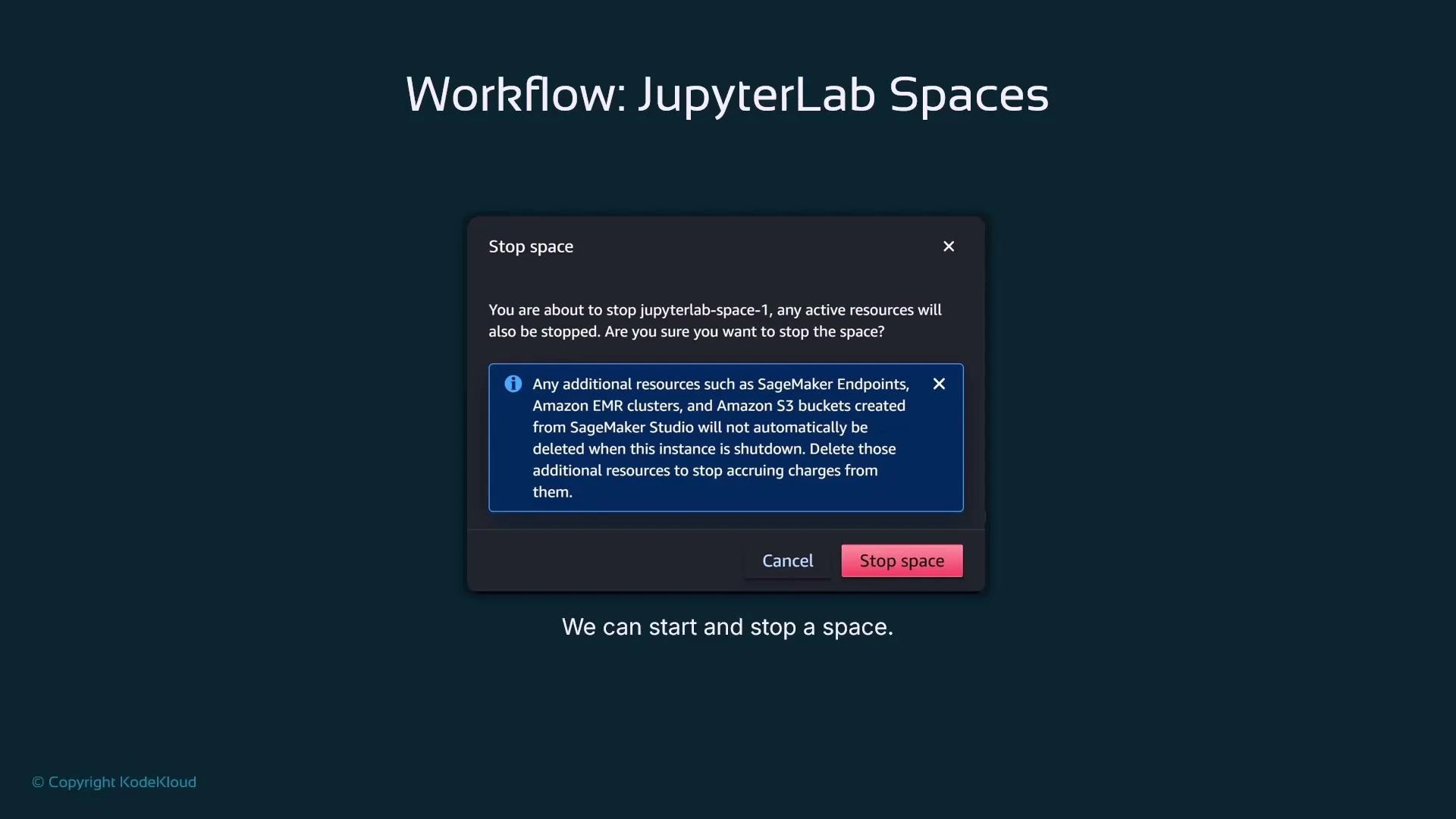
JupyterLab inside a space
When a JupyterLab space is running you can open JupyterLab from Studio. The JupyterLab launcher provides notebook kernels, terminals, Git integration, and the file browser common to JupyterLab. Real-time collaboration (RTC)- If a space is shared and RTC is enabled, Studio shows collaborator avatars (colored circles with initials) and indicates RTC presence, so multiple users can edit the same notebook in real time.
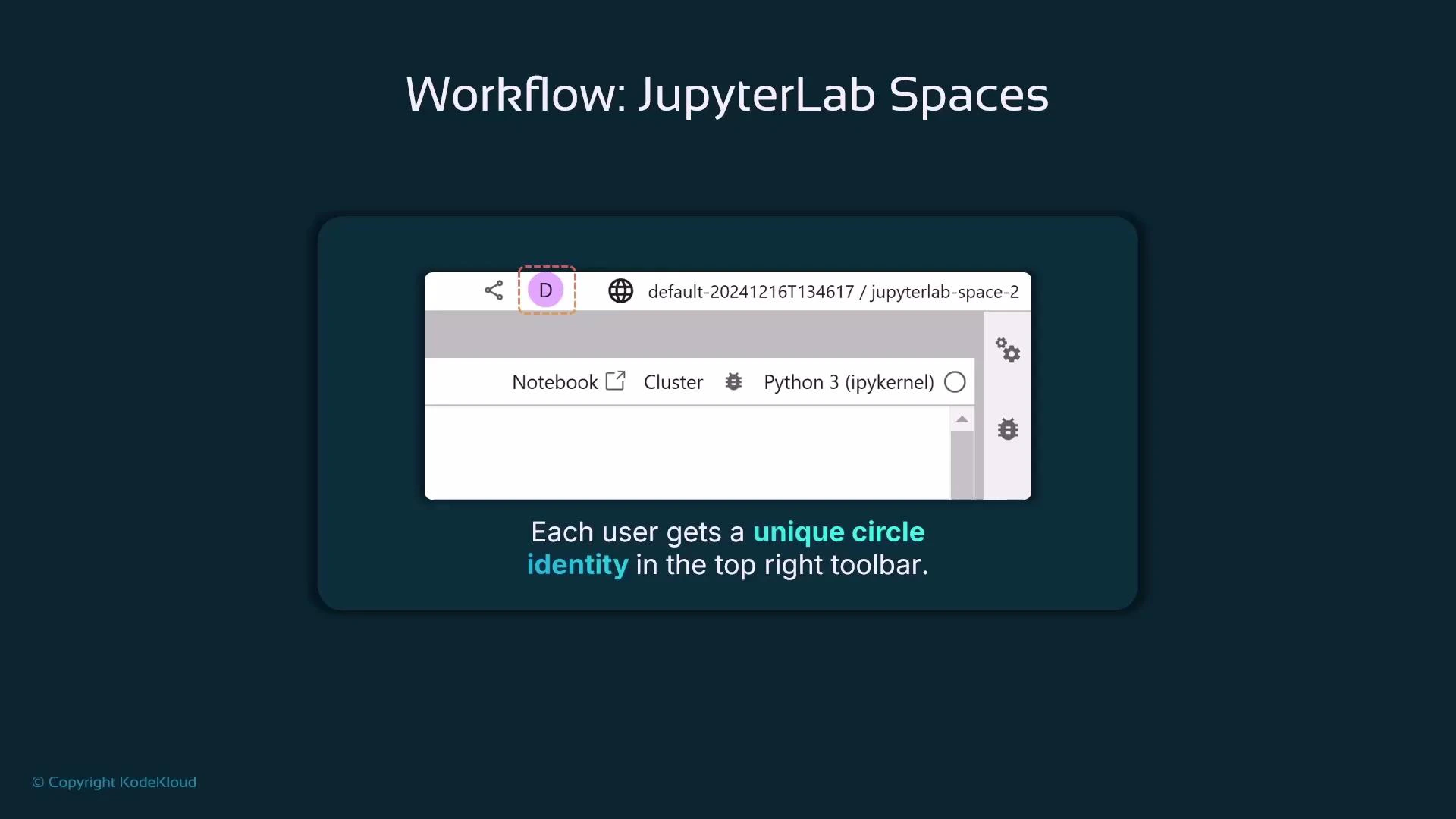
Managing spaces: Studio UI vs AWS Console
You can manage spaces in two places:- Inside SageMaker Studio UI
- Applications panel → choose JupyterLab / Code Editor / RStudio → see and start/stop available spaces for your user profile.
- AWS Management Console → SageMaker → Domain → Space management
- Administrators can view all spaces in the domain, their owner (user profile), type (private/shared), status (InService/Stopped), instance type, and perform administrative actions.
- Note: Administrators can view domain-level configuration, but private spaces remain visible only to their owner in the Studio UI.
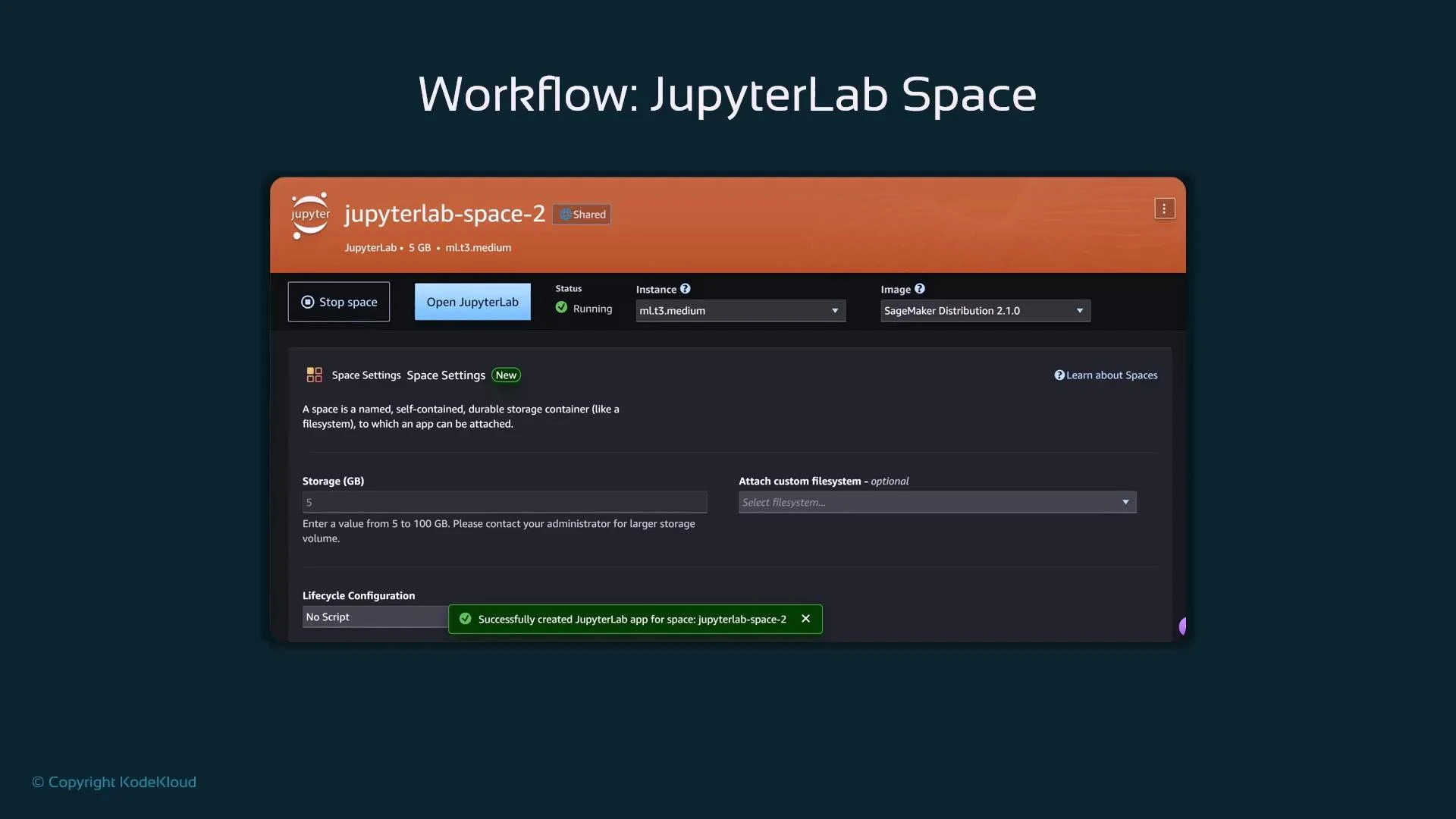
Instance properties, resizing, and stopped-state changes
- Instance properties include the instance type (e.g., ml.t3.medium) and the attached EBS volume size (for example, 5 GiB).
- To change instance type or increase EBS size you usually must stop the space first. Changes take effect when the space restarts.
- Always snapshot or back up important data before resizing or deleting volumes.
Private vs Shared — quick comparison
When to create a new SageMaker domain
Create a separate SageMaker domain when you need tenant-like isolation:- Full separation of storage and compute boundaries.
- Distinct IAM or networking policies per tenant.
- Regulatory or billing isolation between teams.
Closing notes and best practices
- Prefer modern SageMaker Studio (EBS-backed) rather than Studio Classic (EFS-based) unless you have legacy requirements.
- Use private spaces for sensitive work or when users need complete isolation.
- Use shared spaces for collaboration and real‑time co-editing, but enforce IAM and network controls for safety.
- De-provision endpoints, EMR clusters, and other long-running resources you no longer need before stopping a space to avoid unexpected charges.
Links and references
- Official SageMaker Studio docs: https://docs.aws.amazon.com/sagemaker/latest/dg/studio.html
- Amazon EFS — What is EFS: https://docs.aws.amazon.com/efs/latest/ug/what-is-efs.html
- Amazon EBS — EBS Overview: https://docs.aws.amazon.com/AWSEC2/latest/UserGuide/ebs.html
- Amazon ECR — What is ECR: https://docs.aws.amazon.com/AmazonECR/latest/userguide/what-is-ecr.html
- SageMaker Python SDK: https://sagemaker.readthedocs.io/en/stable/
- boto3 documentation: https://boto3.amazonaws.com/v1/documentation/api/latest/index.html