In this lesson you’ll set up and use Jupyter Notebook (classic) and JupyterLab on a standalone Ubuntu VM (EC2 in this demo). This manual installation demonstrates how the pieces fit together; hosted services such as AWS SageMaker provide managed environments if you prefer not to install manually. We will:
  • Install Python tooling and create an isolated virtual environment.
  • Install and run the classic Jupyter Notebook server and connect from a browser.
  • Create and run notebook code and markdown cells.
  • Install and explore JupyterLab and its integrated features.
  • Review security considerations for remote notebooks.
Let’s get started.

1. Launch and connect to the EC2 Ubuntu instance

In the AWS Management Console I launched a fresh Ubuntu EC2 instance and opened a shell from the console using Instance Connect.
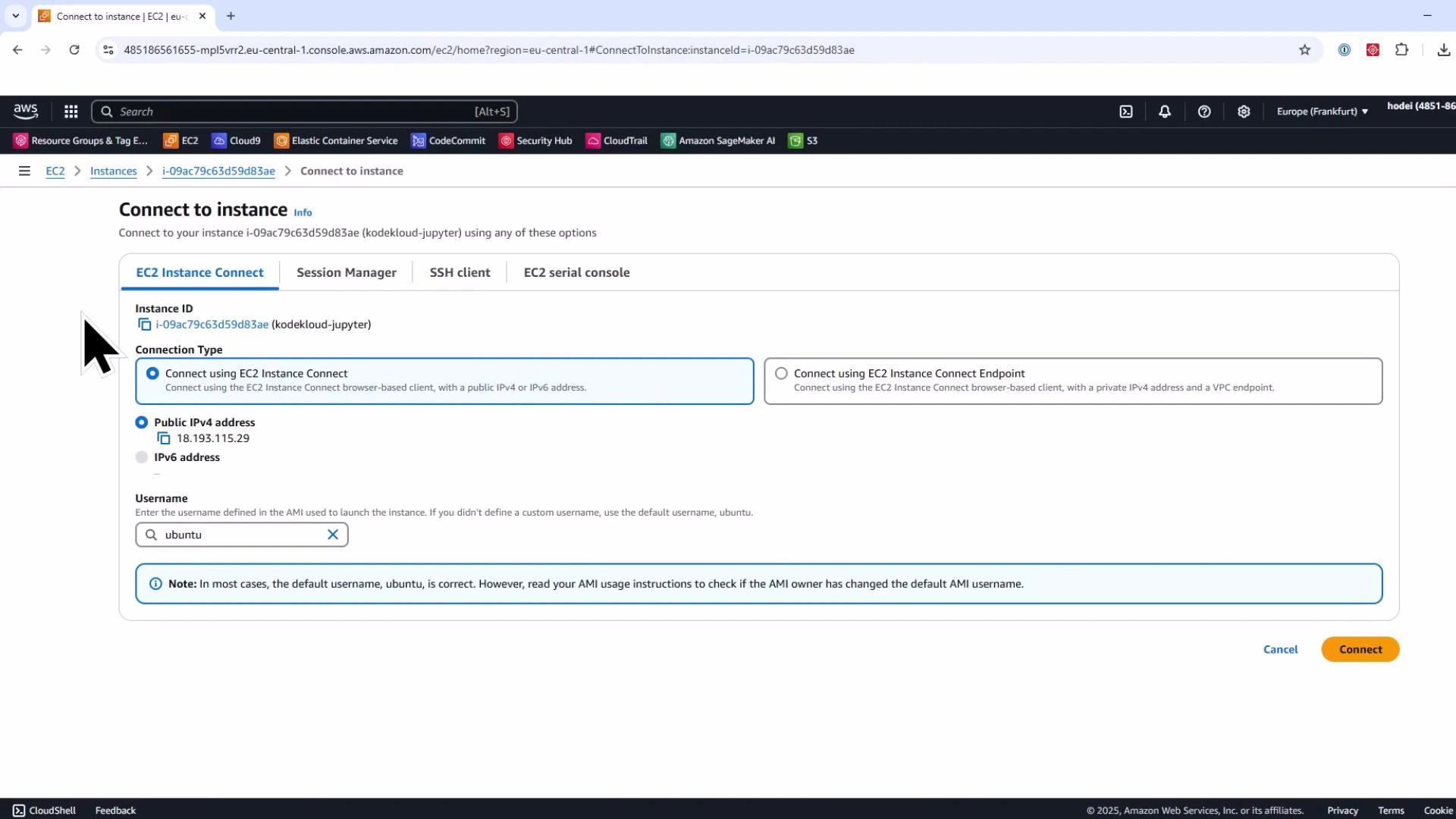
Screenshot of the AWS EC2 "Connect to instance" page showing the EC2 Instance Connect tab with an instance ID, public IPv4 address, and the username set to "ubuntu." A large cursor is visible on the left and a "Connect" button appears at the bottom right.
Once you have an interactive shell on the instance, verify Python is available. On modern Ubuntu releases the python command is not always present — use python3:
# Try invoking python3
ubuntu@ip-172-31-1-136:~$ python3
Python 3.12.3 (main, Feb  4 2025, 14:48:35) [GCC 13.3.0] on linux
>>> a = 3
>>> b = 4
>>> print(a + b)
7
>>> exit()
On Ubuntu 24.04+ you may need to install pip and the venv helper:
sudo apt update
sudo apt install -y python3-pip python3-venv
Verify pip:
ubuntu@ip-172-31-1-136:~$ pip --version
pip 24.0 from /usr/lib/python3/dist-packages/pip (python 3.12)
Create and activate an isolated virtual environment to avoid global package conflicts:
python3 -m venv jupyter_env
source jupyter_env/bin/activate
# Prompt will show (jupyter_env) when active
Use virtual environments to isolate project dependencies. This keeps system packages clean and prevents conflicting versions across projects.

3. Install and run the classic Jupyter Notebook server

Install Jupyter Notebook inside the virtual environment:
pip install jupyter
Start the notebook server, binding to all interfaces so you can connect remotely. Disable the automatic browser on the remote server:
jupyter notebook --ip=0.0.0.0 --no-browser
The server prints informational lines and one or more access URLs with an authentication token. Example output:
[I 2025-03-27 16:12:42.612 ServerApp] Serving notebooks from local directory: /home/ubuntu
[I 2025-03-27 16:12:42.612 ServerApp] Jupyter Server 2.15.0 is running at:
[I 2025-03-27 16:12:42.612 ServerApp] http://ip-172-31-1-136:8888/tree?token=7fa9...f265d487
[I 2025-03-27 16:12:42.616 ServerApp] Use Control-C to stop this server and shut down all kernels.
Important: the hostname in the printed URL may show the instance’s private IP or private DNS (not accessible from your laptop). Replace that hostname with the instance’s public IP shown in the EC2 console, or use an SSH tunnel to bind the port locally.
Do not expose a Jupyter server directly to the public internet without proper authentication and TLS. Prefer SSH tunneling, a VPN, or secure application endpoints to protect access.

4. Connect from a browser, create a notebook, and run cells

Open the corrected URL in your browser (public IP or a tunneled localhost URL). The classic Jupyter file view appears. Create a new Python 3 notebook and try code and markdown cells. Example code cells and outputs:
# Cell 1
a = 6
b = 4
print(a + b)
# Output: 10
# Cell 2
c = 8
print(c + a)
# Output: 14
Switch a cell to Markdown to add narrative:
# Feature Engineering Code Next
- Prepare features
- Scale and transform
Keyboard shortcuts:
  • Shift+Enter — run cell and advance.
  • Ctrl+Enter — run cell in place.
  • Execution order appears as bracket numbers [1], [2].
When finished with the server, stop it in the terminal with Ctrl+C and confirm.

5. Install and use JupyterLab (modern UI)

JupyterLab is a more integrated, IDE-like interface that combines notebooks, terminals, file browser, and extensions. Install and launch JupyterLab:
pip install jupyterlab
jupyter lab --ip=0.0.0.0 --no-browser
Open the Lab URL (replace private hostname with public IP or use SSH tunneling). JupyterLab highlights:
  • Launcher for notebooks, consoles, and terminals.
  • Split panes and tabbed layout for working on multiple files concurrently.
  • Integrated terminal to run shell commands and pip inside the environment.
  • Extension support (e.g., Git integration, code formatters, plot viewers).
Inside a JupyterLab terminal you might see installed packages:
# Example output from `pip list` (truncated)
nbformat        5.10.4
notebook        7.3.3
numpy           2.2.4
pip             24.0
pyzmq           26.3.0
jupyterlab      4.3.6
You can install JupyterLab extensions to add Git, file diffing, and other developer tools.
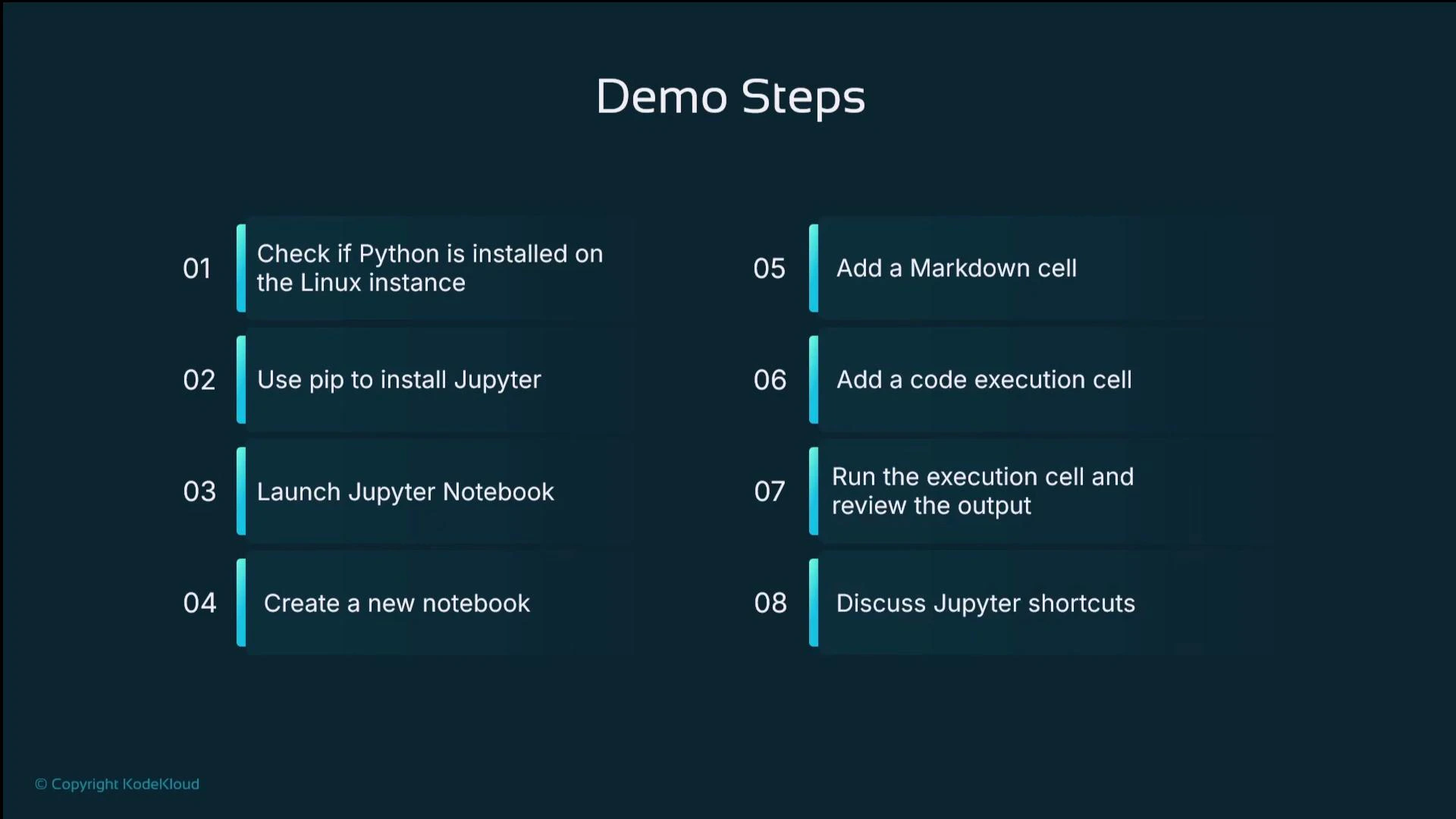
A dark-themed presentation slide titled "Demo Steps" showing eight numbered steps for setting up and using Jupyter Notebook, from checking Python and installing Jupyter to adding cells, running code, and discussing shortcuts.

6. Quick reference — commands and tips

TaskCommand / TipNotes
Install system depssudo apt install -y python3-pip python3-venvUbuntu 24.04+
Create venvpython3 -m venv jupyter_envActivate with source jupyter_env/bin/activate
Install classic notebookpip install jupyterStarts with jupyter notebook
Install JupyterLabpip install jupyterlabStarts with jupyter lab
Run serverjupyter notebook —ip=0.0.0.0 —no-browserReplace private IP with public, or tunnel
Secure accessUse SSH tunnel or VPNDo not leave ports open publicly

7. Recap — what we covered

StepSummary
1Verified Python is available (use python3 on modern Ubuntu).
2Installed pip and python3-venv; created and activated a virtual environment.
3Installed Jupyter (classic) and launched it for remote access.
4Created notebooks, added code and markdown cells, executed cells, and inspected outputs.
5Installed and launched JupyterLab to use an IDE-like interface with terminals and extensions.
6Emphasized security: replace private IPs with public IPs or use SSH tunneling and avoid public exposure.
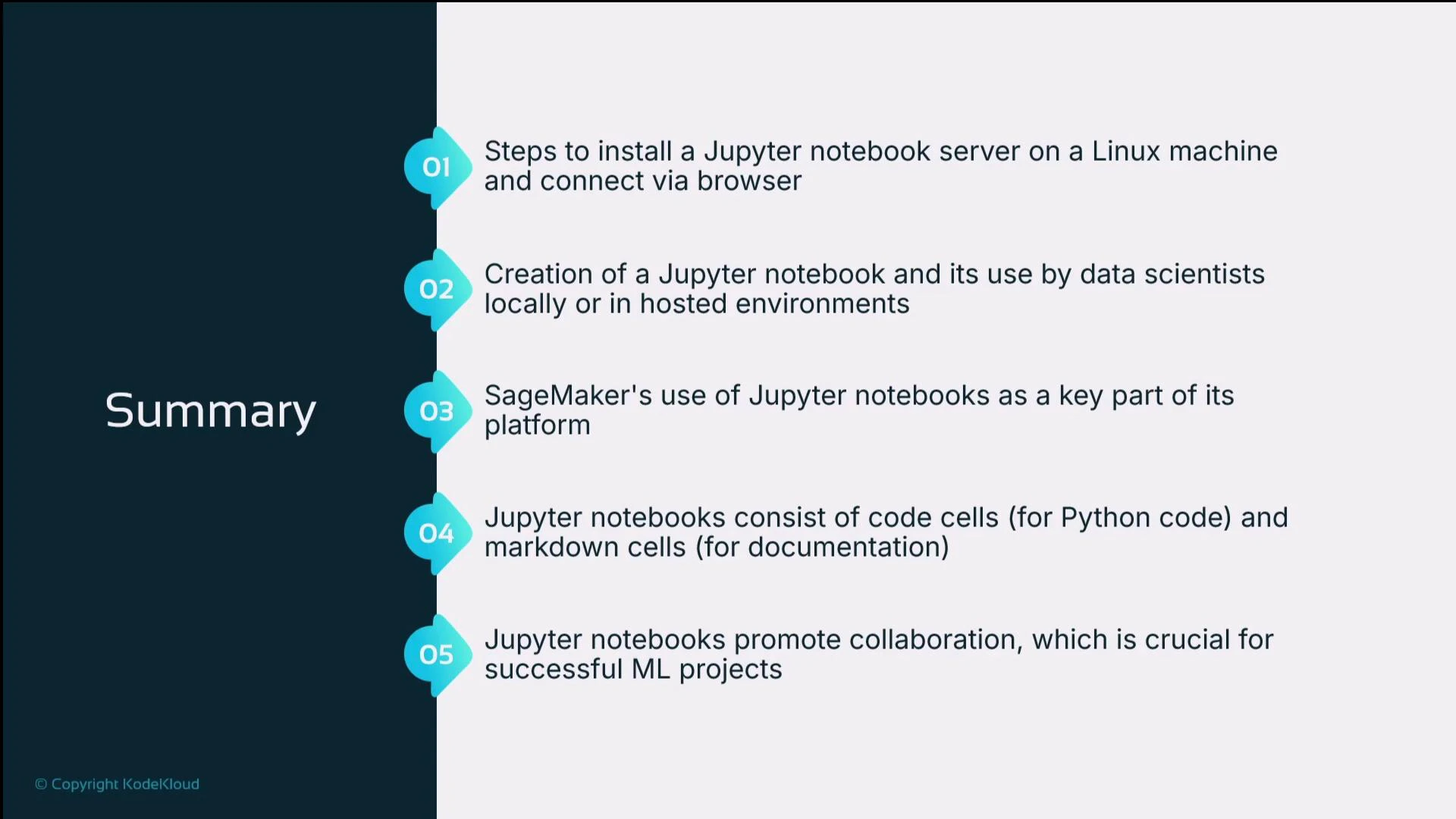
A presentation slide titled "Summary" that lists five numbered points about Jupyter notebooks. The points cover installing a Jupyter server, creating and using notebooks locally or in hosted environments, SageMaker integration, code vs. markdown cells, and collaboration for ML projects.
Jupyter Notebook and JupyterLab provide a flexible environment to mix code, results, and narrative documentation — making them core tools for data science, machine learning, and exploratory analysis. If you prefer a managed environment, consider using AWS SageMaker or other hosted notebook services that include security, scaling, and pre-configured tools. Further reading and references: Next up: try a hands-on lab to practice creating notebooks, running experiments, and using JupyterLab extensions.

Watch Video

Practice Lab