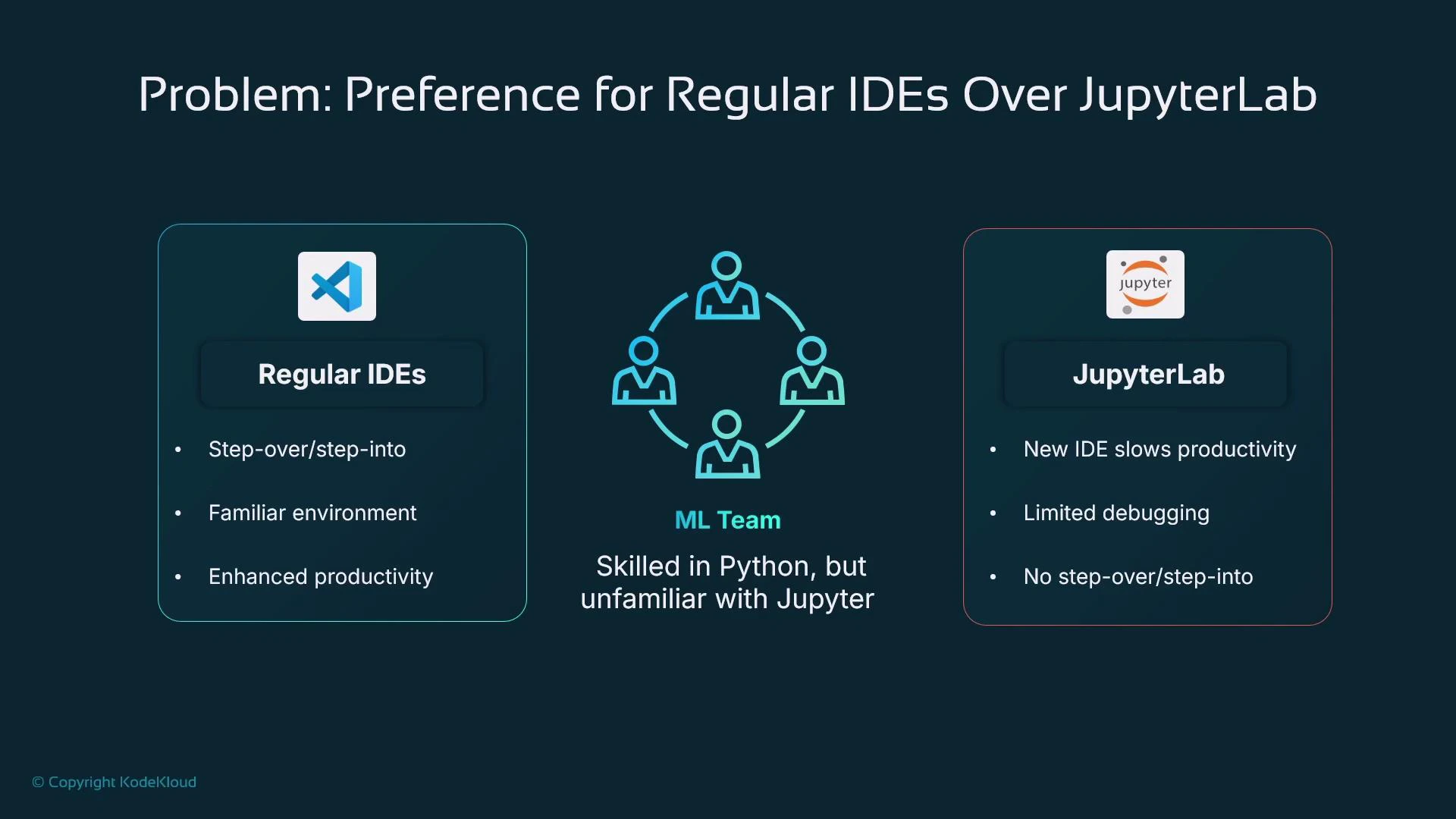
In this lesson we introduce the Code Editor: a VS Code–based development interface available inside Amazon SageMaker Studio. It provides a familiar IDE experience for developers who prefer traditional editors (for example, Python IDLE, PyCharm, or Visual Studio Code) over notebook-centric workflows. Many ML teams are proficient in Python but less familiar with JupyterLab. For those teams, exposing only Jupyter Notebooks can slow onboarding and reduce productivity. SageMaker’s Code Editor (based on VS Code OSS / code-server) runs in a managed environment and brings common IDE features—step-over/step-into debugging, variable watches, integrated terminal, linting/formatting extensions, and Git integration—into the Studio experience so developers can remain productive without context switching.
A slide titled "Preference for Regular IDEs Over JupyterLab" comparing Regular IDEs (left: step-over/step-into, familiar environment, enhanced productivity) with JupyterLab (right: slows productivity, limited debugging, no step-over/step-into). The ML team is shown in the center with the note "Skilled in Python, but unfamiliar with Jupyter."

Accessing Code Editor in SageMaker Studio

When you open SageMaker Studio, the Applications panel lists built-in tools you can launch (notebooks, IDEs, language tools, and ML workflow apps). The Code Editor appears in that list only if the application was enabled when the SageMaker user profile was created—this is controlled by the administrator who creates the user profile.
If you don’t see Code Editor in the Applications panel, ask your SageMaker admin to enable it for your user profile.
Example of the managed environment shell prompt you might see inside Studio:
sagemaker-user@default:~$

What is the SageMaker Code Editor?

  • It is a managed, hosted implementation of the open-source VS Code experience (VS Code OSS / code-server) inside SageMaker Studio.
  • It provides a familiar VS Code–like interface running on managed compute provisioned by SageMaker.
  • It supports editing Python scripts and Jupyter Notebooks, plus common configuration files such as JSON and YAML.
  • Native VS Code extensions (some pre-enabled) are available, including the AWS Toolkit and Amazon Q for AWS resource browsing, code-completion, and generative assistance.
Code Editor is fully integrated into Studio and supports:
  • AWS resource browsing (via the AWS Toolkit extension) for S3, training jobs, and other SageMaker resources.
  • Git integration to clone repositories, create branches, commit, push, and perform basic merge workflows from the UI.
  • Traditional debugging (step-in/step-over) that is more powerful than the limited debugging features in notebooks.
  • Extensions and plugins; extension availability is managed by the hosted environment.
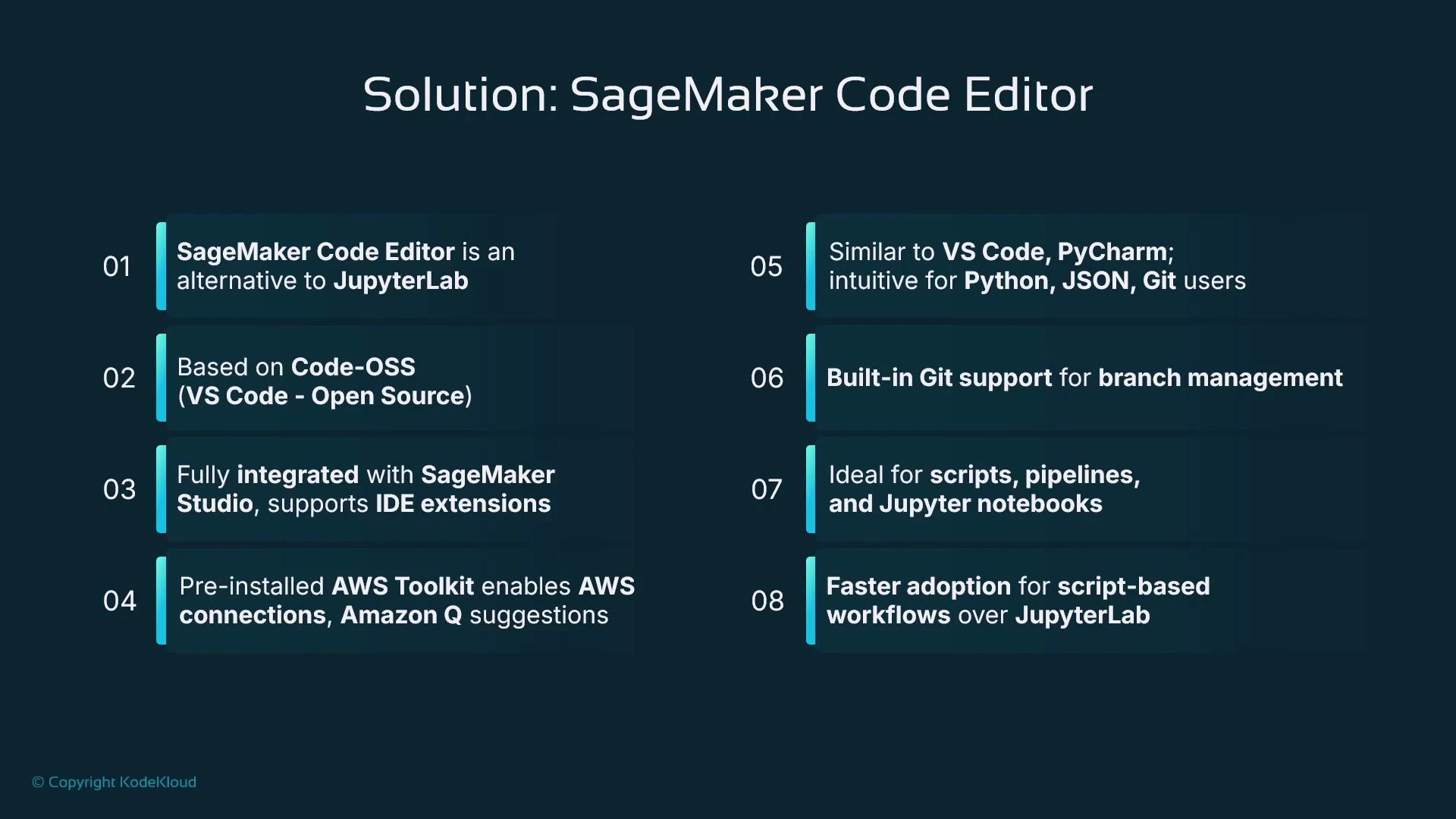
A presentation slide titled "Solution: SageMaker Code Editor" that lists eight numbered feature points. It highlights that the editor is Code‑OSS/VS Code–based, integrated with SageMaker Studio and AWS Toolkit, has built‑in Git, and is suited for scripts, pipelines and Jupyter notebooks.

When to use Code Editor vs Jupyter Notebooks

Choose the environment that best fits the task and stage of development:
  • Use Jupyter Notebooks for interactive exploration and experimentation:
    • Inline outputs and markdown narrative are ideal for data exploration, plotting (Matplotlib, Seaborn), interactive visualizations, and ad hoc analysis.
    • Great for prototyping and experiment tracking where stepwise execution and rich cell output matter.
  • Use the Code Editor for structured development, automation, and production workflows:
    • Best for writing maintainable Python scripts or packages, debugging with a step-through debugger, and multi-file navigation.
    • Use for code that will be invoked by schedulers, CI/CD pipelines, or orchestration services, or that needs to be version-controlled and tested.
Typical workflow:
  • Early experimentation: perform interactive analysis and visualization in Jupyter Notebooks.
  • Refactor for production: extract working code from notebooks into modular Python scripts or packages and continue development/debugging in Code Editor. This transition improves maintainability and suits pipeline or deployment workflows.
Code Editor also simplifies multi-file development: open multiple tabs, navigate across modules, and use integrated Git to manage changes without resorting to a terminal for basic operations.

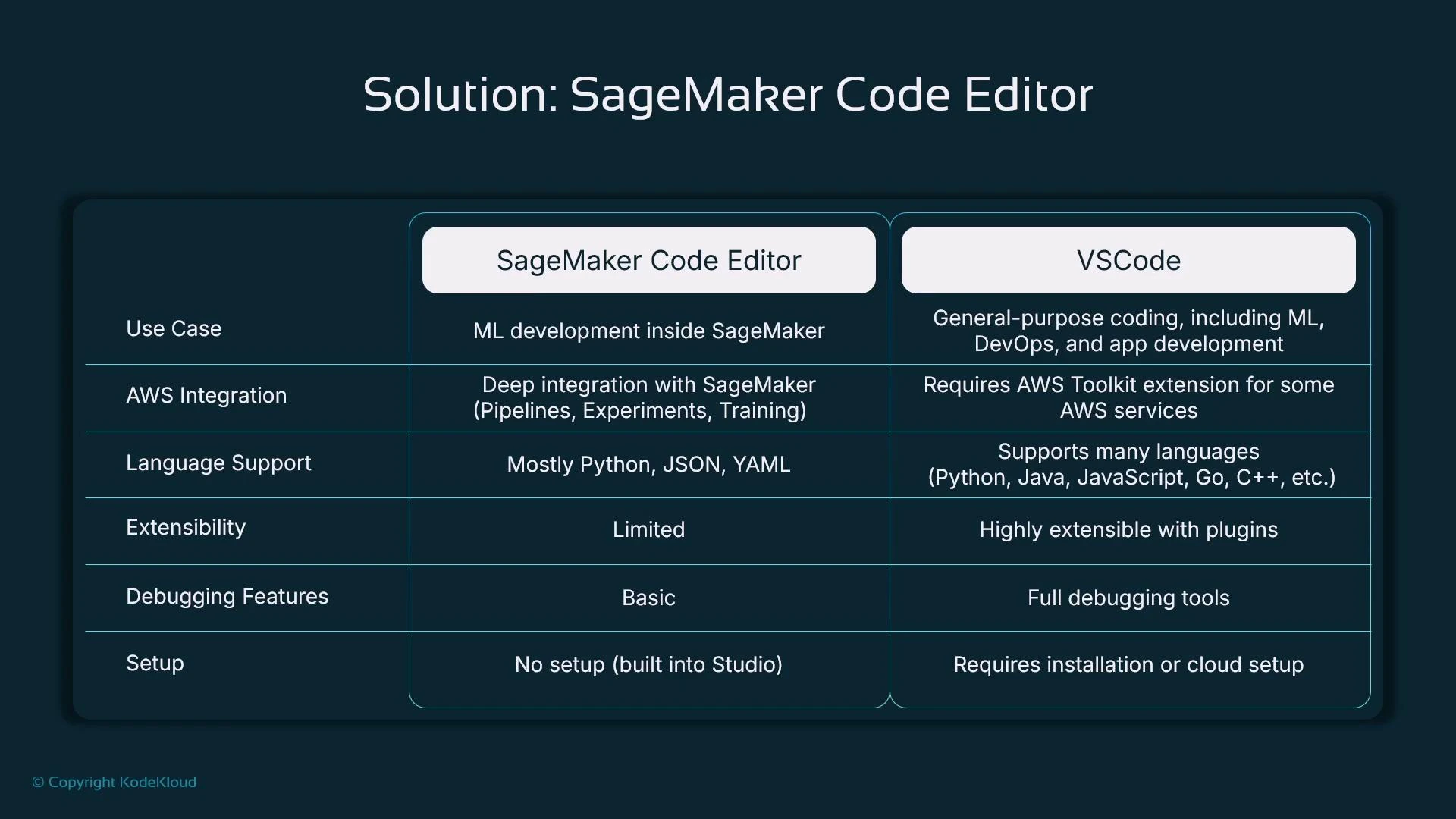
Comparison highlights

ResourceSageMaker Code EditorLocal VS Code
Use caseTailored for ML development and automation inside SageMakerGeneral-purpose IDE for many languages and scenarios
AWS integrationDeep, out-of-the-box integration with SageMaker services and AWS ToolkitRequires AWS Toolkit and local IAM credentials/configuration
Language supportOptimized for Python, JSON, YAML in the SageMaker contextWide language ecosystem and tooling
ExtensibilityCurated set of extensions due to managed environmentNearly unlimited extension installation
DebuggingSupports step-over/step-into debugging in a managed environmentRichest and most extensible debugging capabilities
SetupLaunched from Studio Applications panelRequires local installation per machine
A slide titled "Solution: SageMaker Code Editor" showing a comparison table between SageMaker Code Editor and VSCode. It lists categories like use case, AWS integration, language support, extensibility, debugging, and setup, noting SageMaker is ML-focused with deep AWS integration and limited extensibility while VSCode is general-purpose, highly extensible, and has full debugging tools.

Side-by-side: Code Editor vs JupyterLab
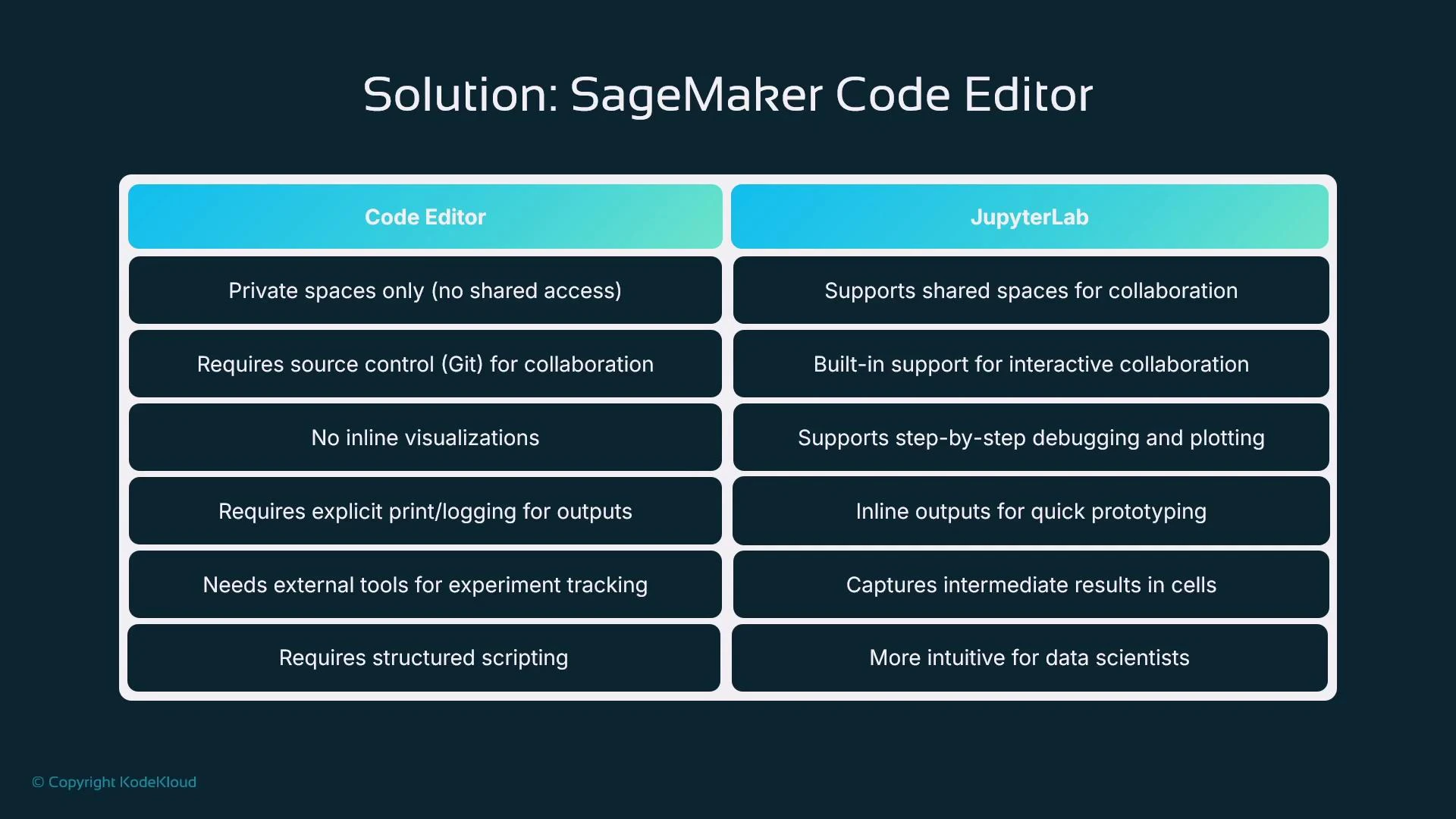
AspectCode EditorJupyterLab
Workspace modelPrivate workspaces, per-userCan be configured for shared workspaces and collaborative editing
CollaborationGit-based workflows (branching, PRs)Real-time collaborative editing (multi-user cursors) in many deployments
Inline outputs & plottingNot focused on inline visualization; best for files and scriptsRich inline outputs, visualizations rendered beneath cells
Debugging & loggingTraditional debugger and structured logging—better for production debuggingQuick iterative debugging with cell-level outputs and prints
Workflow focusStructured, single-invocation scripts for automation and pipelinesInteractive, exploratory workflows and human-readable narratives
A slide titled "Solution: SageMaker Code Editor" showing a two-column comparison table that contrasts Code Editor (private spaces, requires Git, no inline visualizations, etc.) with JupyterLab (shared collaboration, inline outputs, debugging and plotting).
Choose the environment based on the task: interactive analysis and visualization in Jupyter; structured, debuggable, and version-controlled code in the Code Editor.

Summary

  • SageMaker Code Editor delivers a VS Code–like IDE inside SageMaker Studio, optimized for writing scripts, pipelines, and production automation.
  • Jupyter Notebooks remain the best tool for interactive exploration, visualization, and iterative experimentation.
  • Use Jupyter for exploration and rapid prototyping; refactor to Code Editor when you need structured code, robust debugging, and CI/CD-friendly scripts.

Watch Video