In this lesson we’ll train a model in Amazon SageMaker Studio using the SageMaker Python SDK. This guide walks through a compact, runnable notebook flow that demonstrates:
  • Defining and running a training job with the SageMaker SDK’s Estimator class.
  • Launching a Hyperparameter Tuning job to explore multiple hyperparameter combinations in parallel.
  • Inspecting and retrieving model artifacts produced by training.
What you’ll do (high-level):
  1. Open a Jupyter notebook in SageMaker Studio.
  2. Prepare data: split into train/validation/test (≈ 70% / 20% / 10%).
  3. Create and run a SageMaker training job using Estimator — provide the container image, compute resources, and IAM role.
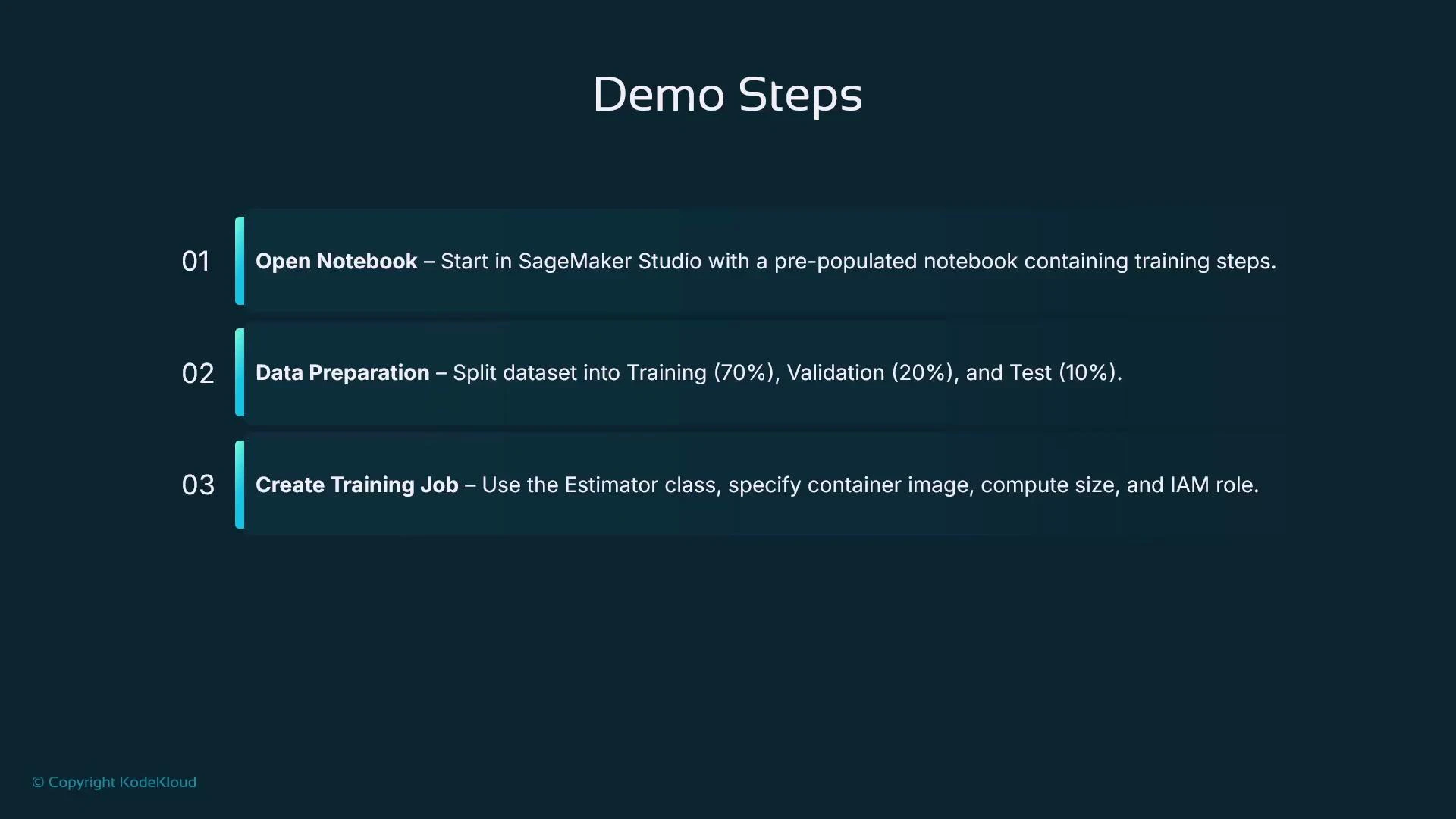
A presentation slide titled "Demo Steps" listing three numbered steps: 01 Open Notebook, 02 Data Preparation (split dataset 70% train / 20% validation / 10% test), and 03 Create Training Job (use Estimator, specify container image, compute size, and IAM role). The slide has a dark teal background with horizontal highlighted bars and a small "© Copyright KodeKloud" note.
Overview and approach
  • We’ll use the generic Estimator from the SageMaker SDK, so we must provide the container image URI for the training algorithm. For this demo we use SageMaker’s built-in Linear Learner (regression).
  • Workflow: set hyperparameters (mini-batch size, epochs, etc.), upload CSV data to Amazon S3, call estimator.fit(…), then inspect the model artifact (model.tar.gz) in S3.
  • To accelerate experimentation, we create a Hyperparameter Tuning job to run multiple training jobs in parallel and pick the best model by an objective metric (e.g., validation RMSE).
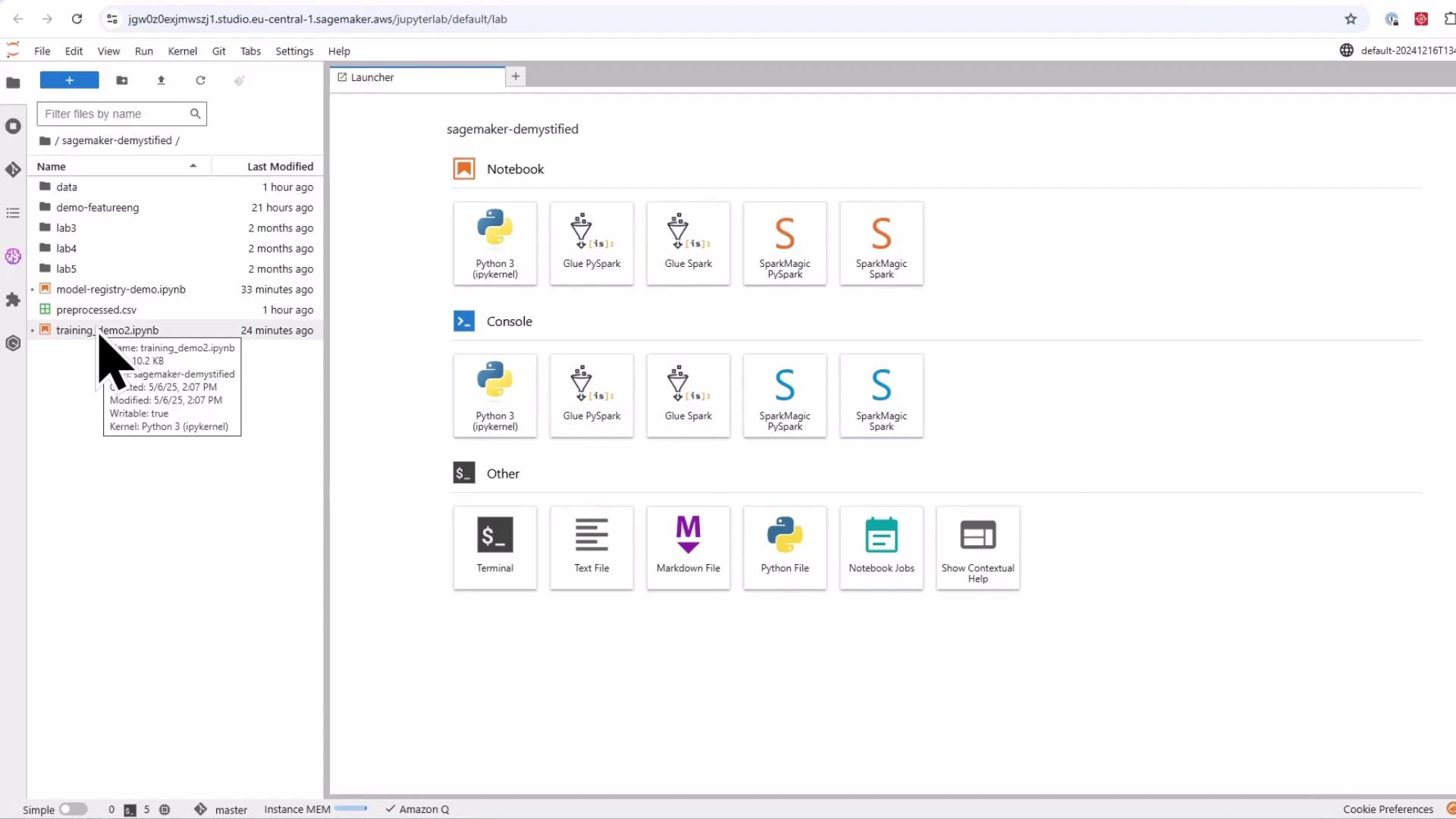
Open SageMaker Studio, select a notebook server from the JupyterLab launcher, and open the notebook that will contain the demo code.
Screenshot of a JupyterLab interface running in AWS SageMaker, showing the Launcher with notebook and console kernels (Python, Glue, Spark) and various file-type tiles. The left sidebar shows a file browser with a highlighted notebook file (training_demo2.ipynb).
Compact, runnable notebook flow
  • The sequence below contains the main notebook steps: imports, session/role setup, load & split data, save CSVs, upload to S3, define estimator, and run training.
  • This example assumes a preprocessed CSV file (preprocessed.csv) is available in the notebook filesystem.
# notebook: train_linear_learner.py
import os
import pandas as pd
from sklearn.model_selection import train_test_split

import sagemaker
from sagemaker import get_execution_role
from sagemaker.estimator import Estimator
from sagemaker.inputs import TrainingInput

# Initialize SageMaker session and role
sagemaker_session = sagemaker.Session()
role = get_execution_role()

# Define the S3 bucket and prefix for storing data (use a consistent prefix)
bucket = sagemaker_session.default_bucket()
prefix = 'house-price-linear-learner-demo'

print(f"Using bucket: {bucket}")

# Load the dataset (assumes 'preprocessed.csv' is present in the notebook filesystem)
df = pd.read_csv('preprocessed.csv')

# Separate features and target
target_col = 'saleEstimate_currentPrice'
X = df.drop(columns=[target_col])
y = df[target_col]

# Split the data into train (~70%), validation (~20%), and test (~10%) using a two-step split
X_train, X_temp, y_train, y_temp = train_test_split(X, y, test_size=0.3, random_state=42)
# X_temp is ~30% of data; here we split it so validation is ~20% and test is ~10% of the original
X_val, X_test, y_val, y_test = train_test_split(X_temp, y_temp, test_size=0.33, random_state=42)

print(f"Training set: {X_train.shape[0]} samples")
print(f"Validation set: {X_val.shape[0]} samples")
print(f"Test set: {X_test.shape[0]} samples")

# Recombine target as first column (many SageMaker built-in algos expect label in first column)
train_data = pd.concat([y_train.reset_index(drop=True), X_train.reset_index(drop=True)], axis=1)
val_data = pd.concat([y_val.reset_index(drop=True), X_val.reset_index(drop=True)], axis=1)
test_data = pd.concat([y_test.reset_index(drop=True), X_test.reset_index(drop=True)], axis=1)

# Save locally (no headers, no index for train/validation as required by many built-in algorithms)
os.makedirs('data', exist_ok=True)
train_csv = 'data/train.csv'
val_csv = 'data/validation.csv'
test_csv = 'data/test.csv'

train_data.to_csv(train_csv, index=False, header=False)
val_data.to_csv(val_csv, index=False, header=False)
test_data.to_csv(test_csv, index=False, header=False)

# Upload to S3
train_path = sagemaker_session.upload_data(train_csv, bucket=bucket, key_prefix=f'{prefix}/train')
val_path = sagemaker_session.upload_data(val_csv, bucket=bucket, key_prefix=f'{prefix}/validation')
test_path = sagemaker_session.upload_data(test_csv, bucket=bucket, key_prefix=f'{prefix}/test')

print(f"Train data uploaded to: {train_path}")
print(f"Validation data uploaded to: {val_path}")
print(f"Test data uploaded to: {test_path}")

# Retrieve the Linear Learner container image URI for the current region
linear_learner_container = sagemaker.image_uris.retrieve('linear-learner', sagemaker_session.boto_region_name)
Define the Estimator, set hyperparameters, and start training
  • Below we configure the Estimator to use a single ml.m5.large instance for demonstration. Adjust instance type and count for larger jobs.
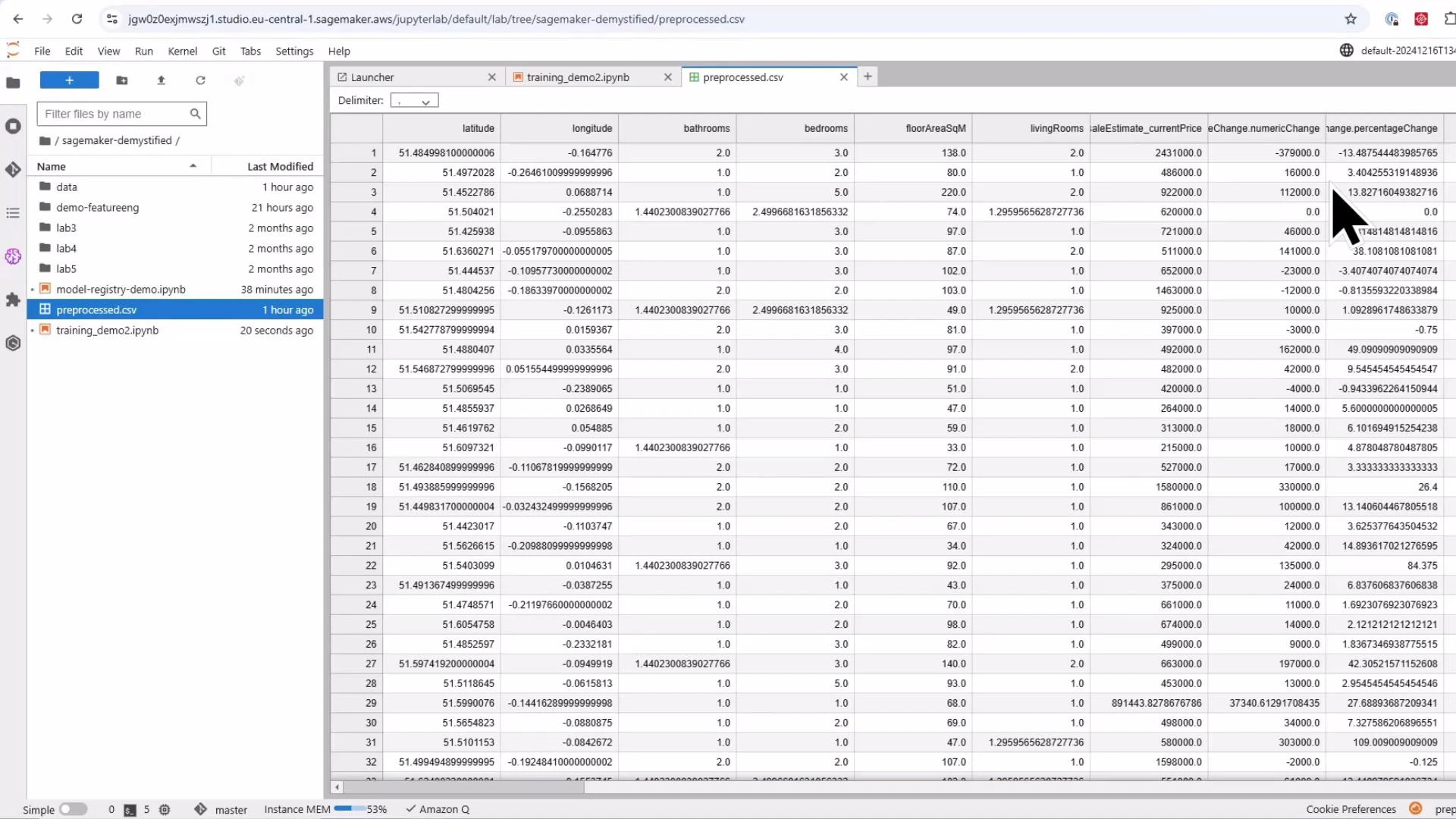
Screenshot of a JupyterLab/SageMaker workspace showing a CSV file (preprocessed.csv) preview with a left file browser and a large table of property data columns like latitude, longitude, bathrooms, bedrooms, floorAreaSqM and price. A mouse cursor highlights one of the cells in the table.
# Define the LinearLearner estimator
linear_estimator = Estimator(
    image_uri=linear_learner_container,
    role=role,
    instance_count=1,
    instance_type='ml.m5.large',
    output_path=f's3://{bucket}/{prefix}/output',
    sagemaker_session=sagemaker_session
)

# Set hyperparameters for Linear Learner (regression)
linear_estimator.set_hyperparameters(
    predictor_type='regressor',  # regression task
    mini_batch_size=32,
    epochs=10
)

# Specify the input data channels for CSV files
train_input = TrainingInput(s3_data=train_path, content_type='text/csv')
val_input = TrainingInput(s3_data=val_path, content_type='text/csv')

# Start training
linear_estimator.fit({'train': train_input, 'validation': val_input})
Monitoring and model artifacts
  • SageMaker creates a managed training job and provisions the compute instance(s). Monitor progress from SageMaker Studio (Jobs > Training) or the SageMaker Console training jobs page. Logs stream to the notebook cell output and include metrics such as validation RMSE and MSE.
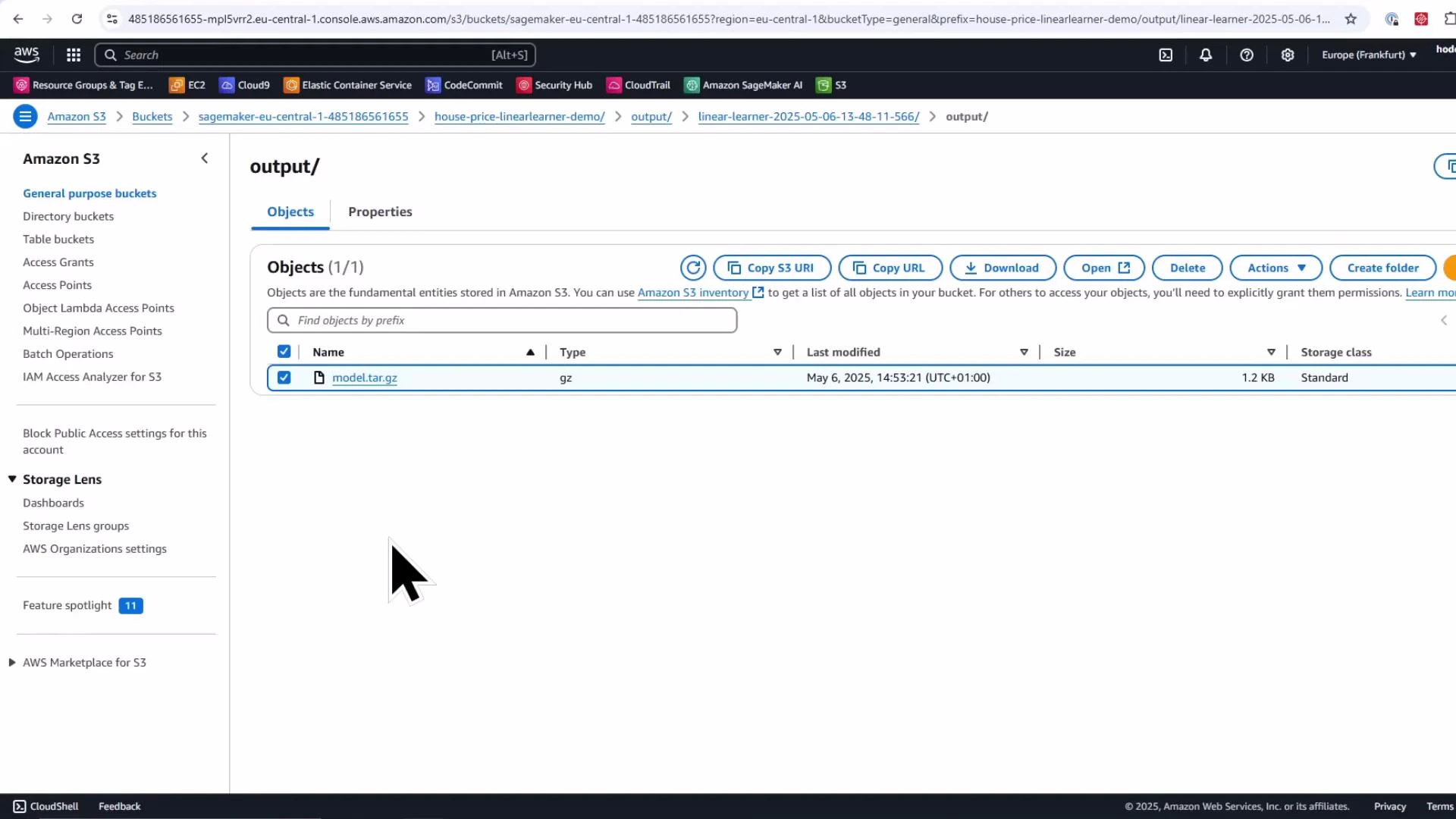
  • After training completes, the model artifact (model.tar.gz) is saved to the configured S3 output prefix.
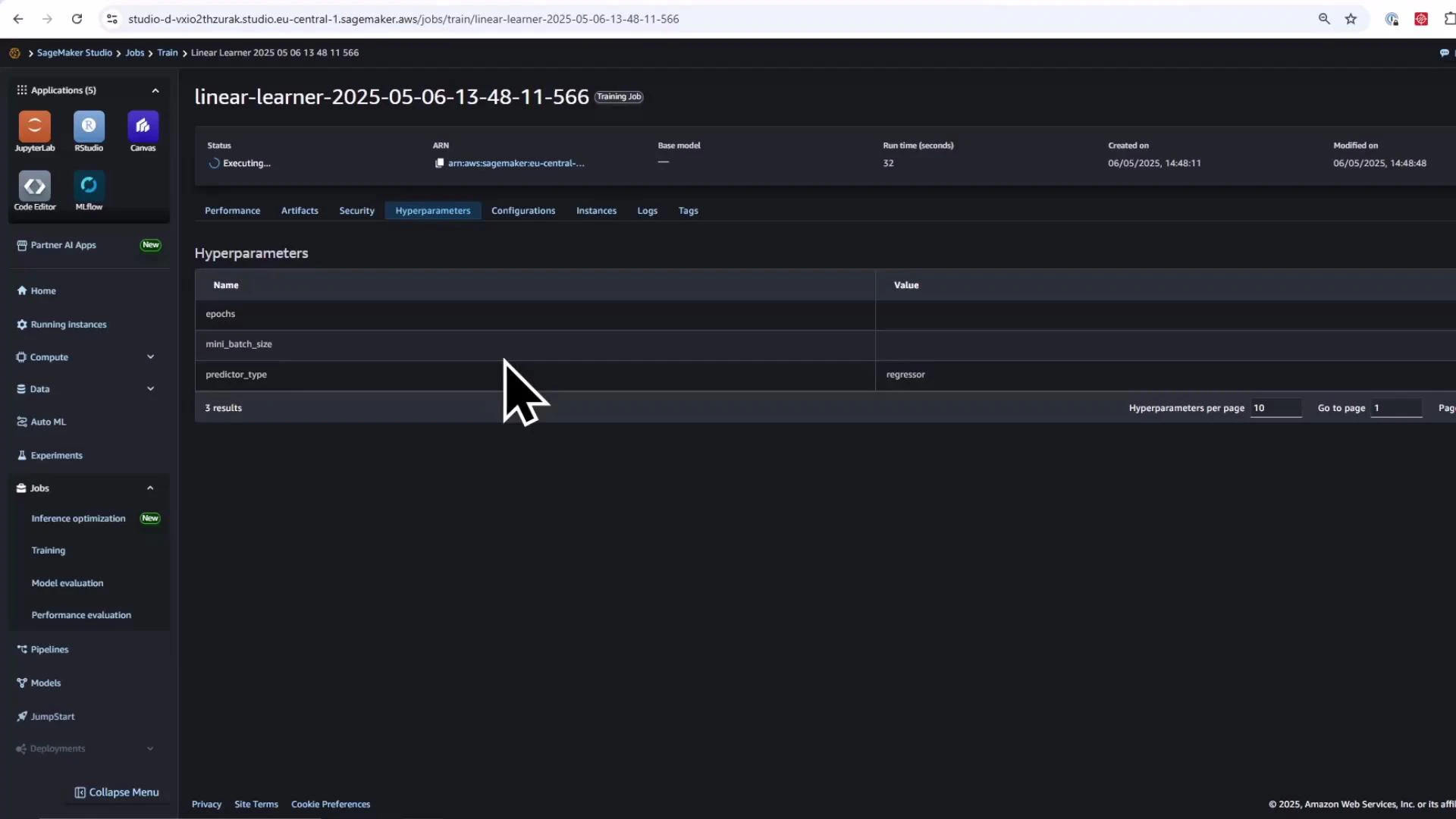
A screenshot of the Amazon SageMaker Studio web interface showing a running training job named "linear-learner-2025-05-06-13-48-11-566" with the Hyperparameters tab displayed. The table lists hyperparameter names like epochs, mini_batch_size and predictor_type (set to "regressor"), and a large cursor is visible.
Verify model artifact in the S3 Console (look under the training job’s output prefix for model.tar.gz).
A screenshot of the Amazon S3 console showing the "output/" folder containing a single object named "model.tar.gz" (1.2 KB, last modified May 6, 2025). The UI shows S3 navigation on the left and action buttons (Copy S3 URI, Download, Open, Delete) across the top.
Hyperparameter tuning to run many training jobs in parallel
  • Define ranges for the hyperparameters you want SageMaker to explore (ContinuousParameter or IntegerParameter).
  • Create a HyperparameterTuner and call fit(); the tuner launches multiple training jobs (up to max_parallel_jobs concurrently) and returns the best training job according to the specified objective metric.
from sagemaker.tuner import IntegerParameter, ContinuousParameter, HyperparameterTuner

# Define Hyperparameter Ranges to Tune
hyperparameter_ranges = {
    "learning_rate": ContinuousParameter(0.001, 0.1),
    "mini_batch_size": IntegerParameter(16, 512),
    "wd": ContinuousParameter(0.0001, 0.1),  # weight decay
}

# Create the Hyperparameter Tuner
tuner = HyperparameterTuner(
    estimator=linear_estimator,
    objective_metric_name="validation:rmse",
    objective_type="Minimize",
    hyperparameter_ranges=hyperparameter_ranges,
    max_jobs=6,            # total number of training jobs to run
    max_parallel_jobs=2,   # how many jobs to run in parallel
    strategy="Bayesian",   # Bayesian optimization strategy
)

# Launch the hyperparameter tuning job (this call blocks until the tuning job completes by default)
tuner.fit({"train": train_input, "validation": val_input})
print(f"Tuning job launched: {tuner.latest_tuning_job.name}")
By default tuner.fit(…) waits until the tuning job finishes and blocks the notebook cell. To launch asynchronously, call tuner.fit(…, wait=False) so you can continue other work while the tuner runs.
Retrieve the best tuning job programmatically
  • After tuning completes, use Boto3 or the SageMaker SDK to describe the tuning job and obtain the BestTrainingJob and its objective metric.
import boto3

tuning_job_name = tuner.latest_tuning_job.name
sm_client = boto3.client('sagemaker')

tuning_job_info = sm_client.describe_hyper_parameter_tuning_job(
    HyperParameterTuningJobName=tuning_job_name
)

best_training_job = tuning_job_info['BestTrainingJob']
best_model_job_name = best_training_job['TrainingJobName']
best_model_score = best_training_job['FinalHyperParameterTuningJobObjectiveMetric']['Value']

print(f"✅ Best model: {best_model_job_name} with score: {best_model_score}")
Practical notes and troubleshooting
  • If your model shows large RMSE values, investigate feature scaling, outliers, target distribution, and whether a linear model is appropriate. Hyperparameter tuning speeds up exploration but cannot replace good feature engineering and the right model choice.
  • Many built-in algorithms expect the label as the first column and CSV inputs without headers or index — ensure you follow the input formatting expected by the chosen algorithm.
  • For faster iteration, use smaller subsets of data or fewer epochs during development, then scale up for final training runs.
Summary — what you accomplished
  • Created a SageMaker training job with the Python SDK Estimator class.
  • Retrieved the built-in Linear Learner container image and provided it to a generic Estimator.
  • Uploaded train/validation/test CSVs to S3 and started training with estimator.fit(…).
  • Launched a HyperparameterTuner to try multiple hyperparameter combinations in parallel and retrieved the best model.
  • Verified the model artifact saved to S3 (model.tar.gz).
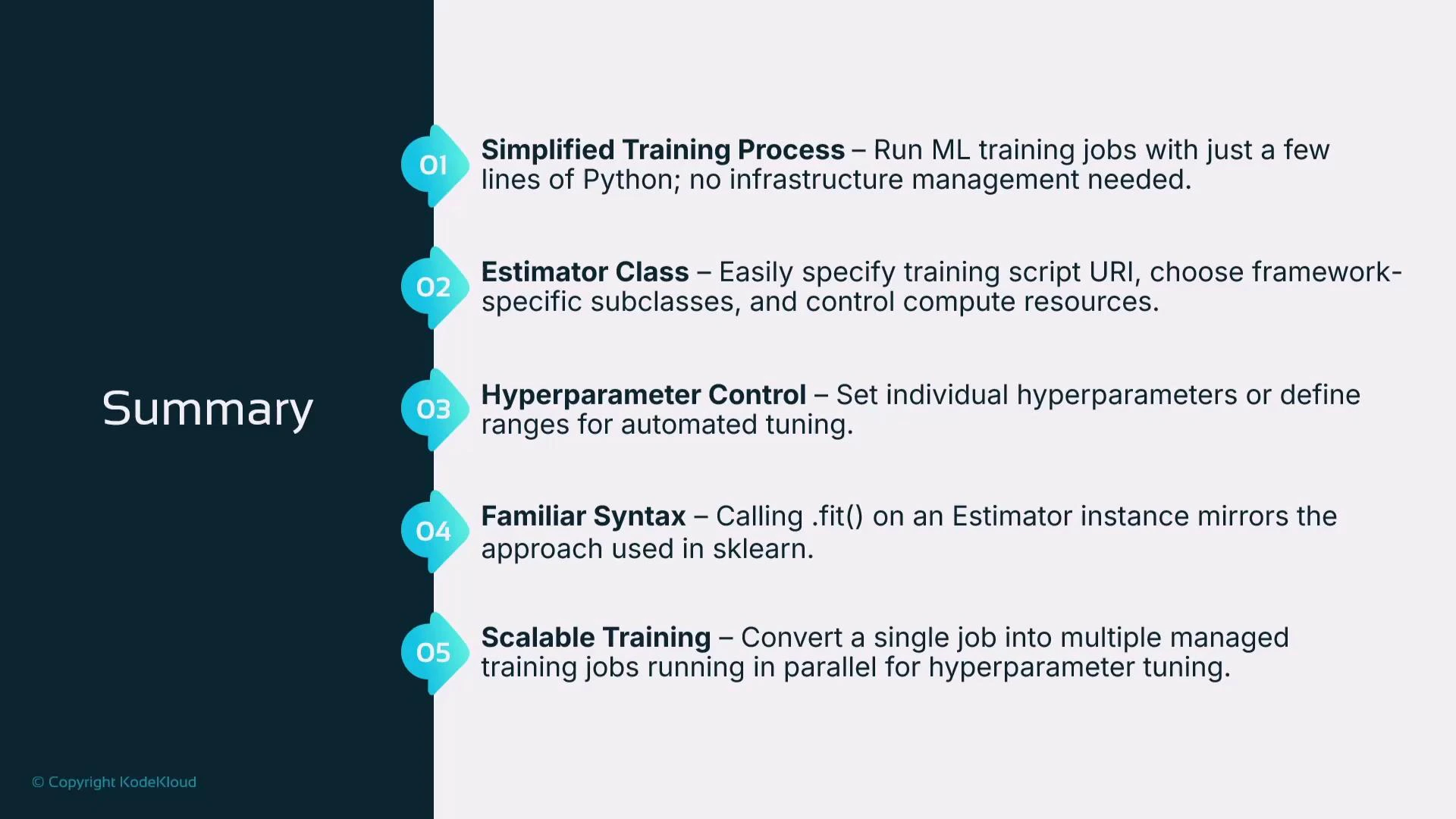
A presentation slide titled "Summary" showing five numbered points about an ML training workflow. The points highlight a simplified training process, an Estimator class, hyperparameter control, familiar .fit() syntax, and scalable training for parallel hyperparameter tuning.
Quick reference and links
ResourcePurposeLink
SageMaker Python SDKAPI reference for Estimator, inputs, and training workflowshttps://sagemaker.readthedocs.io/en/stable/
Estimator class docsAPI for creating and running training jobshttps://sagemaker.readthedocs.io/en/stable/api/training/estimators.html#sagemaker.estimator.Estimator
SageMaker Hyperparameter TuningTuner and strategieshttps://sagemaker.readthedocs.io/en/stable/tuner.html
Linear Learner algorithmBuilt-in algorithm overview for regression/classificationhttps://docs.aws.amazon.com/sagemaker/latest/dg/linear-learner.html
SageMaker StudioStudio overview and getting startedhttps://docs.aws.amazon.com/sagemaker/latest/dg/studio.html
Boto3 SageMaker clientProgrammatic access to tuning job metadatahttps://boto3.amazonaws.com/v1/documentation/api/latest/reference/services/sagemaker.html
Amazon S3 Console guideManaging S3 artifacts and objectshttps://docs.aws.amazon.com/AmazonS3/latest/userguide/using-console.html
Recommended next steps
  • Try different instance types (e.g., ml.m5.2xlarge) and compare training time vs cost.
  • Replace Linear Learner with other built-in algorithms or your own training container to evaluate model performance.
  • Integrate model evaluation and model deployment (SageMaker endpoints or batch transform) as the next phase after training.

Watch Video

Practice Lab