

Ways to run Jupyter
You can run Jupyter in several environments depending on your workflow, collaboration needs, and infrastructure:-
Local setup
- If Python is installed, use pip:
- Or install the Anaconda distribution, which bundles Python, Jupyter, common data science libraries, and the conda package manager: https://www.anaconda.com/products/distribution
- If Python is installed, use pip:
-
Containerized
- Use Docker or another container runtime to pull ready-made Jupyter images. Containers isolate the notebook server and dependencies from the host OS while providing the same browser-based UI.
-
Inside an IDE
- Some IDEs (for example Visual Studio Code) open .ipynb files natively and provide notebook-like experiences directly inside the editor. IDE support varies; for many data-science tasks the full Jupyter UI is preferred.
-
Hosted cloud service
- Managed services run Jupyter servers in the cloud and give you a remote URL to access via your browser. AWS SageMaker is a common option that integrates Jupyter/JupyterLab with AWS services and storage.
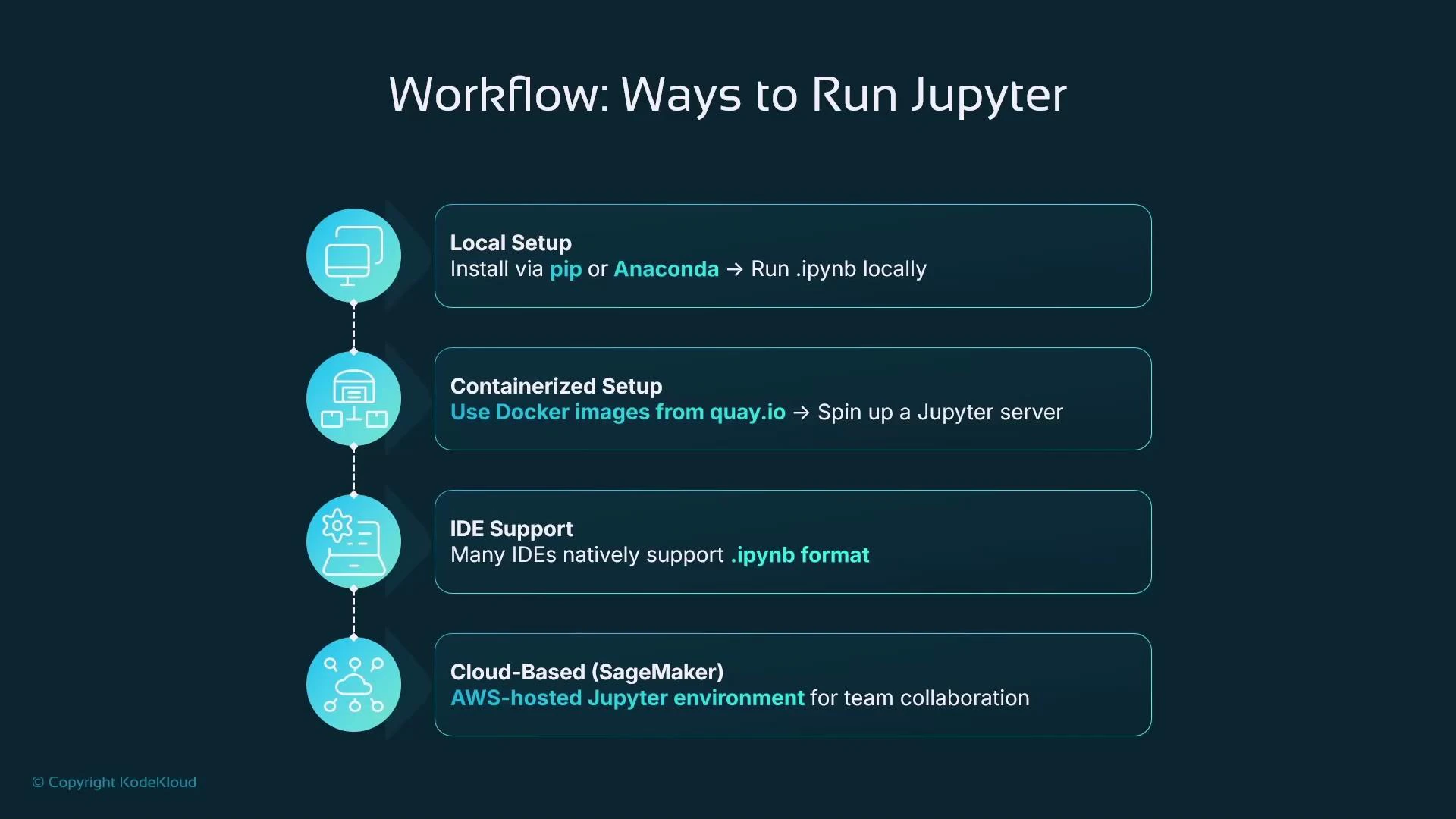
Jupyter is always accessed via a web browser. The server (local, container, or cloud) runs the code and hosts the notebook application; your browser is the client.
Jupyter in AWS SageMaker
AWS SageMaker has supported hosted Jupyter environments since its initial release. Over time AWS added:- Classic Notebook Instances — managed EC2 instances preconfigured to run a Jupyter server.
- JupyterLab support — a multi-tabbed interface with extension support.
- SageMaker Studio — a full ML-focused IDE built on JupyterLab that integrates many additional tools and workflows for data scientists and MLOps engineers.
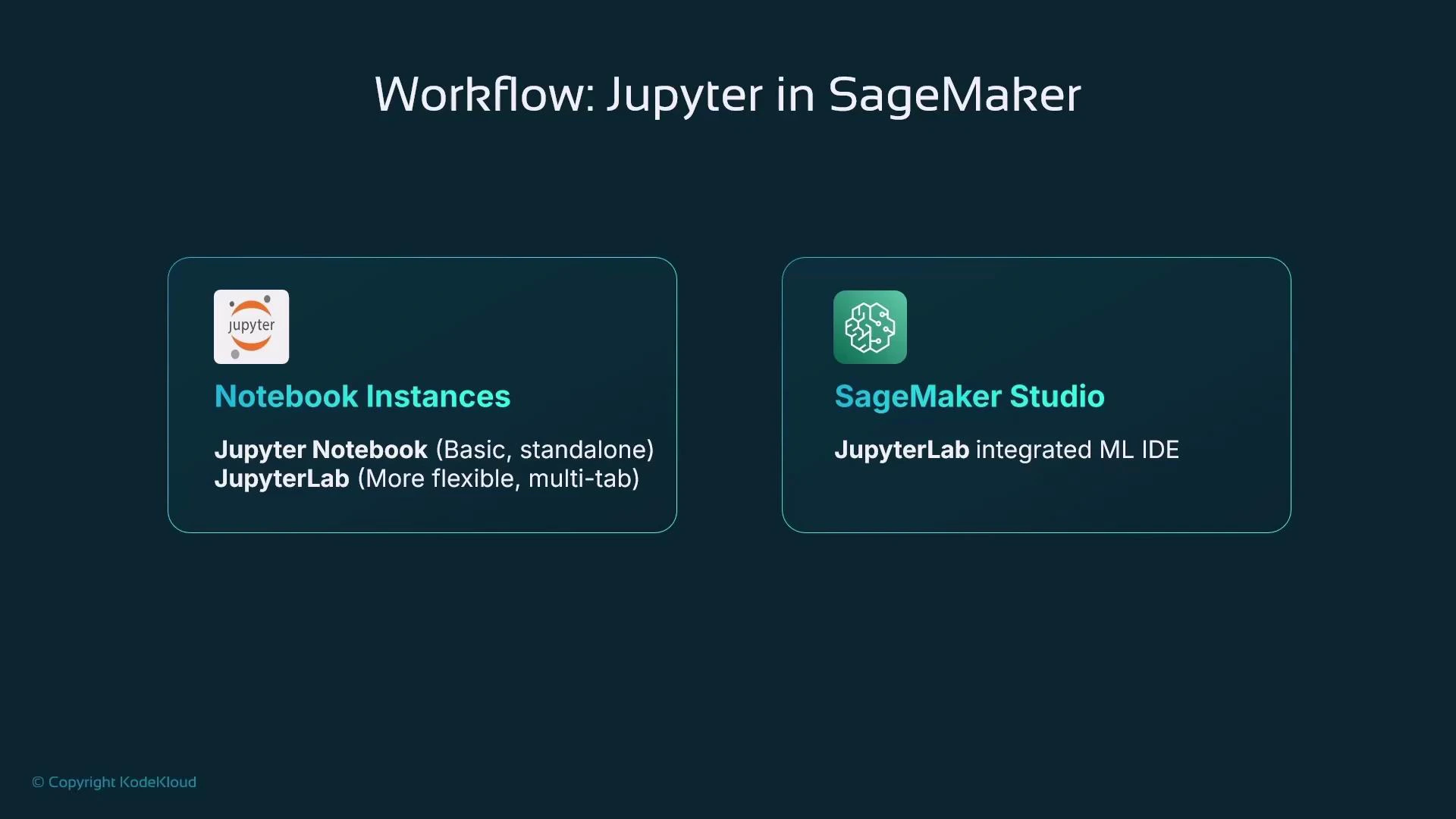
Notebook Instances in AWS SageMaker are supported but considered legacy. For new projects, prefer SageMaker Studio for a modern, integrated JupyterLab-based experience.
Hosting resources and instance sizing
When creating a hosted Jupyter server (Notebook Instance or a Studio kernel/compute), you choose a compute profile. SageMaker uses instance families and sizes similar to EC2 naming:
Choose an instance type that matches your workloads: data preprocessing, model training, or GPU-accelerated deep learning. You can provision multiple hosted environments with different sizes for different projects.
When you run cells inside a notebook, code executes on the server. Notebook cells capture stdout and visual outputs inline and save them into the .ipynb document.
Example notebook cells:
Visualizations and documentation
A major strength of Jupyter is inline rendering of visualizations. Libraries such as Matplotlib and Seaborn render charts and plots directly into notebook output cells. These visual outputs are preserved in the .ipynb file (unless cleared), which makes notebooks ideal for combining code, visual results, and narrative in one shareable document. Common visualization types used in data science: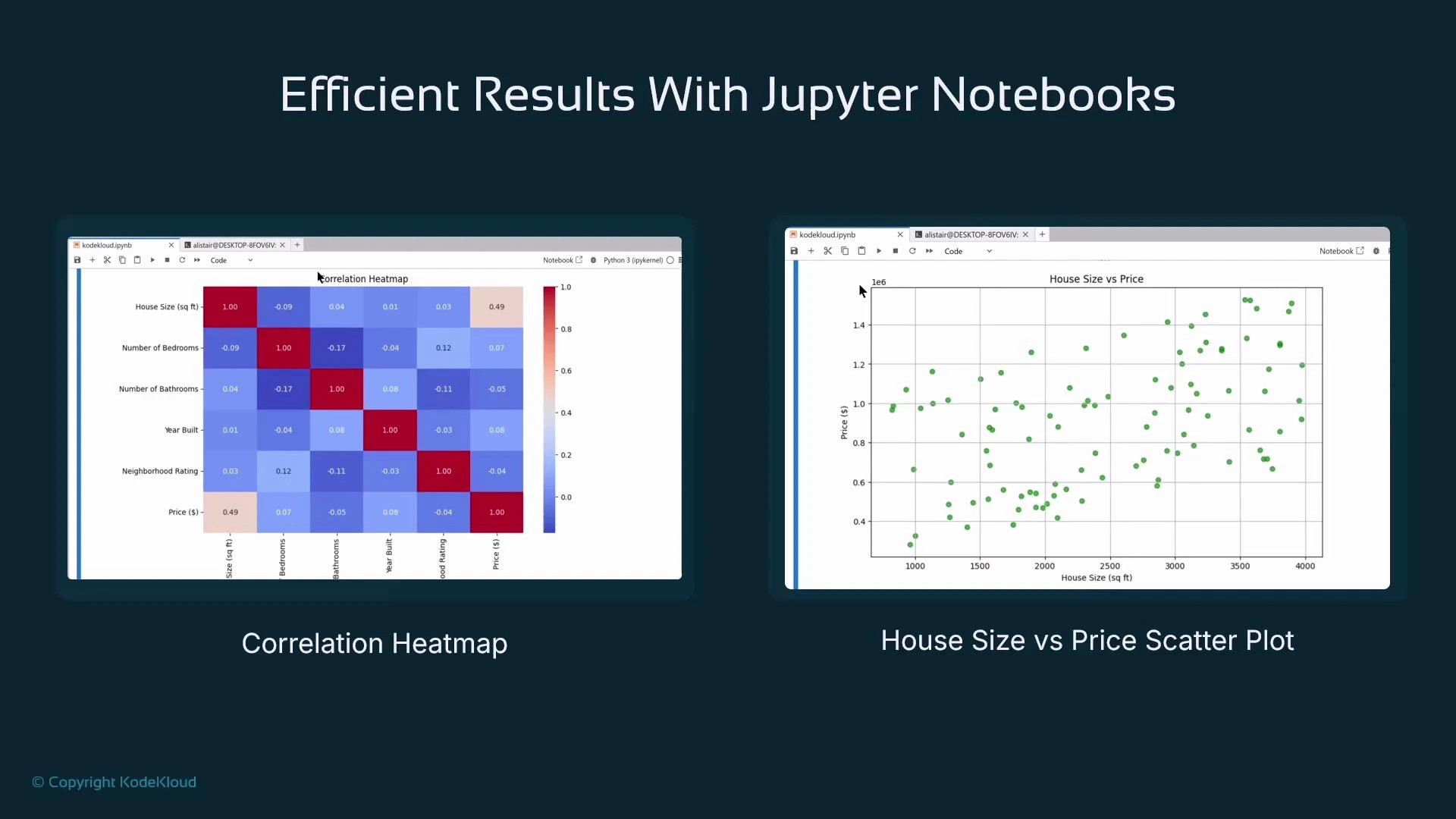
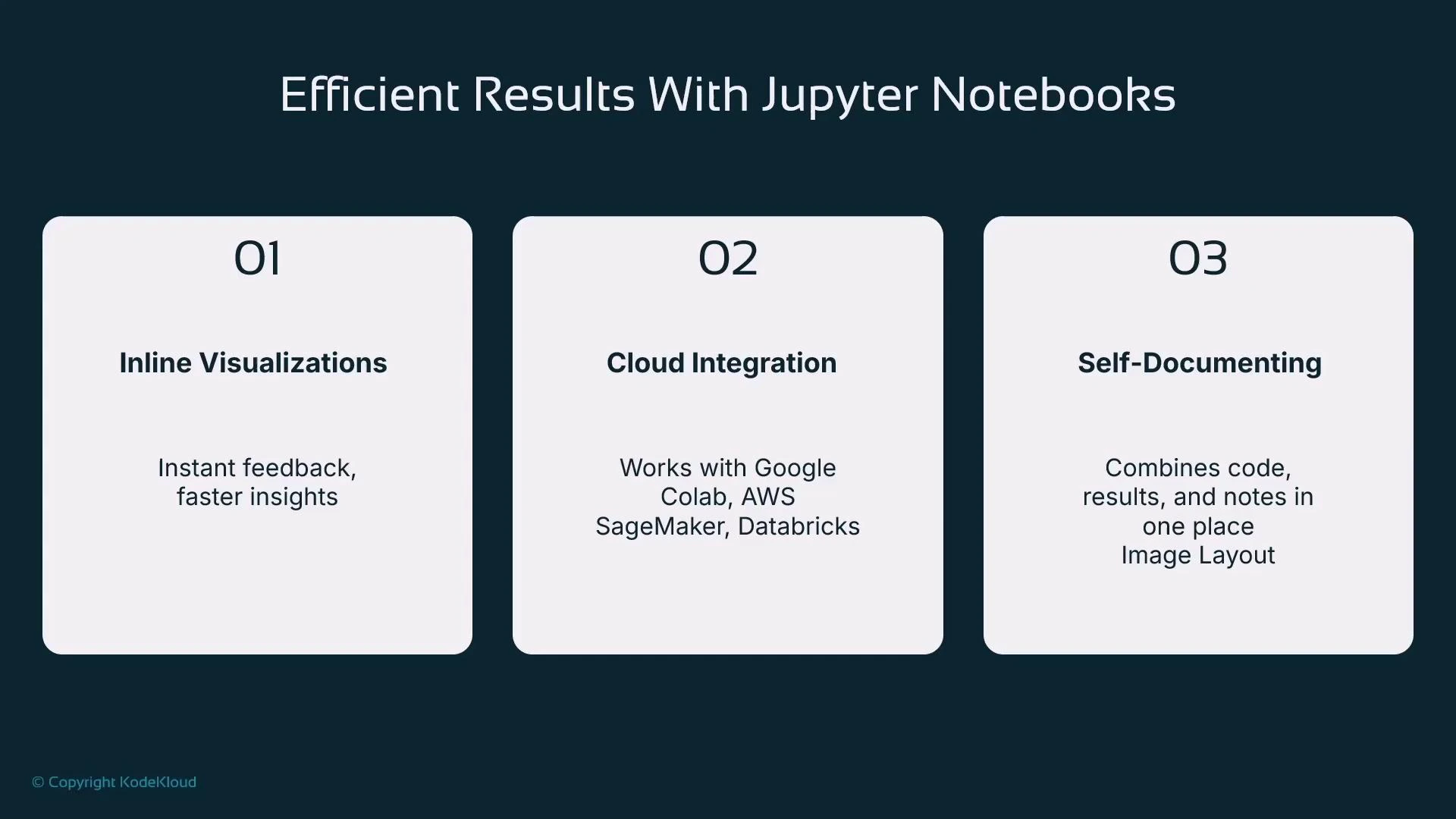
- Inline visualizations and instant feedback from code execution.
- Integration with many cloud environments (e.g., Google Colab, AWS SageMaker, Databricks).
- Self-documenting workflows: combine code cells with markdown for clear explanations, hypotheses, and reproducible steps.
Summary
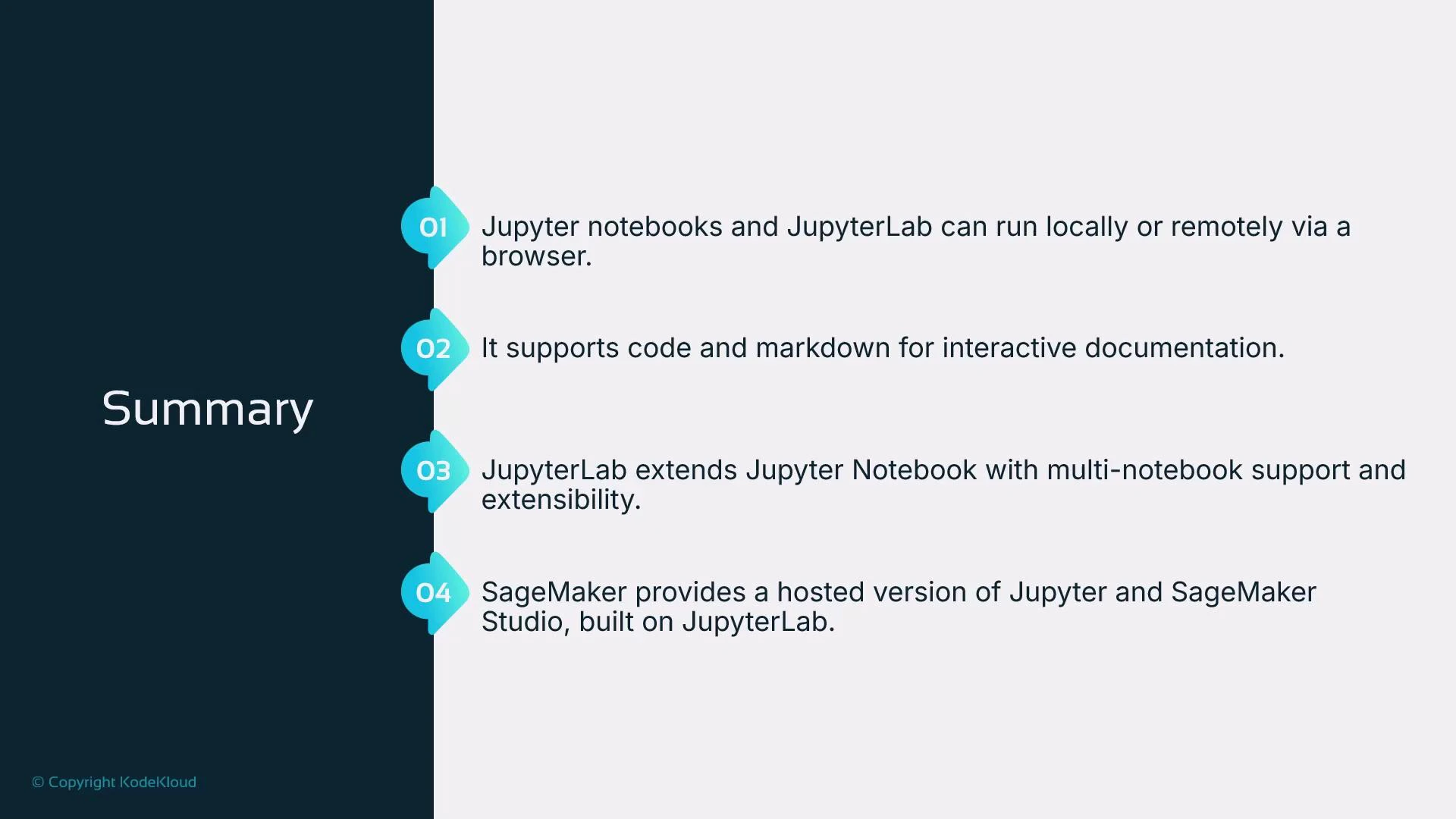
Key takeaways from this lesson:- Ways to run Jupyter: locally (pip or Anaconda), in containers, inside IDEs, or as hosted cloud services (e.g., AWS SageMaker).
- The browser is always the user interface for Jupyter; the server executes code and stores outputs.
- Notebook cells can be code or markdown; code cell stdout and visual outputs are captured inline in the .ipynb file.
- JupyterLab is a modern, tabbed interface with extension support; SageMaker Studio builds on JupyterLab to provide a full ML IDE.
- SageMaker supports legacy Notebook Instances and the newer Studio — prefer Studio for new projects.
Links and references
- JupyterLab: https://jupyter.org/
- Anaconda distribution: https://www.anaconda.com/products/distribution
- Docker: https://www.docker.com/
- AWS SageMaker overview and resources: https://learn.kodekloud.com/user/courses/aws-sagemaker
- Matplotlib: https://matplotlib.org/
- Seaborn: https://seaborn.pydata.org/