Guide to adding SageMaker Studio user profiles to a Domain, configuring apps and storage, distinguishing Studio new EBS from Classic EFS, and following security and resource best practices
This guide walks through adding a new SageMaker Studio user profile to a SageMaker Domain, explains the key configuration choices, and highlights best practices for security, storage, and resource management. Follow the steps in sequence and use the checks described to confirm whether a Studio space uses EBS (Studio new) or EFS (Studio Classic).Step 1 — Add a user profile from the SageMaker Domain “User profiles” tab. In a quick-start domain you often begin with one default user. To add another, open the User profiles tab and click Add user.
A dialog opens to capture the new user settings. Provide a user name (for example, user2) and select an execution role. The execution role is an IAM role that controls what AWS resources the user can access when using Studio.
Step 2 — Configure the applications available to this user. AWS is deprecating SageMaker Studio Classic, so the default and recommended selection is SageMaker Studio — new (Studio v2). Only select Studio Classic for specific legacy needs.
Best practice: a SageMaker user profile should represent a single person. The audit, security, and billing models assume one Identity Center (or IAM) user maps to exactly one Studio user profile. Sharing profiles across people undermines auditability and isolation.
One Identity Center user should normally equal one SageMaker profile. In enterprise setups, you can auto-create profiles when users are assigned access via AWS Identity Center / SSO.
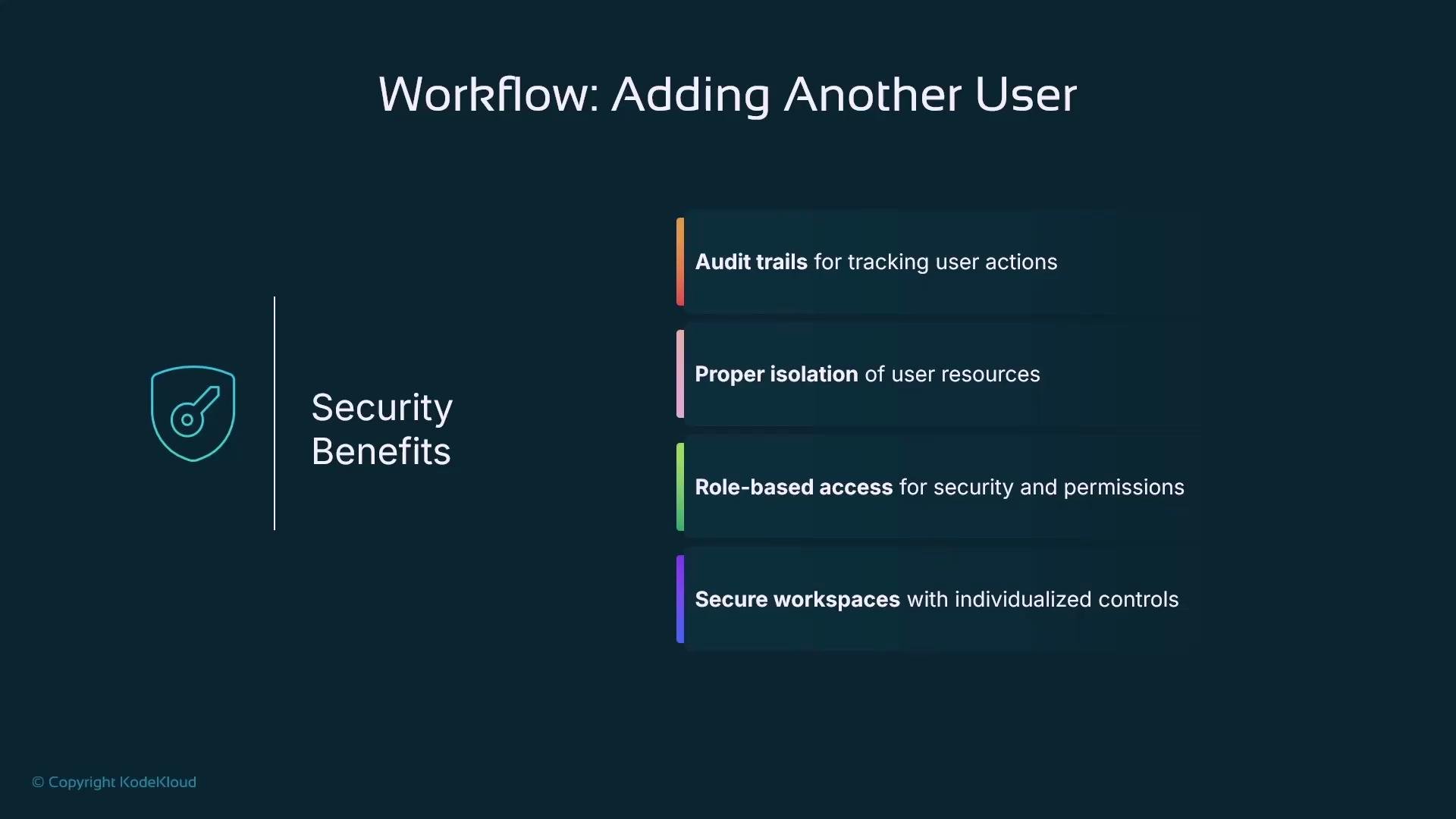
Security benefits from one-profile-per-user include clear audit trails, resource isolation, and role-based access control mapped to individuals.
From a resource management perspective, per-user profiles allow quotas, isolated storage accounting, separate execution roles, and clearer compute usage metrics for cost attribution.
Avoid generic team or shared profiles. Each team member should have a distinct profile — do not reuse a profile for multiple IAM or Identity Center users.
Do not share a single SageMaker profile across multiple people. Shared profiles break security, audit logs, and cost allocation.
When you continue the wizard, Studio (new) offers UI customization toggles — you can enable or hide JupyterLab, Code Editor, Canvas, RStudio, and third-party integrations. Expose only the apps the user needs to reduce UI clutter and accidental usage.
Note: these toggles only change visibility. To actually restrict a user from using a capability, adjust the IAM permissions attached to the execution role for that profile.When the wizard reaches Data and Storage, the UI may still show an AutoMountHomeEFS option even if you selected Studio (new). This is a legacy artifact: Studio Classic uses EFS, while Studio (new) uses EBS for notebook spaces.
After creating the profile you will see it listed under the User profiles tab. You can then launch Studio as that new user and open a JupyterLab space.Step 3 — Confirm whether a JupyterLab space is backed by EFS (Classic) or EBS (new). Open a terminal inside JupyterLab and run df -h:
# Run inside a JupyterLab terminal to inspect storage backingdf -h# Example: EFS (Studio Classic)# Filesystem Size Used Avail Use% Mounted on# Example: EBS (Studio new)# Filesystem Size Used Avail Use% Mounted on# /dev/nvme1n1 50G 5G 45G 10% /home/sagemaker-user
If you see an EFS mount (efs-xxxx:/), the space uses Studio Classic storage. If you see an NVMe device such as /dev/nvme1n1, the space uses EBS (Studio new).When launching a JupyterLab space as a different user, spaces may be private or shared. Private spaces created by another user will not appear for user2; only spaces explicitly shared or created for user2 will be visible.
Open the space to begin using notebooks and other Studio apps as usual.
If you created the profile as SageMaker Studio Classic, UI customization options are limited. Notebook sharing must be explicitly enabled and requires a specific S3 share location. Example S3 path used for Classic notebook sharing:s3://sagemaker-studio-485186561655-ocndvxhvpI9/sharingThis S3-based sharing step applies only to Studio Classic — Studio (new) does not require it.
When Studio Classic is selected, UI customization toggles are hidden.
Recommendation: Prefer SageMaker Studio (new) unless you have a legacy requirement. Studio (new) offers productivity, resource, MLOps, and security advantages:
Streamlined development & collaboration
JupyterLab-based IDE.
Shared spaces for real-time collaboration.
Notebook sharing (link-based or via Git).
SageMaker Experiments for logging and comparing runs.
Better resource and compute management
On-demand kernel selection across tabs.
Auto-shutdown and resource scaling to save costs.
EBS storage in Studio (new) for lower latency and higher throughput vs EFS.
Improved MLOps and automation
SageMaker Pipelines to orchestrate ML workflows.
Integrated Git support for loading repos into Studio.
SageMaker Debugger and Model Monitor for production debugging and observability.
Streamlined deployment to SageMaker endpoints.
Security and governance improvements
Fine-grained IAM controls for Studio features.
VPC and network isolation options for managed instances.
Better auditability via CloudTrail and CloudWatch for jobs, endpoints, and provisioning.
Many newer SageMaker features (Model Monitor, Feature Store, Model Registry, Debugger, Canvas, Pipelines) are accessible only from Studio (new).You must create a SageMaker Domain before launching Studio. Domains are the administrative boundary: within a domain you define users, applications, storage, and networking. Quick start domains are convenient for learning but not recommended for production since they use the default VPC. For production, create domains integrated with IAM/Identity Center and a custom VPC.Studio is more than notebooks — it hosts multiple apps such as Code Editor/VS Code, RStudio, MLflow integrations, third-party SaaS tools, and more.
Quick reminders:
Launching JupyterLab requires a managed compute-backed JupyterLab space (a managed EC2 instance—choose sizes like m5.large).
Spaces can be private (single user) or shared (visible to multiple user profiles).
SageMaker Studio Classic is legacy and should be used only for continuity in existing Classic environments.
That concludes this section. Further guidance on configuring spaces, compute, and kernel management in JupyterLab will be covered in a later chapter.Table — Quick comparison: SageMaker Studio (new) vs Studio Classic