

- HAR files show the full request/response sequence (headers, cookies, timings, and optionally bodies). This gives Support concrete evidence of the requests that failed or behaved unexpectedly, making troubleshooting faster and more accurate.
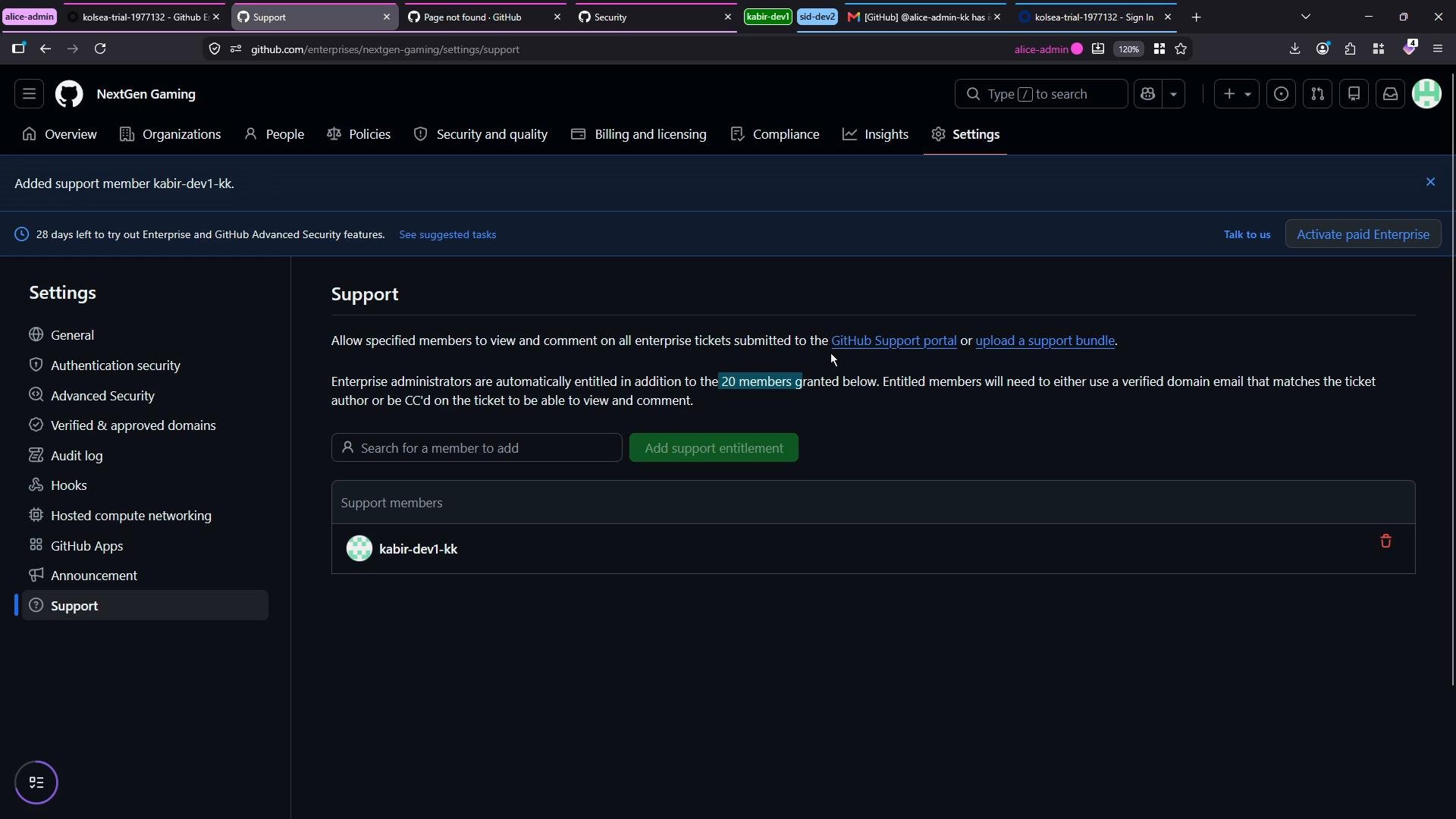
- Enterprise administrators can open support tickets and grant additional entitled contacts permission to raise tickets on behalf of the enterprise (limits depend on your support agreement).
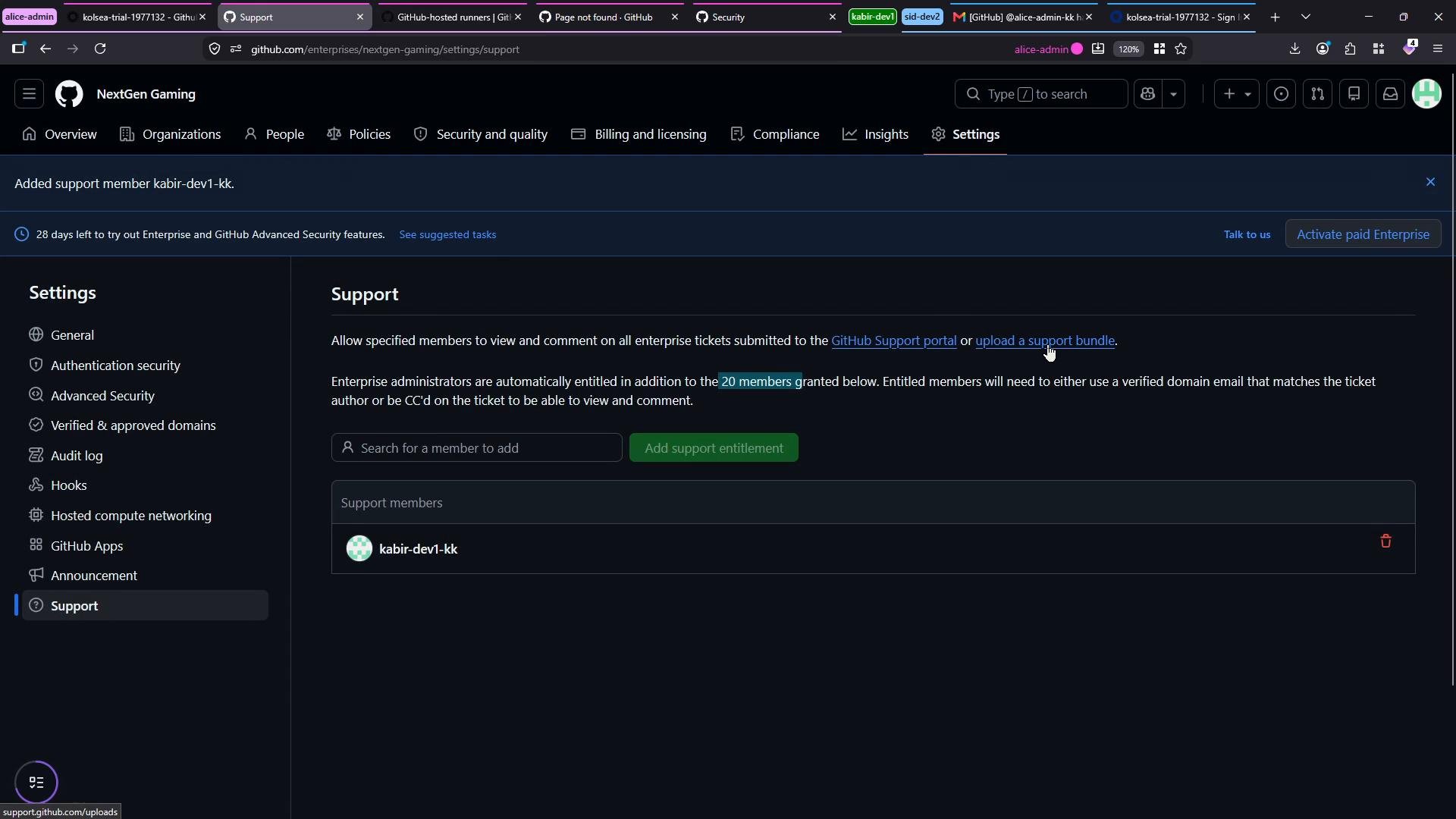
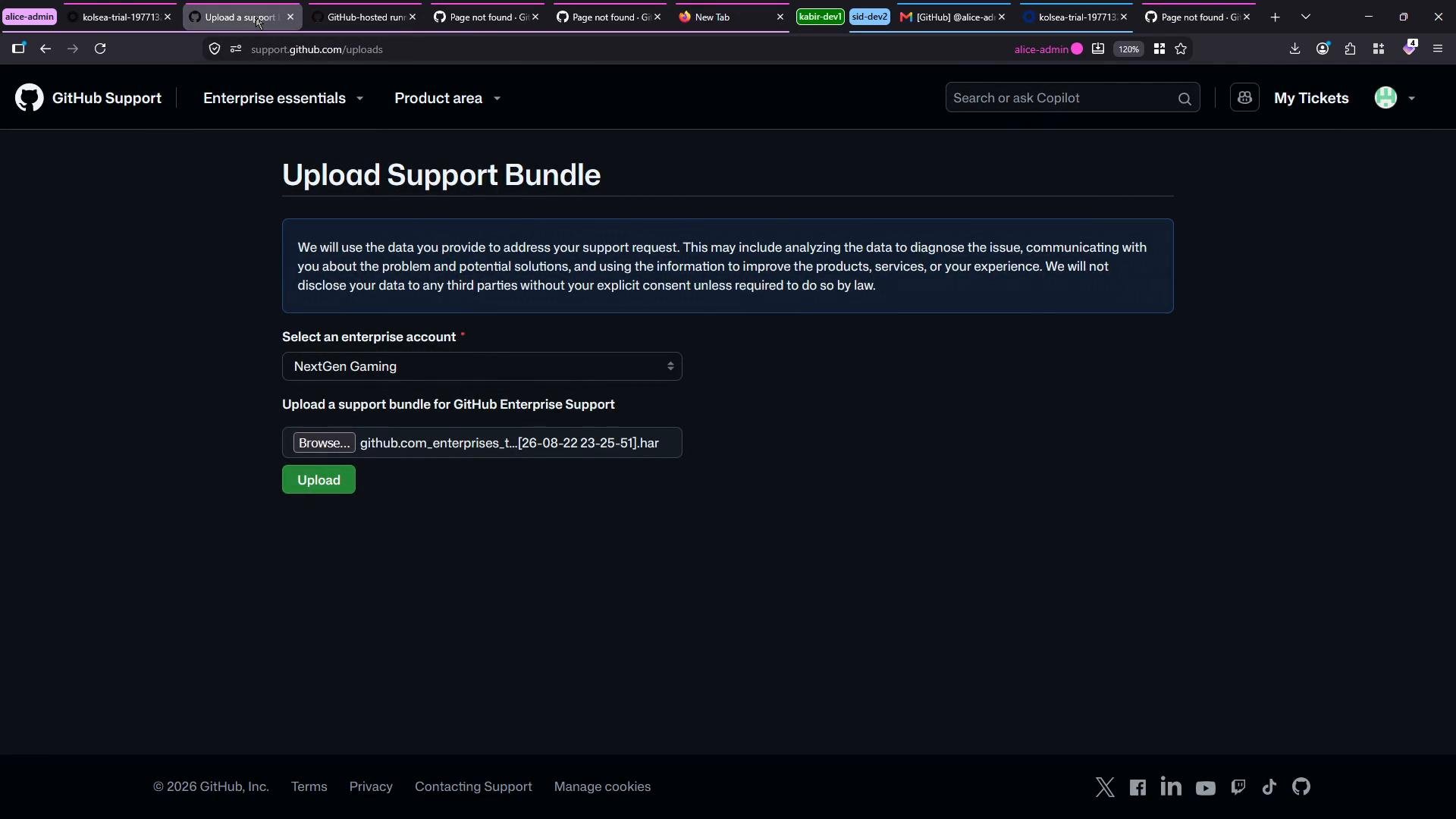
- From your enterprise account: Settings → Support. From here you can open the GitHub Support portal or upload a support bundle directly.
- The portal lets you select the enterprise/org, then choose the product area (for example: Actions, Issues, Pull Requests, Repositories, or Sign-in) and a sub-area if applicable (e.g., Actions → Runner → runner type/registration).
- When filing a ticket, include contextual details: enterprise/org/repo names, timestamps, browser (name and version), steps to reproduce, and any logs or support bundles (including a HAR).
- Because GitHub Enterprise Cloud is managed by GitHub, Support can also correlate client-side HAR data with cloud-side telemetry to speed diagnosis.
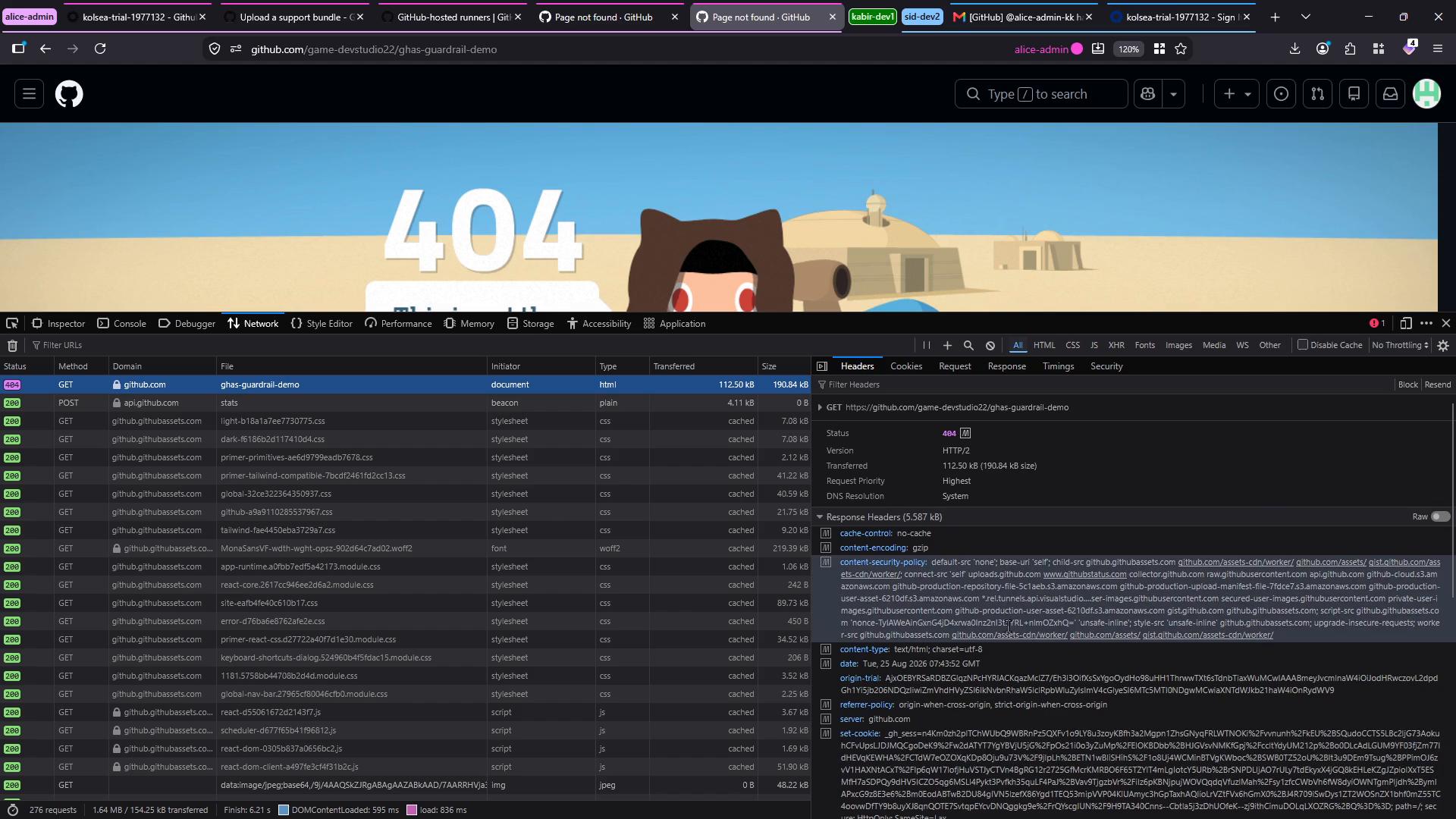
- An HTTP Archive (HAR) is a JSON-formatted record of network traffic captured by the browser. It includes:
- Request and response headers
- Cookies
- Timings and statuses
- Optionally response bodies (when the browser captures content)
- Useful metadata for debugging API, authentication, redirect, and asset-loading issues
- Capture a HAR whenever you see client-facing network problems that are reproducible, such as:
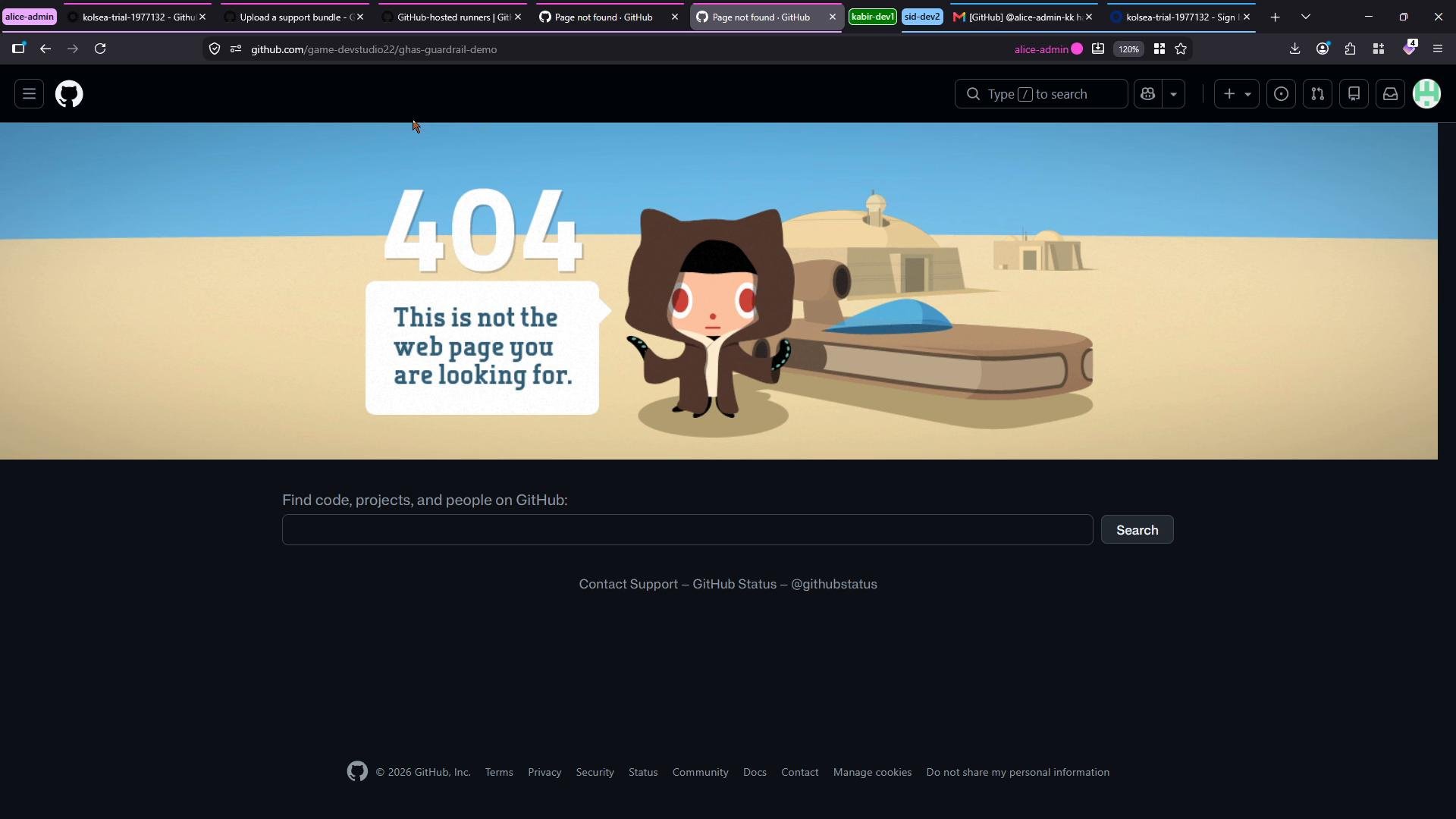
- 404/500 responses when accessing repositories or site pages
- Unexpected redirects or authentication failures
- API/network request failures from Actions, GitHub Apps, or the browser UI
Capturing a HAR file (step-by-step)
- Reproduce the issue in your browser (navigate to the page or perform the action that causes the problem).
- Open Developer Tools:
- Press
F12, or - Press
Ctrl+Shift+I(Windows/Linux) orCmd+Option+I(macOS).
- Press
- Switch to the Network tab.
- Enable “Preserve log” so requests persist across reloads.
- Reload the page or repeat the interaction that triggers the issue.
- The Network panel will record all requests and responses for that session.
- Export the captured data:
- Right-click in the request list and choose “Save all as HAR” (or “Export HAR” / “Save all as HAR with content” depending on the browser).
- Save the resulting
.harfile to your machine.
- Most browser DevTools support an “Import HAR” option (for example, Chrome DevTools Network panel). Importing a HAR lets you review the exact requests/responses recorded and confirm that the problem was captured correctly before you upload it.
- When creating a ticket in the GitHub Support portal, attach the HAR file to the ticket or use the Enterprise Settings → Support → Upload Support Bundle option to submit it.
- When you upload, include:
- Enterprise, org, or repository names
- Timestamps for when the issue occurred
- Browser and version used
- Steps to reproduce
- Any other logs or screenshots that illustrate the problem
HAR files can contain sensitive data (authentication tokens, cookies, personal data, or other request/response contents). Before uploading a HAR to Support, review and, if necessary, redact any sensitive information. Only share HAR files with trusted support channels.
- Capture: Developer Tools → Network → Enable “Preserve log” → Reproduce the issue → Save all as HAR.
- Verify: Import the HAR back into DevTools to confirm the problematic requests are recorded.
- Submit: Attach the HAR to a Support ticket or upload it via the Enterprise “Upload Support Bundle” flow.
- Provide context: enterprise/org/repo, timestamps, browser/version, and exact reproduction steps.
- Redact sensitive data if necessary before sharing.
- GitHub Support portal
- GitHub Enterprise Cloud documentation
- HAR (HTTP Archive) spec and overview
- Chrome DevTools — Network reference