

- Create a simple workflow that simulates a long-running telemetry stream.
- Run it on a self-hosted runner and cancel it from the GitHub Actions UI.
- Inspect the runner process,
_workand_diagdirectories to determine why the job was canceled.
_diag logs, ACTIONS_RUNNER_DEBUG, ACTIONS_STEP_DEBUG.
1. Create the workflow
Create a new workflow file (for example,.github/workflows/rocket-launch.yml) with this content. It triggers on pushes and manual workflow_dispatch events, runs on a self-hosted runner, and includes a 10-minute timeout. The single step prints telemetry every 5 seconds for 60 seconds.
2. Run the job and cancel it from the GitHub Actions UI
Start the workflow (push or manual trigger). If you cancel the running workflow from the GitHub Actions UI while the step is executing, the job log will show the running shell output and then an error like: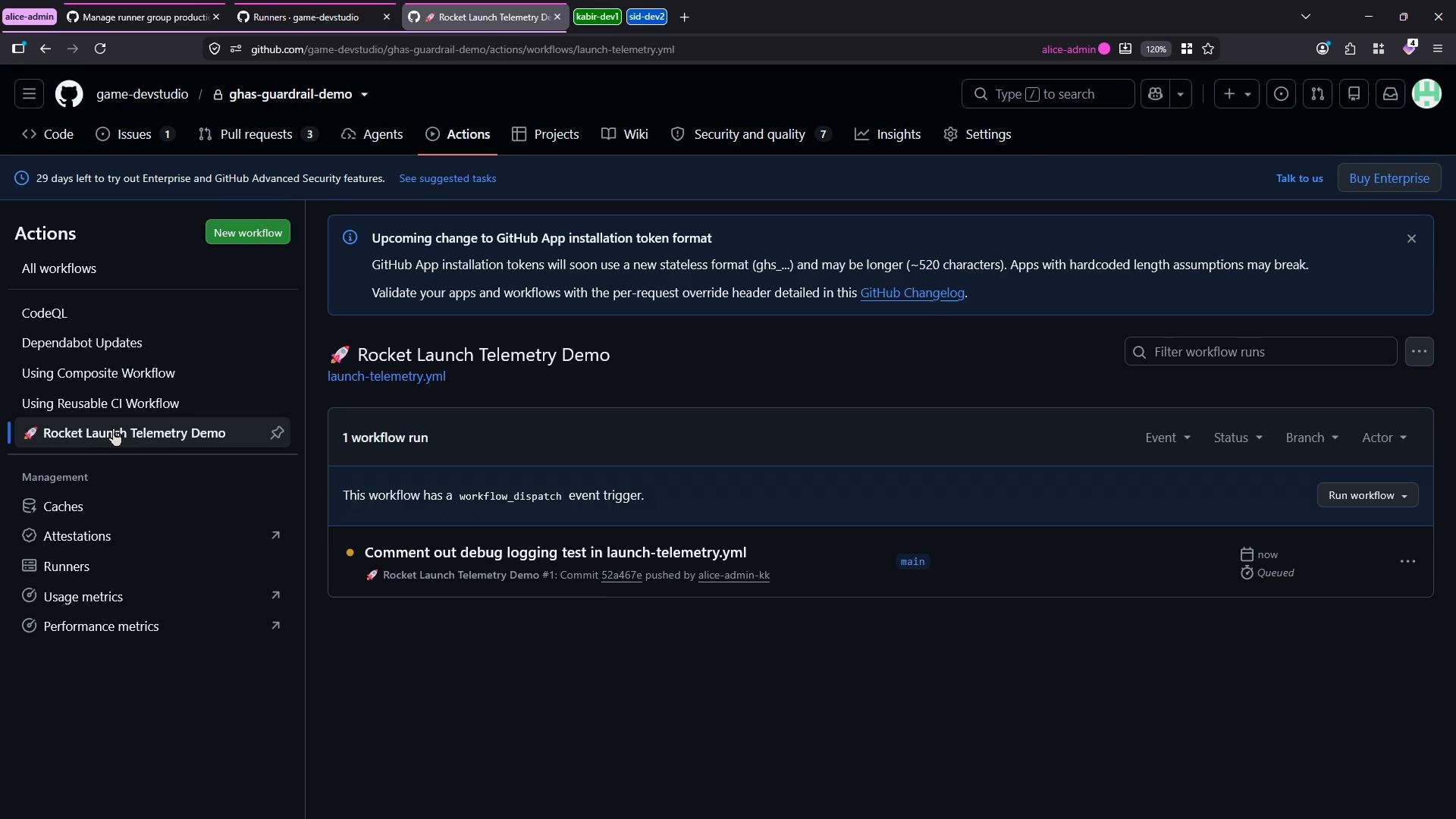
3. Inspect the self-hosted runner process
On the self-hosted runner host, start or watch the runner with the providedrun.sh script:
_work (job working directories) and _diag (diagnostic logs). List the runner directory:
4. Explore _work — job working directories and temp files
Inspect _work to find per-run directories, checked-out repositories, and temporary files:
- Look for the temp script run by the step in
_work/_temp/. - Check the workspace for artifacts or partial output that may indicate abrupt termination.
5. Check diagnostic logs in _diag
The _diag folder contains the most useful files for deep debugging: Runner_* and Worker_* logs. List them:
cancelOperation canceledForce kill process on cancellationBrokerServer
_diag entries to watch for:
Force kill process on cancellation: 'False'means the runner tries a graceful shutdown of child processes instead of forcing them to exit immediately.
6. Results upload and cleanup after cancellation
Even after a cancel, the runner typically tries to upload step logs and job logs to the results service and then cleans up temporary directories:7. Enable more verbose debugging
To get more detailed information during execution:- Enable workflow step debug logging by setting the repository secret
ACTIONS_STEP_DEBUGtotrue. - Enable runner debug logging by setting the repository secret
ACTIONS_RUNNER_DEBUGtotrue(or enable it via runner configuration locally).
Enable
ACTIONS_STEP_DEBUG and/or ACTIONS_RUNNER_DEBUG only temporarily. Debug logs are very verbose and can expose sensitive data — do not leave these enabled in production long-term.##[debug] lines. Example showing a step aborted with exit code 130 (SIGINT / CTRL-C):
- Exit code 130 typically indicates termination by SIGINT (signal 2 / user cancel). Different exit codes point to other termination reasons.
8. Quick reference — runner folders and useful grep terms
Common grep terms to find cancellation context:
cancelOperation canceledForce kill process on cancellationBrokerServerProcessInvokerWrapper
9. Troubleshooting checklist
- Check the GitHub Actions job log first for step output and any
Error: The operation was canceled.messages. - On the runner host:
- Inspect
_work/for the workspace and temp scripts. - Inspect
_diag/(Runner_*andWorker_*logs) for detailed traces, socket errors, stack traces, and upload activity.
- Inspect
- Grep
_diaglogs for the terms listed above to quickly locate cancellation-related traces. - Confirm whether the runner process was stopped (e.g.,
^C, service restart) — stopping the runner while jobs are running causes the server to mark them canceled. - If you need deeper information, enable
ACTIONS_STEP_DEBUGand/orACTIONS_RUNNER_DEBUGtemporarily and rerun the workflow. - Determine if the cancel came from:
- A user/API call (UI cancel or REST API)
- Runner process termination
- Network/transport error that aborted the broker connection
_diag and _work inspection will let you determine whether a cancel was user-initiated, runner-initiated (shutdown), or caused by an underlying transport/socket error.