This guide demonstrates how to invite members to a GitHub organization (example: “game-devstudio”) and how to manage two-factor authentication (2FA) at both organization and enterprise levels for improved security.

Invite members to the organization

  1. From your enterprise account, open the target organization (for this example: game-devstudio).
  2. On the organization page either click Invite your first member (for a new org) or open the People tab and click Invite member.
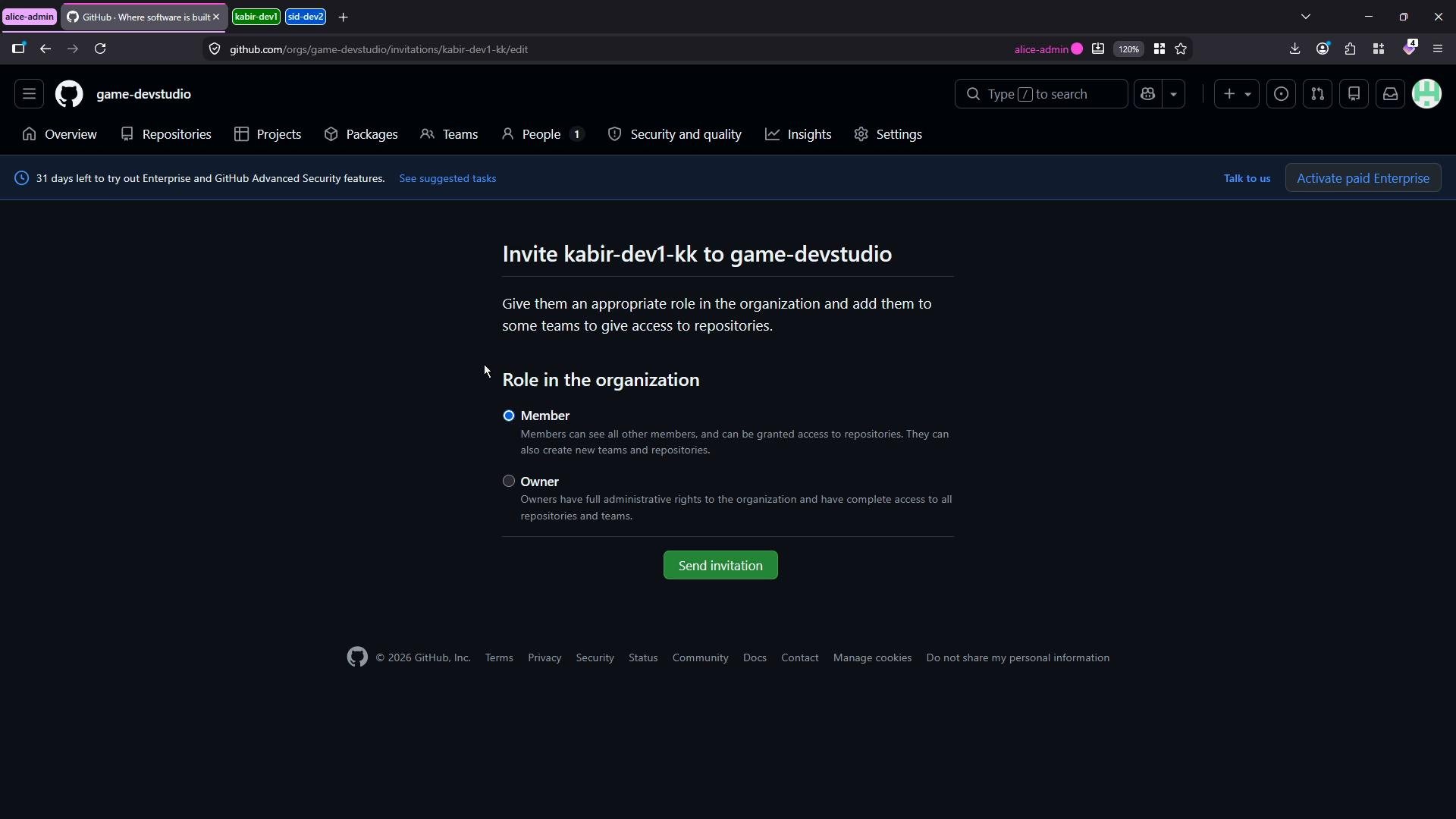
  3. Enter the GitHub username or email address, choose the role (Member or Owner), and send the invitation.
In this example we invite kabir-dev1-kk as a Member.
A dark‑mode GitHub organization page showing an invitation to add user "kabir-dev1-kk" to the game-devstudio org, with role options (Member or Owner) and a green "Send invitation" button.
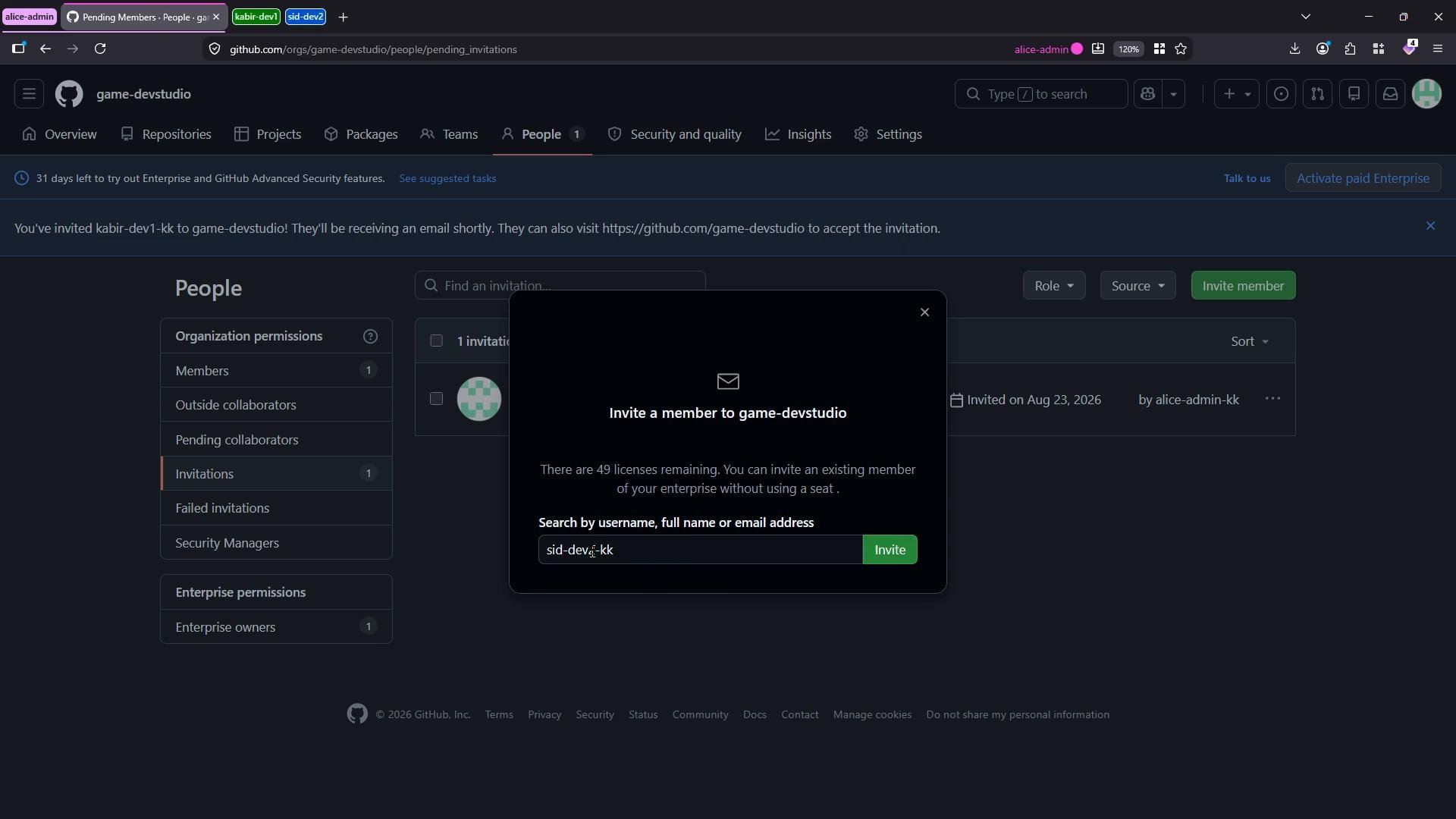
After sending, the invitation appears in a pending state. Repeat the process to invite additional users — here we also invite sid-dev2-kk (Dev2) as a Member.
A dark-mode screenshot of a GitHub organization "game-devstudio" People page with the Invitations section visible. A modal titled "Invite a member to game-devstudio" is open, showing a search field and an invite button.

Accepting the invite (user flow)

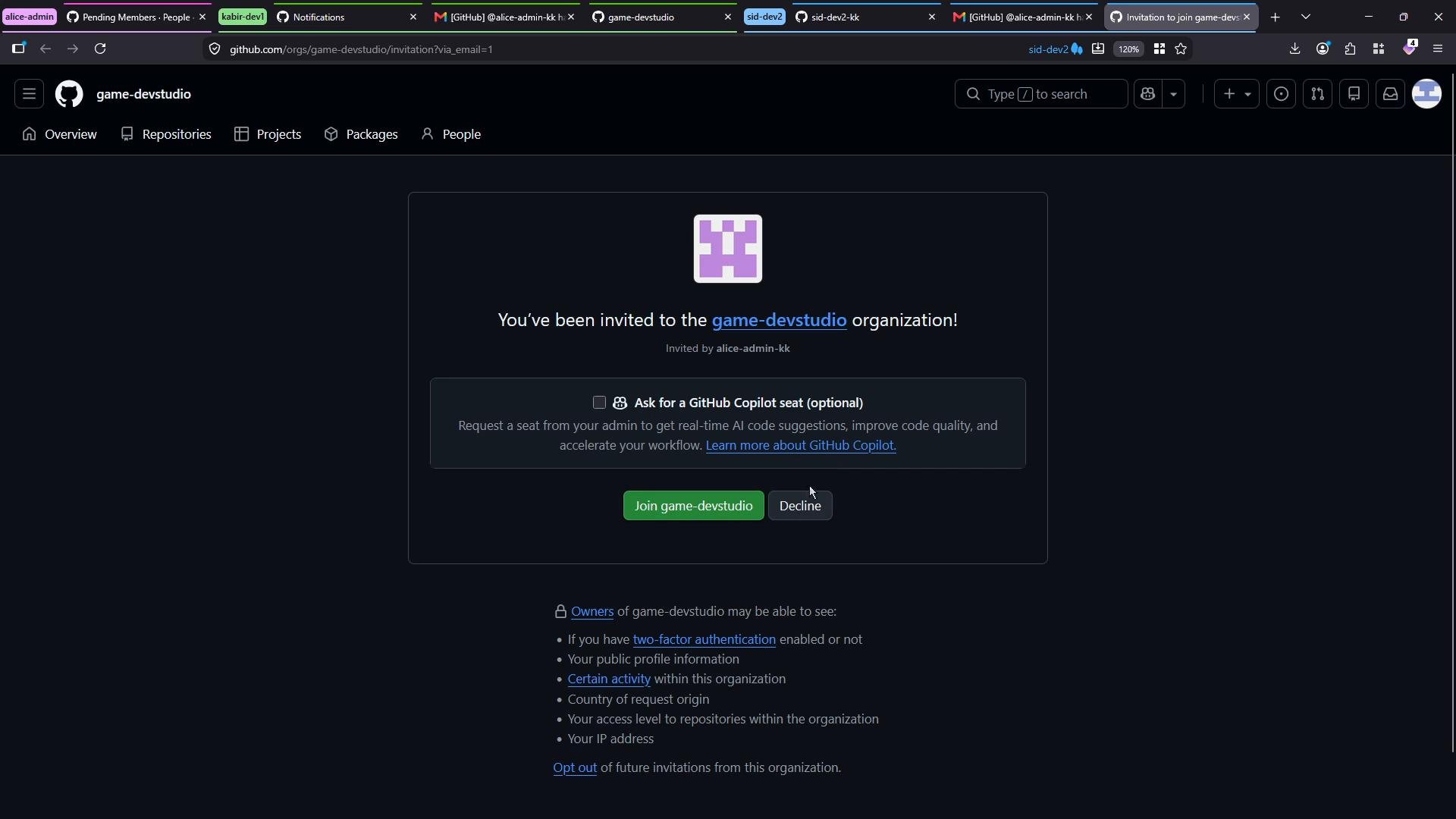
Invited users receive an email containing the invitation. The email explains what the organization owner may see (for example, 2FA status and some public profile/activity) and includes a Join organization link. Open the invite email and click Join organization to accept.
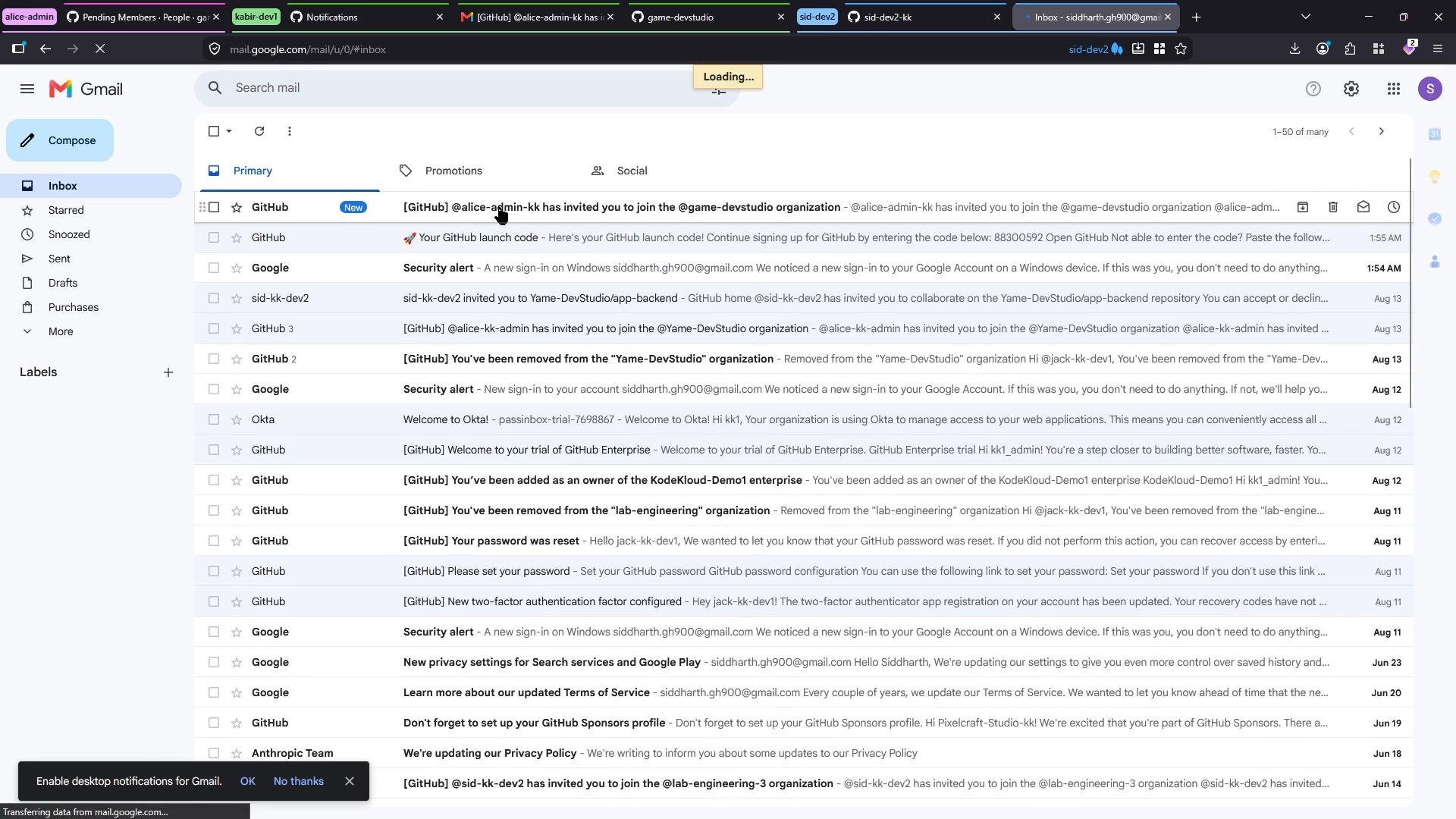
A screenshot of a Gmail inbox (Primary tab) showing a long list of emails—many GitHub and Google notifications—along with the left sidebar (Compose, Inbox, Labels) and browser tabs visible at the top.
Clicking Join organization brings the user to a confirmation page where they can accept or decline. Optional add-ons (for example, a GitHub Copilot seat) may be offered during acceptance.
A dark-mode GitHub page showing an invitation to join the "game-devstudio" organization with "Join game-devstudio" and "Decline" buttons. The invite (from alice-admin-kk) also offers an optional request for a GitHub Copilot seat.
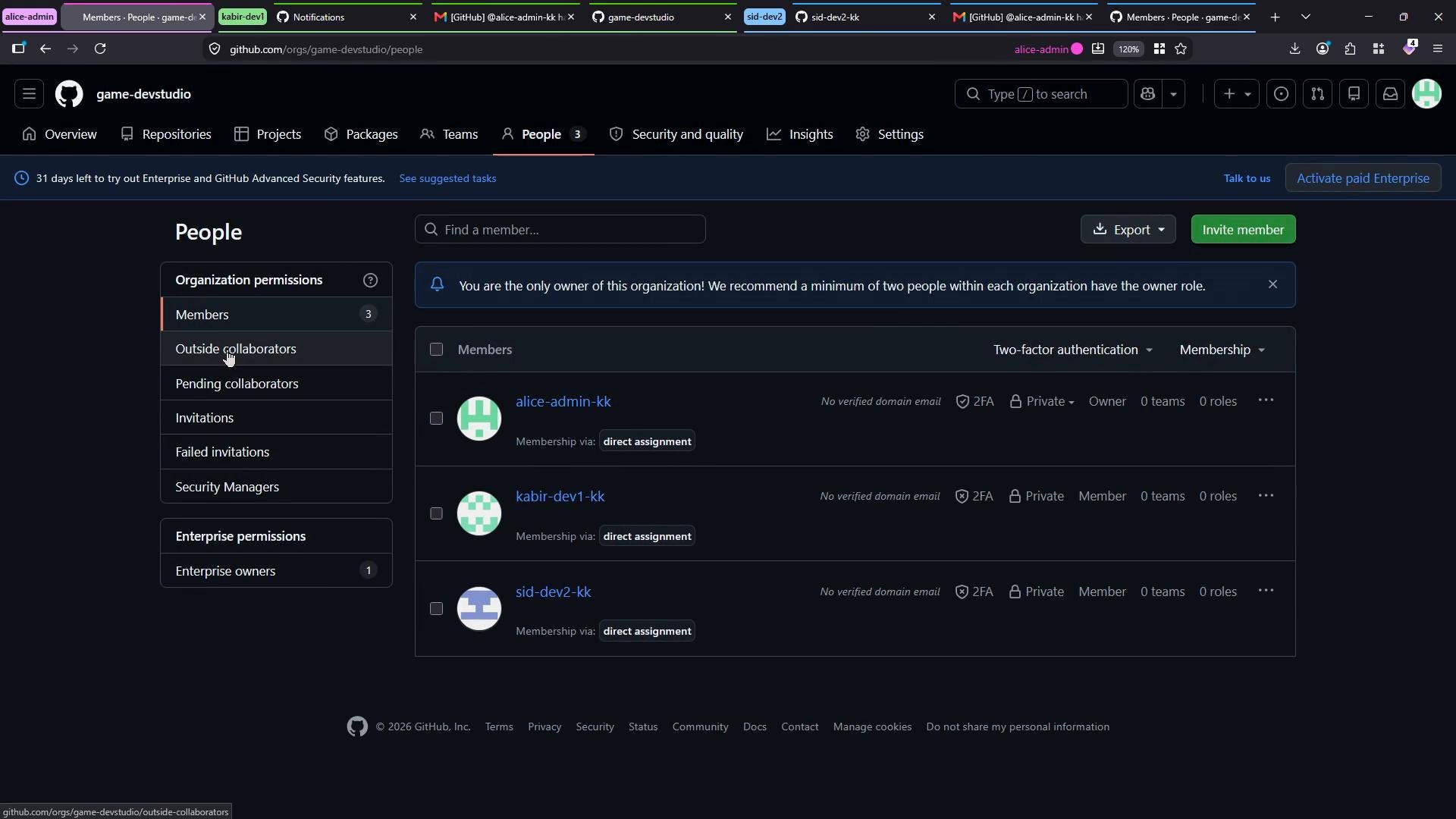
Once accepted, the organization’s People page lists members and their roles (for example: AliceAdmin as Owner, Dev1 and Dev2 as Members). From the enterprise account you can also see aggregate counts such as members, owners, and consumed licenses.
A dark-mode screenshot of a GitHub organization's "People" page. It shows organization permission tabs on the left and a list of three members with membership and two-factor authentication details on the right.

Two-factor authentication (2FA) — user setup

Enterprise-level People views show whether accounts have 2FA enabled. In this example, AliceAdmin has 2FA enabled while Dev1 (kabir-dev1-kk) and Dev2 (sid-dev2-kk) initially do not. Ask users to enable two-factor authentication on their GitHub accounts:
  1. From the user account: go to Settings → Password and authentication → Two-factor authentication.
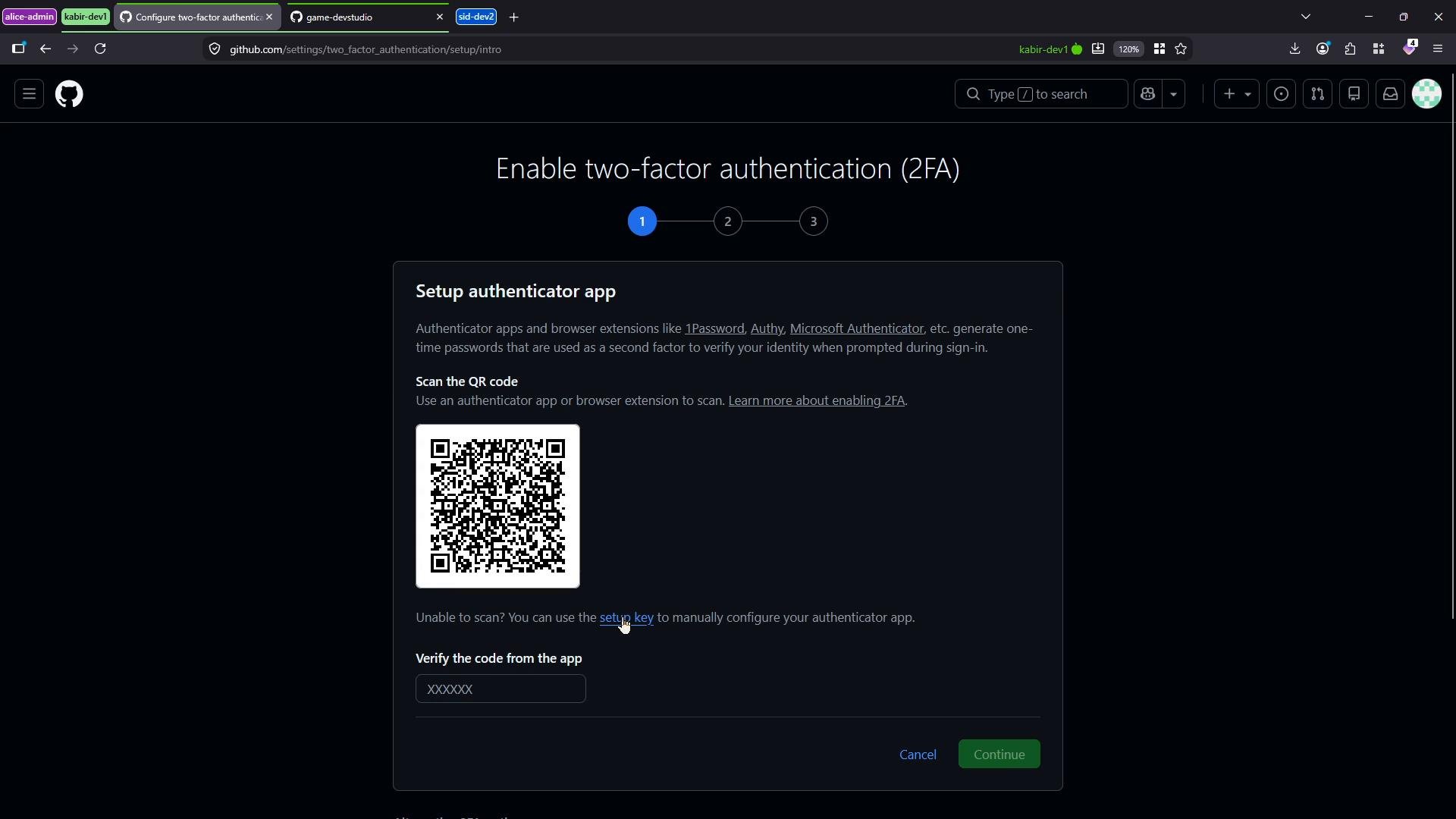
  2. Follow the setup flow: scan the QR code with an authenticator app (or enter the secret key manually) and provide the verification code.
  3. Save or download the recovery codes GitHub displays — these are essential if you lose access to your authenticator.
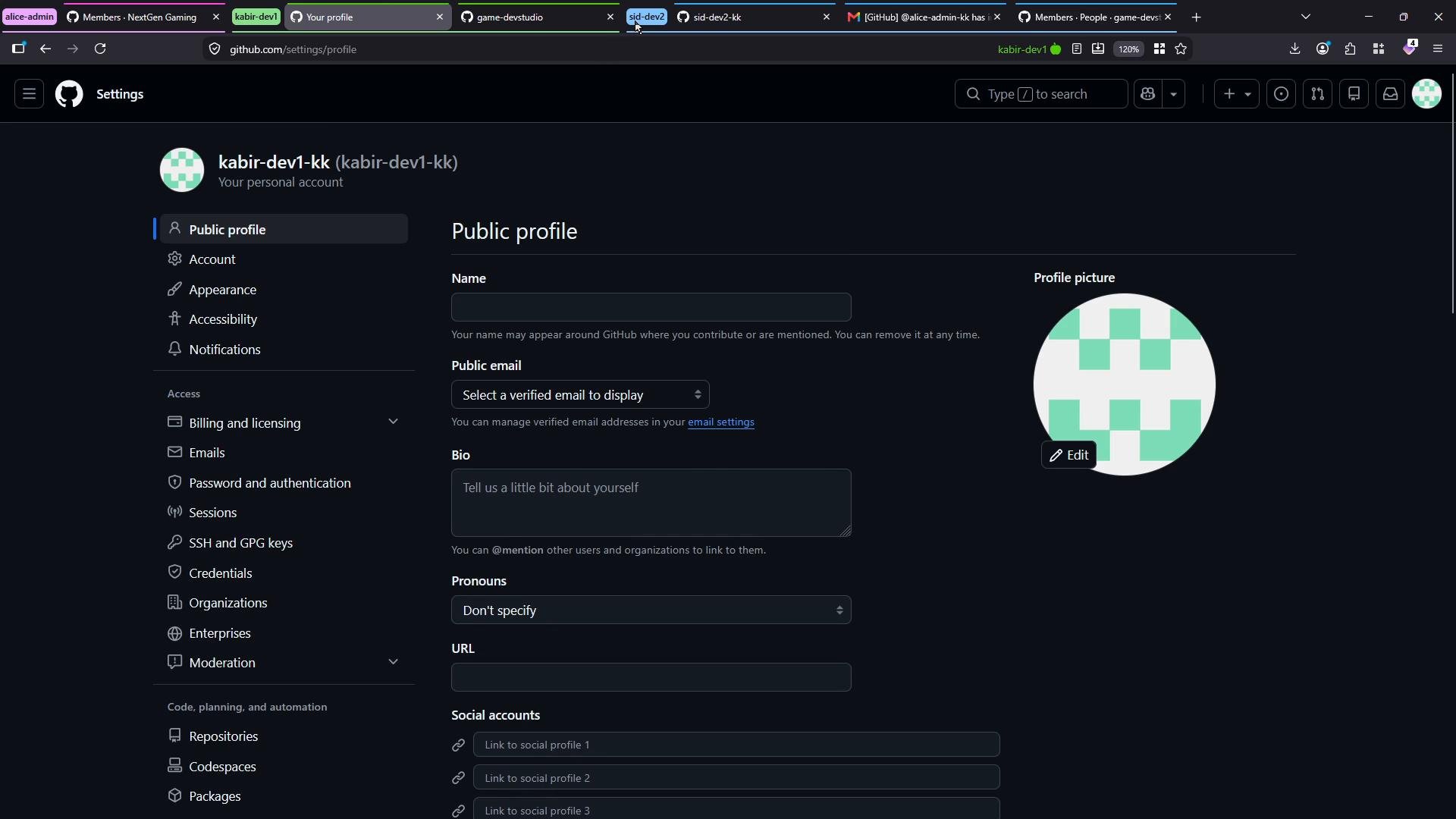
A screenshot of GitHub's dark‑mode Settings page open to the "Public profile" section, showing a circular avatar and form fields for name, email, bio, pronouns, URL, and social links. The left sidebar lists other account settings and browser tabs are visible along the top.
During setup GitHub displays a QR code and a verification code entry field. Add the account to your authenticator app and complete the verification step.
Screenshot of GitHub's "Enable two-factor authentication (2FA)" setup page showing a QR code for an authenticator app and a field to enter the verification code. The page includes instructions and a progress indicator at the top.
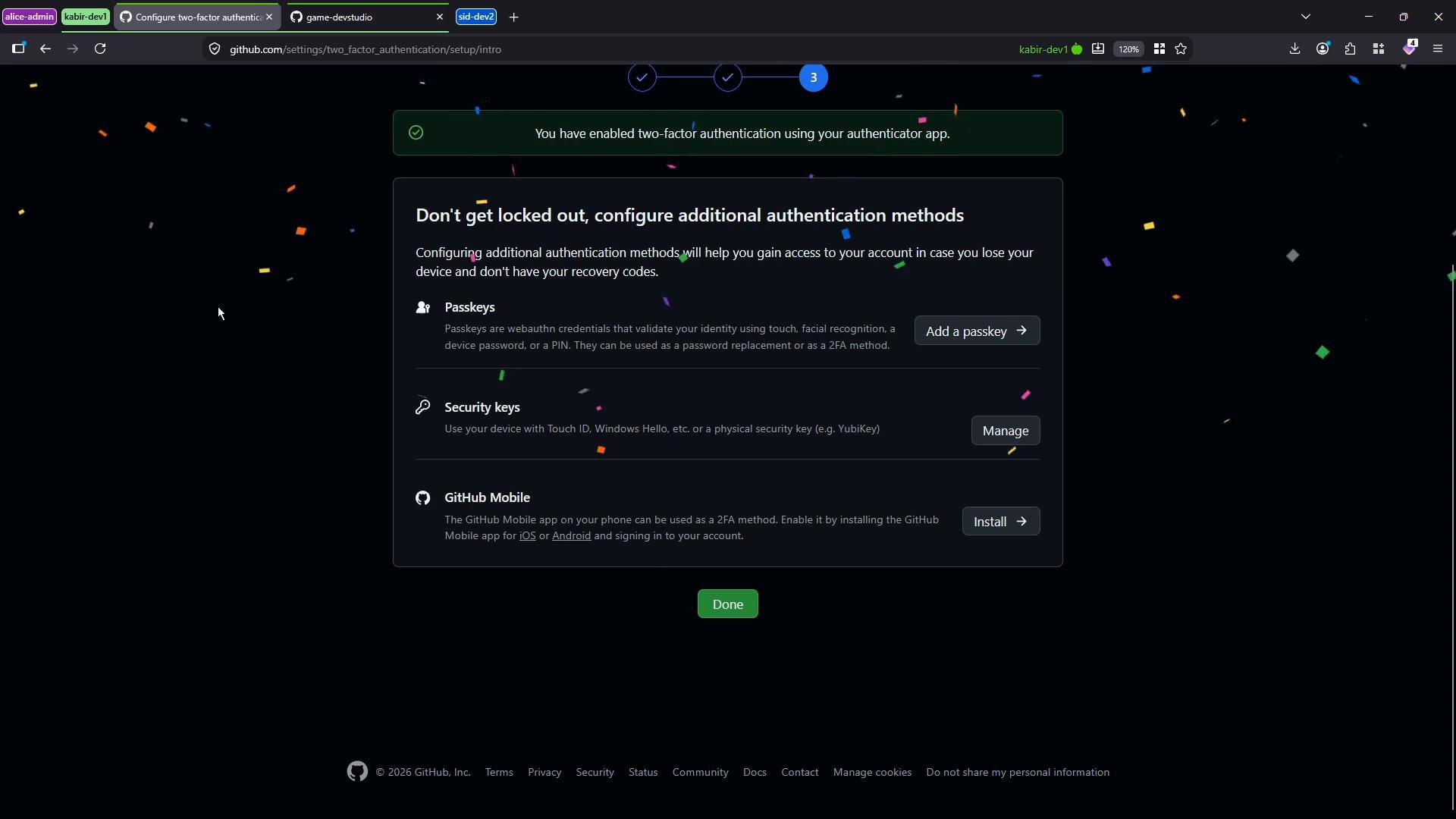
After verification, GitHub confirms that two-factor authentication is enabled.
A screenshot of a GitHub settings page confirming two-factor authentication is enabled, showing options to add passkeys, security keys, or the GitHub Mobile app. Confetti is visible on a dark background and there's a green "Done" button at the bottom.
Always store recovery codes securely (password manager or encrypted vault). Recovery codes are one of the primary fallback options if you lose access to your authenticator device.

Enterprise export and auditing 2FA status

To audit 2FA status at scale, export accounts from the enterprise People page as a CSV. The CSV includes each username and whether GitHub 2FA is enabled — useful for identifying which users still need to enable 2FA and managing a grace period before enforcement.
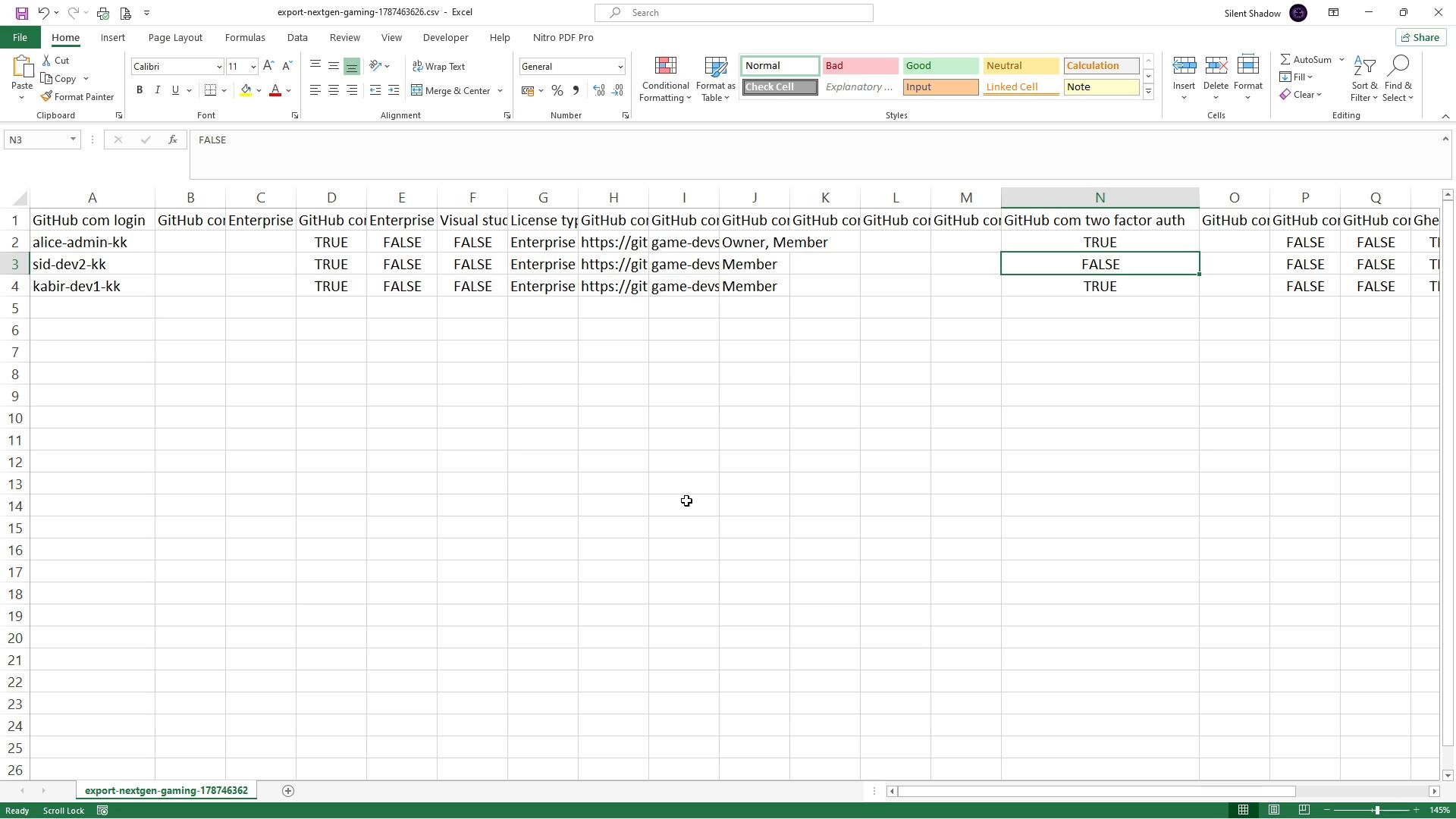
A screenshot of an Excel spreadsheet showing exported GitHub account data with columns for login, enterprise/license info, roles and two-factor authentication (TRUE/FALSE). Visible rows include usernames like "alice-admin-kk", "sid-dev2-kk" and "kabir-dev1-kk".

Enforcing 2FA at the enterprise level

Enterprise admins can require two-factor authentication for all organizations under the enterprise. Go to Settings → Authentication security and enable Require two-factor authentication. You can also restrict allowed 2FA methods to only the more secure options (passkeys, security keys, authenticator apps, and the GitHub Mobile app), excluding SMS-based 2FA.
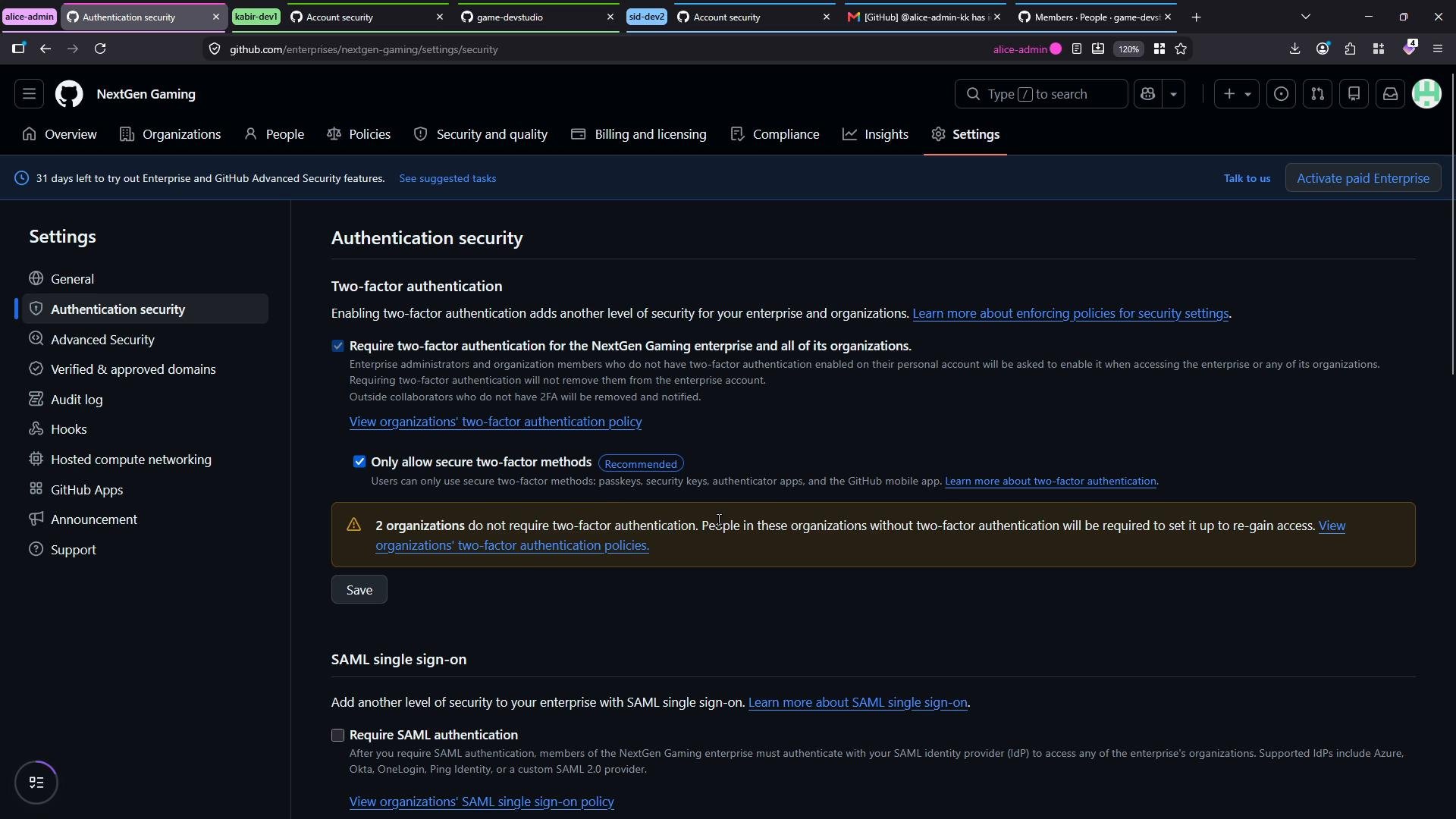
A screenshot of a GitHub Enterprise "NextGen Gaming" settings page showing the Authentication security section. It displays options for two-factor authentication (including a warning about organizations not requiring 2FA) and SAML single sign-on settings.
Enforcing 2FA at the enterprise level will block access to organizations for users who have not yet enabled two-factor authentication. Before enforcing, use the CSV export to identify affected accounts and provide a reasonable grace period—otherwise users will lose access until they enable 2FA.
After enforcement is active, users without 2FA who try to access a protected organization are shown a prompt to enable two-factor authentication before they can proceed. In our example, Dev2 (sid-dev2-kk) must set up 2FA before accessing game-devstudio.
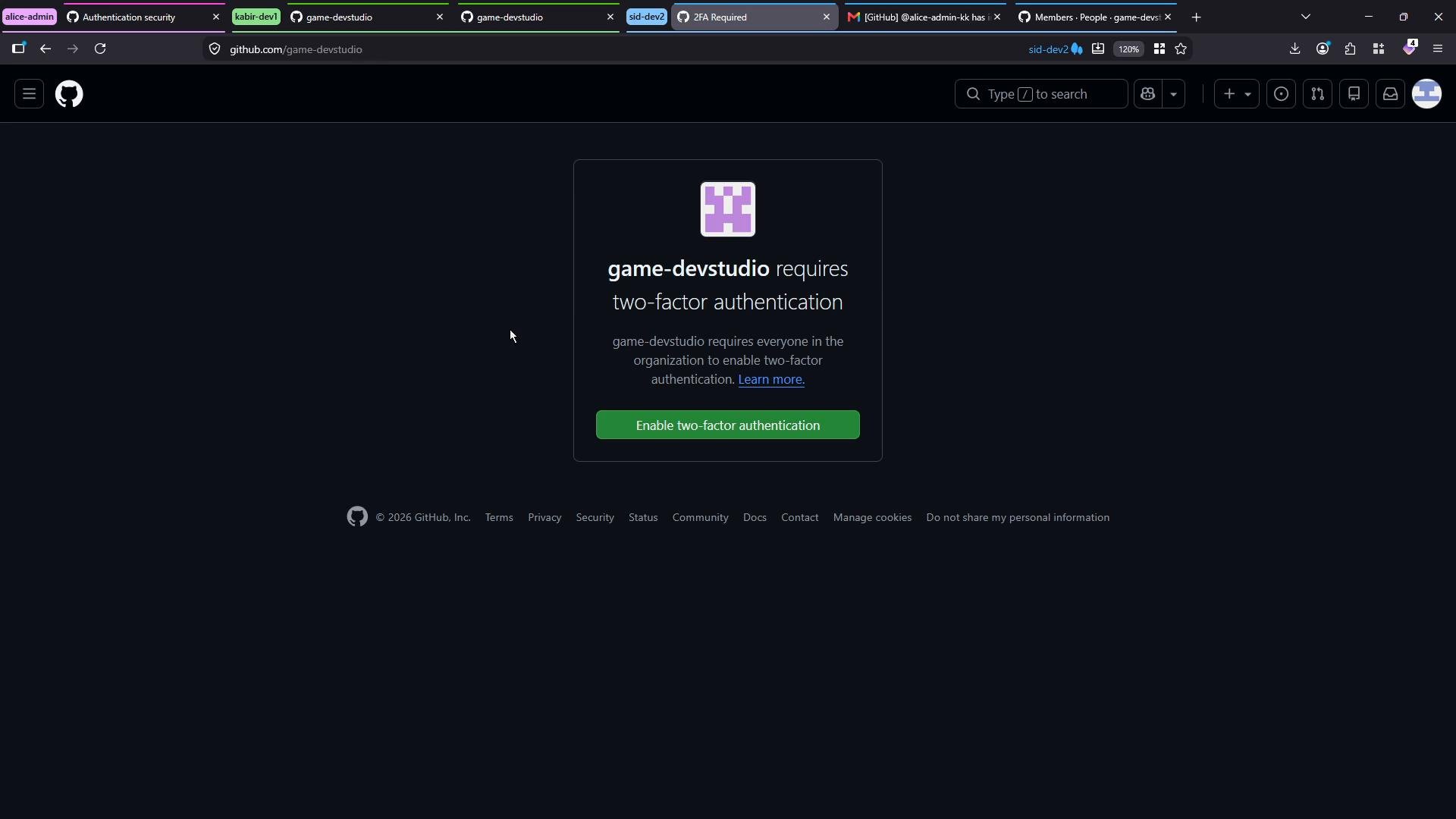
A dark-mode GitHub page showing that the "game-devstudio" organization requires two-factor authentication. The centered message card includes the org avatar and a green "Enable two-factor authentication" button.
Once the user enables 2FA (for example, by adding the account to an authenticator or a password manager like Proton Pass and verifying the code), they regain access to the organization. Recovery codes and one-time tokens must be stored securely. Example recovery codes (treat them as sensitive; store securely):
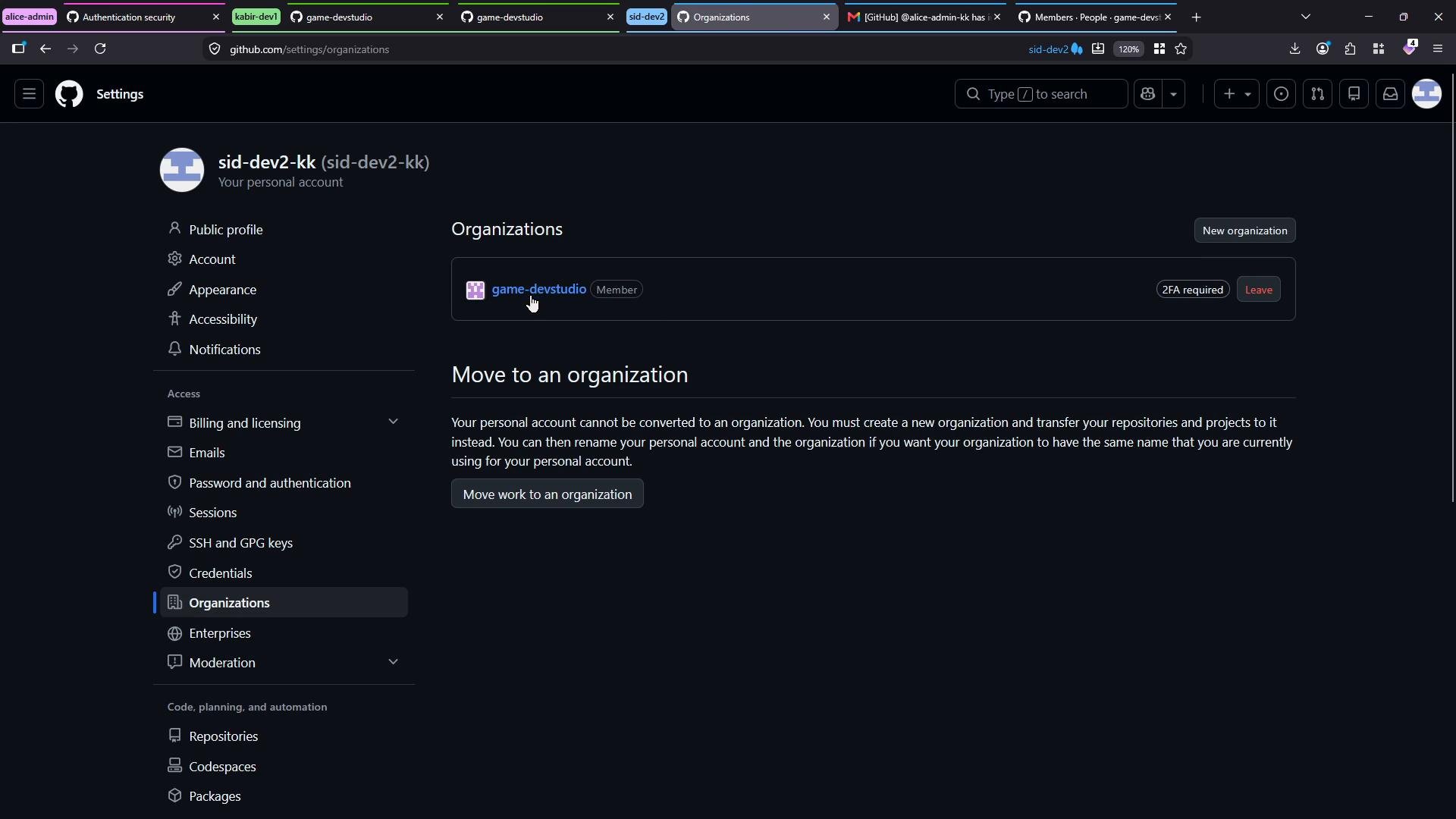
After enabling 2FA, the user’s Settings → Organizations view shows the organization membership and normal interactions resume.
A GitHub Settings page in dark mode showing the "Organizations" section for the account "sid-dev2-kk," with the organization "game-devstudio" listed and buttons to move work or leave the organization.
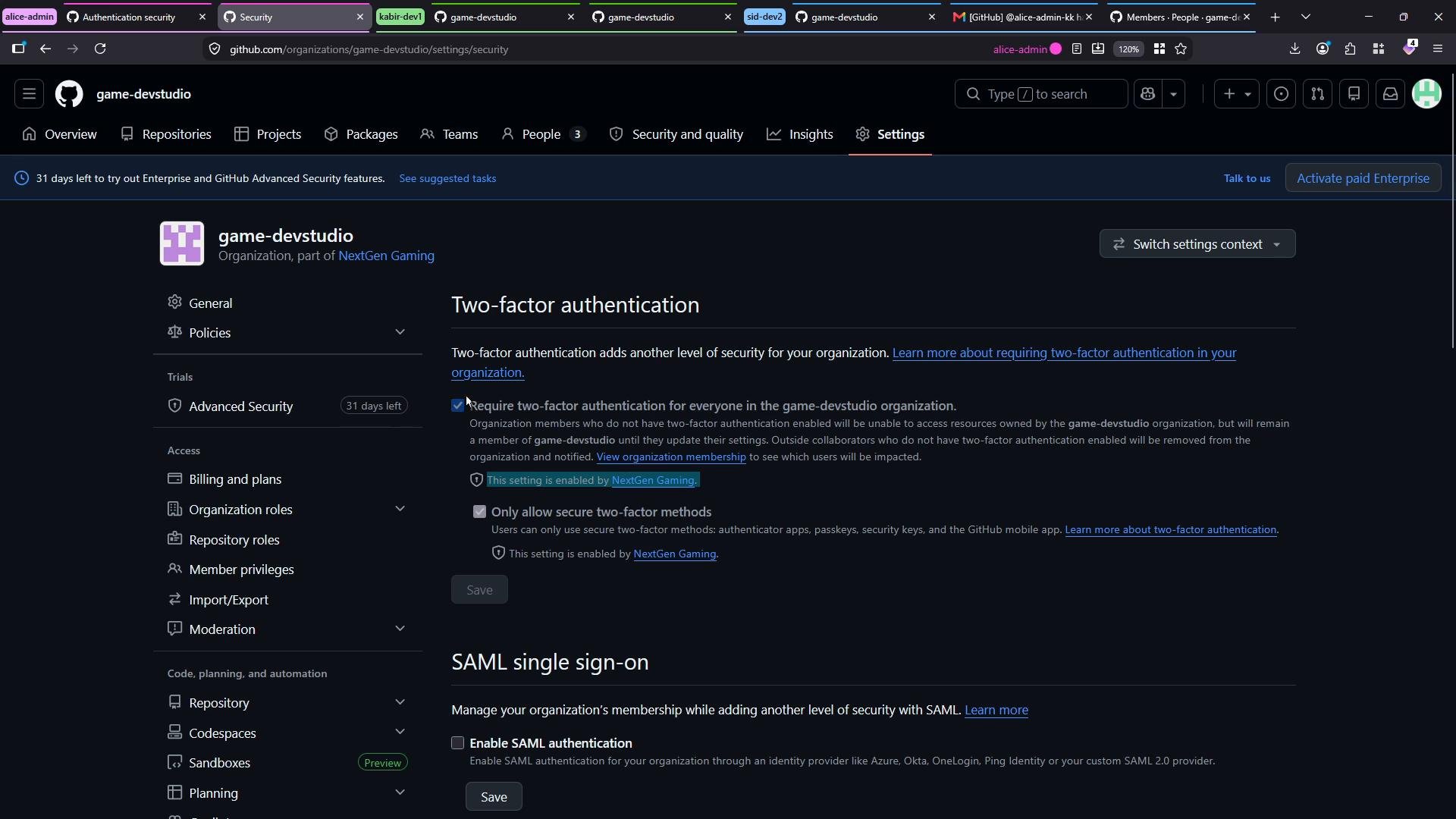
Organization-level settings will reflect enterprise-level enforcement: if the enterprise requires 2FA, organization admins cannot disable that requirement — enterprise policy takes precedence.
A dark-themed GitHub organization settings page for "game-devstudio," showing security options. The Two-factor authentication and SAML single sign-on settings are displayed, with two-factor required by the org.

Quick admin checklist (actions, who, notes)

Summary

  • Invite members from the organization People tab and assign appropriate roles.
  • Invited users accept via email and may be prompted to enable 2FA depending on org/enterprise policies.
  • Enterprise admins can require 2FA for all organizations and restrict allowed methods to secure options.
  • Use the enterprise CSV export to identify users who need to enable 2FA, and provide a grace period before enforcing to avoid access disruption.

Watch Video