

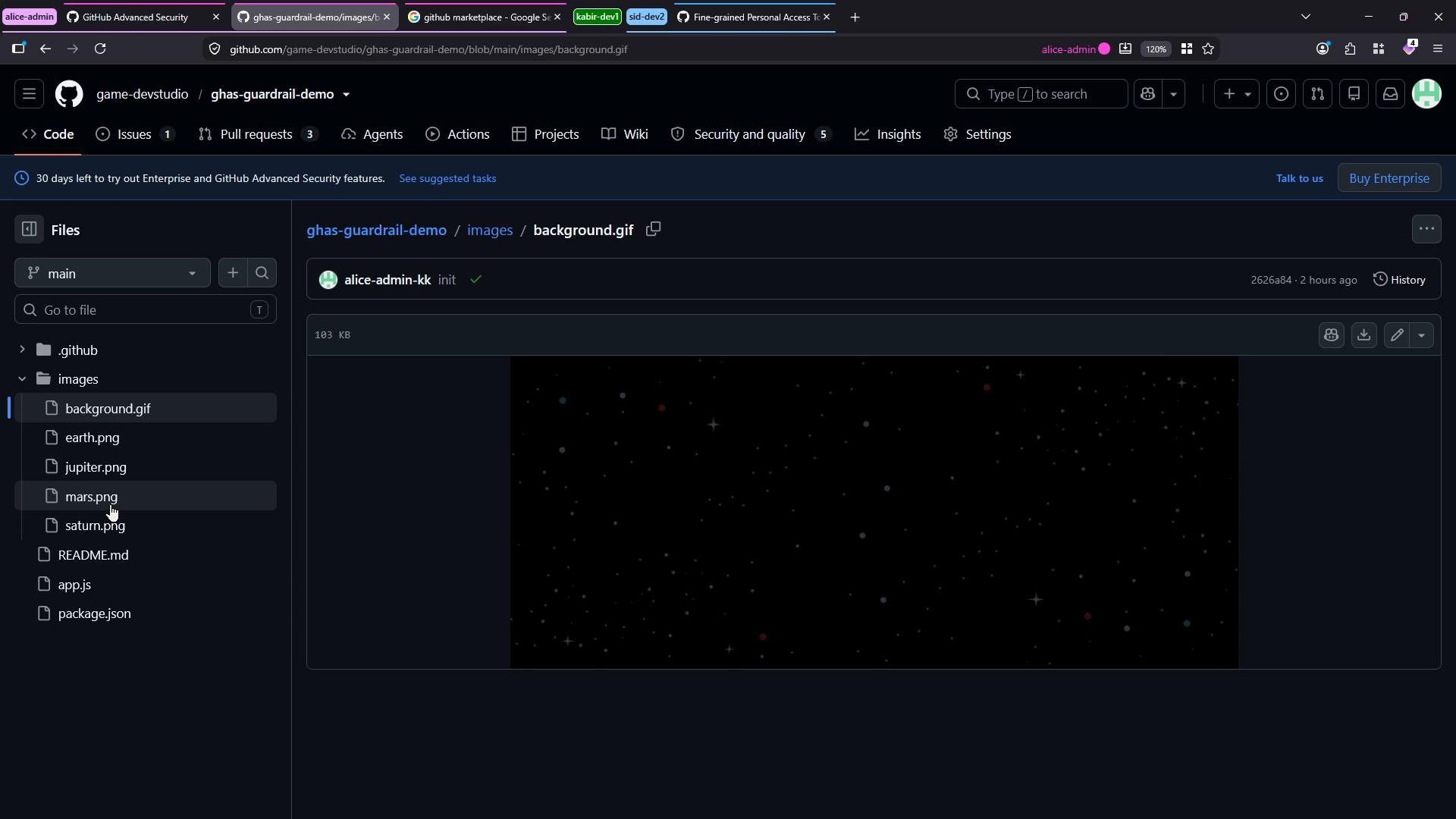
- Saves manual effort when the repo contains many images.
- Reduces repository size and bandwidth usage.
- Keeps original image quality while improving storage and performance.
- Produces an auditable pull request so maintainers can review changes.
Find apps on the GitHub Marketplace (github.com/marketplace). For this walkthrough we’ll use Imgbot — see its Marketplace listing for details, verification status, and install options.
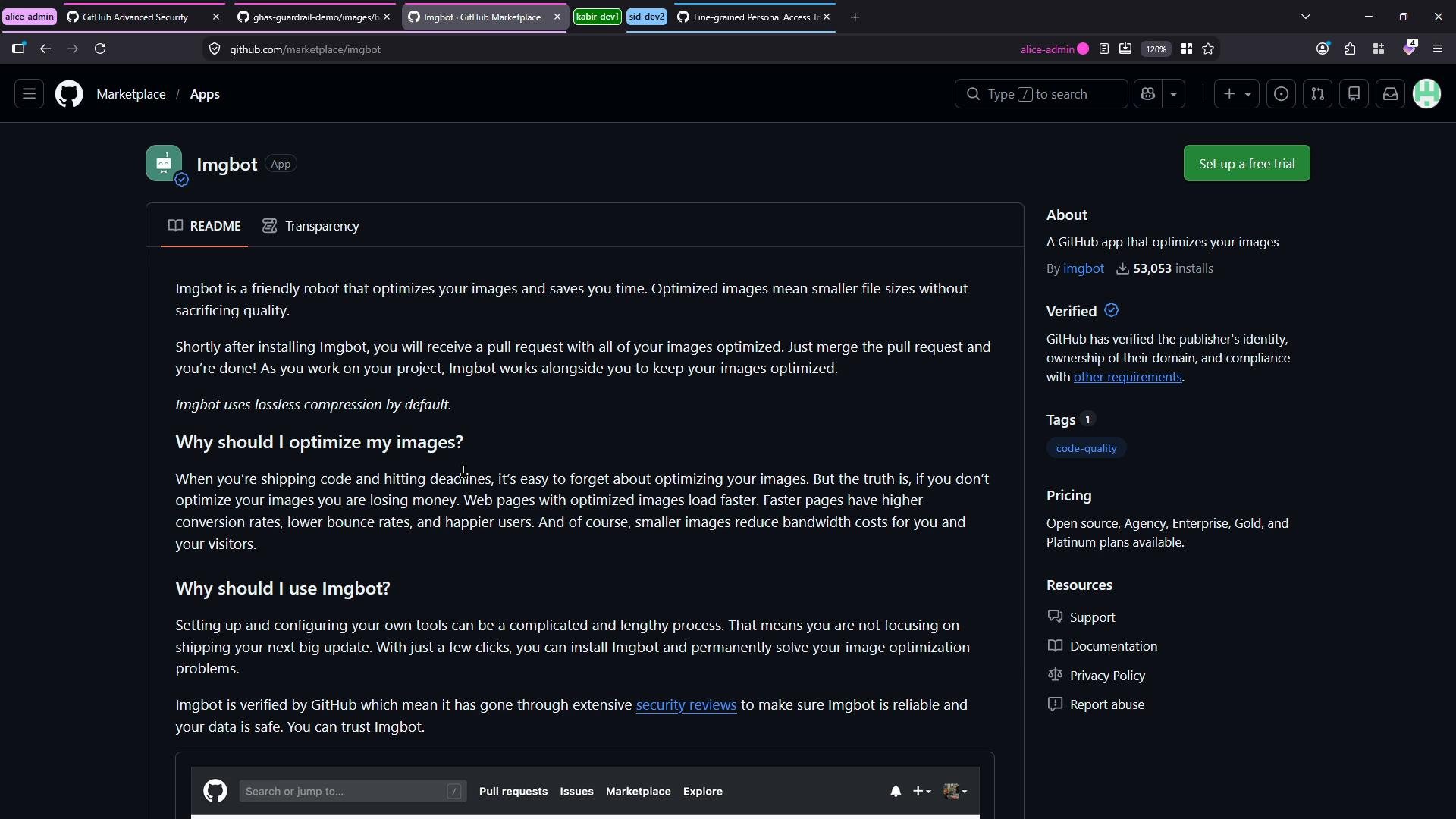
Open-source/public repository plans for many Marketplace apps are often free and allow unlimited public repositories. If you need the app to run on private repositories, a paid tier is commonly required—choose the plan that matches your privacy and billing requirements.
- From the Marketplace listing click Install (or Set up a free trial) and choose the target account (user or organization).
- Select the repositories the app should access: either all repositories or specific repositories. For least privilege, choose only the repositories the app needs.
- Review requested permissions. Typical permissions for an image-optimizing app:
- Read repository metadata
- Read and write repository contents (to update images)
- Create pull requests
- Confirm the billing/plan option if you are installing to private repositories.
game-devstudio and restrict it to a single repository (ghas-guardrail-demo). The installation page shows repository selection and the permissions the app requires.
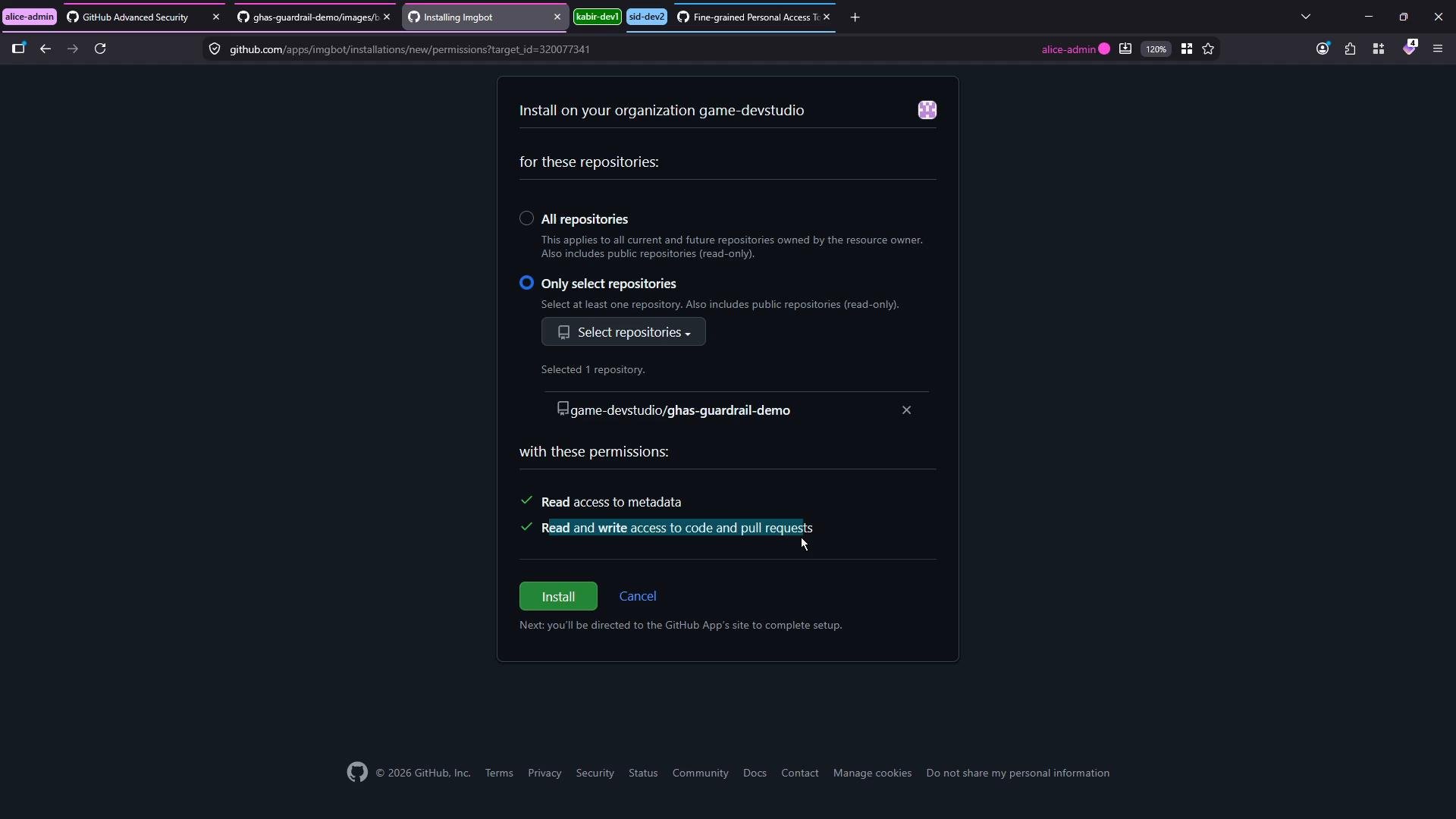
- Grant the minimum necessary repository access. Use “Only select repositories” when available.
- Review the app’s permissions and documentation on the Marketplace page.
- Manage installed apps from your organization settings under “Installed GitHub Apps” or “Applications” to suspend or uninstall if needed.
![A dark‑mode GitHub pull request page titled "[ImgBot] Optimize images #8." The imgbot comment displays a table showing image filenames with their before/after file sizes and percent size reductions.](https://mintcdn.com/kodekloud-c4ac6d9a/TlnHw4JjIHBx3Cta/images/GitHub-Administration-Certification/Security-and-Compliance/Demo-Configure-GitHub-Apps/imgbot-optimize-images-pr-table.jpg?fit=max&auto=format&n=TlnHw4JjIHBx3Cta&q=85&s=88164c13b1b974efd94333865865c5ca)
- Locate and review the app on the GitHub Marketplace: https://github.com/marketplace/imgbot
- Click Install and choose the account and repository scope.
- Verify requested permissions and select an appropriate plan for private repositories.
- Install and wait for the app to scan and submit a pull request.
- Review the PR changes: file diffs, before/after sizes, and the app’s summary.
- If everything looks good, merge the PR; if not, request changes or adjust app configuration.
- GitHub Marketplace: https://github.com/marketplace
- Imgbot (Marketplace listing): https://github.com/marketplace/imgbot