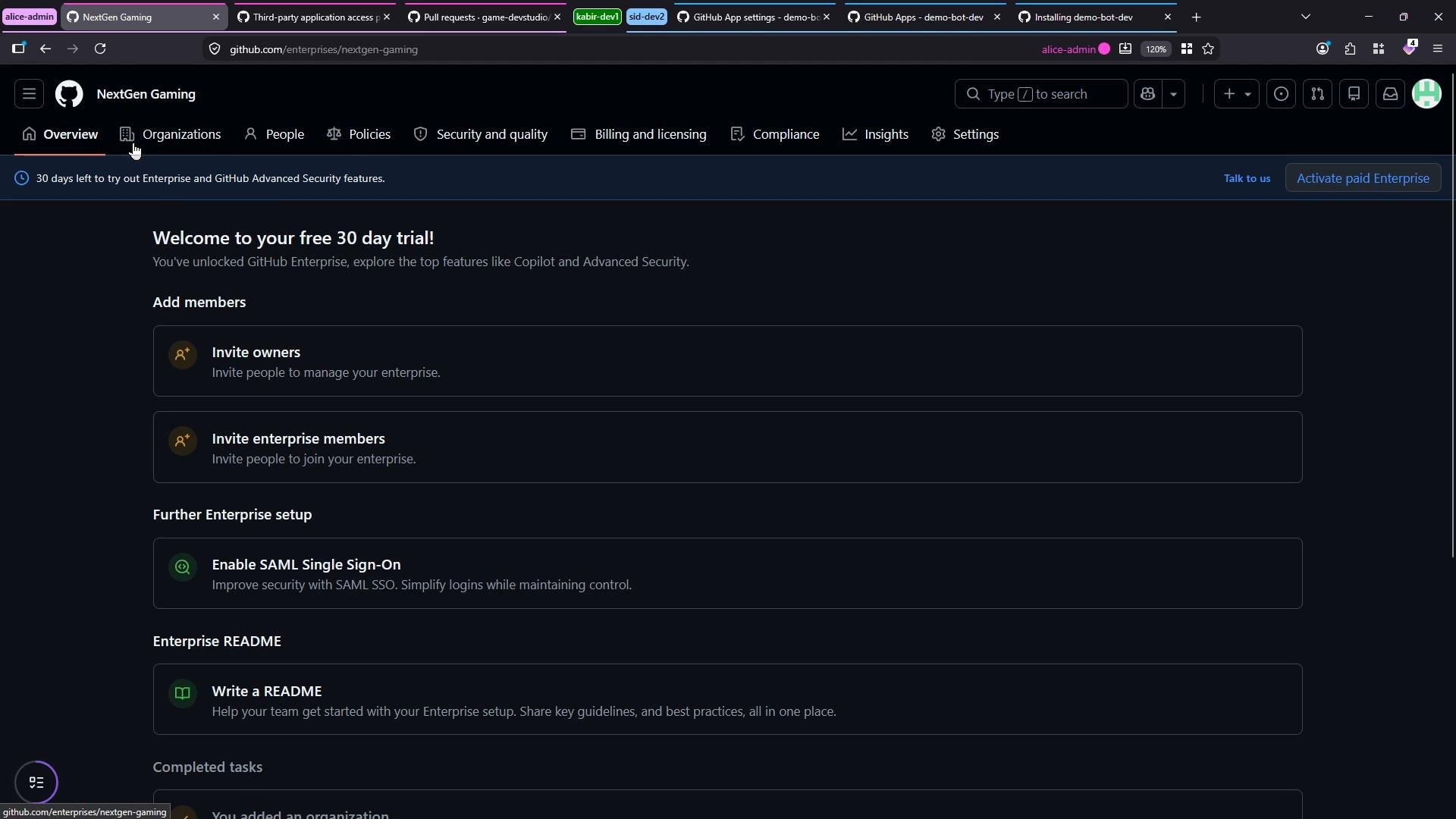
This guide demonstrates how to create and apply enterprise repository policies in GitHub Enterprise to centrally control repository lifecycle operations (create, delete, transfer, rename, and visibility changes) across organizations. I’m signed in to the enterprise account. In the enterprise settings, open the Policies tab to create and manage rulesets that apply across organizations in your enterprise.
A dark-mode screenshot of a GitHub Enterprise "NextGen Gaming" admin dashboard showing a "Welcome to your free 30 day trial!" banner and setup options. The page lists actions like inviting owners and enterprise members, enabling SAML SSO, and writing a README.
What you can manage from the Policies area:
  • Repository policies (create, delete, transfer, rename, change visibility)
  • Actions and Actions runners policies
  • Codespaces policies
  • Member privileges
  • Advanced Security features (for example: secret scanning and AI detection in secret scanning)
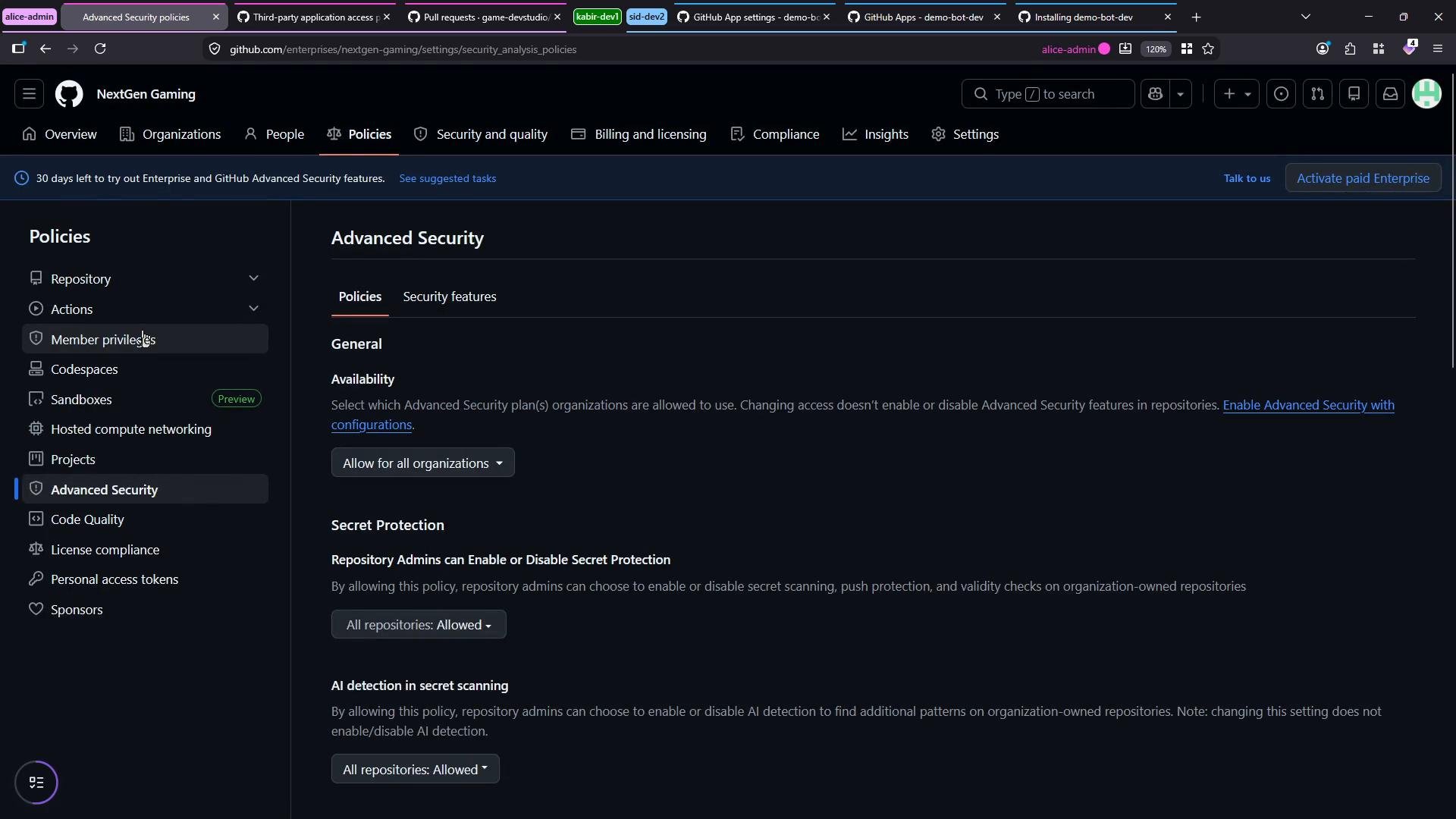
A dark-mode screenshot of a GitHub Enterprise "NextGen Gaming" settings page showing the "Advanced Security" policies screen with options for Availability, Secret Protection, and AI detection in secret scanning. The left sidebar lists other policy sections like Repository, Actions, Member privileges, Codespaces, and Advanced Security (highlighted).
How to create a repository policy (step-by-step)
  1. Select Repository policies and choose Create new policy.
  2. Give the policy a clear name (for this demo we use repo-policy-1) and set Enforcement to Active or Dry-run depending on whether you want immediate enforcement.
  3. Configure the allow list (bypass list) to exempt specific roles or teams from restrictions. In this example we add Organization admin to the allow list.
  4. Target the scope: choose specific organizations, repository name patterns, or all repositories. In this demo we target an organization called Game Dev Studio.
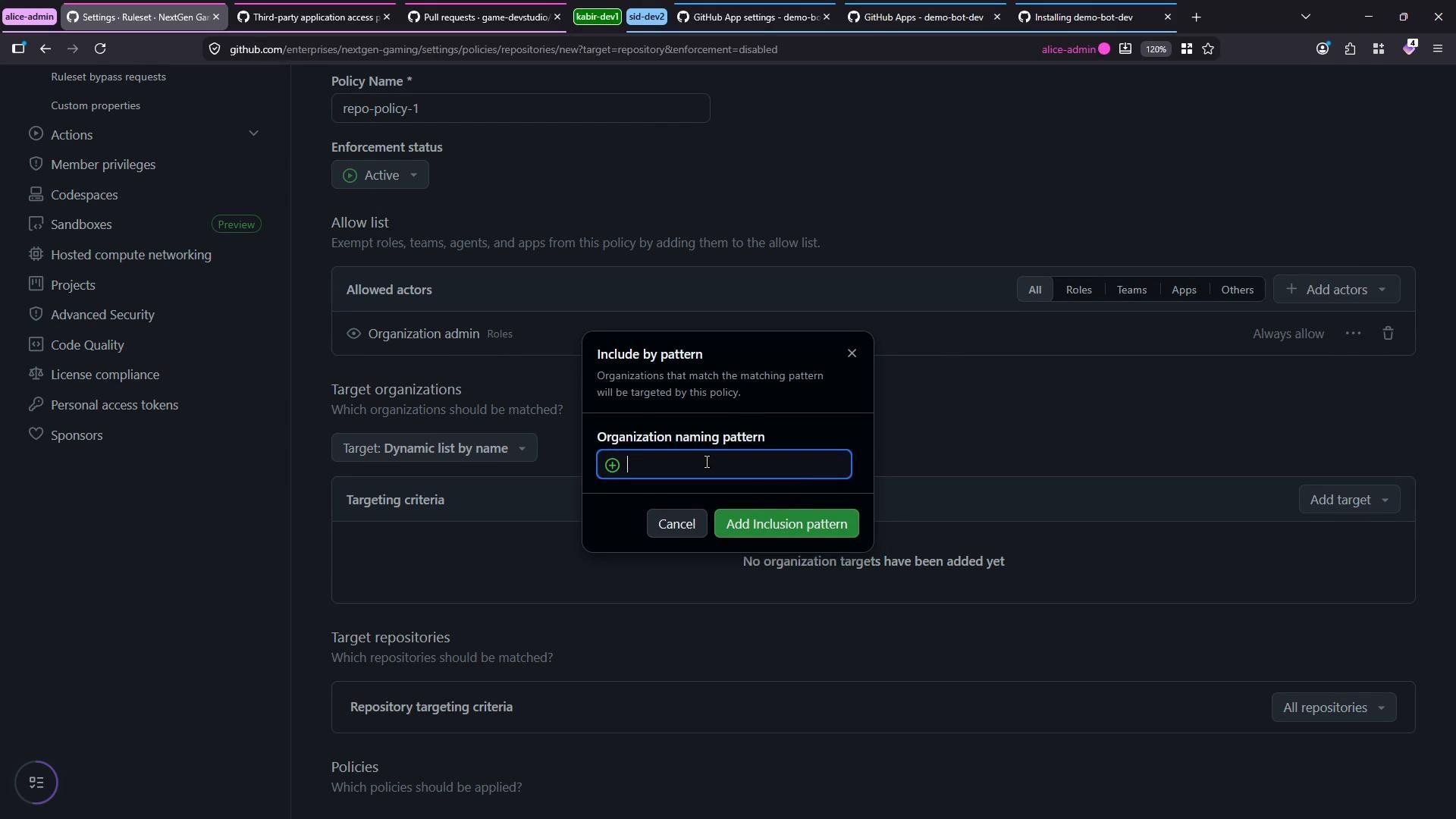
A dark-mode GitHub Enterprise settings page for creating a repository policy named "repo-policy-1," with an "Include by pattern" modal open asking for an organization naming pattern. The left sidebar shows admin menus like Actions, Codespaces, Advanced Security and other organization settings.
After selecting the targeted organization (here Game Dev Studio) you’ll see the policy targeting summary and the allow list showing Organization admin as an allowed role.
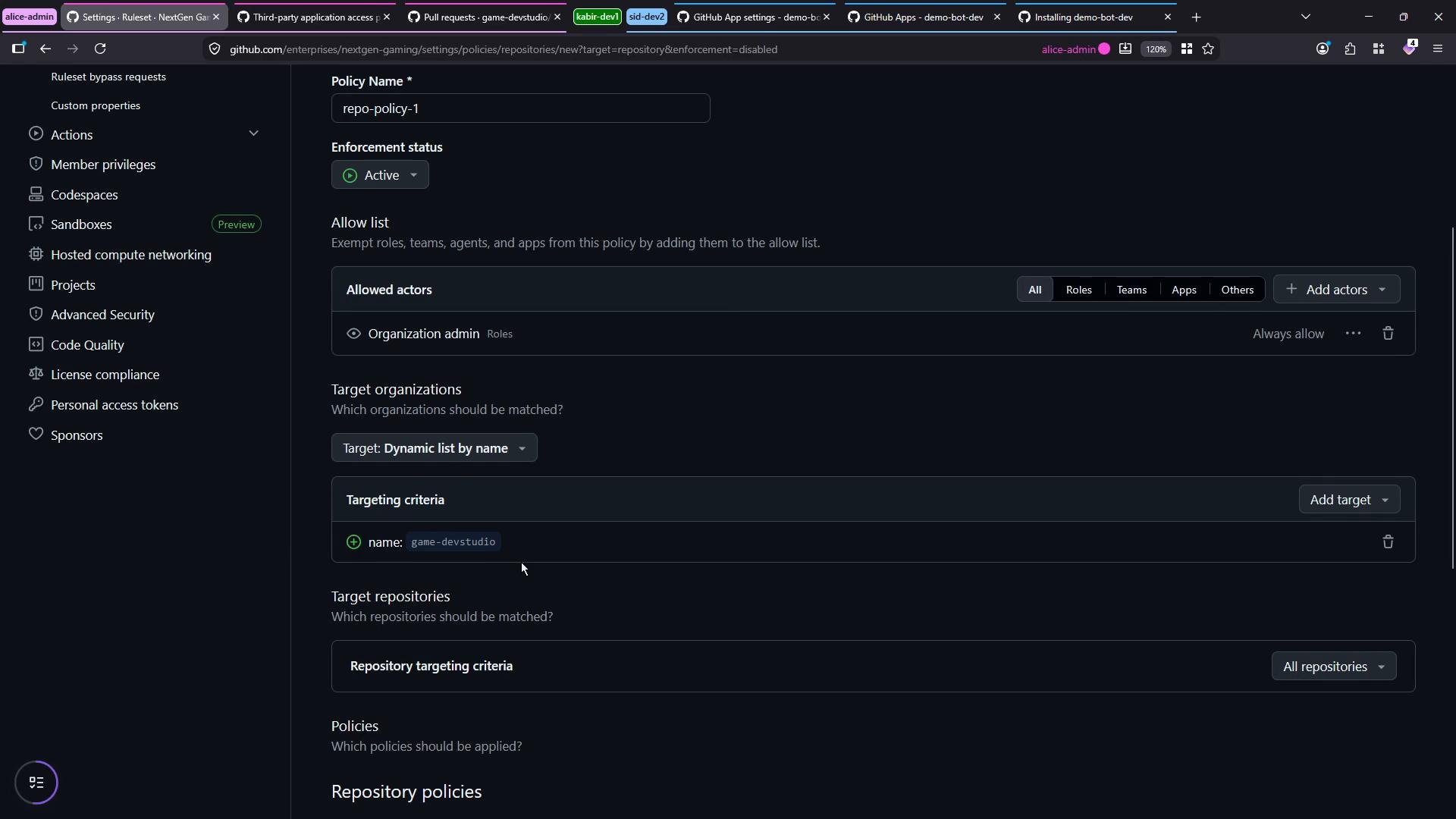
A dark-mode screenshot of a GitHub Enterprise settings page for creating a repository policy named "repo-policy-1." It shows enforcement set to Active, an allow list with "Organization admin," and targeting criteria matching an organization named "game-devstudio."
Repository restrictions you can enable You can use pattern targeting to include specific repos (for example game-*), or explicit repo selection. Use the allow list to grant exceptions for administrative roles or trusted teams. In this demo we enable “Restrict creations” so that only identities on the allow list (Organization admin) can create repositories in the targeted organization(s).
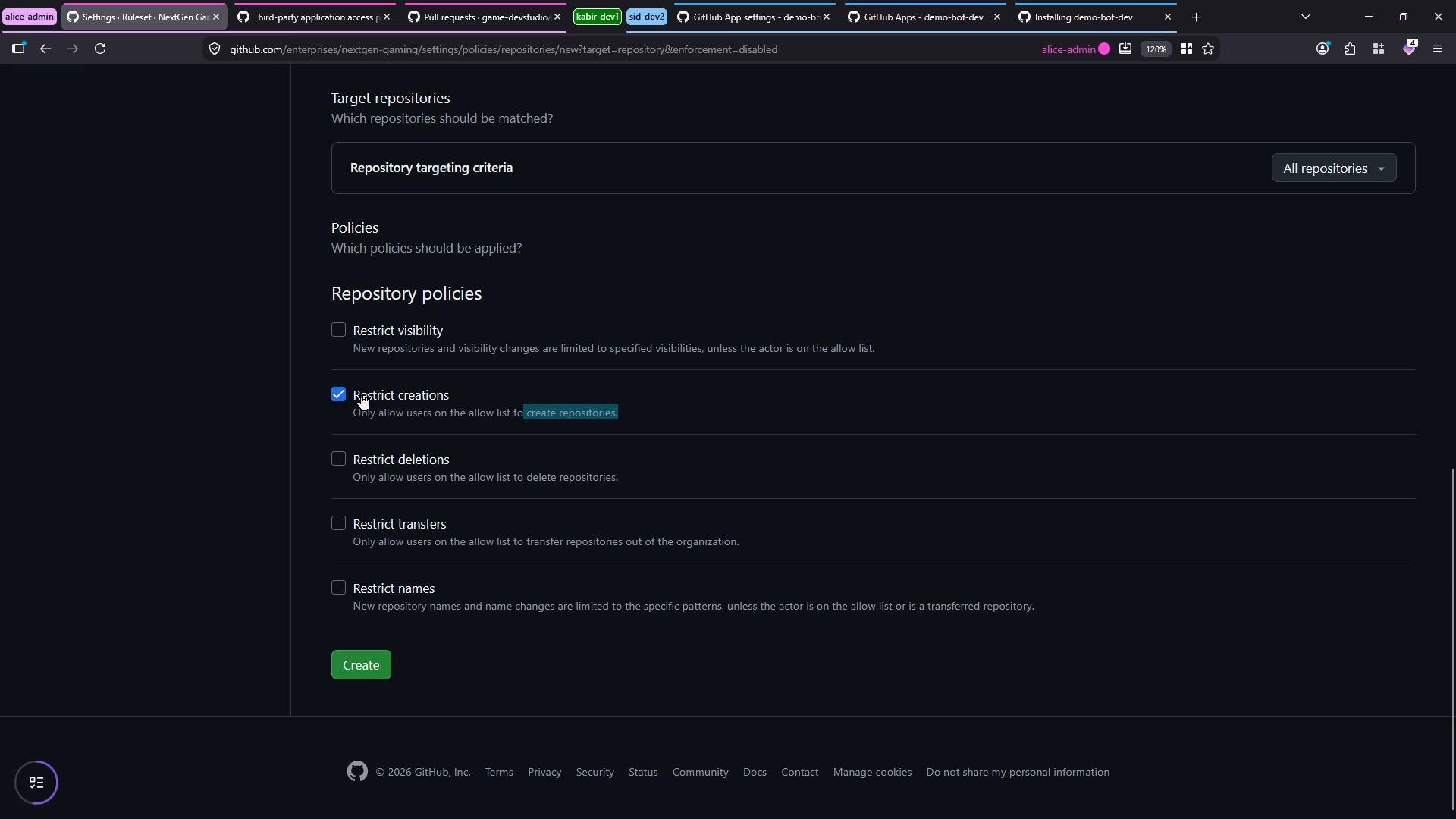
A dark‑theme screenshot of a GitHub Enterprise settings page showing "Target repositories" and "Repository policies" with several checkboxes (including "Restrict creations" checked) and a green "Create" button. The browser tab bar and URL are visible at the top.
Behavior once the policy is active
  • Organization admins (in the allow list) retain the ability to create repositories inside the targeted organization. For example, an admin will see the targeted org in the owner selector and can create a repository named new-repo.
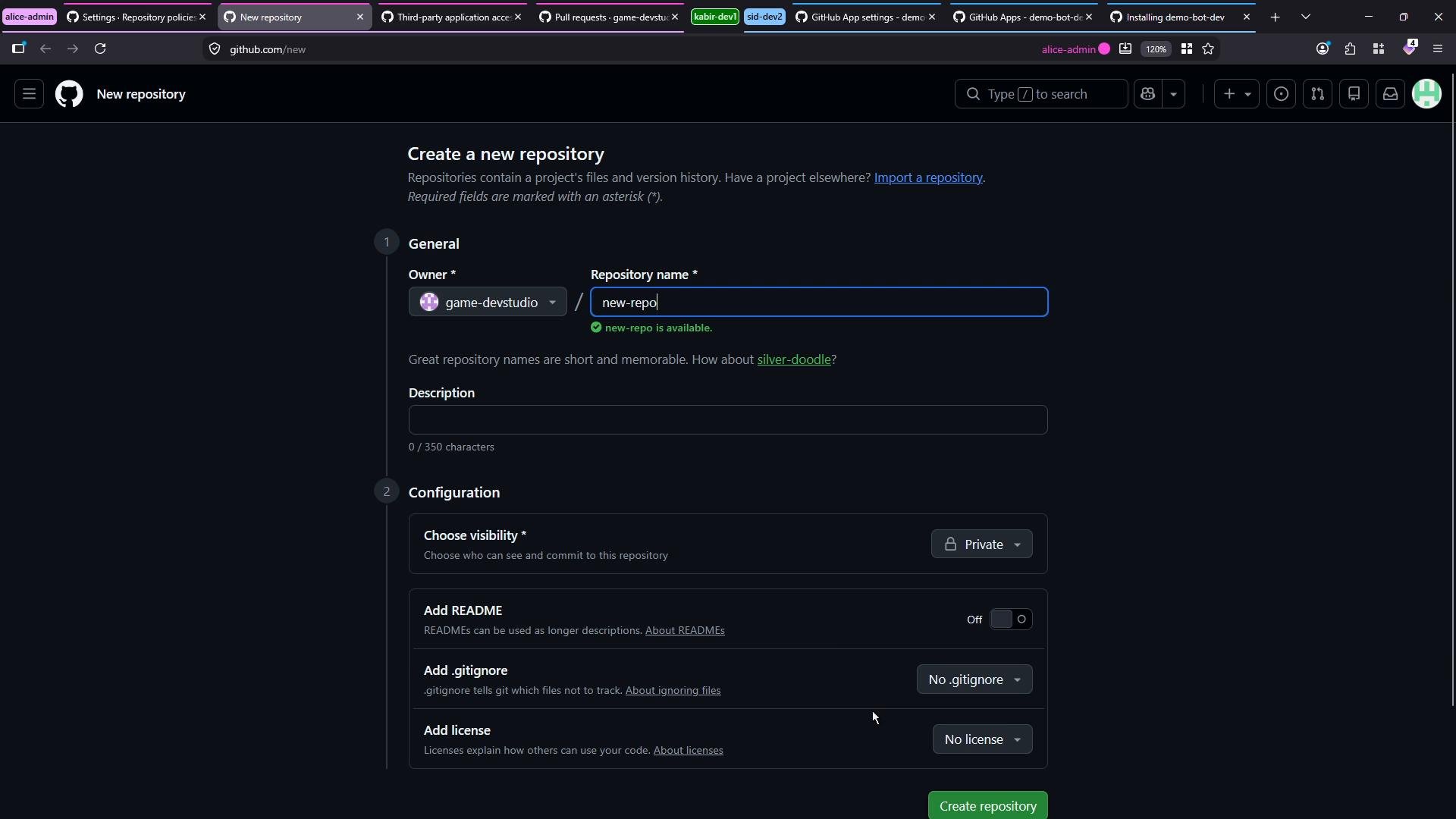
A dark-mode screenshot of GitHub’s "Create a new repository" page showing fields for owner, repository name (entered as "new-repo"), description, visibility and options like README, .gitignore and license. The browser window also shows multiple open tabs along the top.
  • Non-admin members (for example, a Dev2 user) will not be able to create repositories in the targeted organization: the org option will be disabled for them. They can still create repos in their personal accounts unless a separate policy restricts personal-account repo creation.
Repository policies apply only to the organizations or repositories you target. A “Restrict creations” rule prevents non-allowed identities from creating repositories in those targeted organizations, but it does not block users from creating repositories in their personal accounts unless you explicitly include those accounts in your policy scope.
Best practices and recommendations
  • Use descriptive policy names (for example: restrict-repo-creations-gamedev) and include the enforcement mode in your naming convention if you run dry-runs.
  • Start in Dry-run to monitor impact, then switch to Active after confirming no unintended blocking.
  • Use allow lists sparingly; prefer role-based allow lists (e.g., Organization admin) instead of broad team or user allow lists.
  • Document policy scope and exceptions in your internal admin playbook so organization admins understand the intended behavior.
Useful references Summary Enterprise repository policies give owners centralized control over repository lifecycle actions across multiple organizations. Combine targeted scope, deny/allow lists, and staged enforcement (Dry-run → Active) to enforce governance while minimizing disruption for admins and developers.

Watch Video