

Overview: Security and quality (GHAS)
From your enterprise account, open the “Security and quality” tab to get a high-level summary of GHAS activity. The overview page highlights alert trends and organization-wide insights such as detection rates, remediations, and prevention metrics. Scrolling down to the Detections section surfaces key operational data: average age of open alerts, secrets bypassed, top repositories with open alerts, and severity distribution.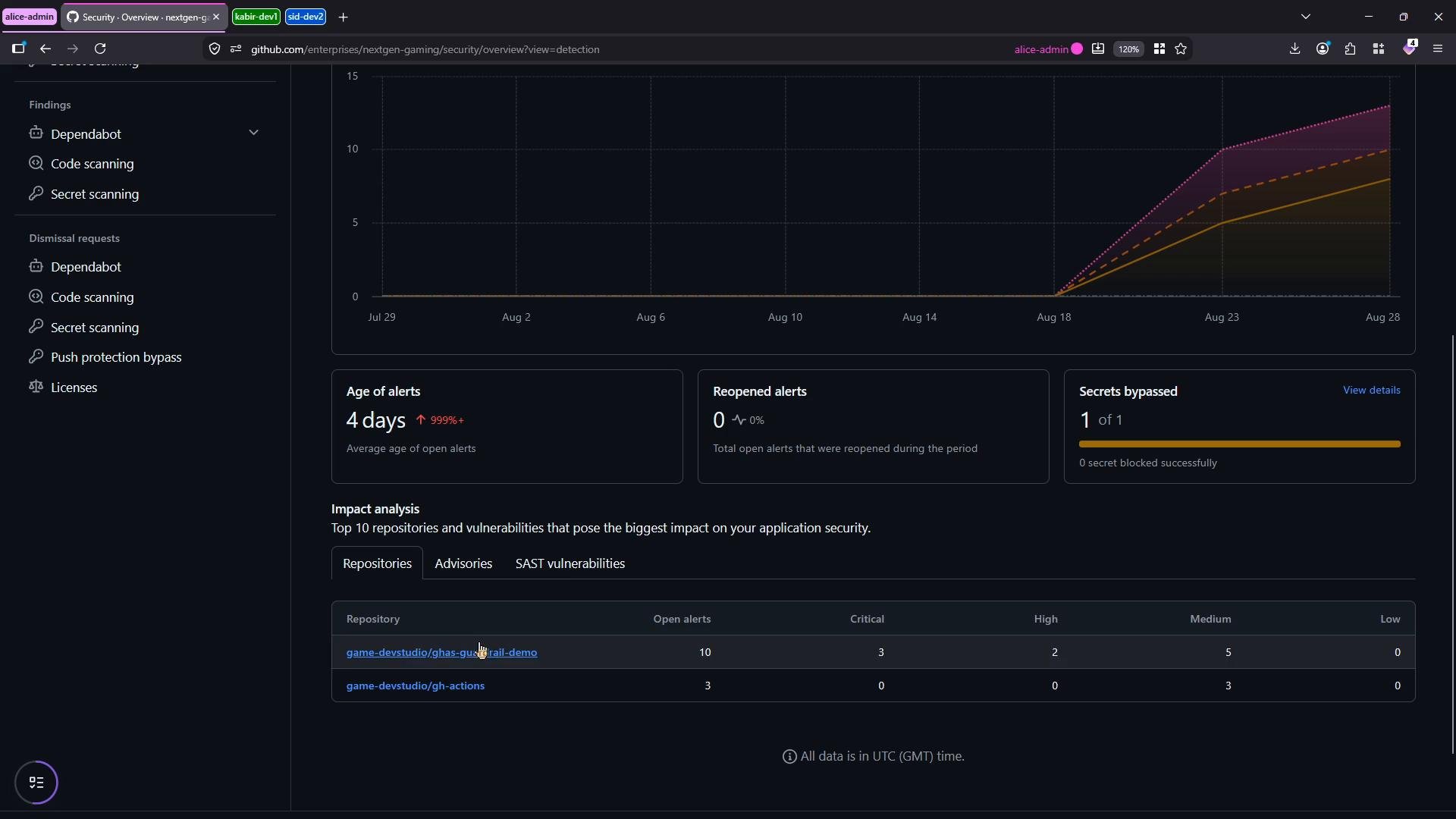
Repository-level code scanning and secret alerts
Click any repository from the enterprise view to open its repository security pages. There you can review code scanning findings (e.g., CodeQL results), secret scanning alerts, and remediation guidance. The repository view consolidates issues and provides direct links to the affected files.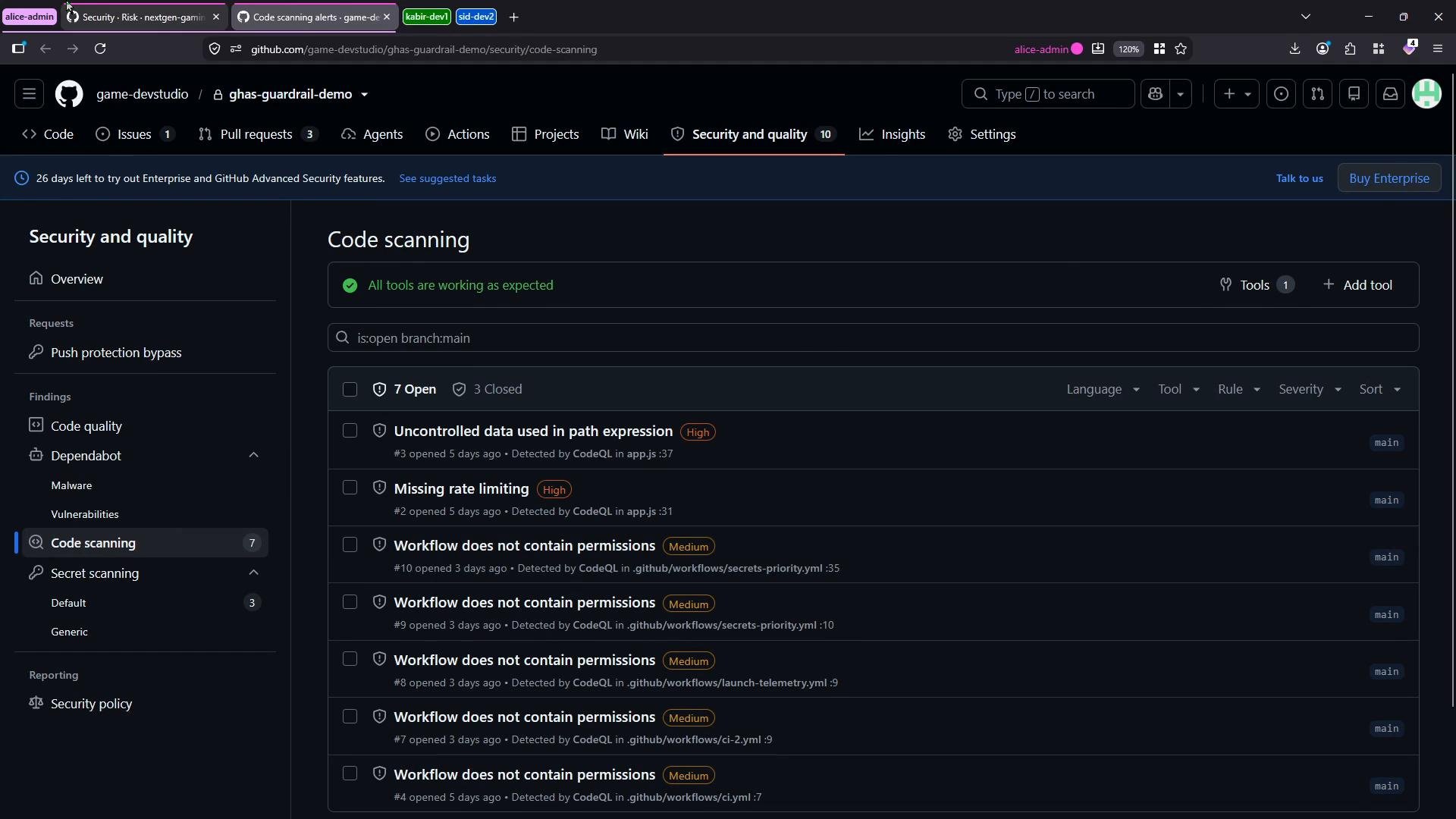
Security coverage across repositories
The Coverage tab summarizes adoption of the three primary GHAS features: Dependabot, code scanning (CodeQL), and secret scanning. It lists repositories and which features are enabled (for example: alerts, pull request alerts, push protection, and Dependabot security updates).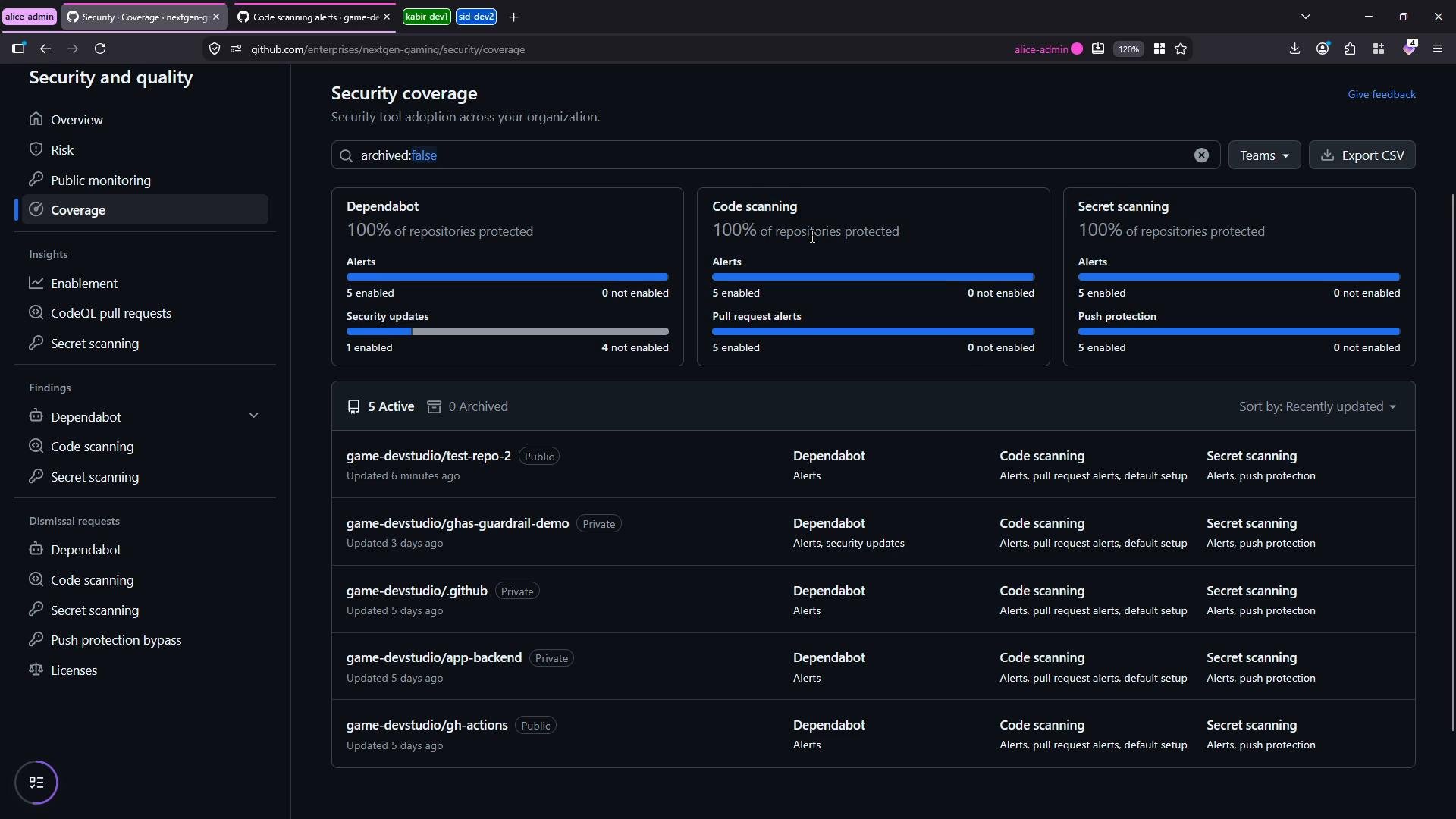
GitHub Actions usage metrics (Insights)
To see Actions usage across the enterprise, open the Insights tab and select “Actions usage metrics.” This dashboard reports totals such as minutes used and job runs, and lets you drill down by workflow, repository, runner type, and runtime OS (Linux, Windows, macOS). Use filters to narrow the view to organizations, repositories, runner types (hosted vs. self-hosted), and runtime OS.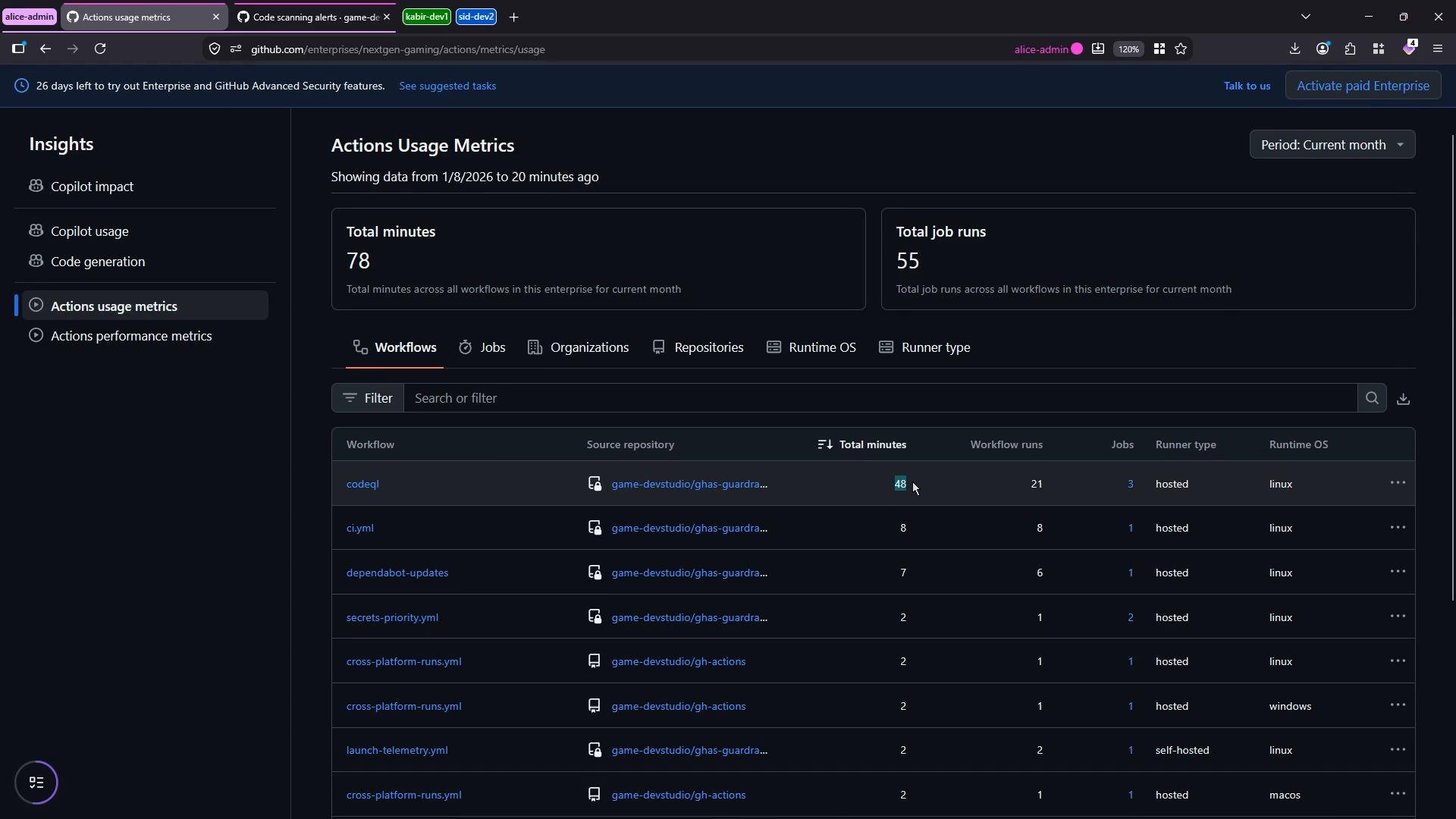
- Job failure percentage — identifies flaky workflows.
- Average runtime — signals slow-running jobs.
- Average queue time — indicates runner capacity issues.
- Failed job usage — shows wasted minutes from failed runs.
Automating an estimate of Actions adoption (REST API)
If you prefer automation over manual inspection, you can use the GitHub REST API to approximate Actions adoption. A common heuristic is to check whether each repository contains the.github/workflows directory. This does not guarantee full adoption (workflows can live elsewhere or projects may use alternate CI), but it gives a quick indication.
Do not hardcode personal access tokens (PATs) in scripts. Use an environment variable (for example,
GH_TOKEN) and limit the token scope to only what’s needed. Keep tokens secret.jq to parse JSON responses. Ensure jq is installed on the machine where you run the script.
Example: Bash script to estimate Actions adoption
- What it does:
- Reads the organization and token from environment variables.
- Lists up to 100 repositories for the org.
- Checks each repo for
.github/workflows(HTTP 200 indicates presence). - Prints per-repo status and a final adoption percentage.
github_actions_adoption_script.sh and export GH_ORG and GH_TOKEN before running.
Notes, limitations, and next steps
- Heuristic limitations: The
.github/workflowsdirectory check is a quick heuristic. Repositories may store workflows elsewhere, use external CI, or have workflows that never run. - Pagination: If your enterprise/org has more than 100 repositories, implement pagination by iterating
?page=<n>&per_page=100. - Deeper adoption checks: To measure GHAS feature adoption (CodeQL, secret scanning, Dependabot), query repository settings or dedicated API endpoints to validate whether features are enabled, licensed, and configured.
- Improve accuracy: Extend the script to:
- Inspect workflow YAML files to ensure active workflows.
- Query Actions usage API endpoints for actual job run metrics.
- Aggregate usage across multiple orgs in an enterprise by iterating enterprise org lists.
- GitHub Advanced Security (GHAS) docs: https://docs.github.com/en/code-security
- GitHub Actions metrics and Insights: https://docs.github.com/en/organizations/monitoring-your-organizations-health/about-organization-insights
- REST API: Repositories endpoints — https://docs.github.com/en/rest/repos/repos#list-organization-repositories
- REST API: Contents endpoints — https://docs.github.com/en/rest/repos/contents#get-repository-content