

Overview — Steps at a glance
- Create a team in your GitHub organization.
- Create a corresponding group in Okta and add users.
- Create an Okta API token and obtain your Okta org base URL.
- Enable Team synchronization in GitHub organization Security → Authentication security and provide the Okta token and URL.
- Assign the Okta group to the GitHub team via the team’s Identity provider groups field and save. Initial synchronization will populate the team membership.
What you’ll need
Helpful references:
1. Create the GitHub team
Create a team in your organization (for example,Console Developers with a short name like dev). Set visibility and notification preferences as needed, then create the team. Initially the team will display its creator or the admin as the only member.
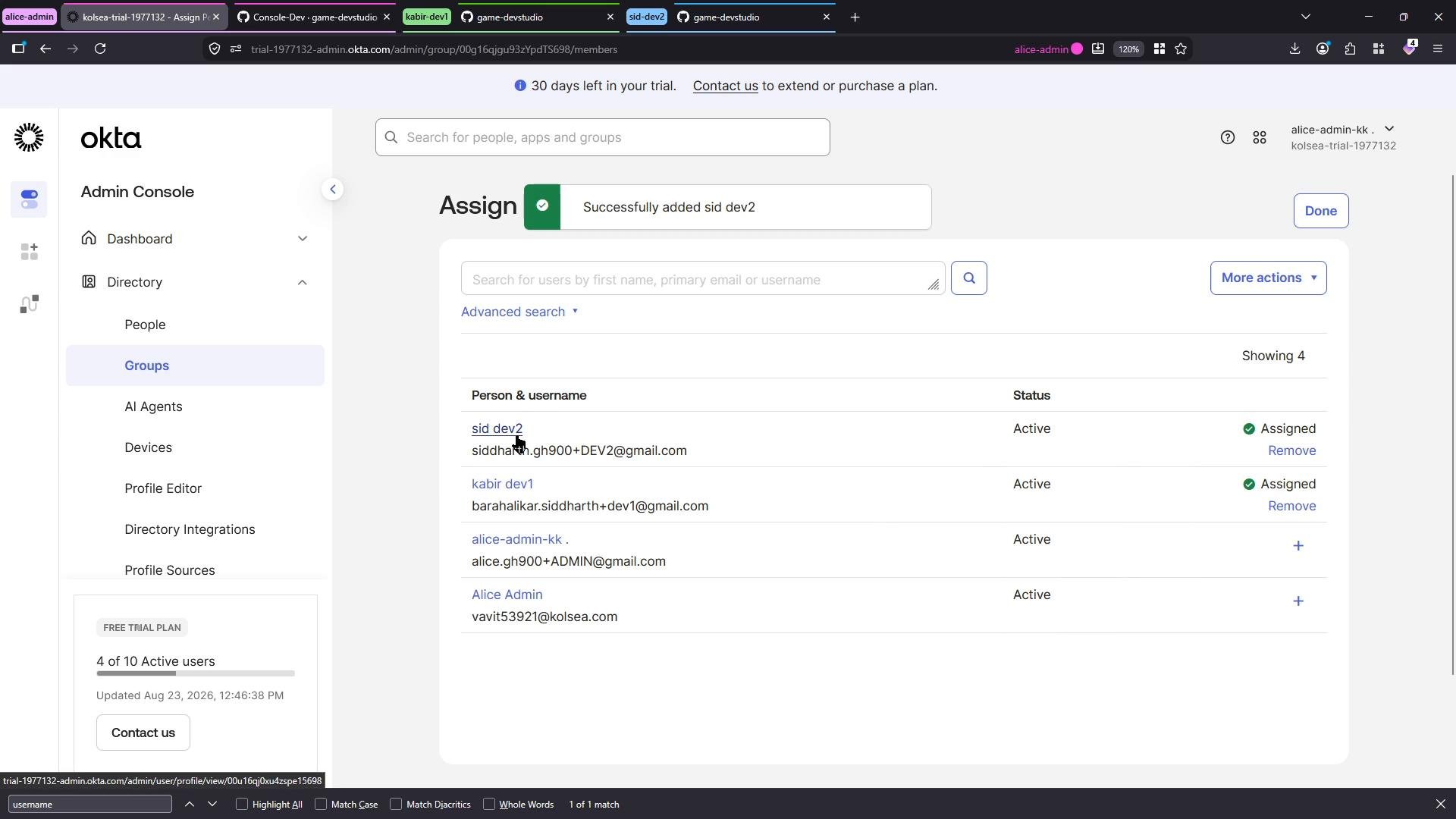
2. Create and assign users to an Okta group
In Okta, create a group that will represent the GitHub team (for example,GitHub Engineers). Add the users you want to manage centrally in Okta (for example, dev1 and dev2). GitHub will use this Okta group to populate the corresponding team.
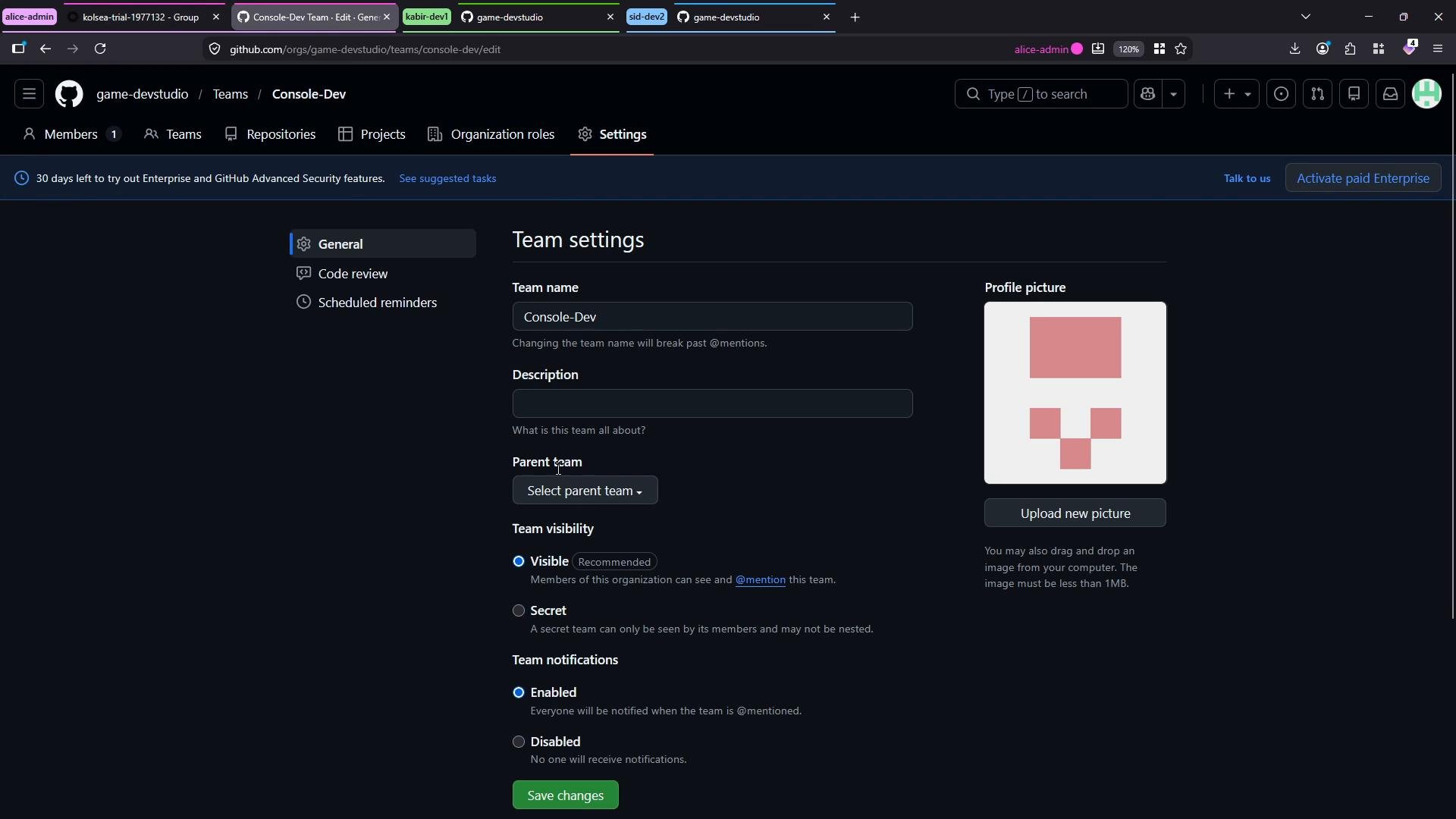
3. Open the GitHub team settings (prepare to map groups)
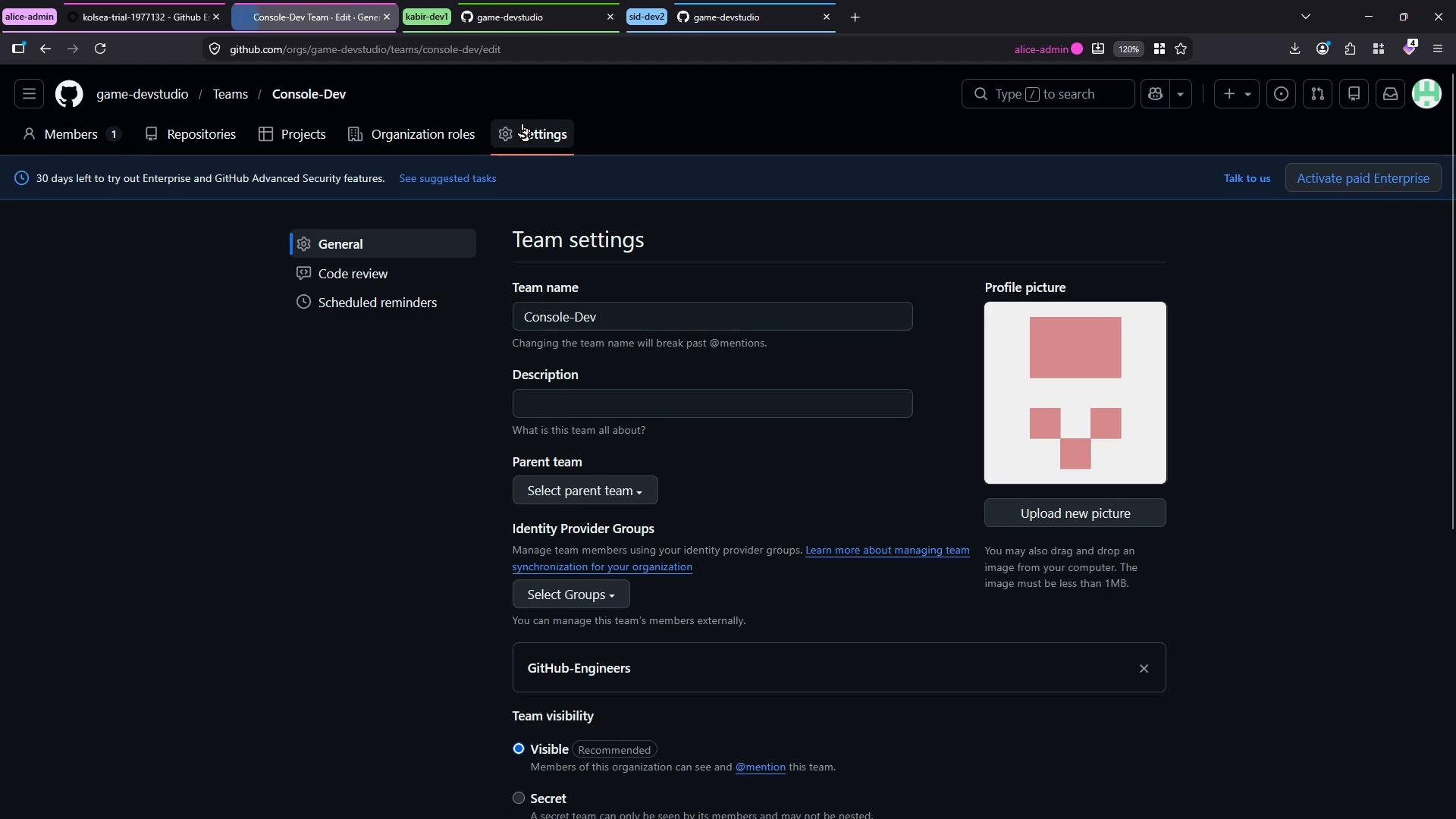
Open the target team’s settings page in GitHub (for example,Console-Dev). If organization-level Team synchronization is not yet enabled, the Identity provider groups field may not be visible here — you will enable it in the next section.
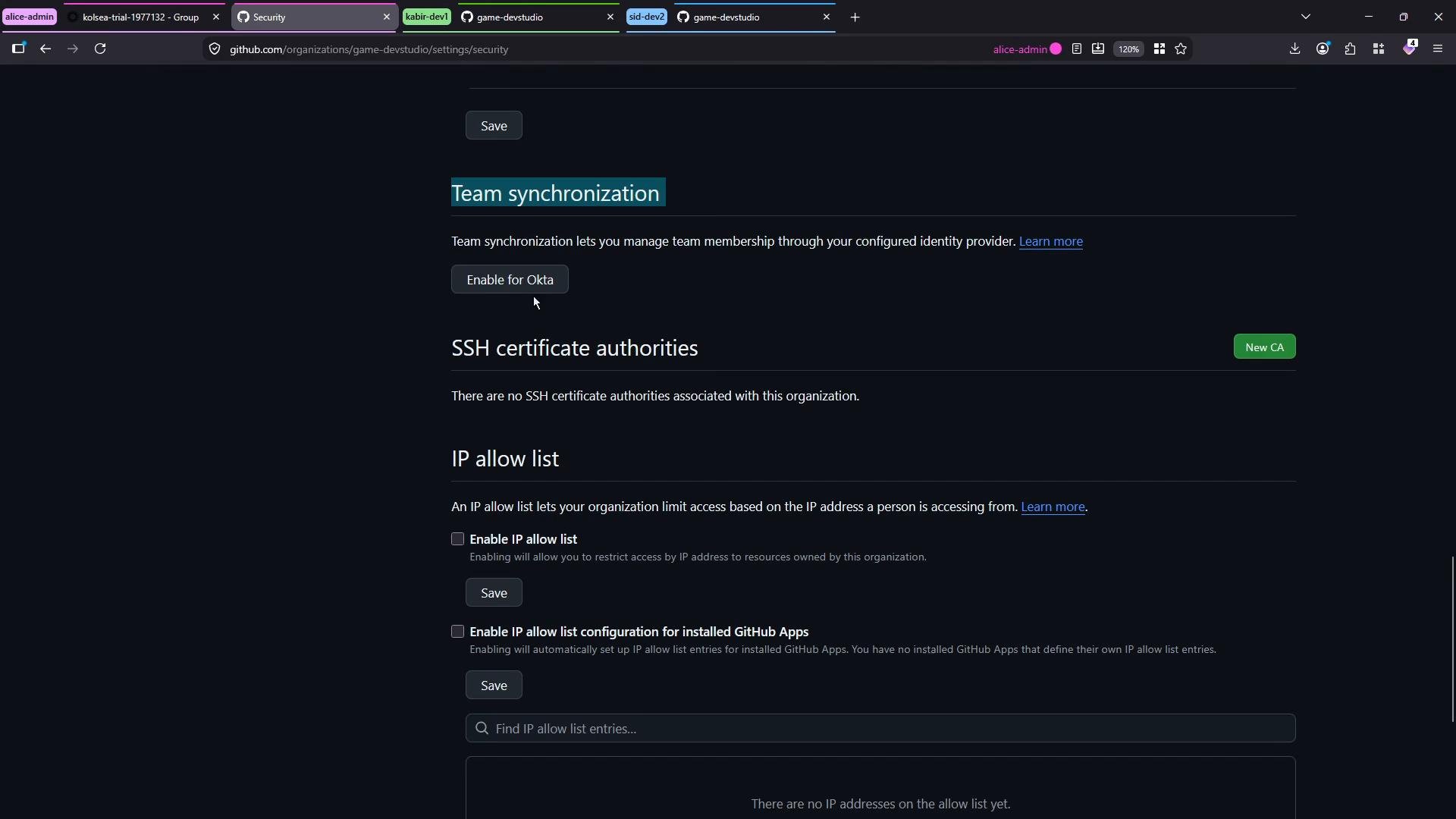
4. Enable Team synchronization in the GitHub organization
- In GitHub, go to your Organization → Settings → Security → Authentication security.
- Ensure Single sign-on (SSO) is enabled (and 2FA if required by your policies).
- In the Team synchronization section, choose to configure an identity provider and select Okta.
5. Obtain the Okta API token and org base URL
In the Okta Admin Console:- Go to
Security → API → Tokensand create a new token (for example, name itGitHub Team Sync). - Copy the displayed token immediately — Okta shows it only once.
- Note your Okta org base URL (for example,
https://dev-123456.okta.com). Use the org base URL — do not use the-adminadmin-console URL.
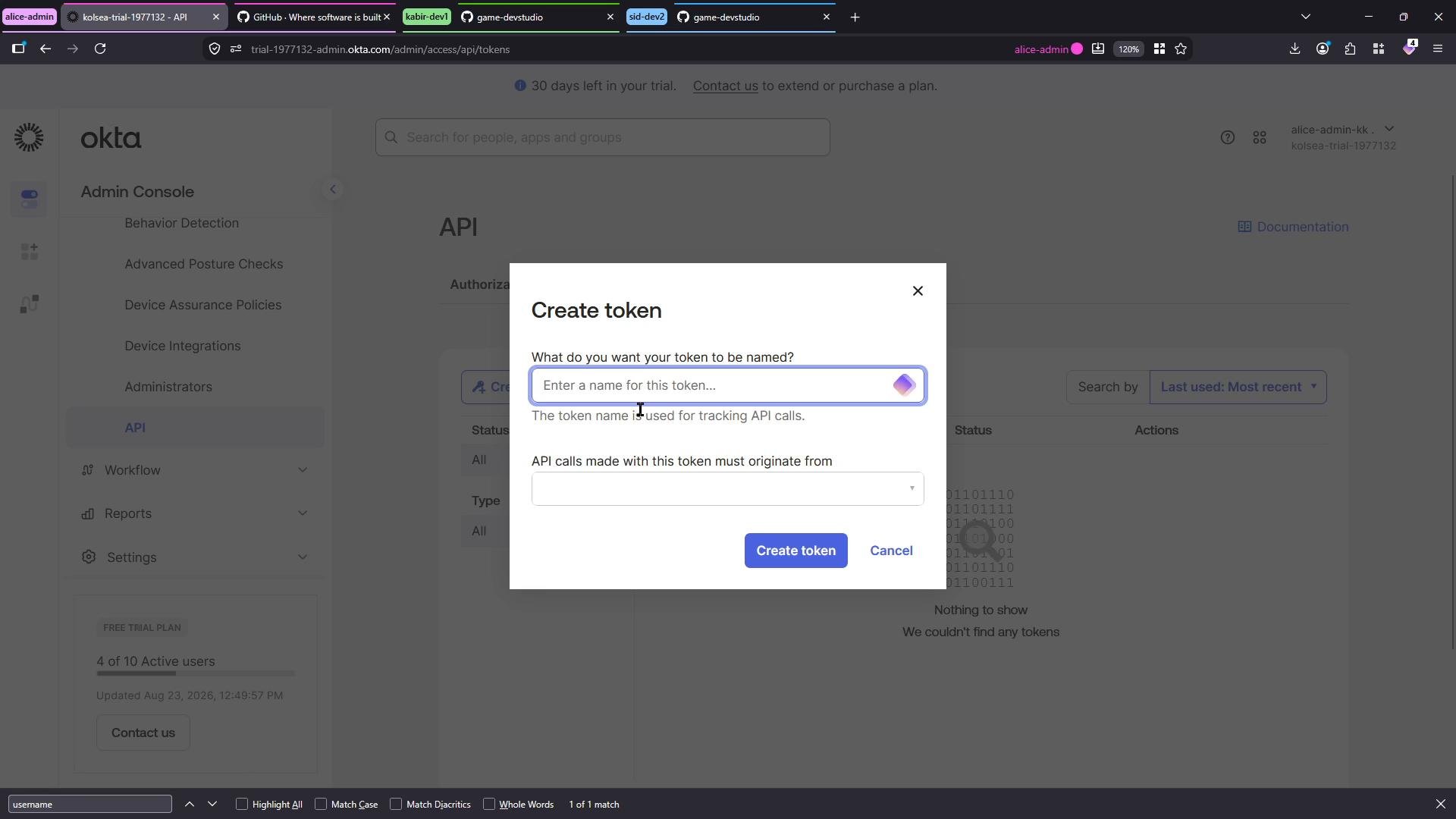
When you create an Okta API token it is shown only once. Copy and securely store the
SSWS token immediately — you cannot view it again from the Okta console.6. Configure Okta in GitHub and assign the group to the team
- Back in GitHub Organization → Security → Team synchronization, choose Enable for Okta.
- Paste the Okta API token into the
SSWS tokenfield and enter your Okta org base URL into the URL field. Save the configuration. - Return to the target team’s settings page. The Identity provider groups field should now be available.
- Search for and select the Okta group you created earlier (for example,
GitHub Engineers), then save the team settings. The group status may initially show as unsynced while the first synchronization runs.
7. Verify synchronization status
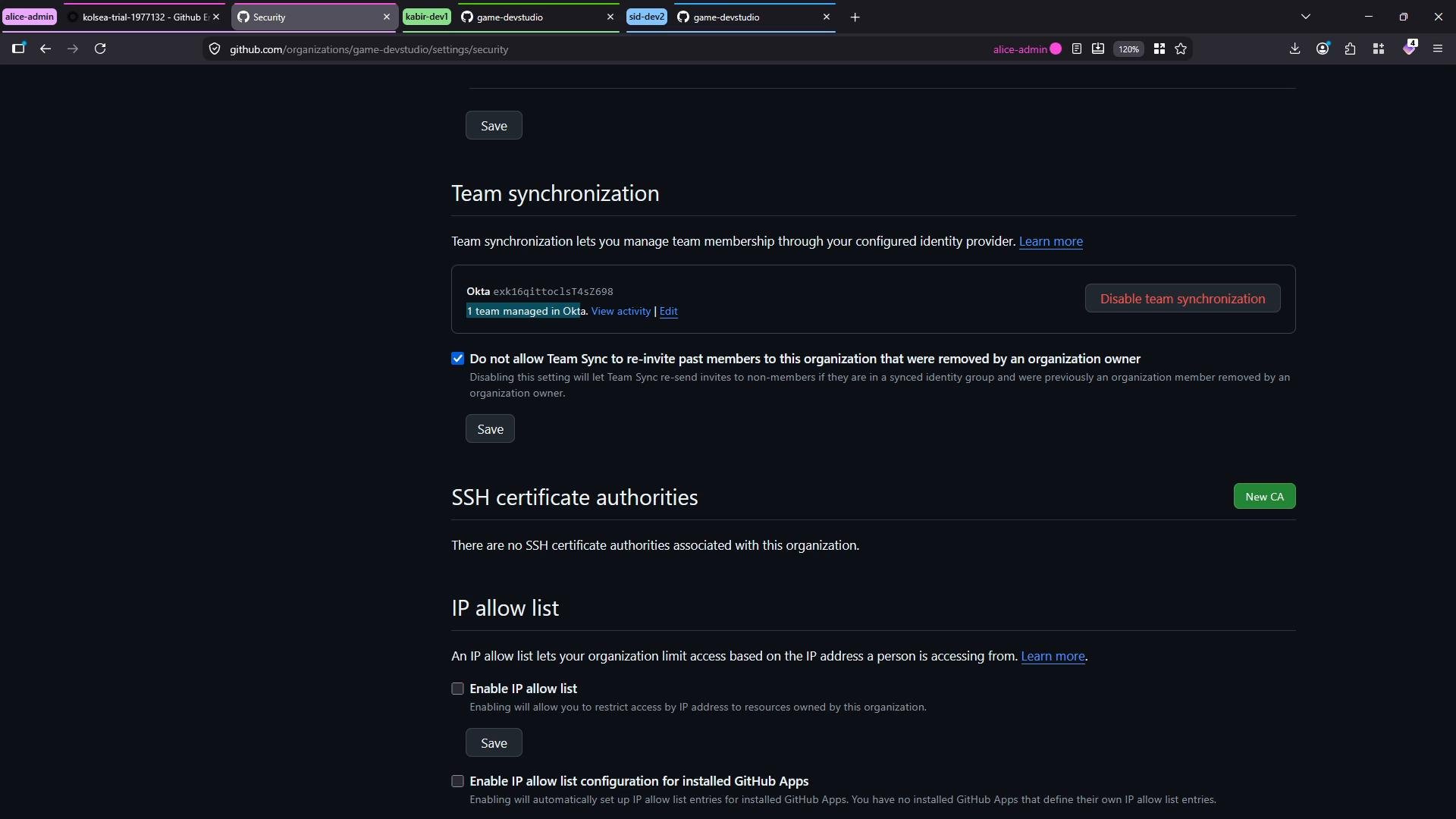
After assigning the Okta group to the GitHub team:- The Organization Security page will show how many teams are managed by Okta.
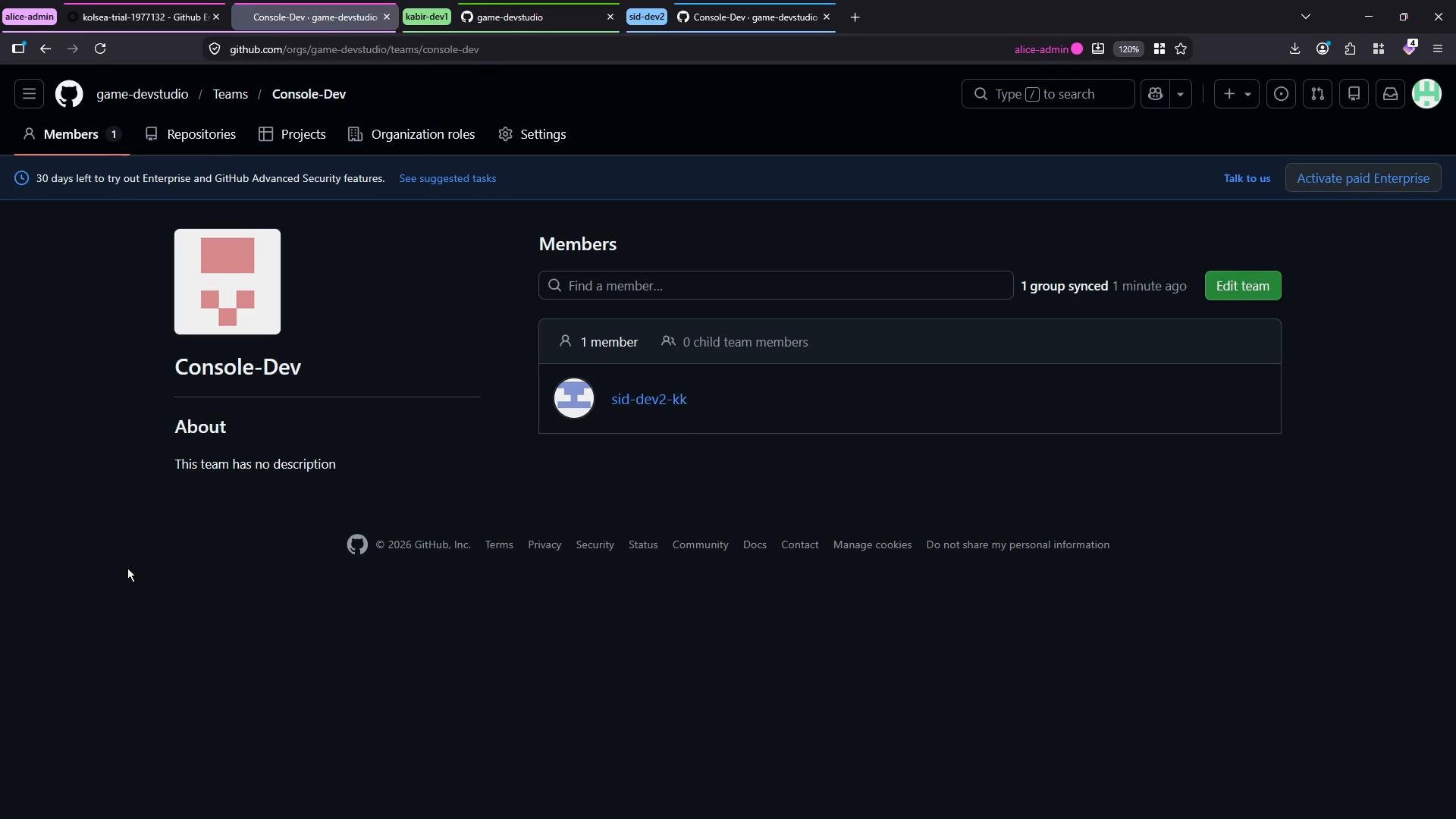
- Initial synchronization may send invitations to users or update membership progressively. Refresh the team page and the organization security page to confirm status.
- If only one member appears immediately, allow a few minutes for Okta sync to complete — additional members should populate as the sync finishes.
If group members do not appear after several minutes:
- Confirm the
SSWStoken and org base URL are correct. - Confirm the Okta group actually contains the users you expect.
- Check for any pending invitations in GitHub (new users may need to accept org invitations).
- Review audit logs in Okta and GitHub for any API errors.
Summary / Best practices
- Manage who should belong to GitHub teams from Okta groups — this provides centralized identity management.
- Create and immediately copy the Okta API token; treat it like a secret.
- Use the Okta org base URL (not the admin URL) when configuring GitHub.
- Expect a short propagation time after initial mapping; verify membership after a few minutes.
- Keep documentation of which Okta group maps to which GitHub team for auditability.