

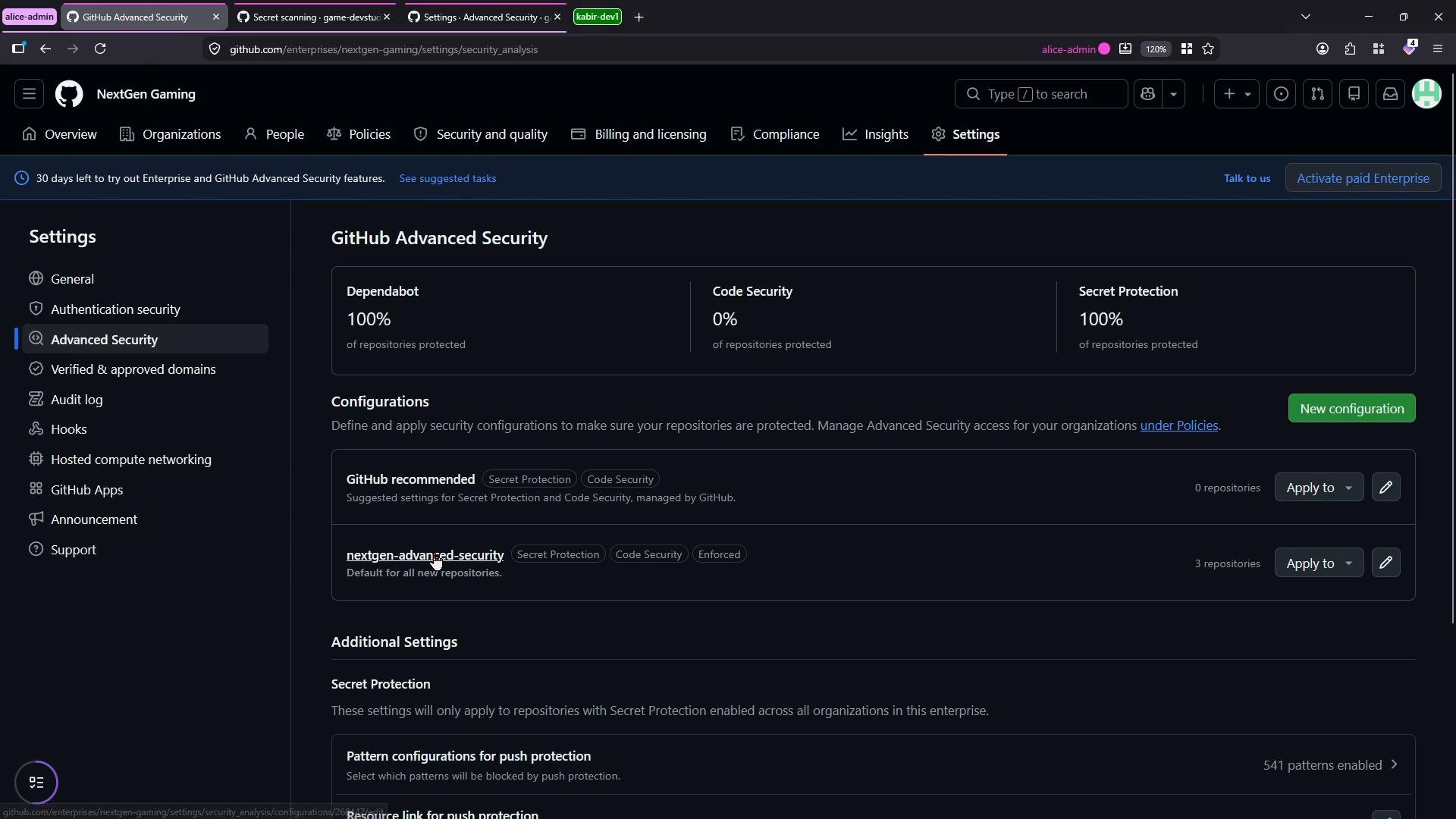
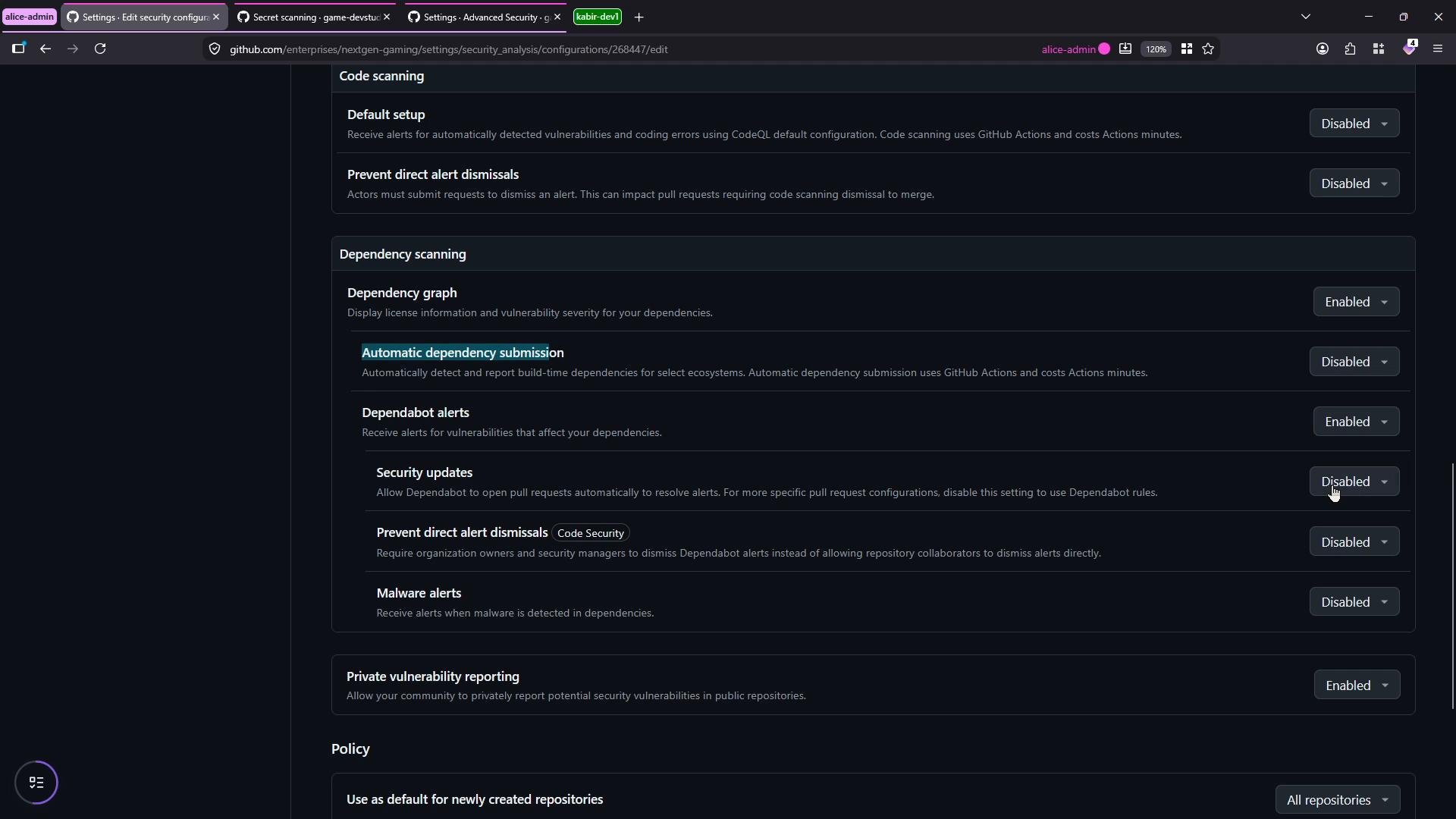
- Enabled the Dependency graph to allow GitHub to analyze dependency manifests and lockfiles.
- Disabled Automatic dependency submission for now (you can enable this if you want automatic PRs to update manifests).
- Enabled Dependabot alerts so maintainers see detected vulnerabilities.
- Enabled Security updates so GitHub can propose fixes via pull requests; left repo-level overrides as
Not setto let repository owners decide. - Enabled direct alert dismissal and turned on alerts for detected malware.
Enterprise-level security settings (like enabling the dependency graph or Dependabot alerts) propagate to mapped repositories and cannot be overridden at the repository level when enforced by the enterprise. Review enterprise policy before changing these settings.
- Confirm the repository has the Dependency graph enabled. When enabled, GitHub parses manifest files and lockfiles to build a precise dependency tree and identify known vulnerabilities across supported ecosystems.
- Check the repository’s Security settings to confirm Dependabot alerts and security updates are enabled.
Dependency graph behavior
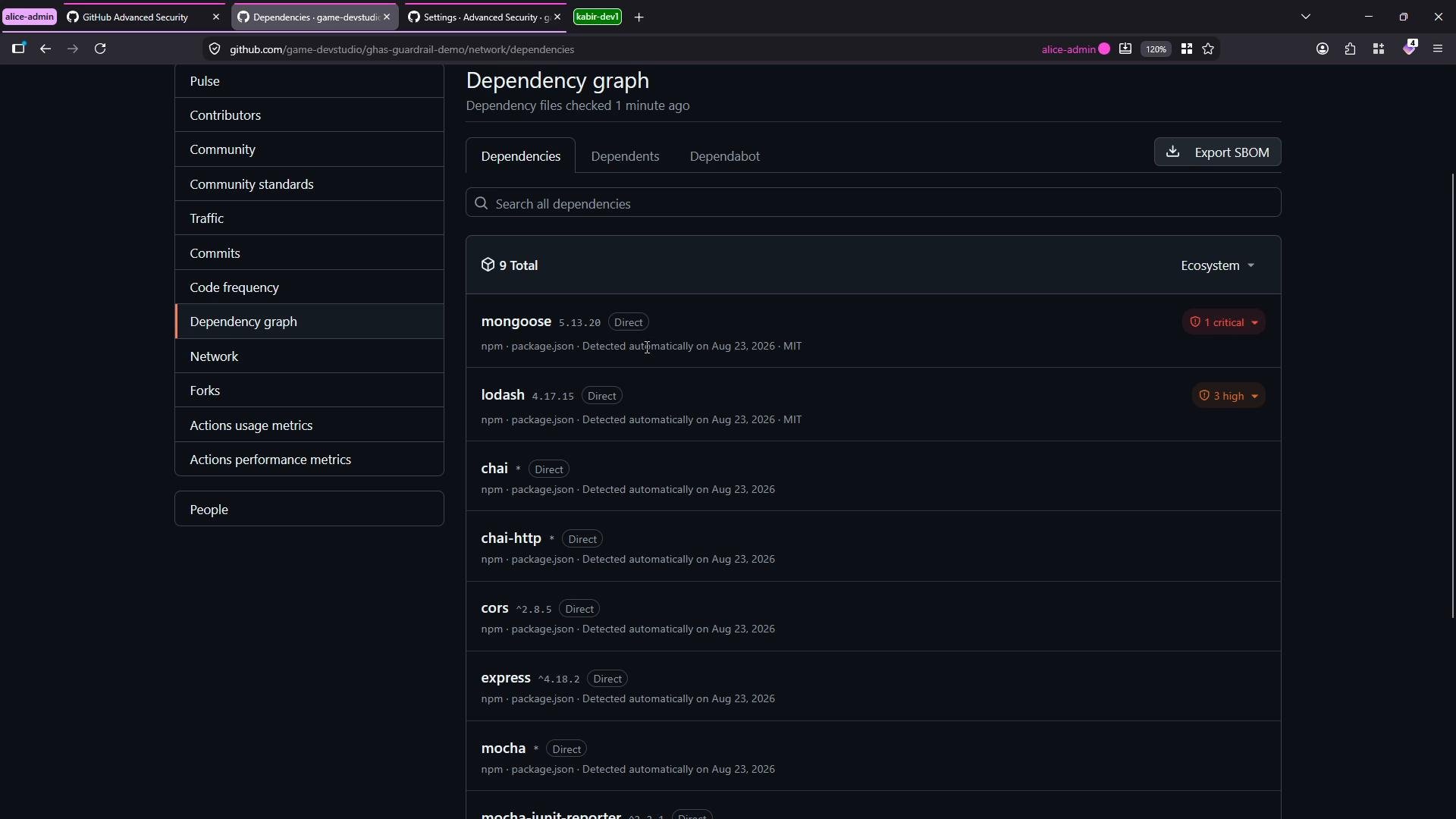
- The Dependency graph lists all packages found in manifests (and lockfiles when present).
- For each package, GitHub surfaces known security advisories and links to vulnerability details and remediation guidance.
package.json
mongoose, high in lodash) and allows clicking a package to view details or navigate to the package repository.
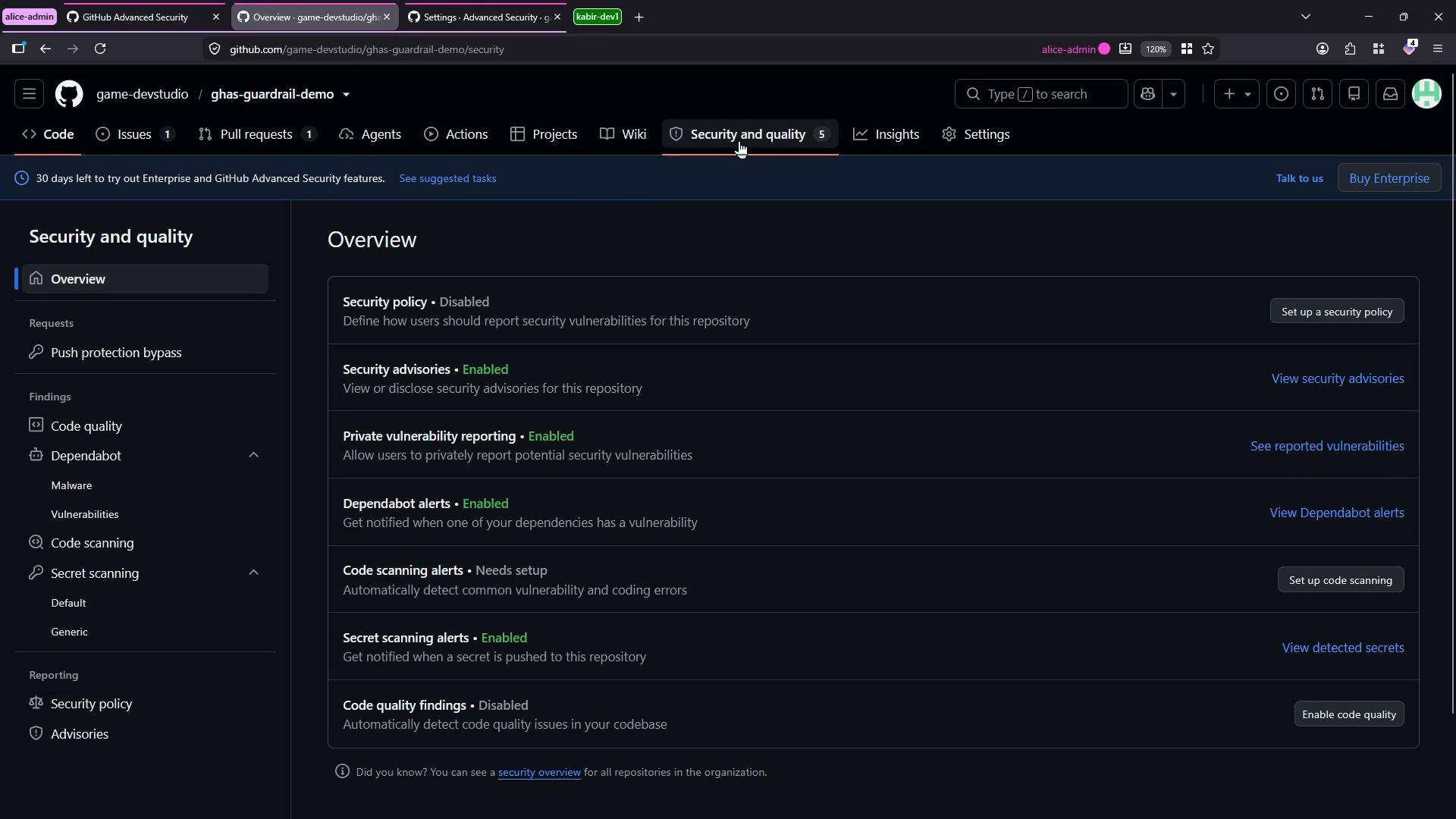
- With Dependabot alerts enabled, the repository exposes a list of open dependency vulnerabilities under Security → Dependabot alerts.
- You can filter by CVE, manifest, ecosystem, severity, and more to prioritize triage.
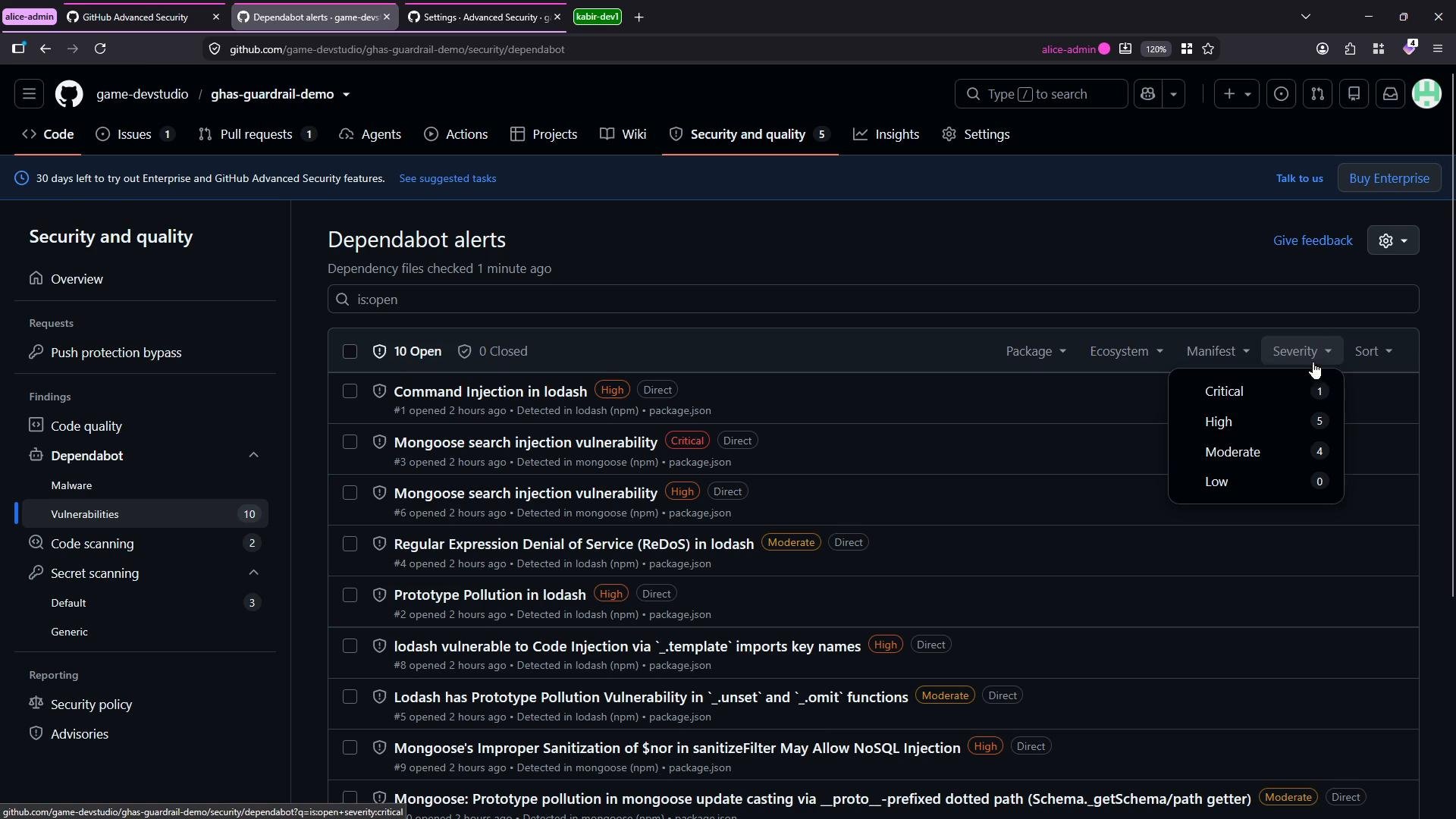
- Click any alert to see: affected versions, severity, CVE (if assigned), detailed description, and remediation suggestions.
- Typical remediation advice is to upgrade to the minimum patched version or a later compatible release.
mongoose (update package.json to the patched range):
- Manual update
- Edit the manifest (e.g.,
package.json) to the recommended version. - Run your package manager (
npm installoryarn install). - Run your test suite and CI.
- Open a pull request with the changes.
- Edit the manifest (e.g.,
- Automated updates via Security updates
- Enable Security updates / Dependabot automated security fixes so GitHub opens a pull request automatically with the fix.
- Review the incoming PR, run CI, and merge when green.
Keep repository tests and CI green before merging dependency updates. Automated pull requests speed remediation, but you should validate changes in your CI pipeline and run local tests where appropriate.
- Enable the Dependency graph and Dependabot alerts (and optionally Security updates) at the enterprise level to ensure consistent detection and remediation workflows across repos.
- Use the Dependency graph to inspect dependency trees and find vulnerable packages.
- Triage and remediate using Dependabot alerts—either manually or by enabling automated security fixes.
- Dependabot alerts — GitHub Docs
- Dependency graph — GitHub Docs
- Security updates / Dependabot security updates — GitHub Docs
- GitHub Advanced Security — GitHub Docs