

- How to create and enforce a GHAS enterprise configuration focused on secret protection
- How push protection behaves when a secret is detected
- Where to find and how to remediate secret scanning alerts
- GitHub Advanced Security overview: https://docs.github.com/en/enterprise/marketplace/github-advanced-security/about-github-advanced-security
- Dependabot: https://docs.github.com/en/code-security/supply-chain-security/keeping-your-dependencies-updated-automatically/about-dependabot
- CodeQL: https://docs.github.com/en/code-security/code-scanning/using-codeql-code-scanning-for-your-project
- git-filter-repo (history rewriting): https://github.com/newren/git-filter-repo
Step 1 — Create an enterprise GHAS configuration
- In your enterprise account (NextGen Gaming), open Enterprise settings → Advanced Security.
- The default configuration uses GitHub-recommended settings (includes secret protection, code security, and Dependabot). For this demo, create a custom configuration focused on secret protection.
- Click New Configuration.
- Enter a name (for example,
nextgen-advanced-security). - Enable Secret protection and any sub-options you want (validity checks, extended metadata, generic patterns, AI-detected secrets, push protection).
- Configure bypass rules: choose which roles (e.g., enterprise owners, org admins) may request or approve bypasses.
- Optionally enable prevent direct alert dismissals so users must submit a dismissal request.
- Disable Code scanning and Dependabot if you only want secret protection for this demo.
- Set Enforce this configuration and apply it to all repositories (or to repositories without configurations).
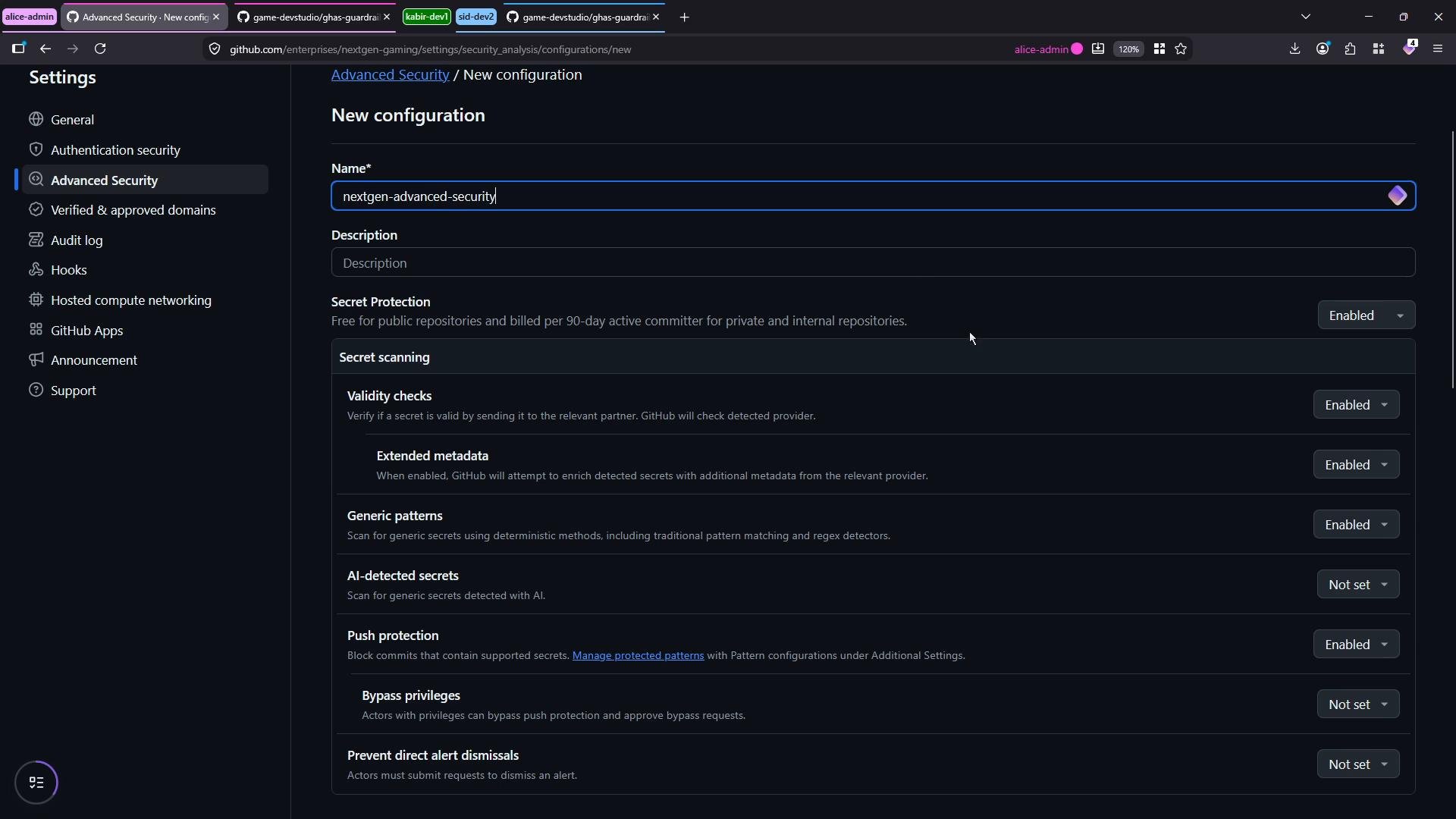
GHAS Secret Protection options (summary)
Step 2 — Demo repository file (triggering secret scanning)
Below is a minimal Node.js example that intentionally contains high-entropy mock secrets to trigger secret scanning, plus a simple insecure endpoint that CodeQL could flag later.For testing, use mock or rotated credentials. Never commit production credentials or long-lived tokens to repositories; use short-lived, test, or properly rotated values.
Do not commit real, active credentials or personal access tokens (PATs) to any repository. Treat any detected secret as compromised: rotate it immediately and remove it from the repo history.
Step 3 — Push behavior with push protection enabled
When you commit and push a change that contains a detected secret, GHAS push protection will react according to your policy:- If push protection is enforced, GitHub can block the push and show a dialog that describes the detected secret and the file/commit location.
- If bypasses are allowed and your role is permitted to request/approve bypasses, the dialog can offer:
- Cancel and remove the secret from the commit before re-pushing.
- Request or apply a bypass (mark as test/false positive) — the push proceeds if authorized.
- Allow (rare cases when policy permits).
Viewing and triaging secret scanning alerts
After the push, open the repository Security → Secret scanning alerts (or the combined Security & Code Security pages) to inspect detected secrets. GHAS provides context such as where the secret was found, commit ID, severity, and remediation guidance.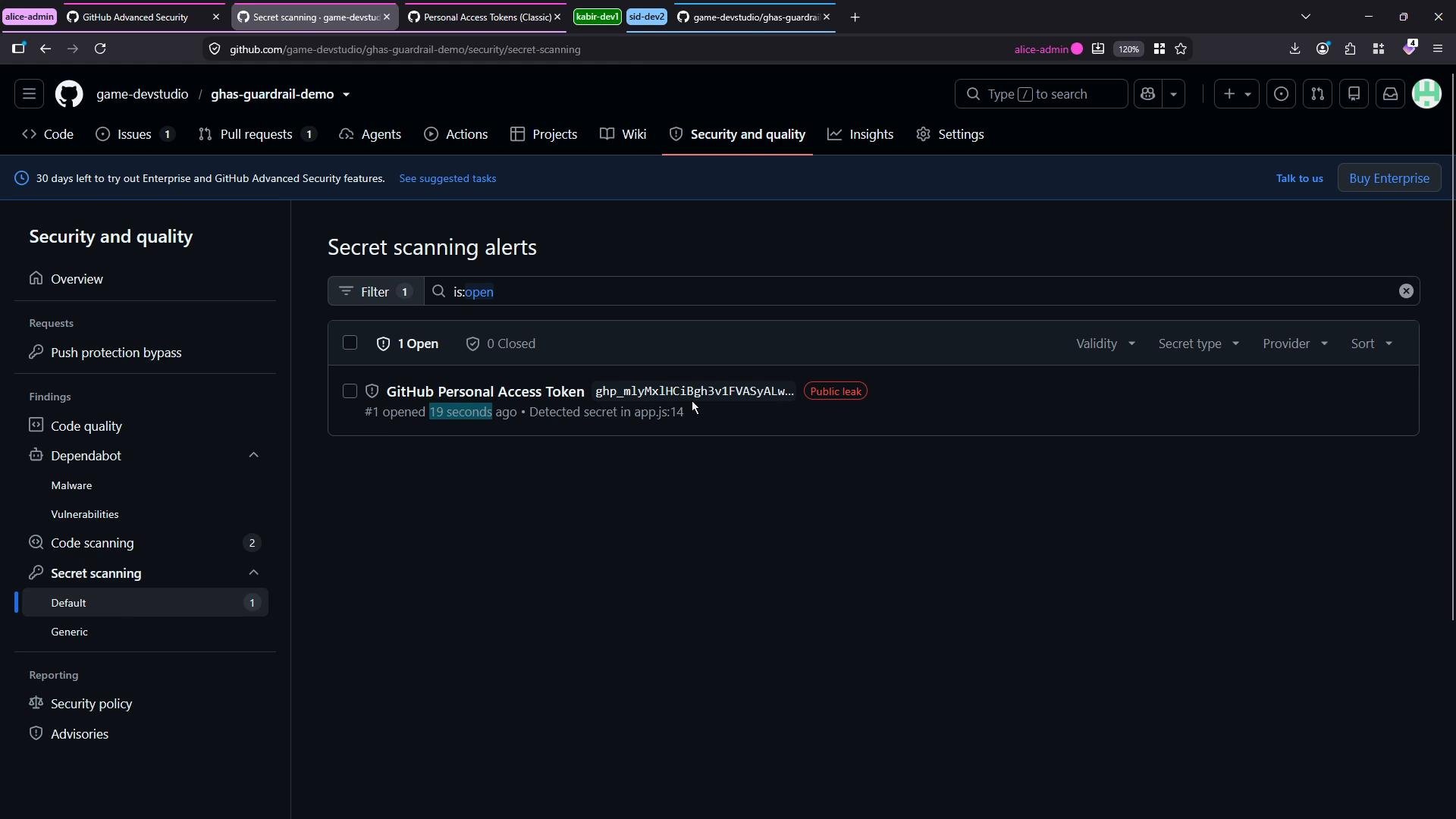
- File path and commit (where the secret was detected)
- Secret type (e.g., GitHub Personal Access Token, AWS key)
- Leak visibility (public vs private)
- Suggested remediation steps
- Bypass metadata (who requested/approved the bypass, comments)
Recommended remediation workflow
Helpful tools and references:
- git-filter-repo: https://github.com/newren/git-filter-repo
- GitHub docs: secret scanning remediation: https://docs.github.com/en/code-security/secret-scanning/remediating-secret-scanning-alerts
- Use secure secret storage: GitHub Secrets, HashiCorp Vault, cloud provider secret managers
Summary
This walkthrough demonstrated:- Creating a custom GHAS enterprise configuration focused on secret protection
- How secret scanning and push protection detect and block (or prompt on) pushes that contain high-entropy secrets
- Where to find secret scanning alerts and the information they include
- A recommended remediation workflow to rotate and remove exposed credentials