

Why enforce 2FA at the enterprise level?
Enforcing 2FA across an enterprise ensures every account with access to organization or enterprise resources uses an additional authentication factor beyond username and password. This reduces the risk of account takeover and strengthens overall security posture. Key concepts:- Account-level 2FA — configured per-user in Settings → Password and authentication.
- Enterprise enforcement — a policy that requires members and owners to have 2FA enabled before accessing enterprise resources.
1. Enable 2FA on the account (Alice)
Sign in to your GitHub account with username and password. From your account settings, open the Password and authentication section to enable two-factor authentication.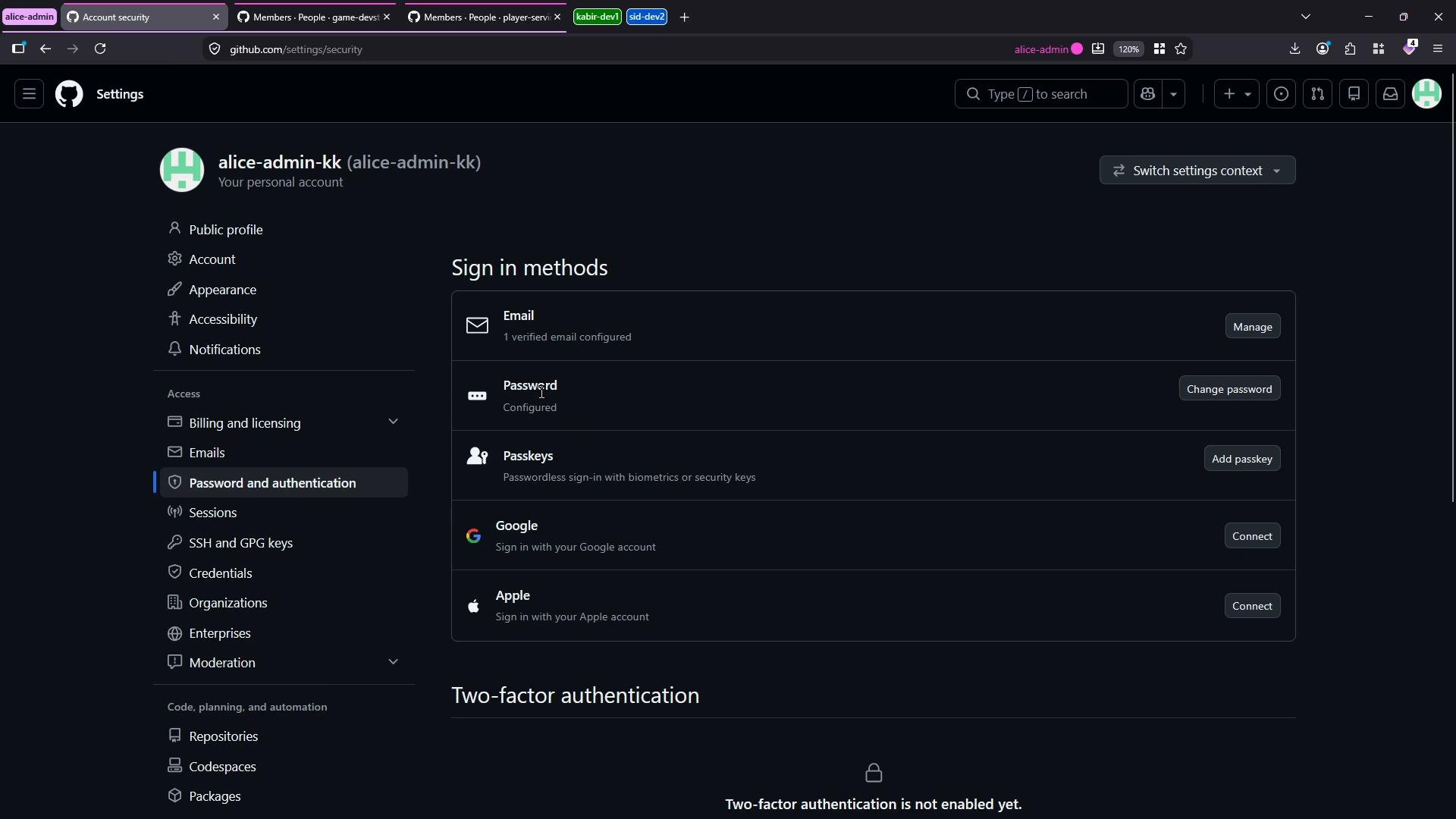
2. Choose an authenticator and complete setup
GitHub supports TOTP-based authenticators (time-based one-time passwords), passkeys, hardware security keys, and the GitHub Mobile app. Most people use a TOTP authenticator app or extension to receive verification tokens.Recommended authenticators include authenticator apps and hardware keys. Use an app that supports TOTP (time-based one-time passwords) such as those listed below for easy setup.
When GitHub shows the QR code and setup instructions, you can scan the QR with your authenticator or, if scanning is not possible, copy the secret key and add it manually to the authenticator.
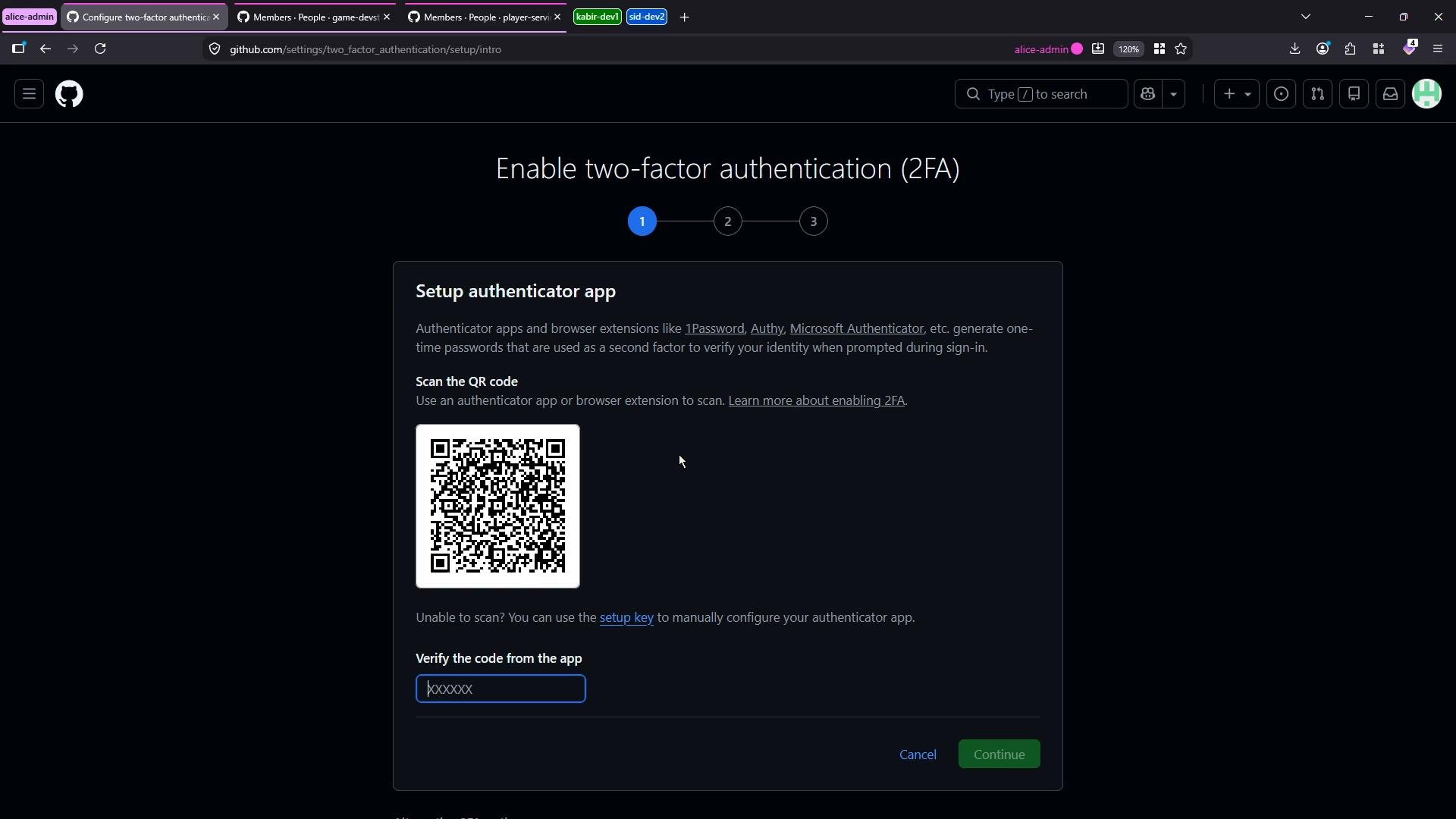
- Open your authenticator (Proton, 1Password, Authy, etc.).
- Add a new account or login entry.
- Paste the provided setup/secret key into the authenticator entry and save.
- Copy the TOTP token generated by the authenticator and paste it into GitHub’s verification field.
- Continue to confirm the code.
3. Save recovery codes and add additional methods
After verifying your authenticator-generated code, GitHub will enable 2FA and present a list of recovery codes. These one-time-use codes let you regain access if you lose your authenticator device. Store them in a secure place (password manager, encrypted file, or offline storage). Recovery codes (example):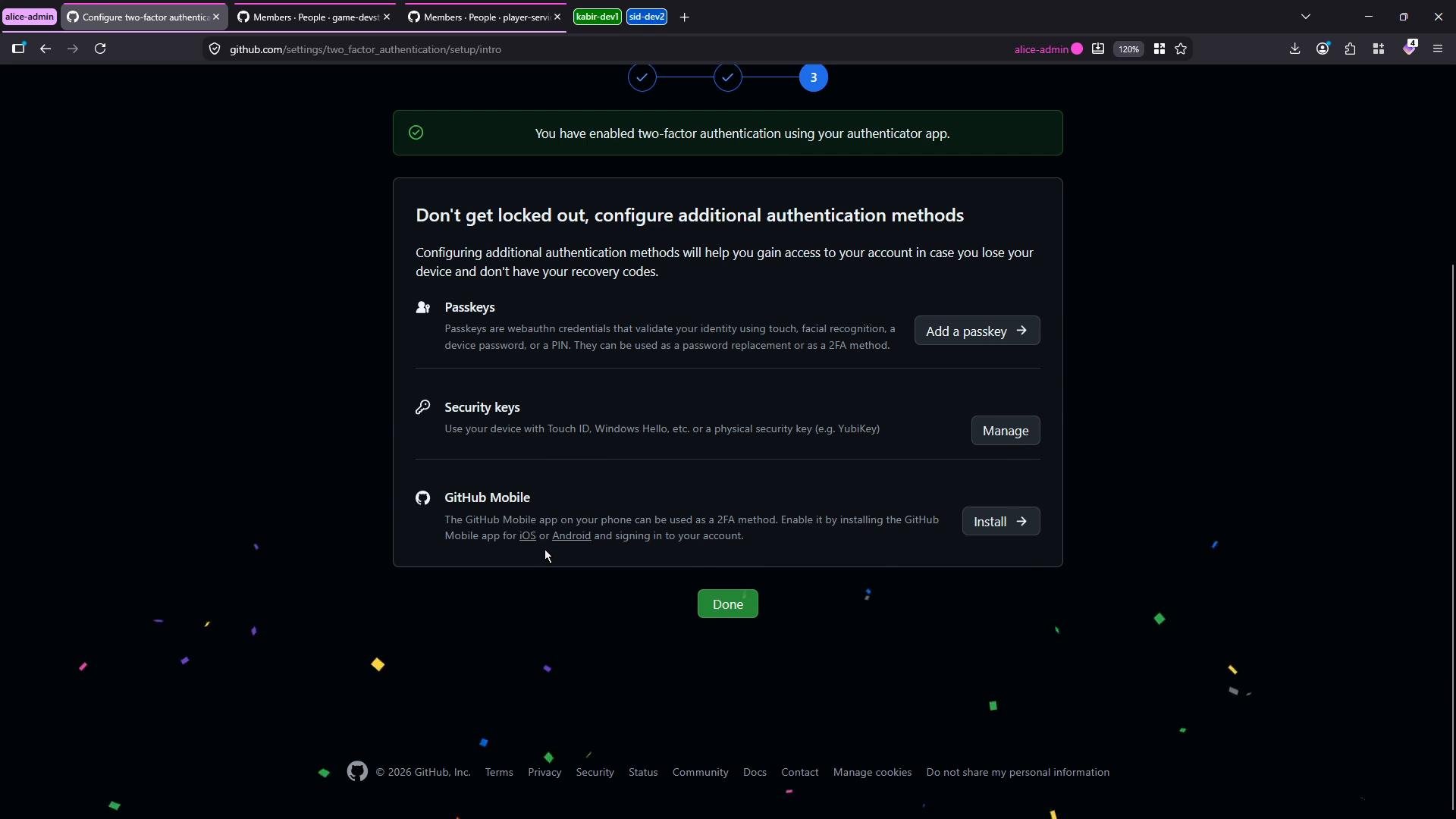
SMS/text-based one-time codes are considered the least secure option for 2FA. Use an authenticator app, passkeys, or a hardware security key where possible.
4. Verify sign-in with 2FA
To confirm the setup, sign out and sign back in. After entering your username and password, GitHub will prompt for a verification token from your authenticator. Enter the current TOTP token (e.g.,241679) to complete sign-in.
This confirms that account-level 2FA is active and working for the user.
5. Enterprise-level enforcement and invitations
With 2FA enabled on your admin account, switch to your enterprise settings to manage users and enforcement.- Go to your enterprise profile → People.
- Use the Invitations view to see pending invites. If you have not invited anyone yet, the list will be empty.
- When you send invitations, users will be required to enable 2FA before accessing enterprise resources if 2FA enforcement is configured for the enterprise.
Quick checklist for admins
- Ensure admins enable 2FA first.
- Communicate enforcement timelines to users before enabling enterprise-wide 2FA enforcement.
- Provide instructions and recommended authenticators to your team.
- Verify users have stored recovery codes securely.
- Offer alternatives (hardware keys/passkeys) for users who need them.
References
- GitHub Docs: Two-factor authentication — https://docs.github.com/en/authentication/securing-your-account-with-two-factor-authentication-2fa
- GitHub Docs: Enforcing two-factor authentication for your enterprise — https://docs.github.com/en/organizations/managing-access-to-your-organizations-repositories/enforcing-two-factor-authentication