

- Admin access to the GitHub organization (or Enterprise if applying at enterprise scope).
- Okta admin account (a 30-day trial is sufficient for testing).
- Okta Verify or another second-factor configured for the Okta admin user (MFA is commonly required).
- Decide the scope: enterprise-wide or per-organization
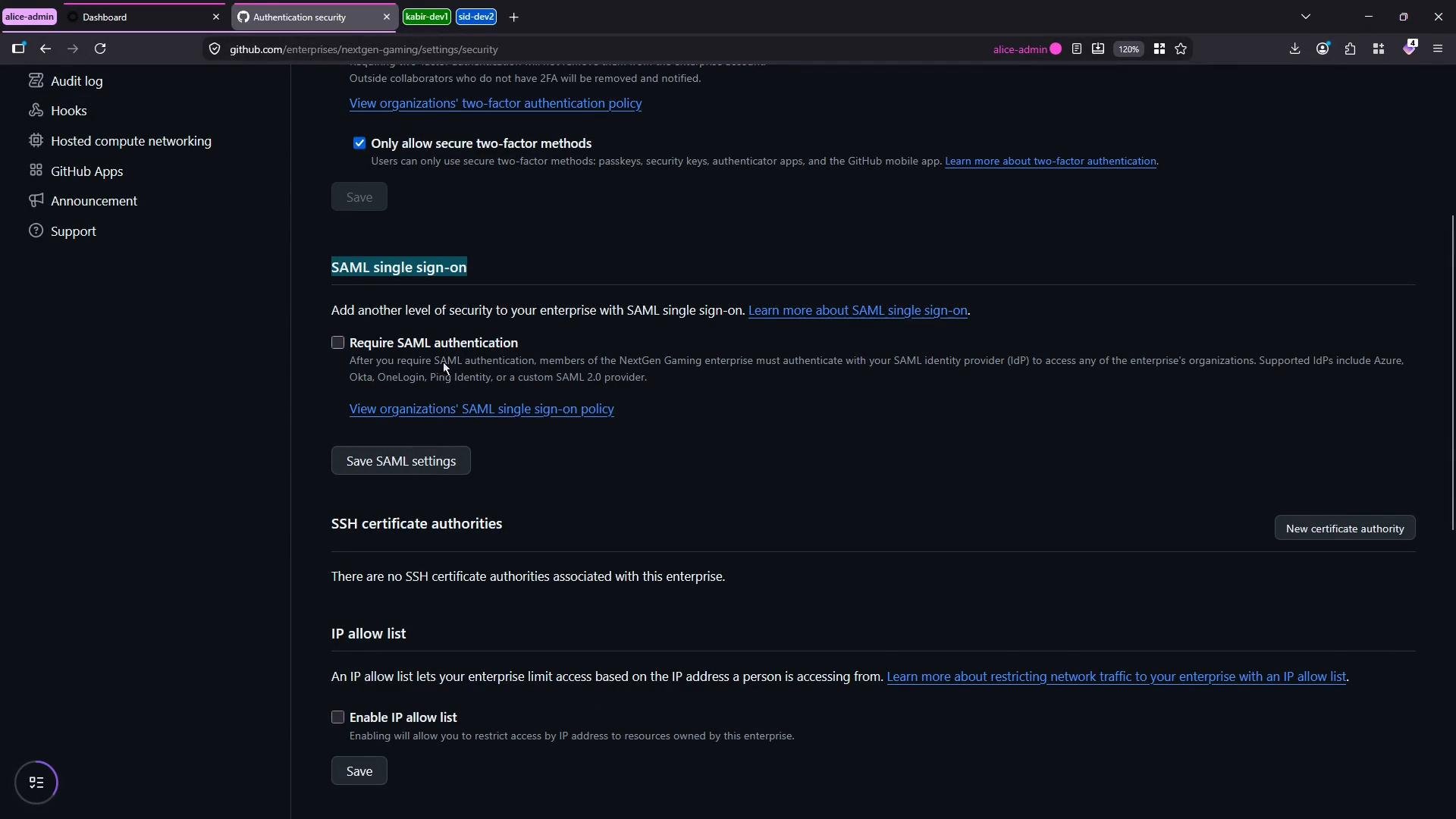
- GitHub Enterprise customers can enforce SAML across an entire enterprise from Enterprise → Settings → Authentication security. This enforces SSO for all organizations in the enterprise.
- Or configure SAML per organization at Organization → Settings → Authentication security → SAML single sign-on. This guide demonstrates a per-organization setup.
- Prepare Okta and confirm the admin user
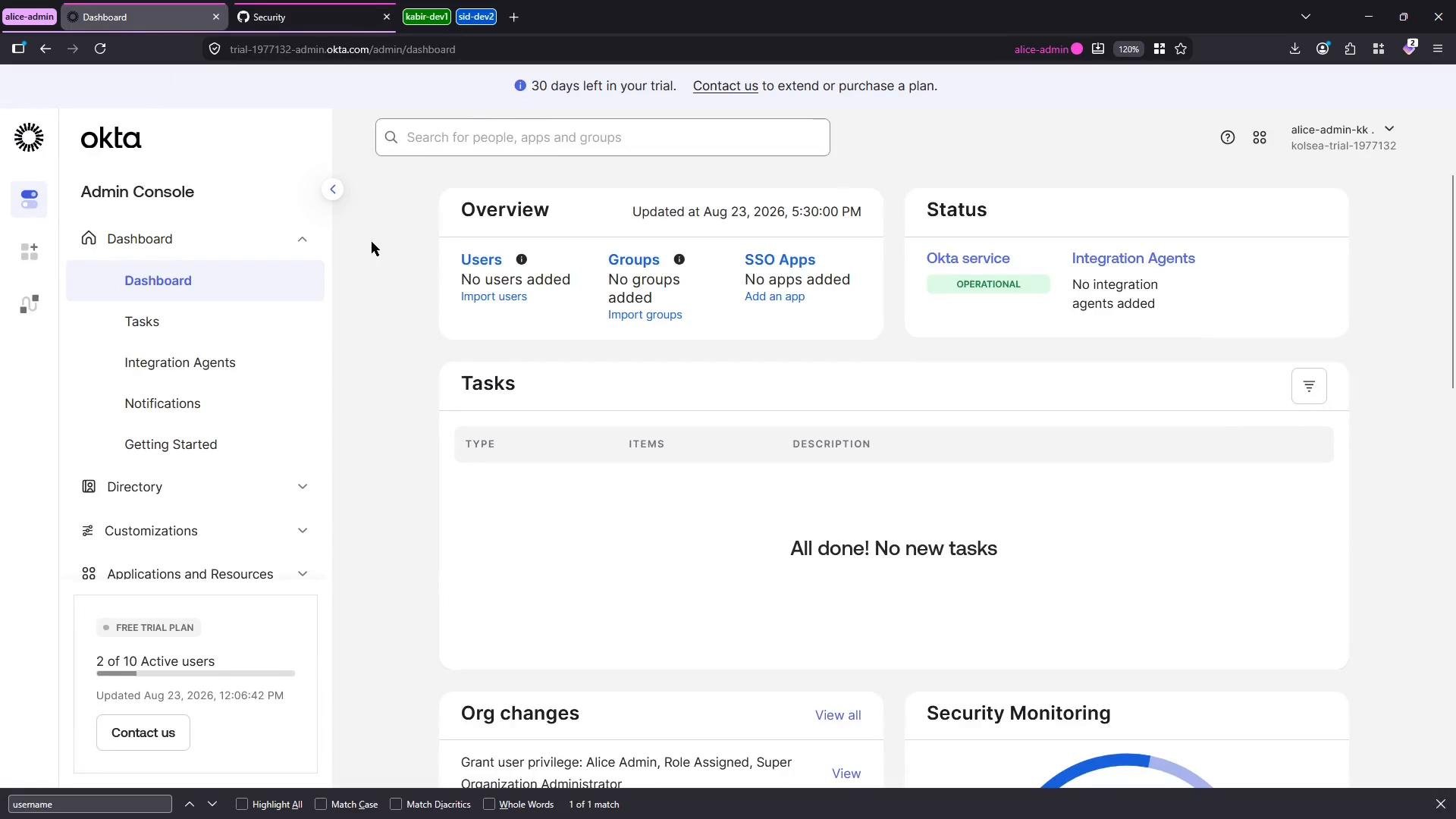
- Sign in to the Okta Admin Console and verify you have administrative privileges.
- Ensure the admin user has MFA (Okta Verify or equivalent) configured so that Okta sign-ins will succeed during testing.
- Create the GitHub Enterprise Cloud Organization app in Okta
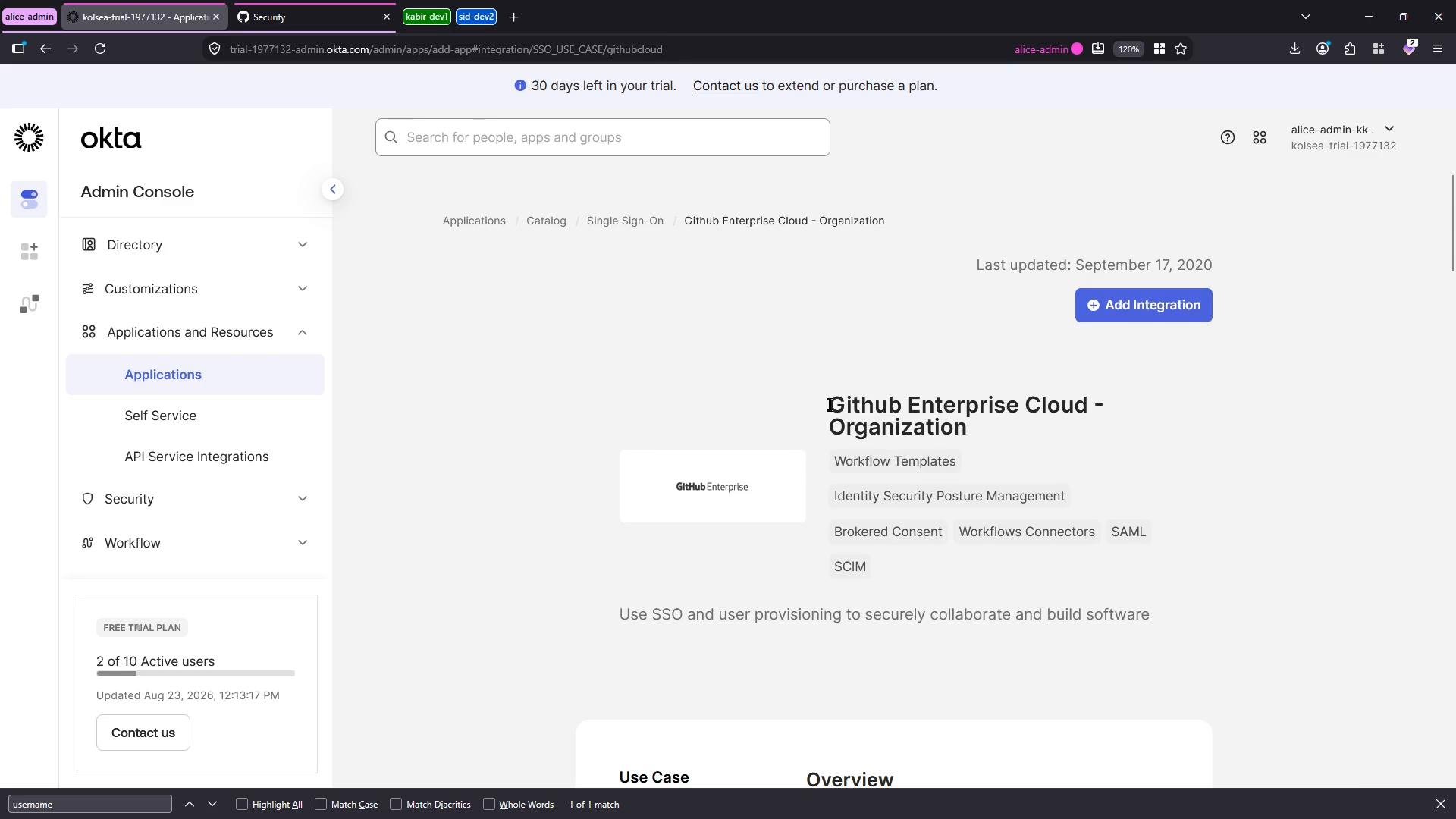
- In Okta: Applications → Browse App Catalog (or Applications → Add Application).
- Search for “GitHub” and pick the integration named “GitHub Enterprise Cloud - Organization”.
- Click Add Integration and give it a clear label (e.g.,
GHEC OrgorGHEC - game-devstudio). When prompted, enter the GitHub organization name (example:game-devstudio) and finish the setup.
- Copy SAML settings from Okta and paste into GitHub
- In the Okta app, open the Sign On tab or click View SAML Setup Instructions. Okta provides:
- Assertion Consumer Service / Sign-on URL (the GitHub SSO endpoint)
- Issuer (Entity ID)
- X.509 signing certificate
- In GitHub: Organization → Settings → Authentication security → SAML single sign-on — paste the Sign-on URL, Issuer, and the public certificate into the matching fields.
- Use GitHub’s Test configuration button to validate the integration. If the test fails with a message that the user is not assigned, assign the admin user in Okta (next step).
- Assign users to the Okta application
- In the Okta application, go to Assignments (or People) and assign the GitHub admin user(s) to the app. Assigned users are allowed to authenticate to GitHub via Okta.
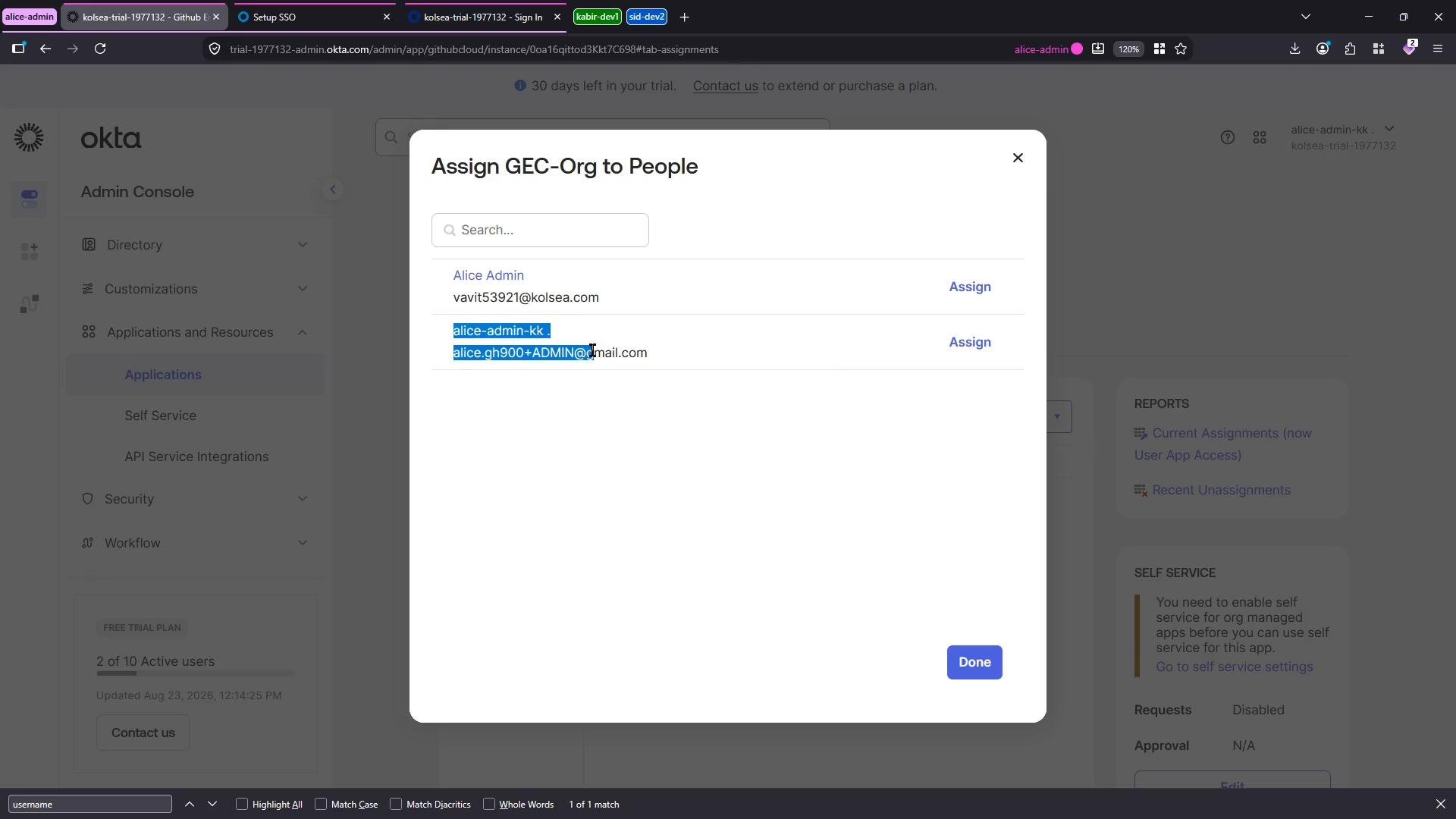
- After assigning users in Okta, re-run the GitHub Test configuration. If it succeeds, GitHub will confirm SAML authentication. Save the SAML settings in GitHub.
- Verify the SSO sign-in flow as an admin
- Fully sign out of GitHub, then sign in using the organization SAML sign-in option (Sign in → choose SAML/organization sign-in).
- During Okta authentication you may be prompted for MFA (Okta Verify).
- Once authenticated, GitHub will show the account as authenticated for the organization.
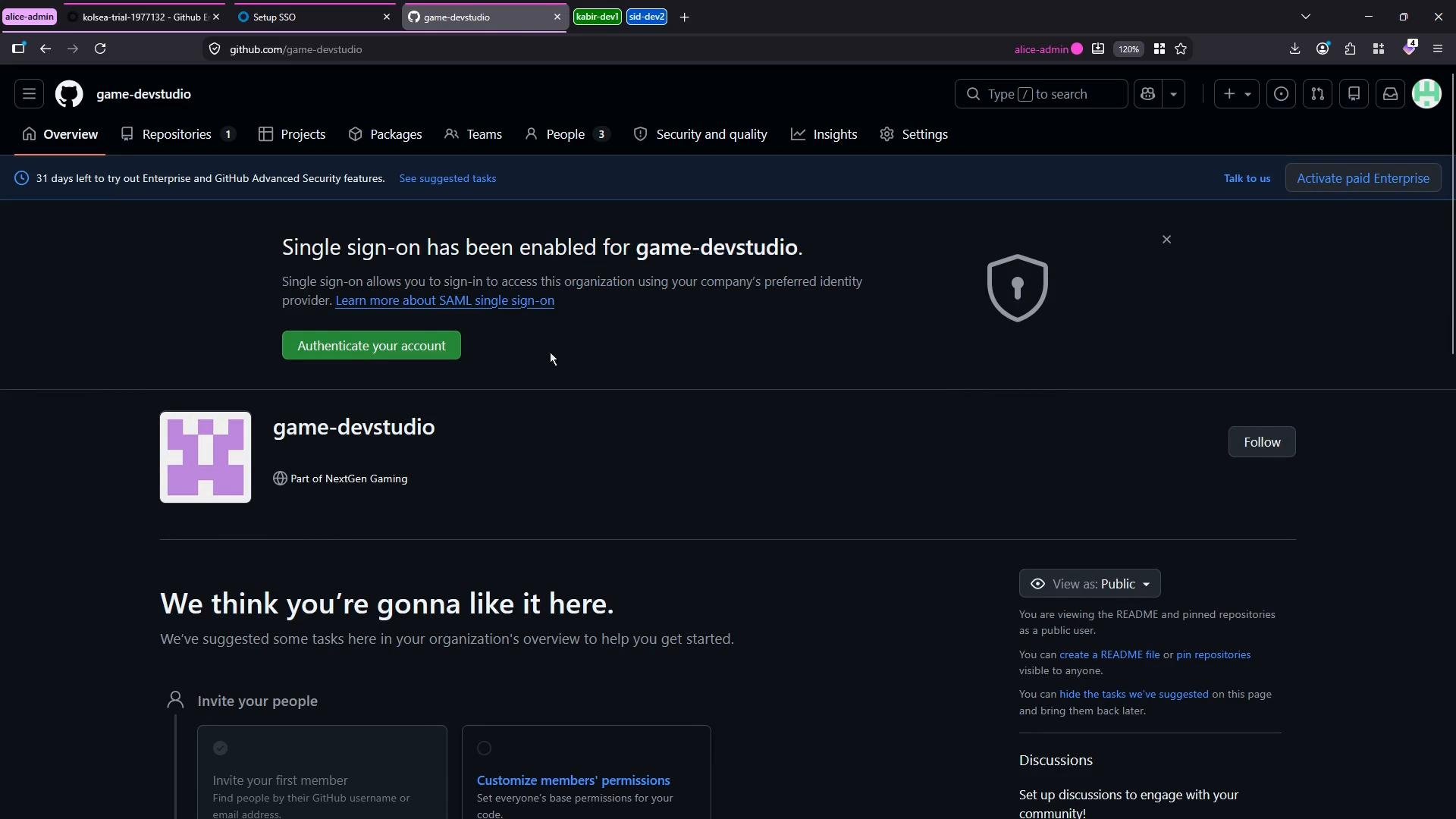
- Enforce SAML for the organization (Require SSO)
- When you’re ready to enforce SAML across the organization, go to Organization → Settings → Authentication security → SAML single sign-on and check “Require SAML authentication.”
- Important: Before enforcing, ensure every required member has authenticated at least once via SSO or is provisioned via SCIM. Users who have never authenticated will be removed when you enforce SAML.
Enforcing SAML will remove organization members who haven’t authenticated via your IdP. Confirm you have an automated provisioning path (SCIM) or have notified and prepared all users before turning on enforcement.
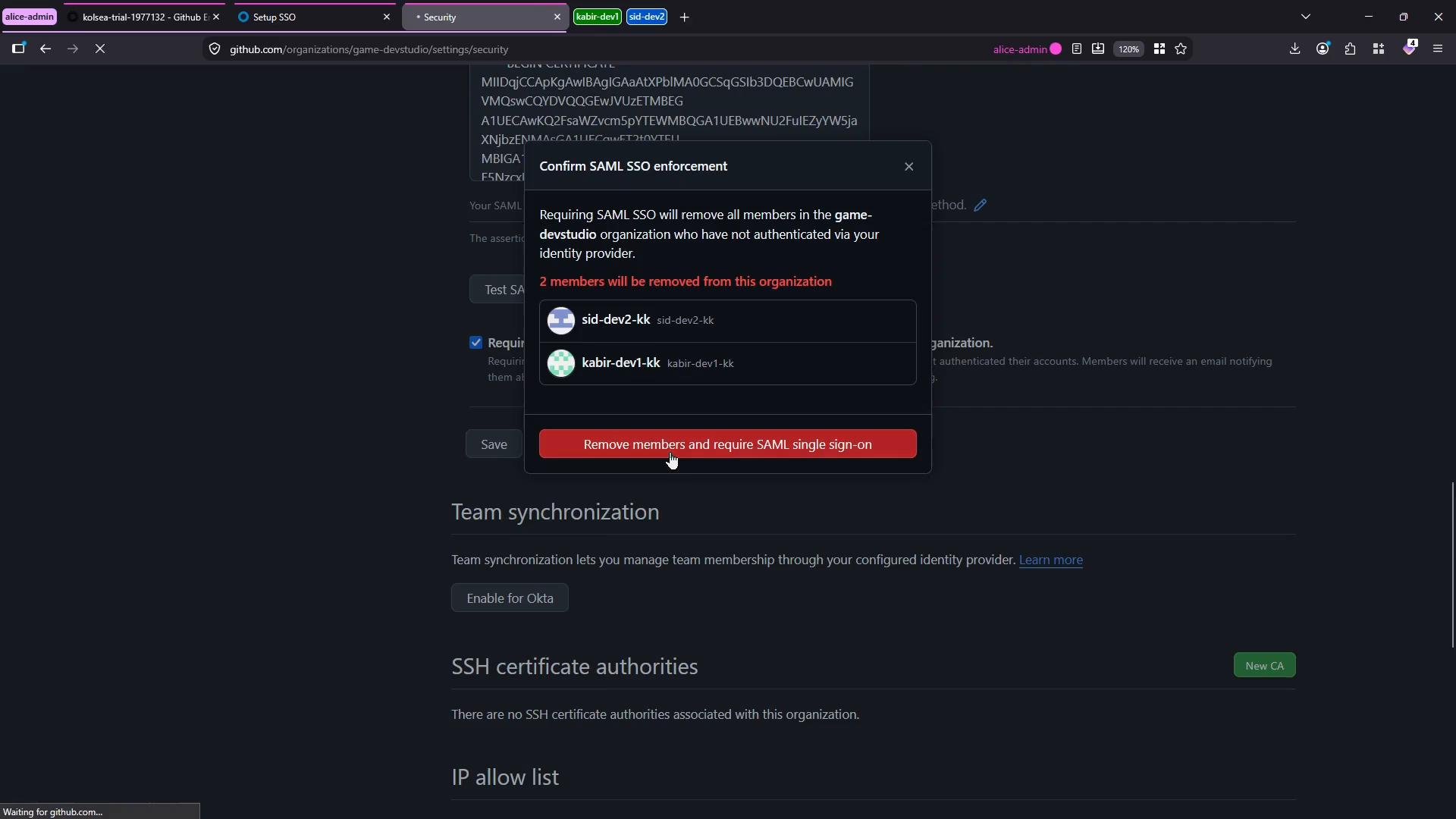
- Confirm enforcement only after you understand the implications. GitHub offers an option to download the list of removed members for your records or to re-invite them later.
- Impact on users who haven’t authenticated via SSO
- Any user who hasn’t yet authenticated with your IdP will be removed when SAML is enforced. If they try to access the organization, GitHub directs them to the SSO sign-in page; without an assigned Okta account or prior authentication they cannot access the org.
- Removed users receive email notifications. To restore access:
- Add them to the Okta application and ensure they authenticate via SSO, or
- Provision them via SCIM, or
- Re-invite them manually through GitHub admin tools.
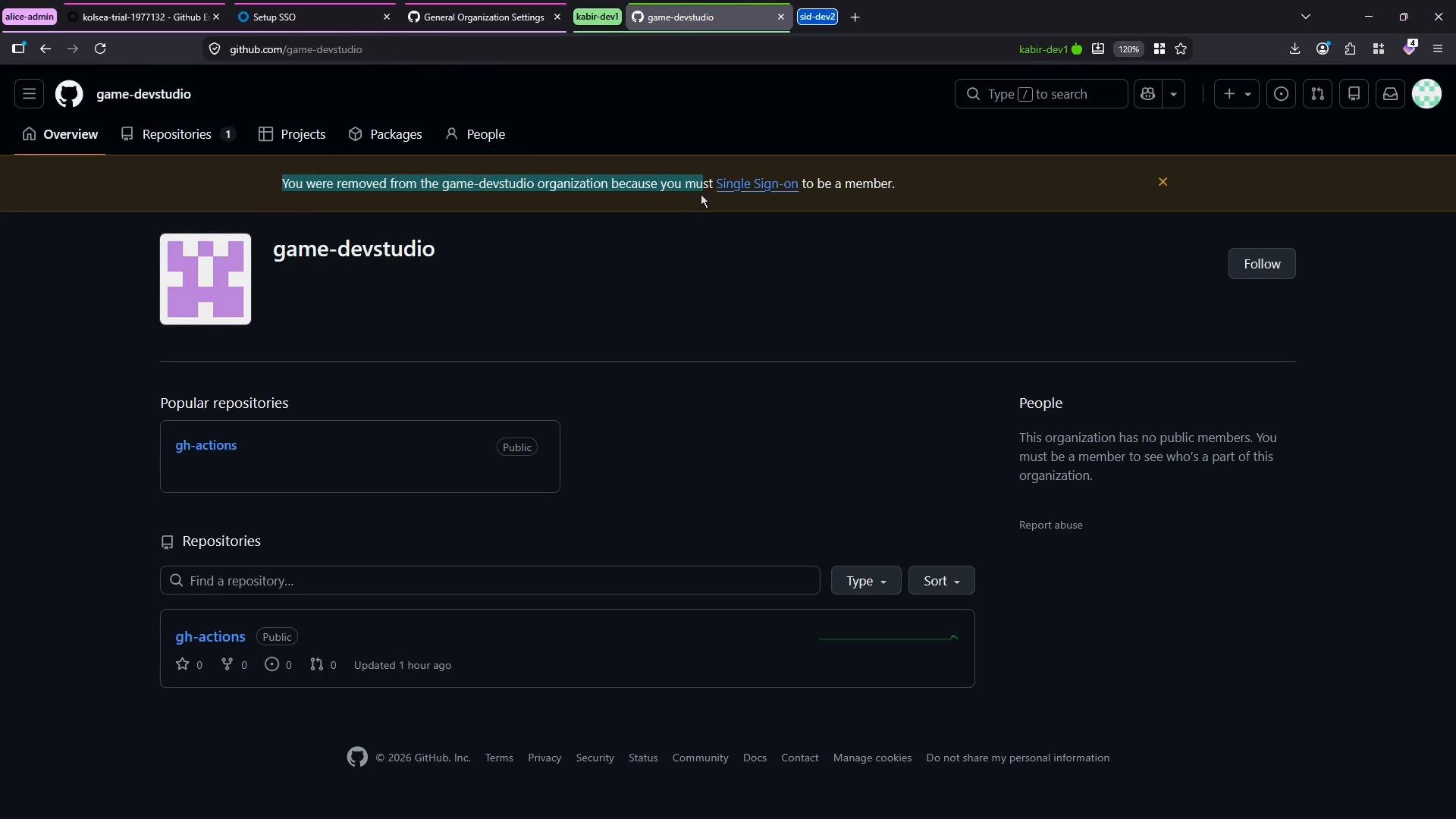
Before enforcing SAML for an organization, ensure all required users are set up in your IdP or that you have an automated provisioning path (SCIM) in place to avoid unexpected loss of access.
- Configure SCIM provisioning to automatically add users and map groups/teams.
- Automate team assignments in Okta so newly provisioned users receive correct GitHub organization access.
- Document the SSO sign-in steps for your organization members and provide an FAQ for common sign-in issues.
- GitHub Docs: SAML single sign-on for organizations — https://docs.github.com/en/organizations/managing-access-to-your-organizations-resources/configuring-saml-single-sign-on
- Okta Docs: Configure GitHub SAML in Okta — https://help.okta.com/ (search for “GitHub Enterprise Cloud - Organization”)