

1. Confirm MinIO pod and service are running
First, verify the MinIO pod and service exist in theargo namespace:
2. Expose the MinIO web UI (quick demo options)
To view the MinIO web console in your browser you can either:- Change the Service to a NodePort (quick one-off demo), or
- Use
kubectl port-forward(recommended for local access without changing cluster services), or - Configure an Ingress with authentication for production.
NodePort:
- Internal MinIO UI port: 9001
- Example NodePort for the UI:
30731(your cluster will assign different high ports)
Note: For secure/demo access without changing services, you can run:
3. Retrieve MinIO credentials
Argo stores the MinIO credentials as Kubernetes secrets in theargo namespace. Decode them with:
4. Browse buckets and archived workflow logs
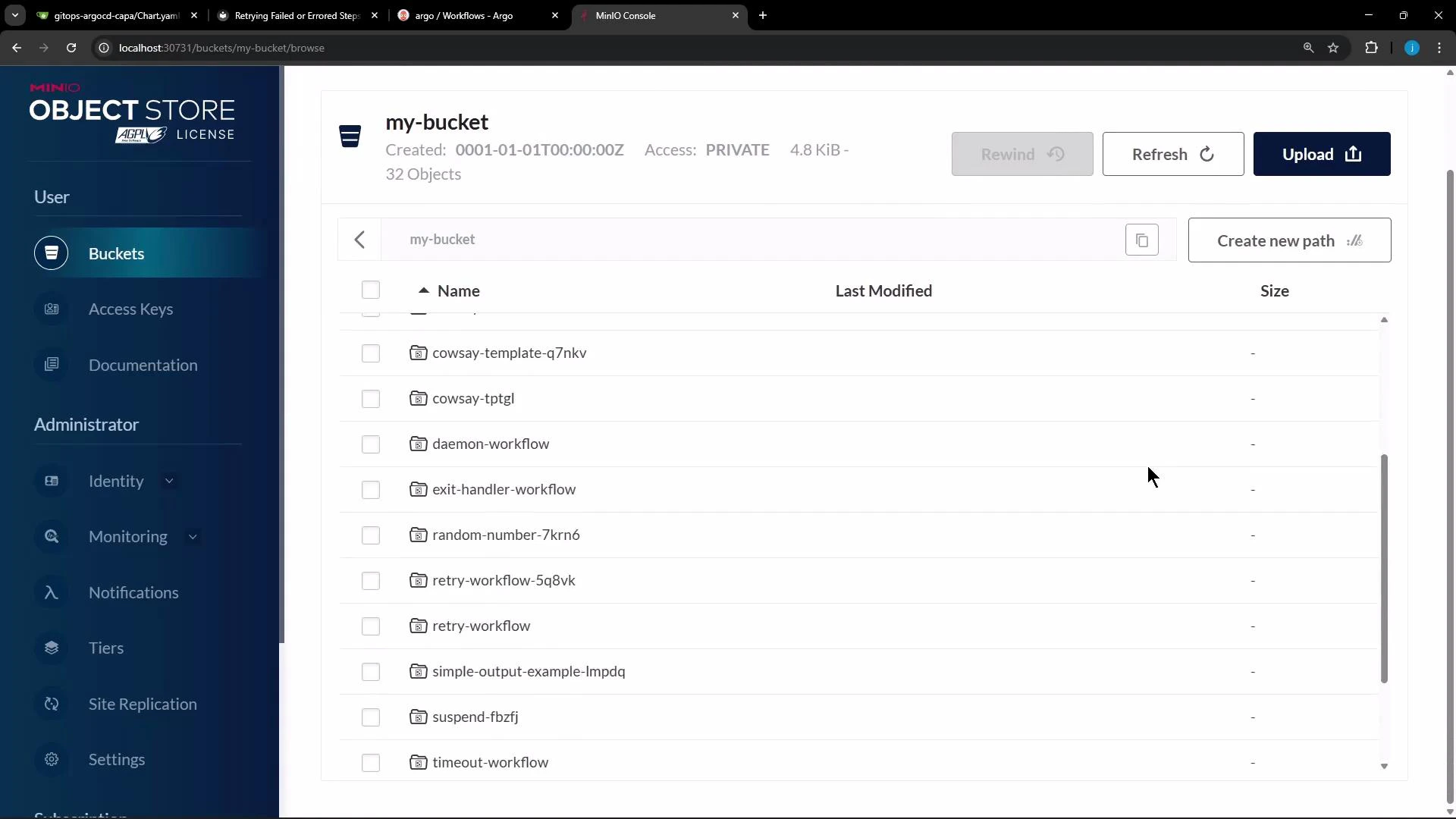
Once authenticated, you will see buckets created by Argo Workflows (for examplemy-bucket) and the objects within. These objects include archived logs and workflow artifacts produced by completed runs.
If you browse into a bucket you will see items corresponding to workflows and their logs:
5. Inspect the artifact-repositories ConfigMap
Argo’s artifact repository configuration (which controls archiving behavior and S3/MinIO connection details) lives in a ConfigMap named artifact-repositories in the argo namespace. View it with:
default-v1 entry):
- archiveLogs: true — instructs Argo to persist workflow logs to the artifact store.
- endpoint: minio:9000 — hostname and port of the S3-compatible MinIO service as seen from within the cluster.
- Credentials are referenced via the
my-minio-credsecret.
The quick-start bundles MinIO for convenience and local testing. For production use, point Argo to a managed S3-compatible provider (e.g., AWS S3, Google Cloud Storage) and manage credentials using a secure secrets workflow.
Do not expose MinIO (or any artifact store) publicly without proper authentication and network restrictions. For ad-hoc demos, prefer
kubectl port-forward or restrict NodePort access to trusted networks.6. Verify artifact uploads
BecausearchiveLogs: true, completed workflow logs appear in the configured bucket automatically. To test artifact uploads, run a workflow that produces an artifact (or archive logs) and then check the bucket in the MinIO console or via an S3 client:
Example quick verification with mc (MinIO client) after port-forward or using NodePort with S3 endpoint:
Links and references
- Argo Workflows — https://argoproj.github.io/argo-workflows/
- Kubernetes documentation — https://kubernetes.io/docs/
- MinIO documentation — https://min.io/docs/
- jq JSON processor — https://stedolan.github.io/jq/
- AWS S3 — https://aws.amazon.com/s3/
- Google Cloud Storage — https://cloud.google.com/storage