In this lesson we’ll create an Argo CD Application using the Argo CD web UI and deploy a small example app from a Git repository. What you’ll learn:
  • How to point Argo CD at a repository and path containing Kubernetes manifests
  • How to configure the Application (project, destination, sync policy)
  • How Argo CD reports OutOfSync resources and how to perform a manual sync

Repository overview

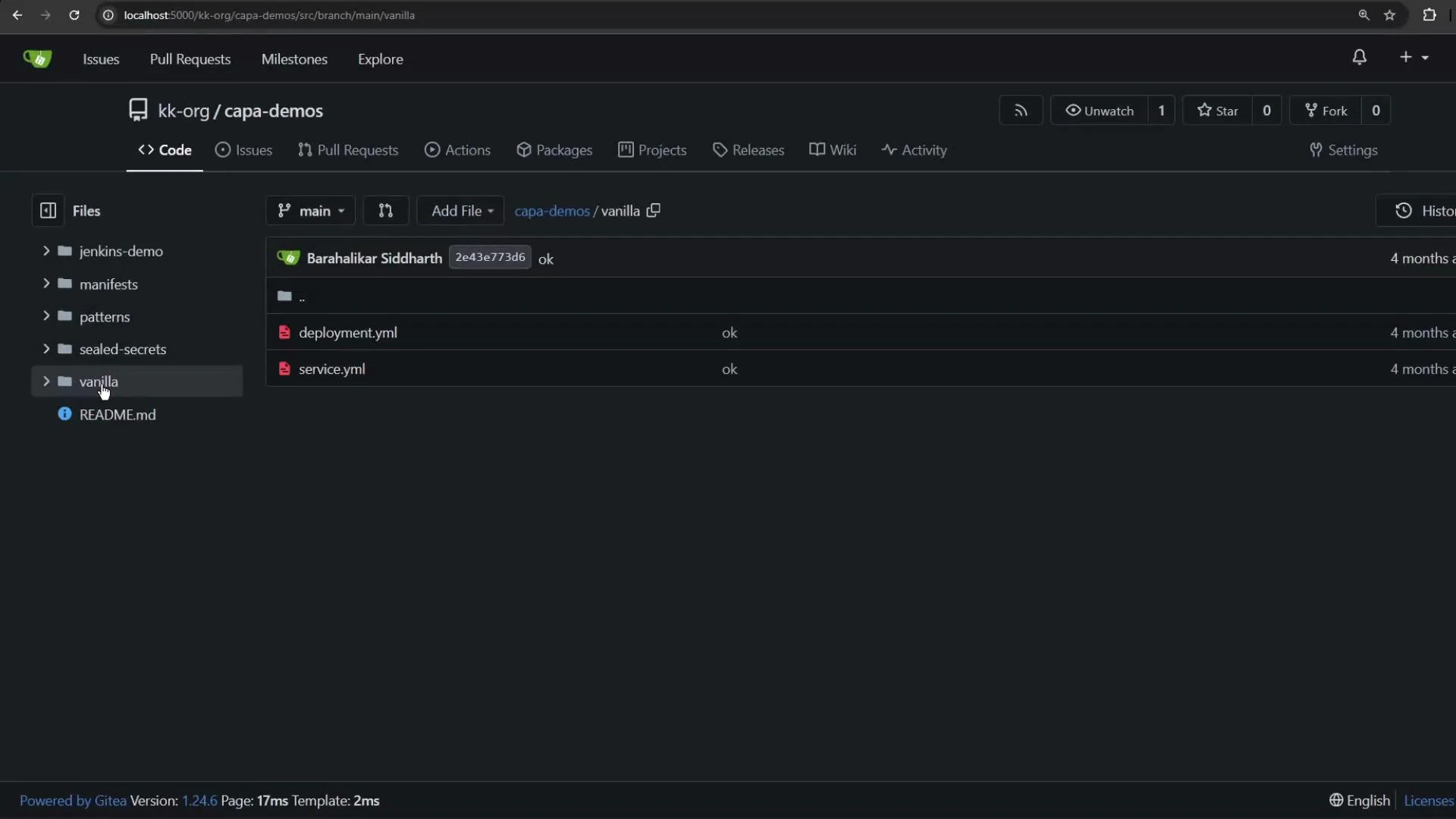
For this demo we use a self-hosted Git server with organization kk-org and repo capa-demos. The manifests to deploy live in the vanilla folder and include two resources: a Deployment and a NodePort Service. Deployment (deploys the app image, exposes port 3000, sets POD_COUNT env var, single replica, namespace highway-animation):
apiVersion: apps/v1
kind: Deployment
metadata:
  name: highway-animation
  namespace: highway-animation
spec:
  replicas: 1
  selector:
    matchLabels:
      app: highway-animation
  template:
    metadata:
      labels:
        app: highway-animation
    spec:
      containers:
      - name: highway-animation
        image: siddharth67/highway-animation:blue
        ports:
        - containerPort: 3000
        env:
        - name: POD_COUNT
          value: "1"
Service (NodePort exposing container port 3000 via nodePort 32000):
apiVersion: v1
kind: Service
metadata:
  name: highway-animation-service
  namespace: highway-animation
spec:
  selector:
    app: highway-animation
  ports:
  - protocol: TCP
    port: 3000
    targetPort: 3000
    nodePort: 32000
  type: NodePort
Summary of resources:
Resource TypePurposeLocation (repo path)
DeploymentRuns the web application container./vanilla/deployment.yml
ServiceExposes application on nodePort 32000./vanilla/service.yml
A dark-themed repository browser (Gitea) showing the kk-org/capa-demos project with the "vanilla" folder open, listing deployment.yml and service.yml. The left sidebar shows other folders like jenkins-demo, manifests, patterns and sealed-secrets.

Create the Argo CD Application (UI)

Follow these steps in the Argo CD web UI to create the Application:
  1. Click “New App” (or “Create Application”) in Argo CD.
  2. Enter an Application name (for example: highway-animation).
  3. Project: choose default (or another project you have configured).
  4. Sync policy: for this demo set to Manual (you can enable Automatic sync later).
  5. Enable the sync option CreateNamespace so Argo CD will create the highway-animation namespace during sync.
  6. Destination: select the cluster where Argo CD is installed and set the target namespace to highway-animation.
  7. Source: set the repository URL and the path to the manifests: ./vanilla.
  8. Click Create to persist the Application resource in the cluster.
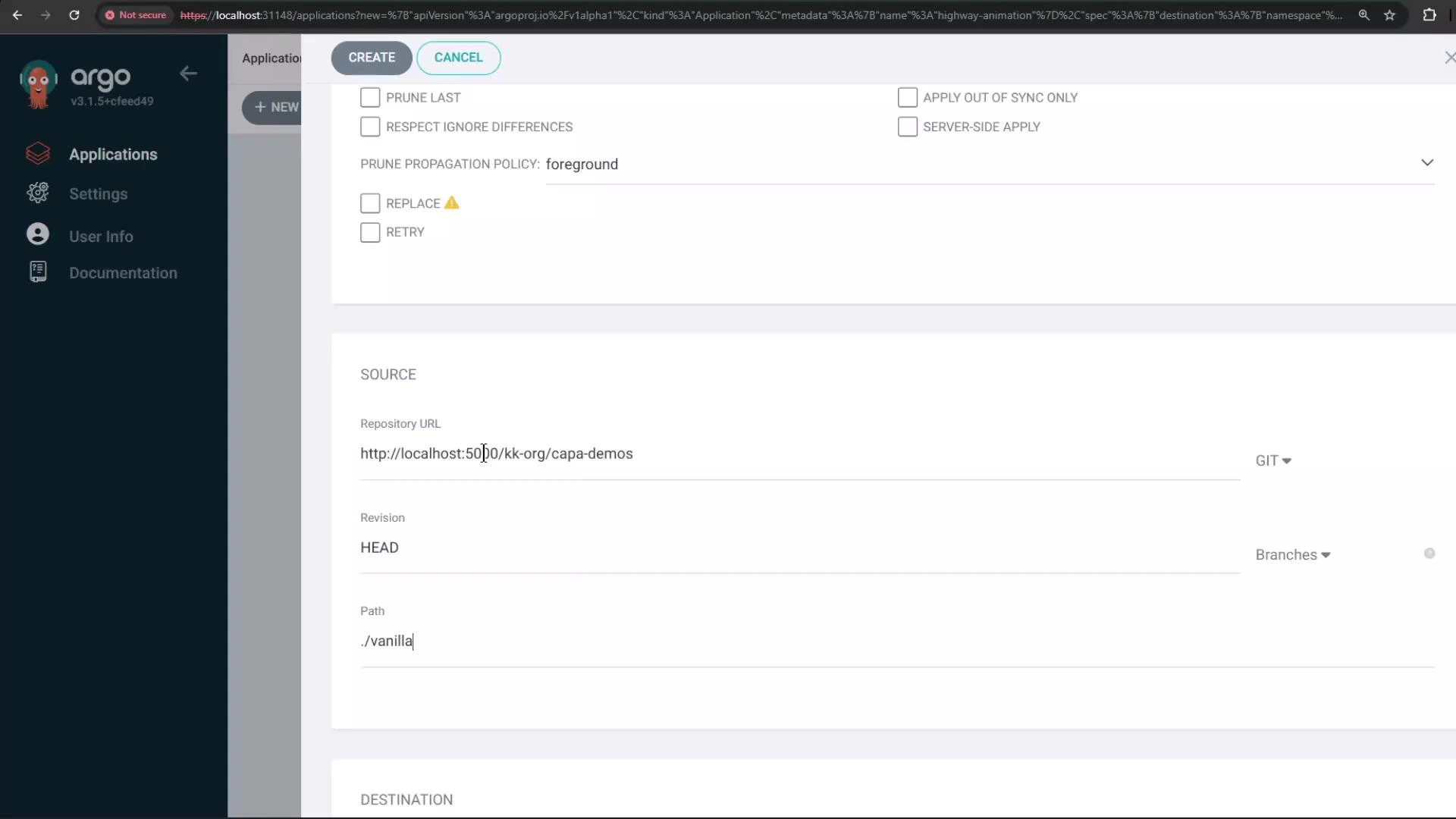
Example source fields in the create form:
A screenshot of the Argo CD web UI showing a form to create an application, with fields for Repository URL (http://localhost:50.../kk-org/capa-demos), Revision set to HEAD, and Path set to ./vanilla. The left sidebar shows navigation items like Applications, Settings, User Info, and Documentation.
If Argo CD is running inside a Kubernetes environment such as Docker Desktop, avoid using localhost in the repository URL because localhost inside the cluster does not point to your host machine. Use the Docker Desktop host DNS name instead, for example: http://host.docker.internal:5000/kk-org/capa-demos
When you create the Application with CreateNamespace enabled, Argo CD will create the highway-animation namespace at sync time (not when the Application resource is created).
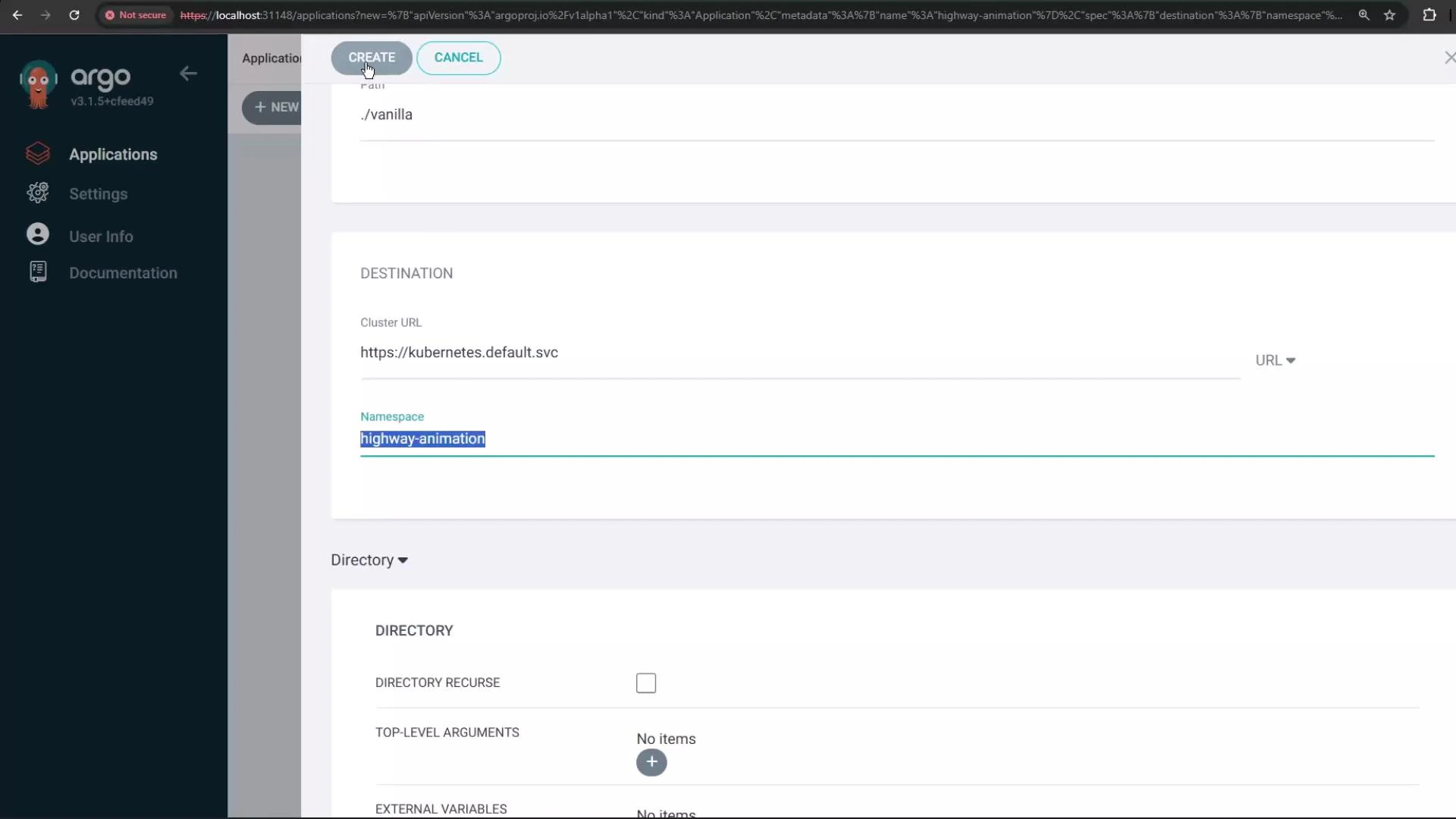
A screenshot of the Argo web UI showing an "Create" application form. The Destination section lists Cluster URL "https://kubernetes.default.svc" and the Namespace field highlighted as "highway-animation."

Inspect Application status and diffs

After creating the Application, Argo CD reads the repository and compares the manifests to the cluster. Initially the Application will show as OutOfSync and Missing because Argo CD has not applied the resources yet. You can confirm that the namespace has not been created:
kubectl get namespaces
# you should NOT see "highway-animation" until after sync
In the Argo CD UI click Diff to see the manifests pulled from Git and the differences versus cluster state. When resources are applied Argo CD adds tracking annotations; the UI shows the manifests as Argo CD will apply them. Example of the Service and Deployment as Argo CD reads them from the repository (annotations will be added when Argo CD applies them):
apiVersion: v1
kind: Service
metadata:
  annotations:
    argocd.argoproj.io/tracking-id: highway-animation:/Service:highway-animation/highway-animation-service
  name: highway-animation-service
  namespace: highway-animation
spec:
  ports:
    - nodePort: 32000
      port: 3000
      protocol: TCP
      targetPort: 3000
  selector:
    app: highway-animation
  type: NodePort

apiVersion: apps/v1
kind: Deployment
metadata:
  annotations:
    argocd.argoproj.io/tracking-id: highway-animation:apps/Deployment:highway-animation/highway-animation
  name: highway-animation
  namespace: highway-animation
spec:
  replicas: 1
  selector:
    matchLabels:
      app: highway-animation
  ...
You can also view the Application resource that Argo CD created to represent this app; it encodes source, destination, and sync options:
apiVersion: argoproj.io/v1alpha1
kind: Application
metadata:
  name: highway-animation
spec:
  project: default
  source:
    repoURL: http://host.docker.internal:5000/kk-org/capa-demos
    path: ./vanilla
    targetRevision: HEAD
  destination:
    server: https://kubernetes.default.svc
    namespace: highway-animation
  syncPolicy:
    syncOptions:
      - CreateNamespace=true

Sync the Application (deploy)

Because the Application is OutOfSync, perform a manual Sync from the Argo CD UI:
  • Click the Sync button for the Application.
  • Confirm and start the sync operation.
During sync Argo CD will:
  • Create the highway-animation namespace (because CreateNamespace=true)
  • Apply the Service and Deployment manifests
  • Add tracking annotations to the created resources
After a successful sync verify the deployment:
kubectl get ns highway-animation
kubectl -n highway-animation get deploy,svc
kubectl -n highway-animation get pods
Tip: If you want continuous deployments, change the Application sync policy to Automatic and configure any required pruning or hooks. For controlled rollouts keep Manual sync and use Argo CD’s health checks and rollout features.

Watch Video