This guide shows how to configure Git webhooks so Argo CD receives repository change notifications immediately instead of waiting for the default three-minute poll. With webhooks configured, Argo CD can detect and apply manifest changes as soon as you push them, enabling true GitOps continuous delivery. Key topics covered:
  • Webhook endpoint for Argo CD
  • Example repository manifest
  • Adding the webhook in your Git provider
  • Troubleshooting TLS / self-signed certificates
  • Running Argo CD in insecure mode for testing
  • Validating the webhook workflow in the Argo CD UI
This guide assumes you have Argo CD installed and an application configured to track your Git repository. For Argo CD installation and basic app creation, see the official Argo CD docs: Argo CD Documentation.
Webhook endpoint format
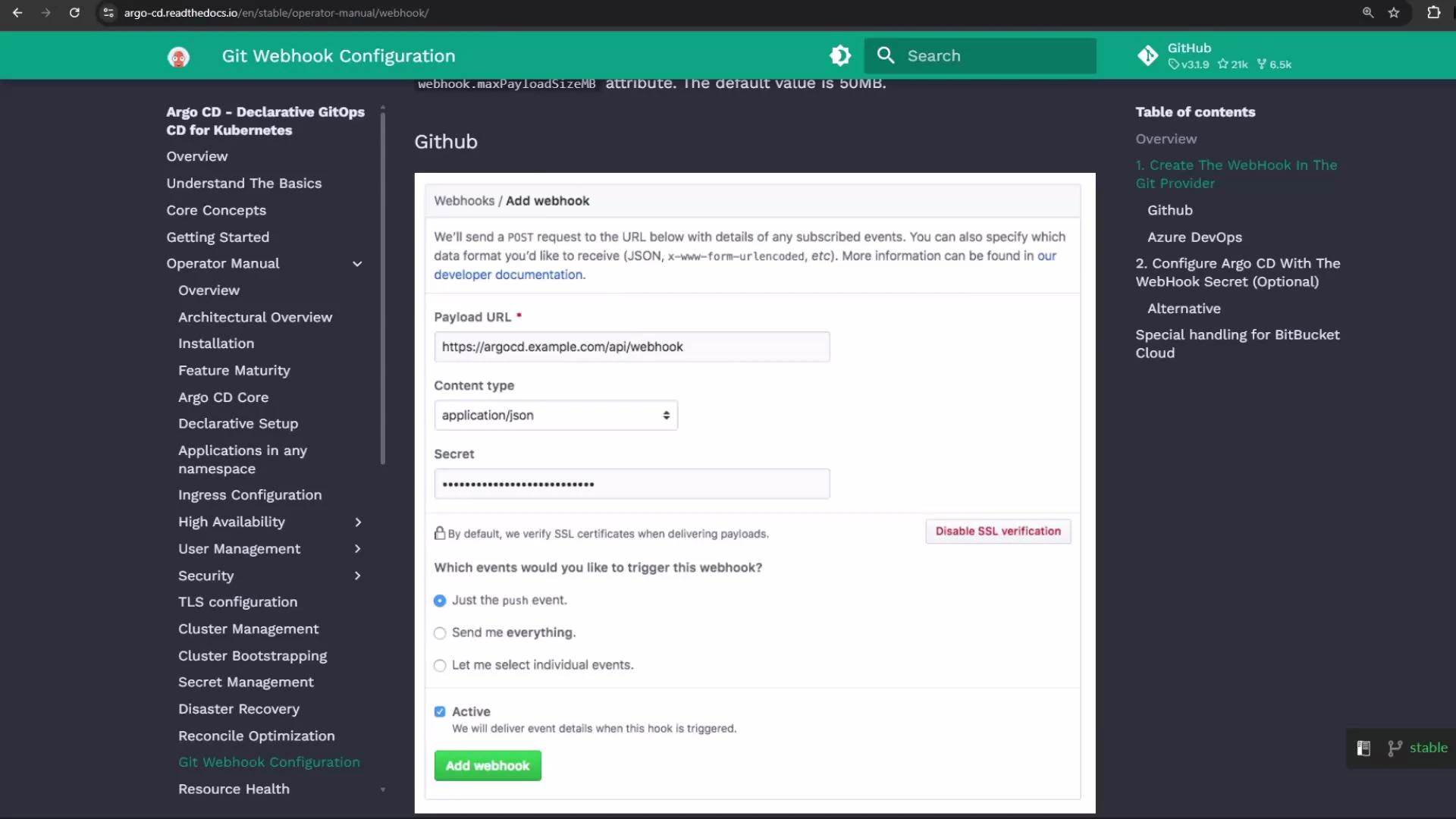
  • The webhook endpoint for Argo CD accepts POST events at /api/webhook on the Argo CD server. Example forms of the endpoint:
/api/webhook
https://argocd.example.com/api/webhook
targetRevision: refs/tags/x
Add this URL (the Argo CD server API endpoint) as the payload URL in your Git provider’s webhook configuration so push events are sent to Argo CD. See your Git provider docs for webhook setup details (for example, GitHub Webhooks).
A screenshot of an Argo CD documentation webpage showing the GitHub "Add webhook" form with fields for Payload URL, content type, secret, and event options. Navigation menus appear in sidebars on the left and right.
Example repository and manifest
  • In this example we have a GitOps repository containing an Nginx Deployment manifest. The goal is for Argo CD to update the cluster whenever this file changes.
apiVersion: apps/v1
kind: Deployment
metadata:
  labels:
    app: nginx
  name: nginx
spec:
  replicas: 3
  selector:
    matchLabels:
      app: nginx
  strategy: {}
  template:
    metadata:
      labels:
        app: nginx
    spec:
      containers:
      - image: nginx
        name: nginx
        imagePullPolicy: Always
        ports:
        - containerPort: 80
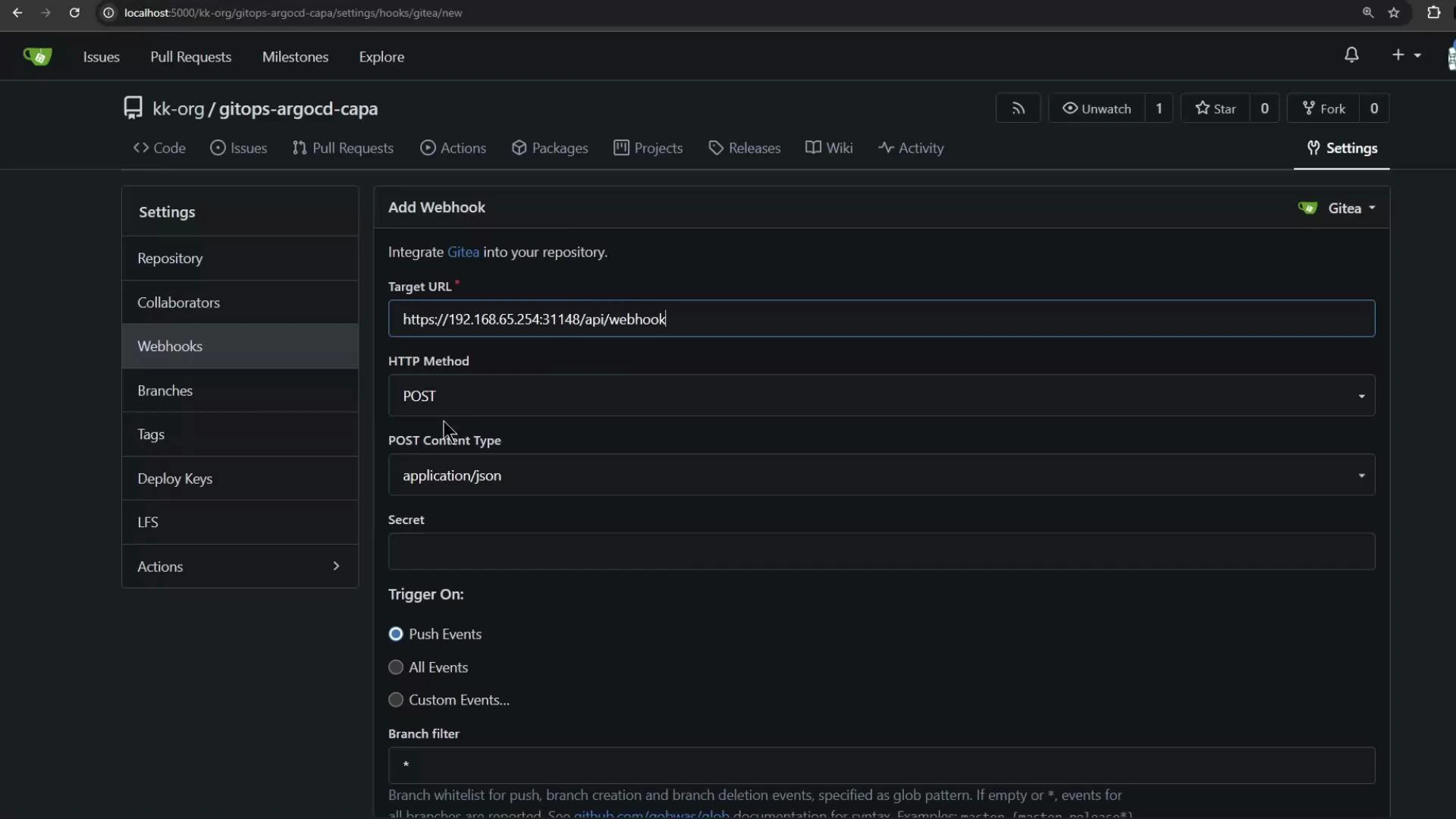
Add the webhook in your Git provider’s repository settings and point it to your Argo CD server URL plus /api/webhook using the POST method and content-type application/json. If your Git server and Argo CD run in the same Docker or local environment, ensure the URL uses an address reachable from the Git server (IP or DNS). Recommended webhook settings (summary):
SettingValue / Recommendation
Payload URLhttps://<argocd-host>/api/webhook
HTTP methodPOST
Content typeapplication/json
EventsPush events (or custom events that include push)
SecretOptional — set and configure Argo CD if you use a secret token
A dark-themed Gitea repository settings screen showing the "Add Webhook" form with the target URL set to https://192.168.65.254:31148/api/webhook, HTTP method POST, content type application/json, and "Push Events" selected as the trigger.
Troubleshooting TLS / self-signed certificates
  • If Argo CD is served over HTTPS with a self-signed certificate, Git providers may reject webhook delivery because the certificate is not trusted. A common delivery error looks like:
Delivery: Post "https://192.168.65.254:31148/api/webhook": tls: failed to verify certificate: x509: cannot validate certificate for 192.168.65.254
Options to resolve delivery failures:
  • Provision a valid TLS certificate signed by a trusted CA and use that on the Argo CD server.
  • Configure your Git provider to trust your test CA (if supported).
  • For demo or local testing only, run Argo CD in insecure (HTTP) mode so webhooks can be delivered without TLS verification. Do not use insecure mode in production.
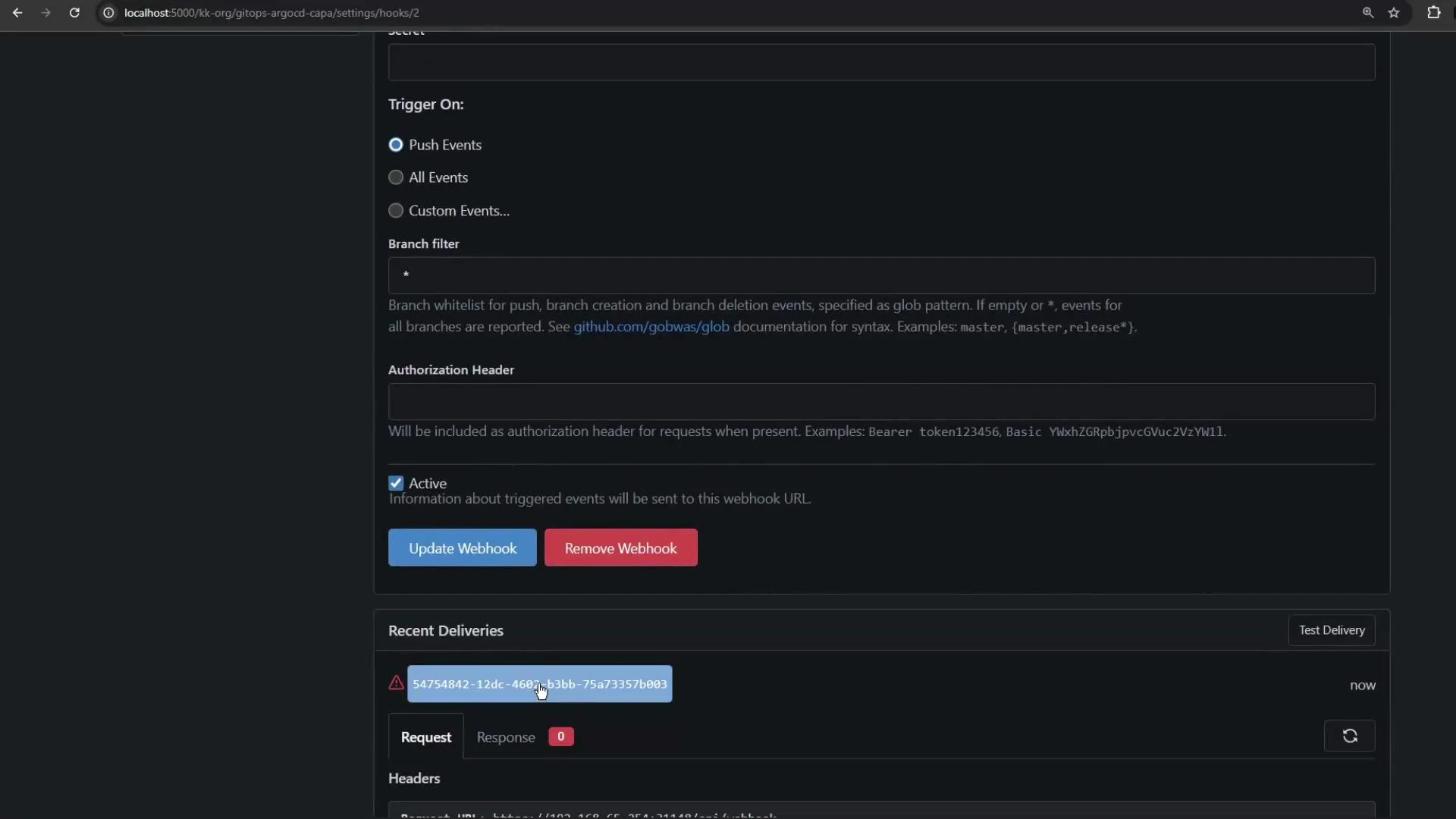
A dark-themed browser screenshot of a webhook settings page (served from localhost) showing trigger options (Push/All/Custom), a branch filter and authorization header field, plus "Update Webhook" and "Remove Webhook" buttons. Below is a "Recent Deliveries" panel showing a delivery entry marked with an error and request/response details.
To allow insecure delivery (demo/testing only)
  1. Edit the ConfigMap used by Argo CD command parameters (example: argocd-cmd-params-cm in the argocd namespace) and add the server.insecure key set to “true”. This configures the Argo CD server to run in insecure HTTP mode for testing.
apiVersion: v1
kind: ConfigMap
metadata:
  name: argocd-cmd-params-cm
  namespace: argocd
data:
  server.insecure: "true"
  1. Save the ConfigMap and restart the Argo CD server deployment so the change takes effect:
kubectl -n argocd edit cm argocd-cmd-params-cm
kubectl -n argocd rollout restart deployment argocd-server
  1. Verify pods are running:
kubectl -n argocd get po
Example output (shortened):
NAME                                            READY   STATUS    RESTARTS   AGE
argocd-application-controller-0                 1/1     Running   1          4h30m
argocd-repo-server-6577b8fd64-bxvbq             1/1     Running   0          22m
argocd-server-648fc5d9df-x29st                  1/1     Running   2          23s
Enabling server.insecure: “true” disables TLS on the Argo CD server and allows webhook delivery over plain HTTP. This is strictly for demo or test environments. For production, always provision TLS certificates from a trusted CA or configure your Git provider to trust your certificate authority.
Switch webhook URL to HTTP (if using insecure server)
  • After setting server.insecure: "true" and restarting the server, update the webhook URL in your Git provider to use http:// instead of https:// so the provider posts to the insecure test endpoint. Re-trigger the webhook delivery and check for a successful response (HTTP 200/201 or other success code).
Successful delivery example (truncated):
{
  "request": { "method": "POST", "url": "http://192.168.65.254:31148/api/webhook" },
  "response": { "status": 201, "body": "9e6ccc14-4b36-4ab7-a733-4935a076e6b2" }
}
When webhook delivery succeeds, Argo CD receives the push event immediately and refreshes the repository to detect changes. Validating the workflow in Argo CD
  • Open the Argo CD UI and view your application (for example, an application named nginx-app-1). Before changes, the application should show Healthy and Synced when there are no pending updates.
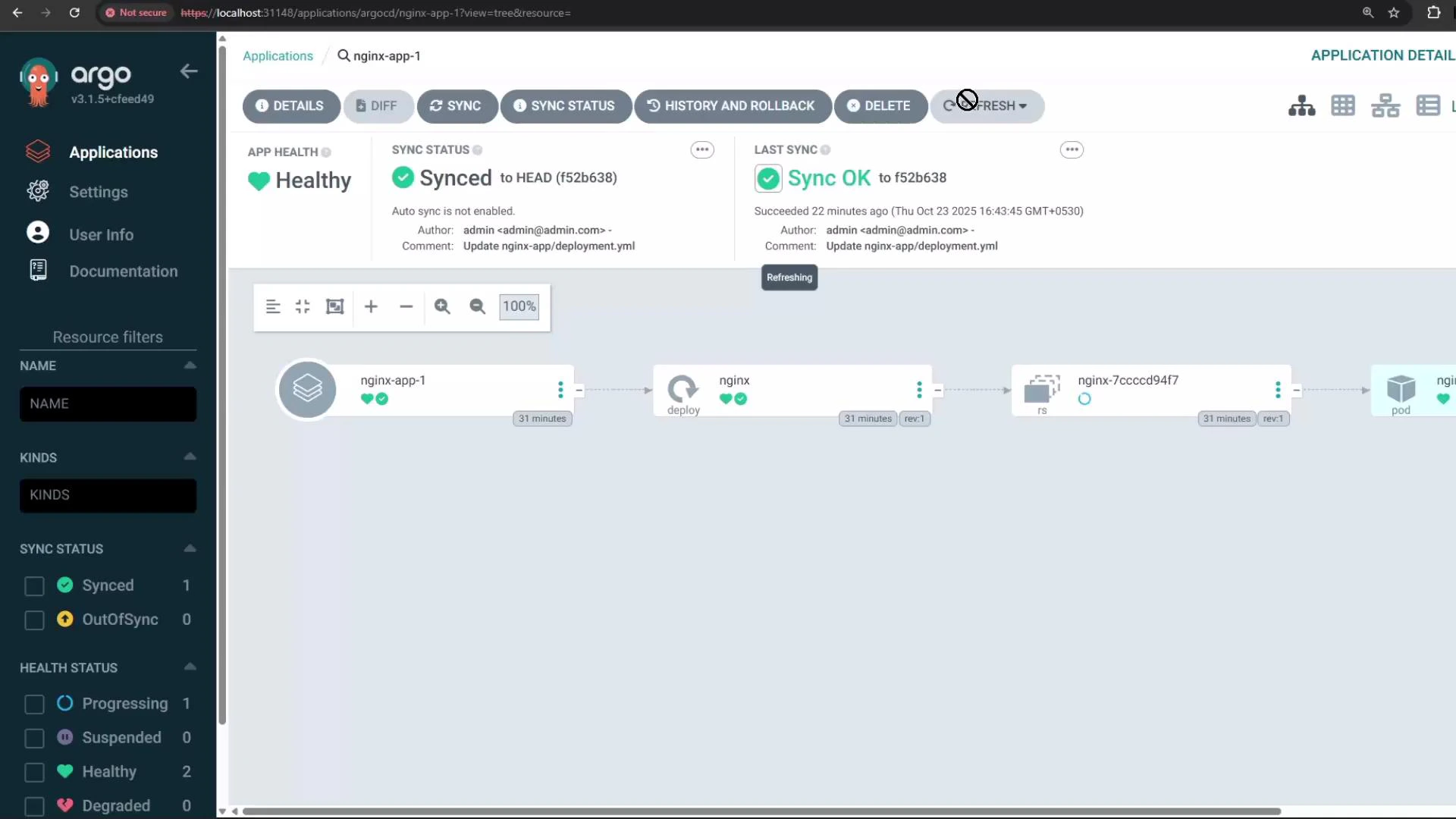
A screenshot of the Argo CD web interface showing the "nginx-app-1" application with "Healthy" app health and "Synced" sync status. The resource graph displays the nginx deployment flowing to a replicaset and pod.
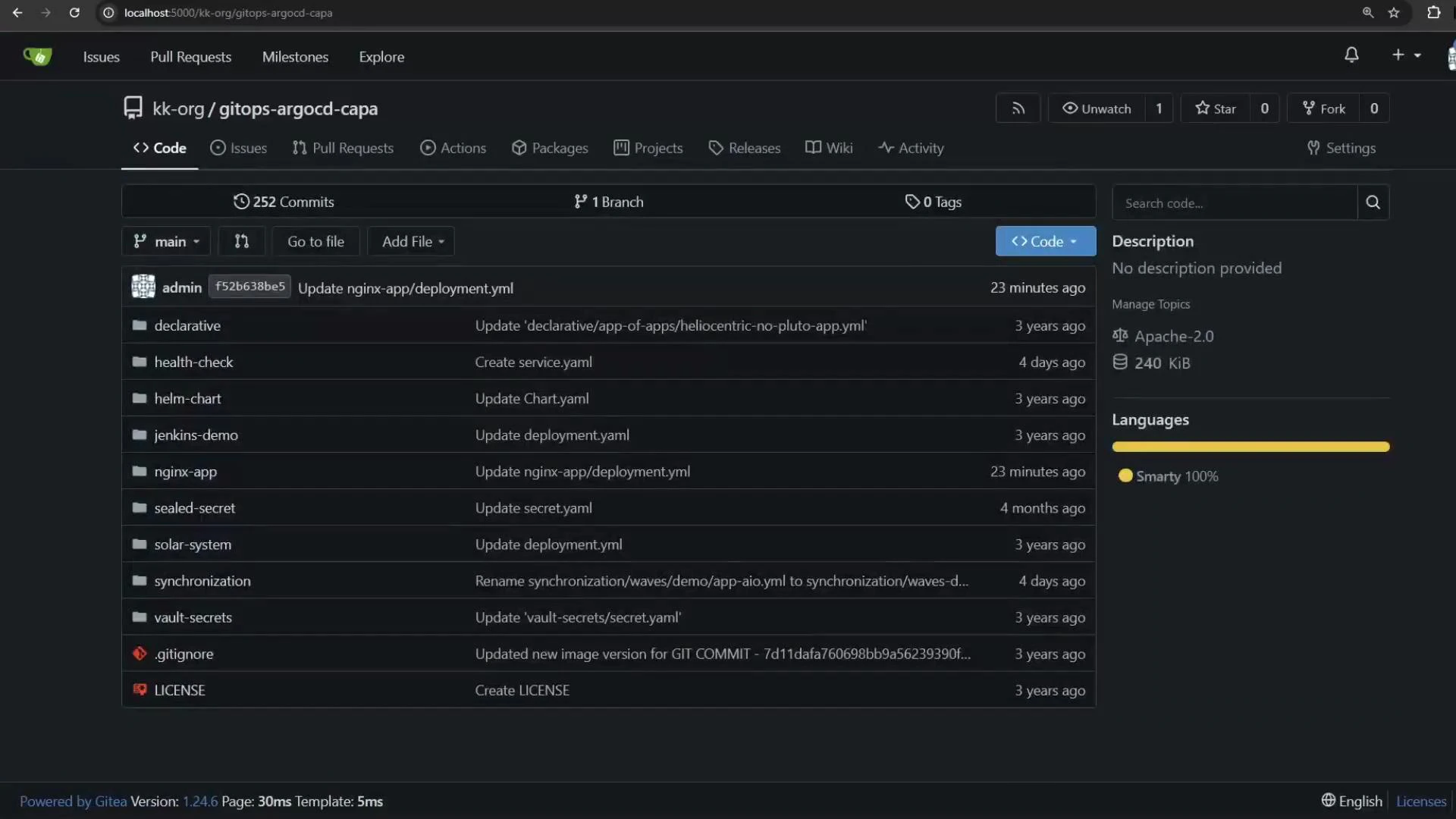
Make a change to the repository (for example, reduce replicas from 3 to 1), commit, and push. The push will trigger a webhook event that Argo CD receives and processes.
A dark-themed Git repository web page (Gitea) showing a file/folder listing (folders like nginx-app, helm-chart, .gitignore, LICENSE) and recent commit messages. The right sidebar shows repository details including description, license and language statistics.
Example push notification payload (snippet)
  • The webhook payload contains commit metadata and the list of modified files. Argo CD uses this to refresh the repository and detect changed manifests.
{
  "total_commits": 1,
  "head_commit": {
    "id": "46585fdf428be401234aecb18b1931f34d51a009",
    "message": "Update nginx-app/deployment.yml",
    "timestamp": "2025-10-23T11:35:55Z",
    "modified": ["nginx-app/deployment.yml"]
  },
  "repository": {
    "id": 9,
    "owner": { "login": "kk-org" }
  }
}
When everything is configured correctly:
  • Argo CD immediately detects the change from the webhook and refreshes the repository.
  • If auto-sync is enabled for the application, Argo CD will apply the updated manifest automatically. Otherwise, you can sync manually from the UI or CLI.
  • Occasionally you may need to refresh the Argo CD UI or re-login to see updated statuses.
Further reading and references That completes the Git webhook configuration workflow for Argo CD.

Watch Video

Practice Lab