

Before you begin:
- Ensure your local kubeconfig contains contexts for both the Argo CD control cluster and any target clusters (e.g., KinD).
- Ensure the
argocdCLI is installed and authenticated against your Argo CD server (argocd login).
1) Identify the kubeconfig context to add
List your current kubeconfig contexts to identify the context name you will add to Argo CD:docker-desktopis the control cluster where Argo CD runs.kind-argo-cluster-1is the KinD cluster we will add as a destination.
2) Argo CD cluster commands
Use theargocd cluster subcommands to manage cluster destinations. Common commands:
Running
argocd cluster add creates a ServiceAccount (commonly argocd-manager) on the target cluster with cluster-wide privileges and generates a long-lived token. Only register clusters you trust and for which this level of access is acceptable.3) Add the KinD cluster to Argo CD
Add the KinD context (must exist in your kubeconfig). The CLI will create a ServiceAccount, ClusterRole, ClusterRoleBinding, and a bearer token secret on the target cluster, then register the cluster with Argo CD:cluster-<ip>-<suffix> secret contains the API server URL, CA data, and token Argo CD uses to communicate with the KinD cluster.
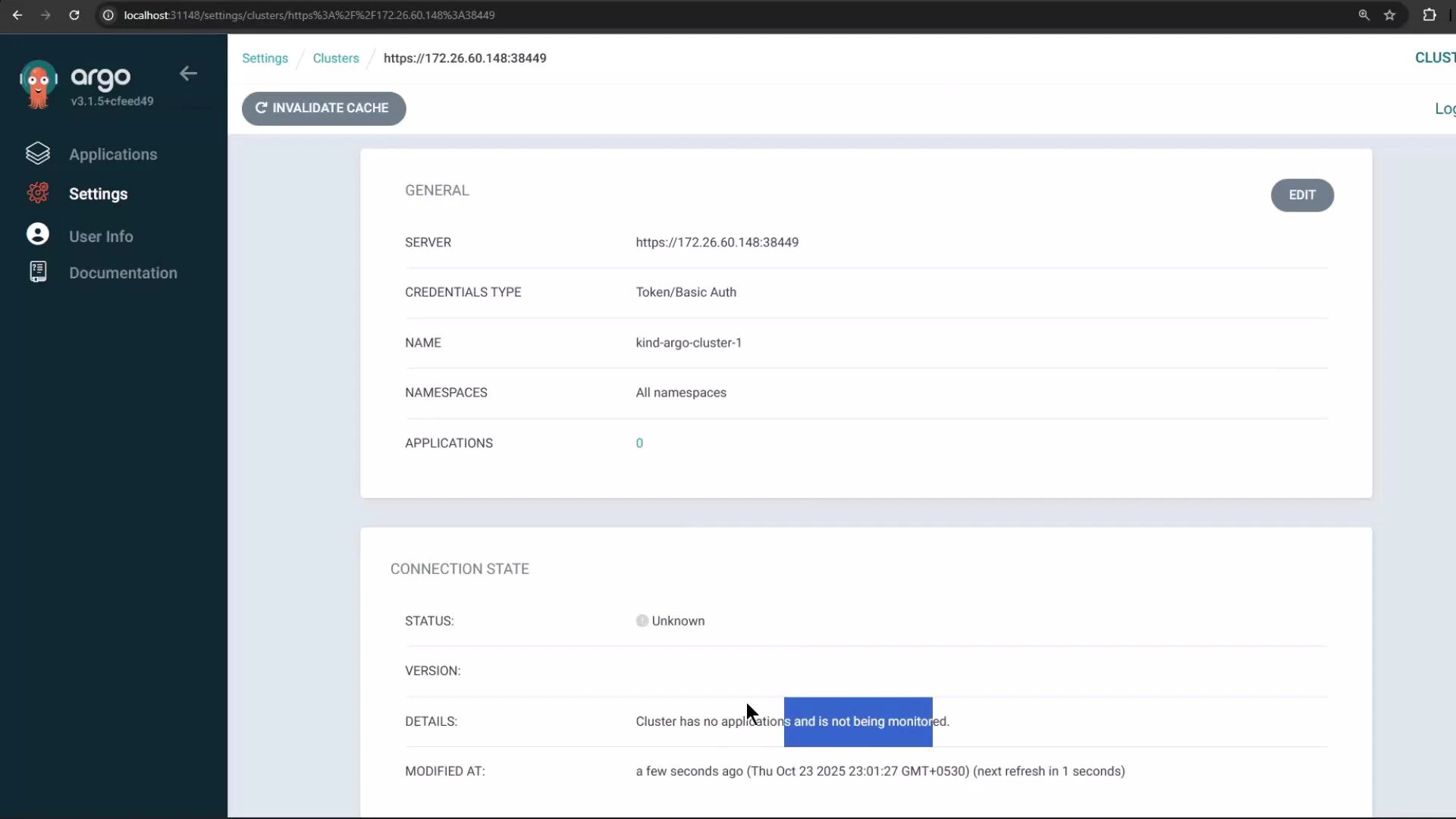
4) Create an application that targets the remote cluster
In the Argo CD Create Application form you can:- Set the Git repository and path containing the manifests.
- Choose the destination cluster (the KinD cluster) and the target namespace.
- Enable Automatic Sync and check “Auto-create namespace” so Argo CD will create the namespace on the destination if missing.
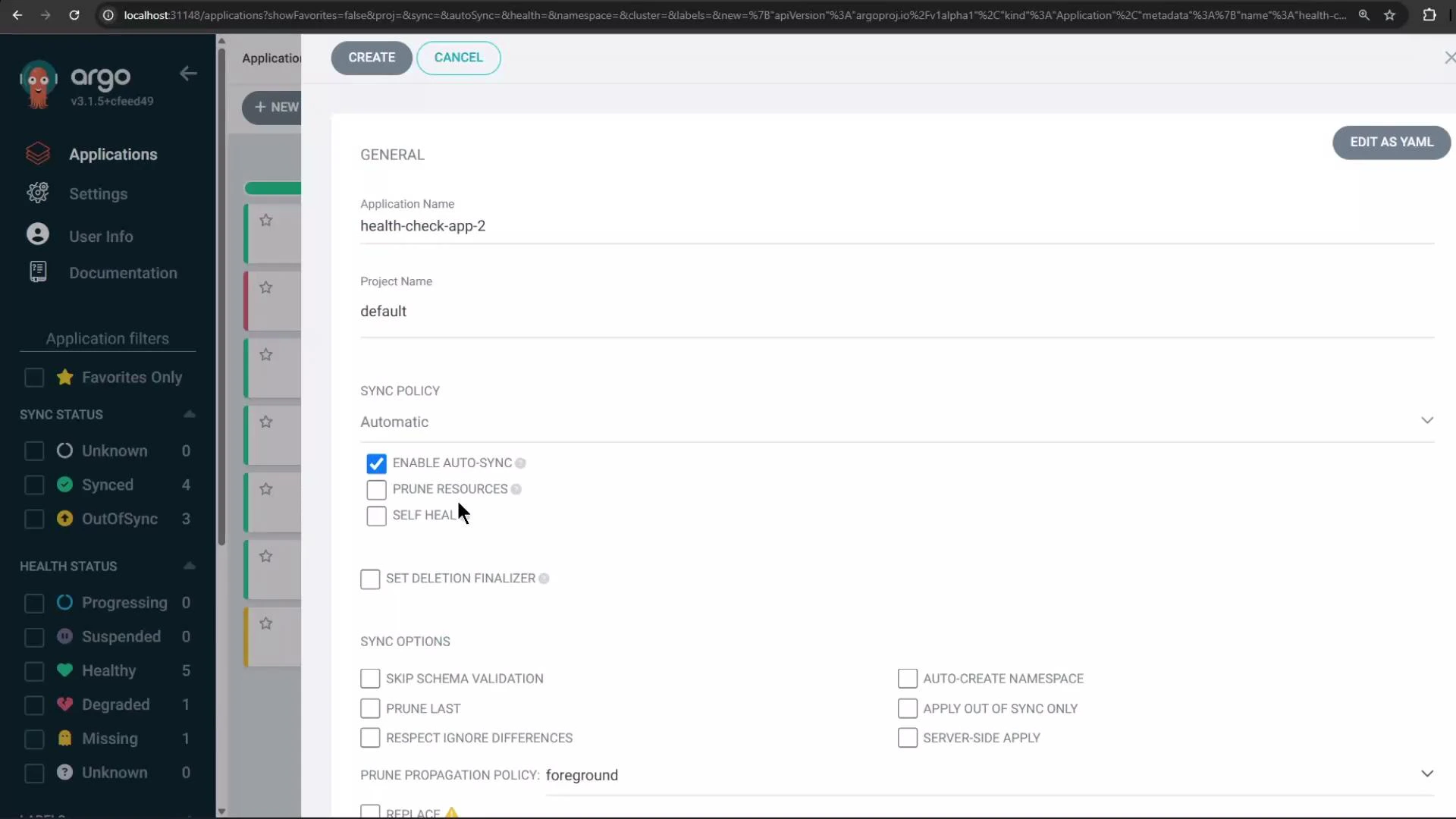
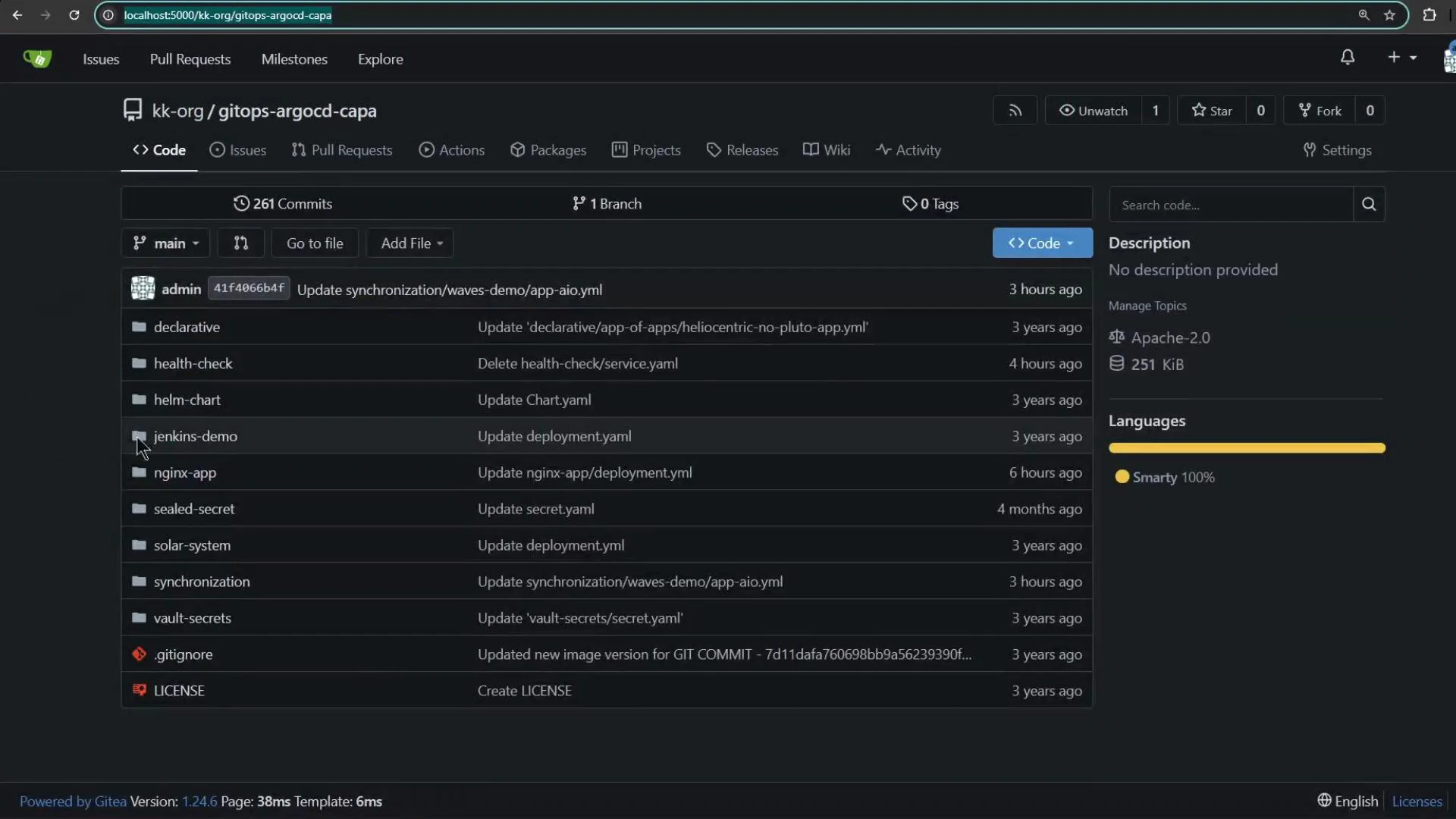
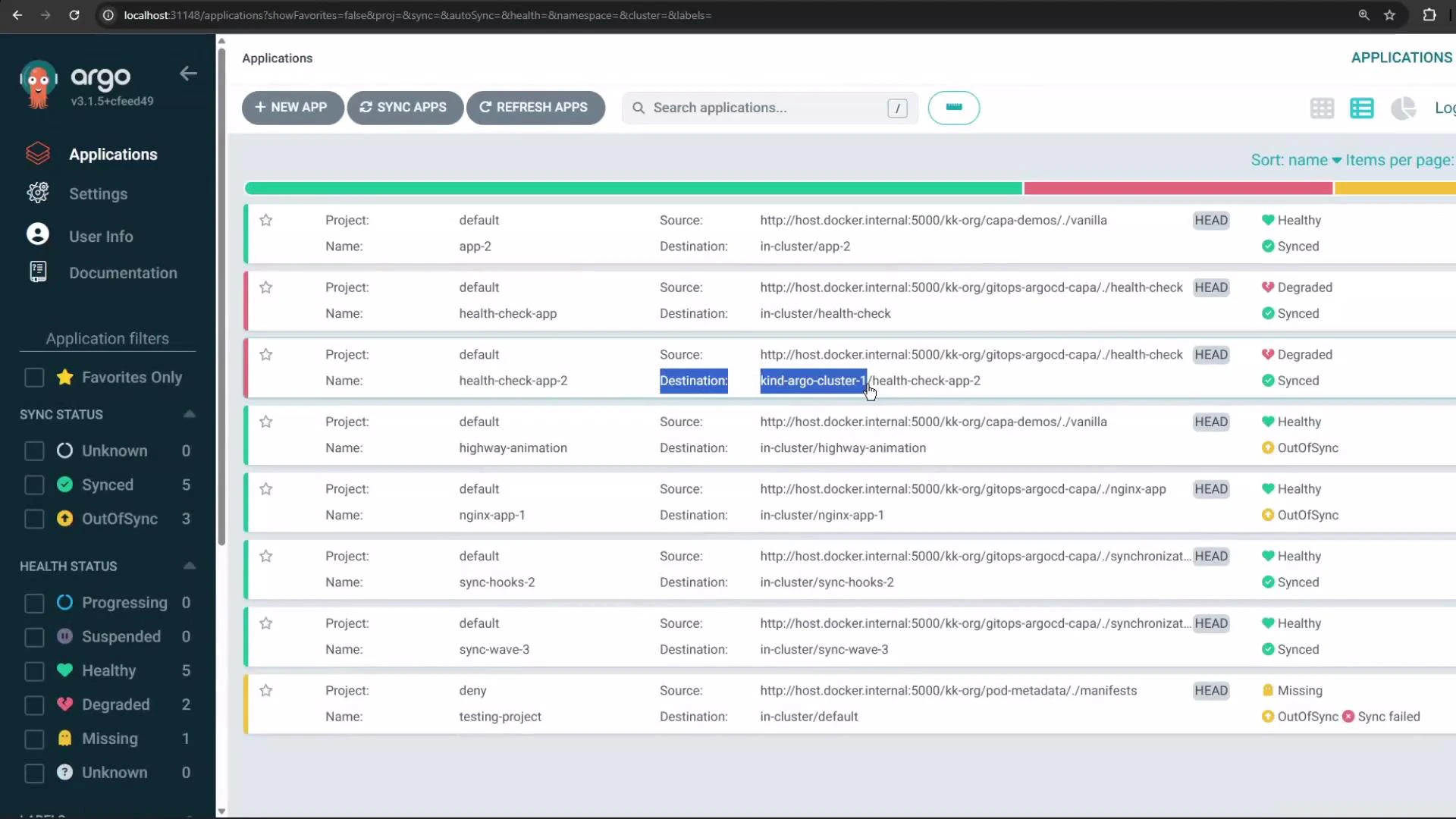
./health-check) and select the destination cluster and namespace (health-check-app-2 in this example):
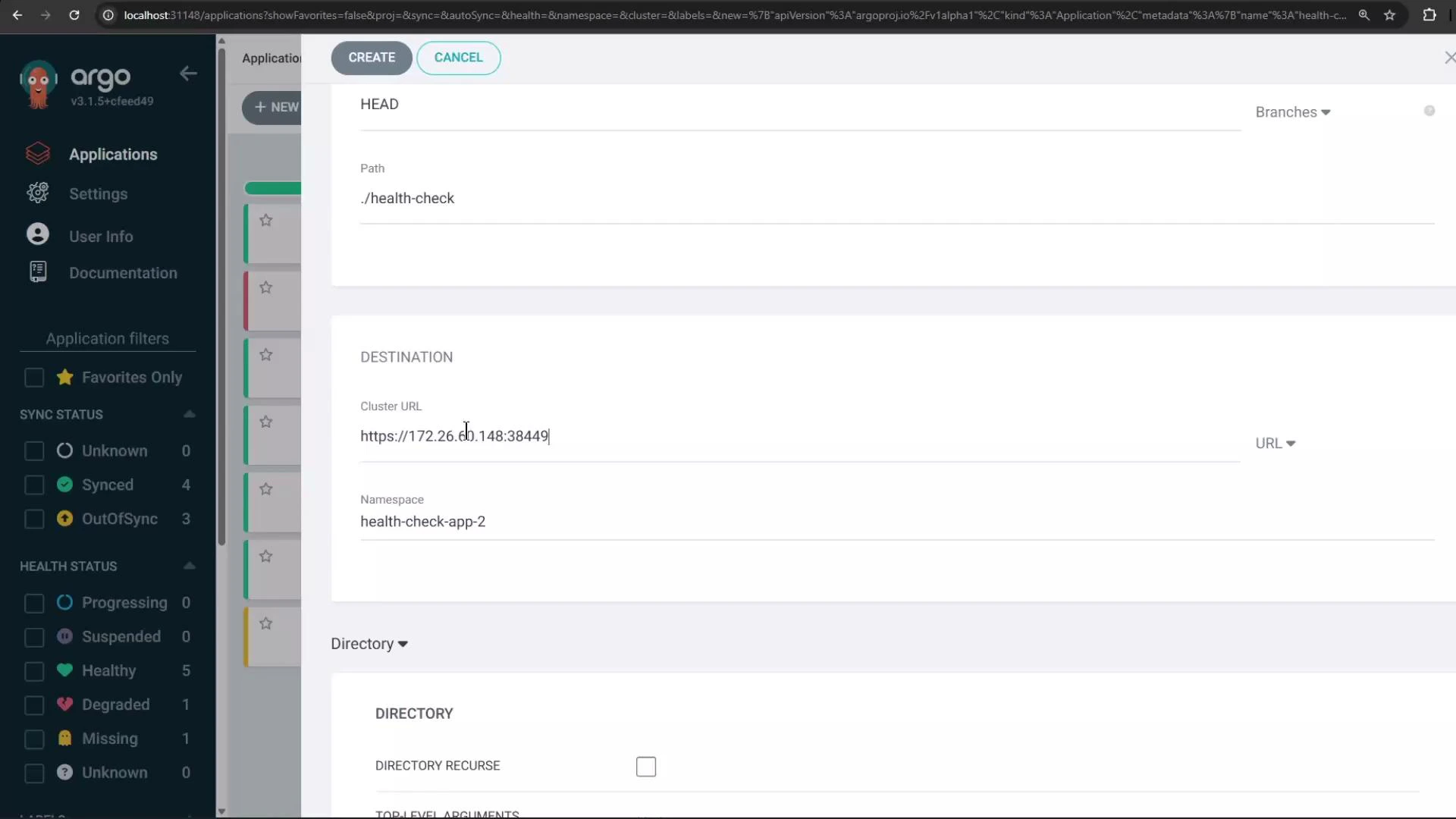
5) Application sync and health checks
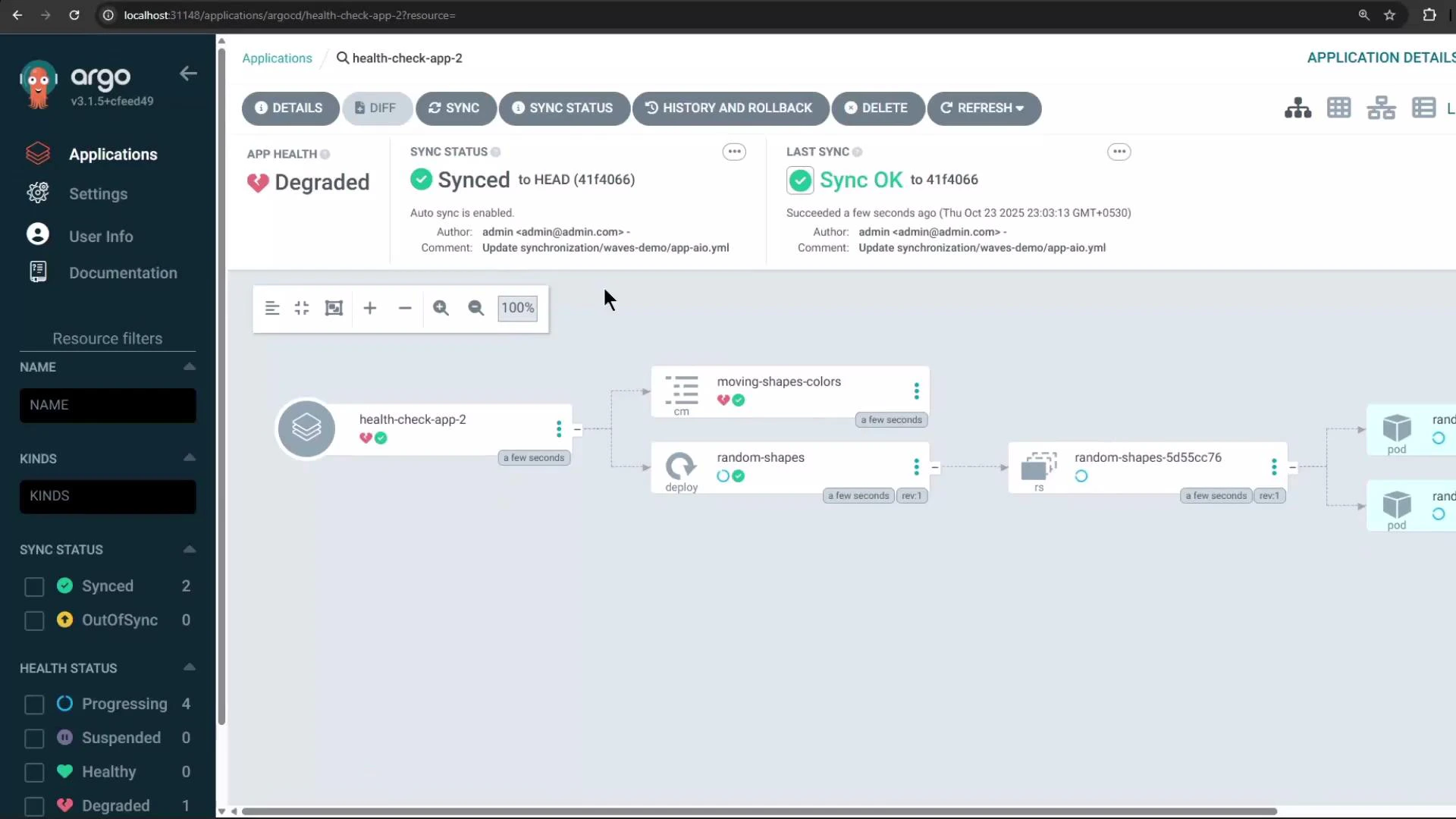
After creation, Argo CD syncs manifests to the target cluster. This example app uses a ConfigMap-based health check: certain data values determine whether a resource is healthy. If a monitored value is considered unhealthy (for exampleTRIANGLE_COLOR: "white"), Argo CD will show the application’s health as Degraded even if it is successfully synced.
Example ConfigMap excerpt:
TRIANGLE_COLOR is set to white and the health check treats that as unhealthy, the application appears Degraded while its sync status is Synced:
6) Verify the application on the remote cluster
Switch your kubectl context to the KinD cluster and confirm the namespace and resources were created by Argo CD:health-check-app-2 to confirm the sync succeeded. Pods may briefly show ContainerCreating while images are pulled.
Summary
- Use
argocd cluster add <context>to register remote clusters with Argo CD. This creates a ServiceAccount and stores cluster credentials as a Secret in the Argo CD control cluster. - Registered clusters appear as destinations in the Argo CD UI and can be targeted by Applications, either from the UI or via Application CRs.
- A cluster showing Connection status “Unknown” may simply have no managed applications yet — creating an application that targets it causes Argo CD to actively monitor it.
- Health checks can mark an otherwise-synced application as Degraded based on resource content (ConfigMaps, status probes, etc.).
Links and references
- Argo CD documentation: https://argo-cd.readthedocs.io/
- Kubernetes kubectl: https://kubernetes.io/docs/reference/kubectl/
- Argo CD CLI reference: https://argo-cd.readthedocs.io/en/stable/cli_commands/