This guide explains how Argo CD polls Git/Helm repositories, how to shorten the reconciliation/polling interval, and how to ensure the change takes effect by restarting the repo server. Use this to make Argo CD detect commits faster than the default interval. What you’ll learn:
  • Default Argo CD polling behavior
  • How to configure timeout.reconciliation in argocd-cm
  • How to restart argocd-repo-server so the new interval is used
  • How to enable Auto-Sync so detected changes are applied automatically
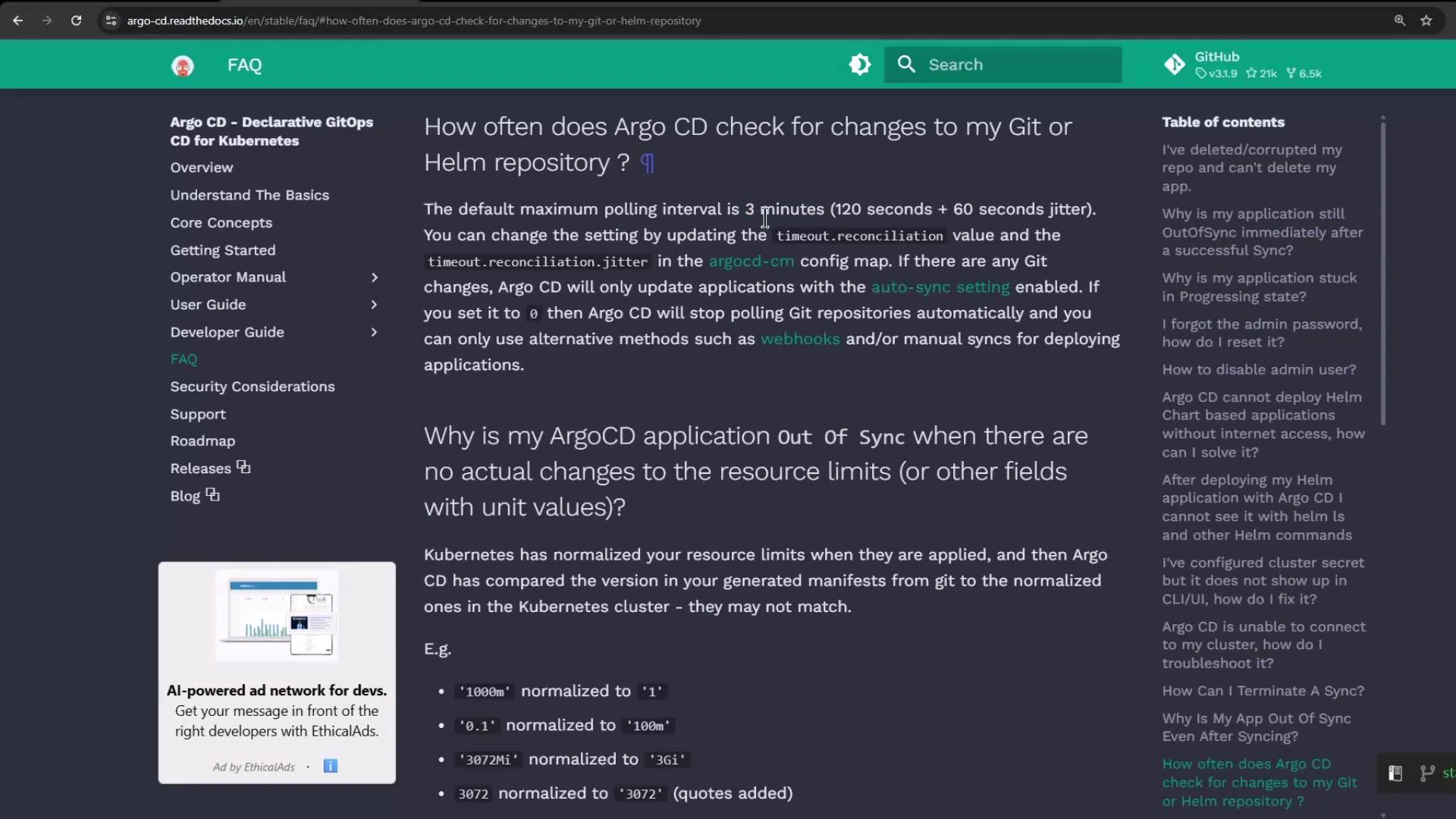
Default behavior By default, Argo CD checks Git or Helm repositories at intervals up to 3 minutes (see the Argo CD FAQ). If you need faster detection of commits, adjust the reconciliation timeout.
A screenshot of the Argo CD documentation FAQ page showing the question "How
often does Argo CD check for changes to my Git or Helm repository?" with the
main text in the center, navigation links on the left, and a table of contents
on the
right.
Create a sample application Create an Argo CD Application that points to a Git repository containing a simple Deployment manifest. Example source/destination settings:
# Application source/destination (example)
source:
  repoURL: "http://host.docker.internal:5000/kk-org/gitops-argocd-capa"
  targetRevision: "HEAD"
  path: "./nginx-app"
destination:
  server: "https://kubernetes.default.svc"
  namespace: "nginx-app-1"
The repository contains a Deployment manifest that initially sets replicas: 1 and deploys into nginx-app-1. Change the desired state in Git When you update the manifest in Git (for example, scale to 2 replicas), commit the change. Argo CD will eventually show the application as OutOfSync (desired state: 2 replicas; live cluster: 1 replica). Example updated Deployment (scale to 2 replicas):
apiVersion: apps/v1
kind: Deployment
metadata:
  name: nginx
  labels:
    app: nginx
spec:
  replicas: 2
  selector:
    matchLabels:
      app: nginx
  template:
    metadata:
      labels:
        app: nginx
    spec:
      containers:
        - name: nginx
          image: nginx
          imagePullPolicy: Always
          ports:
            - containerPort: 80
Refresh vs automatic polling
  • Manual Refresh: Clicking Refresh in the Argo CD UI re-evaluates the application immediately and shows OutOfSync status.
  • Polling: If you don’t refresh manually, Argo CD polls repositories based on the reconciliation timeout (default up to 3 minutes). Detection may therefore take up to that interval.
Configure a shorter reconciliation timeout Add the timeout.reconciliation key to the argocd-cm ConfigMap to change the polling interval. For example, set it to 60s to poll about every 60 seconds. Check whether the key exists:
kubectl -n argocd get configmap argocd-cm -o yaml | grep -i timeout.reconciliation || true
If missing, patch the ConfigMap (example sets 60 seconds):
kubectl -n argocd patch configmap argocd-cm --patch '{"data":{"timeout.reconciliation":"60s"}}'
Verify the key:
kubectl -n argocd get configmap argocd-cm -o yaml | grep -i timeout.reconciliation
# expected output:
# timeout.reconciliation: 60s
How the change takes effect The repo-server process reads this value as the environment variable ARGOCD_RECONCILIATION_TIMEOUT. Updating the ConfigMap does not automatically update the environment of running pods — you must restart the repo-server deployment.
After patching argocd-cm you need to restart the repo server so it picks up the new timeout.reconciliation value: kubectl -n argocd rollout restart deployment argocd-repo-server
Restart repo-server and watch pods Restart the deployment:
kubectl -n argocd rollout restart deployment argocd-repo-server
Watch the new pods come up:
kubectl -n argocd get pods -w
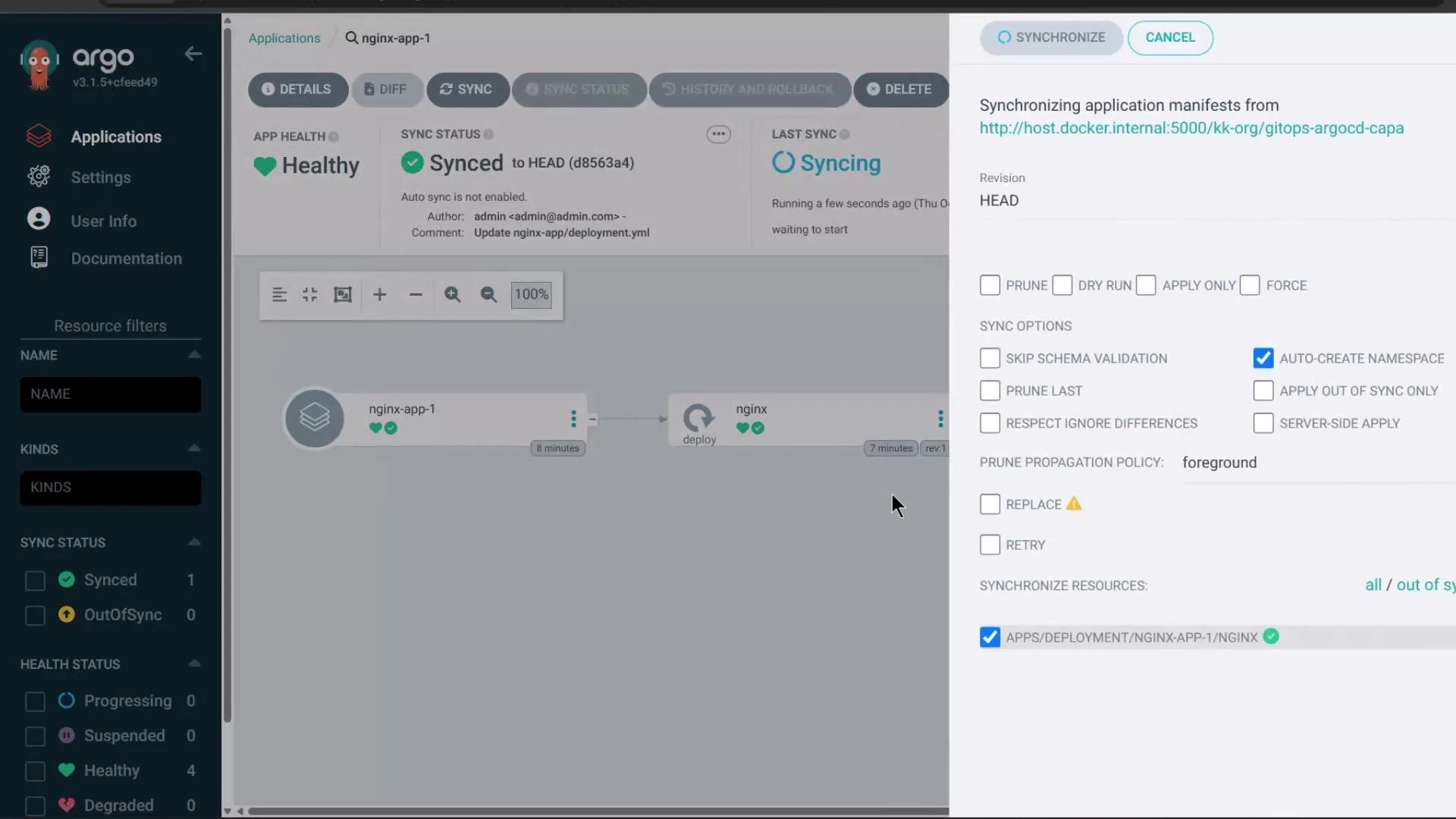
Once the new repo-server pod is Running, Argo CD will use the new reconciliation timeout (for example, ~60s) to poll repositories. Enable Auto-Sync (optional) If you want Argo CD to automatically apply changes it detects, enable Auto-Sync for the application (in the UI or via YAML). In the UI, open the Application, edit sync settings and enable Auto-Sync and any additional options (prune, self-heal, etc.). Example UI screenshot:
A screenshot of the Argo CD web UI showing an "nginx-app-1" application with
Healthy and Synced status on the left and a sync/options panel on the right
(the "auto-create namespace" option is checked). The right panel shows
synchronization settings and available checkboxes for prune, dry run, replace,
etc.
Test the change end-to-end
  1. Commit a change in Git (e.g., change replicas to 3).
  2. With timeout.reconciliation: 60s and repo-server restarted, Argo CD should detect the change and begin synchronization within roughly one minute.
  3. Watch pods in the target namespace:
kubectl -n nginx-app-1 get pods -w
When sync completes, the live state should match the desired state in Argo CD (pods scaled per the manifest). Example resource view:
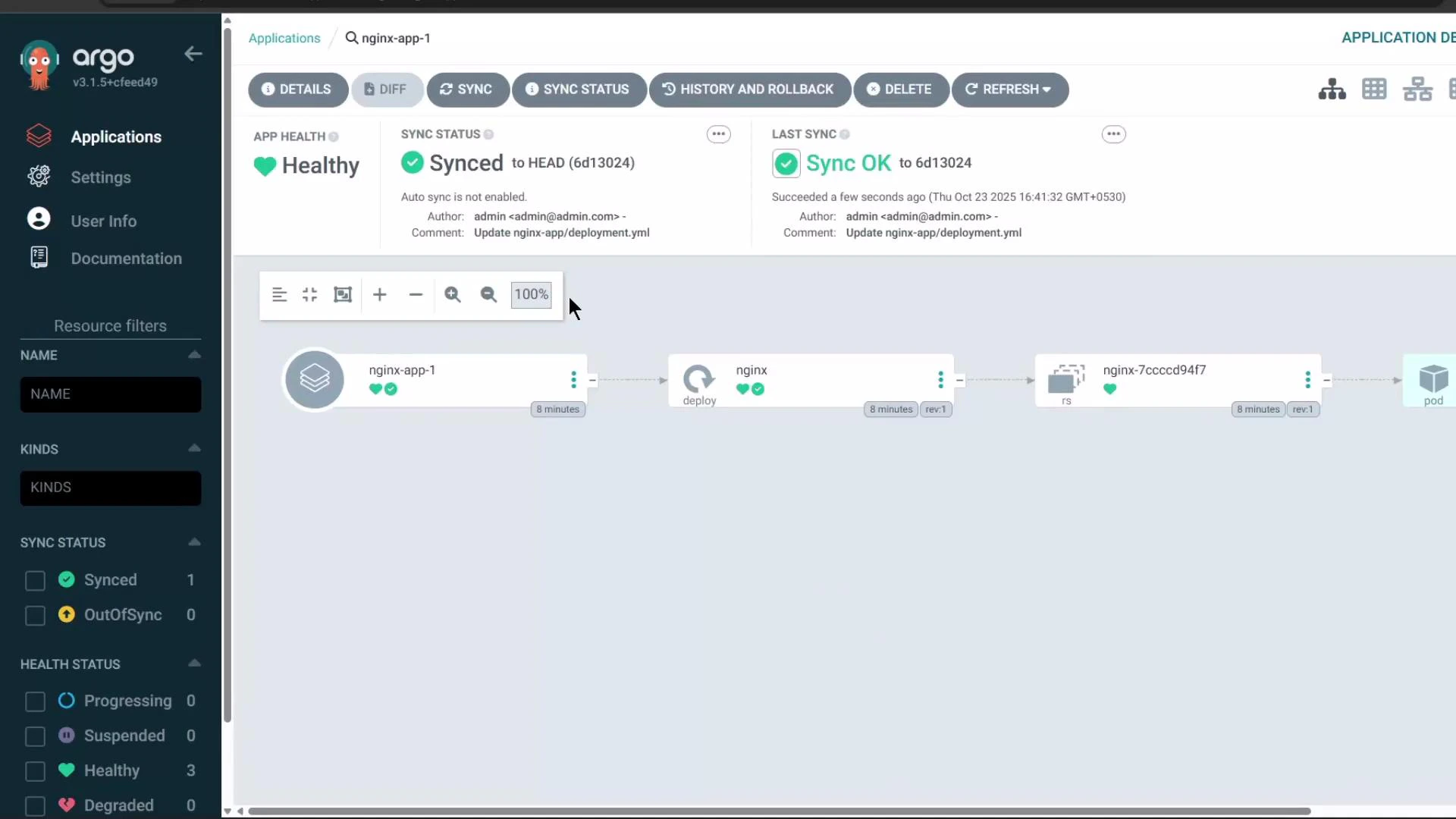
A screenshot of the Argo CD web UI showing an application named
"nginx-app-1" with status indicators (Healthy, Synced to HEAD) and a resource
graph flow from the app to a deployment, replica set, and pod. The left
sidebar shows navigation (Applications, Settings, User Info, Documentation)
and resource
filters.
Quick reference — commands and purpose
CommandPurpose
kubectl -n argocd get configmap argocd-cm -o yaml | grep -i timeout.reconciliationCheck current reconciliation timeout key
kubectl -n argocd patch configmap argocd-cm --patch '{"data":{"timeout.reconciliation":"60s"}}'Add or update reconciliation timeout to 60s
kubectl -n argocd rollout restart deployment argocd-repo-serverRestart repo-server so it reads the new timeout
kubectl -n argocd get pods -wWatch Argo CD pods during restart
kubectl -n nginx-app-1 get pods -wObserve app pod scaling as sync occurs
Summary
  • Default reconciliation/polling interval: up to 3 minutes.
  • Shorten polling by adding timeout.reconciliation (e.g., "60s") to argocd-cm.
  • Patch the ConfigMap and restart the argocd-repo-server deployment so pods pick up the new setting.
  • Enable Auto-Sync to have Argo CD automatically apply detected changes.
Links and references

Watch Video