

containerSet template runs multiple containers inside a single Kubernetes Pod (similar to sidecars), allowing the containers to share the same network namespace, volumes, and lifecycle. This pattern is useful when containers must communicate over localhost, share mounted storage, or depend on the same init/wait logic.
Below is a minimal workflow that defines a single template named main. The template type is containerSet and declares two containers (a and b) that run together in the same pod:
- Both containers (
aandb) are created in a single pod and run concurrently. - Containers can use different images and commands.
- Pods created by
containerSetwill also show the template name (heremain) and any init containers in the UI and Kubernetes API.
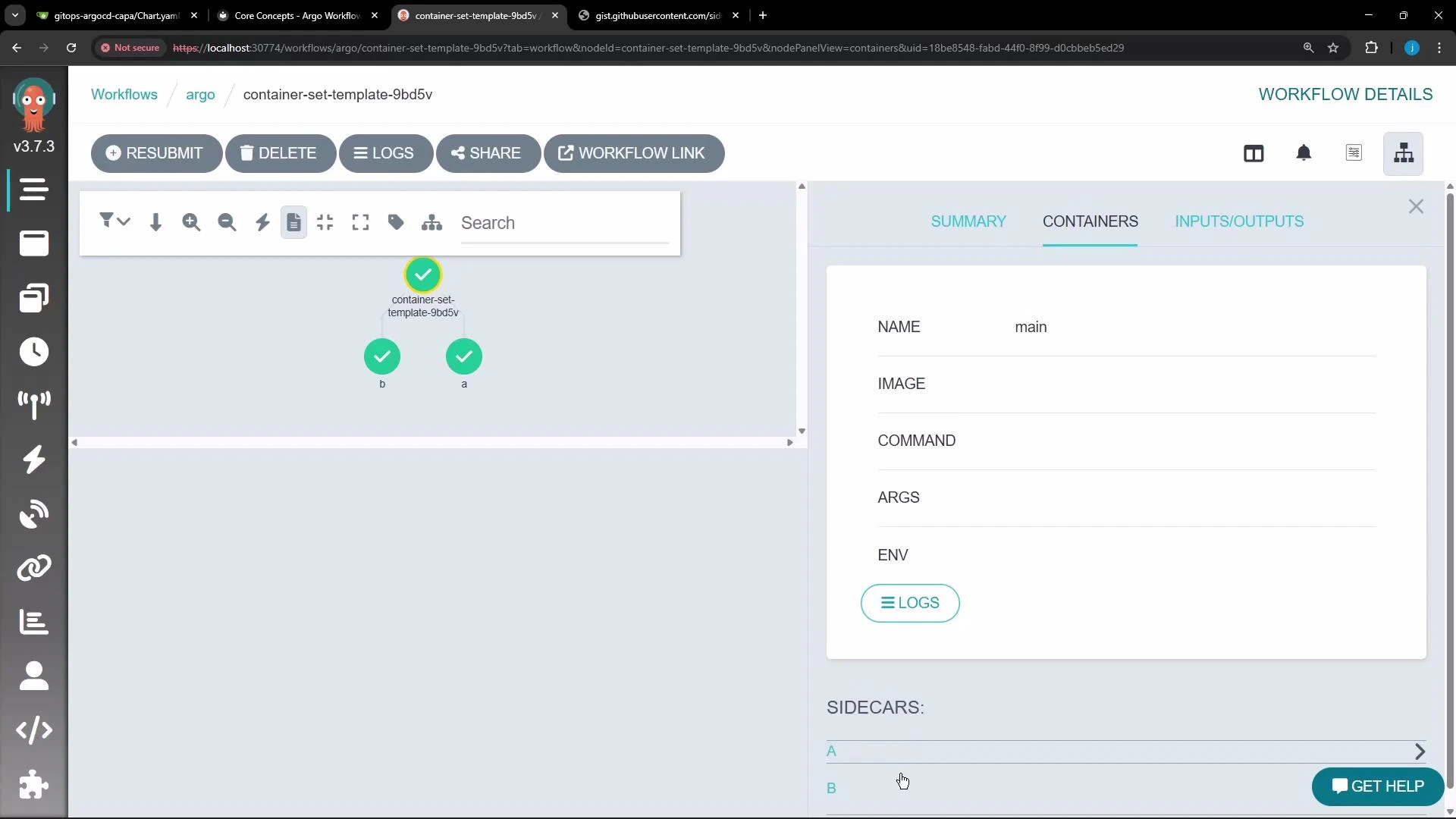
container-set-template-... node and its child containers (a, b) because both ran inside the same pod. The right-hand pane lists template metadata such as NAME, IMAGE, COMMAND, ARGS, and environment variables.
Inspecting logs and individual container output
- The Argo UI exposes logs for each container in the pod through the Logs modal.
- Use the container dropdown to switch between logs for
init,wait(if present), and each container from thecontainerSet(e.g.,a,b).
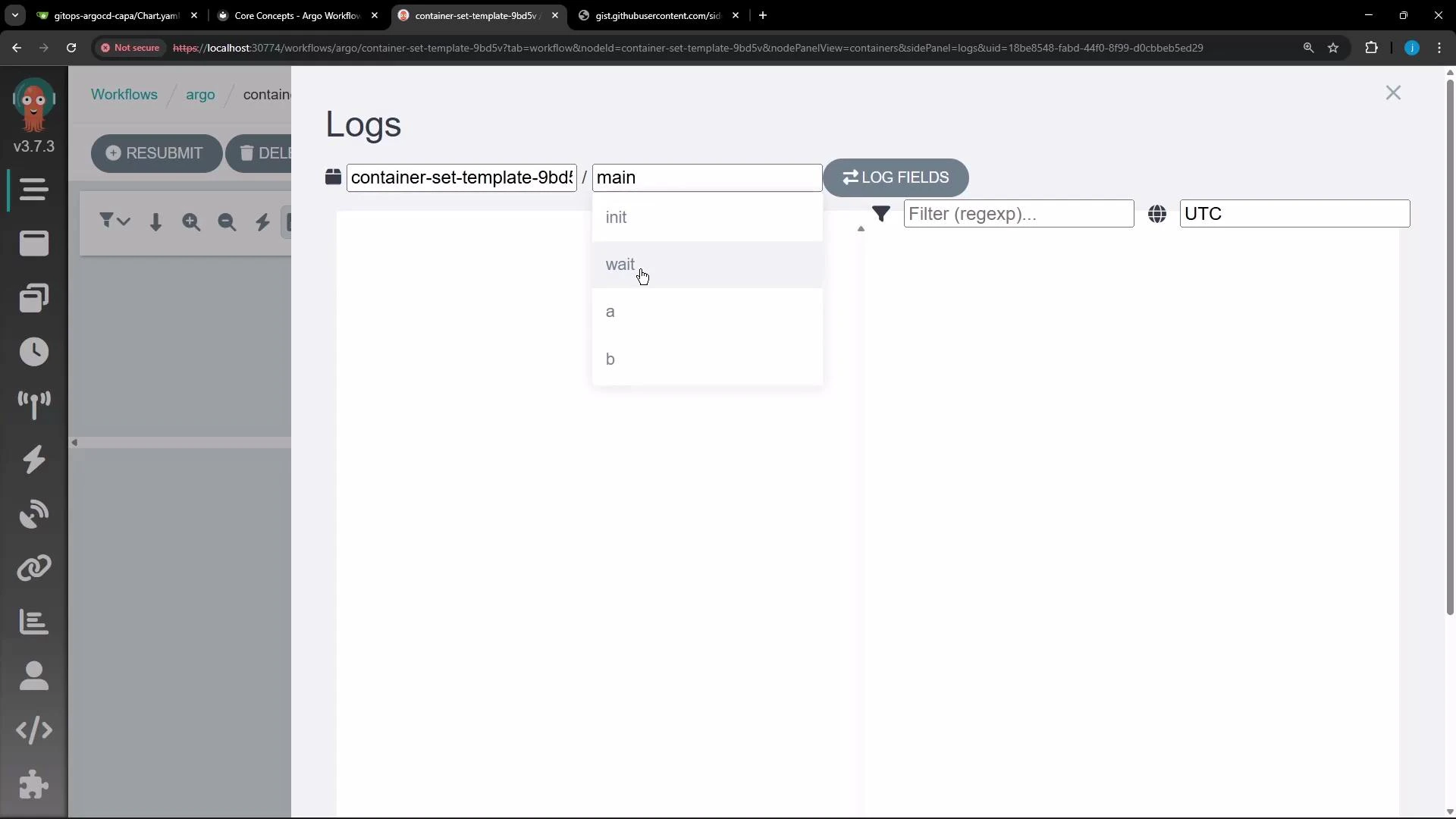
Container set templates run multiple containers in the same pod (sidecars). Use the Logs dropdown in the Argo UI to select logs for each container (init, wait, a, b, etc.). Choose
containerSet when containers must share networking, storage, or lifecycle; choose separate templates when you need separate pods or separate scheduling/scaling behavior.
Best practices and considerations
- Use
containerSetwhen containers need low-latency local communication or shared volume access. - Avoid
containerSetif you require independent lifecycle, autoscaling, or separate scheduling for containers. - Remember to include any required init containers (for setup) or a
waitsidecar if you need coordination before/after the main containers run.
- Argo Workflows Templates: containerSet (see official docs) — https://argoproj.github.io/argo-workflows/ (search for “containerSet”)
- Kubernetes Pods and Containers — https://kubernetes.io/docs/concepts/workloads/pods/ (background on shared namespaces and volumes)
containerSet enables sidecar-like behavior inside Argo Workflows and how to inspect and debug those containers via the Argo UI.