Welcome. This guide covers several additional HCP Terraform workspace features you should understand at a high level. These features are commonly referenced on the Terraform Associate exam: know what each feature does, why it exists, and when you’d use it. Below are concise explanations, typical workflows, and where to find these settings in the HCP Terraform UI.

Health assessments

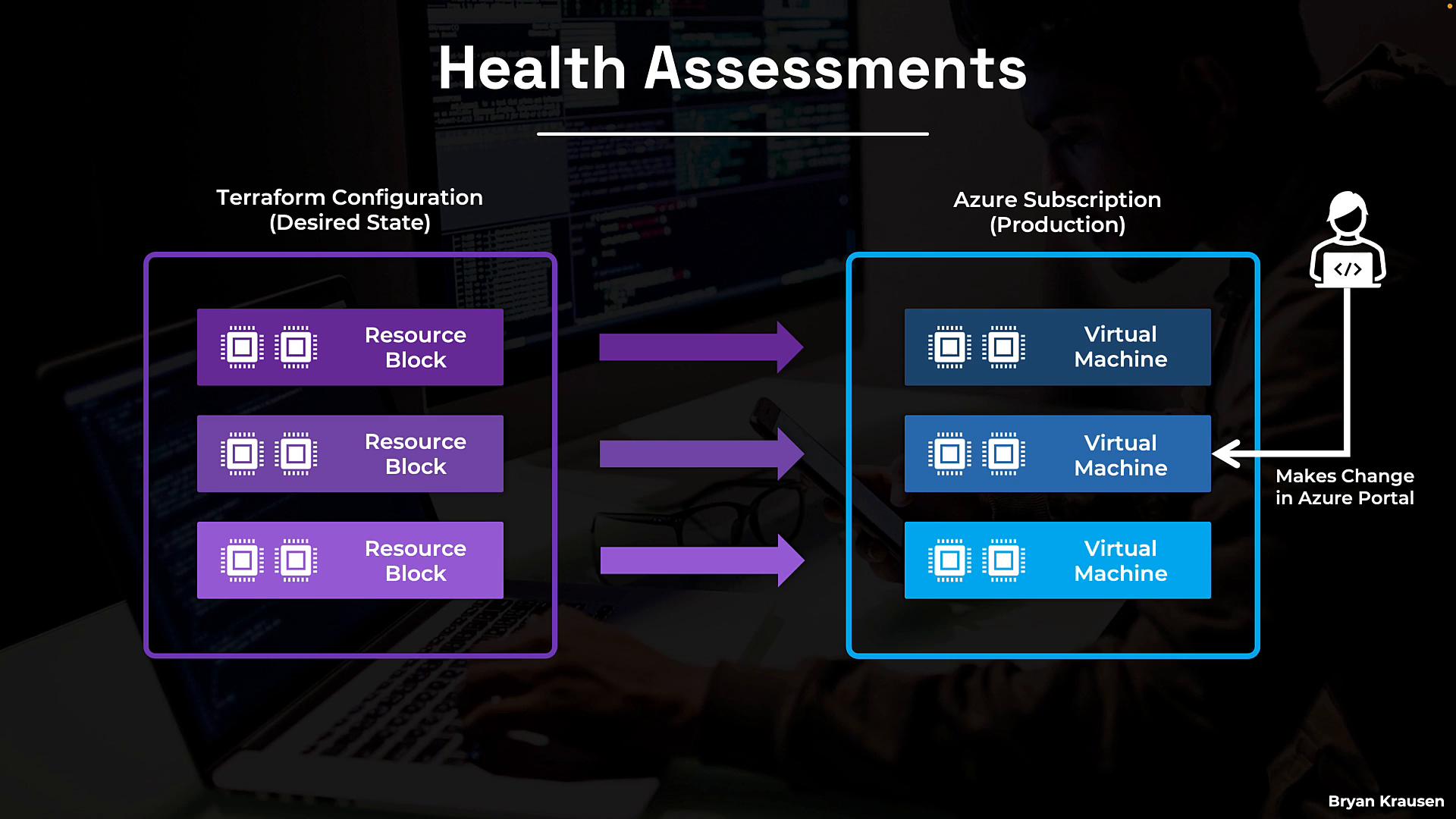
Terraform provisions resources based on your configuration and state, but it does not continuously monitor those resources after an apply completes. Manual changes made directly in a cloud provider console (for example, resizing a VM or modifying a security group) can cause infrastructure drift — the real-world resources diverge from what Terraform expects.
The image illustrates a transformation from Terraform configuration resource blocks to Azure virtual machines, highlighting a change made in the Azure Portal during health assessments.
HCP Terraform health assessments provide automated, periodic checks so you can detect drift and surface runtime policy or health issues. When enabled for a workspace, HCP Terraform runs assessments roughly every 24 hours and evaluates two main categories:
  • Drift detection — Compares live resources to the workspace state to find resources modified outside Terraform.
  • Continuous validation — Evaluates check blocks, preconditions, or postconditions in your Terraform configuration to validate runtime conditions (for example, SSL certificate expiry or a health endpoint’s response).
The image is an informational graphic about HCP Terraform's automatic health assessments, including drift detection and continuous validation features for infrastructure management.
Typical lifecycle with health assessments:
  • Provision infrastructure with a normal plan/apply.
  • HCP Terraform performs periodic health checks (drift detection and continuous validation).
  • If a problem is detected (drift or failed validation), HCP Terraform notifies your team according to workspace notification settings (Slack, email, webhooks, etc.).
  • The team remediates by reapplying Terraform (to restore declared state) or updating configuration (if the change was intended).
  • The cycle continues, providing ongoing visibility and auditability.
The image illustrates a workflow for health assessments involving steps such as provision, check, detect, and notify, using icons and arrows. A person is working on a laptop with code visible on the screen.
Key details:
  • Workspace health warnings appear on the workspace list for at-a-glance visibility.
  • Health assessments are available in the Standard and Premium editions (paid feature).
  • You can enable health assessments per workspace or enforce them org-wide. Org-level enforcement overrides individual workspace settings.
  • Health checks run approximately every 24 hours; you should still rely on CI/CD and run-time monitoring for real-time operations.
Health assessments are a paid feature (Standard and Premium). Enabling them per workspace is straightforward; org-wide enforcement ensures consistent coverage across teams.
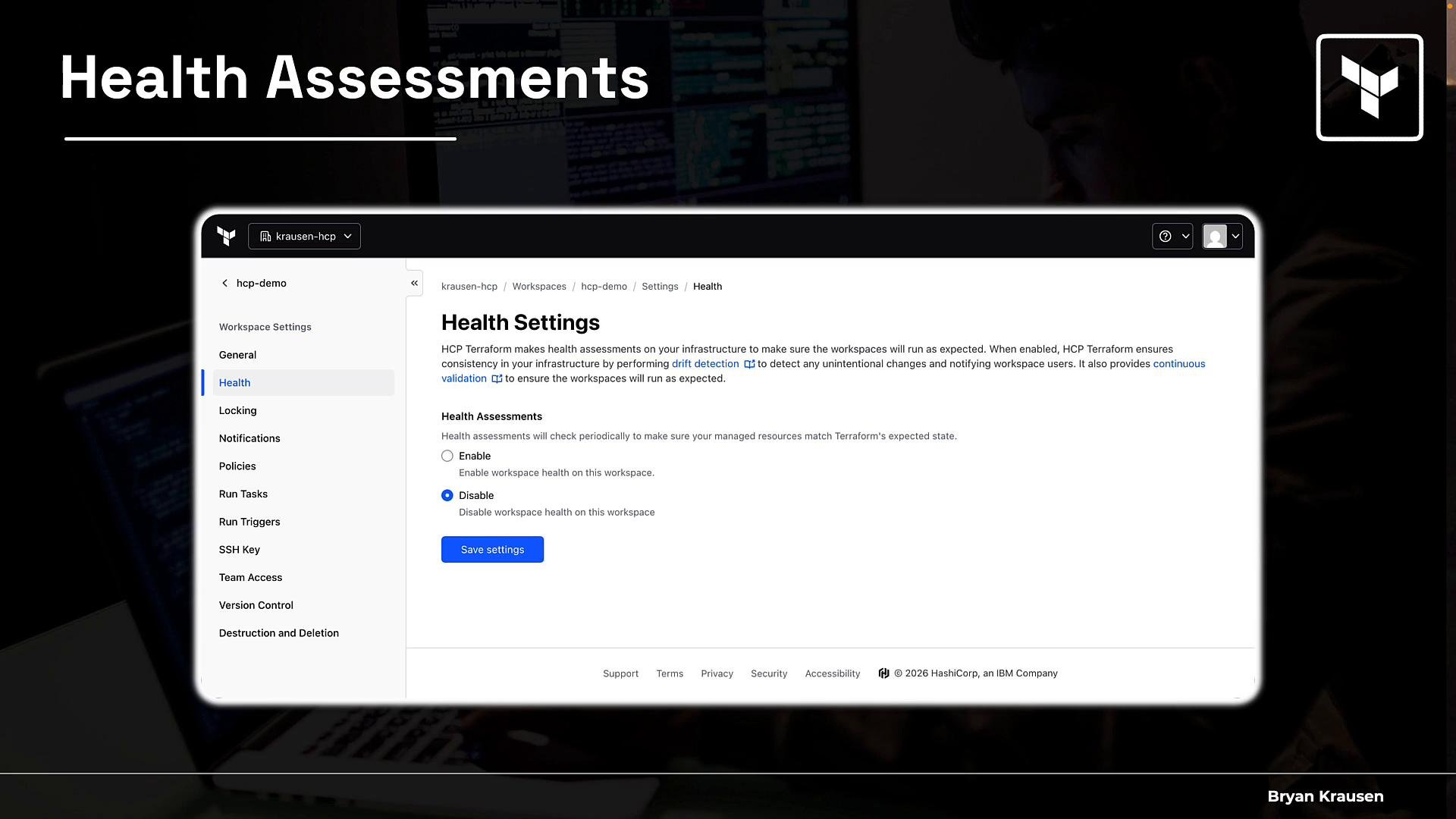
To enable health assessments:
  • In the workspace UI, go to Settings → Health.
  • Toggle assessments on or off and save changes.
The image outlines features of health assessments in HCP Terraform, explaining warning statuses, edition availability, and configuration options. It includes three main points set against a purple and blue gradient background with geometric patterns.

Run triggers

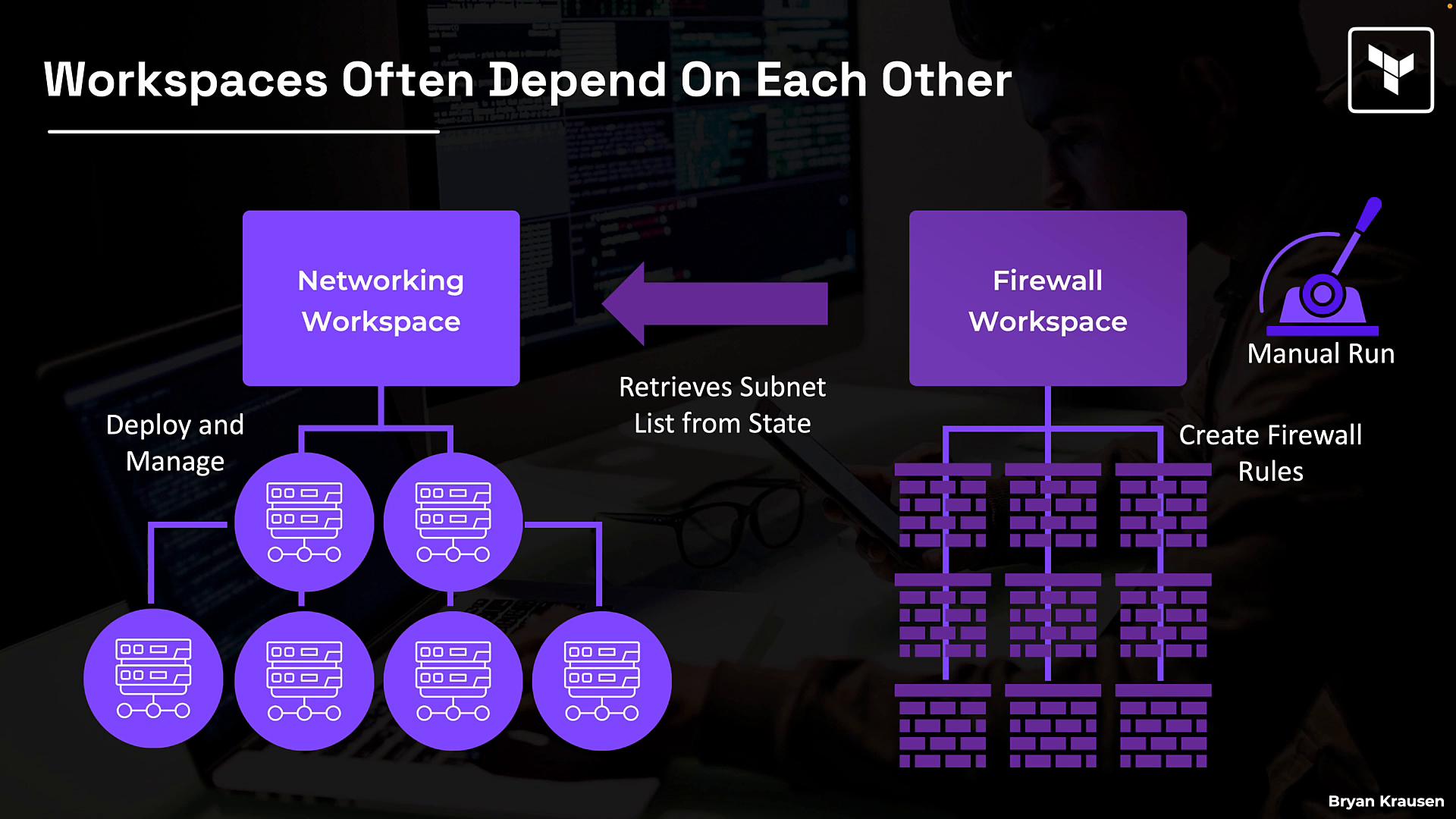
Many workspaces depend on outputs or state from other workspaces. For example, a networking workspace may create subnets that a firewall workspace must consume to create rules. Relying on manual coordination to trigger downstream runs does not scale — run triggers automate this process.
The image depicts a diagram showing the dependency between workspaces, illustrating how a Networking Workspace deploys and manages networks, retrieves a subnet list from the state, and a Firewall Workspace creates firewall rules.
How run triggers work:
  • Connect a downstream workspace to one or more source (upstream) workspaces.
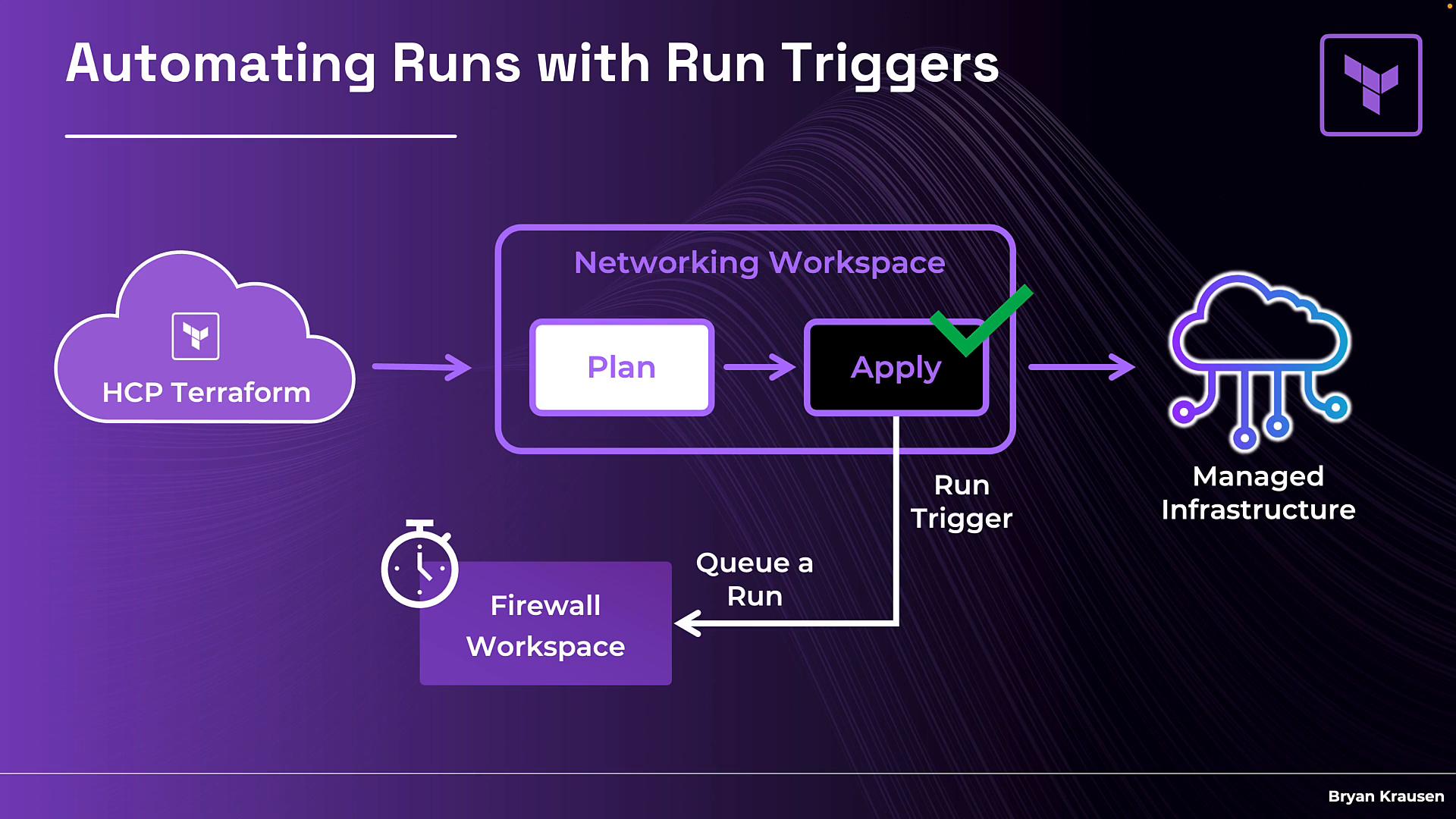
  • When the source workspace completes a successful apply, HCP Terraform automatically queues a run in the downstream workspace.
  • The downstream run reads the updated state from the source workspace and applies any necessary changes.
Typical workflow:
  • Source workspace (e.g., networking) is planned and applied successfully.
  • The configured run trigger queues a run in the downstream workspace (e.g., firewall).
  • The downstream workspace runs and picks up the latest state to reconcile resources.
The image illustrates a workflow for automating runs with run triggers in HCP Terraform, showing steps from planning and applying configurations to managing infrastructure.
Important run trigger facts:
  • A workspace can be connected to up to 20 source workspaces.
  • Triggers only fire on successful applies in source workspaces — not on failed applies or plan-only runs.
  • Run triggers include an auto-apply toggle specific to trigger-created runs; this is separate from the workspace’s general auto-apply setting.
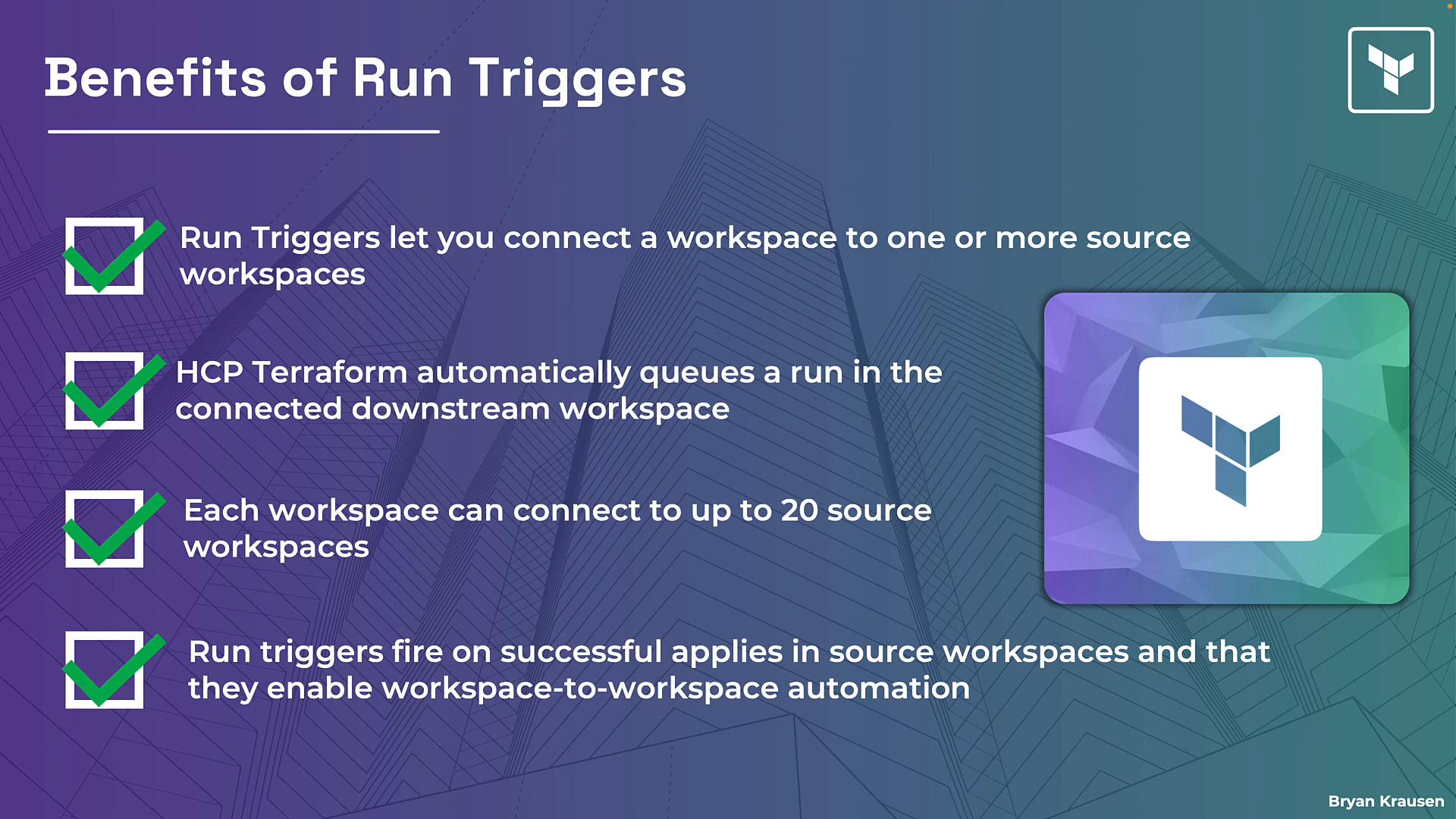
  • Run triggers enable workspace-to-workspace automation and help implement infrastructure pipelines without manual coordination.
The image outlines the benefits of run triggers in HCP Terraform, highlighting workspace connections and automatic queuing, with a background of geometric designs and a logo.
To configure a run trigger in the UI:
  • Open the downstream workspace and go to Settings → Run Triggers.
  • Connect one or more source workspaces.
  • Optionally enable the run-trigger-specific auto-apply toggle.
The image shows a software interface for creating "Run Triggers" within a workspace, including options for auto-applying changes and managing connected workspaces.

Change requests (tracking work)

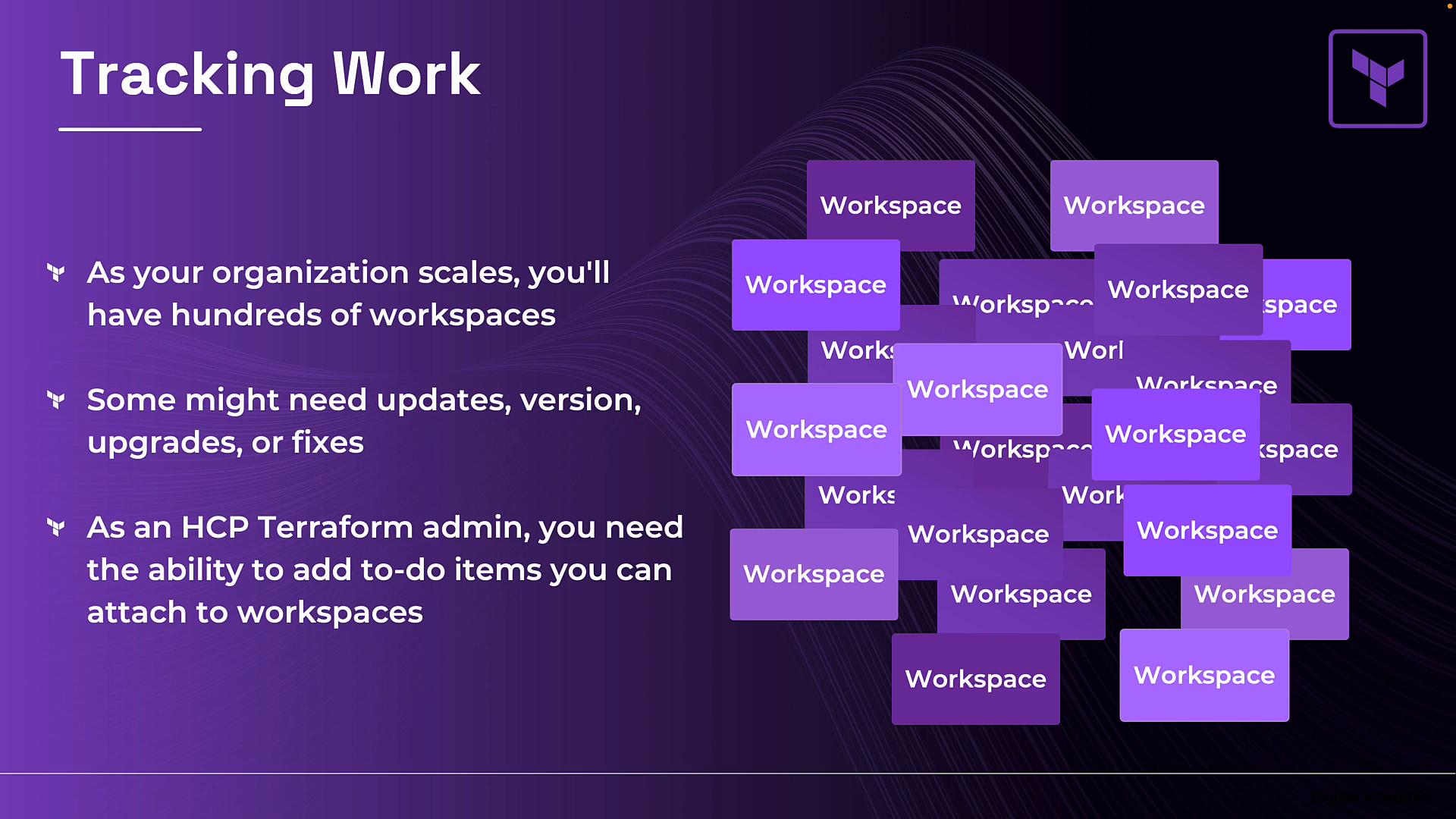
At scale, operators need a lightweight way to track work: upgrades, provider or Terraform version changes, drift remediation, and other maintenance tasks. Change requests provide workspace-specific action items so teams can assign, track, and resolve needed changes. Highlights:
  • Act as actionable “to-do” items tied to a workspace (think lightweight tickets).
  • Can be created from the Explorer or directly on a workspace.
  • If a change request affects multiple workspaces, each workspace receives an independent copy that can be resolved and archived separately.
  • Support Markdown in the message field and can notify teams responsible for the workspace.
  • Available in the Standard and Premium editions.
To create a change request from Explorer:
  • Open the Create Change Request dialog.
  • Provide a subject and message (Markdown supported).
  • Review the affected workspaces count and click Create Change Request.
The image shows a software interface for creating change requests, highlighting fields for entering the subject and message, with a "Create change request" button. The title at the top reads "Tracking Work with Change Requests."
Change requests are part of HCP Terraform’s paid tiers (Standard and Premium). Use them to onboard operational tasks into your Terraform workflow and keep teams accountable.

Explorer (organization-wide visibility)

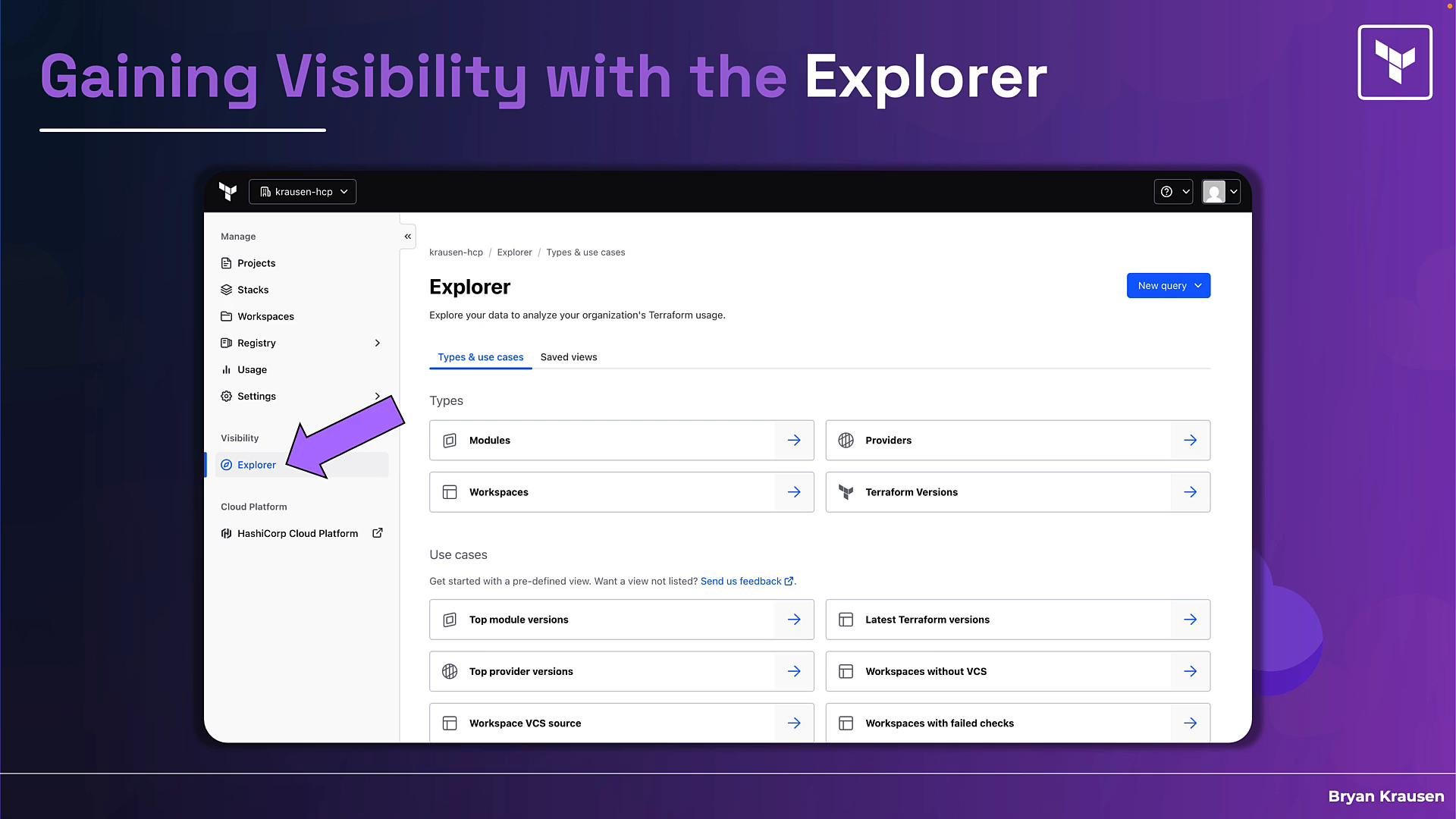
Explorer is the organization-level view that ties these features together and provides visibility across dozens or hundreds of workspaces. Use Explorer to find risk, prioritize work, and launch change requests. What Explorer provides:
  • Types: Queryable views by modules, providers, workspaces, and Terraform versions to understand usage and distribution.
  • Use cases: Pre-built filters that answer common operational questions — for example, which module versions are most used, which Terraform versions are deployed, which workspaces are not connected to VCS, or which workspaces have failed checks.
  • Actionability: Click into any view to get a filtered, actionable list. Create change requests directly from Explorer and save custom views for recurring operational queries.
The image shows a screenshot of the "Explorer" section within a cloud platform interface, highlighting navigation for managing modules, workspaces, providers, and Terraform versions. The background is purple with a title "Gaining Visibility with the Explorer."

Summary table

FeaturePurposeWhere to configureEdition
Health assessmentsDetect infrastructure drift and validate runtime checksWorkspace → Settings → Health (or org enforcement)Standard & Premium
Run triggersAutomate downstream workspace runs after upstream appliesWorkspace → Settings → Run TriggersFree tier available; features apply across editions
Change requestsCreate actionable workspace-specific tasks and notificationsExplorer or Workspace UIStandard & Premium
ExplorerOrganization-wide visibility, pre-built filters, and change-request creationVisibility → ExplorerAll editions (visibility features vary)

Study tips for the Terraform Associate exam

  • Be able to describe each feature, its operational benefit, and when to enable it.
  • Understand where to configure each feature in the workspace or org settings.
  • Know which features are paid (Standard/Premium) vs. available in free tiers.
Good work getting through these final HCP Terraform topics.

Watch Video