

Download and install
Go to the official download page: https://code.visualstudio.com/download and choose the installer for your operating system (Windows, Linux, or macOS). Pick the installer that matches your platform and architecture (for example, macOS Apple Silicon vs Intel) and run the downloaded package.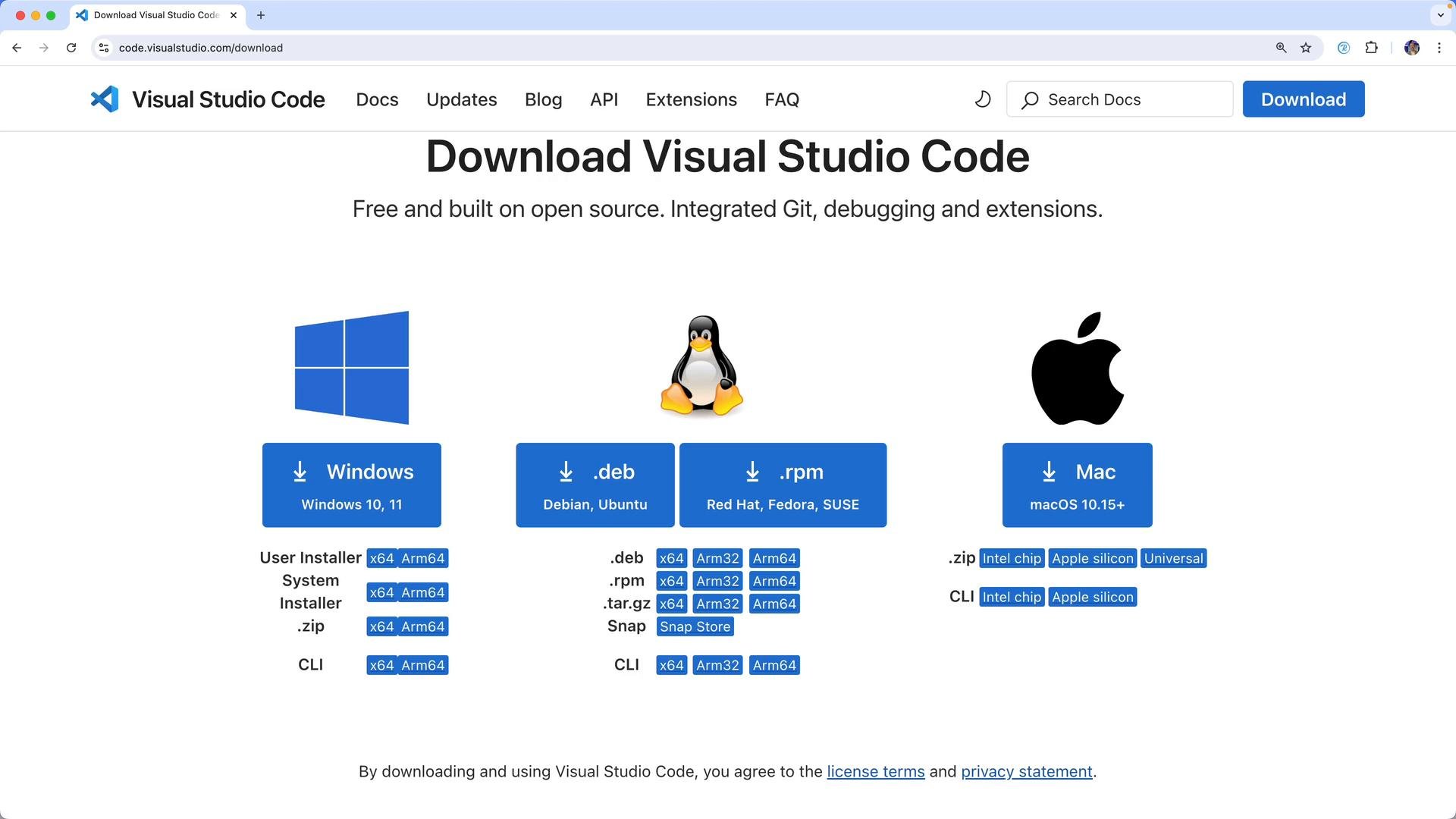
VS Code layout — quick orientation
When you open VS Code, the left-hand Activity Bar is the primary navigation for common workflows. The table below summarizes the main Activity Bar items and their typical uses.
To open a project, use Explorer → Open Folder and select the folder you want to work on. In this example we open a demo folder that contains Terraform configuration files.
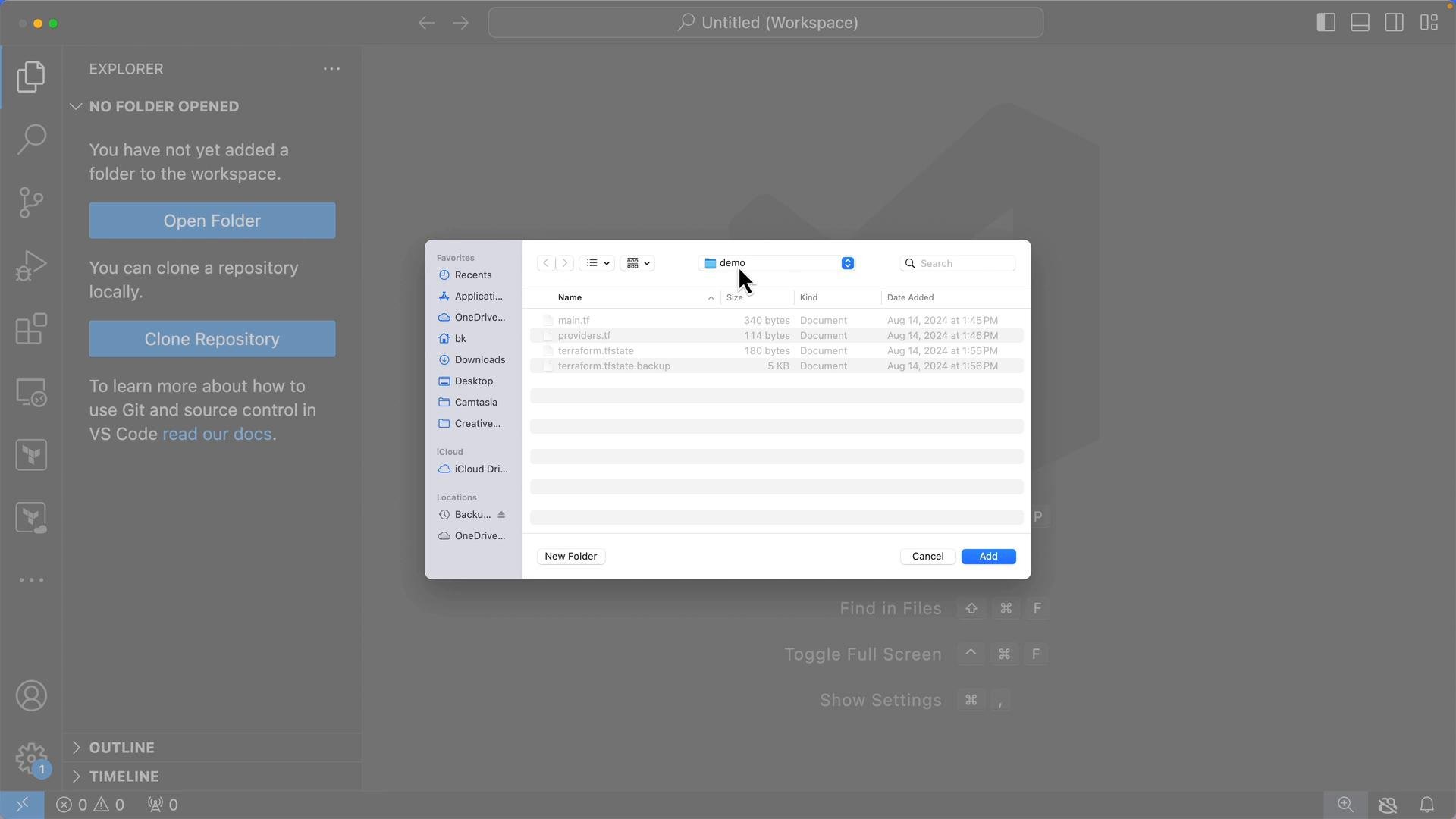
Example Terraform workspace files
Once the folder is open, files appear in the Explorer. Below are sample Terraform files commonly found in a workspace. main.tf:Source control and extensions
Source Control integrates directly with Git. If your folder is a Git repository (or you connect to a GitHub repository), you can stage changes, create commits, push to remotes, and review diffs without leaving VS Code. Extensions add language support, formatting, linting, and other productivity improvements. Open the Extensions view to search and install extensions for Terraform, Docker, dev containers, and coding assistants.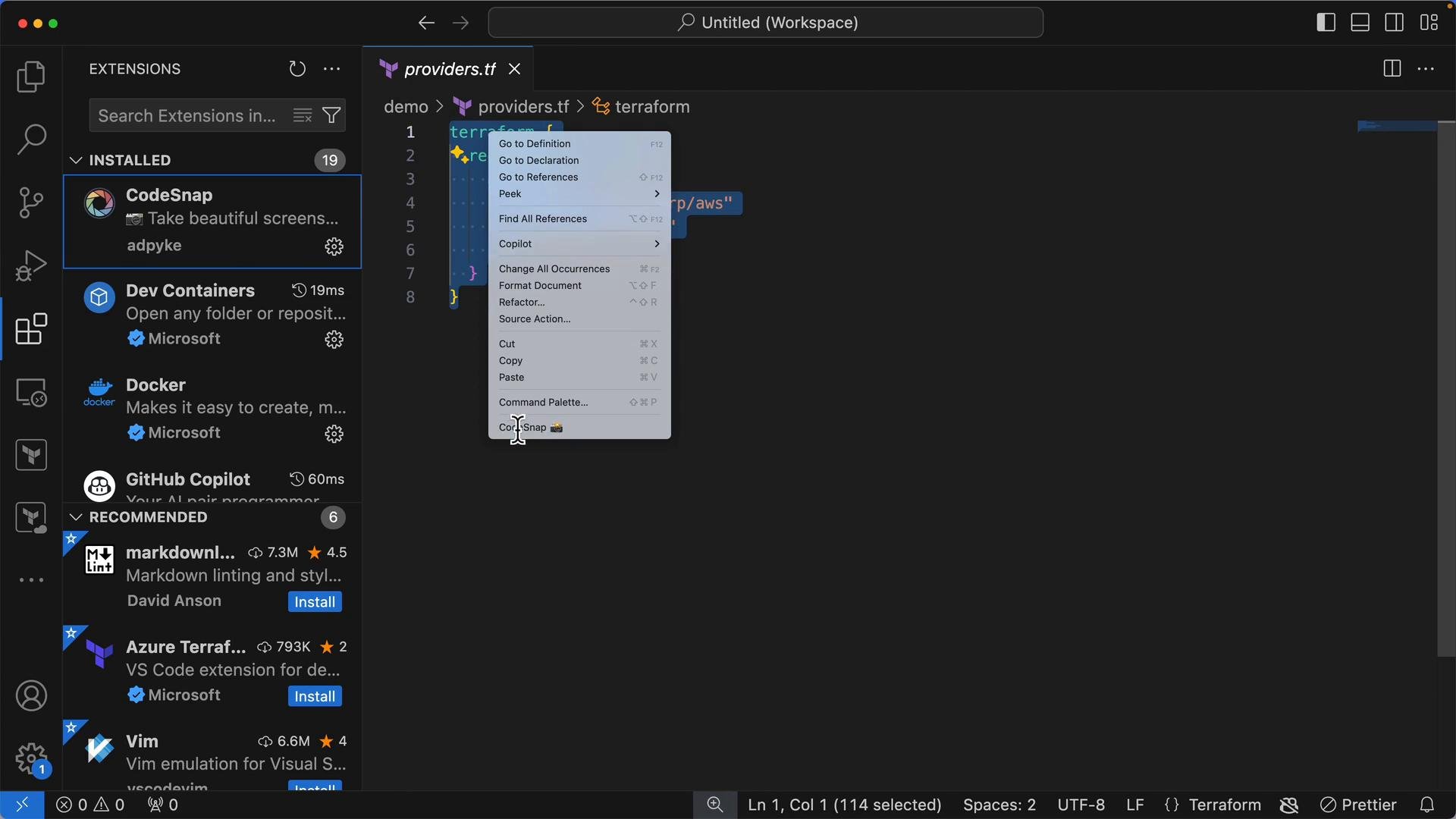
A few useful notes about extensions:
- CodeSnap is helpful for creating documentation-ready images of code.
- Terraform/HCL extensions improve editor support for lifecycle, interpolation, and validation.
- GitHub Copilot can speed up writing infrastructure code, but always review suggested changes.
Integrated terminal
Use the Integrated Terminal to run CLI commands for Terraform, Git, or any other tools from within the context of the open folder. To open a terminal that starts in the folder root: right-click the folder or a file in Explorer → Open in Integrated Terminal. The terminal pane will appear at the bottom and its working directory will be set to the opened folder. Example: check the current directory in the integrated terminal:zsh on macOS). A typical interactive shell start message may look like this:
We’ll use Visual Studio Code throughout these lessons. Install VS Code and any helpful extensions (Terraform/HCL, Docker, Dev Containers, etc.) before continuing.
Next steps and references
Now that VS Code is installed and configured, you can:- Open your Terraform project folder in Explorer.
- Install the Terraform/HCL extension for better editing and validation.
- Use the Integrated Terminal to run
terraform init,terraform plan, andterraform applyfrom inside VS Code.
- Visual Studio Code download: https://code.visualstudio.com/download
- VS Code documentation: https://code.visualstudio.com/docs
- Terraform language support (Marketplace) — search within the Extensions view in VS Code