Converting a Terraform Cloud workspace to a VCS-driven workflow where Git commits and pull requests automatically trigger Terraform plans with options for reviewing and auto-applying changes
Now that the Terraform state has been migrated into an HCP (Terraform Cloud) workspace and the workspace is managing both state and configuration, the next step is converting that workspace from a CLI-driven workflow to a VCS-driven workflow. With a VCS-driven workspace, commits to your Git repository automatically trigger Terraform runs (plans) in the workspace, and pull requests can trigger speculative plans for previewing changes.
Overview — high-level steps
Push your Terraform configuration to a Git repository (e.g., GitHub).
Configure your Terraform Cloud workspace to use that repository and branch.
Commits to the configured branch will trigger runs (plans) automatically; pull requests can trigger speculative plans.
Review and optionally apply plans from the Terraform Cloud UI or enable Auto-Apply for automatic applies.
Preparing your repository
Confirm the repository contains the Terraform files you want Terraform Cloud to run.
Push the files to the branch that the workspace will monitor.
Example: verify local git status
# local repositorygit status
Sample output:
On branch mainNo commits yetUntracked files: (use "git add <file>..." to include in what will be committed) main.tf providers.tf variables.tf
Initial Terraform configuration
Below is the initial main.tf used in this demo — a simple VPC and a private subnet.
Enumerating objects: 5, done.Counting objects: 100% (5/5), done.Delta compression using up to 10 threadsCompressing objects: 100% (3/3), done.Writing objects: 100% (3/3), 945 bytes | 945.00 KiB/s, done.Total 3 (delta 2), reused 0 (delta 0), pack-reused 0To https://github.com/your-org/hcp-demo.git adlae35..6fb376a main -> main
Configure the workspace to use VCS
In Terraform Cloud, open the workspace.
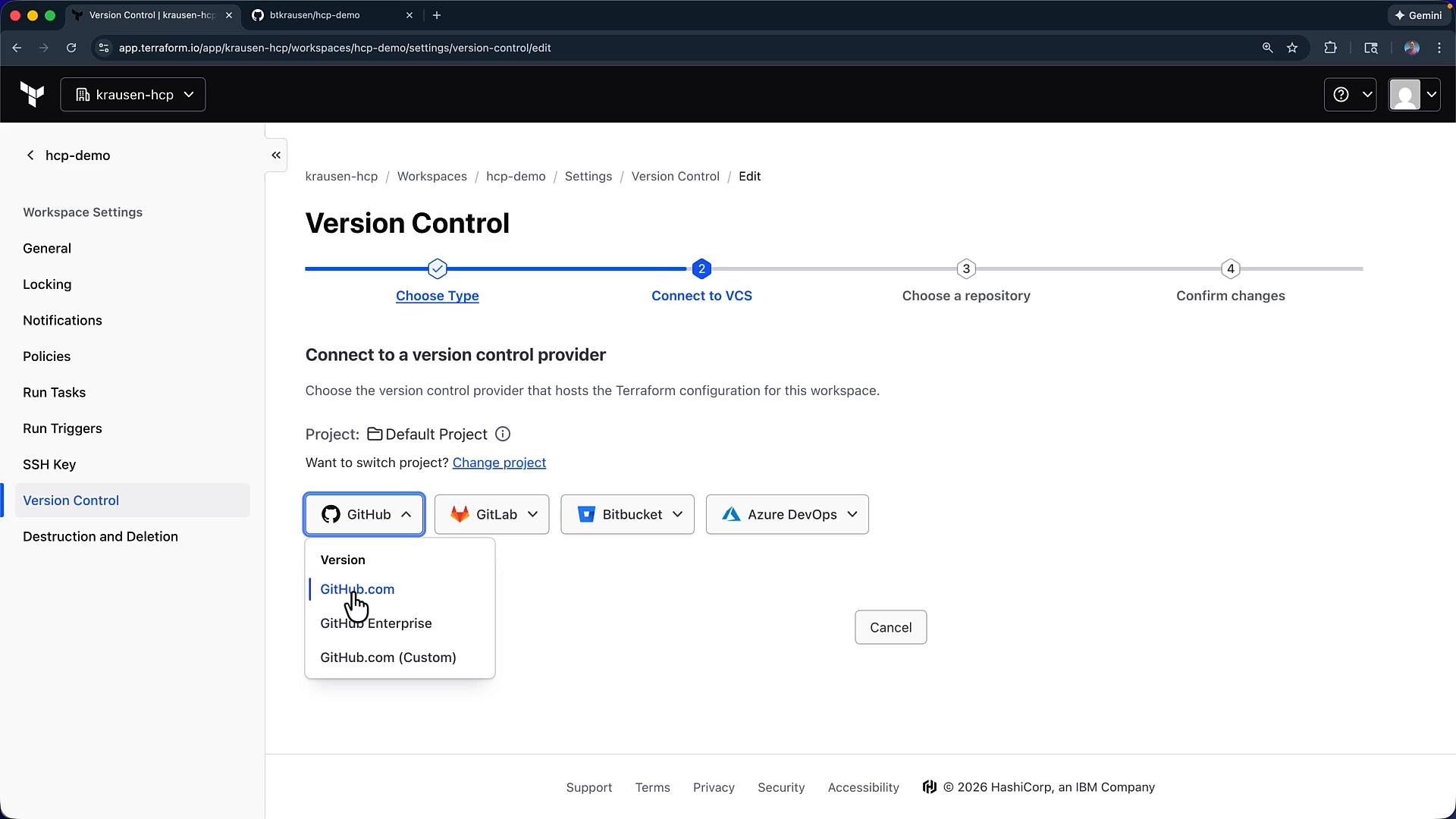
Go to Settings → Version Control.
Connect or select your VCS provider (GitHub, GitLab, Bitbucket, Azure DevOps, etc.).
Pick the repository and branch you pushed your code to, and save the settings.
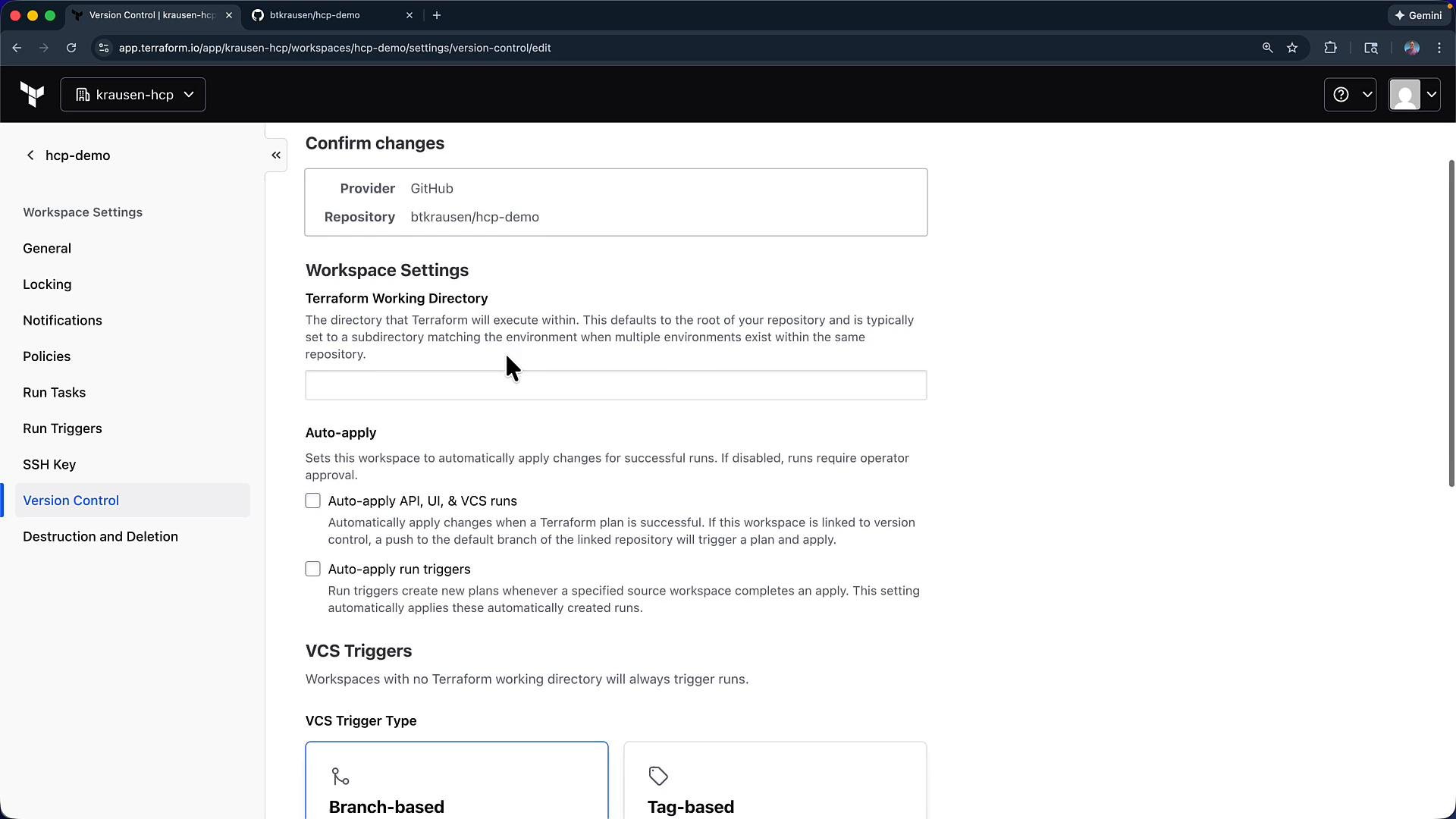
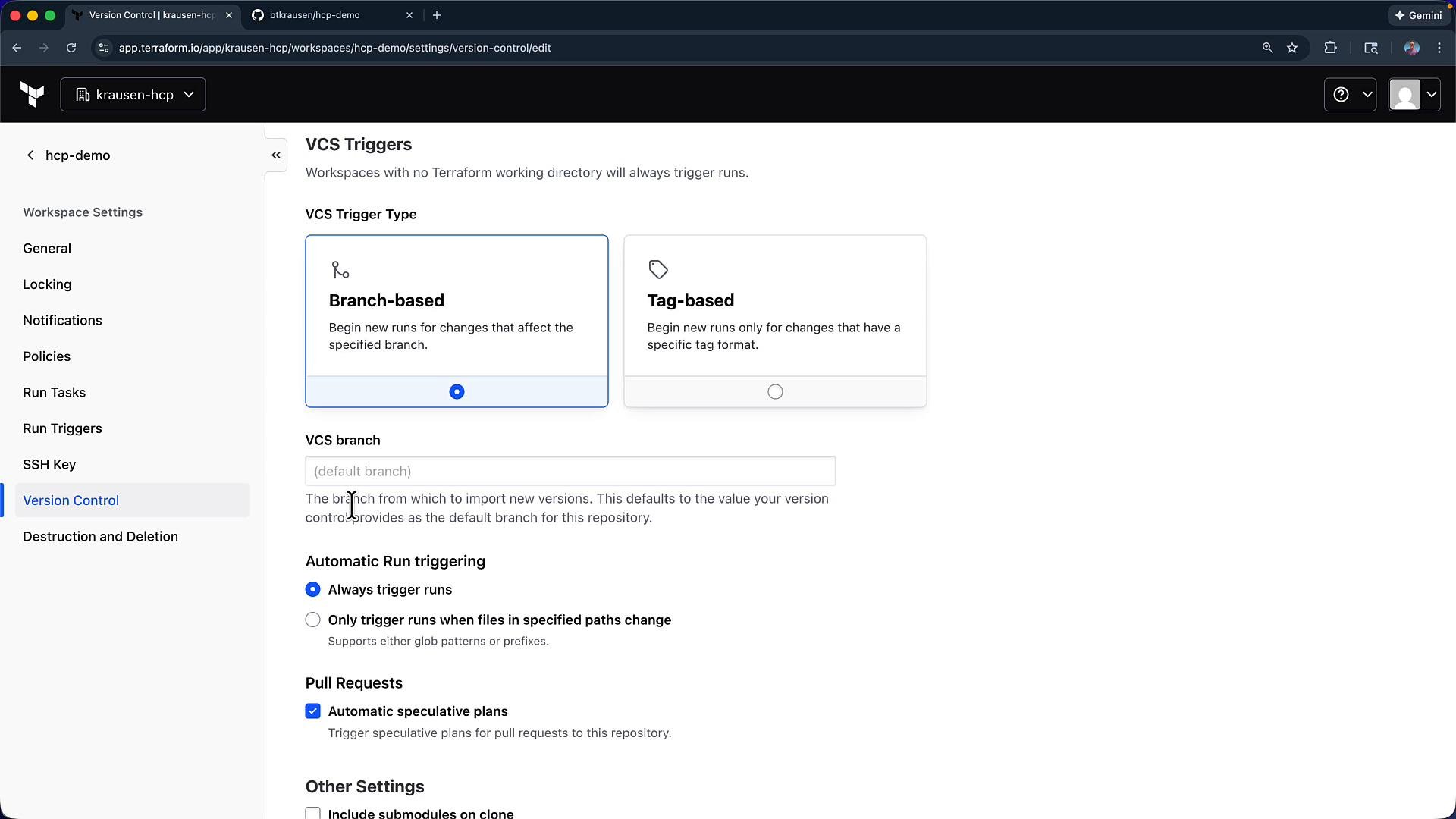
VCS configuration options
Working directory: set a subdirectory if your Terraform root is not at the repository root (leave blank for root).
Auto-apply: enable to automatically apply successful plans.
Trigger type: branch or tag based; pull request behavior (speculative plans) depends on provider and integration settings.
Connecting a workspace to VCS enables automatic plans whenever commits are pushed; pull requests can trigger speculative plans. You can enable Auto-Apply to apply changes automatically after a successful plan, but it’s common to require manual approval for production-sensitive workspaces.
First run after connecting VCS
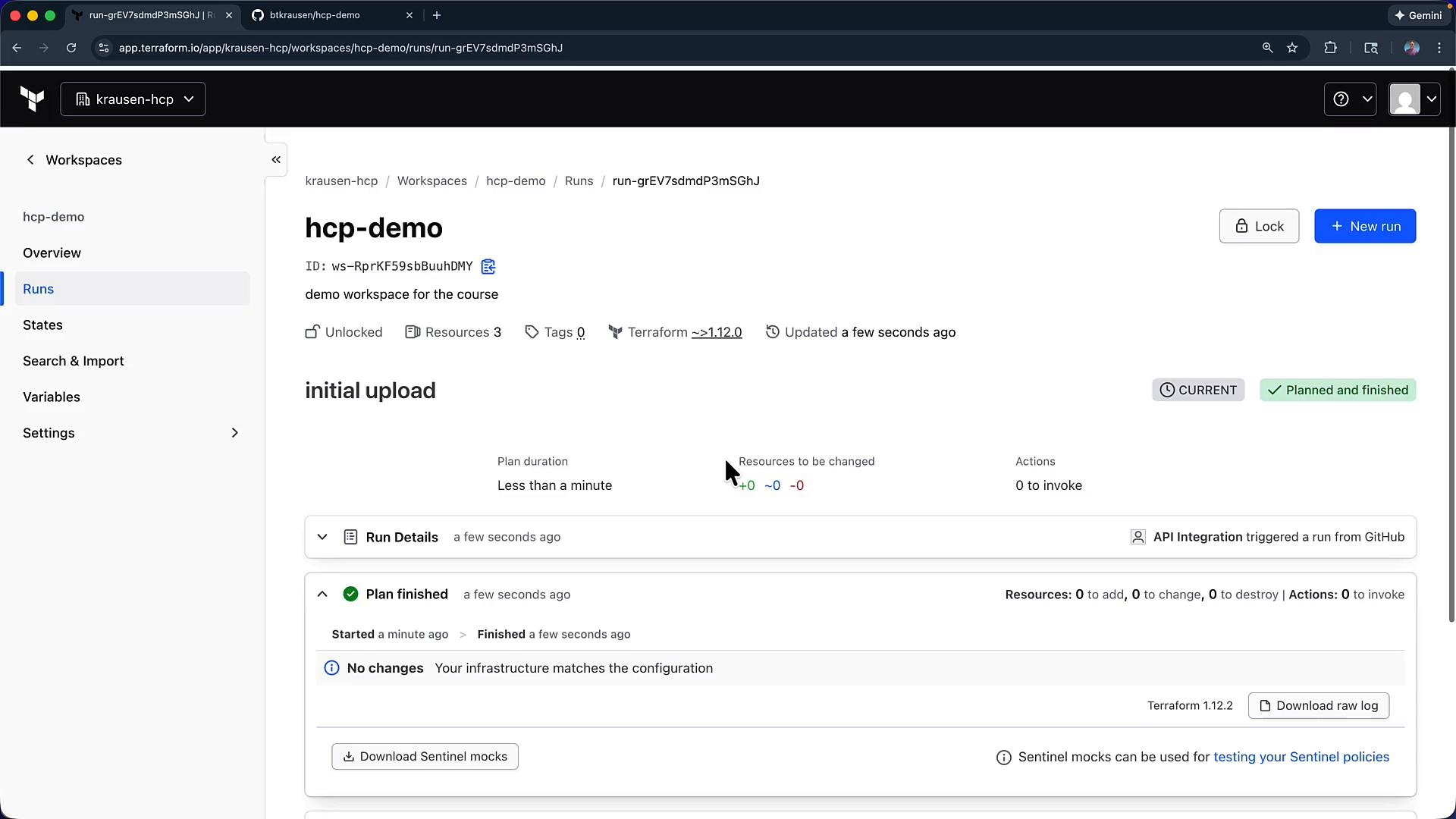
As soon as the workspace is connected to the repository and branch, Terraform Cloud queues an initial plan. This first run maps the repository configuration to the state currently managed by the workspace. In many cases this initial plan will report no changes if the state and configuration already match.
Demonstrating an update via VCS
To demonstrate how commits trigger runs, update your local configuration (for example, add environment tags to the private subnet and create a public subnet). The updated portion of main.tf:
git statusgit add main.tfgit commit -m "add environment tags and public subnet"git push origin main
Example push output:
Counting objects: 5, done.Delta compression using up to 10 threadsCompressing objects: 100% (3/3), done.Writing objects: 100% (3/3), 297 bytes | 297.00 KiB/s, done.Total 3 (delta 2), reused 0 (delta 0), pack-reused 0To https://github.com/your-org/hcp-demo.git 6fb376a..e9daeed main -> main
Automatic runs and reviewing plans
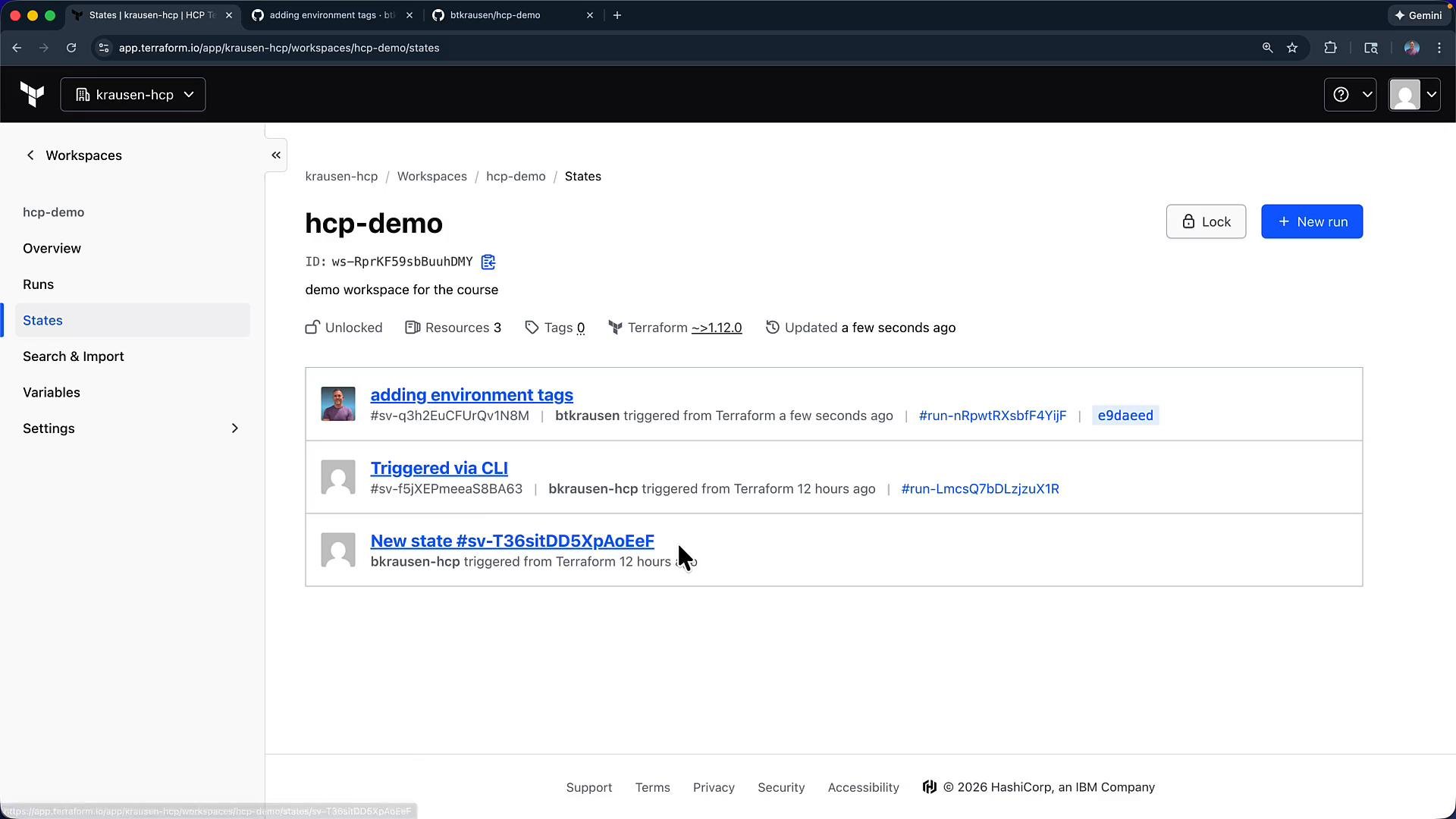
After the push completes, Terraform Cloud detects the commit and automatically triggers a run for the workspace. If this change were part of a pull request, Terraform Cloud would present a speculative plan tied to that PR. Each run is associated with the commit that triggered it so you can see exactly what Terraform will change.
From the run details you can:
Review the plan, then click Confirm & Apply to execute the changes, or
Enable Auto-Apply so successful plans are applied automatically.
I chose Confirm & Apply in this demo. Terraform Cloud executed the apply, updated the workspace state, and created a new state version. You can verify the new state under the workspace States tab.Benefits of a VCS-driven Terraform workflow
Benefit
Description
Versioned IaC
Keep your infrastructure-as-code in Git with commit history and diffs.
Automated runs
Commits trigger plans automatically; PRs can trigger speculative plans for pre-merge validation.
Auditing & visibility
See who triggered runs and why; Terraform Cloud logs runs and state versions for compliance.
Flexible apply workflows
Choose manual Confirm & Apply for control or Auto-Apply for automation.
Next steps
With the workspace now VCS-connected, you can extend this pattern to:
Create additional workspaces per environment (dev, staging, prod),
Use workspace variables and policies to enforce guardrails,
Integrate CI/CD pipelines to manage more complex workflows.
Now that the workspace is VCS-driven, subsequent changes to infrastructure will be governed by commits and PR workflows, improving collaboration, traceability, and automation.