

1) Create your Terraform account
- Open your browser to https://app.terraform.io and click Create Account at the bottom of the sign-in page.
- Provide a username, email address, and password. Accept the Terms of Service and Privacy Policy, then click Create Account.
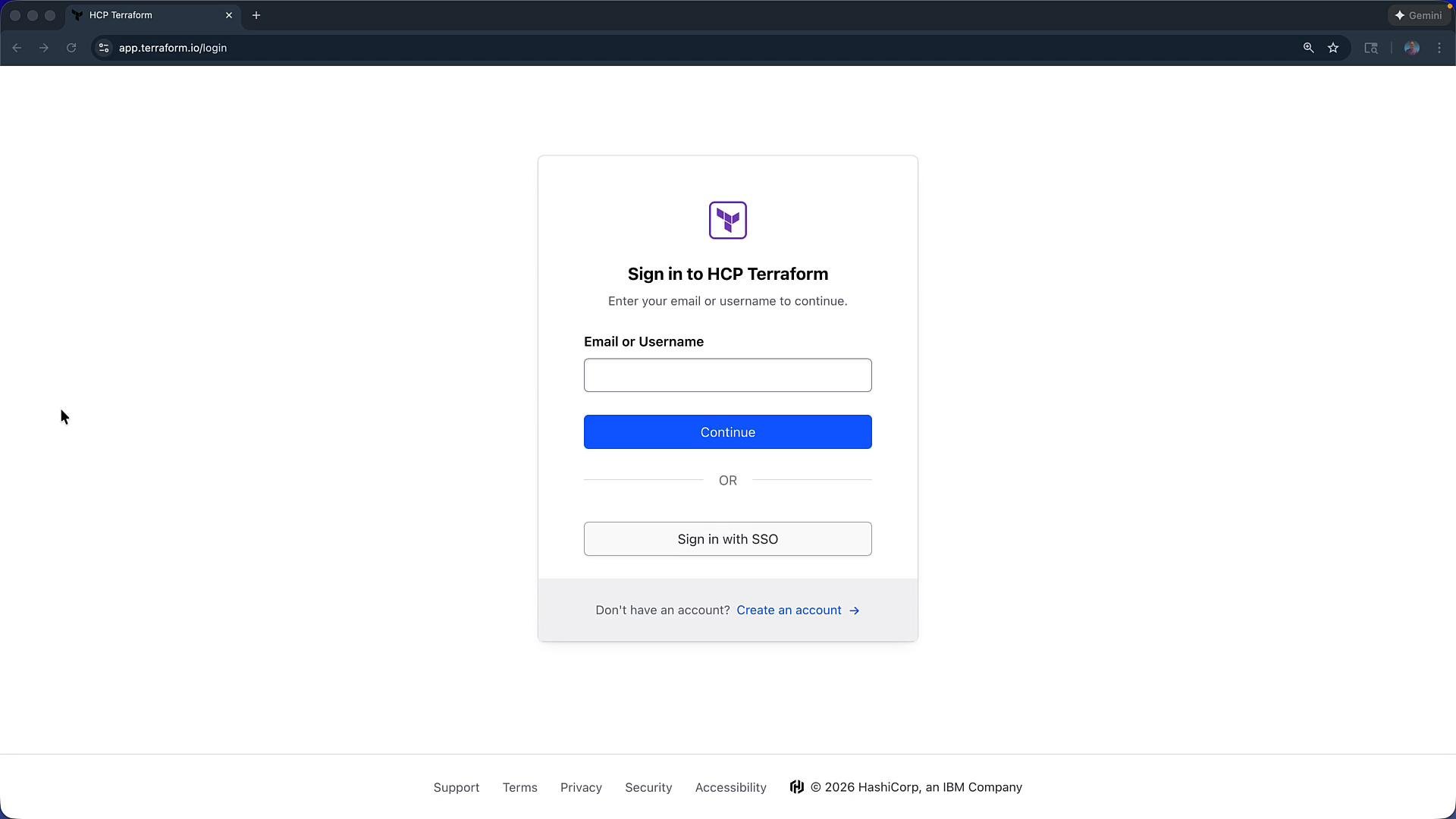
- Confirm your email address: open the confirmation email and click the verification link. After verifying, refresh the Terraform web UI — your account will be active.
2) Configure your profile and API tokens
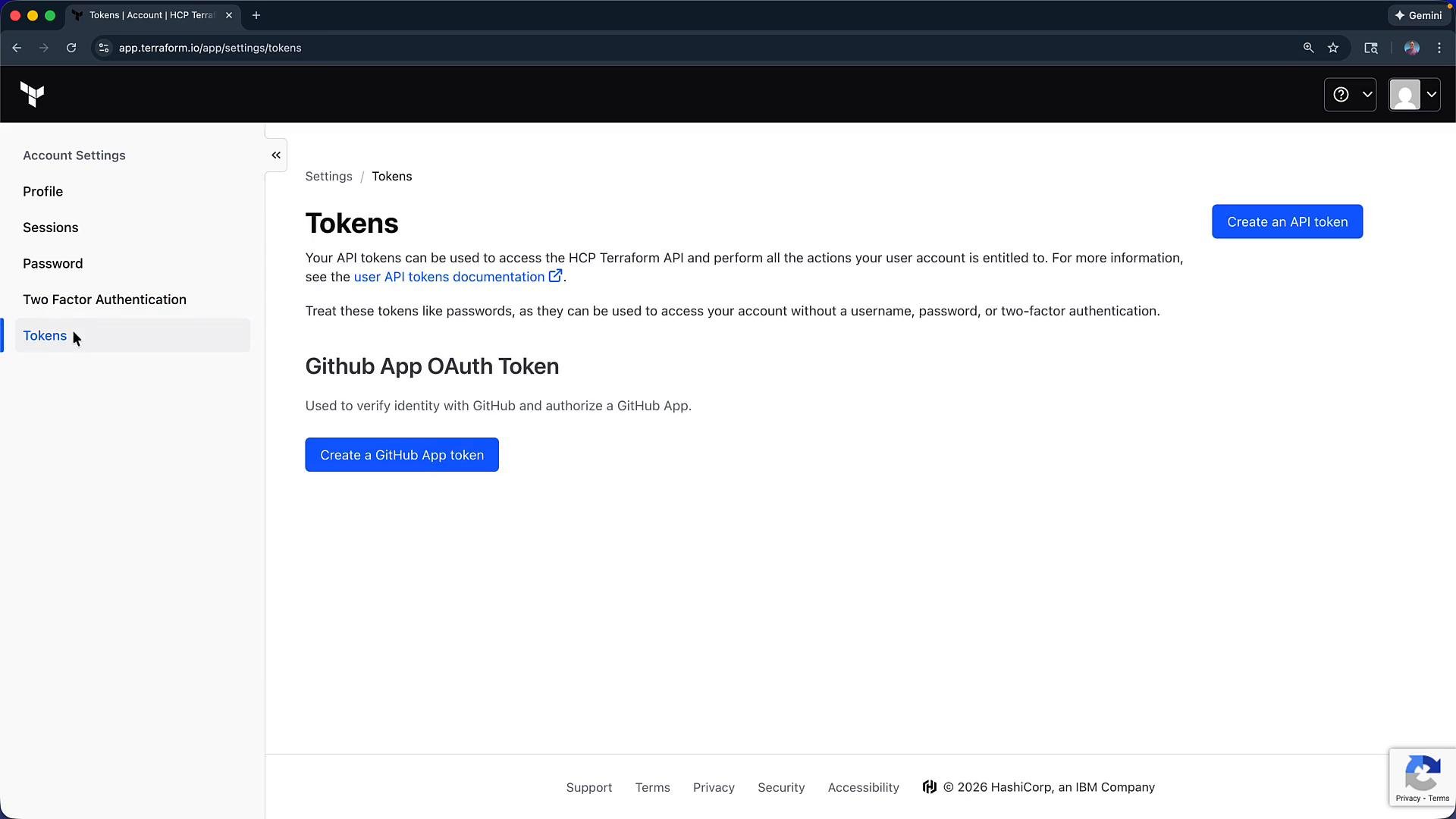
Once logged in you can immediately update profile details and security settings:- Add an avatar and display name.
- Manage active sessions and change your password.
- Enable two-factor authentication (2FA).
- Generate API tokens for automation.
3) Create an organization
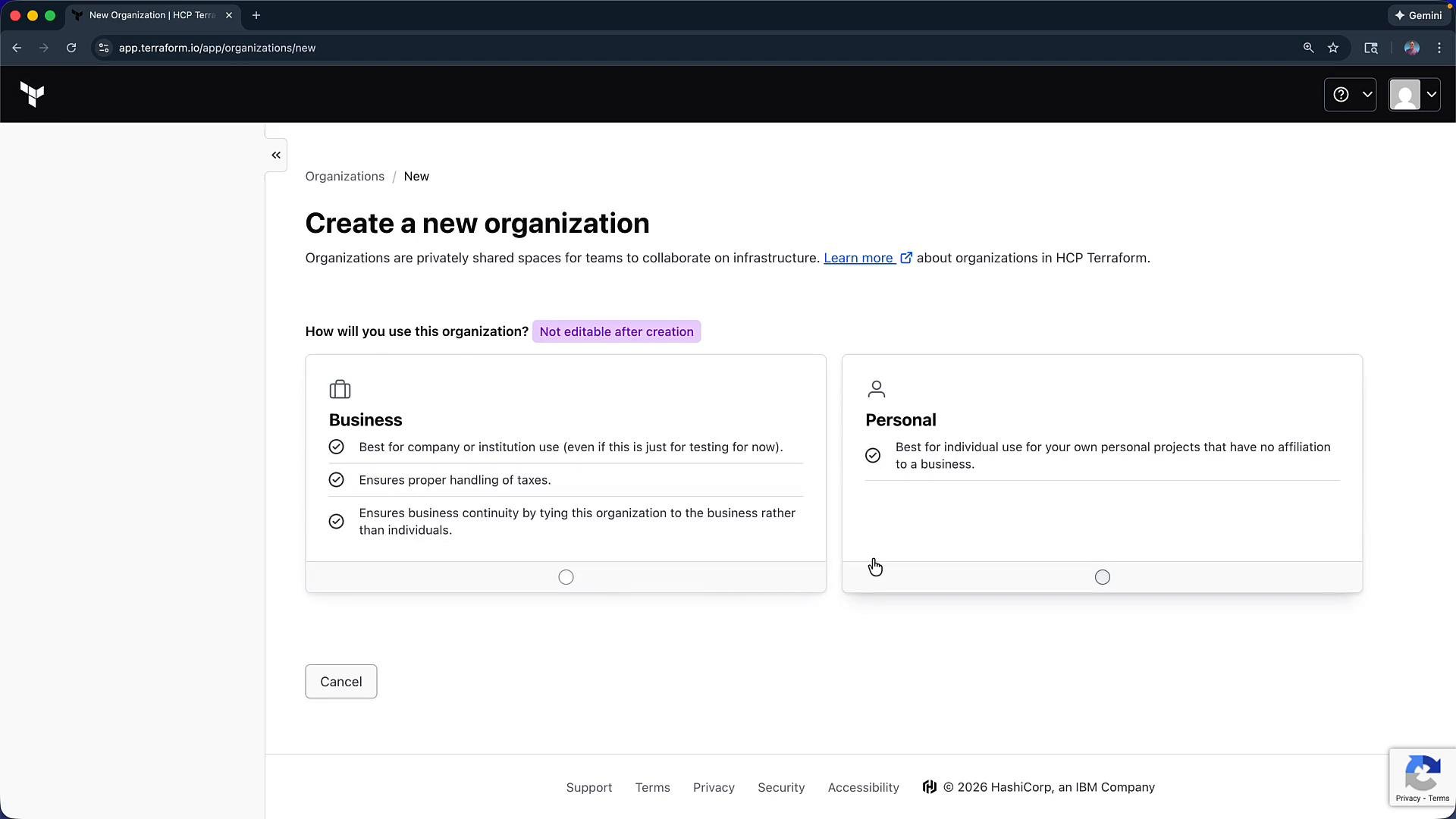
Organizations let you group work around teams, projects, and access controls.- In the header, choose HCP Terraform (your account menu) and click Create new organization.
- For personal usage, select Personal, give the organization a name (e.g., “Krausen HCP”), verify the contact email, and create the organization.
4) Organization settings—what you can configure
Use the organization Settings area to manage integrations, security, and collaboration features. The following table summarizes common configuration areas: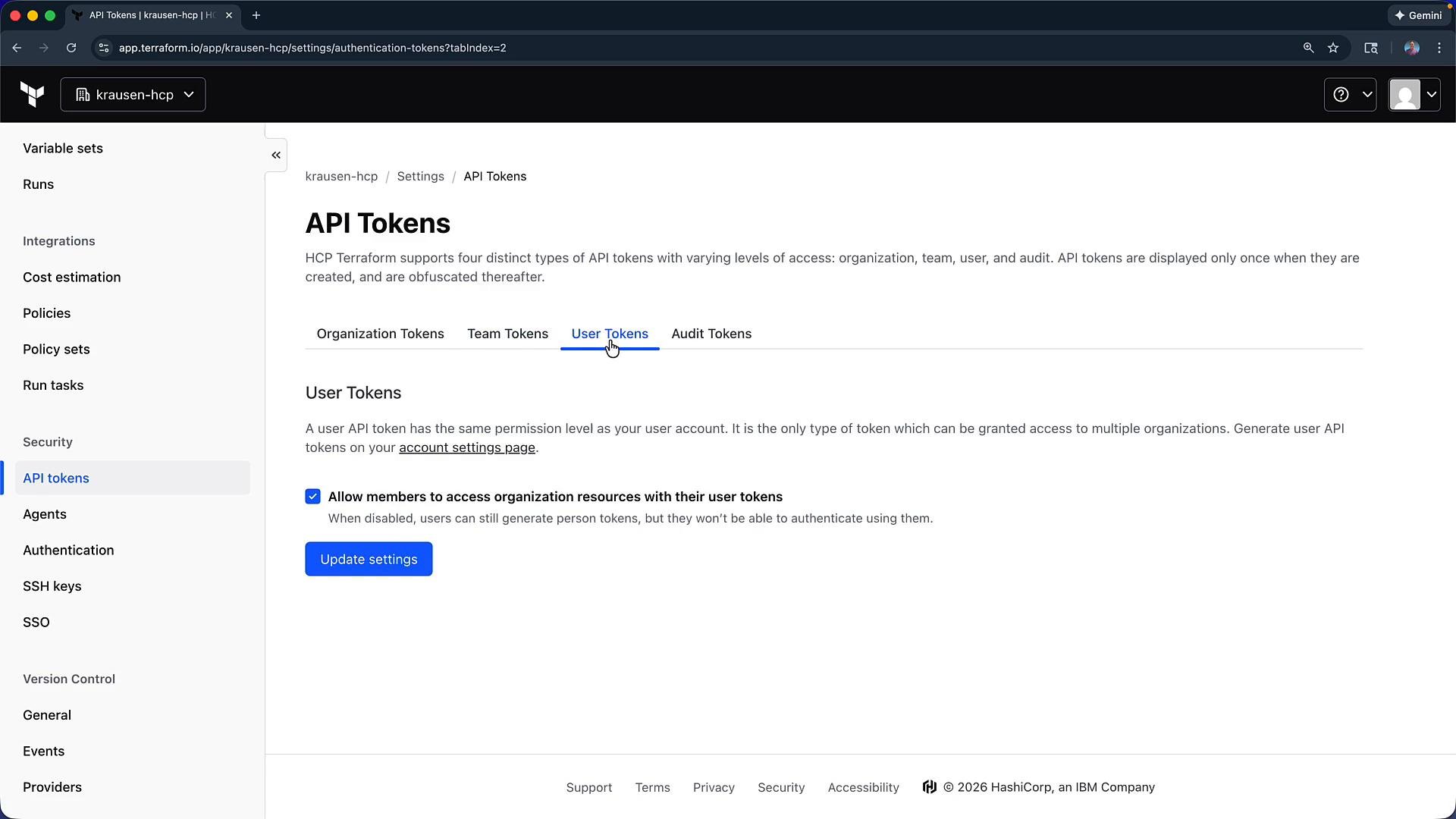
Keep API tokens confidential. Use the least-privilege token type appropriate for your automation (organization, team, or user) and rotate tokens regularly.
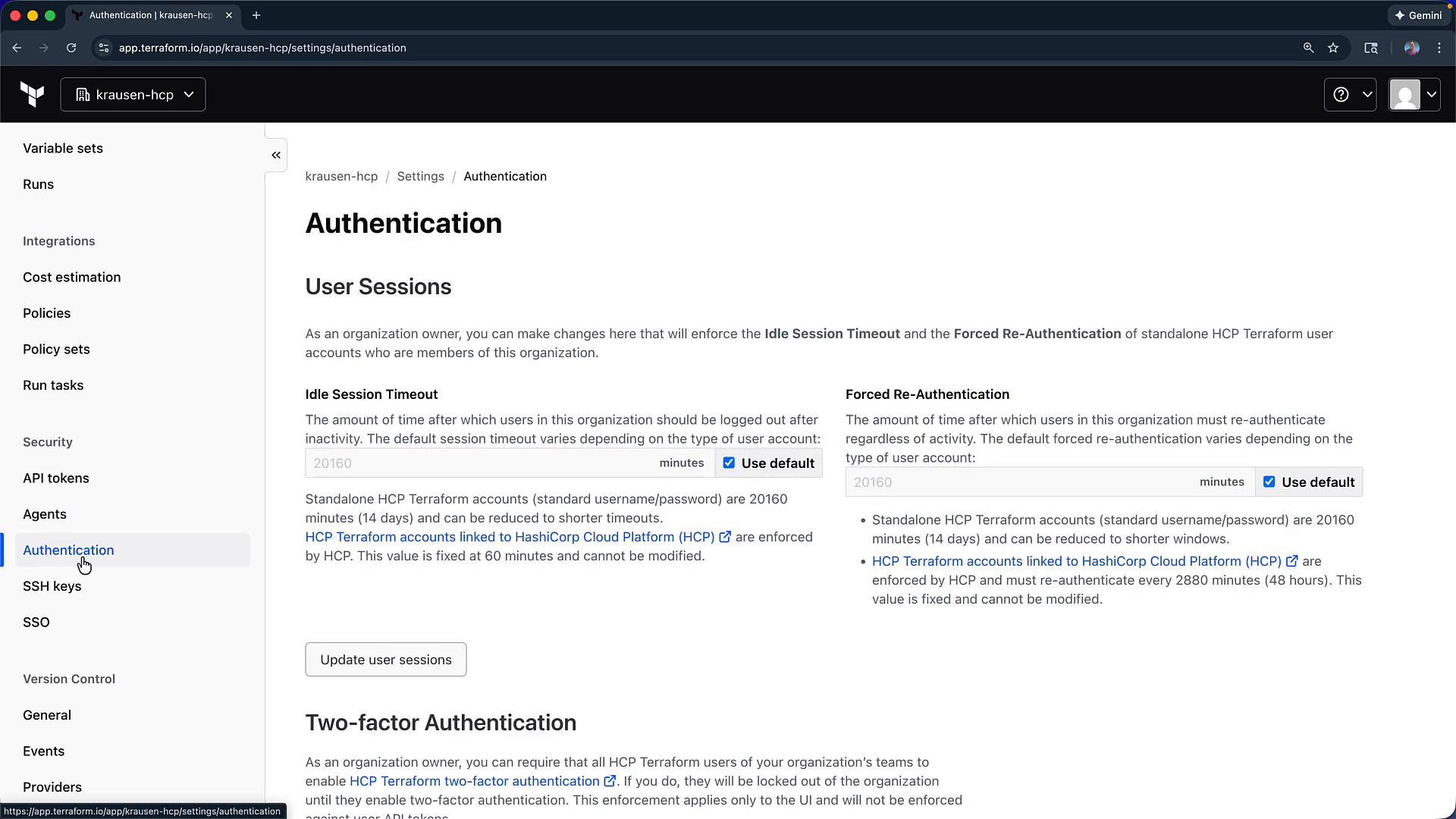
5) Authentication and security policies
From Settings → Authentication you can configure organization-wide policies:- Session timeouts (idle timeout).
- Forced re-authentication after a period.
- Require two-factor authentication (2FA) for members.
- Enforce SSO or configure SSH access.
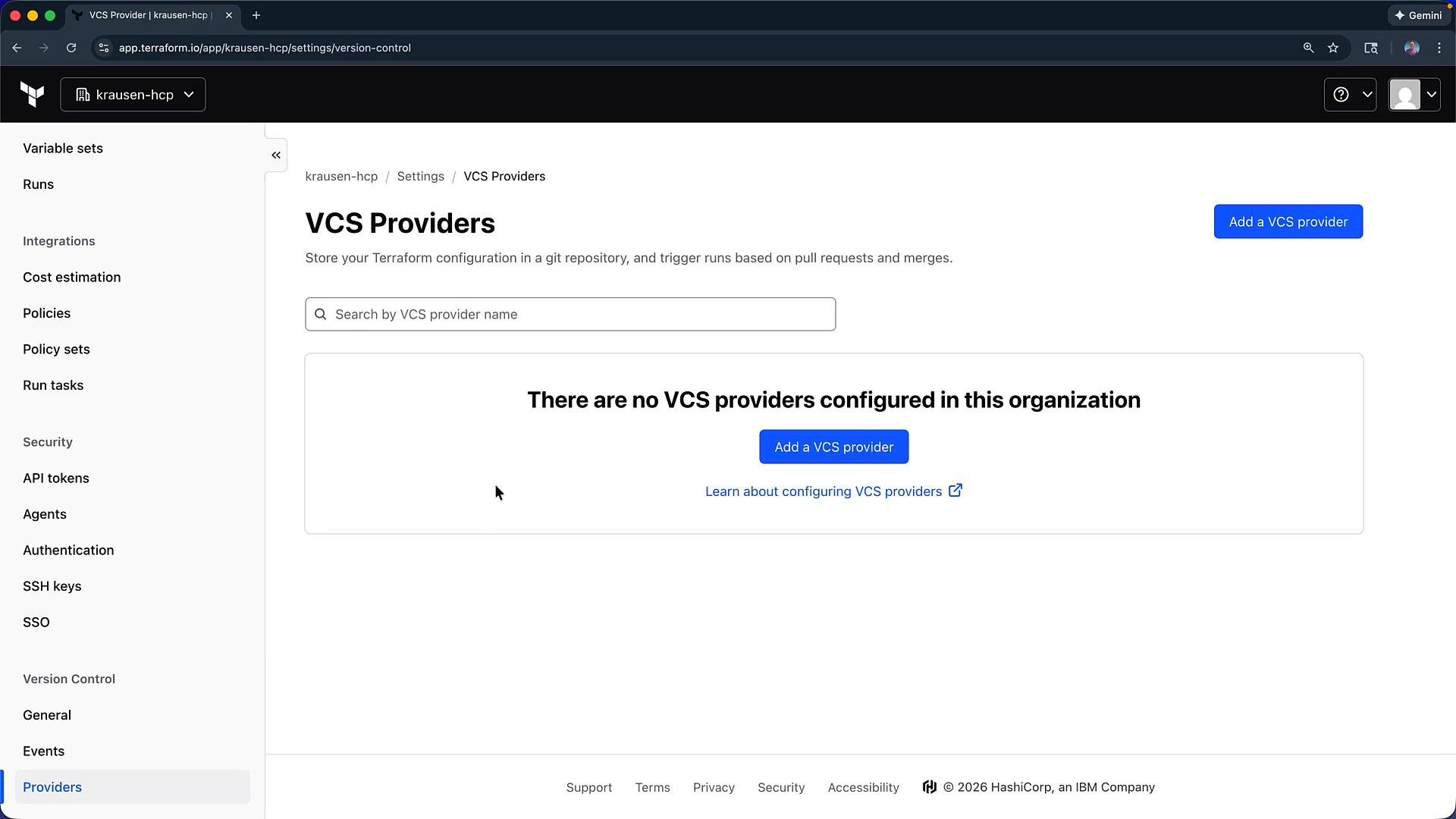
6) Add a VCS provider for automated runs
Connect a version control system (VCS) so workspaces can link to repositories and trigger runs automatically when code changes are pushed. Supported providers include:- GitHub — https://github.com
- GitLab — https://gitlab.com
- Bitbucket — https://bitbucket.org
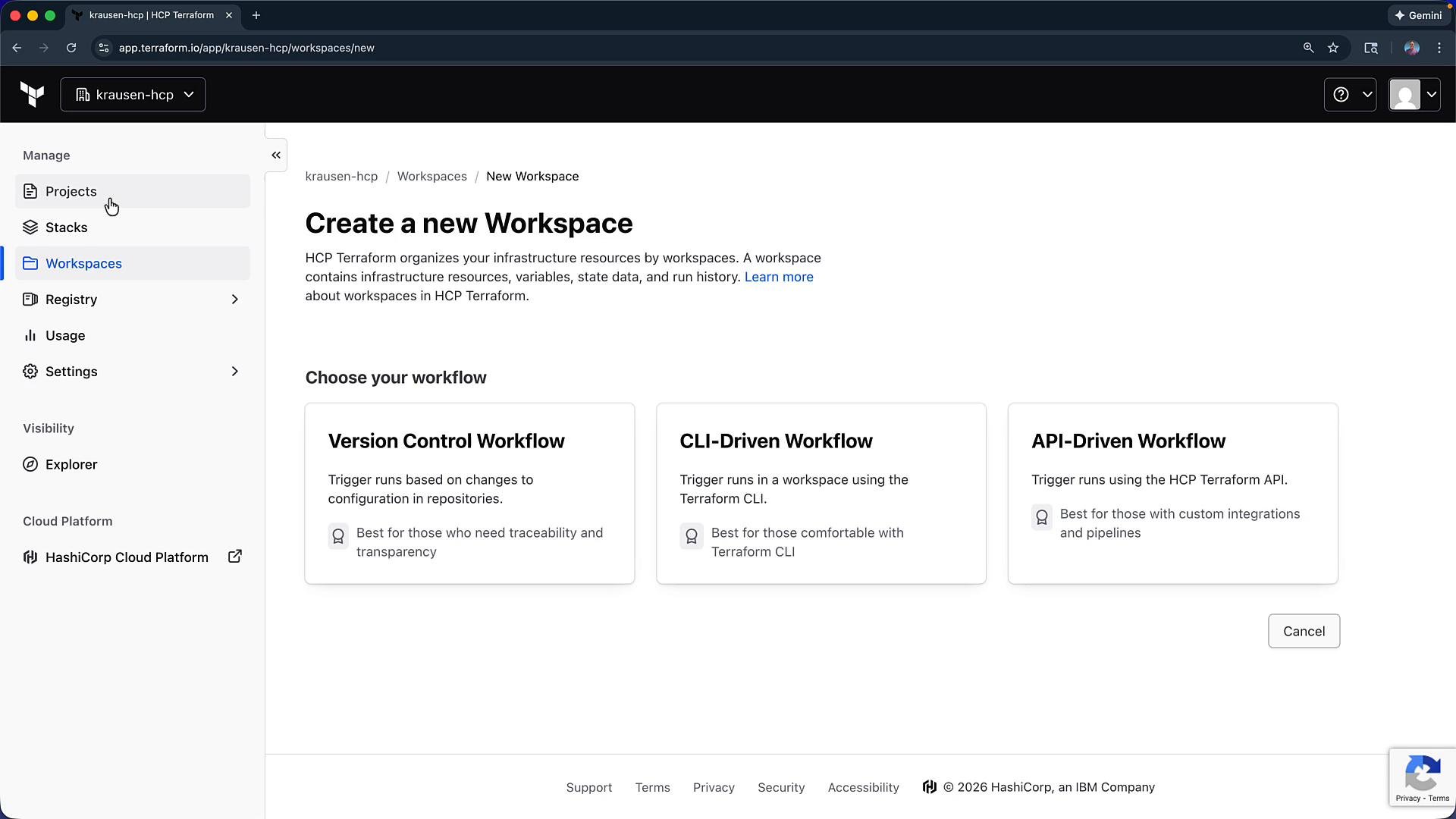
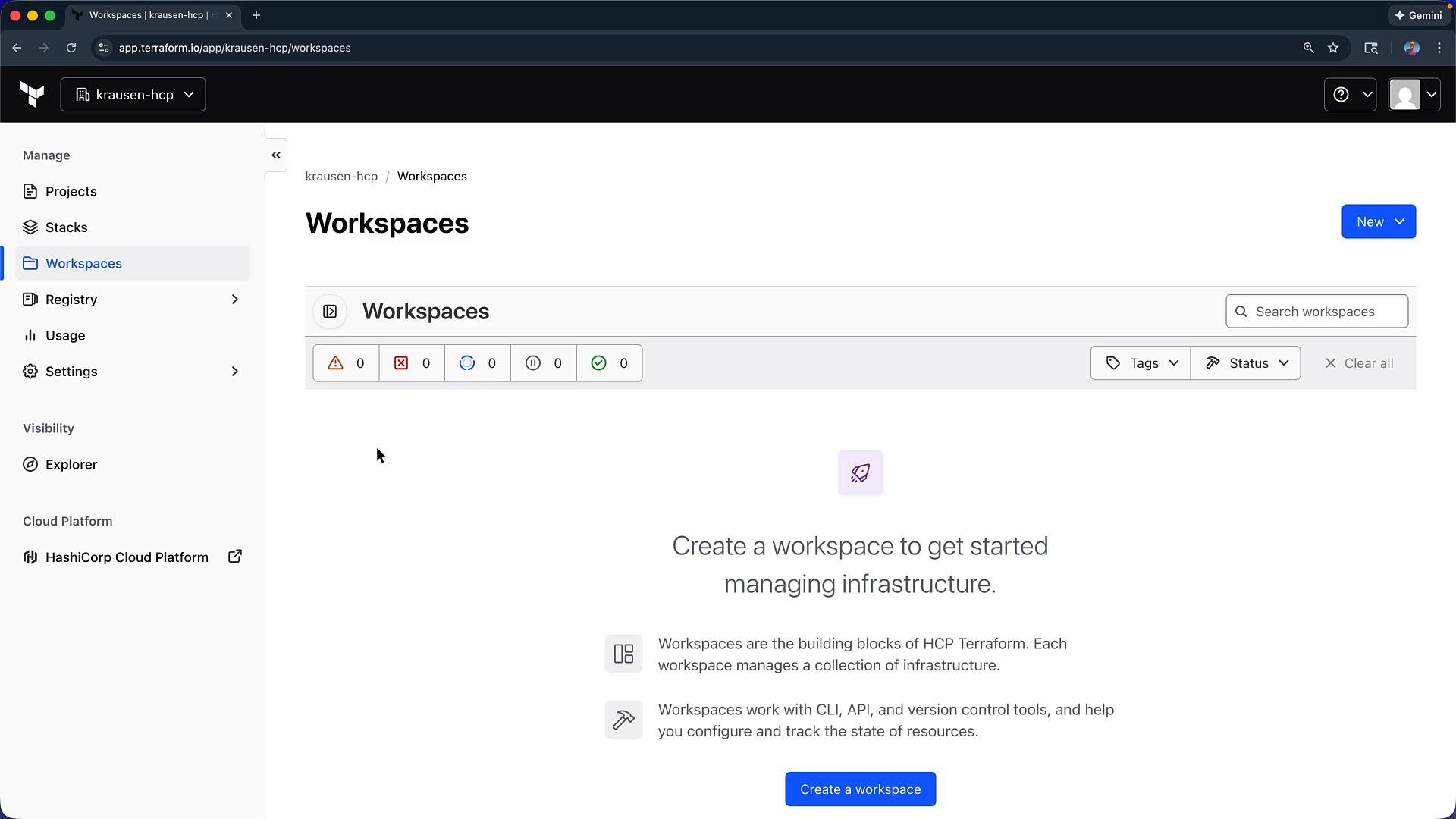
7) Create a workspace
Workspaces are where Terraform runs occur. You can create:- Version Control–driven workspaces (recommended) — connect to a repo to trigger runs on commits.
- CLI-driven workspaces — trigger runs from your local machine using
terraformCLI. - API-driven workspaces — start runs programmatically via the REST API.
Quick checklist — post-setup
- Confirm email and log in.
- Configure 2FA and session policies.
- Generate and securely store API tokens.
- Add a VCS provider and connect a repository.
- Create a workspace and test a simple plan/apply.
Links and references
- Terraform Cloud (app): https://app.terraform.io
- Terraform documentation: https://www.terraform.io/docs
- GitHub: https://github.com
- GitLab: https://gitlab.com
- Bitbucket: https://bitbucket.org