

terraform.tfstate inside the working directory that contains your Terraform configuration files. That state file records Terraform’s current view of the resources it manages and is essential for planning and applying changes.
Terraform also needs to prevent concurrent writes to the state file while operations that modify state are running. Whether locking is available depends on the backend you select:
- The local backend (default) does not provide state locking.
- Many remote backends provide locking (or can be combined with a locking mechanism) to prevent concurrent modifications.
terraform.tfstate file:
Minimal example: backend configuration for an S3 remote backend (place in a
backend block inside terraform configuration):
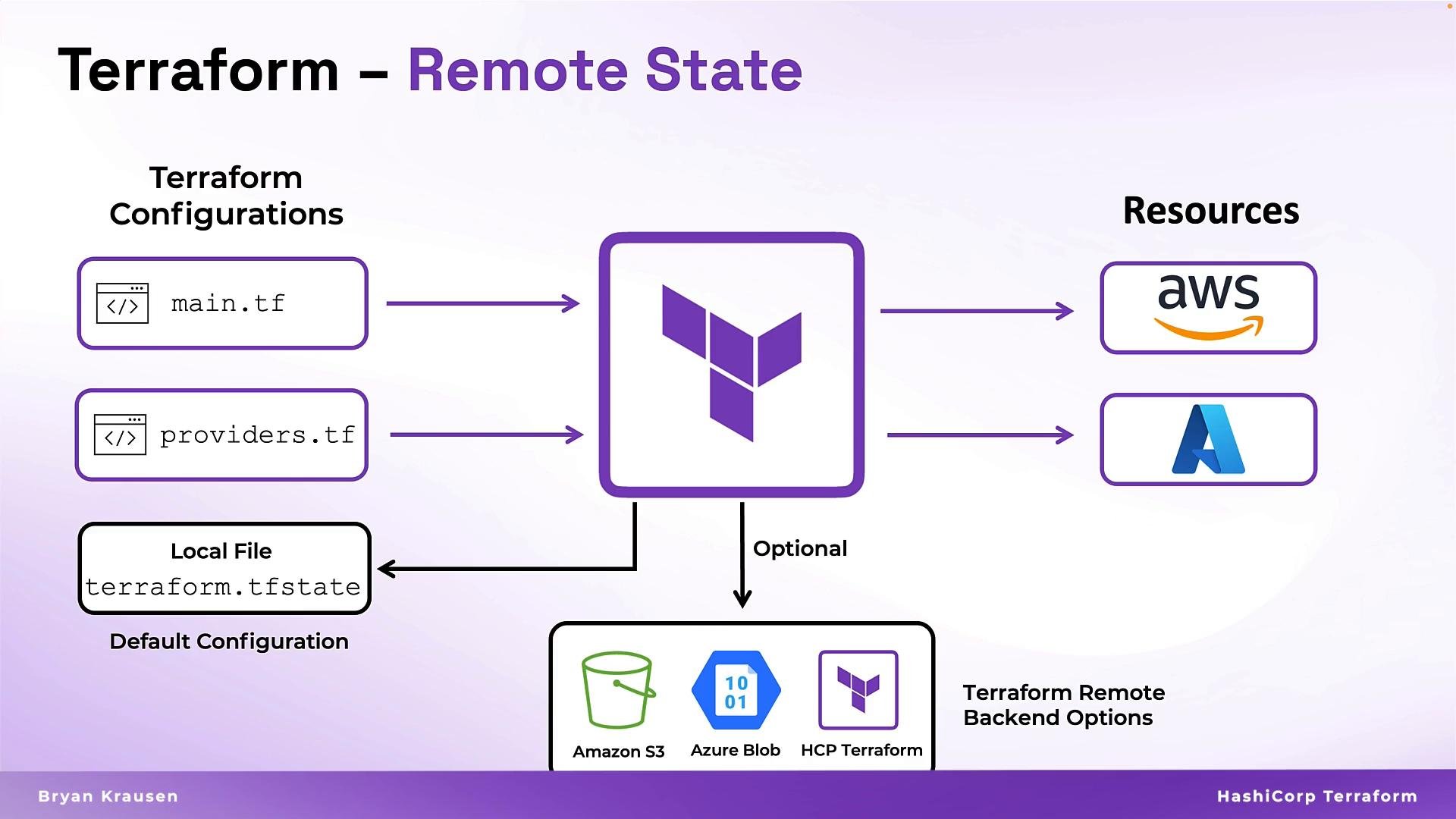
terraform.tfstate file is acceptable for quick experiments.
Use a remote backend with locking (for example, S3 + DynamoDB or Terraform Cloud) when multiple people or automated systems will run Terraform against the same state to avoid conflicts and corruption.
- Choosing a backend that fits your cloud and team needs (see table above).
- Creating the remote storage resource (e.g., S3 bucket, Azure storage account, GCS bucket).
- Optionally creating a locking resource (e.g., DynamoDB table for S3).
- Configuring the
terraformblock with the appropriatebackendstanza. - Migrating existing local state to the remote backend with
terraform initand the migration prompts, or usingterraform statecommands when necessary.
- Terraform backends documentation
- Amazon S3 backend (Terraform)
- Terraform Cloud and Remote Backend
- Migrating state