

Use variable sets to centralize shared configuration such as logging endpoints, feature flags, or common Terraform variable defaults. Avoid relying on variable sets for long-lived credentials; prefer short-lived credentials or an external secrets manager and inject secrets at runtime where possible.
Why use variable sets?
- Reduce duplication by sharing common values across multiple workspaces.
- Enforce consistent configuration across projects and teams.
- Apply updates centrally and have them propagate to all attached workspaces.
- Control override behavior using the variable set priority setting.
Create an organization-level variable set
Organization-level variable sets can be applied to all projects and workspaces, or scoped to selected projects and workspaces. When applied to a project, all current and future workspaces in that project inherit the set. Steps:- In Terraform Cloud, open Settings from the left sidebar and select Variable Sets.
- Click to create a new Organization variable set.
- Enter a descriptive name (for example,
AWS Production) and an optional description (for example,production credentials). - Choose the scope:
- Apply to all projects and workspaces (organization-wide), or
- Apply to specific projects and/or specific workspaces.
- Choose the variable type: Terraform variable or Environment variable.
- Enter the key and value (for example
AWS_SECRET_ACCESS_KEY). - Mark secrets as Sensitive so values are masked in the UI after saving.
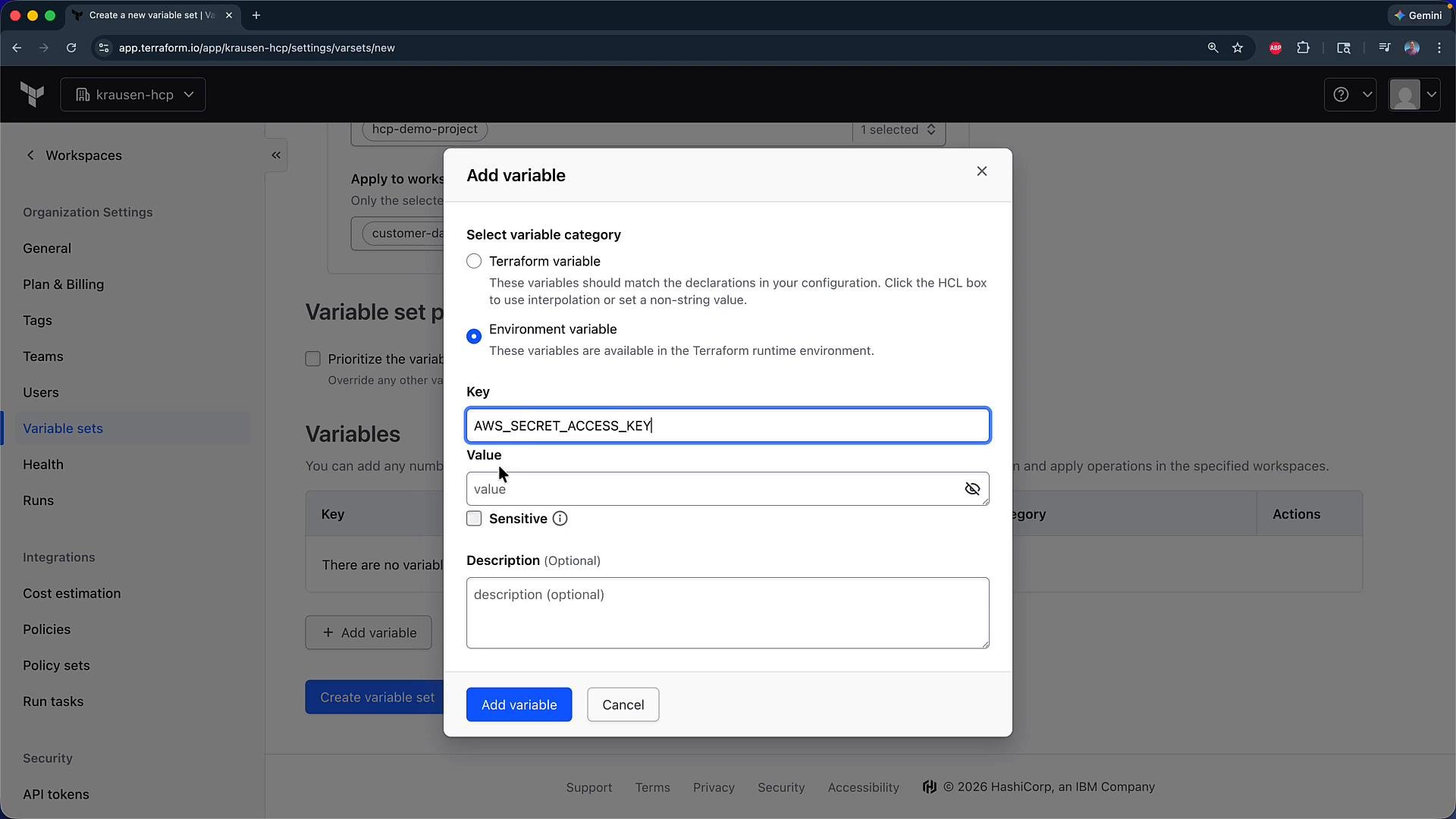
- Click Add variable.
- Select the variable type (Terraform or Environment).
- Enter the key (
AWS_SECRET_ACCESS_KEY) and the value. - Mark the variable as Sensitive if it is a secret, then click Add.
- Add additional variables as needed (e.g.,
AWS_ACCESS_KEY_ID) and click Create variable set to finish.
Avoid storing long-lived cloud credentials directly in Terraform Cloud. Sensitive variables are masked in the UI but can still be consumed by runs that have access. Prefer short-lived credentials or an external secrets manager and restrict access to variable set management.
Create a project-level variable set
Project-level variable sets apply only to a single project and its workspaces. These are ideal when several workspaces within the same project share configuration but you do not want those variables available organization-wide. Steps:- Open the target project (for example,
HCP demo) and go to Settings → Variable Sets. - Click to create a new Project variable set.
- Provide a name and description (for example,
project-variable-set). - Choose the scope: apply to the entire project or to specific workspaces within that project.
- Add variables following the same process described above and click Create variable set.
Inspect applied variable sets at the workspace level
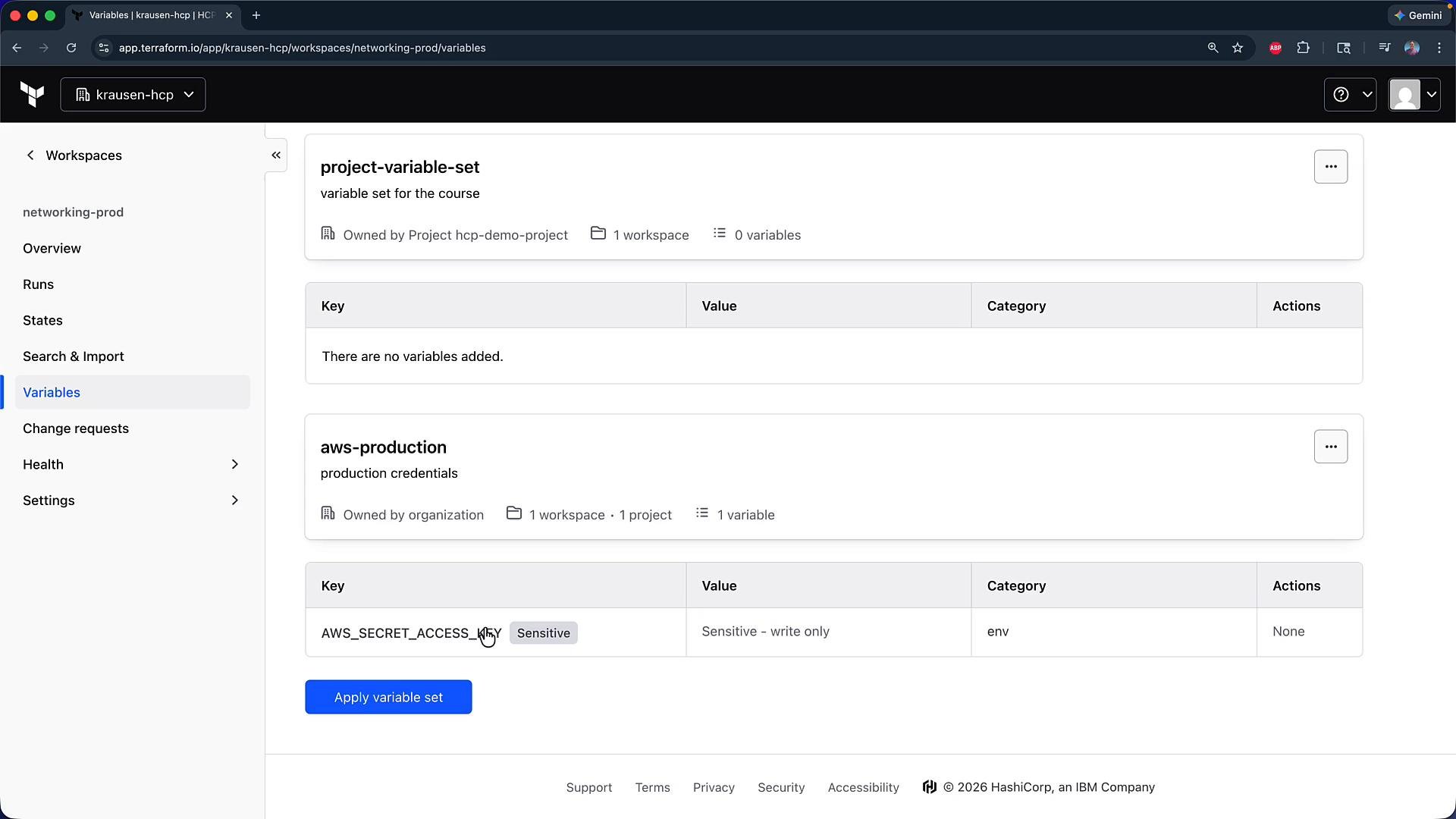
To view which variable sets affect a workspace:- Open the workspace (for example
networking-prod). - Click Variables in the workspace navigation.
- Scroll to the section that lists Variable Sets applied to this workspace.
Scope and precedence summary
Key precedence rules:
- Workspace variables normally take precedence over variable set values.
- If a variable set has priority enabled, its variables can override workspace-defined values.
- Sensitive variables are masked, but runs with appropriate access can still read them.
Best practices
- Use organization-level sets for company-wide defaults and environment-level configuration that should be consistent across projects.
- Use project-level sets for values shared by workspaces within the same project (e.g., network CIDR prefixes, project IDs).
- Keep secrets out of long-lived variable sets where feasible; prefer short-lived credentials or an external secrets manager (e.g., HashiCorp Vault, AWS Secrets Manager).
- Use the variable set priority option intentionally and document when and why a set has priority to avoid confusing overrides.
- Audit who can manage variable sets and limit permissions to reduce risk of accidental secret exposure.
- Terraform Cloud — Variable sets
- Terraform Cloud — Workspaces and variables
- HashiCorp Vault — Secrets management