This guide walks through creating an IAM user in the AWS Management Console, generating programmatic credentials, and configuring those credentials so Terraform can authenticate to your AWS account. Prerequisites:
  • An AWS account and a user with permission to create IAM users and access keys.
  • Terraform installed locally.
  • (Optional) AWS CLI installed for managed credential storage.
  1. Open the AWS Management Console
The image shows an AWS Console Home page, displaying a list of recently visited services and application management options, as well as sections for AWS Health, cost and usage, and getting started resources.
  1. Navigate to IAM
Open IAM from Recently visited services or type “IAM” in the top search box and open the IAM console.
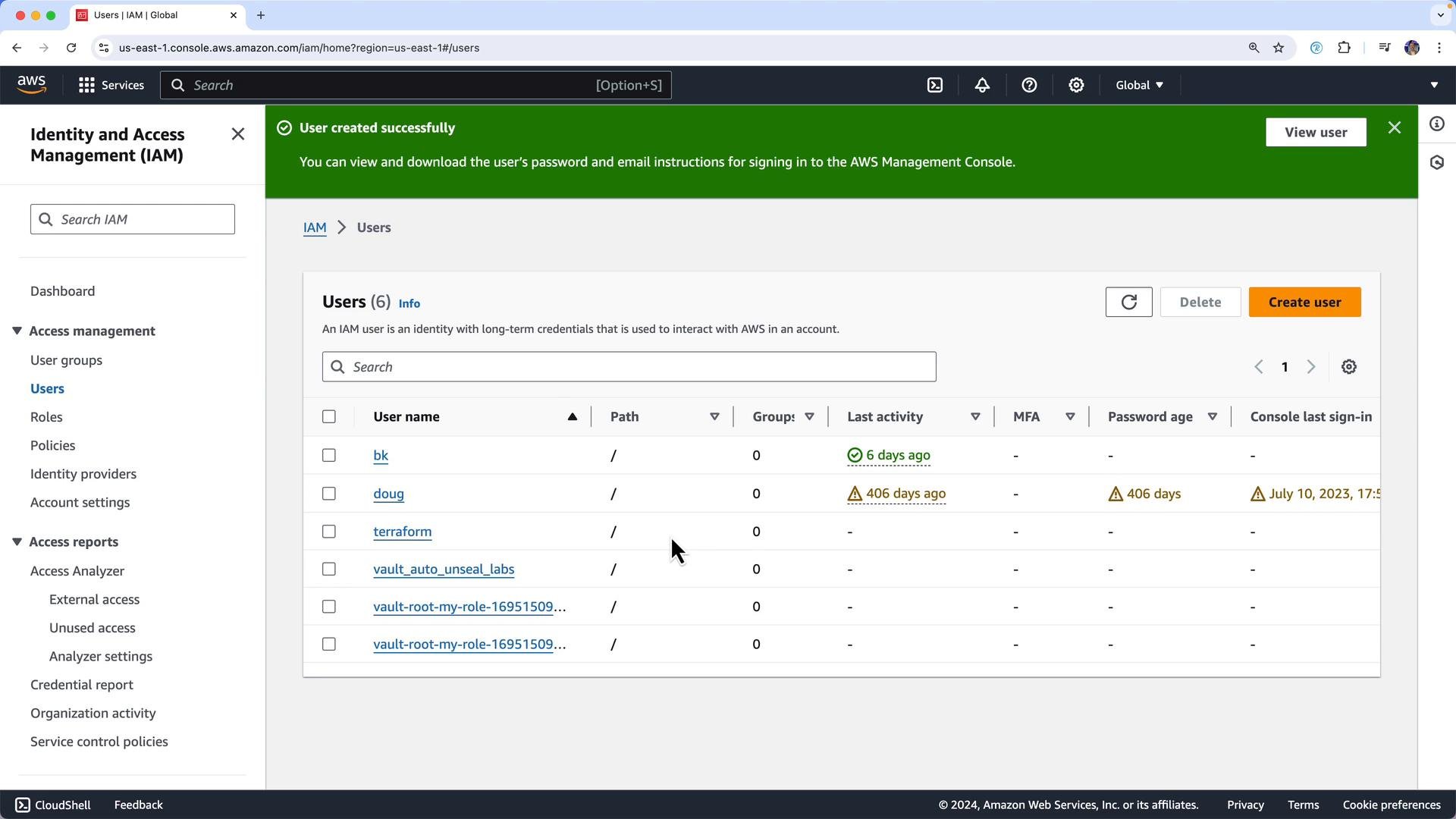
The image shows an AWS Identity and Access Management (IAM) user interface with a list of users and details like last activity, password age, and console last sign-in times. There are navigation options for managing groups, roles, policies, and access reports on the left side.
  1. Create a new IAM user for Terraform
  • Click “Users” in the left navigation, then “Create user”.
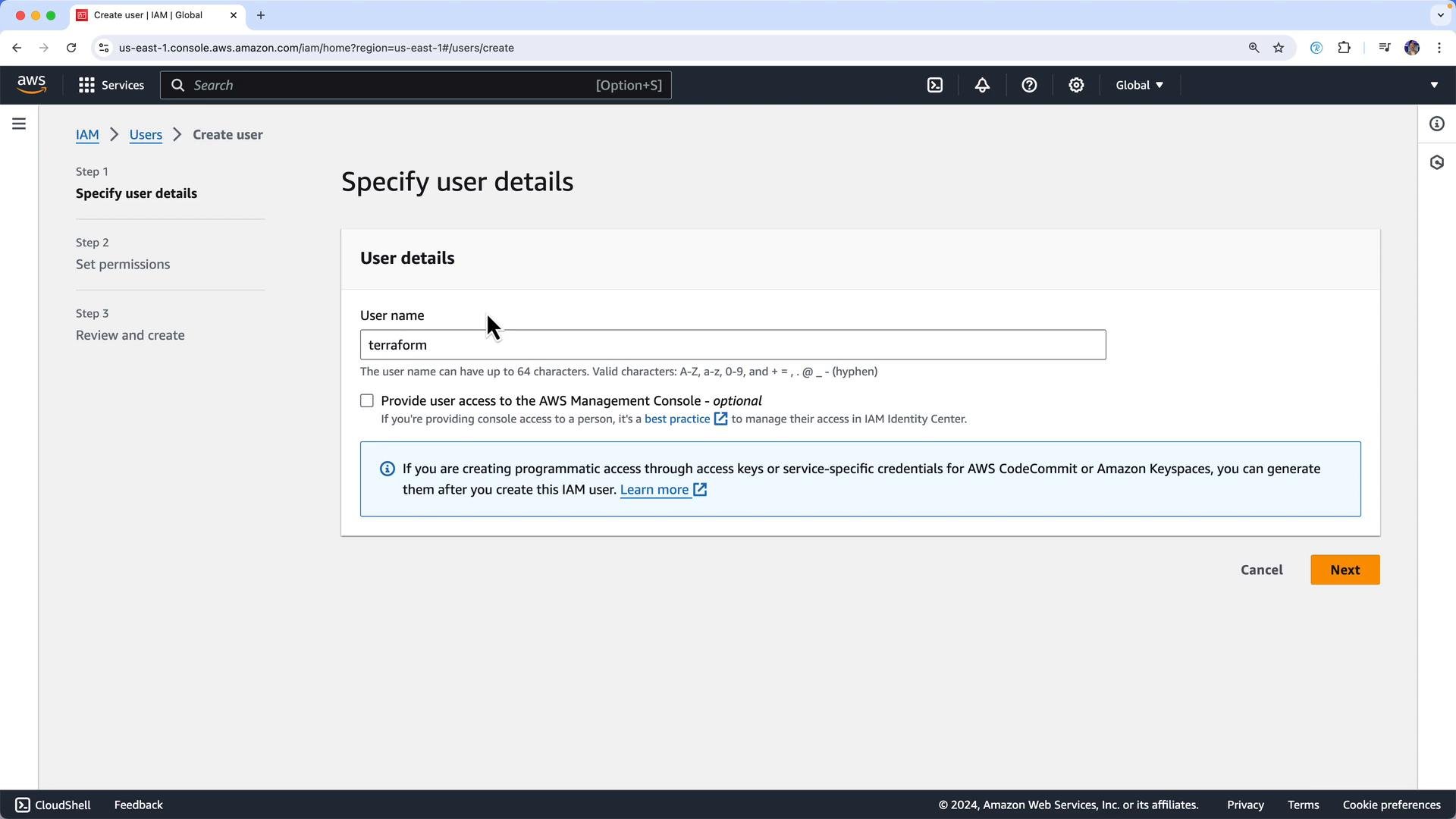
  • Give the user a name (for example, terraform) — you can choose any naming convention you prefer.
  • Enable programmatic access so AWS generates an access key ID and secret access key for the user.
The image displays the AWS IAM console where a user named "terraform" is being specified in the "Create user" process, within the "Specify user details" step. There are options for providing AWS Management Console access and generating programmatic access credentials.
  1. Attach permissions (least privilege recommended)
You can attach policies directly to the user on the permissions step. For the purposes of provisioning VPC resources (which typically do not incur charges), attach a managed policy that grants VPC permissions.
The image shows the AWS IAM (Identity and Access Management) console where a user is setting permissions by selecting policy options. There's a section for permission policies with various listed policies that can be attached to a new user.
Search for “VPC” and choose AmazonVPCFullAccess (or attach AdministratorAccess only if you truly need full administrative scope). Limiting permissions to what Terraform requires is a best practice.
The image shows the AWS IAM console with a list of permission policies related to "VPC" being displayed. The policies are AWS managed, and none are currently attached to any entities.
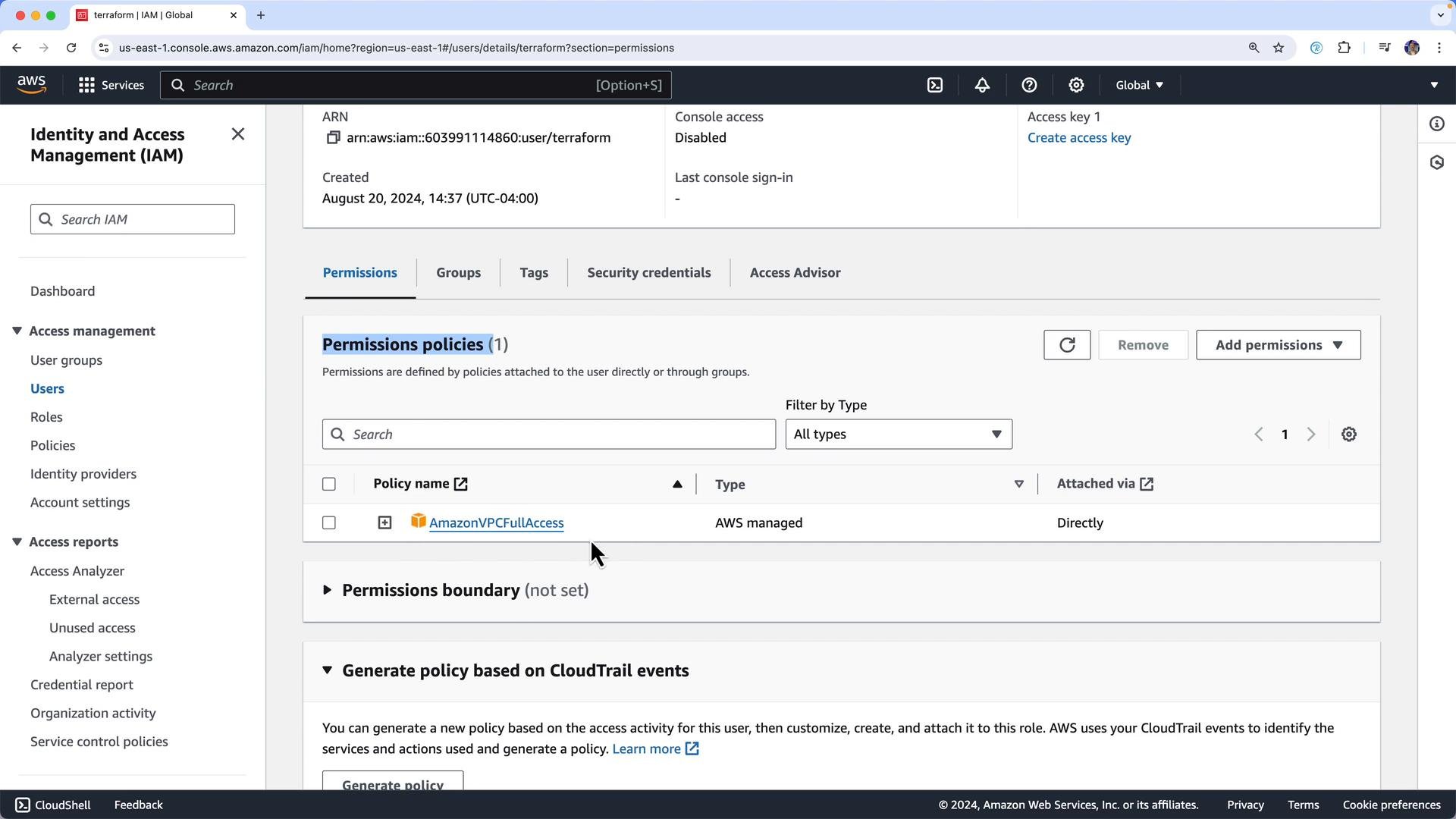
After creating the user, verify the policy is attached on the user’s permissions page.
The image shows an AWS Identity and Access Management (IAM) interface, specifically the user permissions page where "AmazonVPCFullAccess" is attached as a policy.
  1. Create an access key for programmatic access
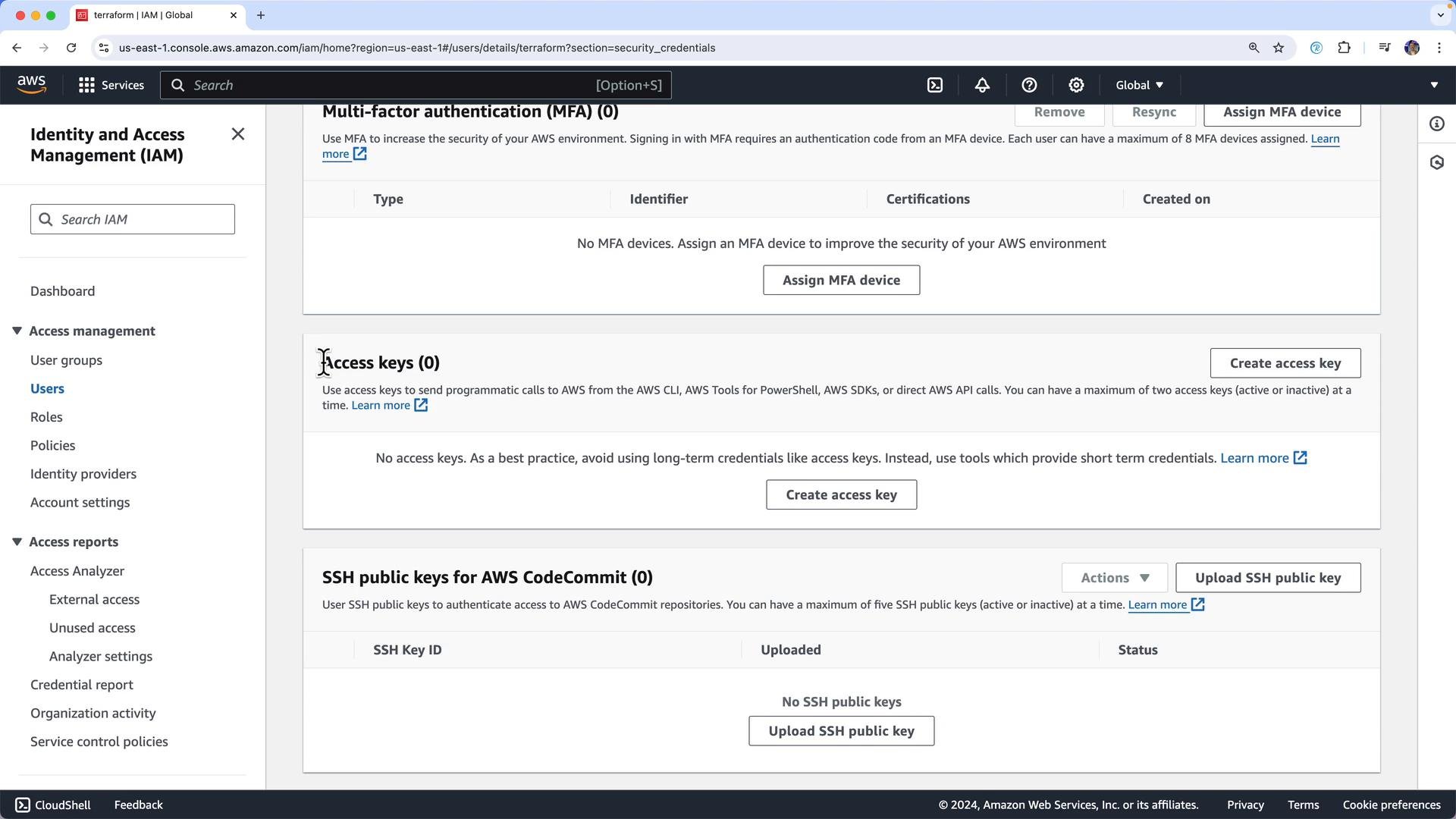
Open the user’s “Security credentials” tab and create a new access key. You will receive an Access Key ID and a Secret Access Key. Copy and store them immediately — the Secret Access Key is shown only once.
The image shows the AWS Identity and Access Management (IAM) dashboard focused on security credentials, including options for multi-factor authentication, access keys, and SSH public keys.
You may add a description or tags for the access key during creation.
The image shows a screen from the AWS console where a user can set a description tag for creating an access key, with instructions and options to proceed or cancel.
  1. Example Terraform configuration
If you don’t yet have any .tf files, save a minimal example (for instance main.tf) in your working directory before running terraform plan:
provider "aws" {}

resource "aws_vpc" "production" {
  cidr_block = "10.0.0.0/16"

  tags = {
    Name = "production"
  }
}

resource "aws_vpc" "dev" {
  cidr_block = "10.10.0.0/16"

  tags = {
    Name = "dev"
  }
}

resource "aws_subnet" "workloads" {
  vpc_id     = aws_vpc.production.id
  cidr_block = "10.1.0.0/24"

  tags = {
    Name = "workloads"
  }
}
By default the empty provider "aws" {} block lets Terraform pick up credentials and the region from environment variables or the AWS shared credentials file. To set a region explicitly, add region = "us-east-1" inside the provider block (or configure required_providers if your Terraform workflow requires it).
  1. Configure AWS credentials for Terraform
You can provide the Access Key ID and Secret Access Key to Terraform in multiple ways. Below are common approaches:
Platform / MethodCommand / FileNotes
macOS / Linux (bash, zsh) — session-onlybash export AWS_ACCESS_KEY_ID="AKIAEXAMPLEACCESSKEY" export AWS_SECRET_ACCESS_KEY="examplesecretKEY+chars" export AWS_DEFAULT_REGION="us-east-1" Exports apply only to the current shell session. Persist in ~/.bashrc or ~/.zshrc if needed (beware security).
Windows PowerShell — session-onlypowershell $Env:AWS_ACCESS_KEY_ID = "AKIAEXAMPLEACCESSKEY" $Env:AWS_SECRET_ACCESS_KEY = "examplesecretKEY+chars" $Env:AWS_DEFAULT_REGION = "us-east-1" Session-only — values disappear when the shell closes.
AWS CLI (recommended for persistence)Run aws configure and follow prompts (stores credentials in ~/.aws/credentials)Cross-platform managed file — safer than repeatedly exporting keys in shells. See AWS CLI docs below.
If you use the AWS CLI, run:
  • aws configure — then enter Access Key ID, Secret Access Key, default region, and output format when prompted.
  1. Verify Terraform and credentials
With credentials set and your .tf files in the working directory, run Terraform commands:
  • terraform init to initialize providers.
  • terraform plan to see what Terraform intends to create.
If you run terraform plan with no configuration files you will see the familiar message:
$ terraform plan
Error: No configuration files

Plan requires configuration to be present. Planning without a configuration would mark everything for destruction, which is normally not what is desired. If you would like to destroy everything, run plan with the -destroy option. Otherwise, create a Terraform configuration file (.tf file) and try again.
Security best practices
  • Use the principle of least privilege when attaching IAM policies.
  • Prefer short-lived credentials or managed profiles when possible.
  • Rotate or delete access keys when they are no longer required.
After you finish using these credentials, delete the access key in the IAM console (or rotate it). Treat access keys like passwords and follow the principle of least privilege.
Links and references This completes the setup for creating an IAM user and configuring AWS credentials for Terraform. Use export on macOS/Linux, $Env: for Windows PowerShell, or the AWS CLI aws configure command for persistent credentials.

Watch Video