

Create a new workspace (step-by-step)
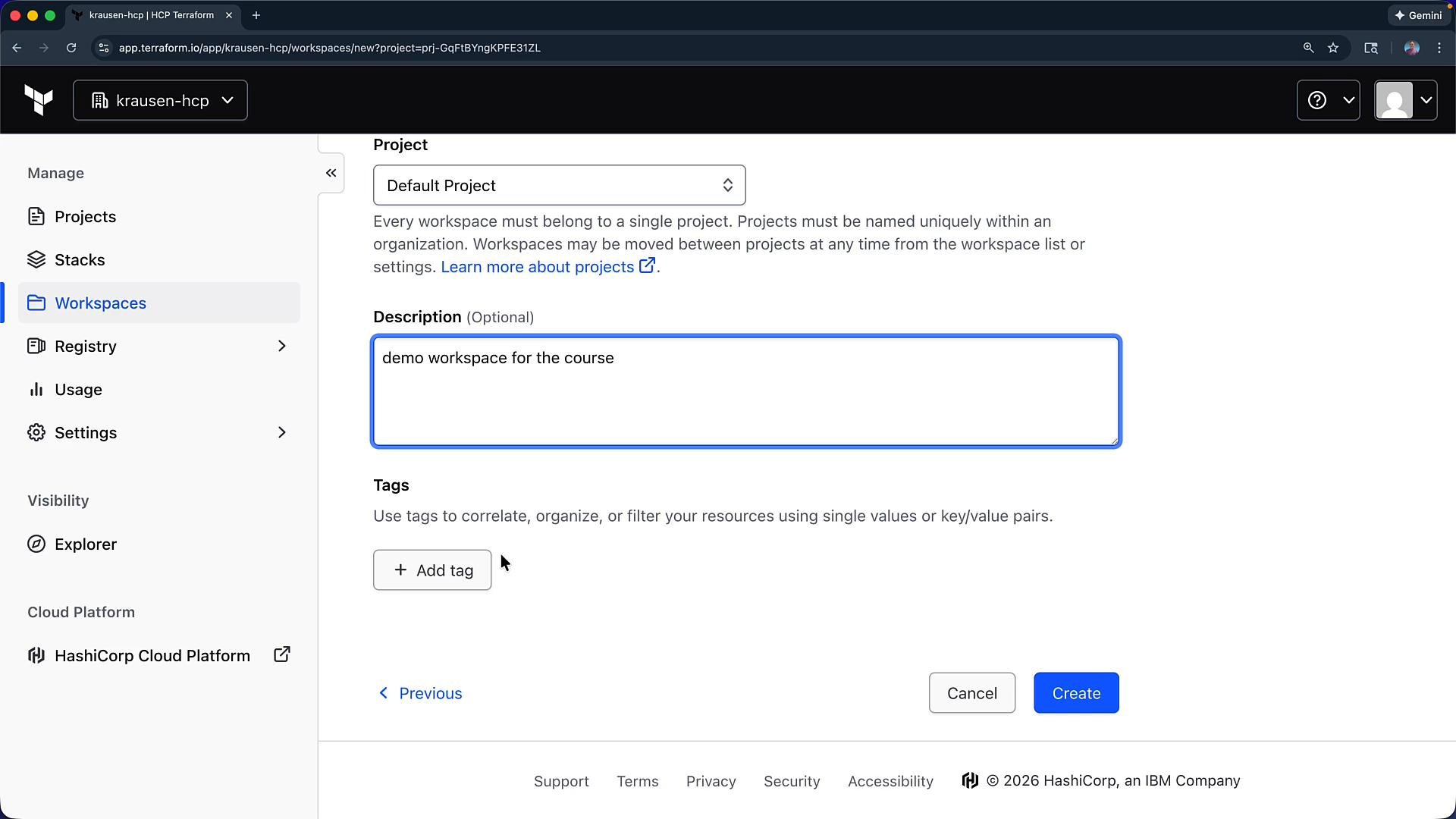
- In the HCP Terraform UI, open Workspaces on the left and click New → Workspace.
- Choose a Project (use the Default Project if you don’t have another).
- Select the CLI-driven workflow for this demo. This workflow lets you migrate and run existing Terraform locally first, and later switch to a VCS-driven workflow.
- Set the workspace name to
hcp-demo, optionally add a description (for example, “demo workspace for this demo”), and click Create.
Workspace overview and initial state
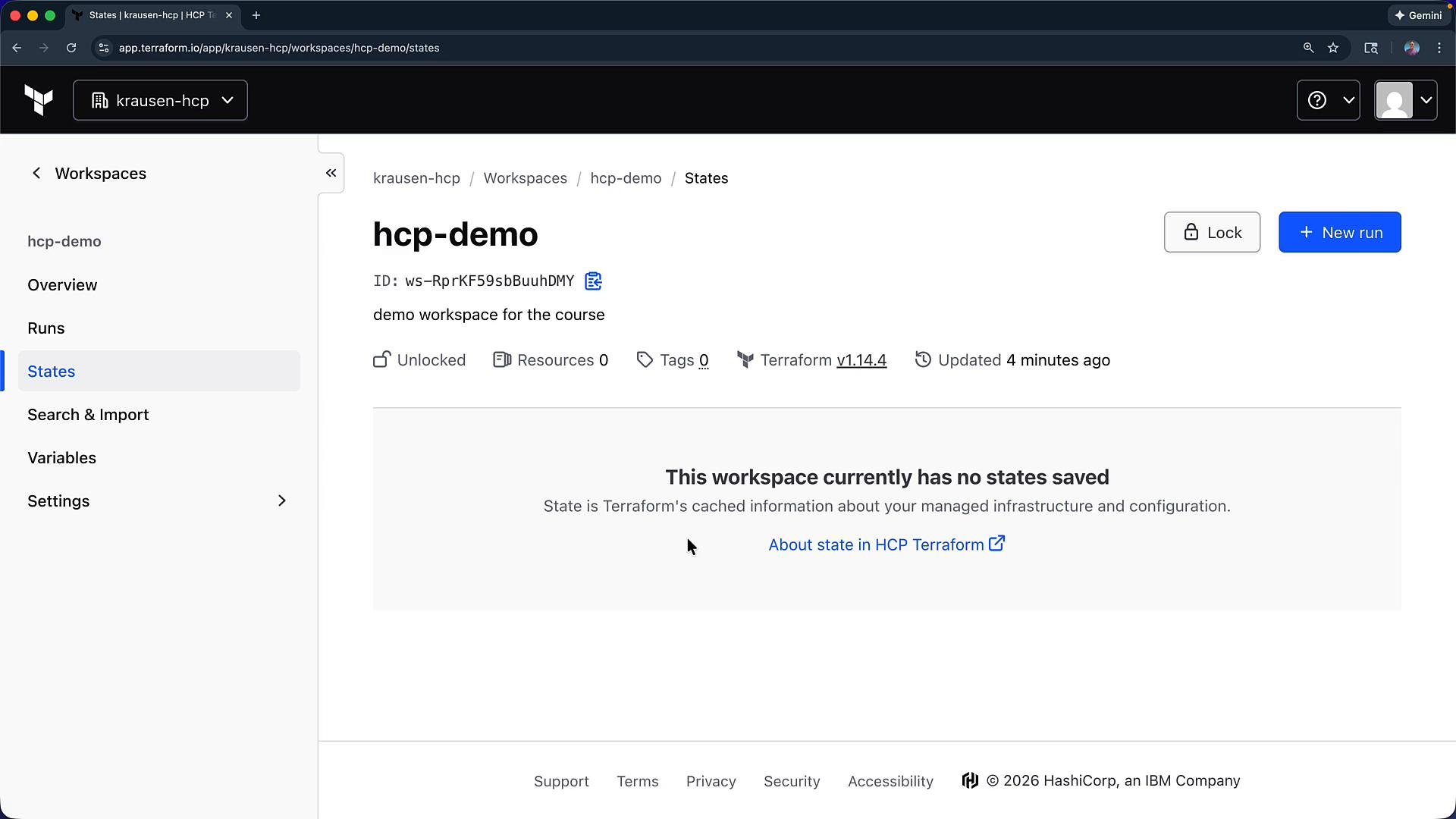
- After creation, the workspace header shows the workspace name and workspace ID — useful when scripting or integrating with APIs.
- You can lock the workspace to prevent changes.
- A new workspace will show zero resources until you connect a configuration and execute runs.
- The workspace displays the Terraform version HCP Terraform will use; change it in settings if needed.
Use the Terraform cloud block to target the workspace
Add a terraform block to your local configuration to target the hcp-demo workspace. Example:
State and runs
- The workspace will show “waiting for configuration” until you connect a local configuration or VCS repository and execute runs.
- After the first successful
apply, the workspace will record runs, states, tracked resources, and outputs.
Variables and sensitive values
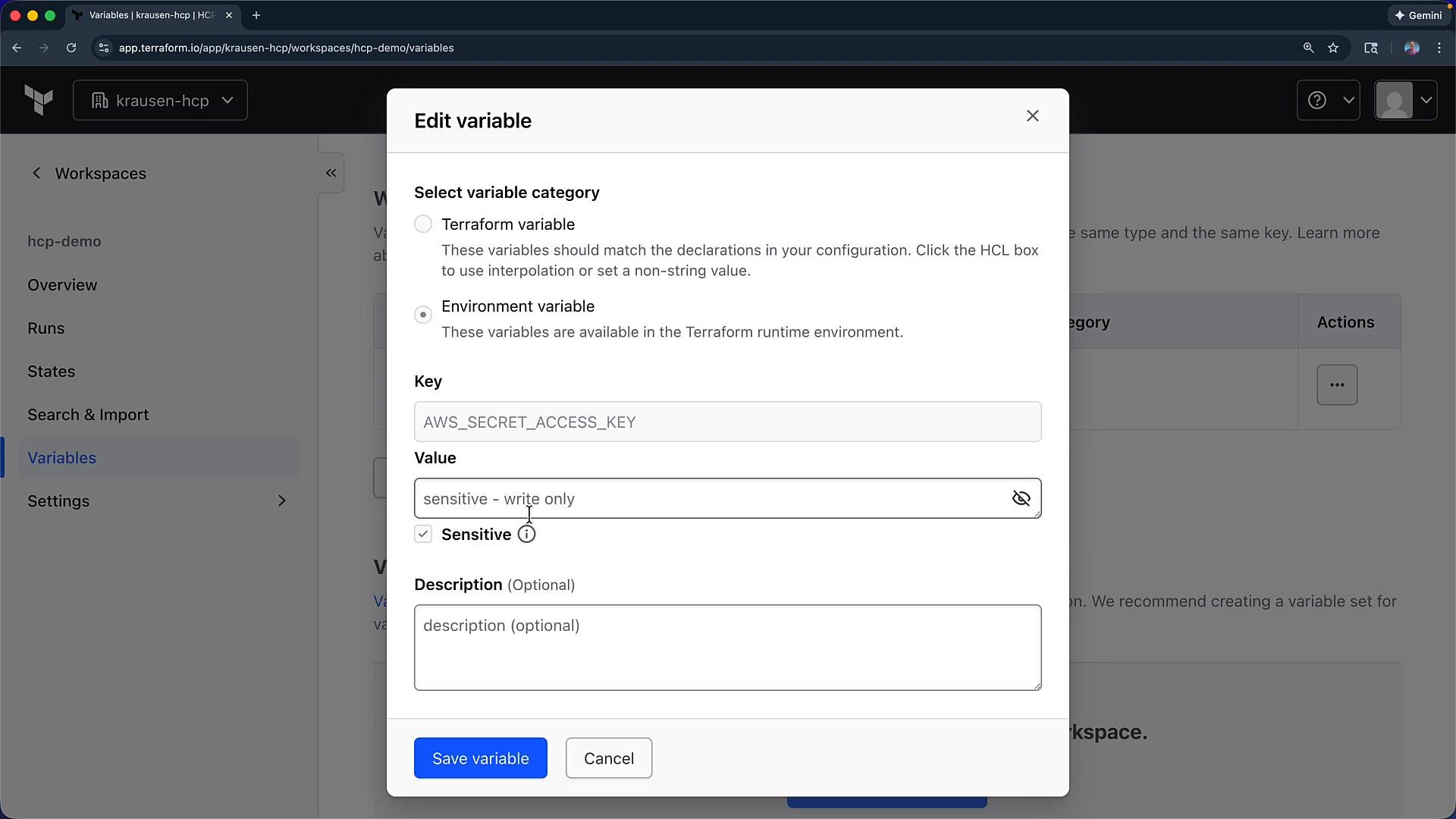
Each workspace has a Variables section for Terraform and environment variables scoped to that workspace:- Use Terraform variables for configuration values consumed by your
.tffiles. - Use environment variables for provider credentials or other runtime secrets (for example:
AWS_SECRET_ACCESS_KEY,AZURE_CLIENT_SECRET). - Mark values as Sensitive to ensure they are write-only in the UI.
Sensitive variables are write-only in the UI. You can view values while adding them, but after saving they cannot be read back from the UI for security reasons. Store a copy elsewhere if you need to reuse the secret.
- Click Add Variable.
- Choose Variable or Environment Variable.
- Enter the key and value.
- Toggle Sensitive if necessary, then Save.
Execution mode and Terraform version
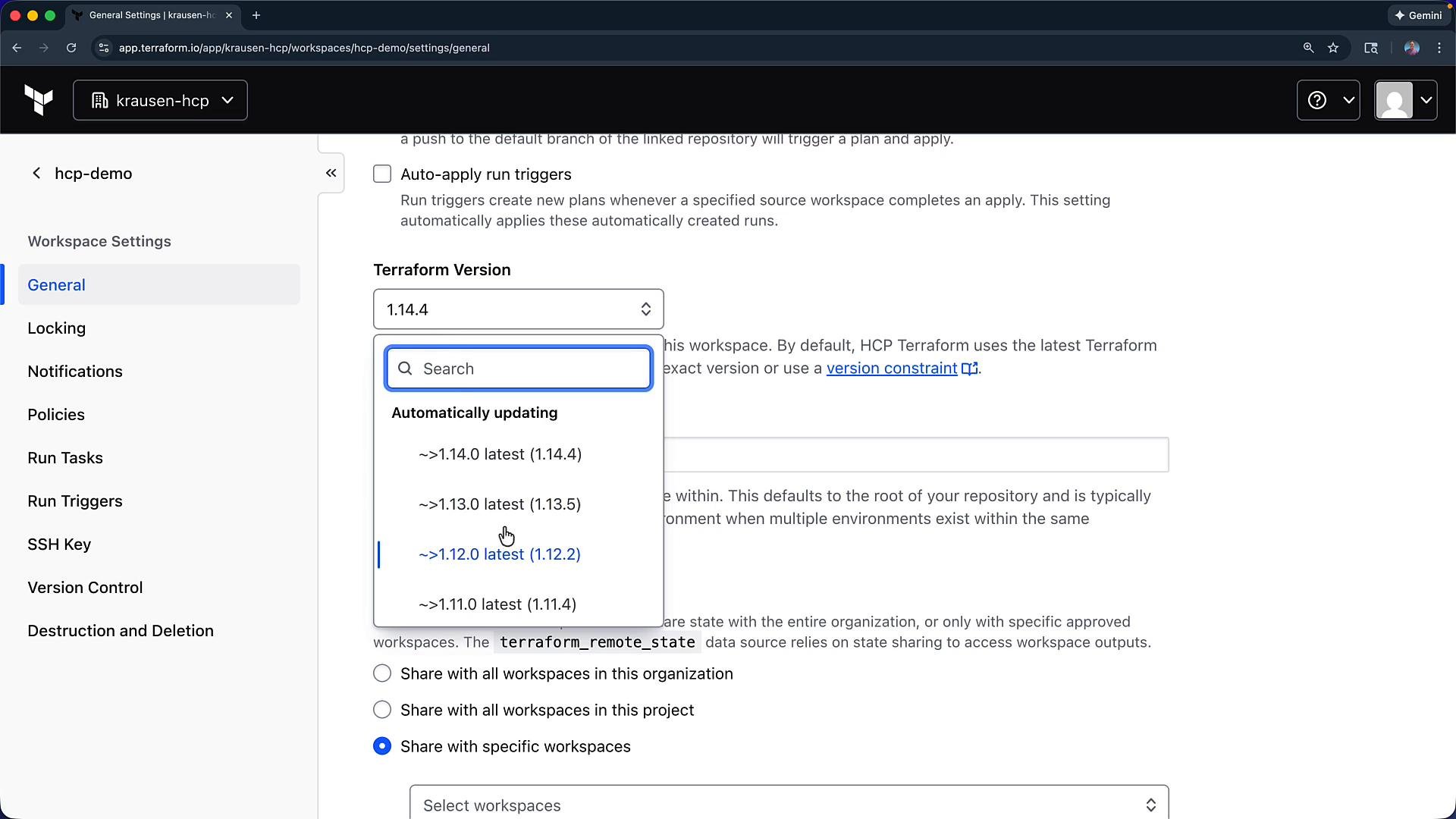
- Execution mode is set per workspace; remote execution (runs executed by HCP Terraform) is common.
- Enable Auto-apply to automatically apply plans after a successful plan run (use with caution).
- Select a Terraform version that matches your local environment to avoid incompatibilities. Choose a version available in the dropdown (for example, Terraform 0.12 or any 1.x release).
Policies, run tasks, and other settings
Workspace settings let you configure locking, notifications, Sentinel policies, run tasks, run triggers, SSH keys, and VCS connections. If you use policy-as-code, you can enable the new Sentinel policy experience at the workspace level.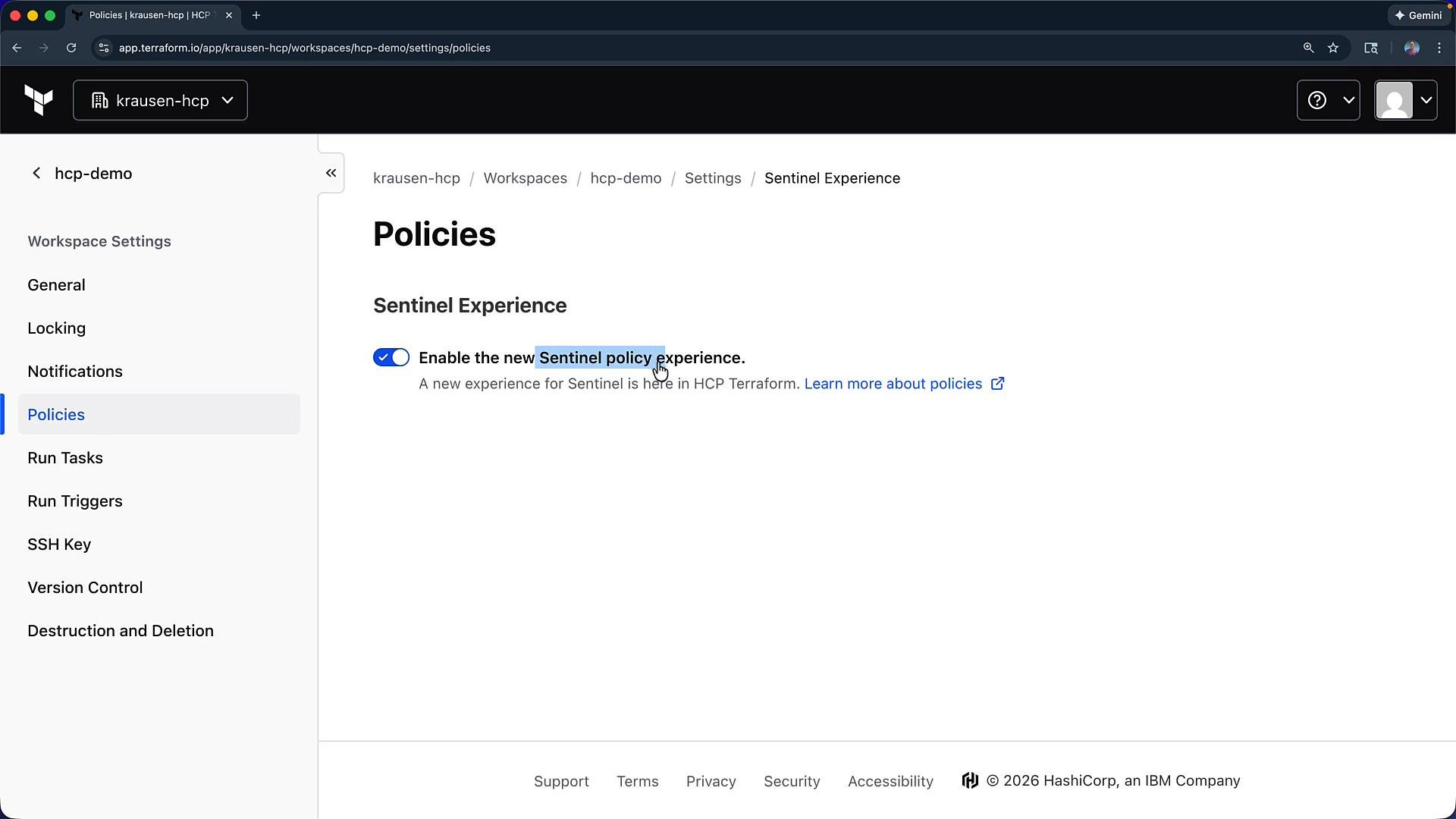
Version control (VCS) connections
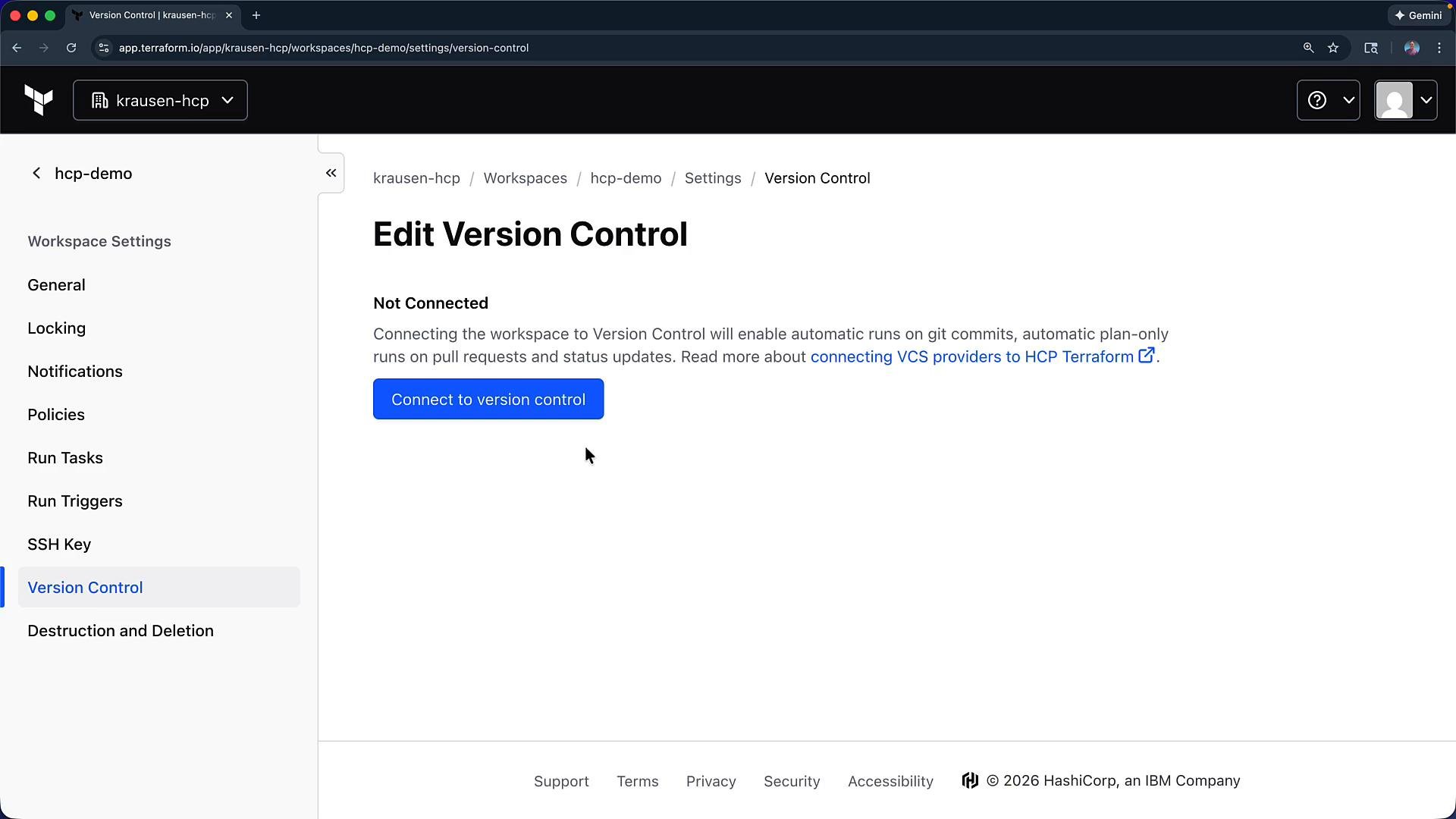
- You can connect a workspace to a VCS repository to trigger runs from commits or pull requests.
- Until you connect a repository, the workspace will show Not Connected and provide a Connect to version control button.
Destroying infrastructure and deleting a workspace
To remove resources managed by the workspace, create and apply a destroy plan:Resources Under Management (RUM) licensing
HCP Terraform licensing is based on Resources Under Management (RUM). Free accounts typically allow up to 500 resources across workspaces. Monitor the Resources count per workspace to avoid exceeding plan limits.
Quick reference: common workspace settings
Wrap-up
You created thehcp-demo workspace, reviewed workspace settings (execution mode, Terraform version, variables, and policies), learned how to connect local Terraform via the cloud block, and saw how to destroy resources and delete the workspace. Next steps: migrate an existing local repo into this workspace (CLI-driven migration) and then switch to a VCS-driven workflow for automated runs.
Further reading: