

- Tell Terraform where to connect (the
cloudblock in your Terraform configuration). - Prove your identity to HCP Terraform (an API token produced via
terraform loginor an environment variable for non-interactive usage).
- Configure the
cloudblock in your rootterraformsettings so Terraform targets HCP Terraform. - Authenticate using
terraform login(interactive) or the environment variableTF_TOKEN_app_terraform_io(non-interactive/CI).
cloud block inside your root terraform settings block (the same place you declare required_providers and required_version). This tells Terraform to use HCP Terraform (Terraform Cloud) instead of a local-only workflow.
organizationmust exactly match the organization name in your HCP Terraform account; otherwise Terraform cannot locate it.hostname = "app.terraform.io"is the default for HCP Terraform and can be omitted unless you’re using a custom host (for example, Terraform Enterprise).- The
workspacesblock determines which workspace(s) to target:- Use
nameto target a specific workspace name. - Use
prefixto target workspaces whose names share a common prefix. - Use
tagsto match by tags. If tags match multiple workspaces, Terraform will prompt you to choose one at runtime. - Some organizations support a
projectattribute — include it only if your organization and CLI support it.
- Use
- The
cloudblock is the modern mechanism for connecting to HCP Terraform. - It is mutually exclusive with a
backendblock (for example, S3, Azure Blob). You cannot have both in the same configuration. If you include both, Terraform will return an error.
Use the
cloud block to connect to HCP Terraform. Do not combine a cloud block and a backend block in the same configuration—choose one or the other.cloud block, authenticate so HCP Terraform trusts your CLI.
Interactive login (recommended for local development)
terraform login, Terraform describes what will happen and where it will store the token. A typical interactive session:
Terraform stores the API token in plain text at
~/.terraform.d/credentials.tfrc.json. Ensure the file has appropriate permissions so unauthorized users cannot read it.terraform init, terraform plan, terraform apply, etc., will use that token automatically.
After a successful login you will see a confirmation in your terminal and can continue using Terraform against your HCP Terraform account.
Token types in HCP Terraform
HCP Terraform supports several token types with different scopes and uses. The following table summarizes typical token types and their intended uses:
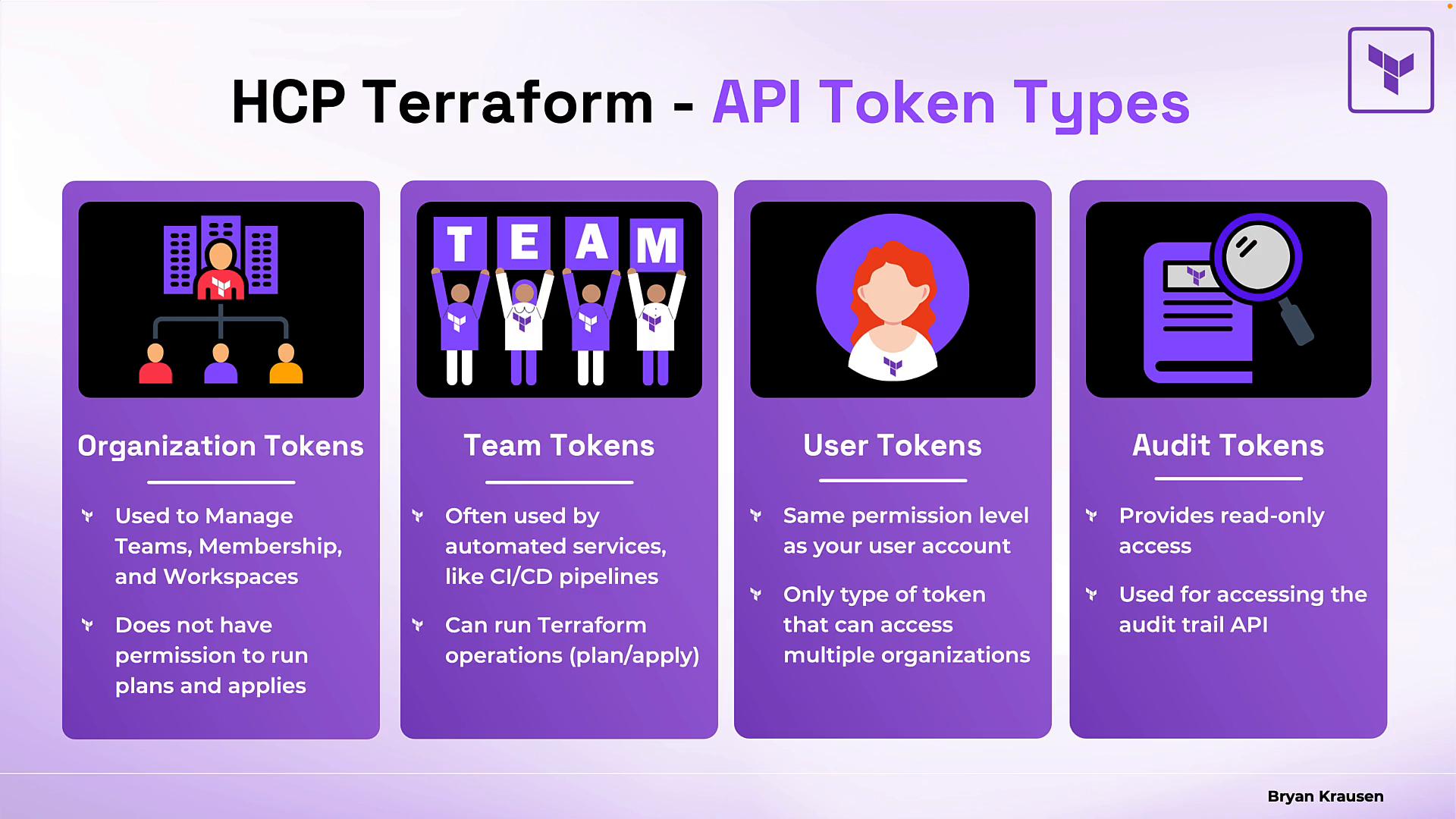
terraform login generates a user token.
Non-interactive authentication (CI/CD)
For automation that cannot use an interactive browser (CI pipelines, containers, headless servers), set an environment variable with a valid token. Example:
- Add a
cloudblock to your Terraform settings to direct Terraform to HCP Terraform (Terraform Cloud). - Authenticate with
terraform loginfor interactive use or withTF_TOKEN_app_terraform_iofor non-interactive automation. - Choose token types carefully: user tokens for developers, team tokens for CI, org tokens for administrative tasks, and audit tokens for monitoring.
- Keep API tokens secure. The local credentials file is plain text — enforce file permissions and store tokens in a secrets manager for automation.
- Terraform Cloud and HCP Terraform documentation
- Terraform CLI: authentication and tokens
- Managing workspaces in Terraform Cloud