

- Collaboration and role-based access controls for teams
- Managed remote state storage with locking and encryption
- Workflow automation and policy enforcement for consistent, auditable runs
-
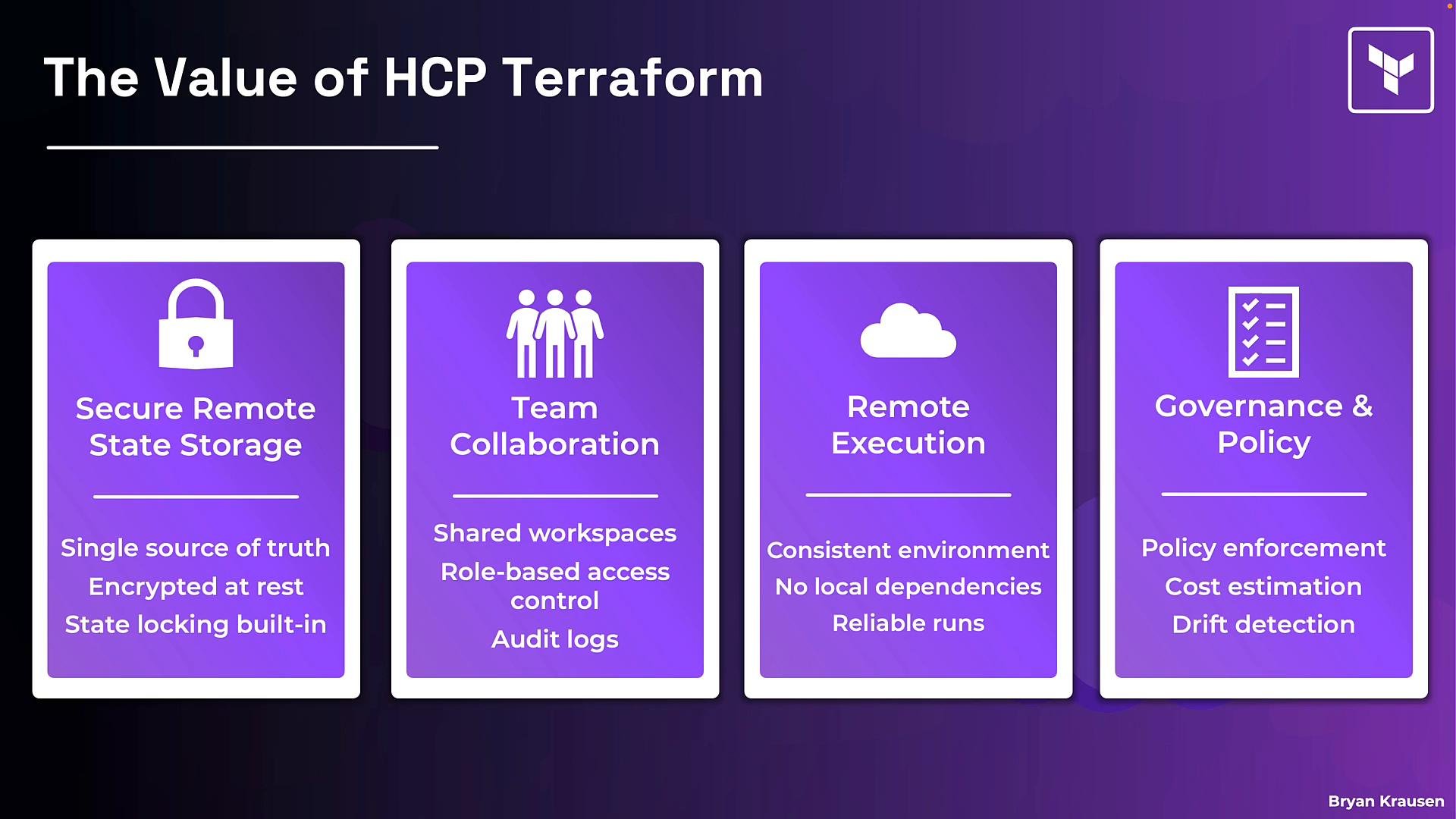
Secure remote state storage
- Managed, encrypted state storage with built-in state locking.
- A single source of truth for team state instead of local
terraform.tfstatefiles.
-
Team collaboration
- Shared workspaces, role-based access control (RBAC), and audit logs let teams control who can do what and track changes.
-
Remote execution
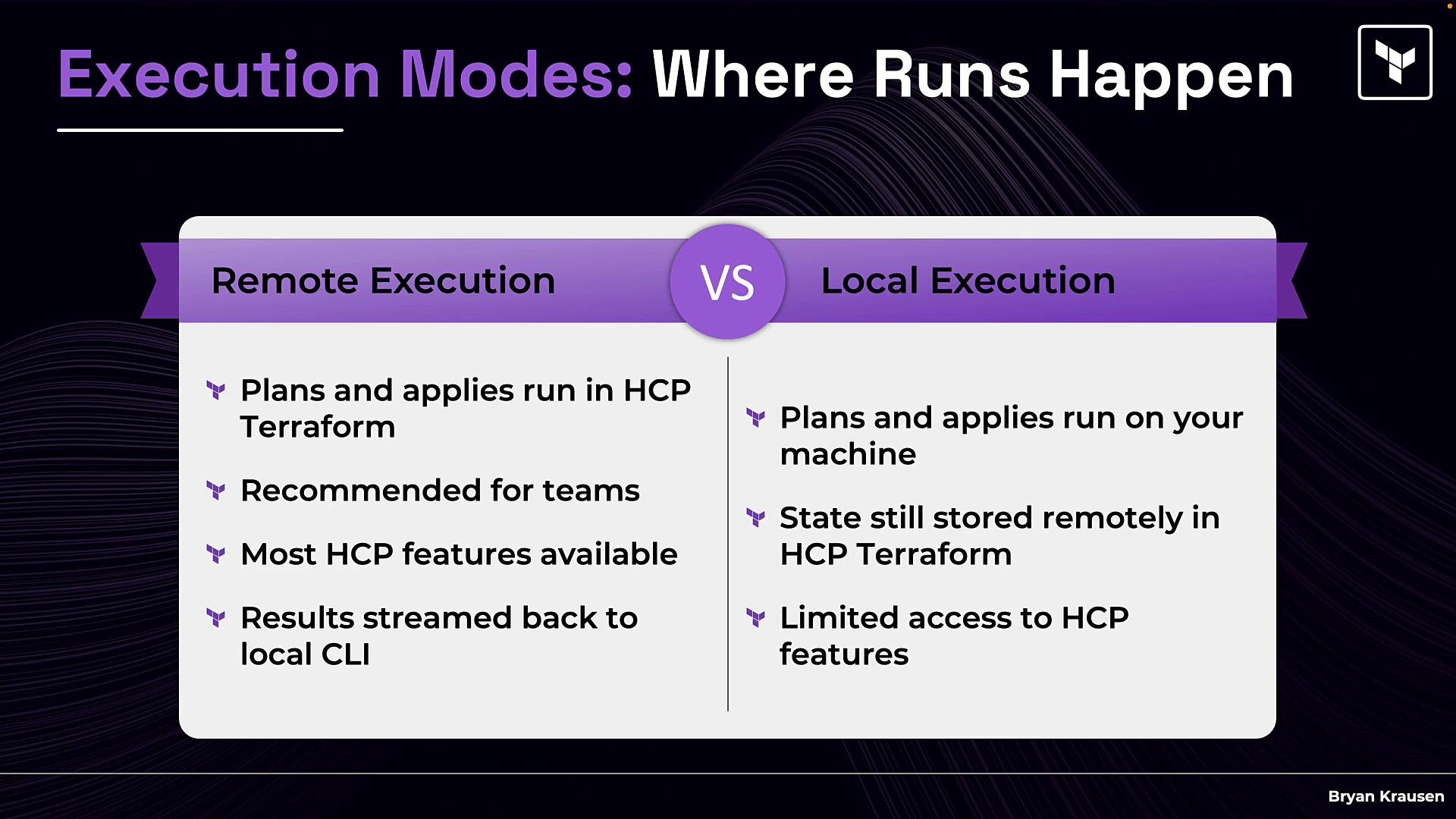
- Plans and applies run in a consistent cloud environment managed by HCP, reducing “works on my machine” issues and ensuring consistent tooling, versions, and providers.
-
Governance and policy
- Policy enforcement (Sentinel/OPA), cost estimation, drift detection, and other governance features that help teams meet compliance and cost goals.
- Managed remote state and locking
- Consistent execution environments (remote runs)
- Team collaboration (RBAC, audit logs)
- Policy enforcement (Sentinel/OPA) and cost estimation
- A private module registry and enterprise governance features
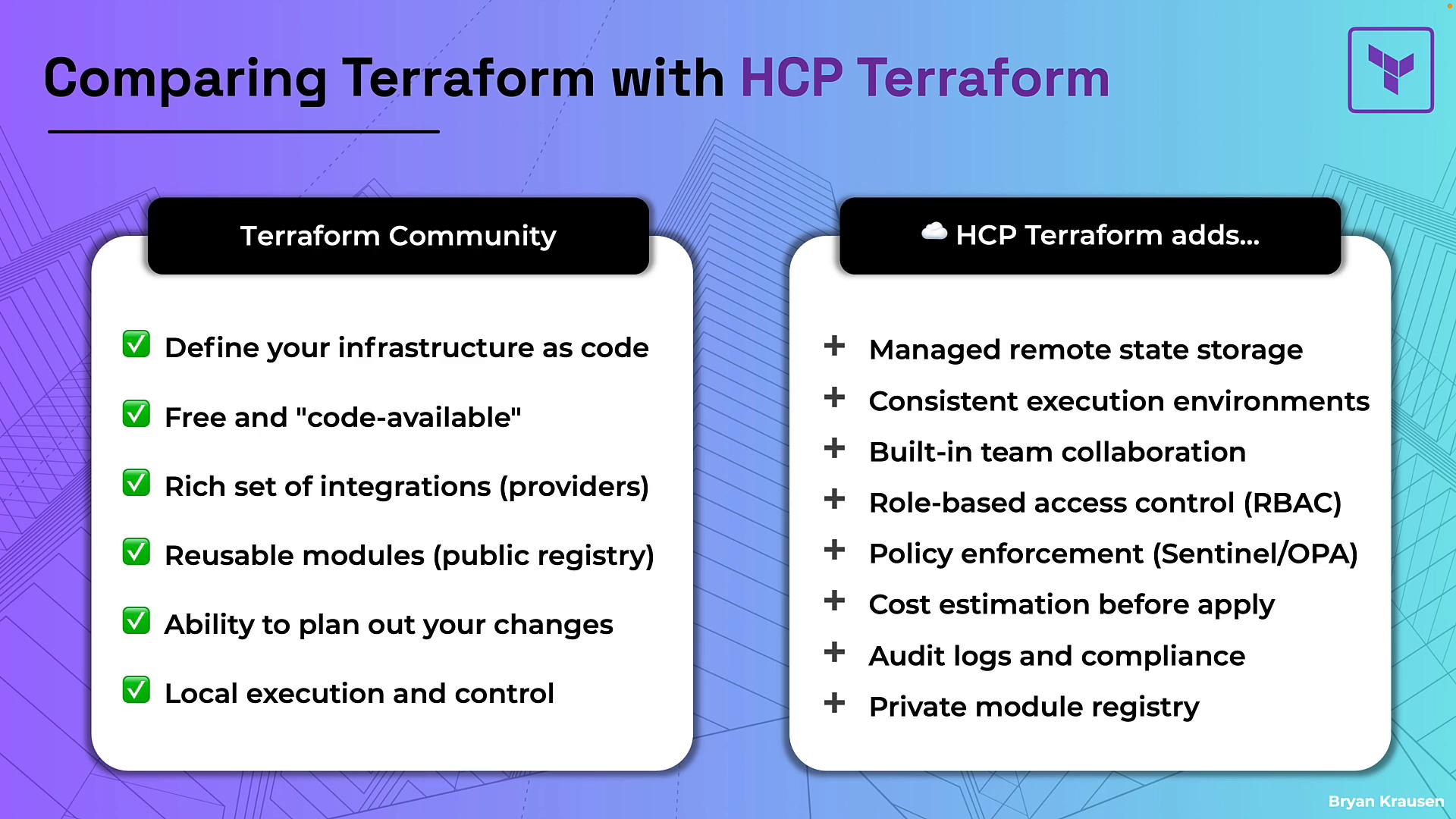
plan and apply execute and where state is stored, not the configuration language.
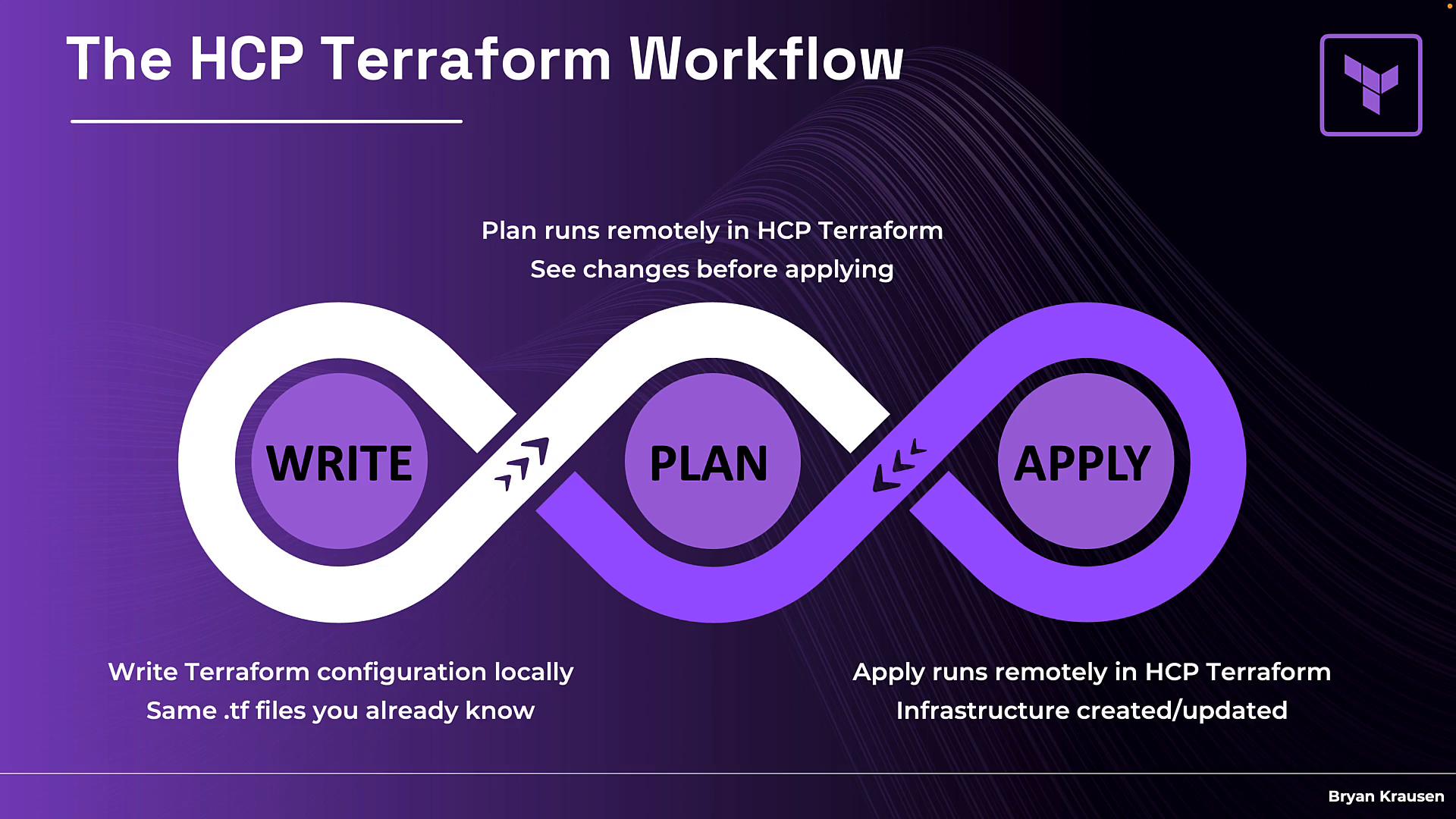
Your common workflow commands remain the same:
- Write: Author Terraform configuration locally and commit to version control.
- Plan: The plan can be executed remotely in HCP Terraform so the platform performs the evaluation and returns results for team review.
- Apply: When you apply, HCP Terraform executes the apply in its managed environment and stores state remotely.
terraform.tfstate file typically won’t exist; the platform manages state centrally so all teammates see the same state.
- Consistent environment across the team
- Central visibility into run status and results
- Runs continue even if a developer disconnects from their local machine
- Sign up for an HCP Terraform account at app.terraform.io.
- Add a cloud block to your
terraformconfiguration to tell Terraform to use HCP workspaces and backend.
terraform block. It specifies your HCP organization and workspace:
organizationis the HCP organization you create in the platform.workspaces.namepoints to the workspace for this configuration.- Use
terraform loginor other authentication methods to connect your local CLI to HCP (details are covered in hands-on lessons).
Feature availability and limits change over time — refer to the official HCP Terraform pricing page for the current details. For exam practice and learning, the free tier is typically sufficient.
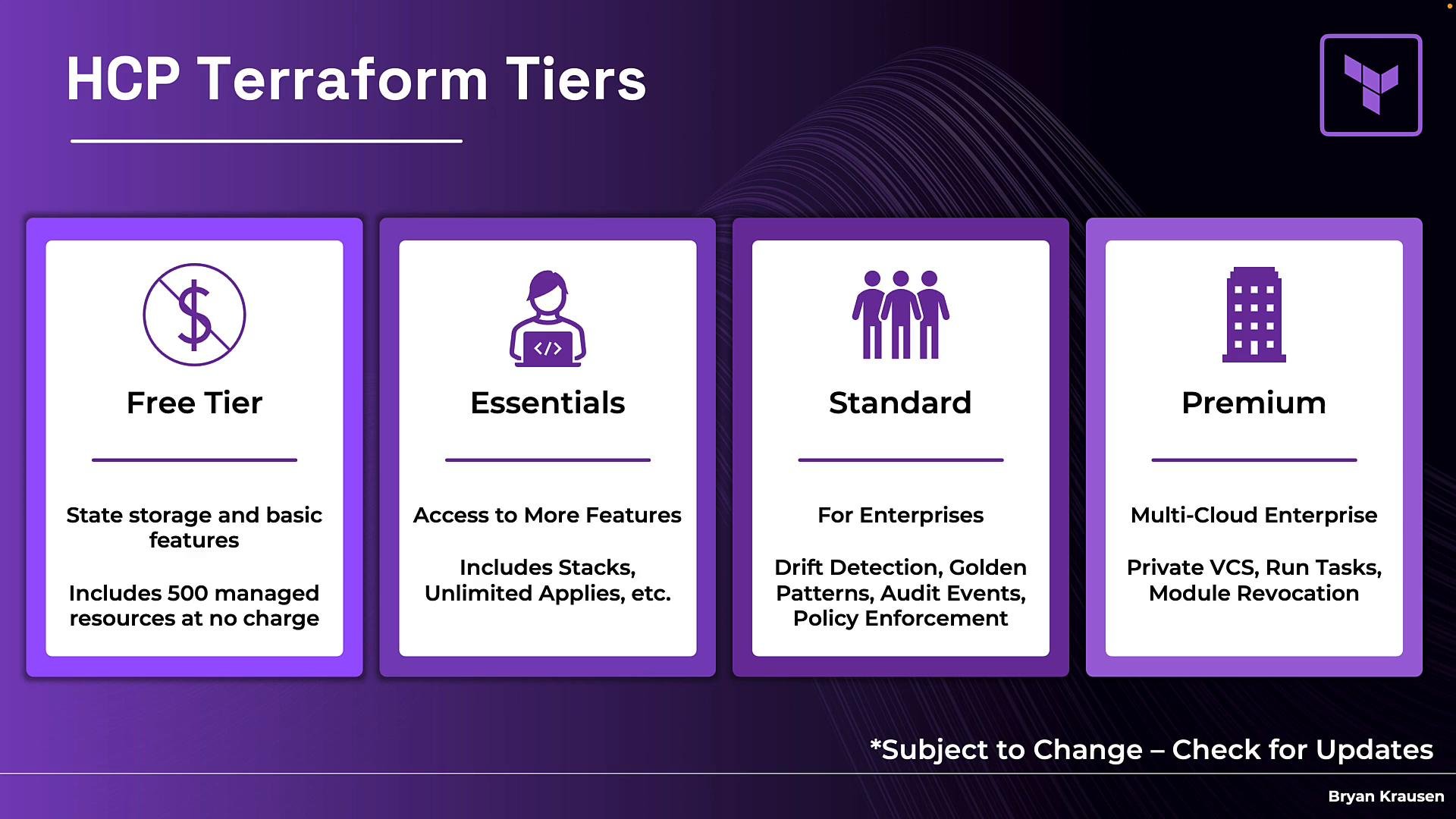
- Visit app.terraform.io and sign up for a free account (email, password, verify).
- Create an organization and a workspace.
- Authenticate your CLI with
terraform login, add a cloud block, and run a remote plan and apply to see the platform in action.
If you’re preparing for the Terraform Associate exam or practicing on personal projects, the free tier is usually sufficient. Create an account to follow along with the hands-on lessons.
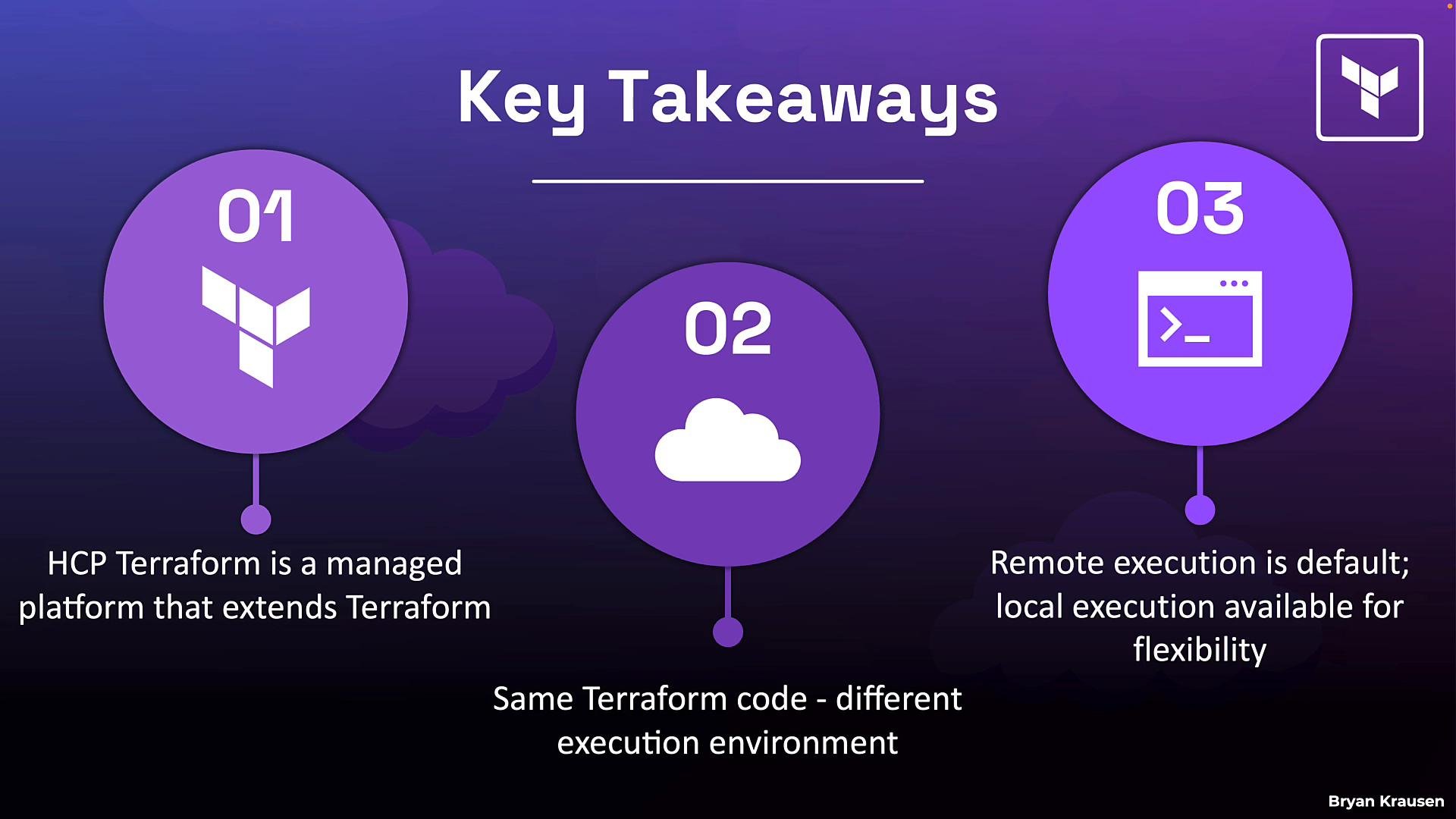
- HCP Terraform extends Terraform CLI with managed services — it is not a replacement. Your Terraform language and providers remain the same.
- Your Terraform code does not need to be rewritten. HCP changes where
planandapplyrun and where state is stored. - Remote execution is the recommended default for teams to gain governance, visibility, and consistency. Local execution remains available when needed.
- Authenticate with HCP Terraform using
terraform login - Configure the cloud block in depth for your environment
- Connect your local Terraform to HCP Terraform and run remote plans and applies