

Quick comparison: installation methods
1. Manual installation (download & add to PATH)
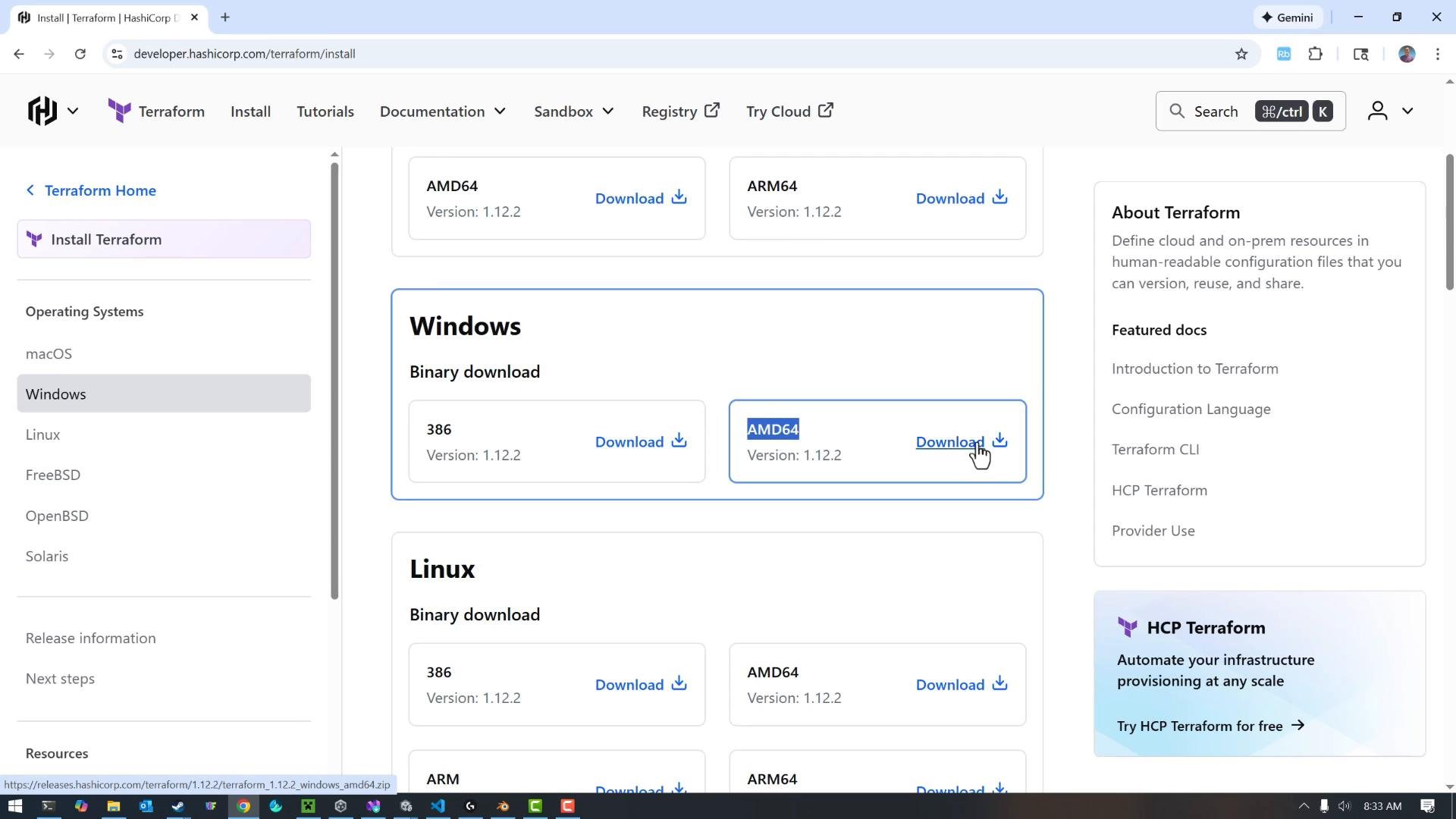
- Open the HashiCorp Terraform install page (https://developer.hashicorp.com/terraform/install) and select the Windows download that matches your CPU architecture (e.g.,
amd64for 64-bit). Download the ZIP file.
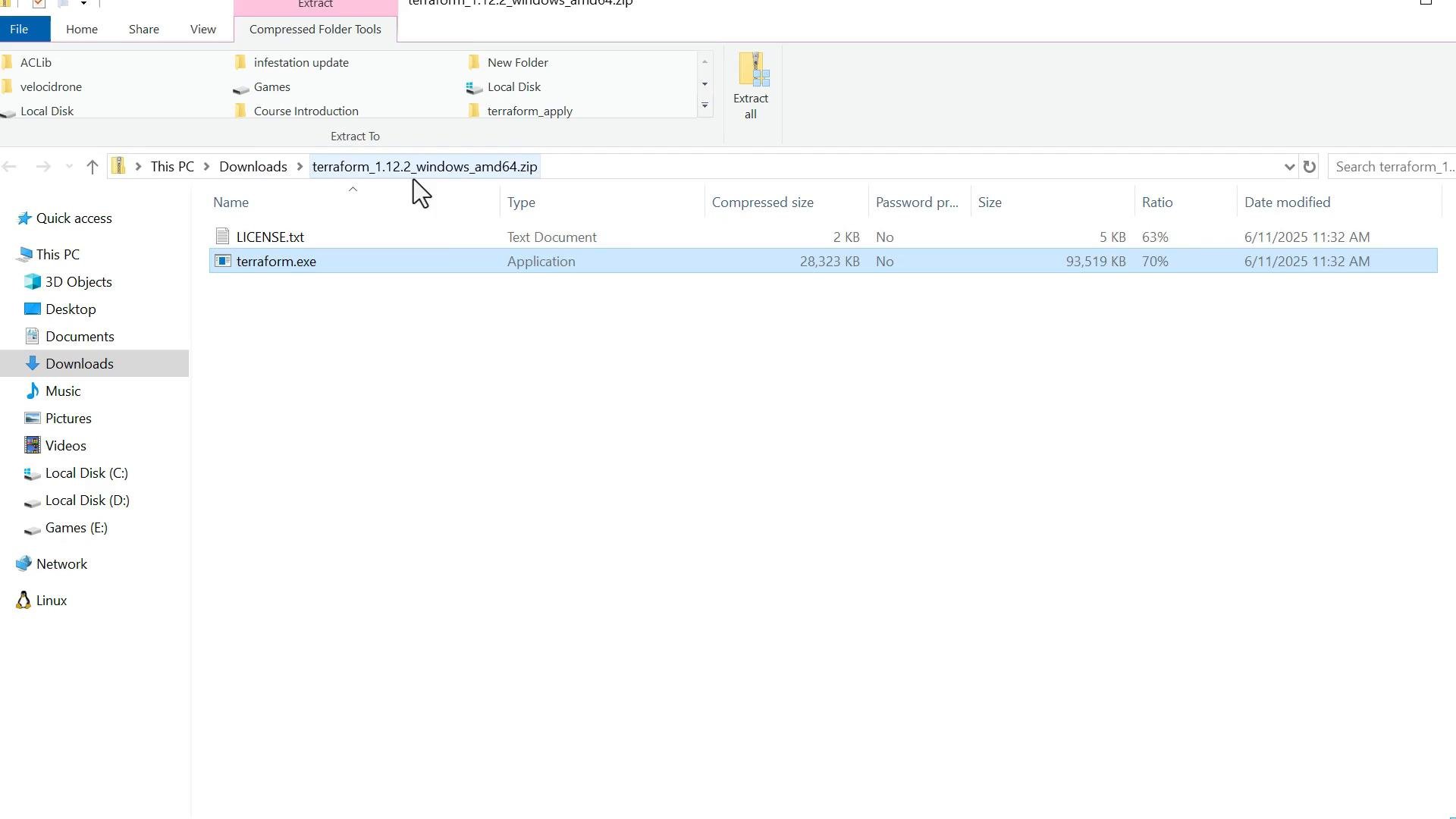
- Open the ZIP file you downloaded. Inside you will find the
terraform.exebinary. Extract it or copy it to a folder you control, for exampleC:\Terraform.
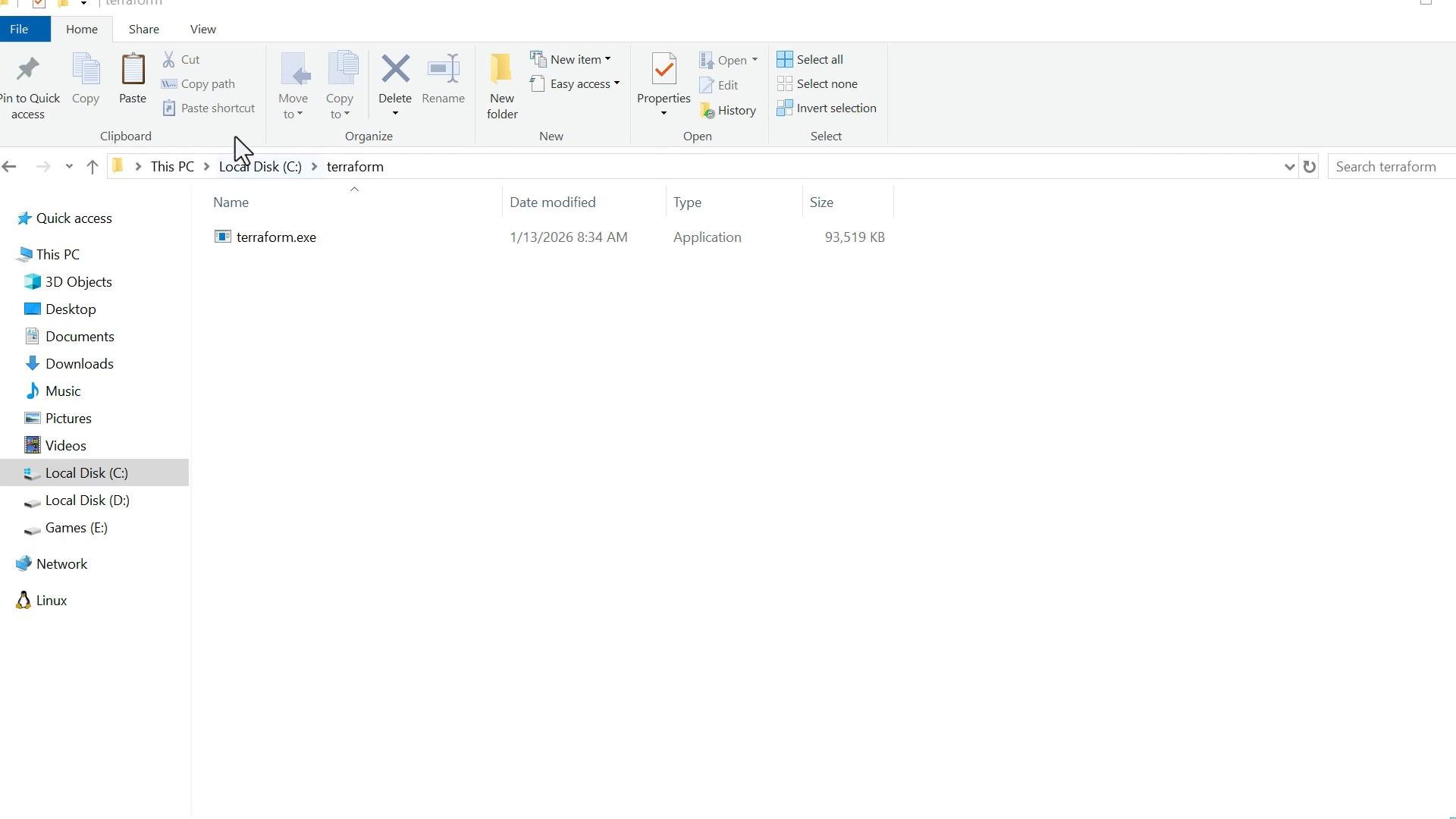
- Create the folder (if it doesn’t exist) and copy
terraform.exeinto it:
- Add the folder to your system PATH so any terminal can run
terraform:
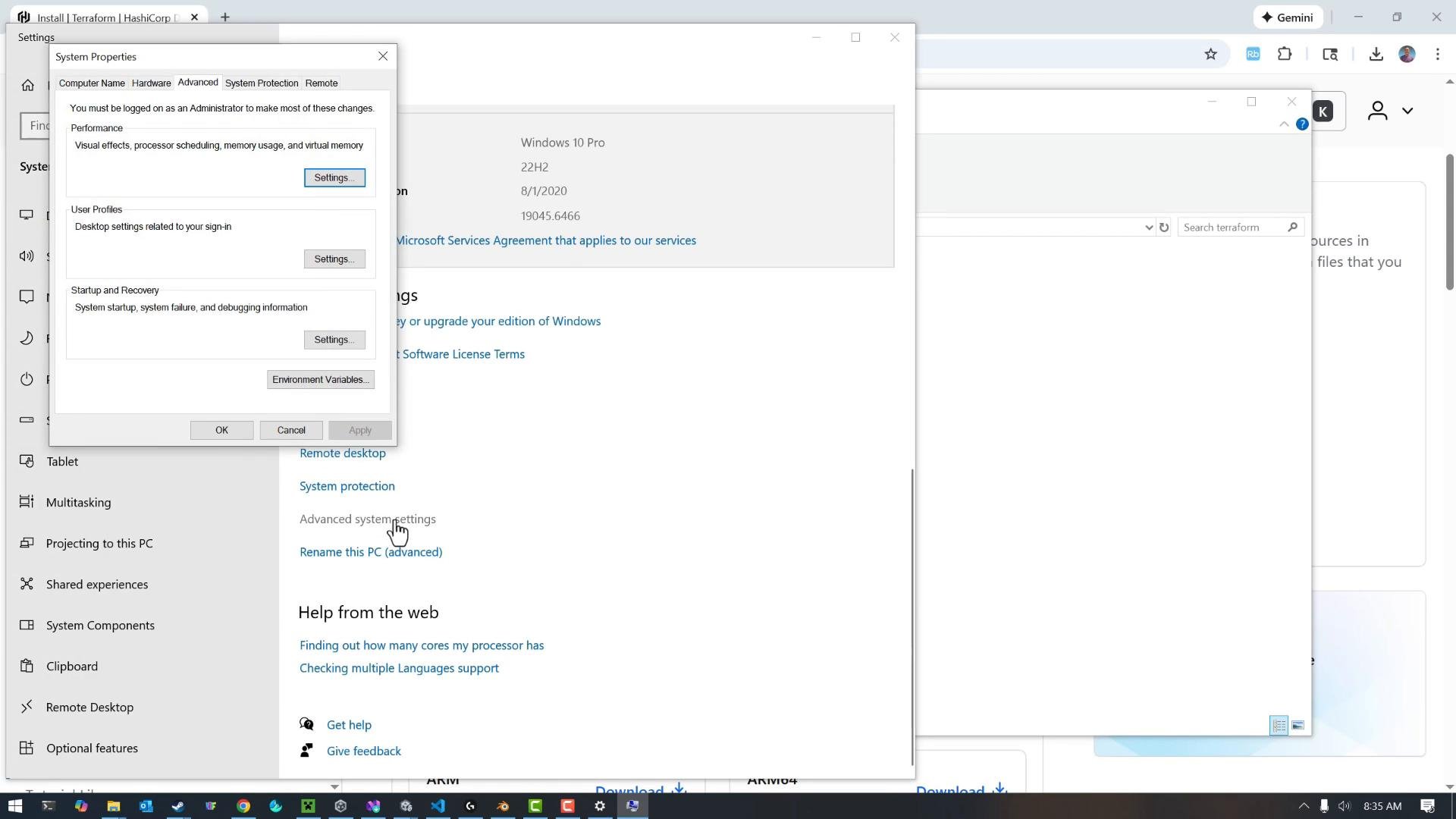
- Right-click the Start menu and choose System.
- Click “Advanced system settings”.
- Click the “Environment Variables…” button.
- In the System variables section, find and edit
Path. - Add a new entry
C:\Terraform(or your chosen folder), then click OK to save.
C:\hashicorp), you can add that folder to PATH and place terraform.exe there alongside other tools.
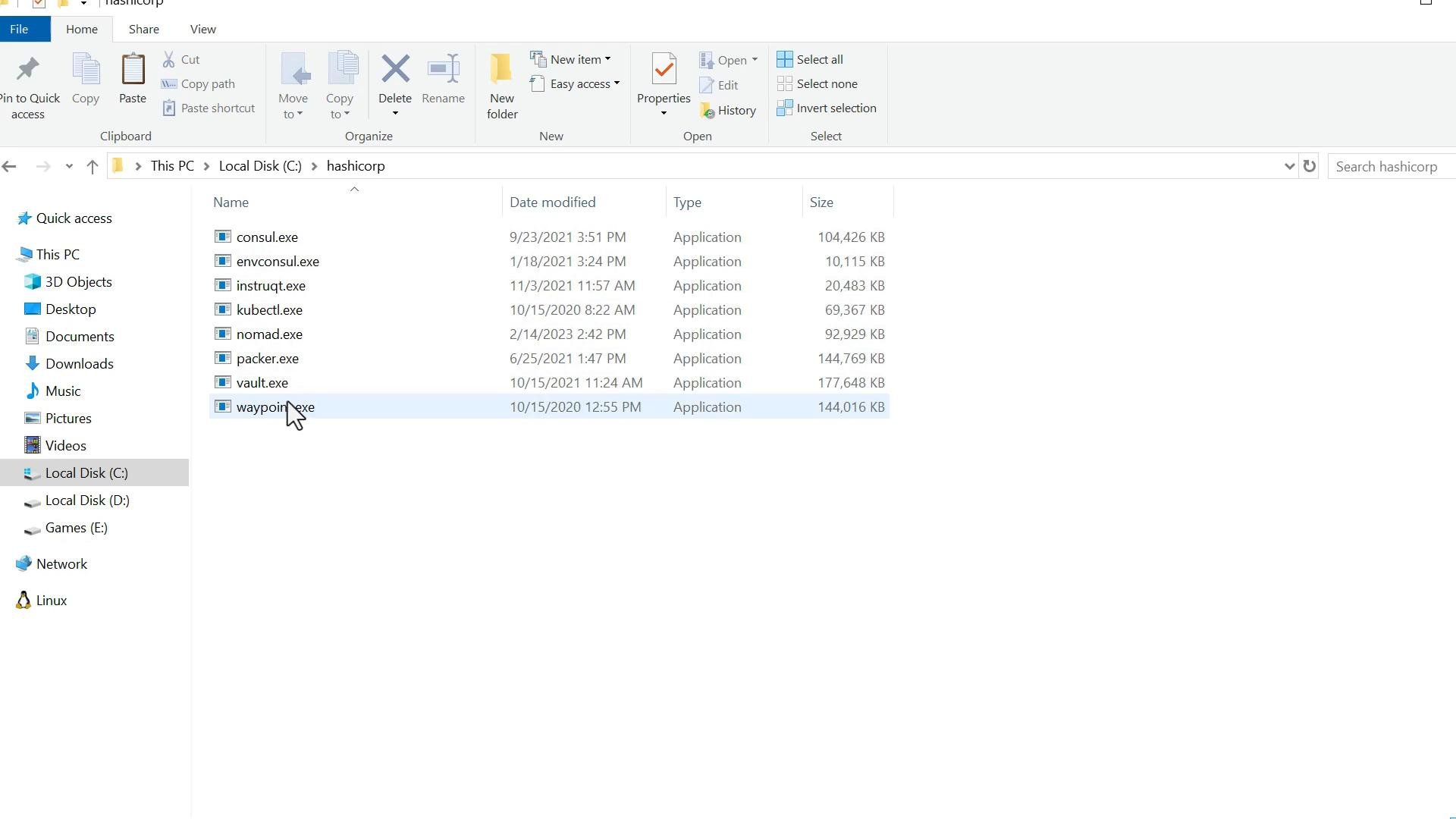
After updating the PATH, restart your terminal (PowerShell, Command Prompt, or Windows Terminal) so the new PATH value is recognized.
2. Verify the installation
Open a new PowerShell window and run:3. Install using Windows package managers (automated)
If you prefer a one-line, automated install, use winget (recommended if available) or Chocolatey.- Install with winget:
terraform version to confirm.
You can uninstall with winget:
- Install with Chocolatey:
Always select the correct architecture when downloading or installing (for example
amd64 for 64-bit Windows). A mismatched binary will not run on your system.Which method should I use?
- Use winget or Chocolatey for ease of install and automatic PATH handling.
- Use manual download if you need to pin a specific version, keep binaries offline, or control the install directory.
Next steps
Now that Terraform is installed:- Start authoring Terraform configurations (files with
.tfextension). - For editing, Visual Studio Code is a popular choice: https://code.visualstudio.com/
- See Terraform documentation for tutorials and provider information: https://developer.hashicorp.com/terraform/docs
Links and references
- HashiCorp Terraform — Install: https://developer.hashicorp.com/terraform/install
- Visual Studio Code: https://code.visualstudio.com/