

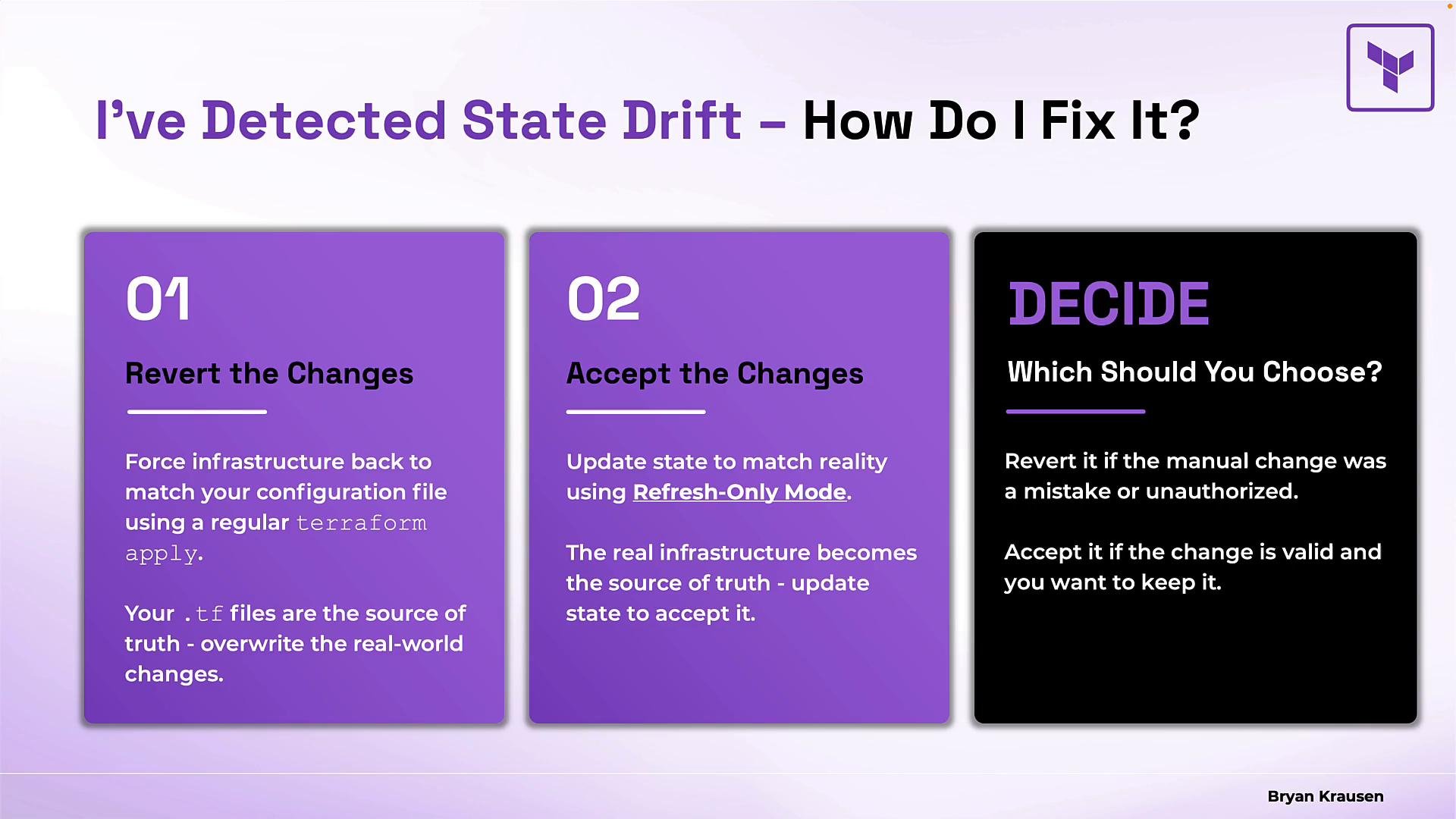
- Option 1 — Revert the changes: force your infrastructure back to match your Terraform configuration files (your Terraform code remains the source of truth). This is done with a regular
terraform apply. - Option 2 — Accept the changes: update Terraform’s state to reflect the real-world resources using refresh-only mode. In this case, the real-world infrastructure becomes the source of truth for the state file; you must then update your code if you want configuration and state to remain consistent long-term.
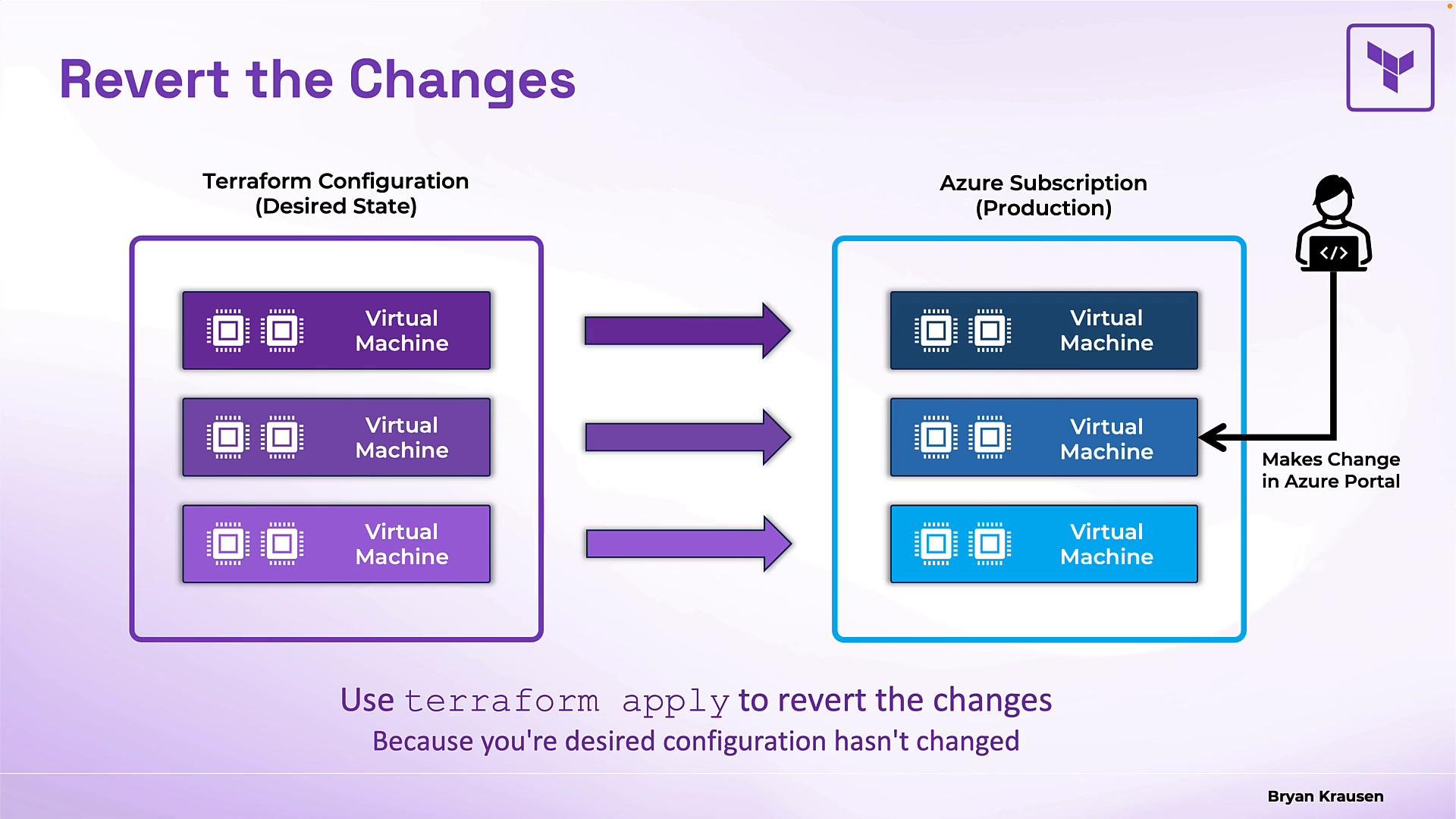
Reverting changes (Option 1)
Scenario example:- Your Terraform configuration declares three VMs in Azure, each with two CPUs.
- You applied the configuration and the three VMs were created accordingly.
- Later, someone manually changes the middle VM in the Azure portal and reduces its CPU count to one.
apply will change the VM back to two CPUs.
Example command to revert the change:
Accepting changes (Option 2 — refresh-only)
If the manual change is legitimate and you decide to keep it, use refresh-only mode to update Terraform’s state to match reality. The key difference from a regular apply is that refresh-only updates only the state file; it does not attempt to modify the real-world resources. Scenario recap:- Configuration (your .tf files): still declares two CPUs.
- Real resource in Azure: middle VM now has one CPU.
- Terraform state (before refresh-only): still shows two CPUs (out of date).
apply -refresh-only, Terraform’s state will reflect that the middle VM has one CPU. Important caveat: your configuration files still declare two CPUs. If you later run a normal terraform apply, Terraform will see the configuration (two CPUs) does not match state (one CPU) and will plan to add the CPU back — effectively reverting the manual change. To keep the accepted change permanent, update your Terraform configuration (.tf files) to match the new desired values.
Key points:
refresh-onlyupdates only the state file (no changes to infrastructure).- Always run
terraform plan -refresh-onlyfirst to inspect the drift. - After accepting drift into state, update your Terraform code if you want the change to persist across future applies.
Use
terraform plan -refresh-only to safely inspect drift before committing. Run terraform apply -refresh-only only after you review and decide to accept the detected drift into state.Plan vs Apply in refresh-only workflow
Follow the same safe workflow you use for normal changes:terraform plan -refresh-only: shows what would change in the state file (read-only).terraform apply -refresh-only: applies those state changes (permanently updates state).
- Always review the
plan -refresh-onlyoutput carefully before applying to state. - Use version control to track
.tffile changes; after accepting drift into state, update the code and commit so configuration remains the single source of truth going forward (if that is your policy). - Consider access controls and auditing in your cloud console to reduce accidental or unauthorized manual changes.
- Maintain backups of Terraform state files and enable remote state locking when using shared state backends (e.g., Terraform Cloud, S3 with DynamoDB locks).
Accepting drift into state without updating your Terraform configuration can lead to unintended reversions later. If you accept a change into state, update and commit your
.tf files if the change should be permanent.- Terraform documentation: https://www.terraform.io/docs
- Resource: Managing Terraform state — https://www.terraform.io/docs/state/index.html