terraform apply.
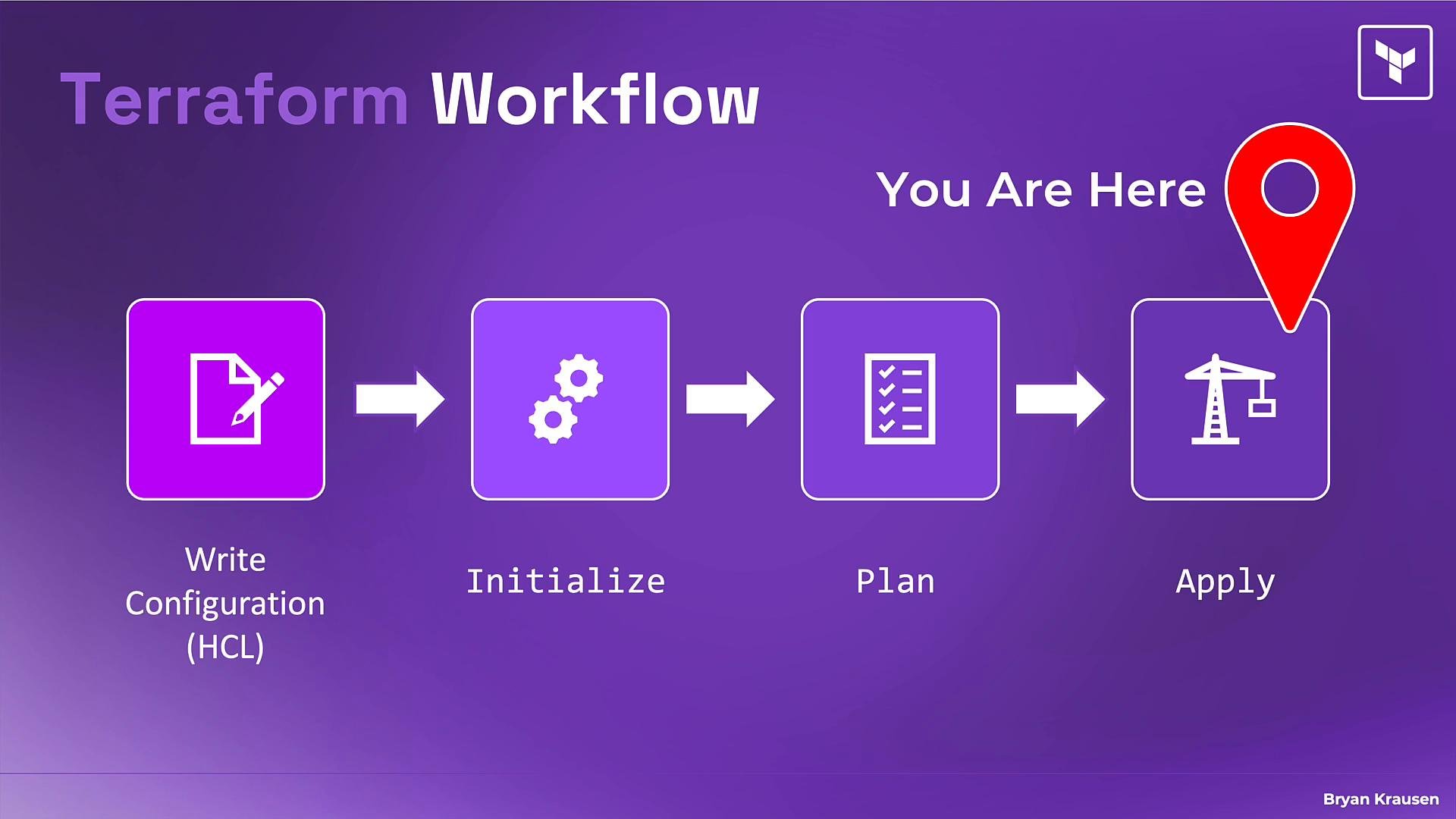
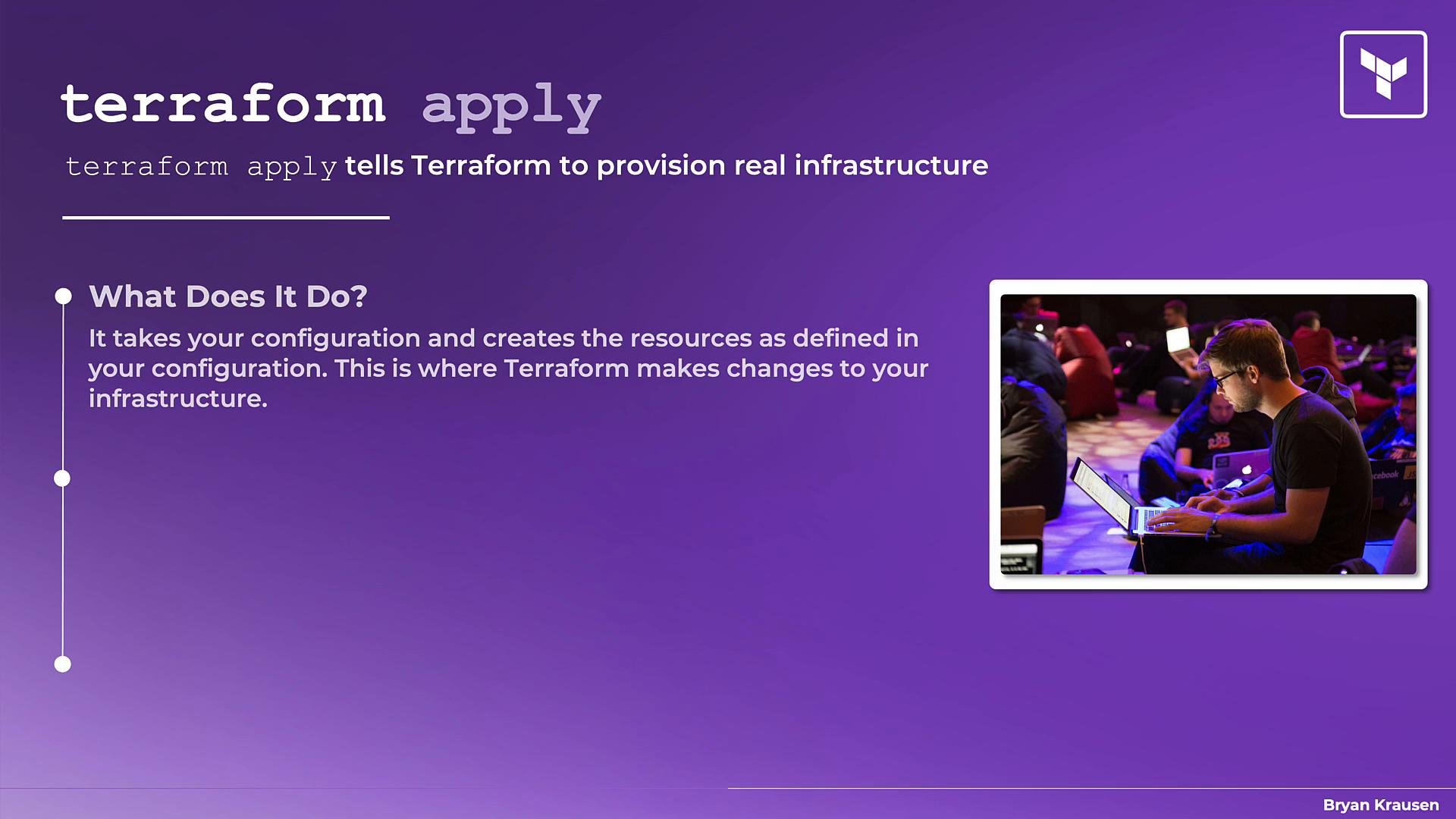
terraform apply is the execution phase: Terraform calls provider APIs to create, update, or destroy resources so the real-world infrastructure matches the desired state defined in your configuration. Everything before this stage is preparation and preview — apply is where your infrastructure-as-code becomes real infrastructure.
This guide explains how apply works, what happens under the hood, the different ways to run it, and best practices for using it safely and reliably.
What terraform apply does
- Terraform reconciles your declared configuration with the current real-world state.
- Before changing anything,
applyeffectively runs a plan: it refreshes state, compares current vs desired states, and summarizes proposed changes. - By default, Terraform prompts for interactive confirmation after showing the plan. This gives you a final opportunity to review changes before Terraform performs any API operations.
Interactive apply and prompts
Typical interactive workflow:- Run
terraform apply. - Terraform shows the planned changes.
- You must confirm by typing
yesto proceed.
When to run apply
Runterraform apply when you want Terraform to:
- Create new resources,
- Modify existing resources, or
- Destroy resources you no longer need.
Operational behavior during apply
- State locking: Terraform locks the state file during apply to prevent concurrent operations from corrupting the state. Locks are released when the apply completes or fails.
- Incremental state updates: After each resource operation (create/update/delete), Terraform updates the state immediately. If apply fails partway, resources already completed remain recorded in state.
- No automatic rollback: Terraform does not automatically roll back completed resource changes when a later operation fails. If partial work completes, you must resolve the error, continue, or destroy/recreate resources as needed.
- Dependency graph and parallelism: Terraform respects the resource dependency graph and applies changes in the correct order. Independent resources may be created or destroyed in parallel to improve performance.
- Long-running operations: Some provider operations (databases, complex networking) may take time. Terraform waits on the provider’s API responses and may appear to be paused while operations complete.
Ways to run terraform apply
Use different invocation modes depending on your workflow and automation requirements.
Examples:
For CI/CD pipelines use
-input=false to disable interactive prompts. Combine it with -auto-approve only when you have reviewed and accepted the plan in advance (for example, by applying a saved plan approved elsewhere).Cautions about non-interactive apply
-auto-approveskips the confirmation and proceeds immediately after showing the plan. This can be dangerous for destructive or high-impact changes—avoid using it for manual production work.-input=falseprevents Terraform from prompting for input and is required in many automation environments to avoid hanging builds or pipelines.- When using automation, prefer workflows that generate a plan, have it reviewed/approved, and then apply the saved plan file to guarantee the exact changes are executed.
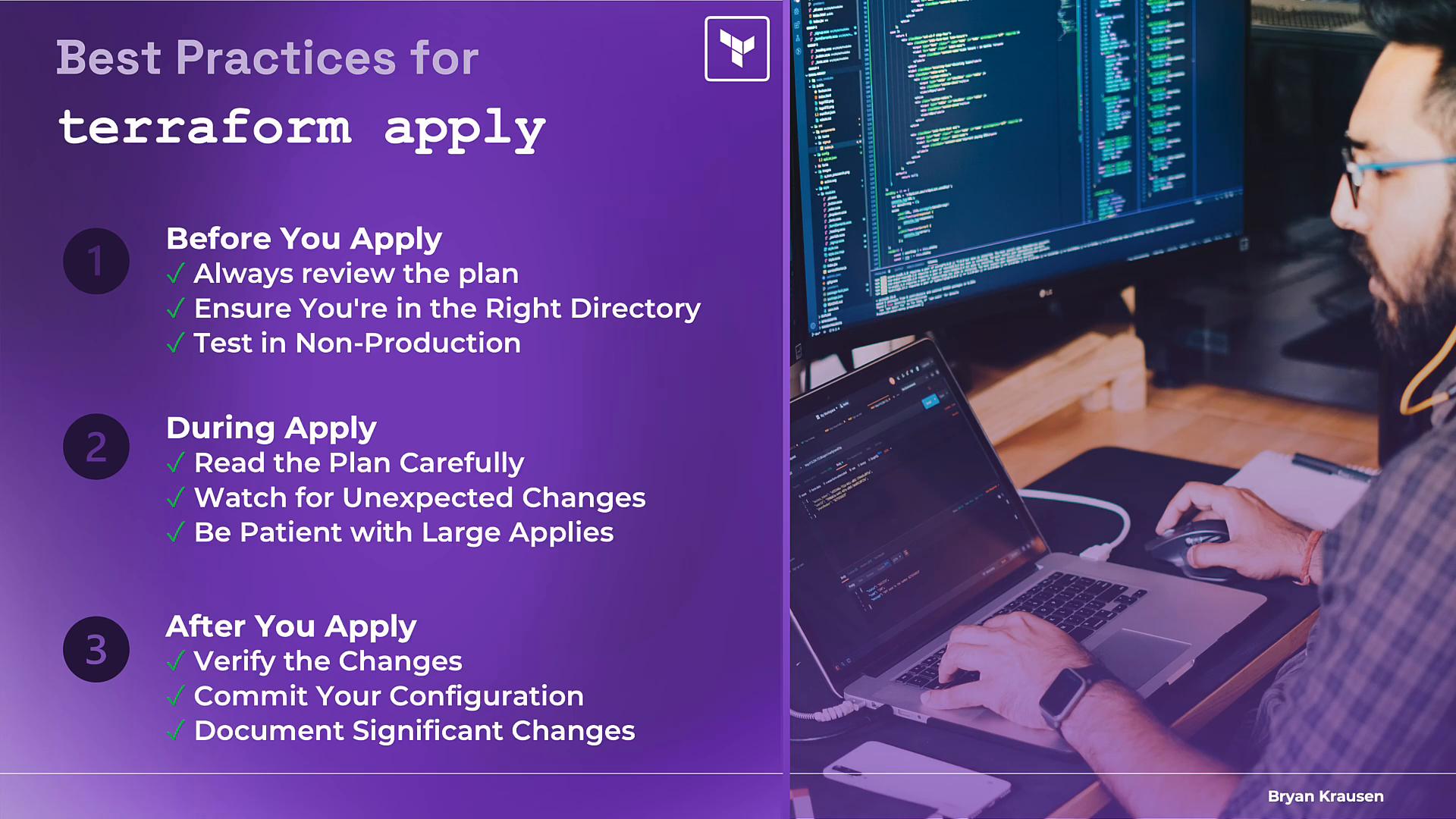
Best practices for terraform apply
- Review the plan before applying: For complex or production changes, run
terraform planseparately and inspect the output carefully. - Confirm context: Ensure you are in the correct directory, backend, and workspace before applying.
- Use non-production environments: Test changes in dev/staging before applying to production.
- Watch the plan output: Don’t habitually confirm without reading; check for unexpected deletions or replacements.
- Be patient: Some resources can take time to provision. Monitor provider operations and logs as needed.
- Verify after apply: Confirm resources are provisioned and functioning as expected; run integration or smoke tests where applicable.
- Record changes: Commit configuration updates with clear messages and update runbooks or operational documentation for significant changes.