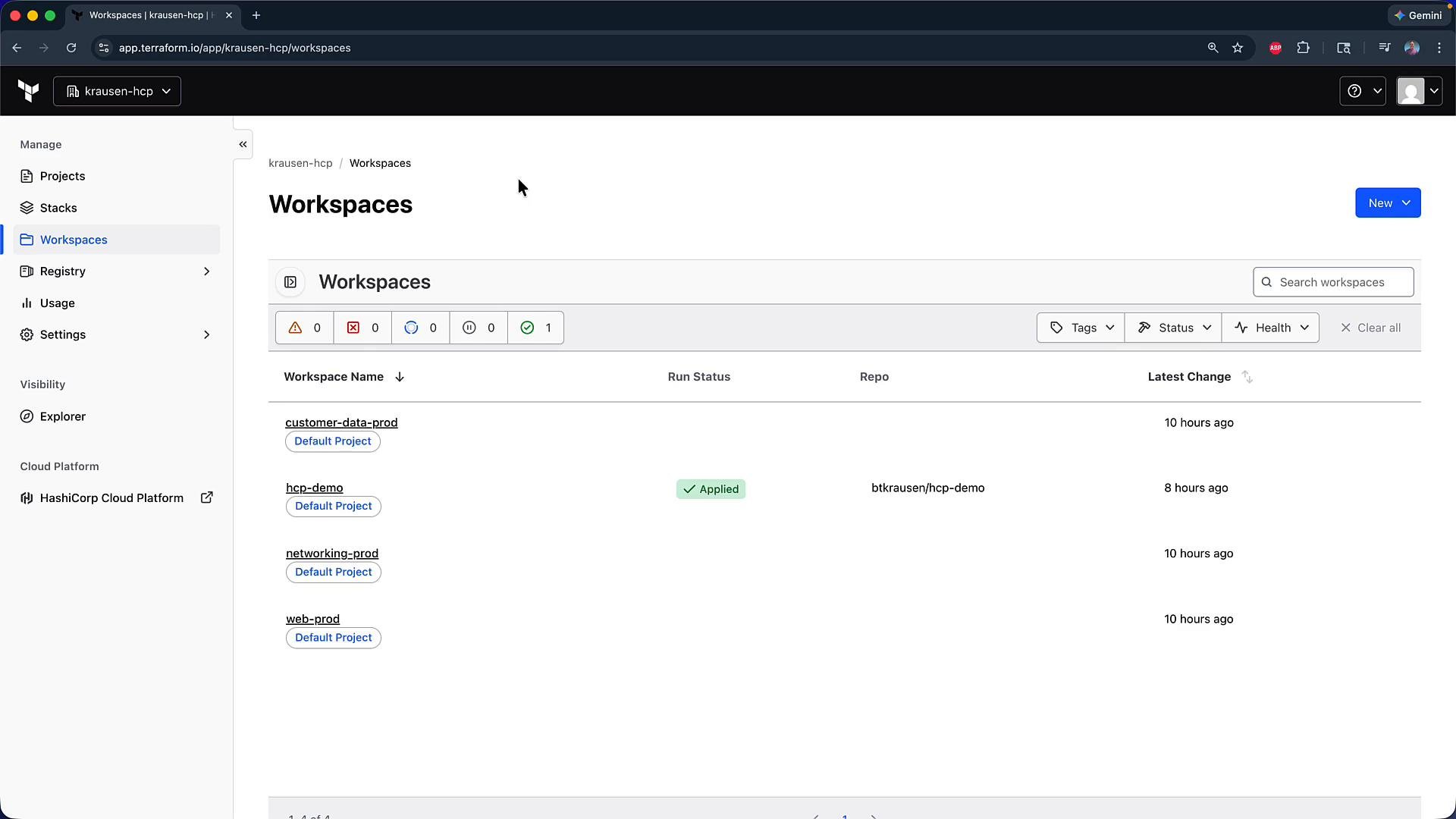
Welcome — in this lesson you’ll learn how to create and manage Projects in Terraform Cloud (HCP Terraform). Follow this guide to create a project, review and configure project settings, and move existing workspaces into a project. These steps help you organize workspaces, enforce defaults (like execution mode and variable sets), and manage access via teams. You can see I’m in HCP Terraform and looking at the workspaces in the cloudsand-hcp organization.
The image shows a web interface for HashiCorp’s Terraform Cloud displaying a "Workspaces" section with a list of workspace projects and their statuses.
What you’ll learn
  • How to create a Project in Terraform Cloud.
  • How to configure project-wide defaults and team access.
  • How to move existing workspaces into a Project.
  • How to verify and delete a Project safely.

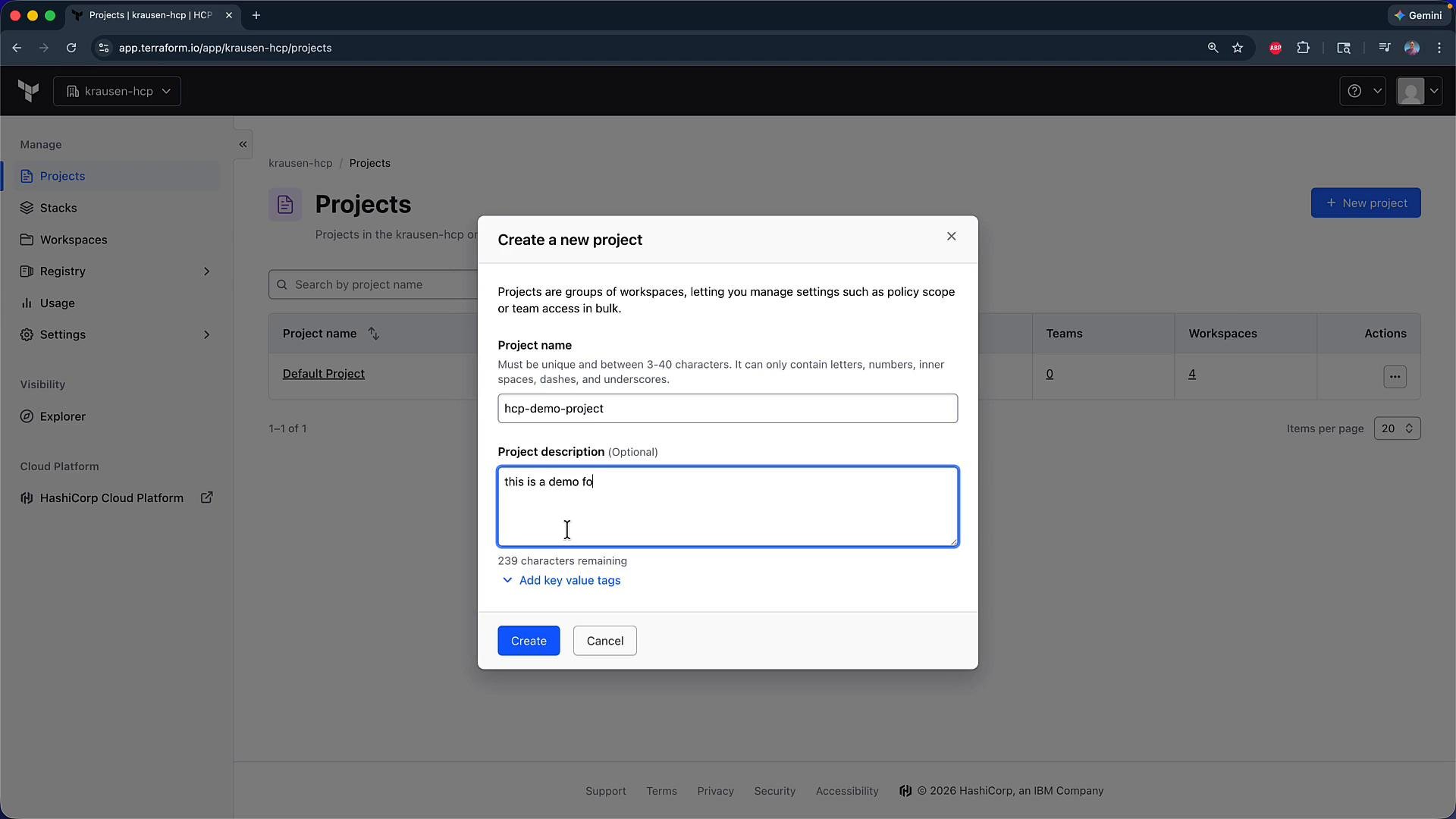
Create a new project

  1. In the Terraform Cloud UI, click Projects (top-left).
  2. You will see the default project (often with no description) and any workspaces already assigned to it.
  3. Click New Project, provide a name such as HCP demo, add an optional description (e.g., “This is a demo”), and click Create.
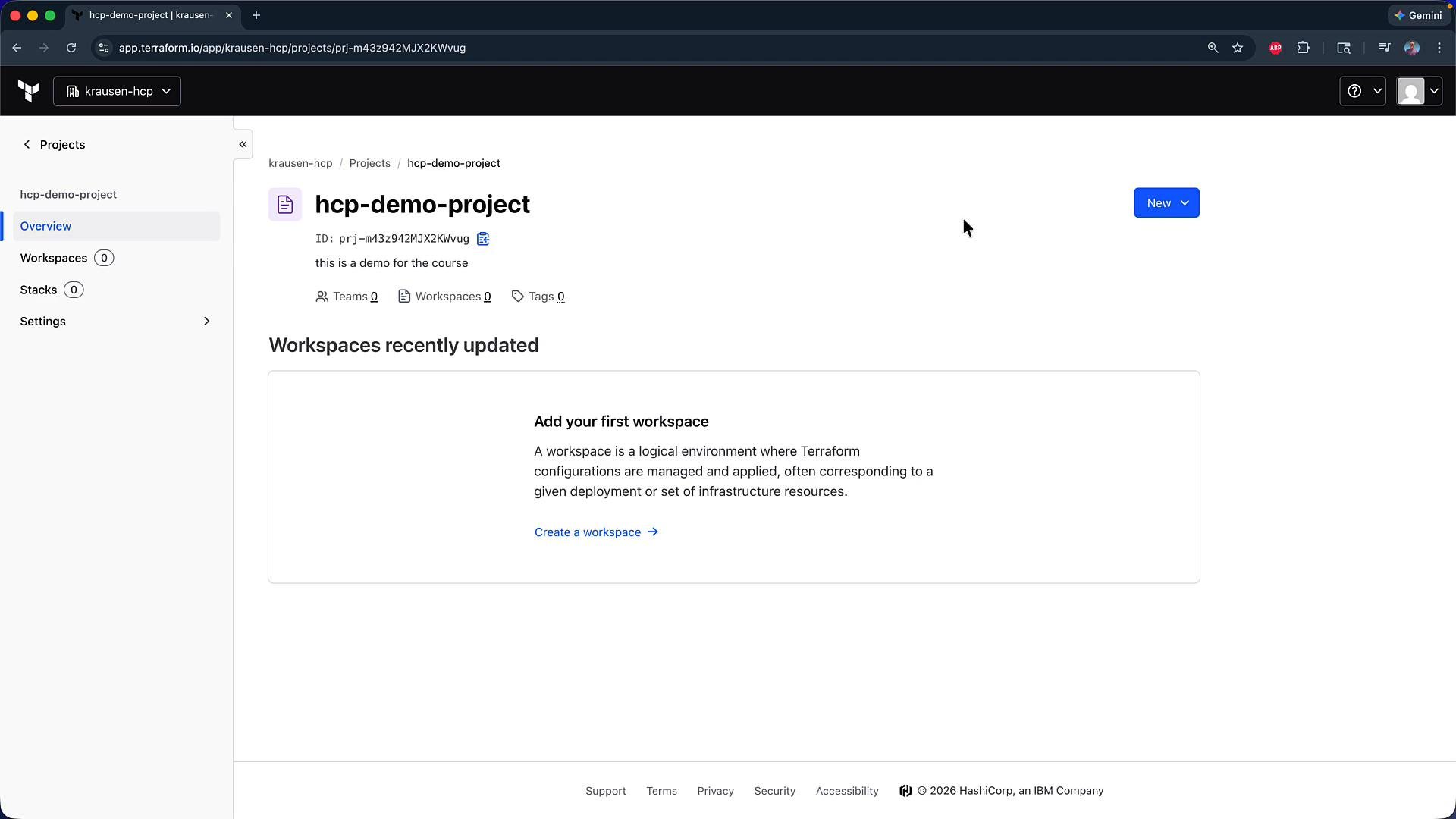
After creating the project you’ll arrive at the Project page where you can see:
  • Project name and project ID.
  • Assigned teams, workspaces, and tags (initially empty).
  • A Create a Workspace button to create workspaces scoped to this project.

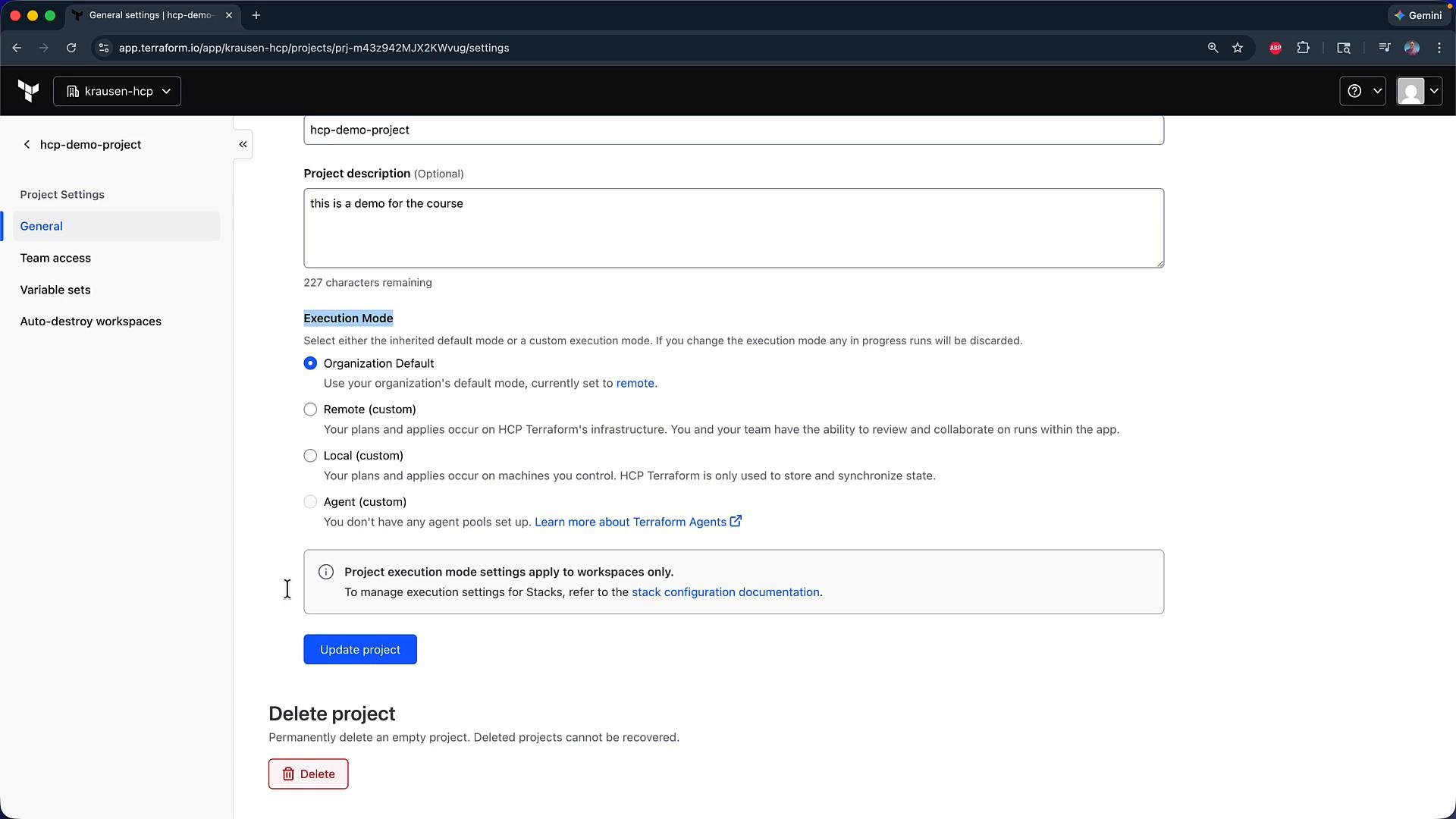
Project settings

From the Project page click Settings to manage project-wide defaults and access controls.
The image is a screenshot of the general settings page for a project in a web application, showing options for project name, description, and execution mode settings.
Key settings you can configure:
SettingPurposeNotes
Default execution modeSet the execution mode for new workspaces in the project (Organization Default, Remote, Local, or Agent)Can be overridden per-workspace if needed
Project metadataName and DescriptionHelps with discoverability and auditing
Team accessWhich teams have access to the projectApply least privilege for production projects
Variable setsApply organization-level variable sets to all project workspacesUseful for shared secrets or common settings
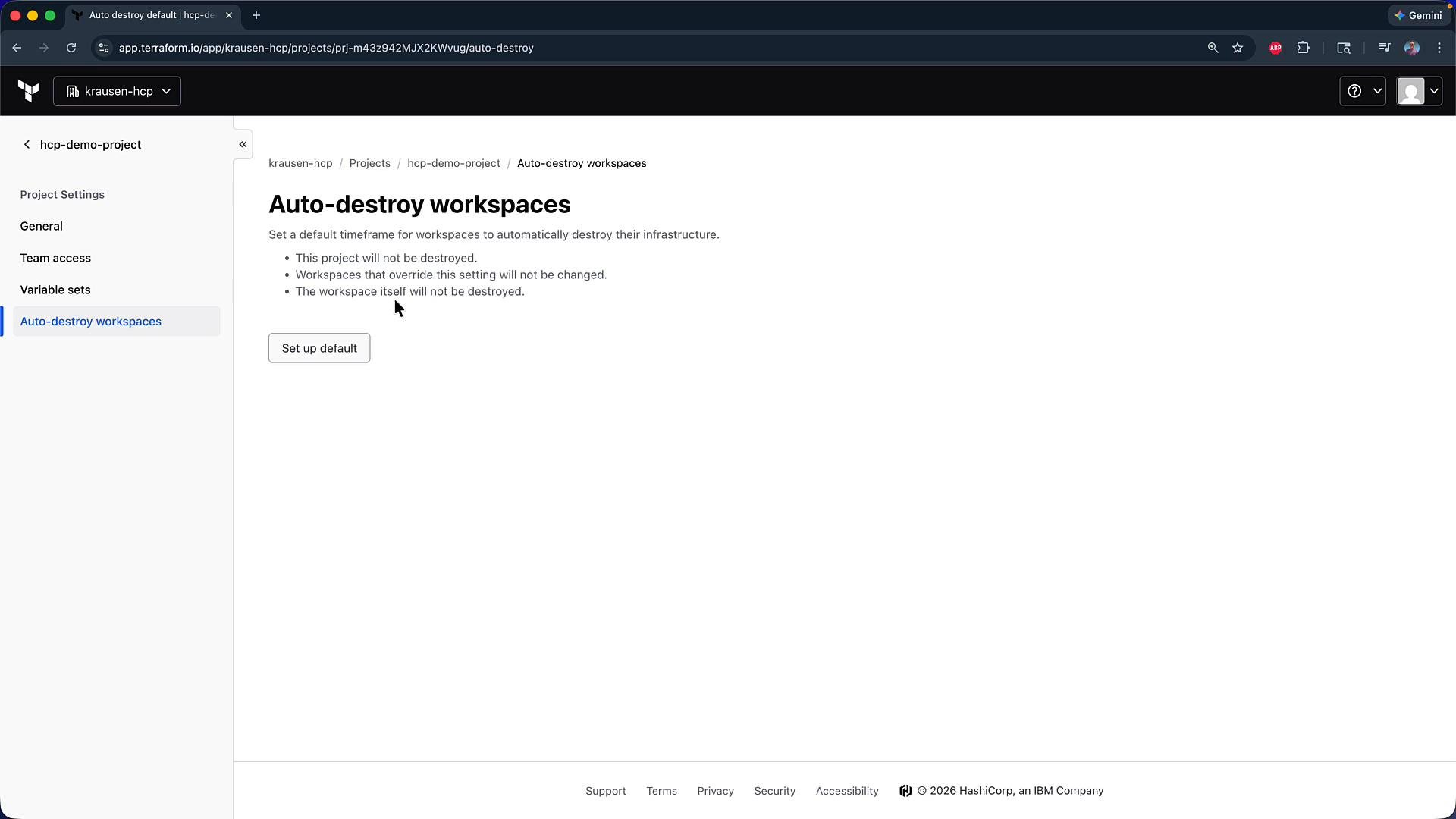
Auto-destroy behaviorPatterns for short-lived/demo workspaces (via automation)Implement using scheduled API runs, CI/CD, or ephemeral workspace workflows
Auto-destroy can help manage cost and cleanup by automatically destroying infrastructure after a set lifetime. Because Terraform Cloud does not provide a single universal scheduled auto-destroy toggle for all workspace types, implement this via automation (API, scheduled runs) or ephemeral workspace workflows and make sure it aligns with your environment and access controls.

Move existing workspaces into a Project

You can move workspaces into a project either from the Organization Workspaces list or from inside a workspace. Method 1 — From the Organization Workspaces view:
  • Go to Organization → Workspaces.
  • For a workspace, click the ellipsis (three dots) on the right and choose Change Project.
  • Select the target project (for example, HCP demo) and click Move.
Method 2 — From inside a workspace:
  • Open the workspace (e.g., web-prod), then go to Settings → General.
  • Update the workspace configuration and set the project association in your workflow or in the Terraform configuration that targets Terraform Cloud.
Example workspace Terraform CLI configuration that targets Terraform Cloud:
terraform {
  cloud {
    organization = "krausen-hcp"

    workspaces {
      name = "web-prod"
    }
  }
}
After saving these settings the workspace will be associated with the selected Project.
The image shows the General Settings page of a Terraform workspace in an application, with options for configuring the Terraform version, working directory, remote state sharing, and user interface. A notification confirms that settings have been successfully saved.

Verify workspaces assigned to a Project

  1. Go to Projects → select your project (for example, HCP demo).
  2. In the Project page, check the Workspaces section to see all assigned workspaces (e.g., web-prod, networking-prod).

Delete a Project

To delete a Project:
  • Open Project → Settings → General and scroll to the bottom to delete the project.
  • The UI will block deletion if the project contains workspaces; you must first move or delete those workspaces.
You cannot delete a project that still contains workspaces. Remove or reassign those workspaces before attempting to delete the project.

Summary

  • Projects in Terraform Cloud let you group workspaces and apply organization-wide defaults (execution mode, variable sets) and team access.
  • Create a new Project and either create new workspaces inside it or move existing workspaces into it from the Workspaces list or workspace settings.
  • For temporary/demo environments, implement auto-destroy via automation or ephemeral workspace workflows to control costs and resource cleanup.
  • A Project must be emptied of workspaces before it can be deleted.

Watch Video