

hcp-demo. This walkthrough covers migrating state, configuring remote runs, and running plans/applies in HCP Terraform (Terraform Cloud) while streaming logs back to your terminal.
What you’ll accomplish
- Deploy a simple AWS VPC and two subnets locally with Terraform.
- Add the HCP
cloudblock to target thehcp-demoworkspace. - Authenticate the CLI with HCP Terraform and migrate local state into the workspace.
- Configure workspace environment variables (AWS credentials) so remote runs can access AWS.
- Run plans and applies from the CLI — executed remotely in HCP Terraform with streamed logs.
Recommended references
Local Terraform configuration
On your local machine, the demo folder contains these files:main.tf— defines the VPC and two subnets (public + private)providers.tf— provider and Terraform settings (initially local-only)variables.tf— variable declarations with defaults
Example
main.tf (resources)
providers.tf (initial local-only configuration)
terraform.tfstate file):
terraform.tfstate file in your working directory.
Add the HCP cloud block to target the workspace
To point this configuration to the HCP workspacehcp-demo, add a cloud block under the top-level terraform block. This instructs Terraform to use remote execution and the specified workspace as the backend.
Final providers.tf with HCP cloud configuration:
Authenticate the CLI to HCP Terraform
Authenticate the Terraform CLI to HCP Terraform so it can create runs and upload state:app.terraform.io. You will be prompted to paste the token into the CLI:
Initialize after changing the backend (migrate state)
Because you added thecloud block, run terraform init again. Terraform will detect remote execution and offer to copy your local workspace state to the selected HCP workspace.
yes to migrate the existing local state into the hcp-demo workspace. Terraform will complete initialization and upload the current state into HCP Terraform as the workspace’s initial state version.
When Terraform runs remotely in HCP, the execution occurs on HCP-managed workers. These remote workers cannot access your local environment variables, files, or credentials. Store any required secrets (for example, cloud provider credentials) in the workspace variables or use a supported authentication method for remote runs.
First remote plan: missing credentials error
If you run a plan now, Terraform will execute the plan on HCP’s remote workers and stream the output back. However, early in the run you may encounter an error because the remote worker lacks AWS credentials:~/.aws/credentials or environment variables. To allow remote workers to authenticate to AWS, add the AWS credentials as workspace environment variables in the HCP UI.
Add workspace environment variables (AWS credentials)
In the HCP Terraform workspacehcp-demo go to: Variables → Add variable(s). Add the following environment variables and mark them as sensitive:
AWS_ACCESS_KEY_ID(sensitive)AWS_SECRET_ACCESS_KEY(sensitive)AWS_SESSION_TOKEN(sensitive) — only if using temporary STS credentials
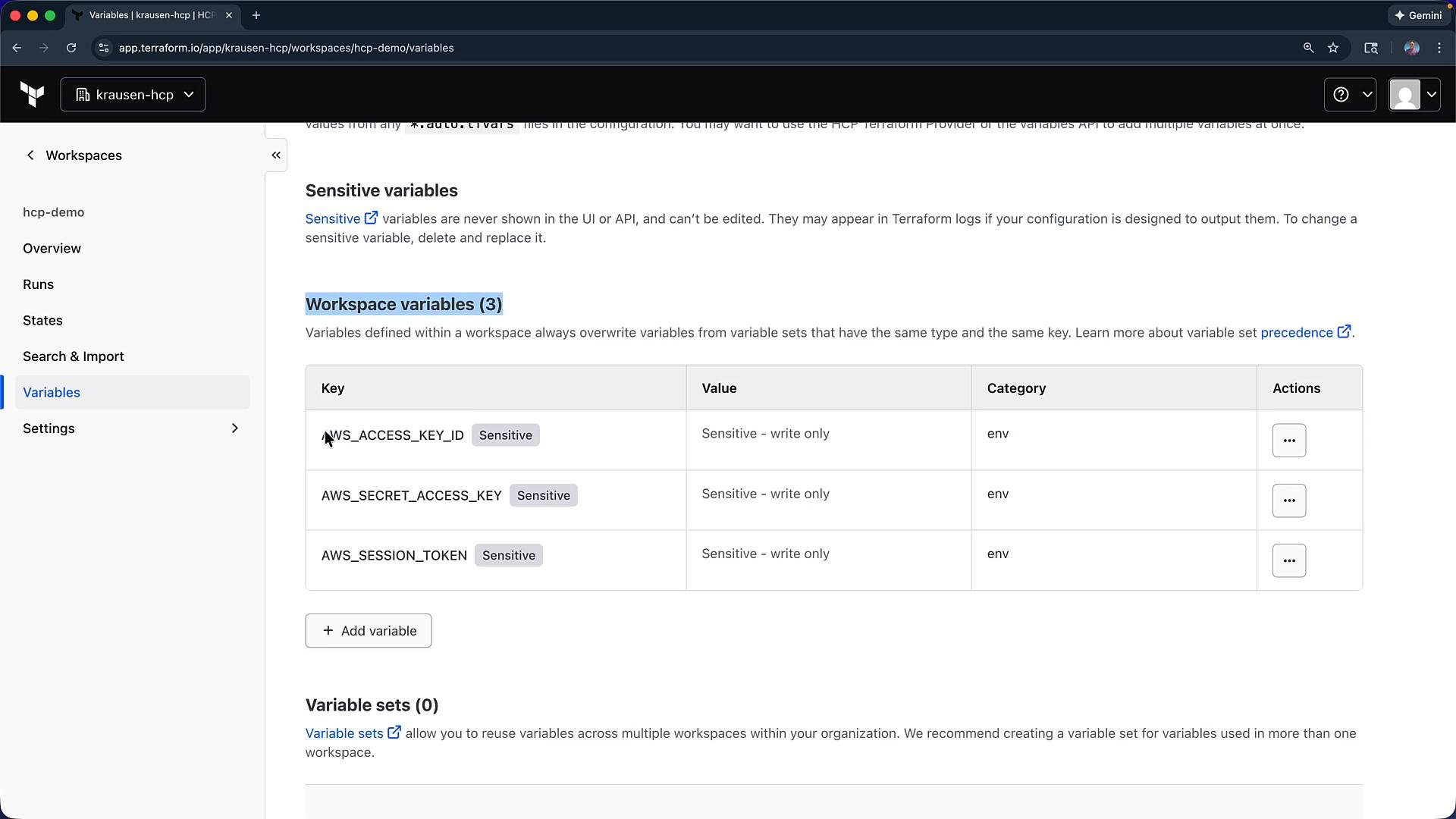
Treat workspace credentials as secrets. Always mark provider credentials as sensitive in the workspace UI. Rotate keys regularly and prefer short-lived credentials (STS) where possible.
Run plan and apply remotely
With workspace credentials configured, run a plan again. This will trigger a remote run in HCP Terraform and stream logs to your terminal:Tags entry to the VPC), the next terraform plan will show the expected change.
Example main.tf VPC change (add a tag):
Workspace overview and resources
The HCP Terraform workspace Overview page displays:- Recent runs and their status
- Run details and logs for each run
- Resources managed by the workspace (for this demo: AWS VPC, private subnet, public subnet)
- Provider versions and creation details
Wrap-up
What you accomplished in this migration:- Deployed resources locally with Terraform and created a local
terraform.tfstate. - Added a
cloudblock to target thehcp-demoworkspace in HCP Terraform. - Authenticated the CLI with
terraform login. - Migrated the local state to HCP via
terraform initand copying state to the workspace. - Configured workspace environment variables for AWS credentials so remote runs can authenticate.
- Executed remote
terraform planandterraform applyfrom the CLI and validated runs/state in the HCP UI.
- Consider using remote state locking and versioning provided by HCP Terraform to collaborate safely.
- Use short-lived credentials (STS) or an IAM role for better security posture.
- Automate workspace variable creation via the HCP API or Terraform provider for reproducible CI/CD pipelines.