

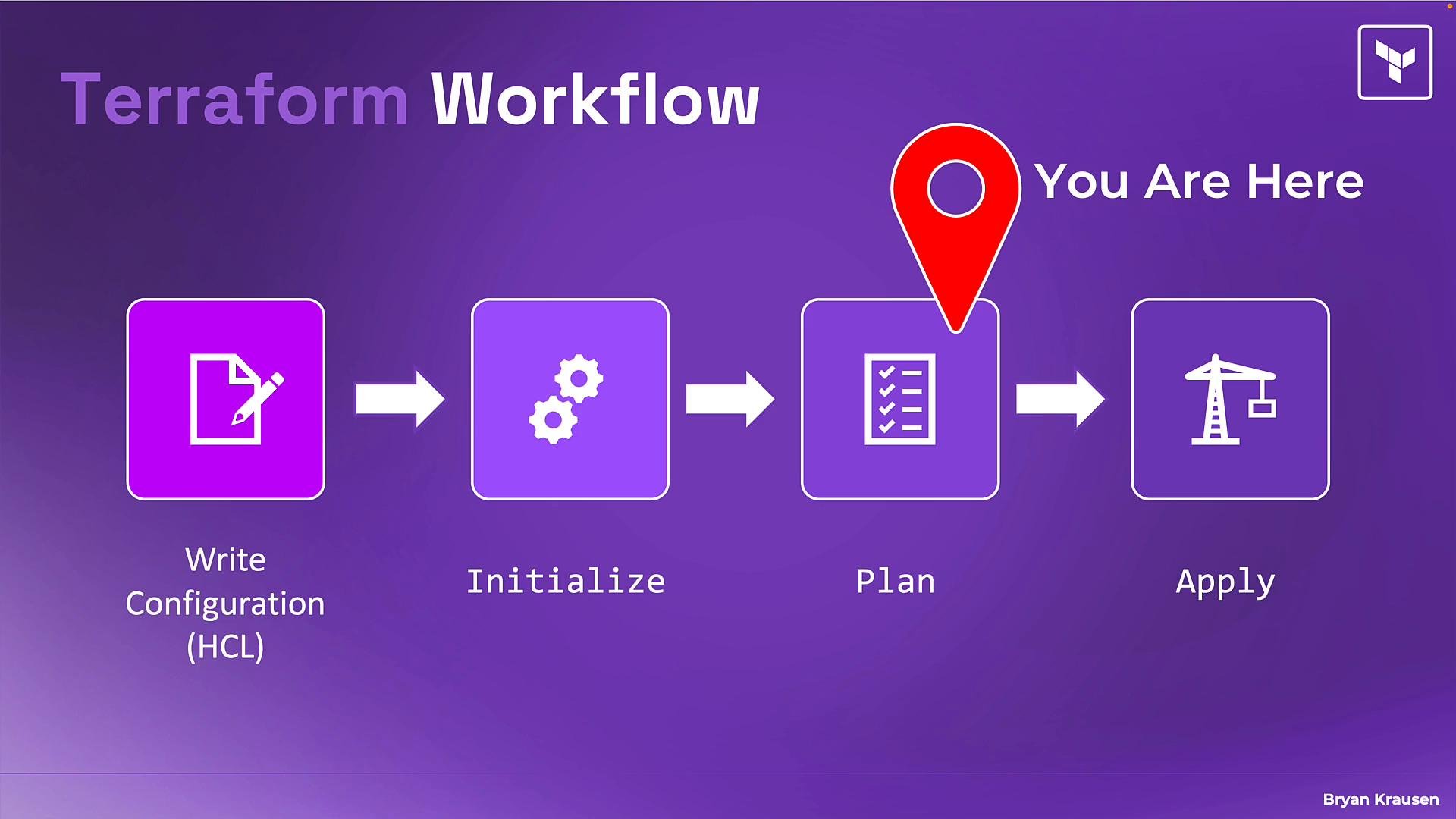
- What
terraform plandoes and why it’s important - How the plan lifecycle (refresh → diff → plan) works
- How to read plan output, including symbols and summaries
- How to save plans for review and guaranteed execution
What terraform plan does
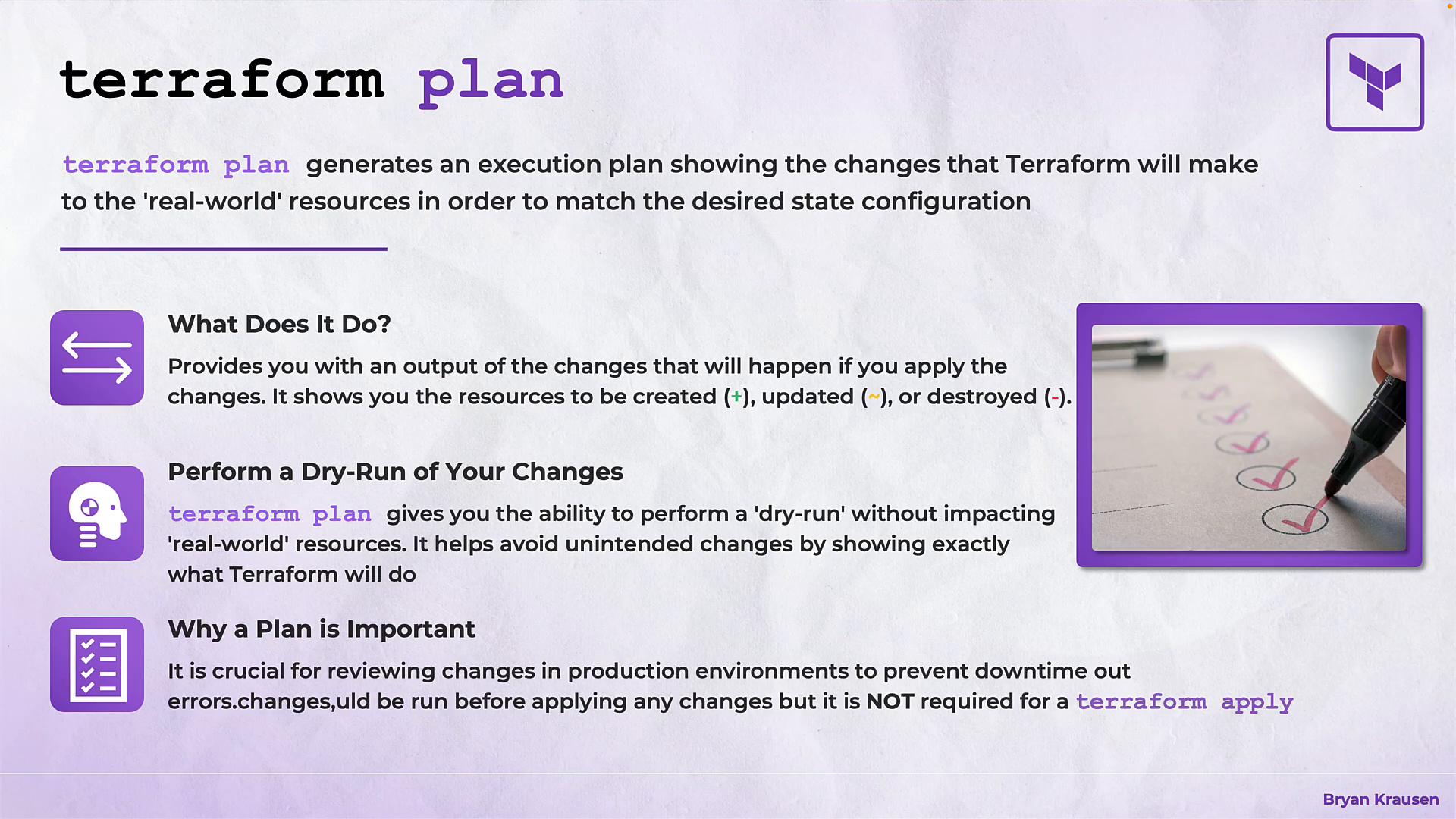
- Terraform generates an execution plan that describes all actions it will take to make real-world resources match your desired configuration.
- Running
terraform planis a dry-run: it does not create, modify, or destroy resources. - The plan annotates resources with symbols that indicate the intended action:
+create~update in-place-destroy-/+destroy and then create replacement
Why run plan first?
- Best practice: always run
terraform planbeforeterraform apply. - You can run
terraform applydirectly (it will implicitly plan first), but explicitly runningterraform plangives you a chance to review and validate the exact actions Terraform plans to perform.
How terraform plan works (refresh → diff → plan)
- Terraform refreshes the state of existing resources by querying provider APIs to obtain the current real-world state.
- Terraform compares the refreshed state with your desired configuration to compute the differences.
- Terraform displays a legend, a detailed list of resource actions (create/update/destroy/replace), and a summary count.
Terraform plan refreshes the remote state by default (it queries provider APIs) so it knows the current resource state before calculating differences. You can disable this behavior with
-refresh=false if needed, but the default refresh ensures the plan reflects the latest real-world state.Plan output: symbols and what they mean
Summary counts (for example,
Plan: 2 to add, 1 to change, 2 to destroy) give a quick sense of the scope of change across your environment.
Example plan output
The example below shows a typicalterraform plan terminal session. It includes refresh messages, the legend, detailed resource changes, and the final summary. Sensitive values are redacted.
Key details to notice in the output
- Creates (
+) often include attributes that will be populated only after apply (e.g.,id = (known after apply)). - Updates in-place (
~) show modified attributes. Secrets and other sensitive attributes are redacted as(sensitive value). - Replacements (
-/+) highlight the attribute(s) that force replacement (for example, changing an immutable field). - Destroys (
-) occur when a resource exists in state but is removed from your configuration. - The summary line provides an at-a-glance count of adds/changes/destroys.
Save plans for review and guaranteed execution
Saving a plan is useful for approval workflows: a saved plan captures the exact actions Terraform will take. Applying that plan later will execute exactly those actions without recalculating. Commands:
Notes:
- The plan file is a Terraform-specific (mostly binary) representation of the execution plan — it’s not for human reading.
- Applying a saved plan executes the exact reviewed actions without re-planning, which is ideal for audit and CI/CD workflows.
- Ensure you create and apply the saved plan with the same Terraform version and compatible providers; otherwise the saved plan may not be usable.
Saved plans are tied to the Terraform version and provider versions used to create them. Applying a saved plan with a different Terraform or provider version can fail or behave unexpectedly. Always generate and apply saved plans with consistent tooling.
Best practices
- Always run
terraform planbeforeterraform applyto preview changes. - Use
terraform plan -out=...in CI/CD or team workflows to generate a reviewable plan artifact. - Review summary counts and replacements carefully — replacements (
-/+) often indicate potential data loss or downtime. - Use
-refresh=falsesparingly; relying on the default refresh keeps the plan accurate to the current real-world state. - Keep Terraform and provider versions consistent across machines and CI runners to avoid plan/apply incompatibilities.
Links and references
In summary:terraform plan is an essential, low-risk way to preview and validate changes. Use it to catch mistakes early, save plans for team reviews, and rely on the clear plan output to understand creates, updates, replacements, and destroys before applying changes.