

- Creating a fine-grained GitHub PAT
- Choosing token scopes for Terraform
- Supplying the token to Terraform (environment variable and provider examples)
- Security recommendations and rotation
Quick overview
- Create a fine-grained PAT in GitHub (recommended for least privilege).
- Grant only the repository-level permissions Terraform needs.
- Provide the token to Terraform using the
GITHUB_TOKENenvironment variable or the provider configuration. - Rotate and store tokens securely.
Create a fine-grained GitHub personal access token
- Sign in to GitHub and click your profile image (top-right) → Settings.
- In the left-hand menu, select Developer settings.
- Choose Personal access tokens → Fine-grained tokens.
- Click Create a new token.
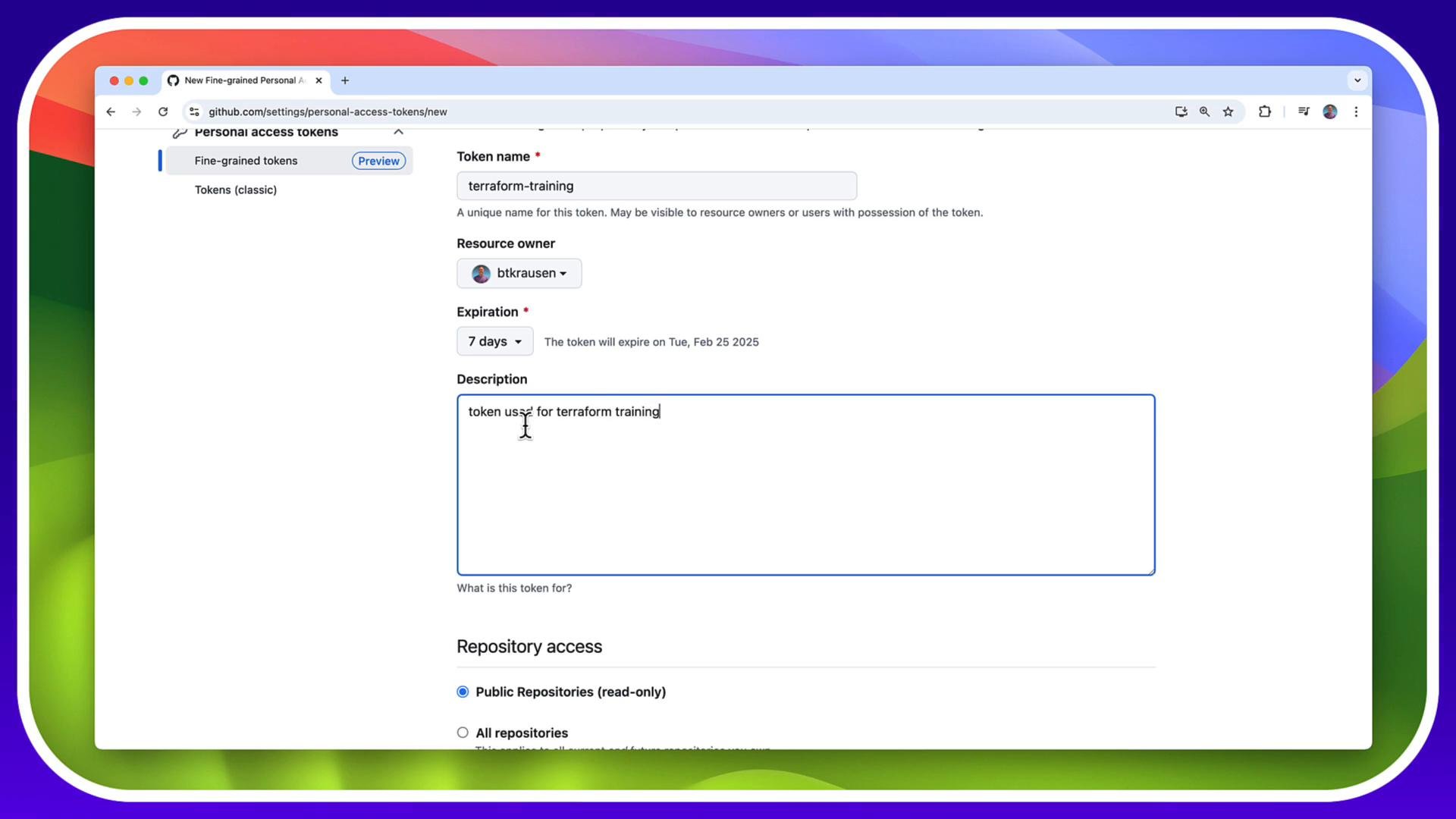
- Token name:
Terraform training - Resource owner: your account
- Expiration: e.g., 7 days
- Description:
token used for terraform training
Recommended repository permissions for Terraform
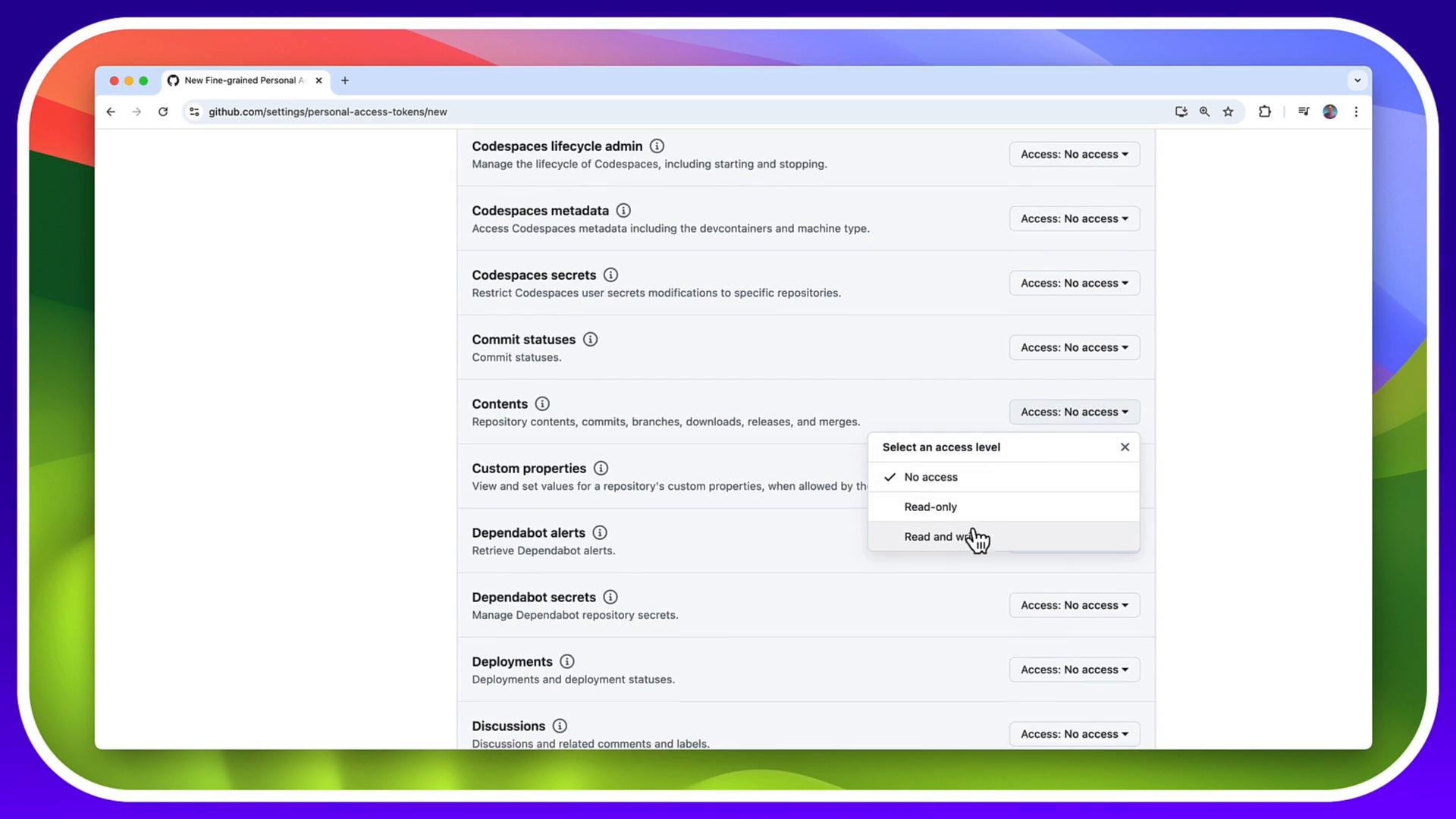
For basic repository creation and content management, give Terraform the minimum permissions it needs. In hands-on labs you might use broader access, but in production scope the token to the specific repos or organization.
Under “Repository permissions” assign the appropriate access level for each capability. If you only need Terraform to manage repositories programmatically, scope to only those repositories or the organization where possible.
Copy the token immediately after generation. GitHub will not show it again after you leave the page. Store it securely (for example in a secrets manager or your local environment only for short-lived testing).
Provide the token to Terraform
The GitHub provider for Terraform reads credentials from theGITHUB_TOKEN environment variable by default. Set the environment variable in your shell or CI environment.
Examples:
- macOS / Linux (bash, zsh):
- Windows PowerShell:
- Replace
'github_pat_XXXXXXXXXXXXXXXXXXXXXXXXXXXXXXXXXXXX'with the token string GitHub displayed at generation. - Environment variables set this way are session-scoped. To persist across sessions, add the export line to a shell profile (e.g.,
~/.bashrc,~/.zshrc), or use a secrets manager and inject it into your CI/CD pipeline. - If the token expires or is rotated, update the environment variable or CI secret accordingly.
Treat personal access tokens like passwords. Do not commit them to source control, do not share them publicly, and rotate them frequently. If a token is accidentally exposed, revoke it immediately from GitHub.
Optional: Terraform provider configuration
You usually don’t need to put the token directly in Terraform code — using the environment variable is safer. For completeness, here are two provider examples.- Recommended: rely on
GITHUB_TOKENenvironment variable (no token in code):
- Explicit token (not recommended for code committed to VCS):
Common troubleshooting
- Terraform fails with authentication errors: verify
GITHUB_TOKENis set in the shell or CI job and that the token has the right scopes. - “Insufficient permissions” messages: adjust token scopes or narrow the resource owner/target repository access correctly.
- Token expired: generate a new PAT and update your environment/CI secret.
References and next steps
- Creating a personal access token (GitHub docs)
- GitHub REST API overview
- Terraform GitHub provider documentation