

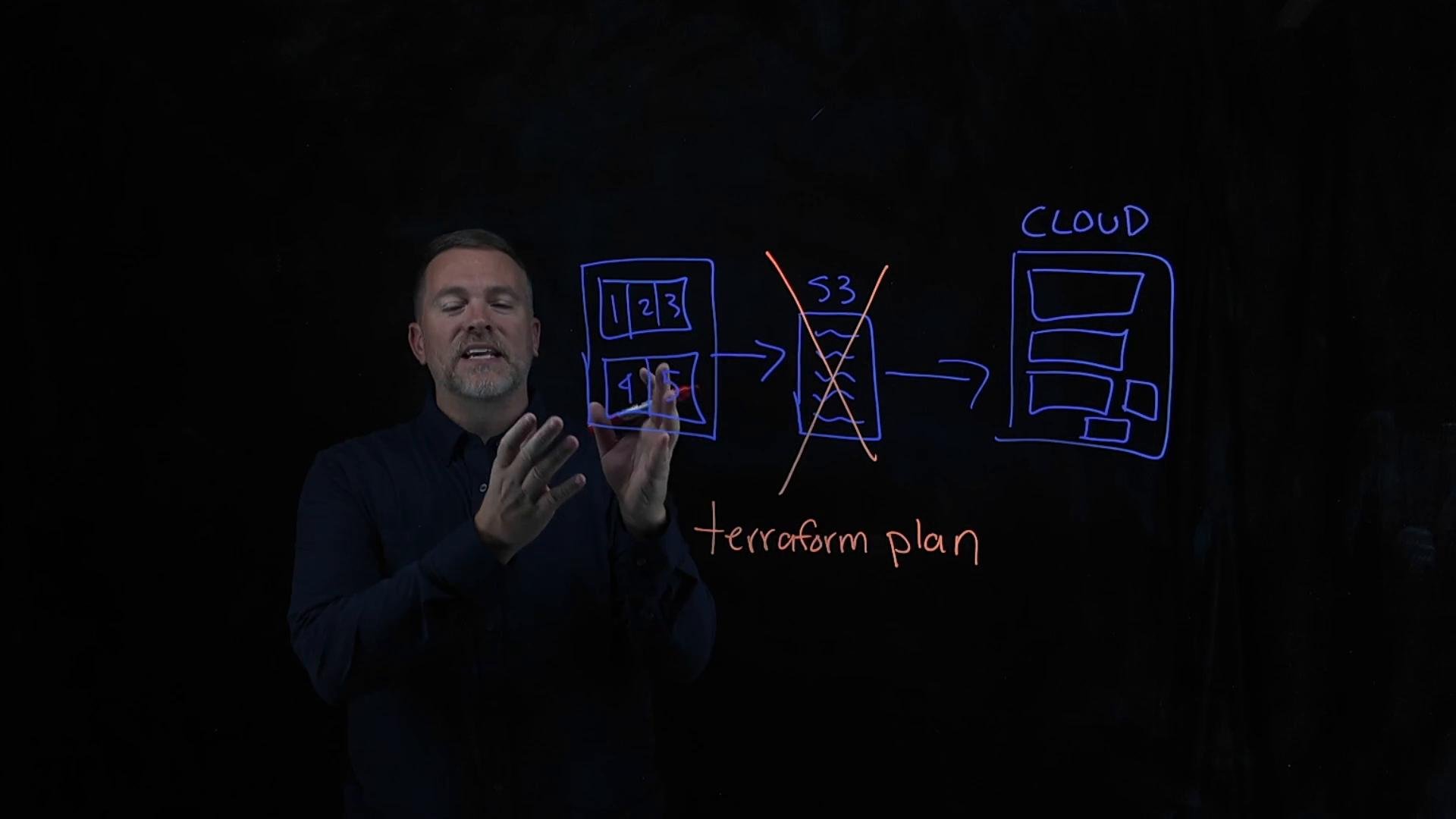
- You have a Terraform configuration that creates five virtual machines (VMs).
- You run
terraform planandterraform apply. Terraform writes a state file (for example, to an Amazon S3 backend with versioning). - At this point, your configuration, the state file, and the cloud infrastructure (five VMs) are in sync.
- If Terraform cannot access the state file but your configuration files remain unchanged on disk, Terraform has no record linking the configured resources to the existing VMs.
- Running
terraform planin this situation causes Terraform to assume those resources don’t exist and it will plan to create them again — resulting in duplicate VMs when you runterraform apply.
Restore a backup of the state file
- If you use a remote backend such as Amazon S3 with versioning enabled, restoring a previous version of the state file is the fastest and safest approach.
- Steps:
- Identify the correct state file version in your backend (S3, Terraform Cloud snapshots, etc.).
- Restore/overwrite the current state file with that version in the backend.
- Run
terraform init(if required by backend changes) andterraform planto confirm the state matches your configuration.
- Use
terraform importto adopt existing infrastructure into the state.terraform importlinks an existing resource ID with a resource address defined in your configuration — it updates state only and does not modify HCL. - Important: the corresponding resource block must already exist in your configuration, and
count/for_eachusage and module addresses must match the resource addresses you plan to import.
aws_instance resources
aws_instance.web[1], aws_instance.web[2], etc.) with their provider-specific IDs. After importing all instances, run:
terraform state subcommands for advanced repairs
- For targeted state operations (move objects between addresses, remove broken entries, list state objects) use
terraform statesubcommands:terraform state listterraform state mvterraform state rm
- These commands are powerful and can easily leave state inconsistent if used incorrectly. Always:
- Back up the state file before making changes.
- Test changes in a safe environment if possible.
- Validate with
terraform planafter modifications.
Always back up your state file before performing
terraform state operations or manual edits. Incorrect state manipulation can lead to resource drift or accidental destruction when you later run terraform apply.- If you do nothing and run
terraform applywithout state, Terraform will create resources to match the configuration, producing duplicates. terraform importtells Terraform which existing cloud resource corresponds to which resource address in your configuration so Terraform can manage them from that point forward.- After successful imports,
terraform planshould show zero changes (unless your HCL differs from actual settings).
Before running
terraform import, ensure the corresponding resource block exists in your configuration. terraform import maps an existing resource ID into a resource address defined in your HCL.- Losing the state file causes Terraform to “forget” the resources it manages;
terraform plan/terraform applywill then try to recreate configured resources. - Best recovery paths:
- Restore the state file from a backup or remote backend versioning.
- Reconstruct state by ensuring matching resource blocks and using
terraform import.
- Use
terraform statesubcommands for surgical fixes, but only after backing up state and validating changes. - Always verify results with
terraform planbefore applying changes to avoid accidental duplication or deletion.
- Terraform import documentation: https://developer.hashicorp.com/terraform/cli/commands/import
- Terraform state commands: https://developer.hashicorp.com/terraform/cli/commands/state
- Amazon S3: https://aws.amazon.com/s3/